Overview

This section will go over some commonly asked questions regarding optimizing work orders.

Optimize Route

After creating a work order, you can further refine and optimize the route. Optimizing a route will rely on the user's hours/business hours. Route optimization focuses on reducing overall travel time and distance, leading to lower fuel consumption, less wear and tear, and more time available for revenue-generating work.

We have multiple ways to optimize route and dispatch to optimize routes. To optimize the route of one user, click the user's name on the Schedule's "Timeline View," "Calendar View," or "Composite View." For detailed instructions on optimizing your work orders, refer to the View and Optimize Route page.

Dispatch Notification for too Many Work Orders

To optimize the routes of multiple users and redistribute the work orders, select the work orders from either the Work Order "List" page or the Customer "List" page, then select the "Add Routes" option from the More Actions drop-down.

For more information about the Work Order "List" page or the Customer "List" page, please refer to the Customers List page or the Work Orders List page.

Dispatch Notification for too Many Work Orders

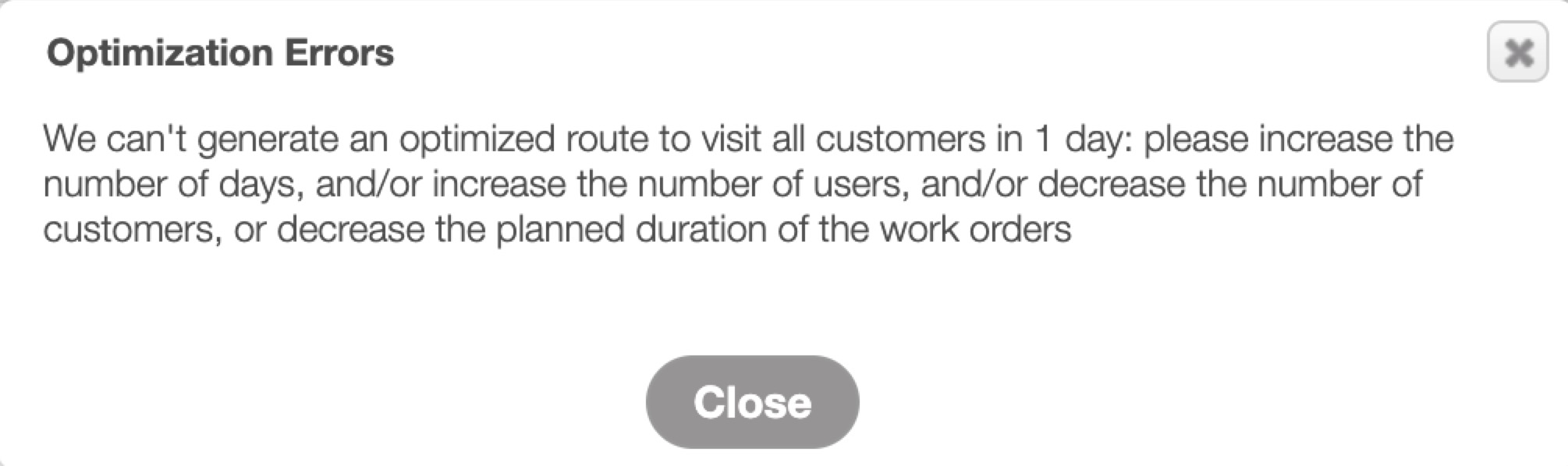
When optimizing work orders for a user, if too many work orders are scheduled for a single day, you will receive a notification prompting you to reduce the number of work orders or assign additional users. This notification helps dispatchers prevent overloading a single technician with more work than can reasonably be completed in one day. By alerting you when a schedule exceeds daily capacity, MobiWork allows you to proactively balance workloads; either by reducing the number of assigned work orders or by allocating additional users:
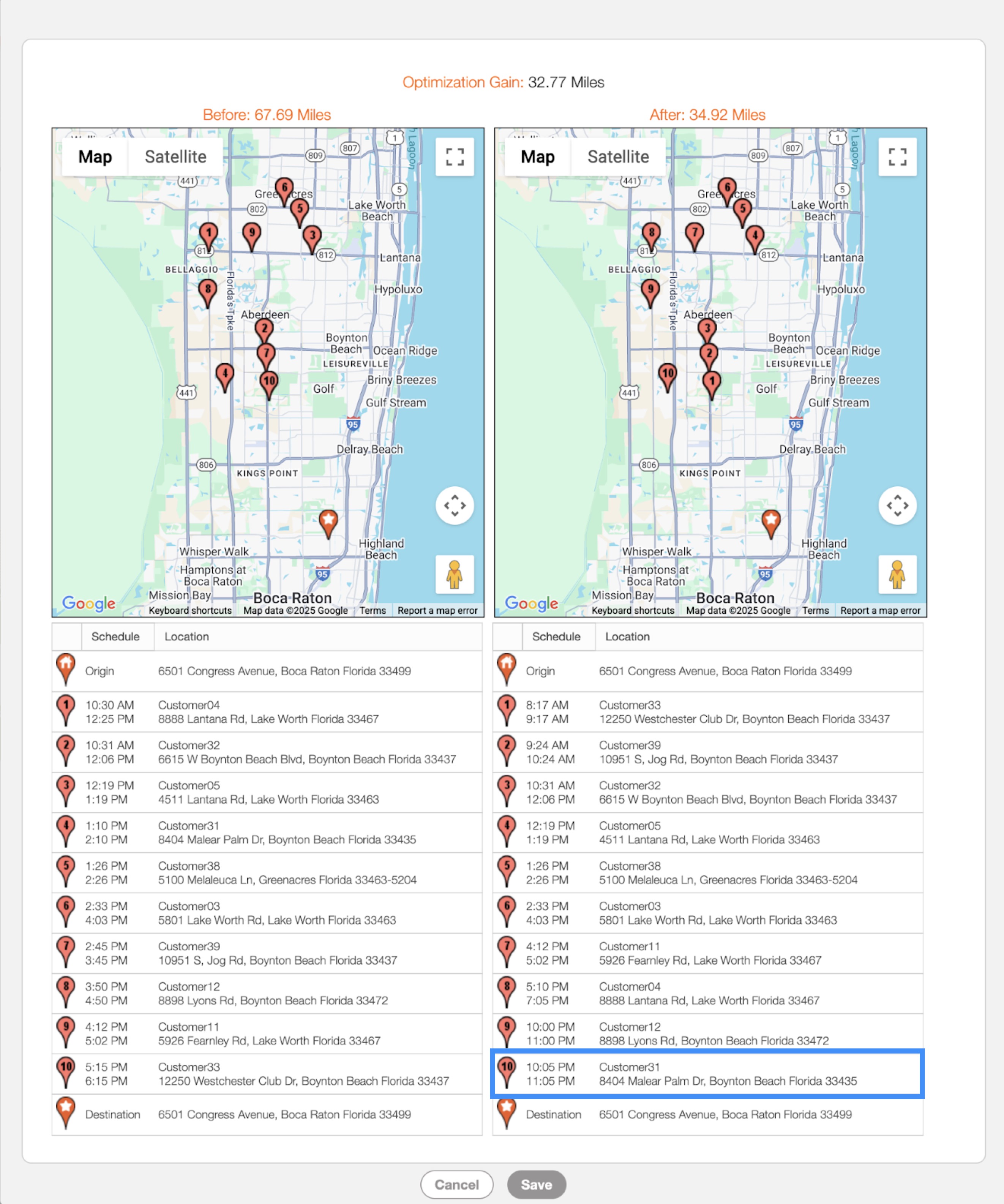
If you choose to proceed with the dispatch optimization, the excess work orders will be rescheduled outside of business hours, beginning at 10:00 PM that same day, making follow-up scheduling adjustments easier and more transparent: