
Whether you need to adjust stock levels for a part or product, transfer inventory to a warehouse, or reserve items for future use, MobiWork has you covered. With the Inventory feature, you can easily manage and update your part or product inventory levels, as well as transfer select parts to your desired warehouses and users.
You will also be able to set up and optimize stock thresholds and ensure transparent operations across your entire inventory system.
This page will highlight how to access and utilize the edit stock levels actions.
To edit the part or products inventory levels, first access the "Inventory" tab in the View Part pop-up window:
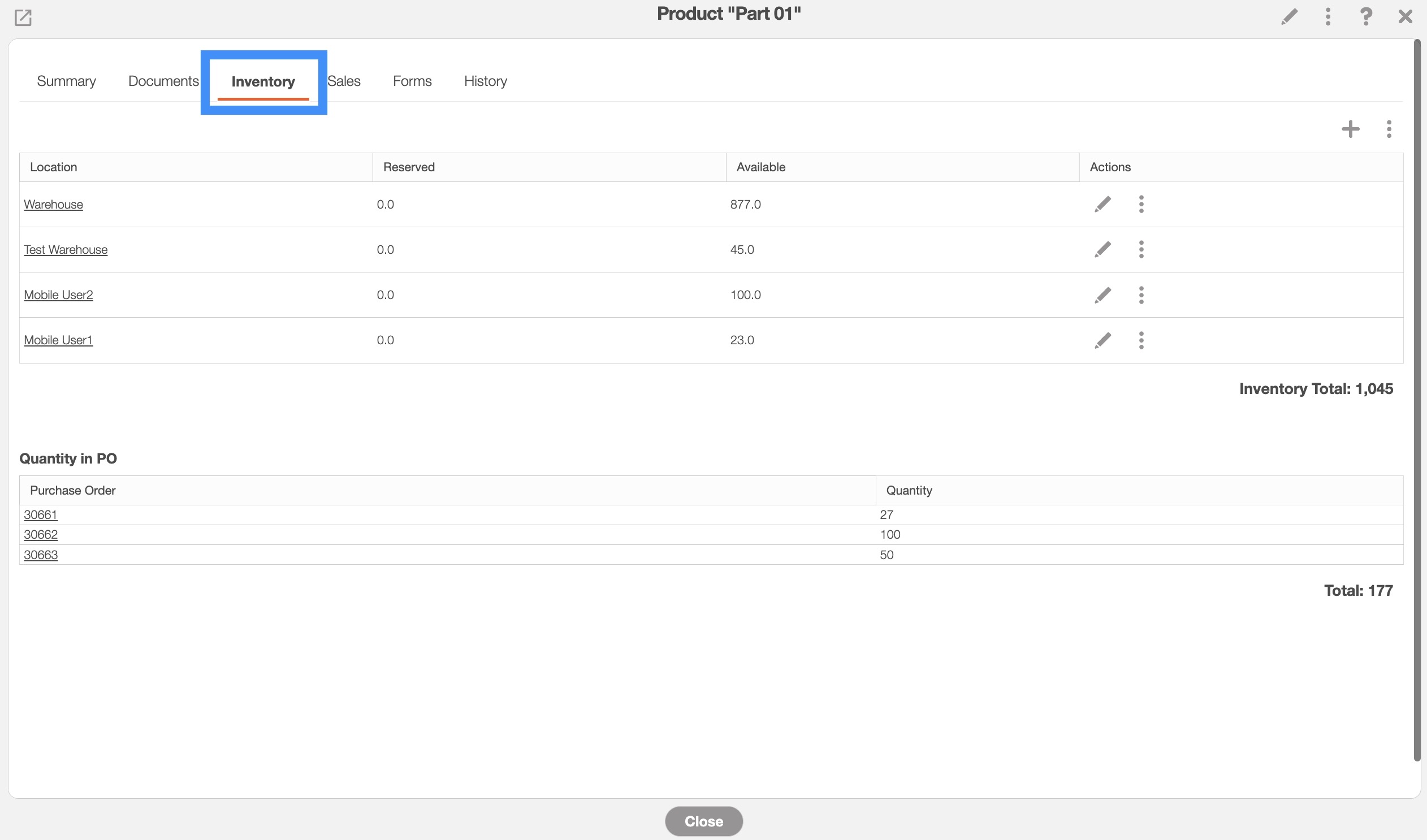
For more information on how to access this tab, please see the View Part page.
Once you are on the "Inventory" tab on the View Part pop-up window, there are three different ways that you can edit the inventory stock levels of the selected part or product:
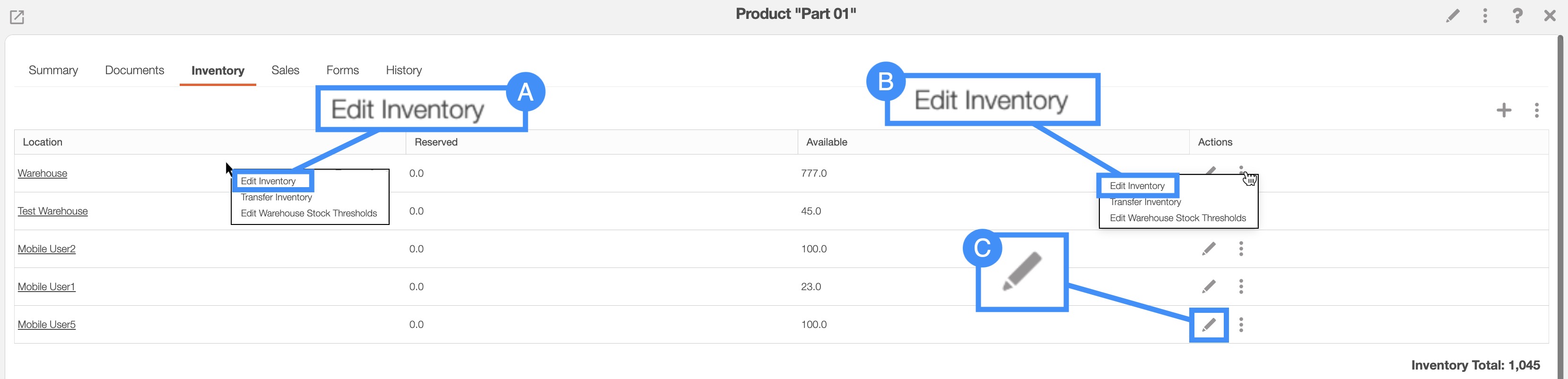
You can edit the inventory levels by:
Right-clicking on the selected part or product and selecting the "Edit Inventory" option from the drop-down.
Clicking on the Pencil icon.
Or by clicking on the Individual Actions button and selecting the "Edit Inventory" option from the drop-down.
Regardless of the method you use to edit the inventory stock levels, the Edit Inventory pop-up window will appear:
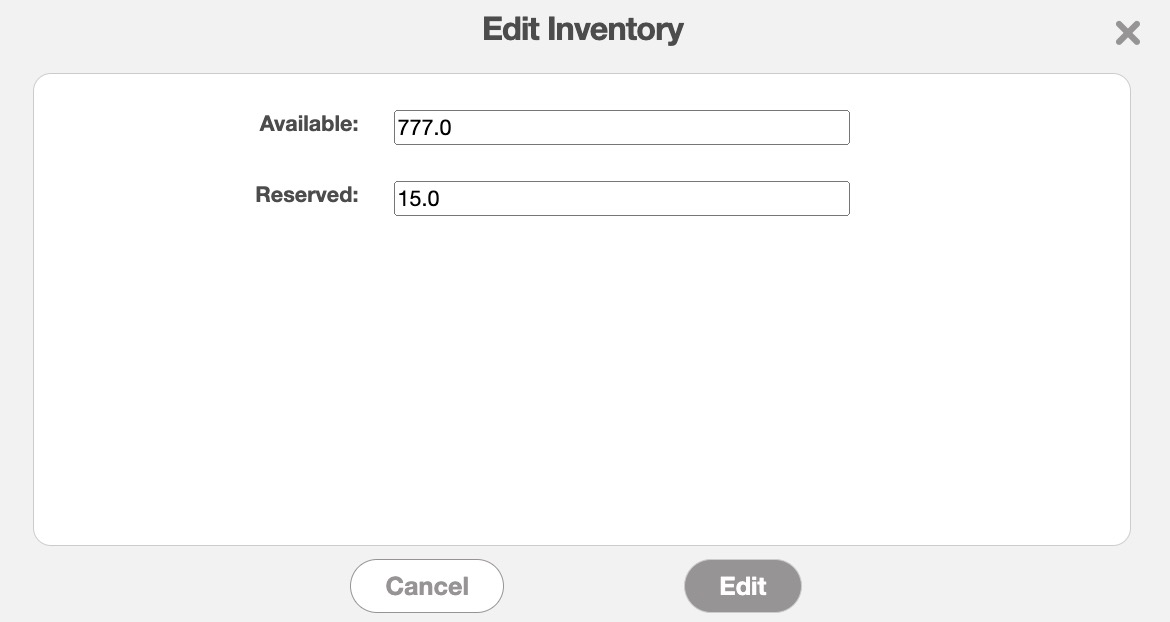
In this pop-up window, you can input the following data:
The available inventory stock levels.
The reserved inventory stock levels.
Once you are satisfied with the updated stock levels, click on the Edit button to confirm the changes.
Once you are on the "Inventory" tab on the View Part pop-up window, there are two different ways that you can edit the warehouse inventory stock levels of the selected part or product:
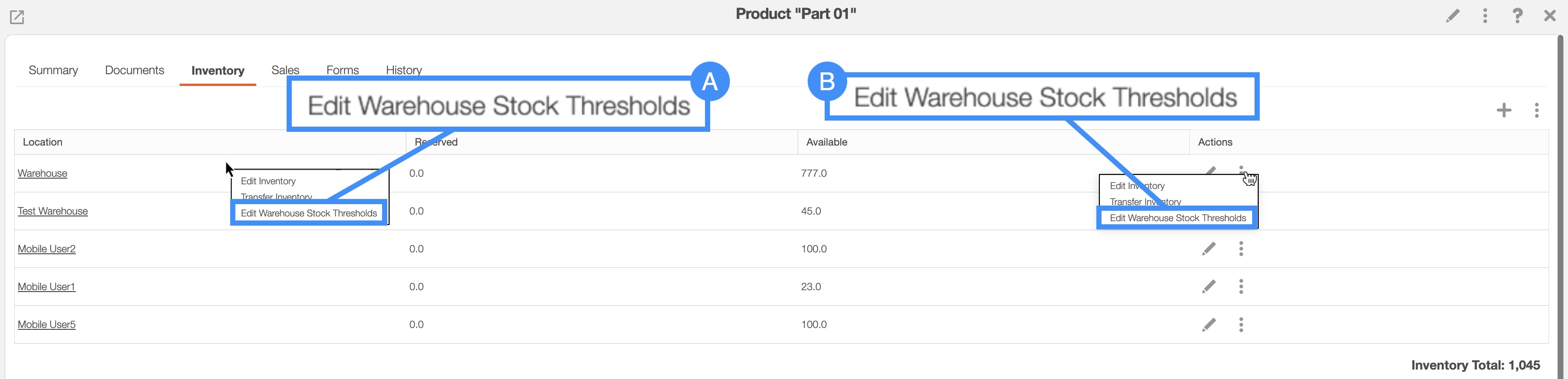
You can edit the inventory warehouse levels by:
Right-clicking on the selected warehouse and selecting the "Edit Warehouse Stock Thresholds" option from the drop-down.
Clicking on the Individual Actions button and selecting the "Edit Warehouse Stock Thresholds" option from the drop-down.
Regardless of the method you use to edit the warehouse inventory stock levels, the Edit Stock pop-up window will appear:
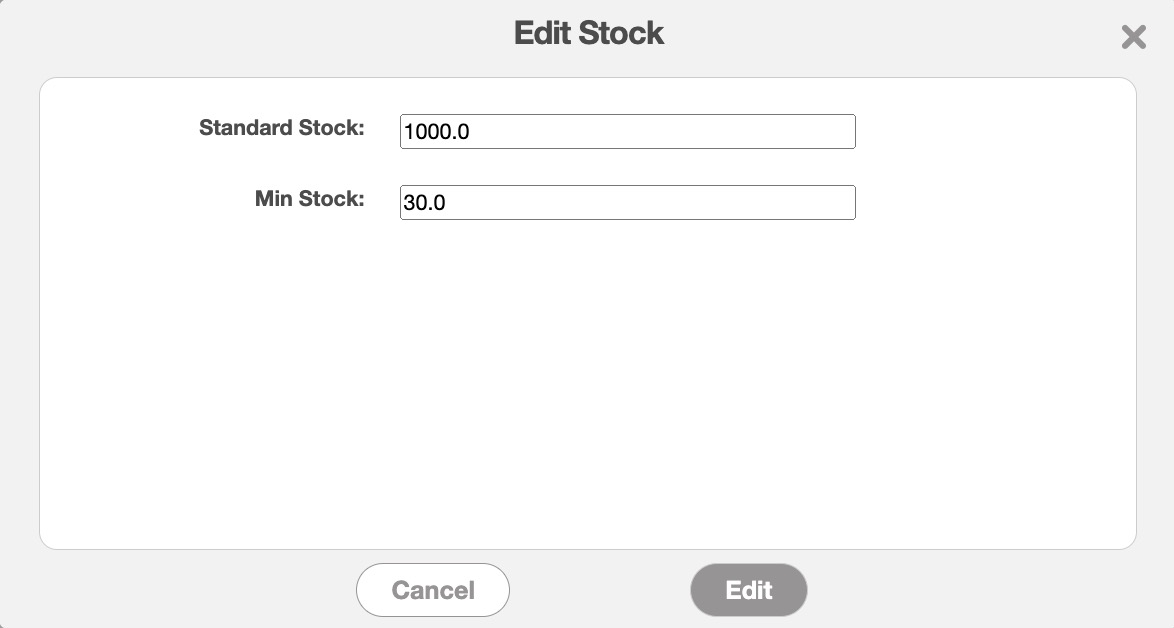
In this pop-up window, you can input the following data:
The standard stock levels.
As well as the minimum stock levels.
Once you are satisfied with the updated warehouse stock levels, click on the Edit button to confirm the changes.
There are several different inventory export options to choose from; each Excel report will display a different range of data. There are four different export options to choose from:
Export Warehouse Inventory Only to Excel- This action exports inventory data specifically for your warehouses.
Export User Inventory Only to Excel- This action exports inventory data specifically for your users.
Export Inventory to Excel- This action exports inventory data for both your users and warehouses.
Export Stock Thresholds to Excel- This action exports stock level data, indicating whether inventory is low or at standard levels.
To export your inventory levels to an Excel file from the Inventory feature page, select the parts that you would like to export:

Please note that if you would like to export all your parts into Excel you can click on the topmost checkbox (Multiple Selection Area) located under the tabs. Likewise, if you do not select any entries ALL records will be exported.
Click on the More Actions button and from the drop-down menu select the desired export option:

The Excel file will automatically download, and you will be able to locate it in your computer's Download folder.
Note: Please note that in the Excel document, a double asterisk (**) indicates a conditional field, while a single asterisk (*) denotes a required field.