
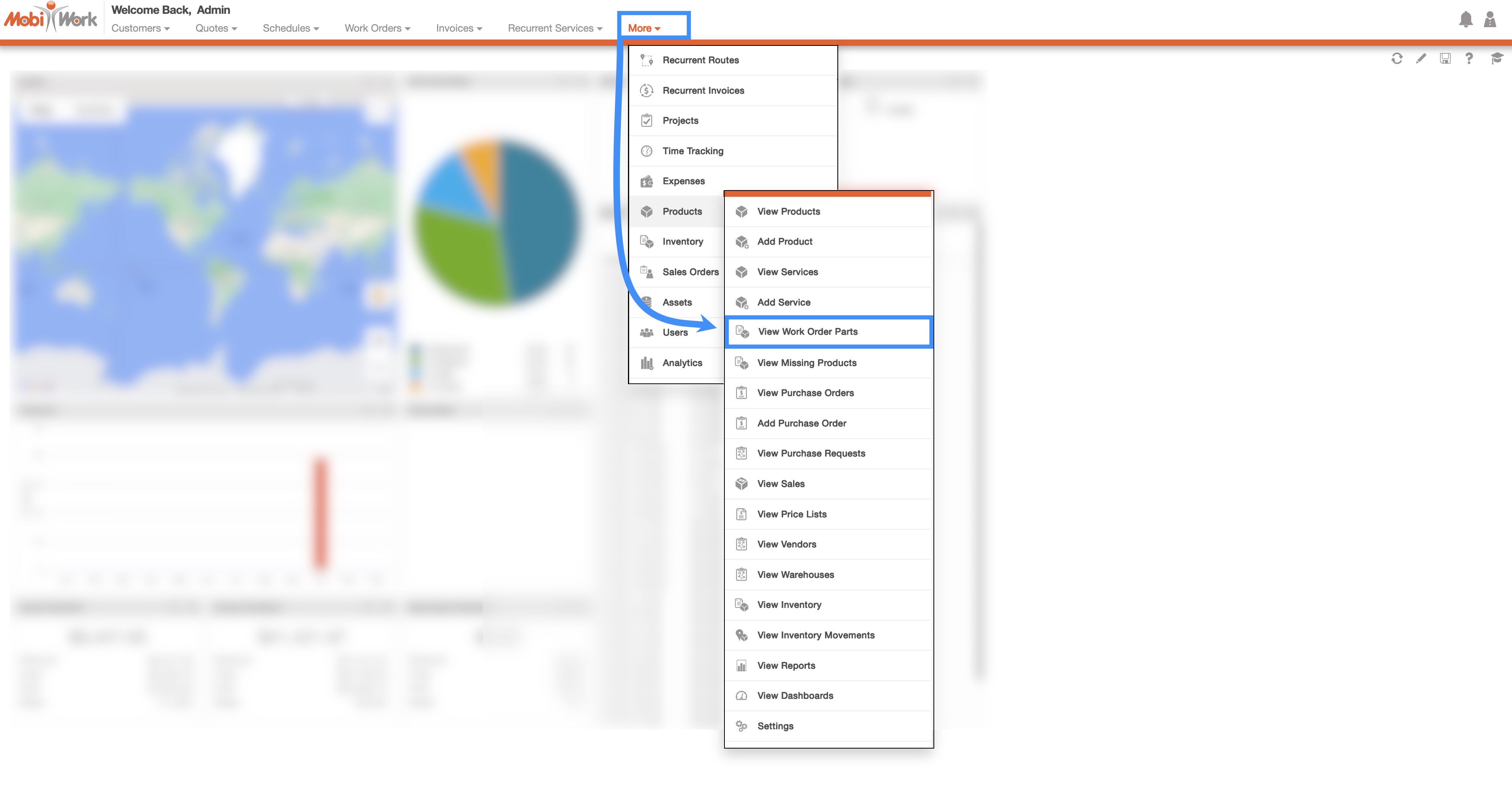
You can access the Work Order Parts feature page by hovering over the Products feature from your MobiWork menu; from the drop-down that appears click on the "View Work Order Parts" option:
The "List" tab is the default tab you will be brought to once you access the View Work Order Parts feature; from this page you can see all the parts associated with work orders summarized on one page.
Below is a list of the main features that are located on the "List" tab page:
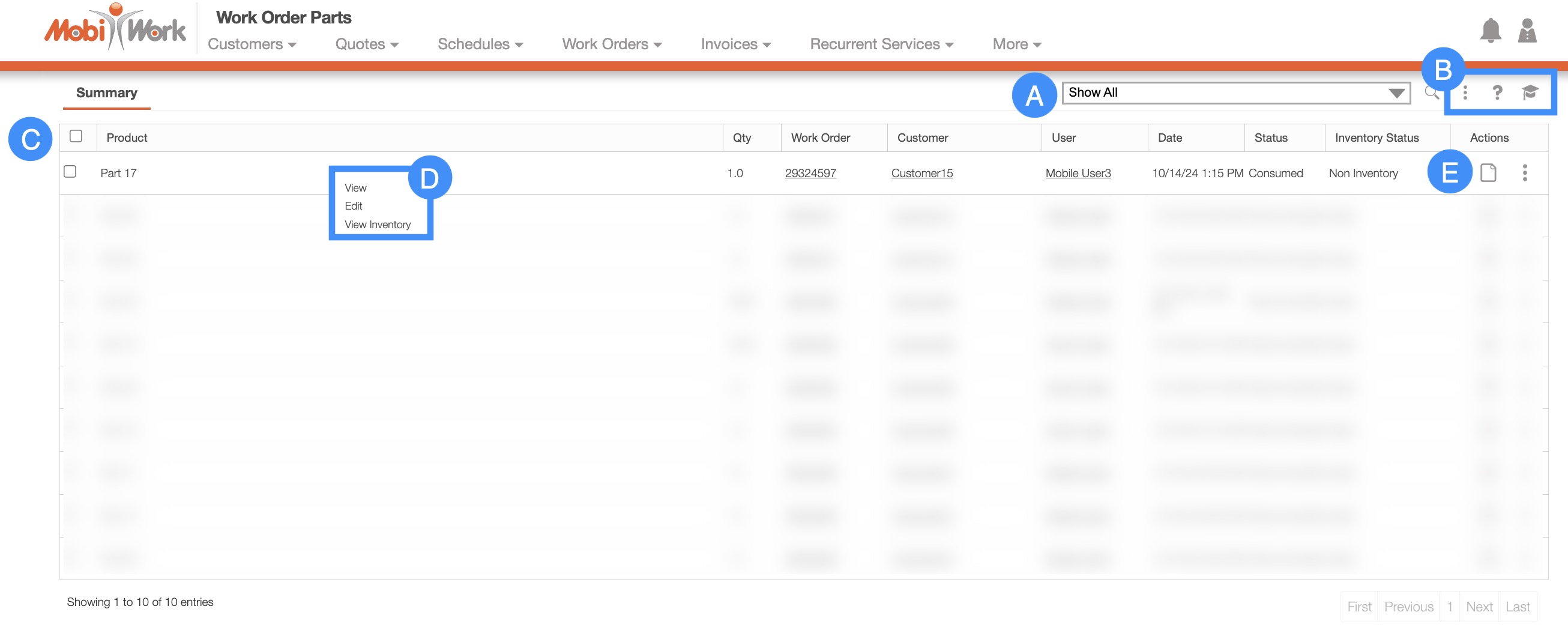
Search Area
Global Actions
List Columns
Right-Click Actions
Individual Actions
The "Global Actions" section is located at the top-right of your Work Order Products page:
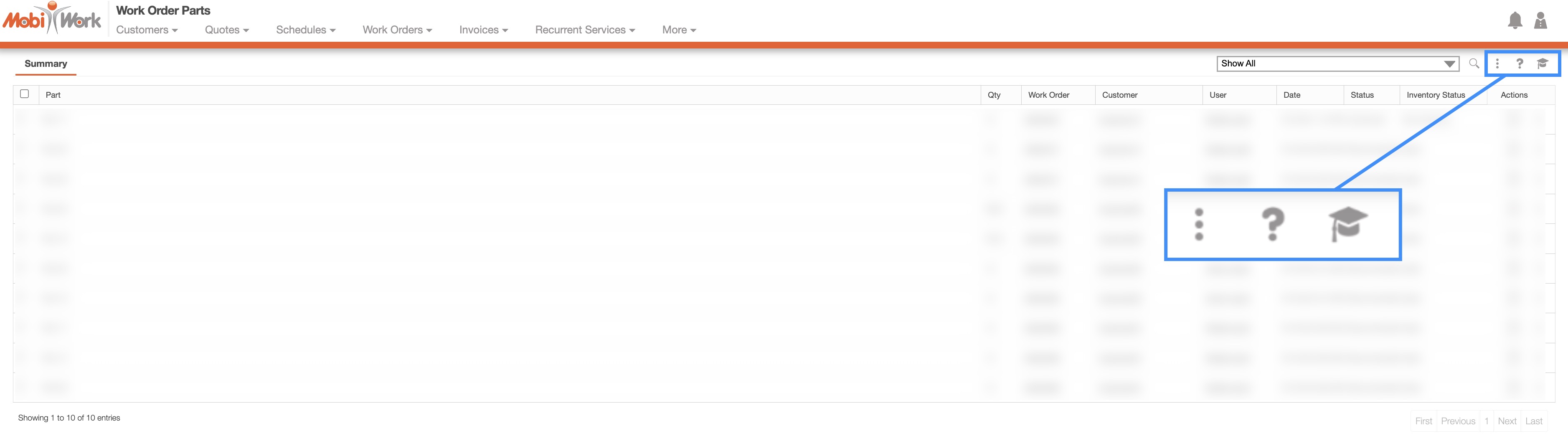
The "Global Actions" section includes:
The More Actions button (represented by the three vertical dots) which will allow you to create a purchase order for the selected work order parts.
The Question Mark button which will direct you to the respective MobiWork Features page.
The Graduation Cap which will activate the Onboarding Assistant.
After clicking on the vertical three dots in the top-right corner, the More Actions drop-down menu will appear:
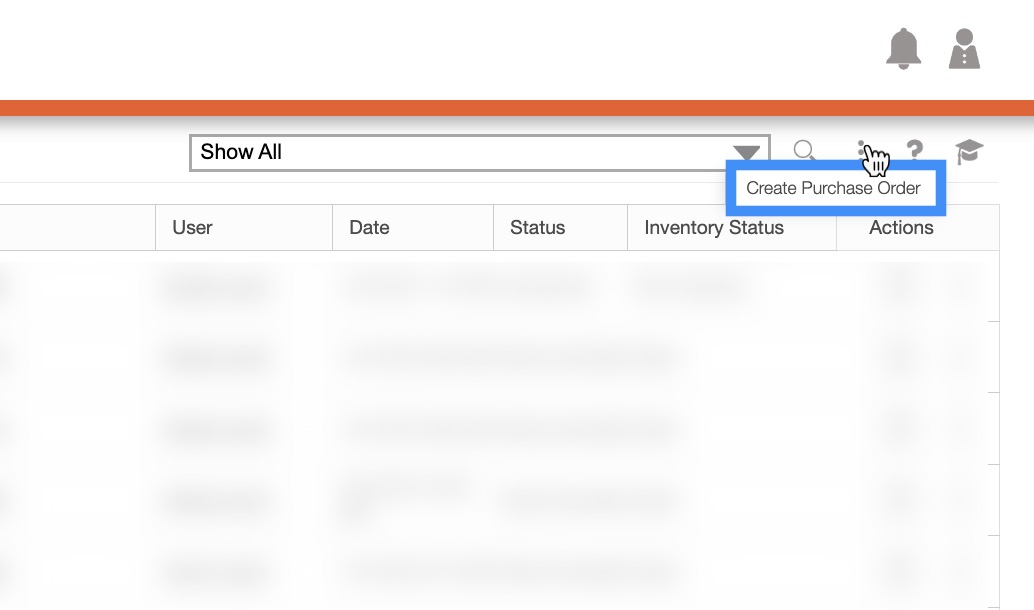
From the More Actions drop-down menu, you can create a purchase order for the selected work order parts.
This action can be performed on a single work order part or on multiple work order parts.
The "List" tab will display your work orders' ID, the status of the work order part, the inventory status, and more.
List Tab Columns
In the "List" tab, the columns are structured to display specific data related to each individual work order part.
These columns are organized as: "Product," "Qty," "Work Order," "Customer," "User," "Date," "Status," "Inventory Status," and "Actions:"

The corresponding rows under the column headings will display the relevant work order part data.
The checkboxes (multiple selection area) found to the left of the "Product" column, will allow you to select either one or multiple work order parts to view, edit, and view inventory:
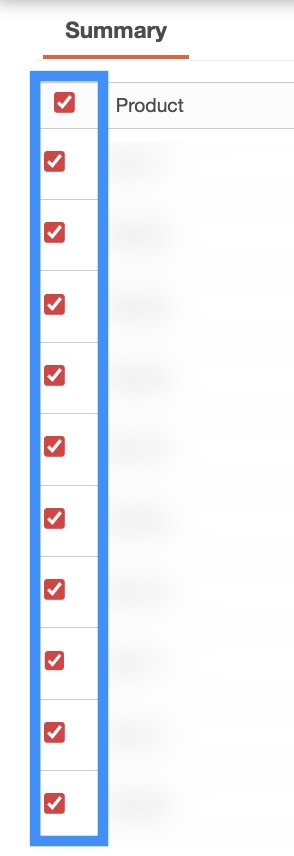
By clicking the topmost checkbox in the column heading you will select all the work order parts.
The "List" tab column headings are defined as:
| Name | Description |
|---|---|
| "Product" | The designated name or title of the part for easy identification. |
| "Qty" | The specified quantity of a line item, representing the amount of goods. |
| "Work Order" | The specific work order linked to the part being utilized for a job or service request. |
| "Customer" | The customer associated with both the work order and the part being used. |
| "User" | The individual who created the work order and is responsible for managing or overseeing the task. |
| "Date" | The date on which the part was added to the work order. |
| "Status" | Indicates the current status of the part, such as whether it is recommended for use, consumed during the work order, missing, or awaiting delivery. |
| "Inventory Status" | Indicates whether the part is classified as an inventory item, a non-inventory item, or a generic part for tracking and management purposes. |
| "Actions" | Allows you to open the View Work Order pop-up window, the "Inventory" tab of the View Part pop-up window, or modify how the part is being used in the work order. |
List Tab Individual Actions
When selecting a work order and clicking on the Individual Actions button (the three vertical dots under the "Actions" column) you will be able to view, edit, and view inventory to the selected work order part.
Any actions that are done with the Individual Actions button will only apply to the selected work order part:
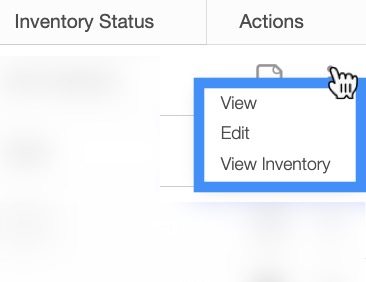
The View icon found under the "Actions" column will allow you to quickly access the View Work Order pop-up window of the selected work order part:

The options that are displayed when you select the Individual Actions button are also available under the right-click actions.
online-help.platform.features.workorders.list.workorder_parts_list_individual_actions.paragraph6
List Tab Right-Click Actions
When right-clicking with your mouse on a work order part in the "List" tab, you will be able to view, edit, and view inventory to the selected work order part.
The options that are displayed when you right-click on a work order part, are also available when you select the Individual Actions button.
Any actions that are done with the right-click actions will only apply to the selected work order part:
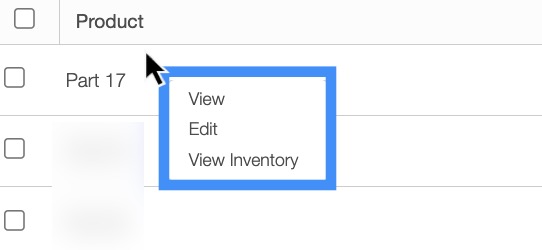
The definitions for the actions found in the Individual Actions and when you right-click in the "Parts List (Catalog)" tab are below:
| Name | Description |
|---|---|
| "View" | Allows you to open the View Work Order pop-up window. |
| "Edit" | Allows you to edit how the part was used for the work order. |
| "View Inventory" | Allows you to open the "Inventory" tab of the View Part pop-up window. |
Once you add parts to a work order, the part details (including quantity, part name, and status) will automatically sync with the Work Order Products page; thus allowing you to view all the data for the parts used for a work order on one page.
Once you are on the View Work Order pop-up window you can add a part on the "Part and Services" panel. Please see the View Work Order page for more information about how to add a part to a work order.
Using the "Usage Status" drop-down, you can specify the part's status, such as whether it is recommended for the work order, consumed during the job, missing, or pending delivery:
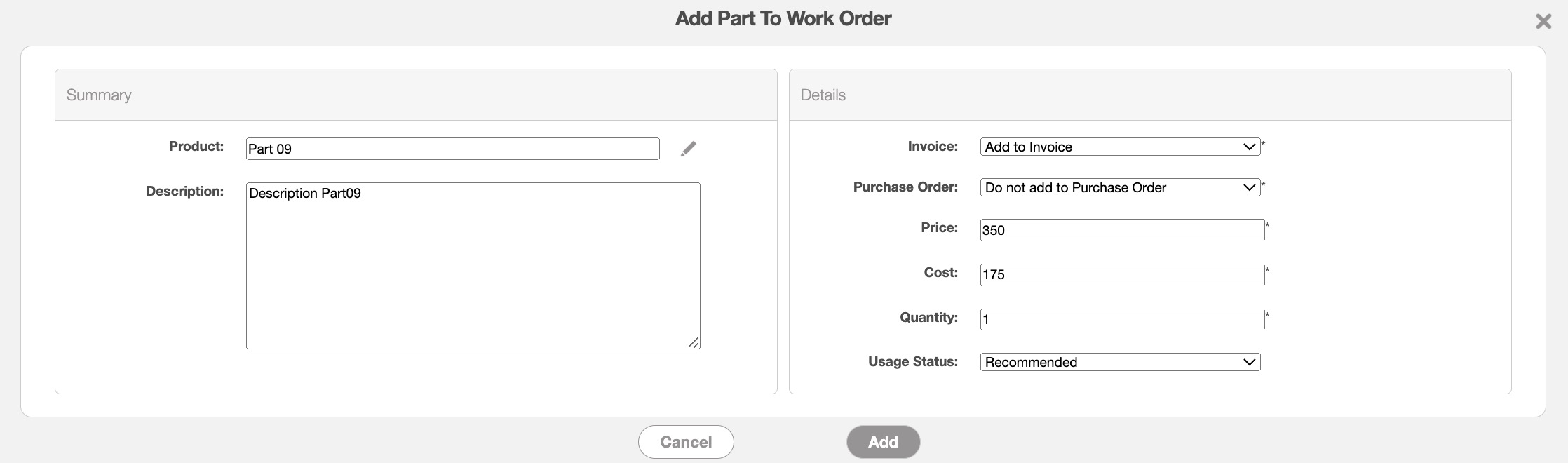
Once you click the Add button, the part will automatically be added to both the View Work Order pop-up window and the Work Order Products page.