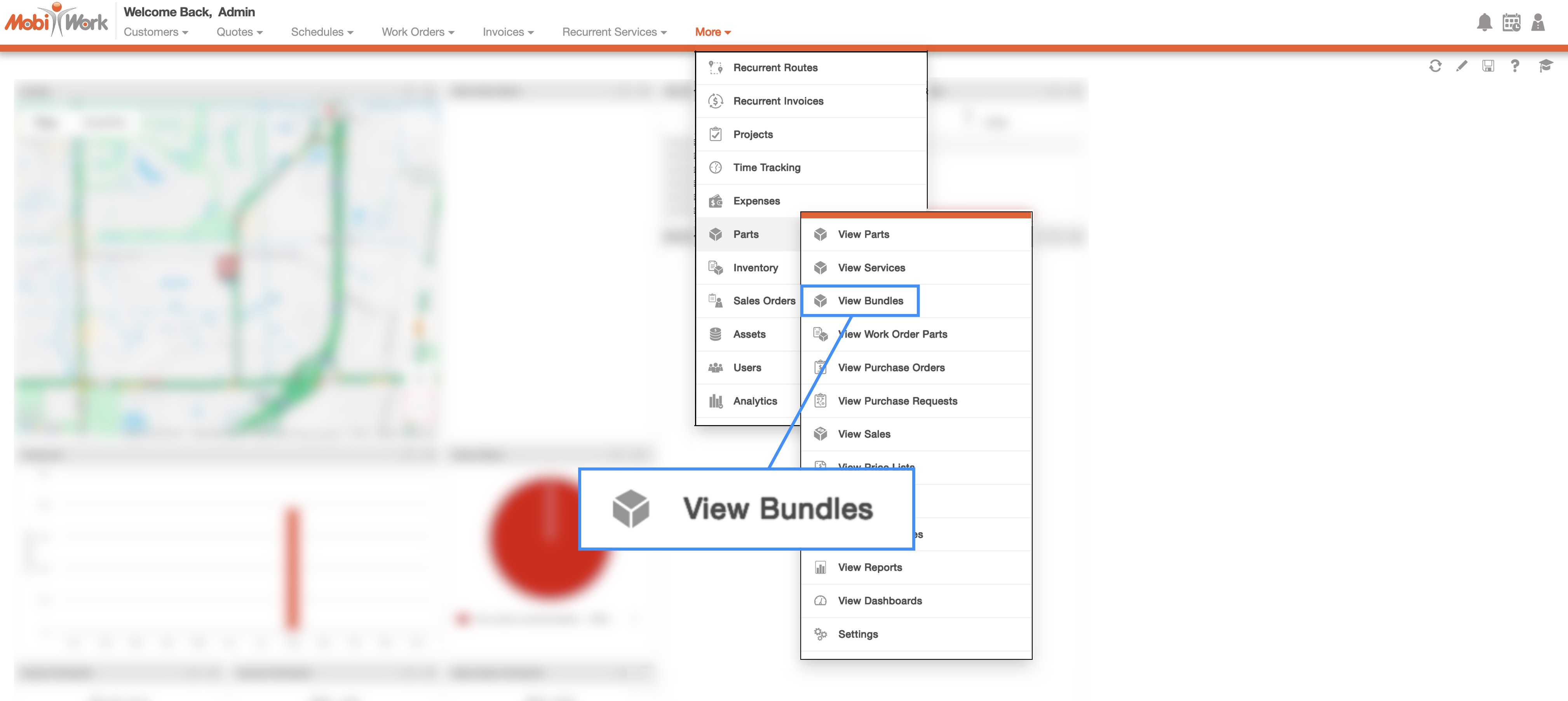
You can access your MobiWork bundles on the Bundles List page. To access this page, hover over the Parts menu and select "View Bundles" option:
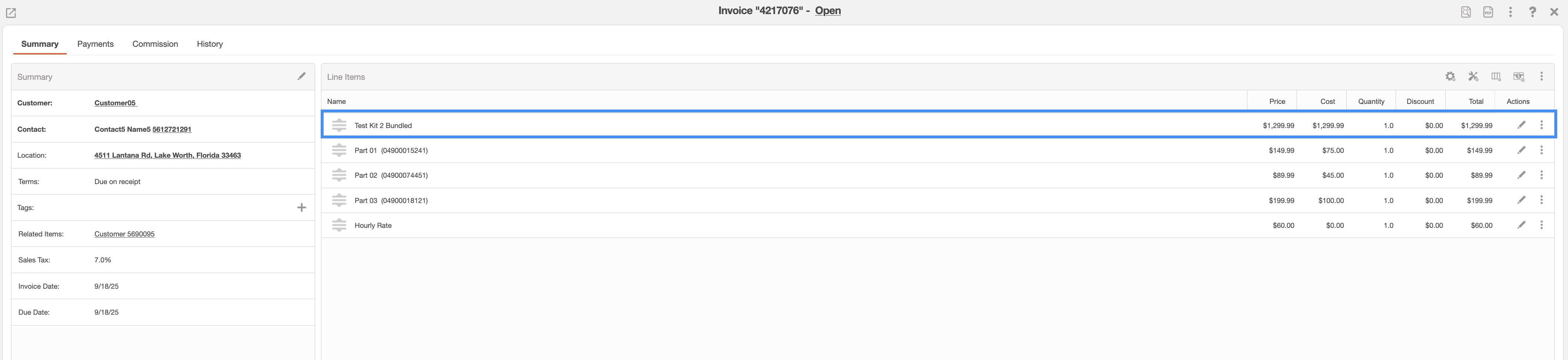
MobiWork allows you to create bundles, which bundle multiple products and services into a single, convenient package. Bundles are ideal for grouping related items together, and you can also set custom pricing specific to each bundle.
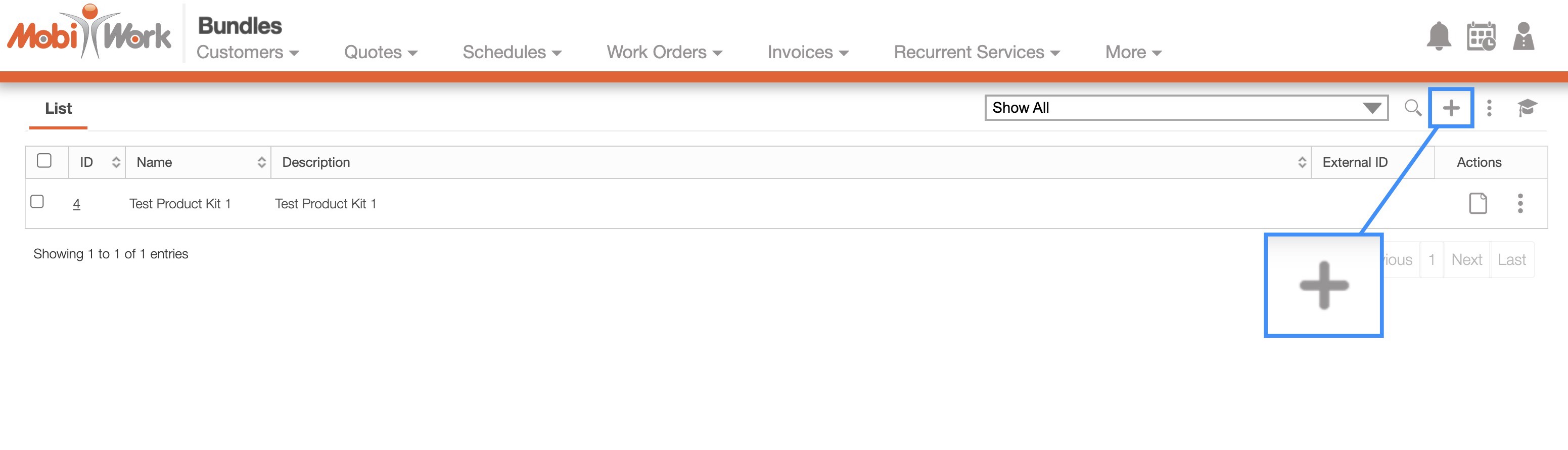
To add a new bundle, fist navigate to the Bundles List page and click on the Plus Sign icon:
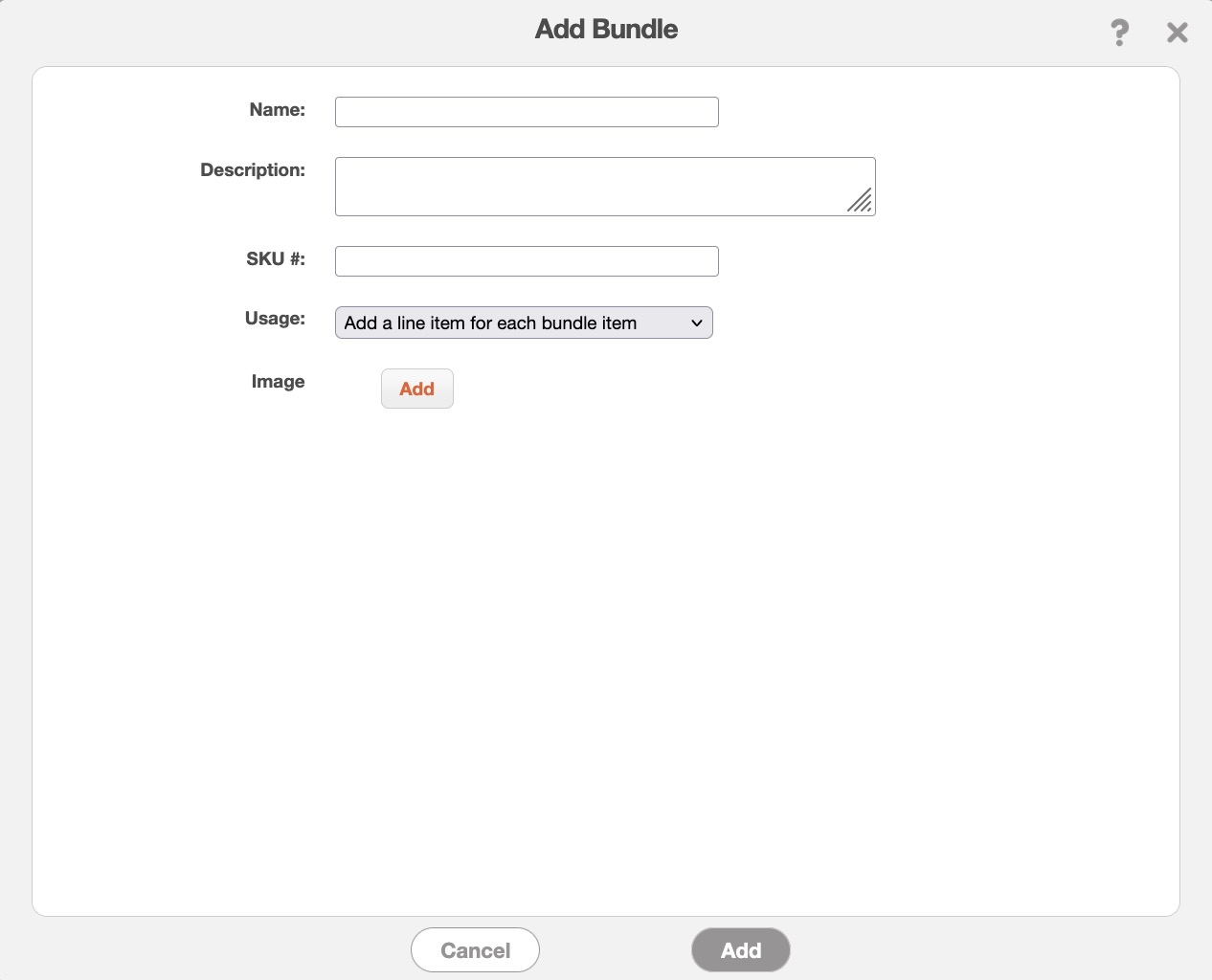
In the Add Bundle pop-up window, enter the following information:
The name of the bundle
The description of the bundle
SKU number for the bundle
The usage of bundle. In other words, you can either expand the bundle into individual line items for each part and service, or keep it as a single line item representing the entire bundle.
And if you would like, a relevant image of the bundle
Once the basic details are added, you can include the required parts and services associated with the bundle:
By default, the pricing of the bundle is the sum of all the parts and services in the bundle.
However, if you would like special pricing for the individual items in the bundle, simply edit the pricing of the individual items when adding it to the entity:
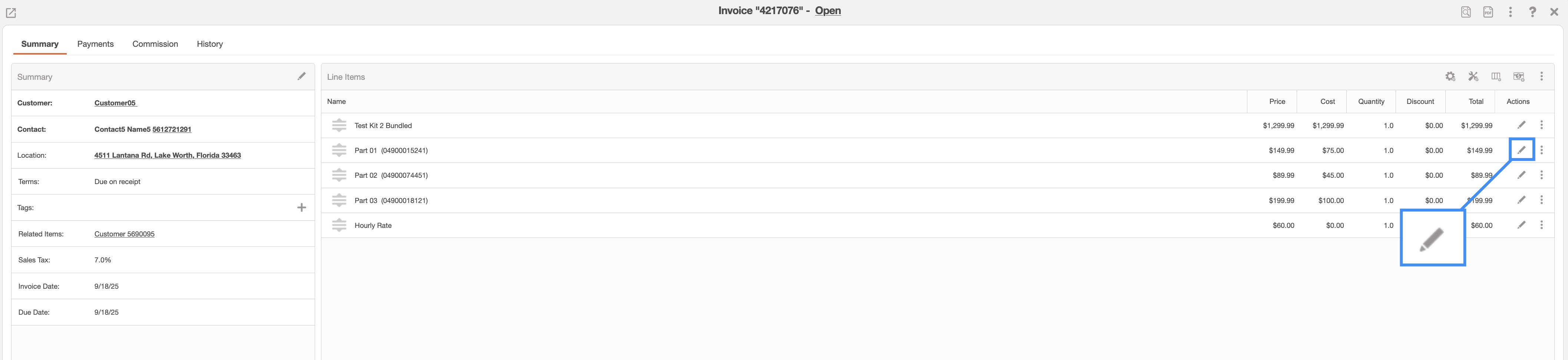
Note: Please note that this feature is not available in QuickBooks Online.
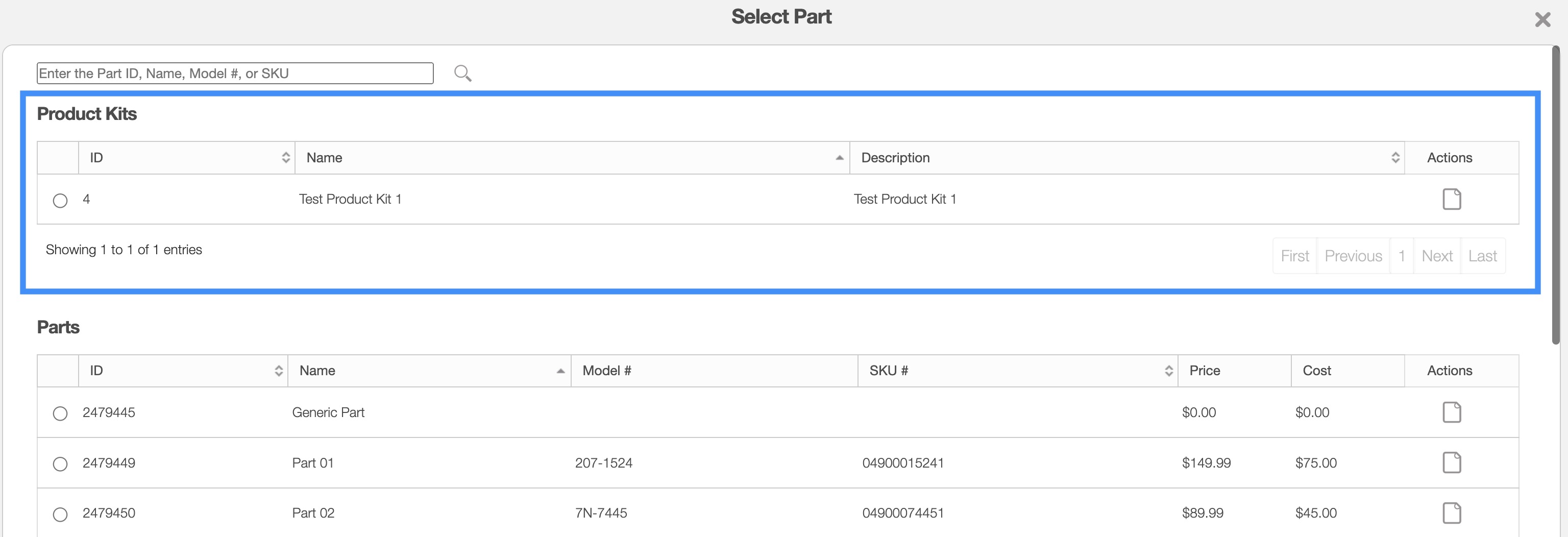
After creating bundles in MobiWork, bundles can be added to work orders, invoices, and quotes; they will appear as an available option when adding parts to these features.
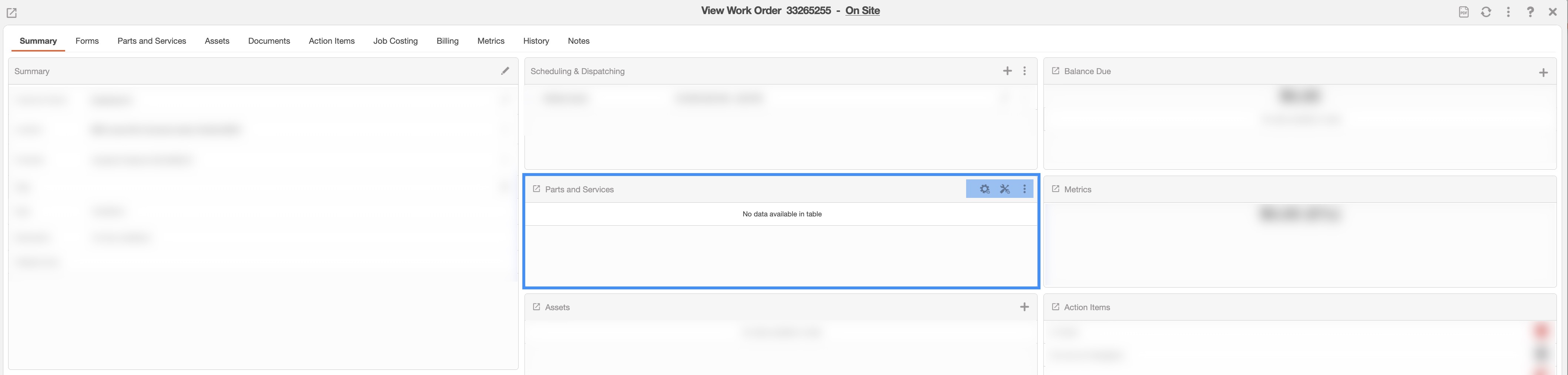
The image below shows how to add a bundle for the View Work Order pop-up window. The process for adding a bundle is identical for both invoices and quotes:
Select the desired bundle and then click the Add button:
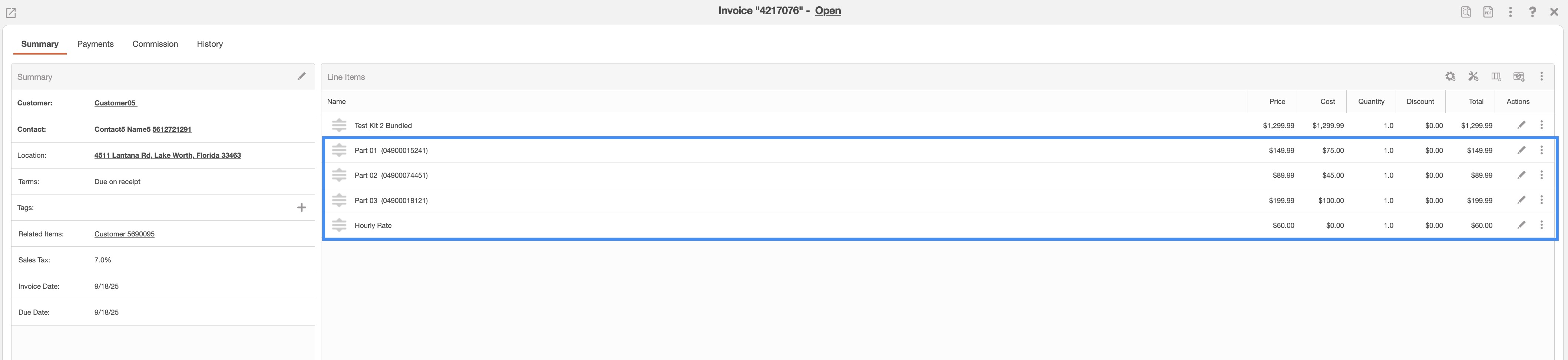
Depending on the type selected when creating the bundle in MobiWork, the bundle can be displayed as either individual line items:
Or as a combined bundle: