
Adding a part from a mobile device allows technicians to quickly record materials used while on-site, even if the part was not initially part of your company's product catalog.
Any part added from the device will automatically sync and be visible on the web platform; thus, providing real-time visibility for office staff while also maintaining consistency across your company's inventory.
To accomplish this action, access the Add Part button from the quote, invoice, or work order. The example below shows how to access this function from the Work Order View page:
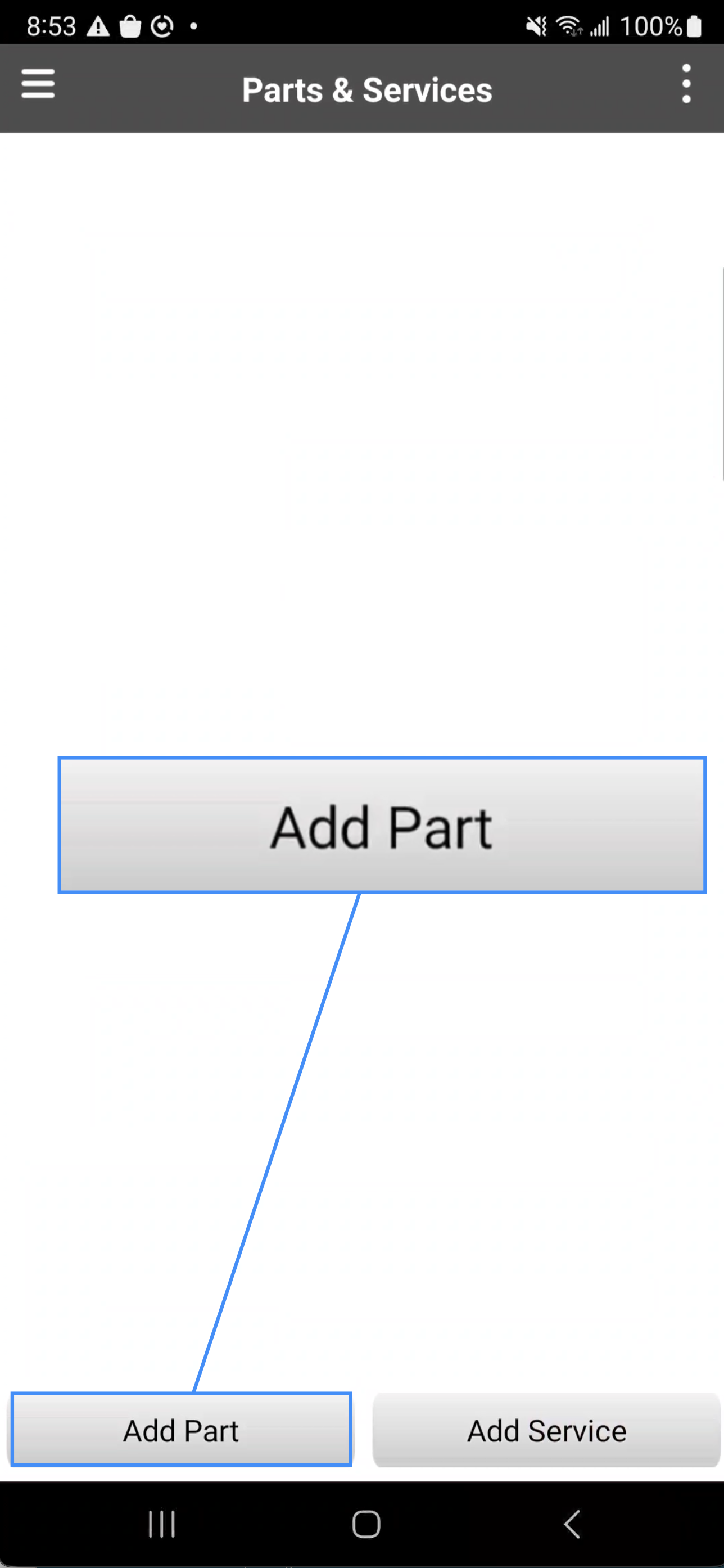
Press on the Individual Actions button and from the side action panel, select the Add action:
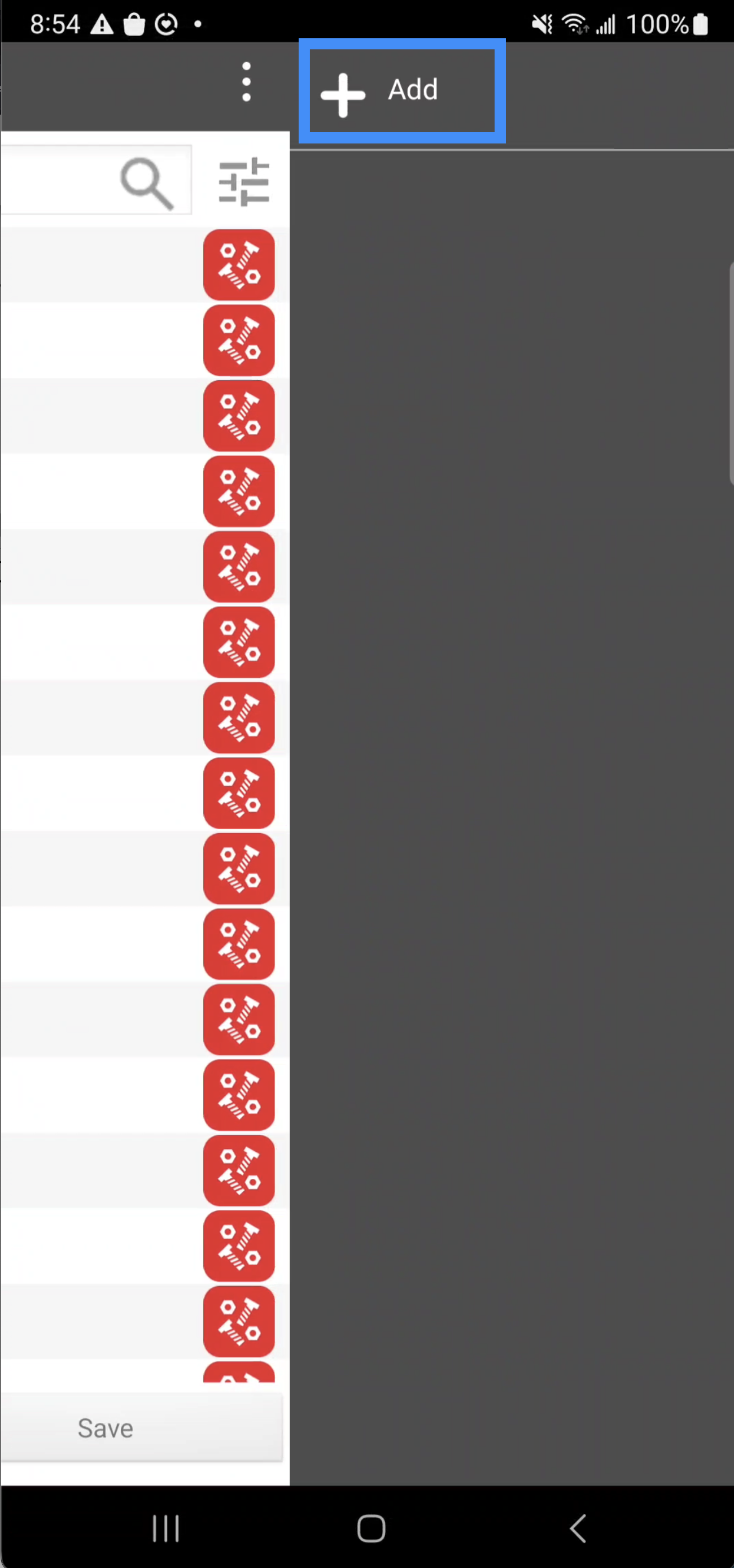
You will be redirected to the Add New Product page:
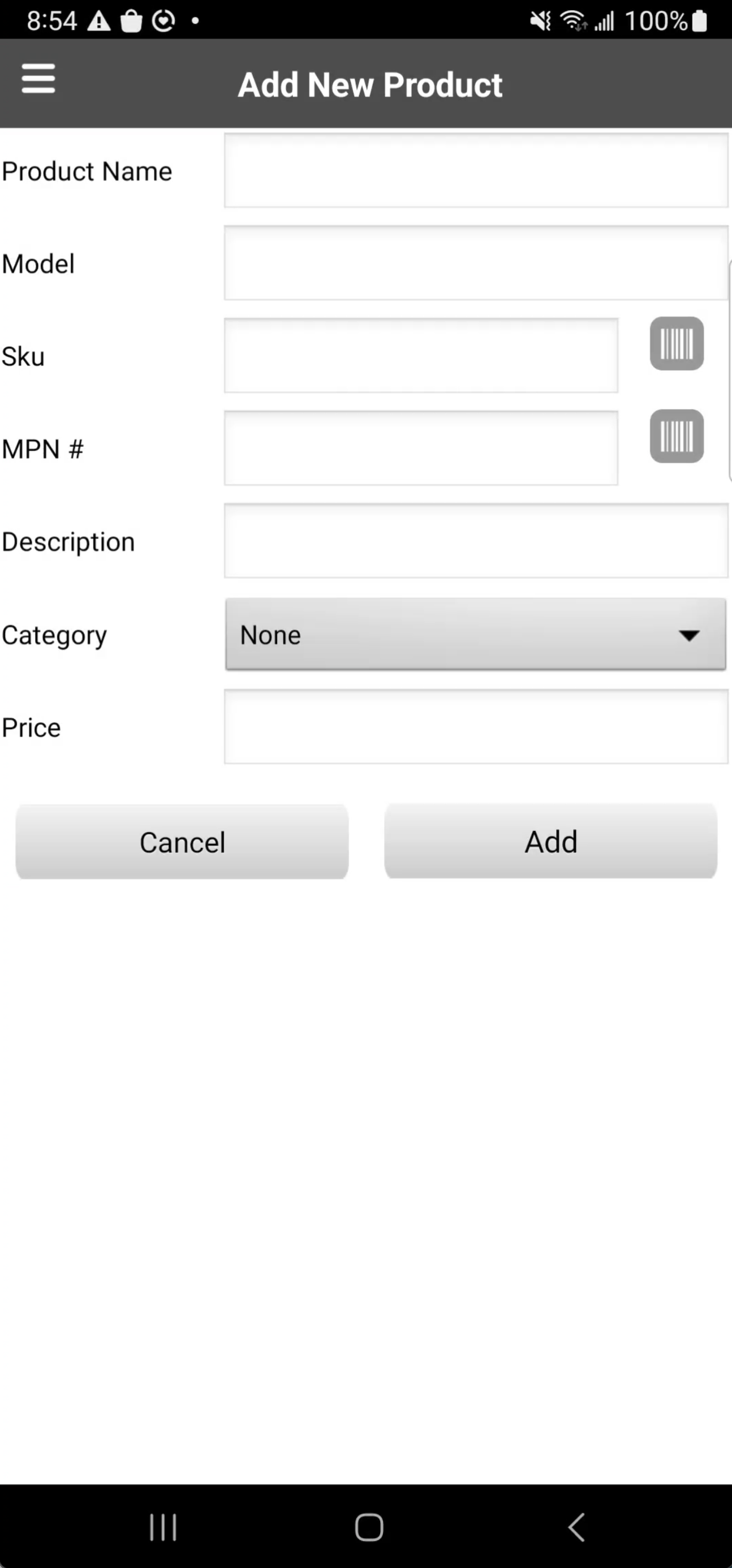
On this page input the following information:
The product name- The name of the item as it will appear in the system.
The model- The product's model name or number used for identification.
The SKU- The unique internal code used to track the item in your inventory.
The MPN #- The part number assigned by the manufacturer.
Description- A brief summary of the product, including key details or specifications.
Category- The classification used to organize the product within your inventory.
Price- The cost or selling price associated with the product.
Once the required fields are completed, select the Add button to confirm the new product details. The newly added part will then sync to the web platform, thus enforcing uniformity throughout your company and granting access and visibility to your office staff.