You can link a part as an asset on a work order on the MobiWork web application. To do so, ensure the part is marked as "This Part Can be Converted Into an Asset" when adding or editing the part. You can do this when adding or editing a part. For more information on how to add or edit a part, please see the Add Part page or the Edit Parts page.
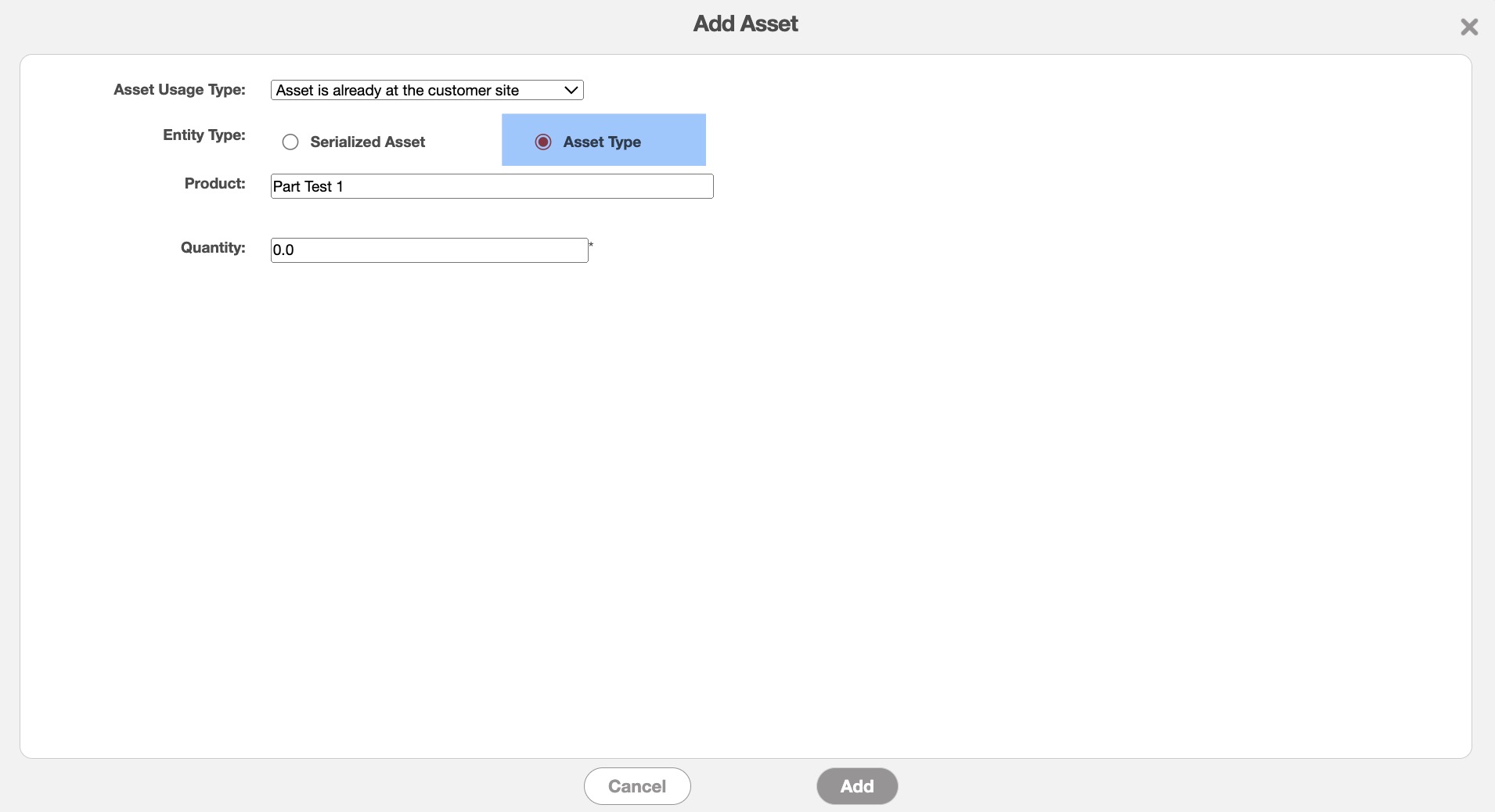
After confirming that the part is marked as "This Part Can be Converted Into an Asset," you can add the desired part from the "Assets" panel. In this panel, select the "Asset Type" button and enter the desired part name:
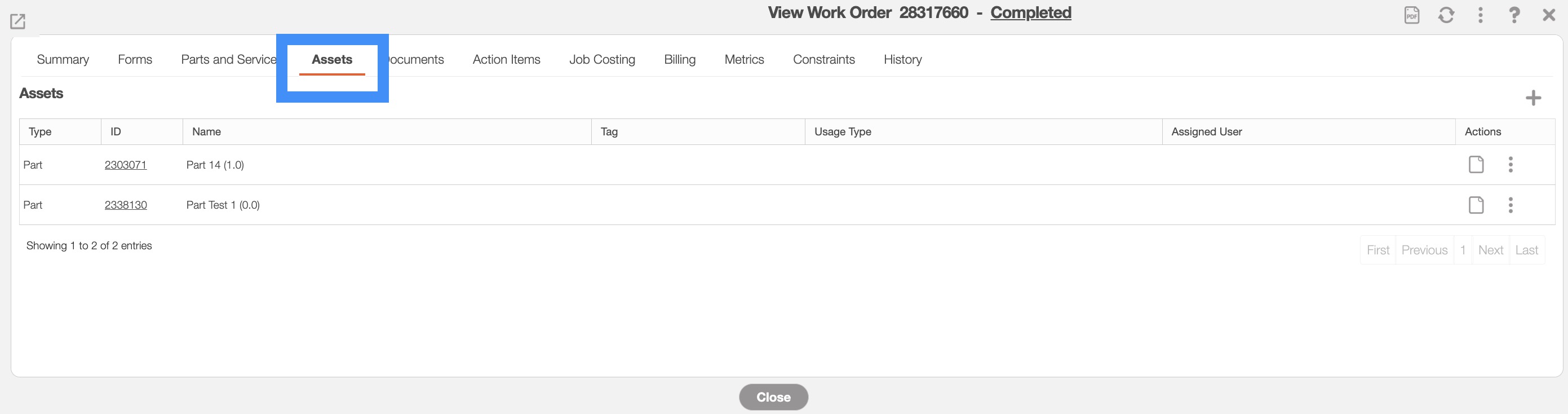
You will be able to locate the assigned parts turned assets in the "Assets" tab of the work order:
You can convert a part into an asset from device. To do so, ensure the part is marked as "This Part Can be Converted Into an Asset" when adding or editing the part. You can do this when adding or editing a part. For more information on how to add or edit a part, please see the Add Part page or the Edit Parts page.
When you are adding parts or services on the mobile device's invoice, use the "Convert to Asset" drop-down to indicate that you would like to convert the part to an asset:

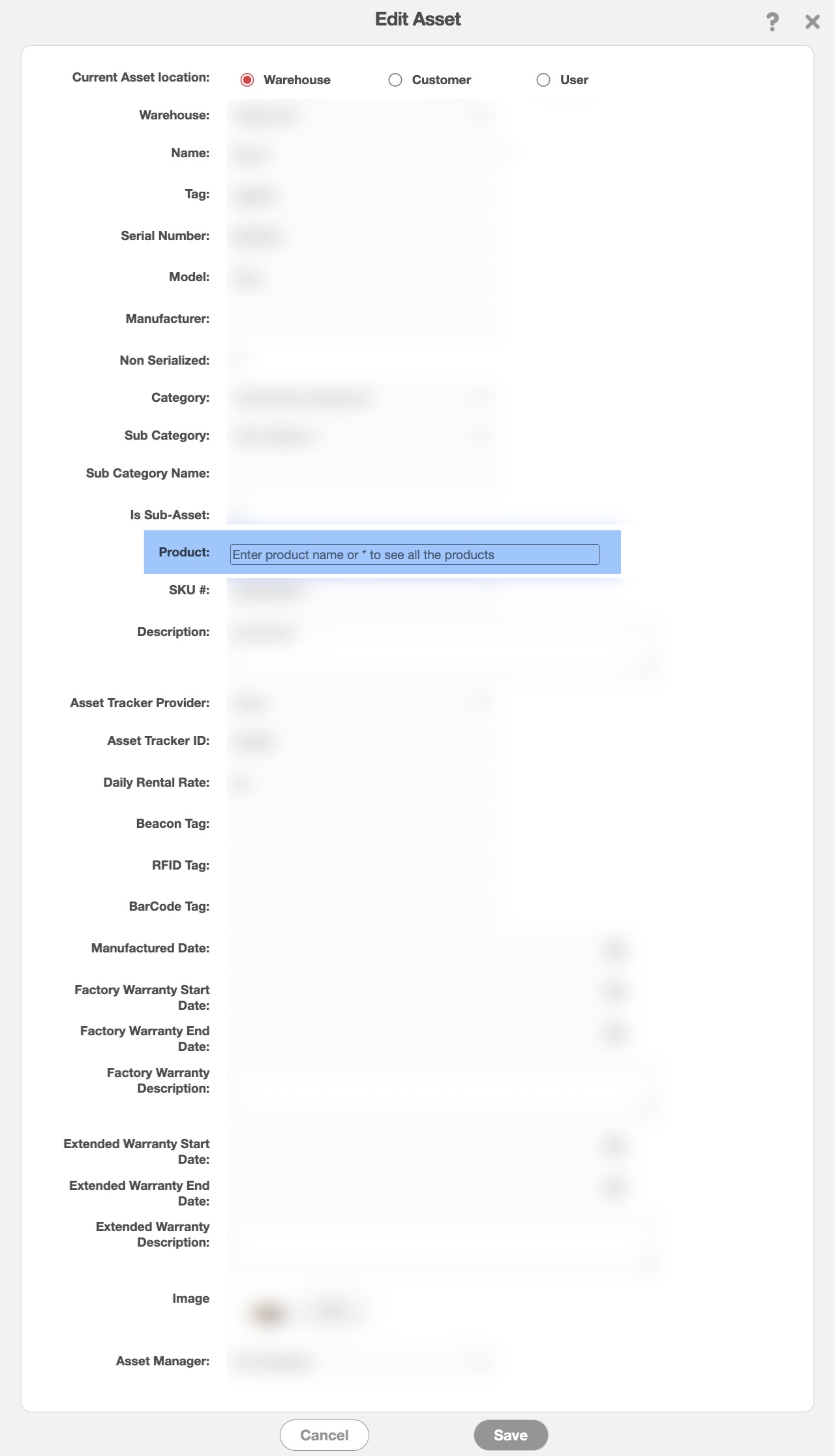
You can link a part with an asset from the web. To do so, open the Edit Asset pop-up window. For more information on how to open this window, please see the Edit Asset page. In the Edit Asset pop-up window, you can input the desired part in the "Product" field: