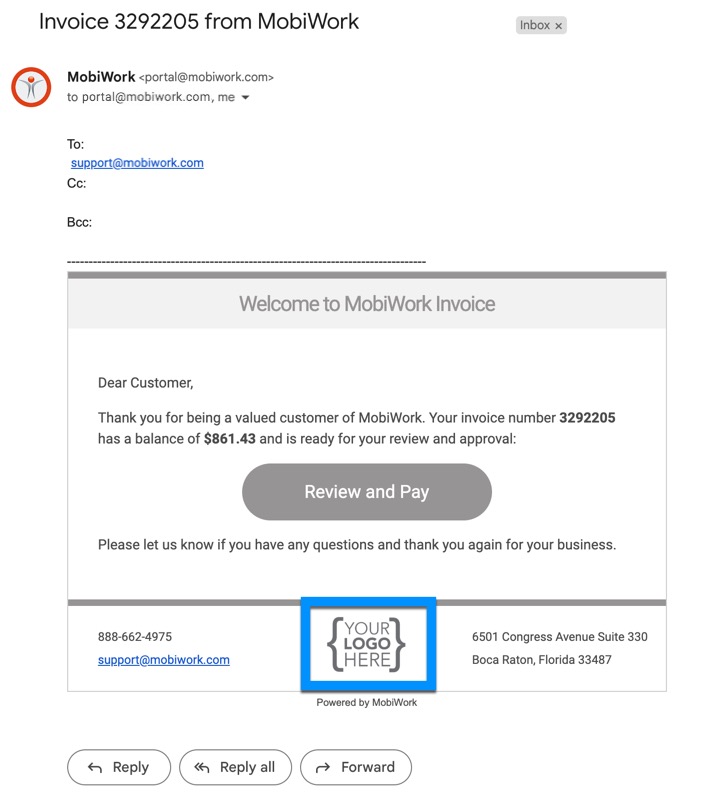
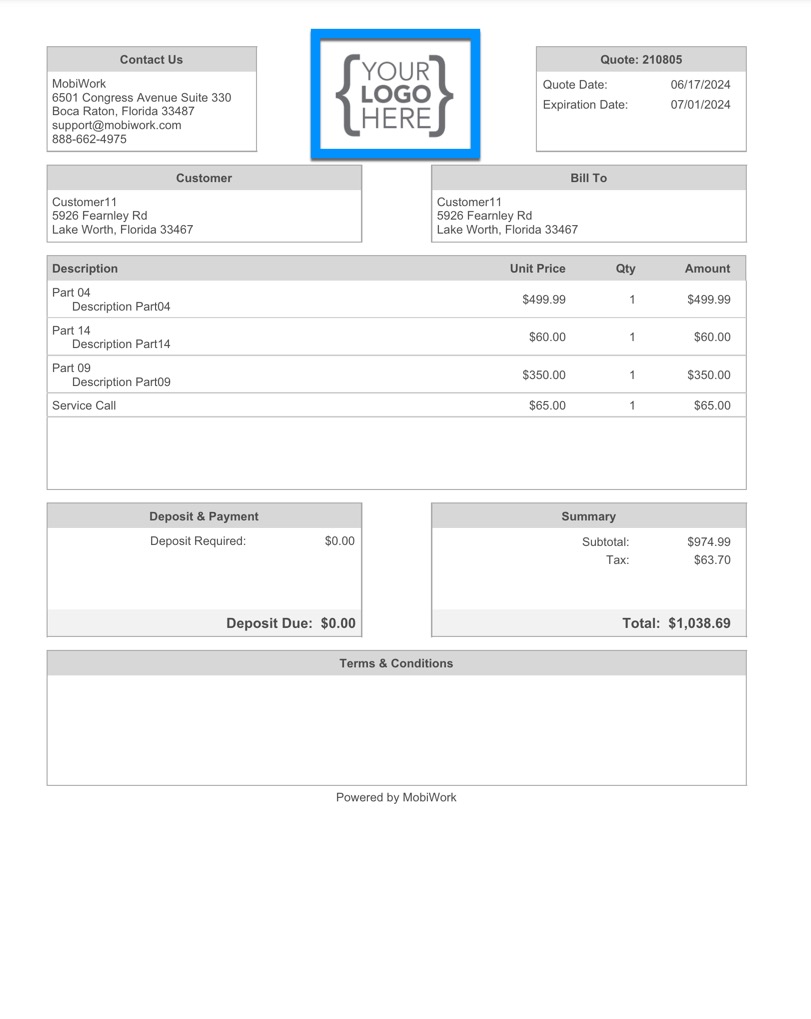
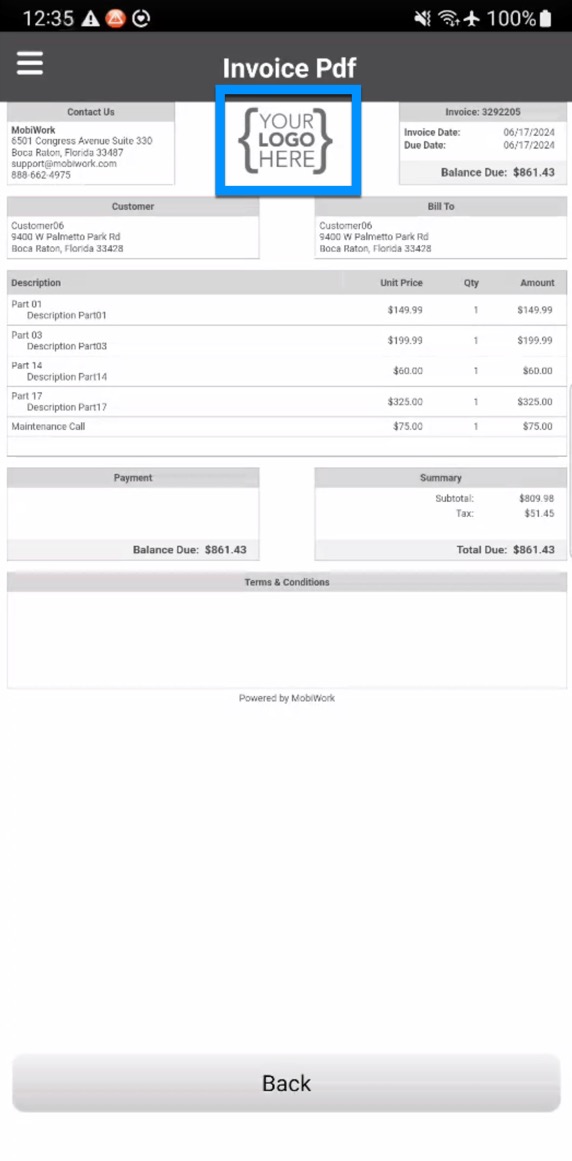
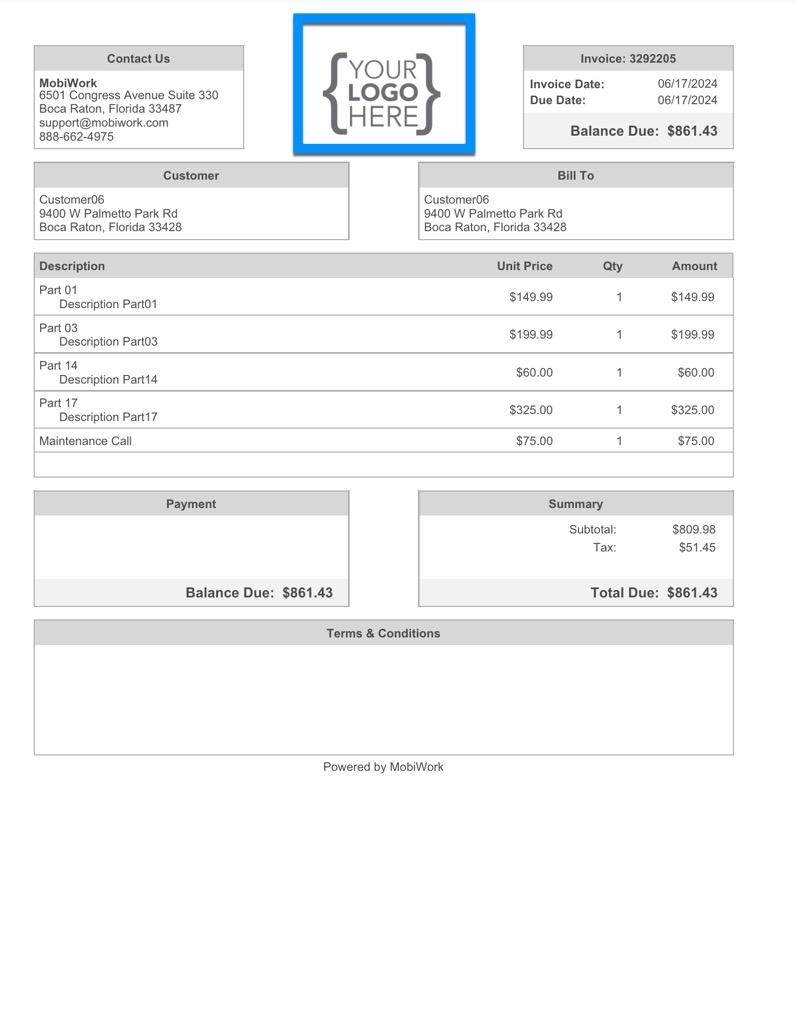
You can upload an image of your business logo to MobiWork. This image will be used in emails sent from your MobiWork account, as well as on invoices (web and PDF), quotes (web and PDF), and the mobile device.
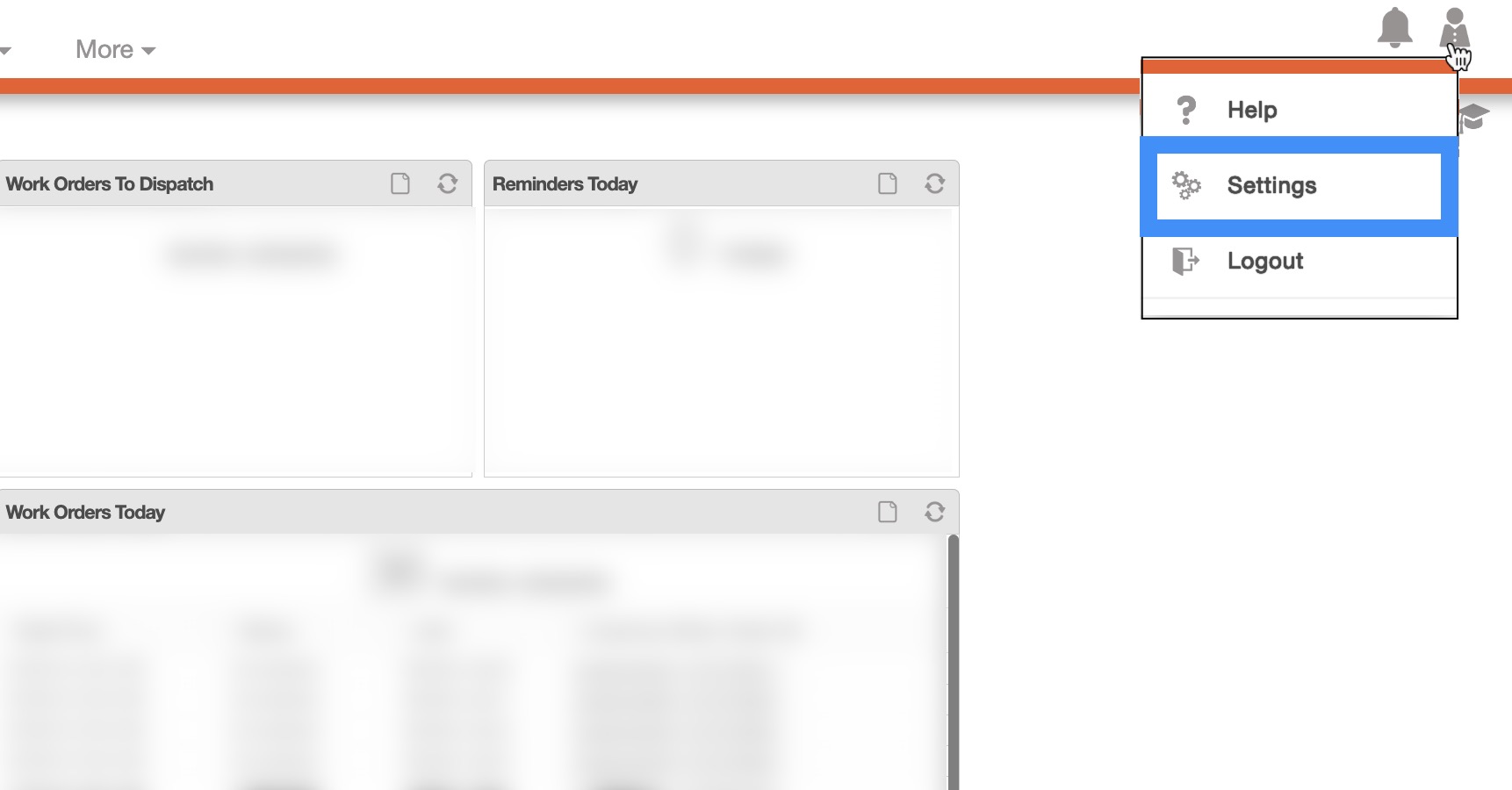
To update your business logo, first access the "Settings" drop-down from your User Actions:
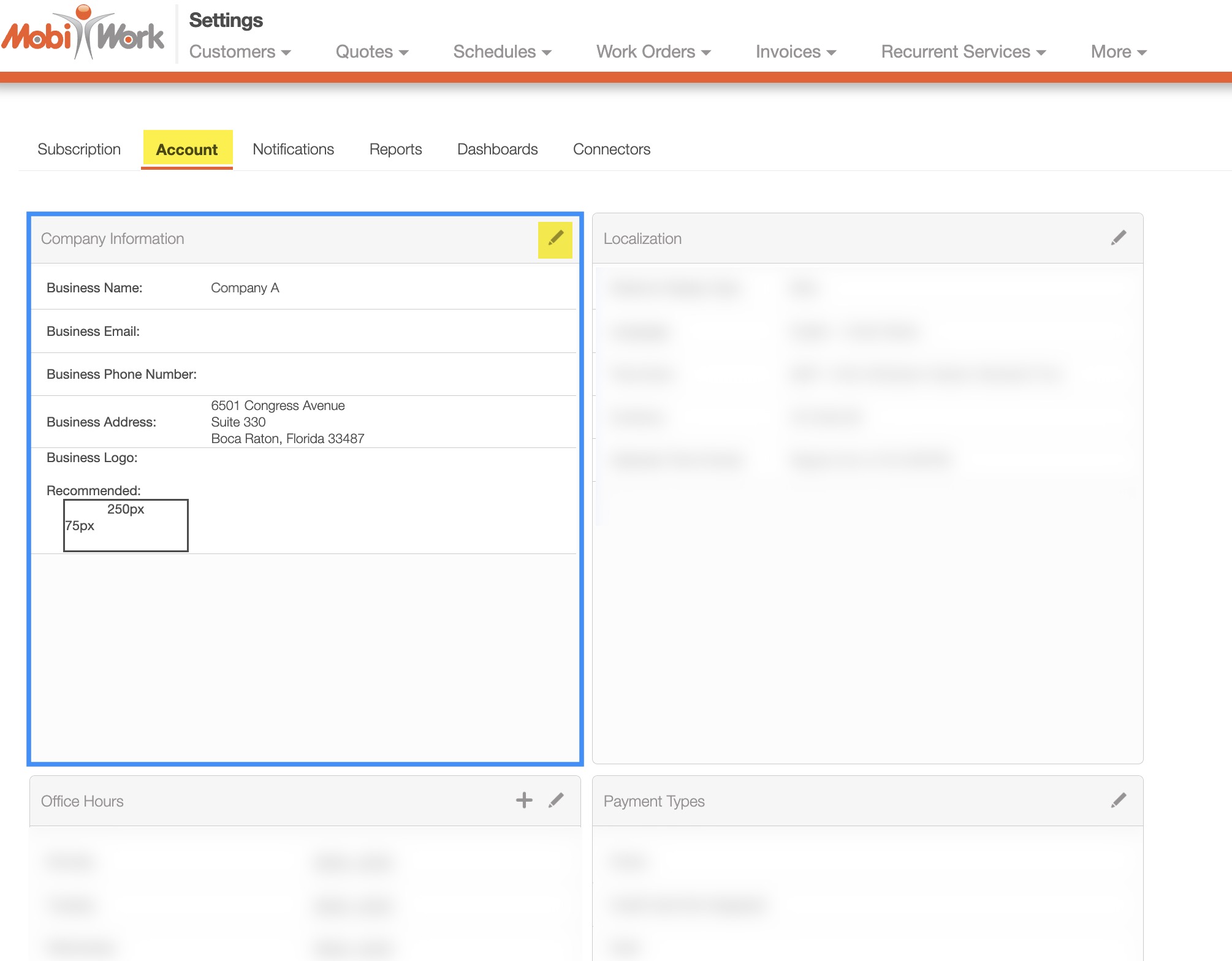
You will then be redirected to the Settings page's "Account" tab.
In the "Company Information" panel, click on the Pencil icon to update your company information:
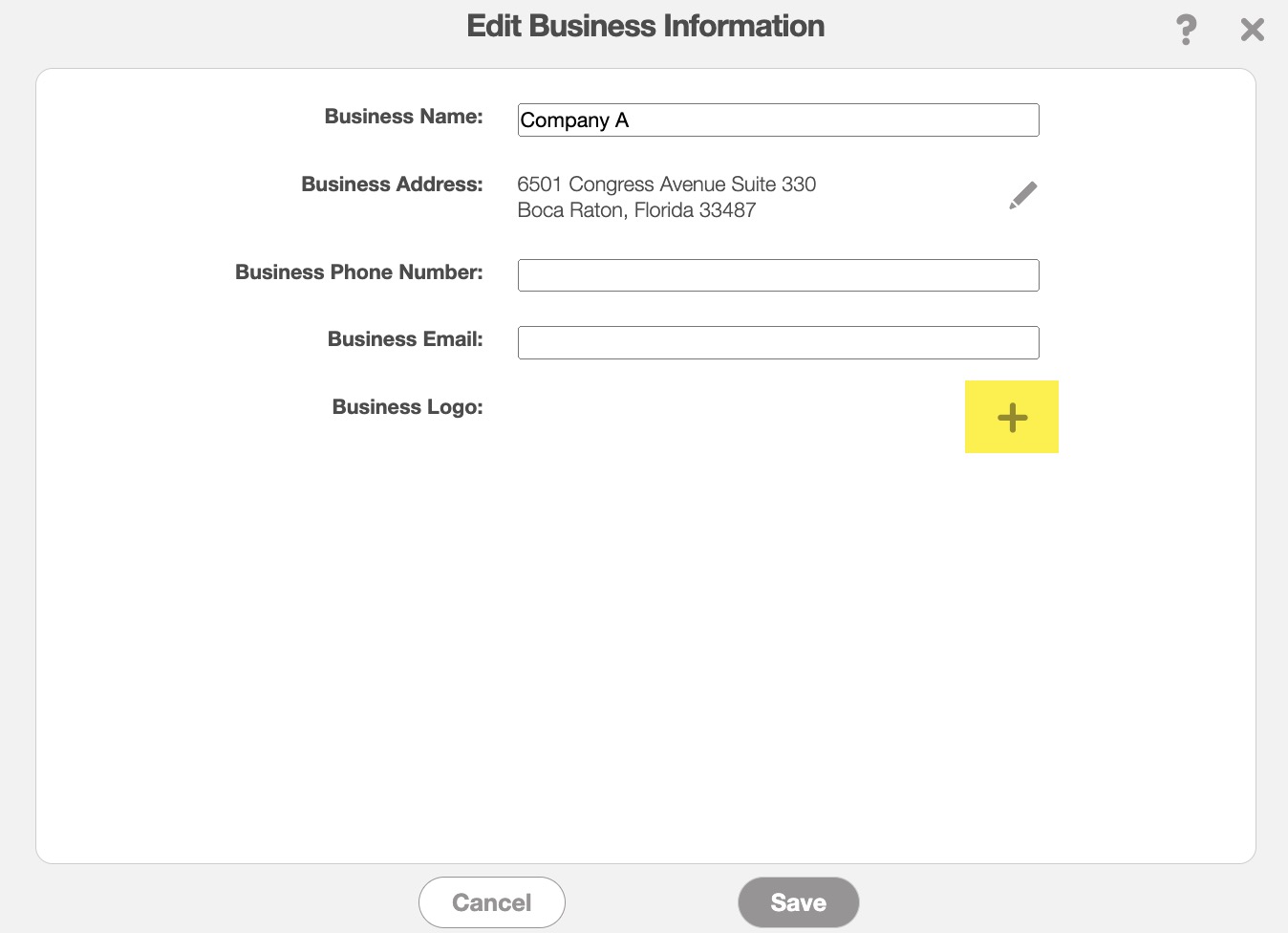
The Edit Business Information pop-up window will then appear:
If you do not already have a company logo, you can click the Plus Sign button to add one.
If you already have a company logo saved to your account, the Plus Sign icon will be replaced by a Pencil icon.
Once you click on either the Plus Sign or Pencil icon, you can drag & drop an image file or manually upload a file by selecting the Choose File button.
Once you are satisfied with the uploaded image, you can click the OK button to save the image.
Note: Please note that the recommended dimensions are 250px in width and 75px in height (width: 250px, height: 75px).
The images below will highlight how your business logo will appear on your company's:
- Emails:
- Invoices on both the web...:
- ... and mobile device:
- Quotes: