
Overview

Saved searches will appear in the drop-down menu and can also be used for dashboards and reports. You can create and manage saved searches by accessing the saved search drop-down menu from any MobiWork feature page.

By default, MobiWork provides a list of saved searches for each web feature. You can also create your own saved searches by clicking the "Create a New Advanced Search." Please note that once you name a new saved search, you will be unable to rename it (instead you would need to delete your saved search and create a new one).

By clicking on the "Manage Saved Searches" option, the Manage Saved Searches pop-up window will appear; from this pop-up window you will be able to rearrange your saved searches, edit existing saved searches, or create a new saved search.

Create a New Advanced Search

In any MobiWork feature, you can create a new saved search to locate a particular status, assigned user, etc. of a quote, part, invoice, work order, etc. For example, you can use a saved search to see all your customers with an "At Risk" status in a specific country.

While the process of creating a new saved search is the same across all MobiWork features, each New Search pop-up window contains different search criteria. For instance, a Work Order will have an assigned user search field, while a Customer will have a sales funnel field.

You can add new categories, tags, and custom fields in the respective feature's settings page to further refine your search.

To create a new saved search, click on the search bar drop-down and select "Create a New Advanced Search." Input the data, fields, range, etc. that you would want to comprise your new saved search. Then name your saved search (e.g., Customers At Risk in Canada); this step is vital as it will allow you to access the new saved search in the future. Please note that once you name a saved search you cannot edit its name.

By selecting the "Default Saved Search" checkbox, the selected new saved search will be marked as your default search. This means that whenever you access that feature, this saved search data will appear automatically. By selecting the "Search Available to All Users" checkbox, you grant other users access to your saved search, allowing them to use your search parameters for their accounts.

Default Saved Search

To set a saved search as your default, simply check the "Default Saved Search" checkbox when adding or editing the saved search:
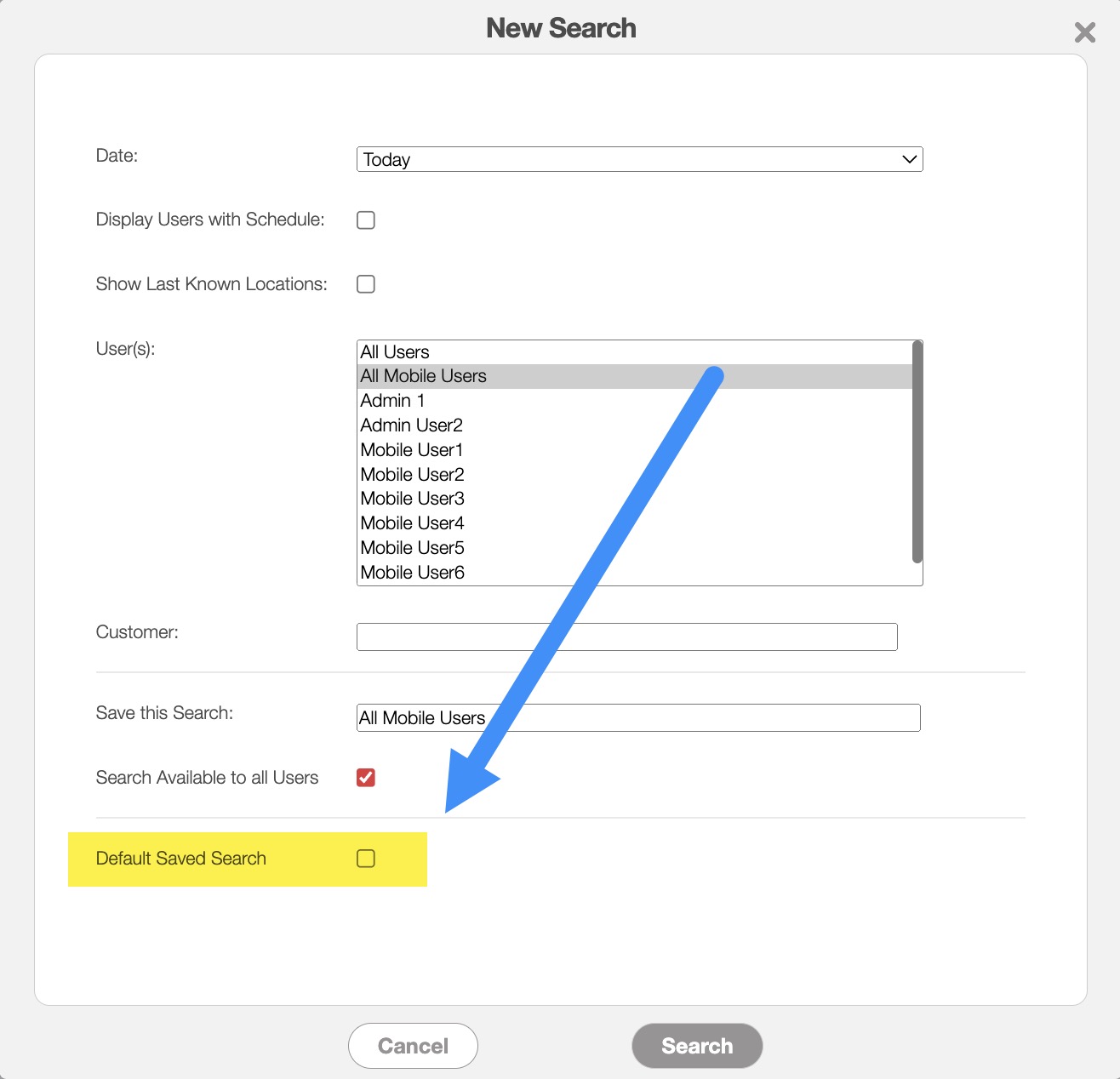
Please note that MobiWork only supports one default saved search at a time. Having multiple saved searches may cause the saved search feature to not function properly.

Edit Saved Search

To edit a saved search you will need to open the Managed Saved Search pop-up window; to access this window, please select the "Manage Saved Searches" option from your selected MobiWork feature:
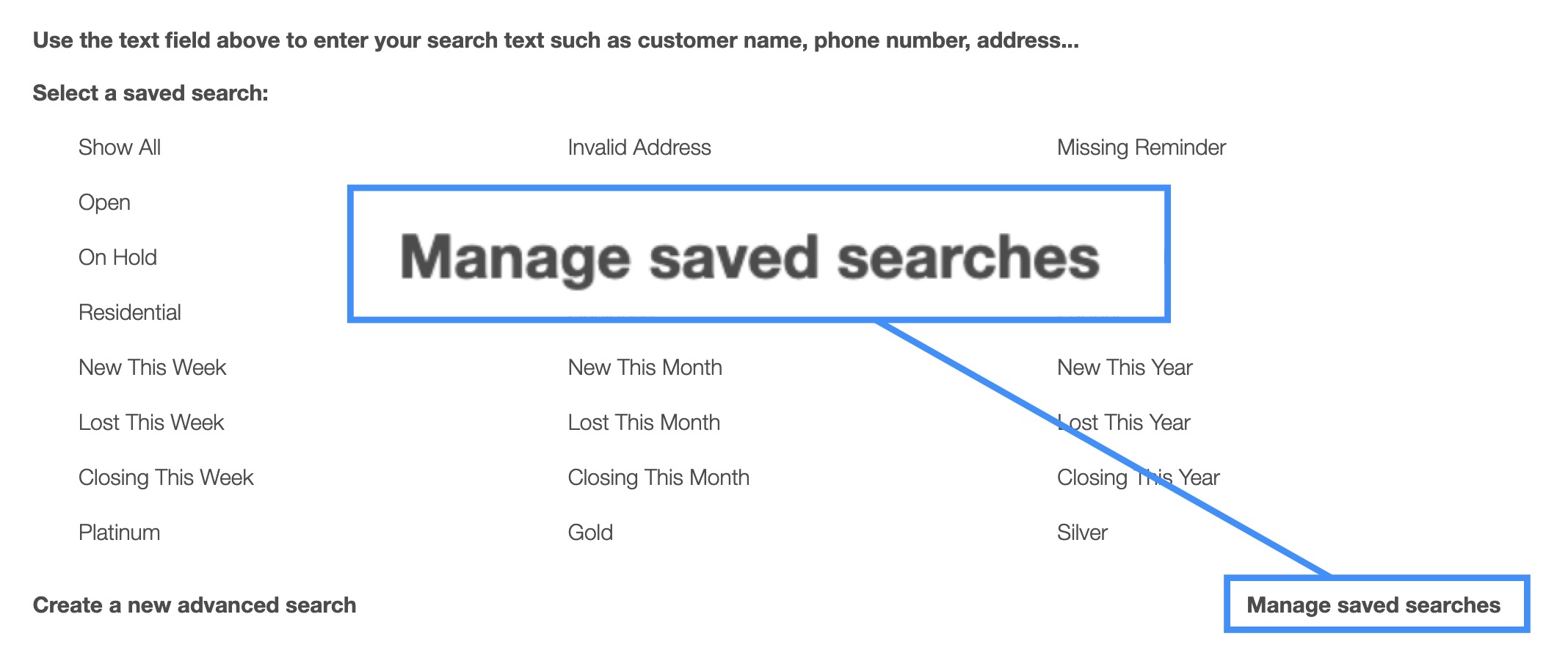
The Manage Saved Searches pop-up window will then appear:
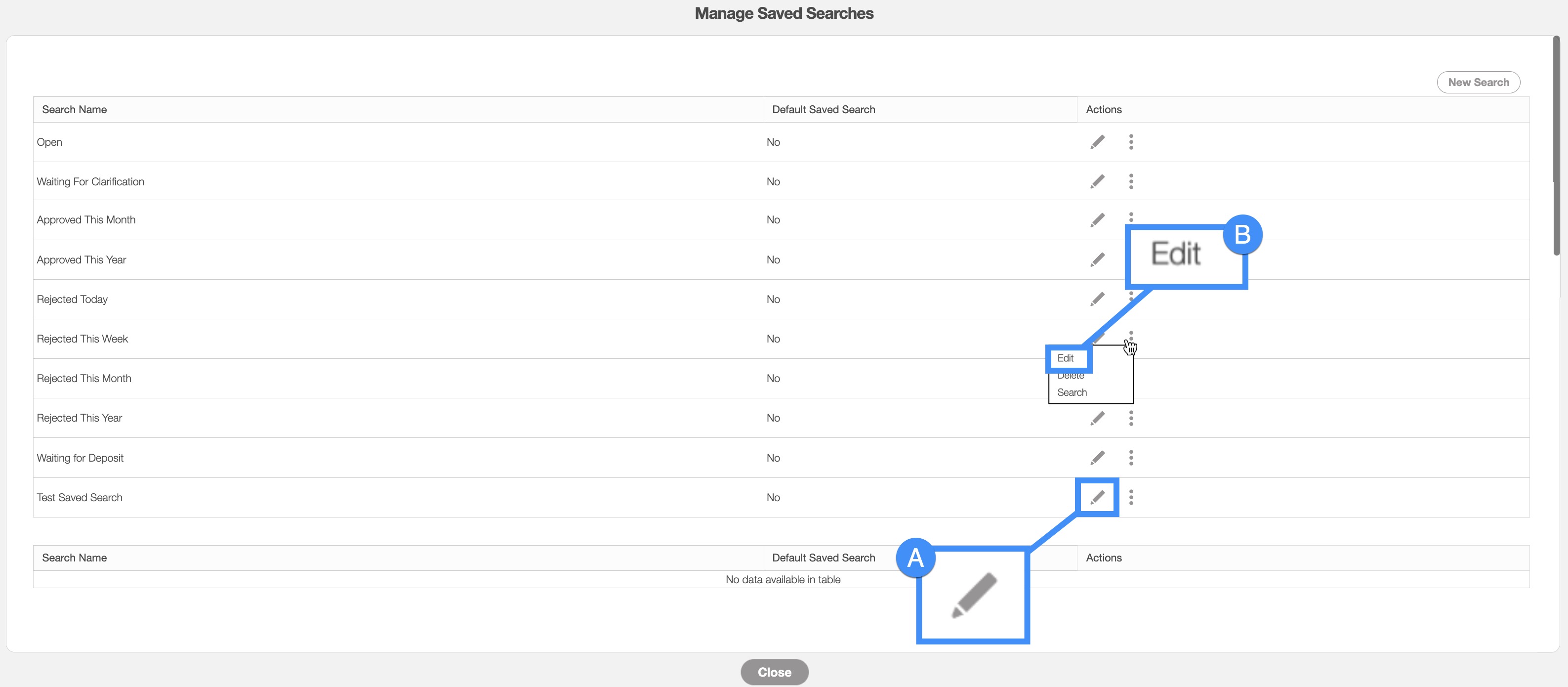
Once the pop-up window is open, you can edit a saved search by either:

  • Clicking on the Pencil icon.

  • Or selecting the "Edit" drop-down from the Individual Actions button.

In either case, the Edit Search pop-up window will appear:
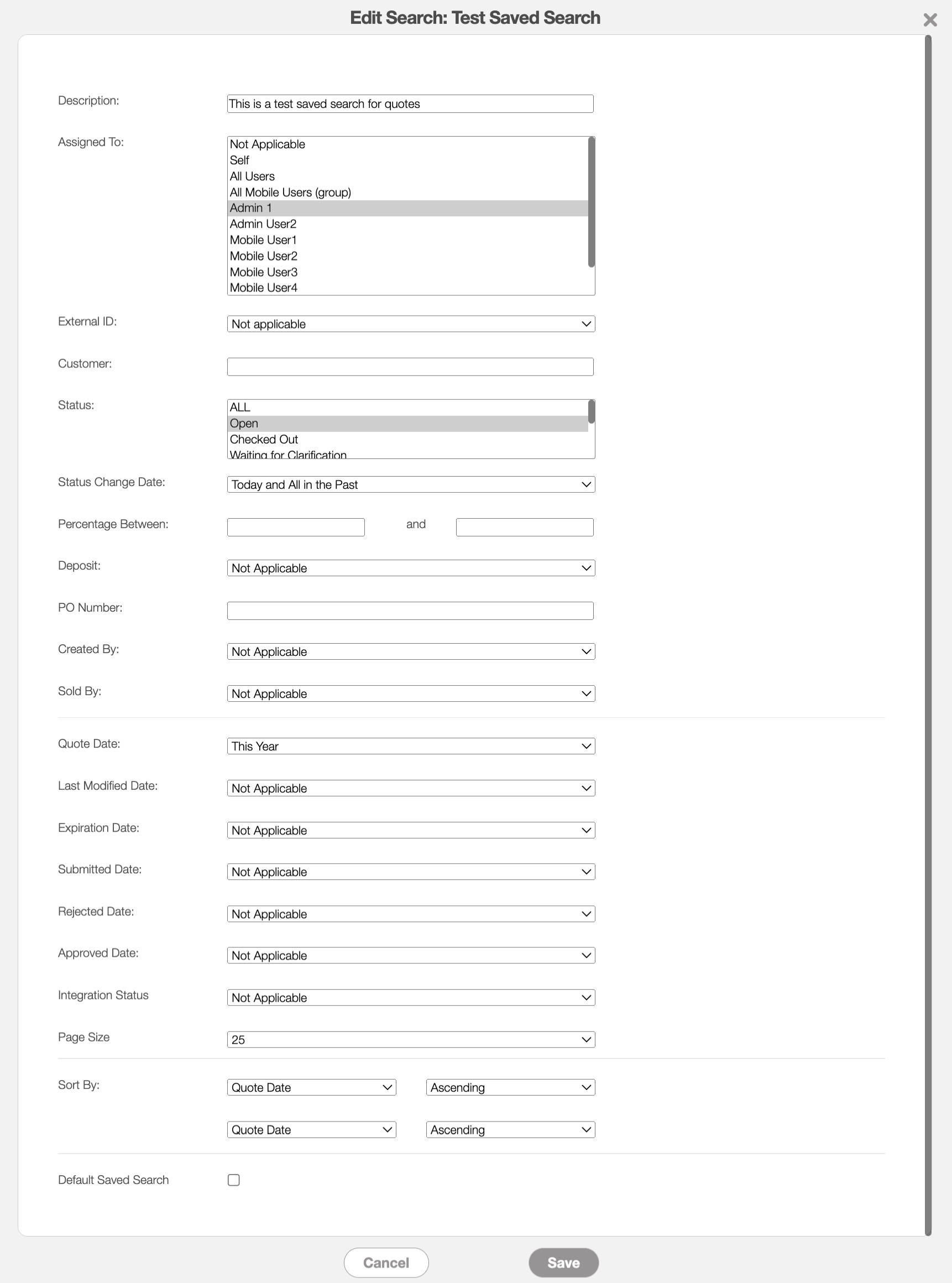
The fields and data displayed in this pop-up window depend on the feature that the saved search is derived from (e.g., the "Quote Details" field will be found in a saved search from the Quotes feature).

You can add additional fields with the categories and tags found on the respective feature's settings page.

Select the new data that the saved search should utilize from the desired fields. Once you are satisfied with the updated information, click the Save button.

Please note that once you name a new saved search, you cannot rename it. To change the name, you would need to delete the saved search and create a new one.

Rearrange Saved Searches

If you would like to rearrange the order that your saved searches appear, you can do so from the Manage Saved Searches pop-up window. To access this window, please select the "Manage Saved Searches" option from your selected MobiWork feature:

Once the Manage Saved Searches pop-up window appears, click and drag the selected saved searches to their desired order:
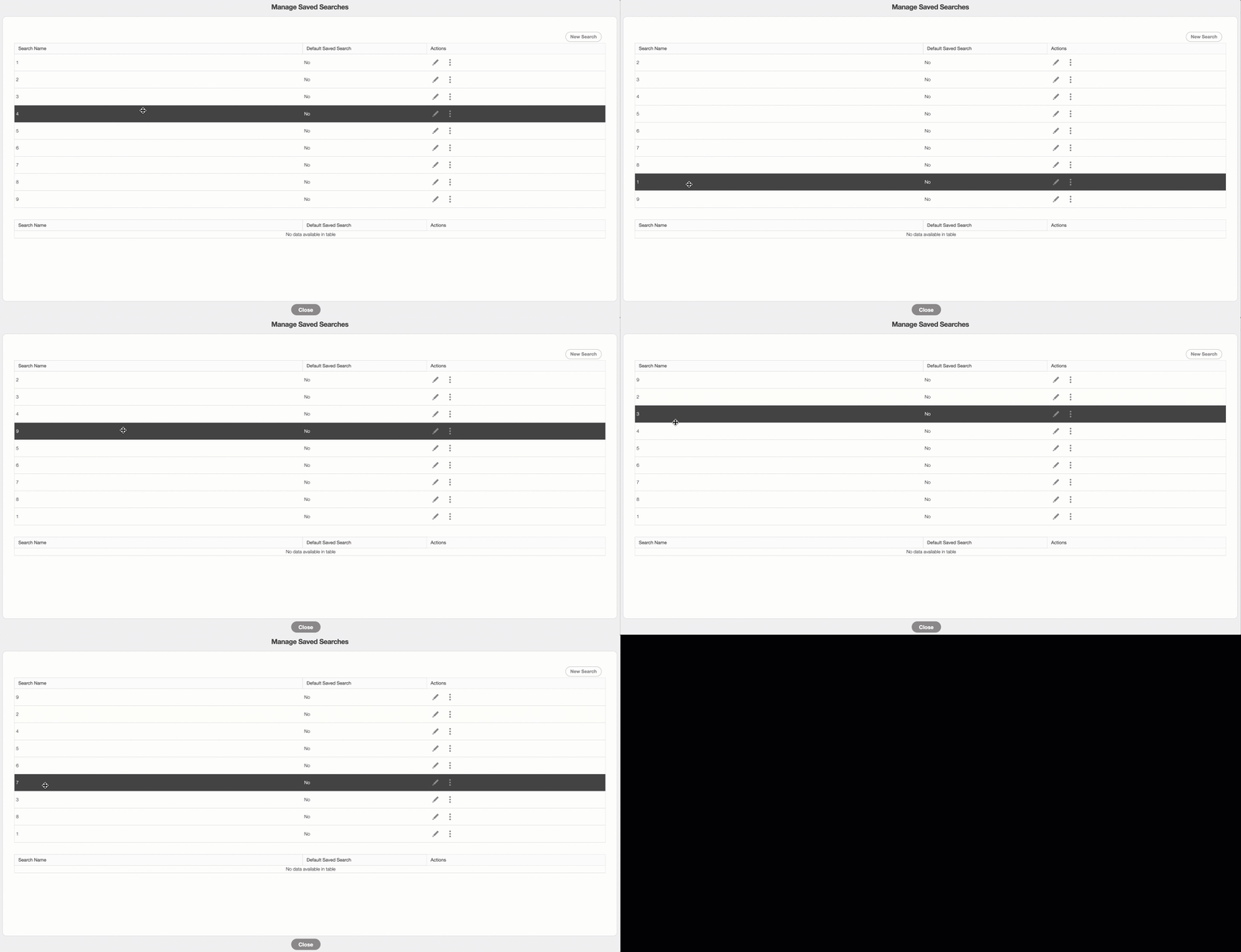
Once you close out of the pop-up window, the new saved search order will automatically appear in the saved searches drop-down.

Searching for Parent and Sub-Customer Accounts

The best way to visualize parent accounts and their associated sub-customers/child accounts is to export your customer list to Excel.

From the spreadsheet, you can view all parent accounts and their associated sub-customers. We do not have an attribute to search for parent customers directly. For more information on how to export customers, please see the Export Customers page.

"Show All" Results Limit

By default, the "Show All" saved search will display up to 500 results, with each page showing 25 results. To increase the maximum number of results per page, create a new saved search and set a higher limit.

Editing a Saved Search Name

To rename a saved search, start by opening the Manage Saved Search pop-up window for the relevant feature; for example, you can rename a specific saved search from the Customers feature.

Within this window, click the Pencil icon next to the saved search you want to edit. This will open the Edit Search pop-up window.

Scroll to the "Save This Search" field, enter the new name, and then click the Save button to confirm your changes.

Customer Phone Number Search

On the Customers feature page, you will be able to use the customer's phone number to locate the desired individual. You can search using a partial or full phone number, with or without spaces. This is especially useful when a customer's name is unknown or when multiple customers or contacts share similar names, allowing you to quickly locate the correct individual using their phone number.

Note: Please note, when searching for a phone number, the customer's physical address will also appear if there is a match in the system.

System Saved Search

A "System Saved Search" is a predefined search that can only be viewed, edited, or deleted by MobiWork. Users will not be able to modify or delete these saved searches. This ensures that default saved searches, such as those used for built-in dashboards, reports, and list pages, remain intact and are not accidentally modified.