Setting Your Company Localization Settings
Overview Video

Step by Step
- Begin by opening the MobiWork Onboarding Assistant:
- During your free trial, this can be accomplished by selecting the Graduation Cap icon located in the top right corner of all your MobiWork pages:
- Or by selecting the Onboarding Assistant option located in the Help menu of your User Actions:
- Note: If you're no longer in your trial of MobiWork, the Onboarding Assistant will still be found within the Help menu.
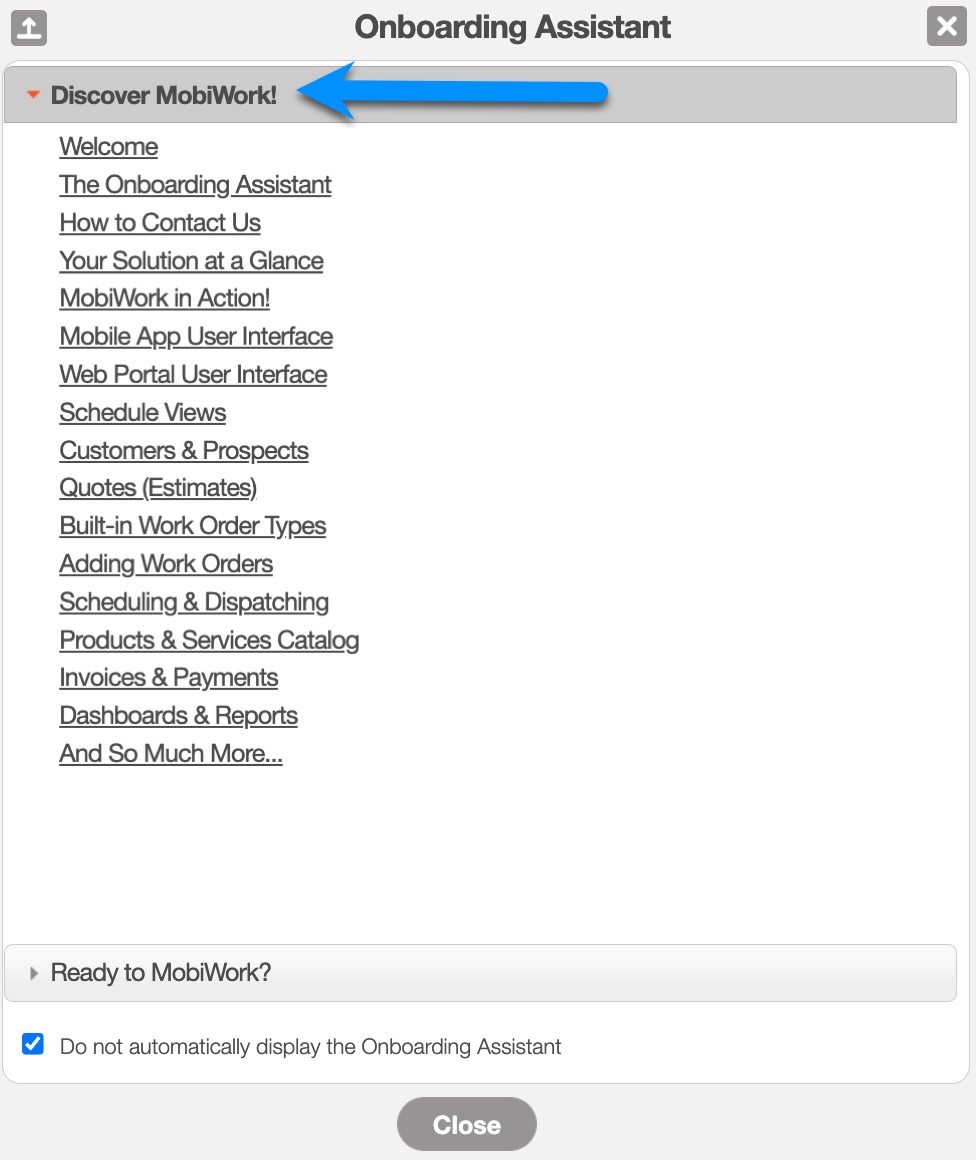
- The Onboarding Assistant pop-up window will appear with the "Discover MobiWork!" tab opened by default:
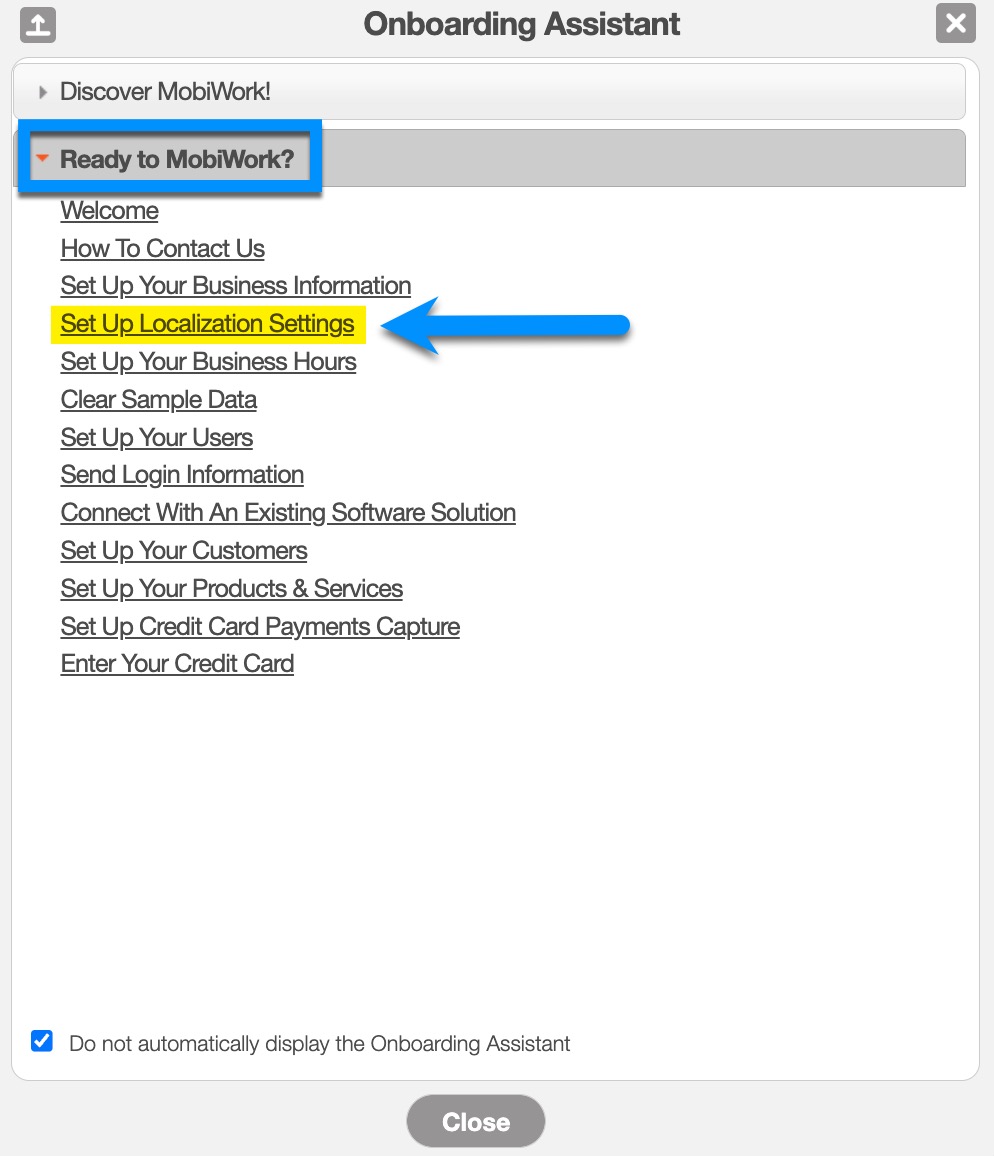
- From here, select the "Ready to MobiWork?" tab and choose the Set Up Localization Settings option:
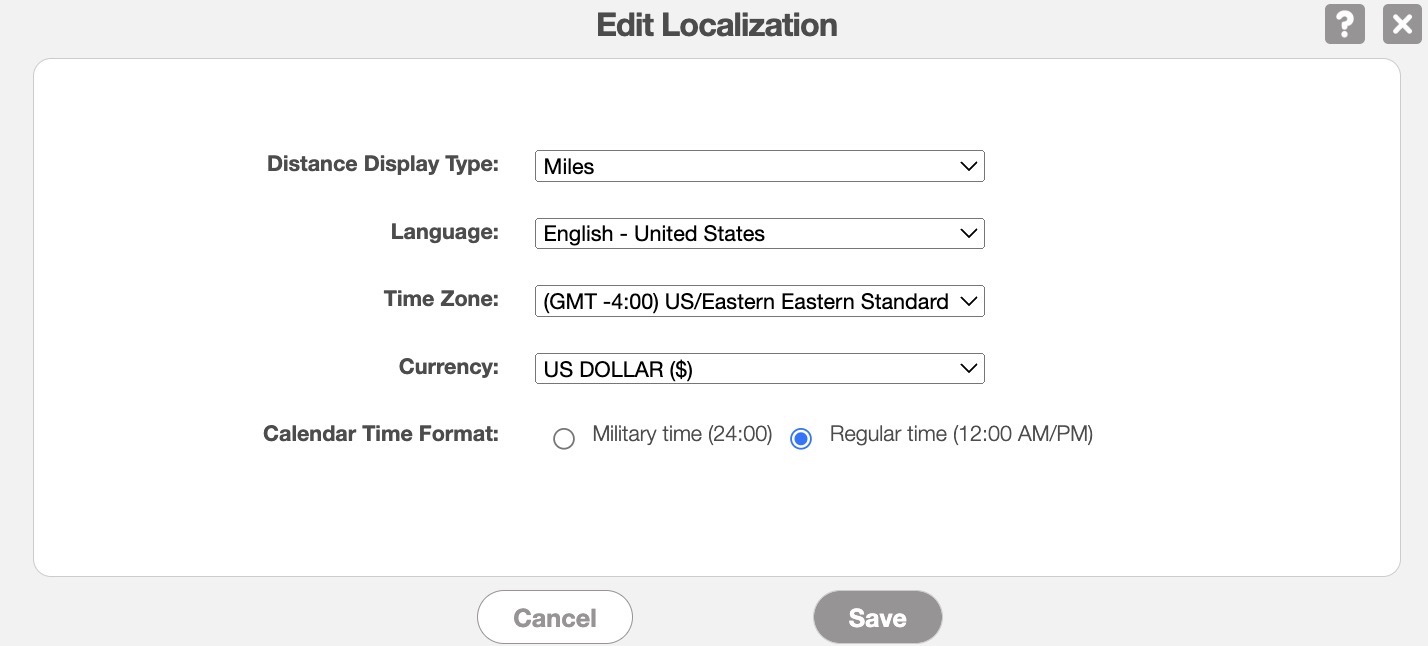
- The Edit Localization pop-up window will then appear:
- In this pop-up window, select the proper drop-down option for each field listed:
- Distance Display Type: How distance will be displayed (in yards, miles, meters, or kilometers) for all users in your account.
- Language: The language that will be displayed for all users.
- Time Zone: The time zone that MobiWork will be in for all users.
- Currency: What the currency will be for invoices, quotes, etc. for all users.
- Calendar Time Format: Either military or regular time.
- When you are finished, click Save.