
- Provide the usernames and passwords to each user.
- Send your users links for the website and/or links to download the app:
- For the Web Users:
- Navigate to www.mobiwork.com and click on they grey "Log In" button located in the top left corner:
You can also use the link, www.mobiwork.com/login.html, to directly access the login page.
- For the Mobile Users:
- Direct them to the App Store / Play Store and search for MobiWork.
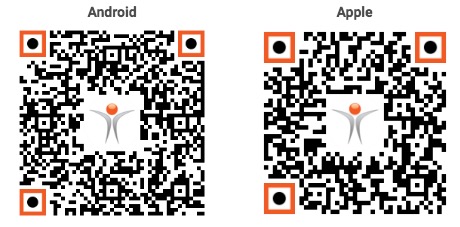
- Download the application using the QR Codes or links below:
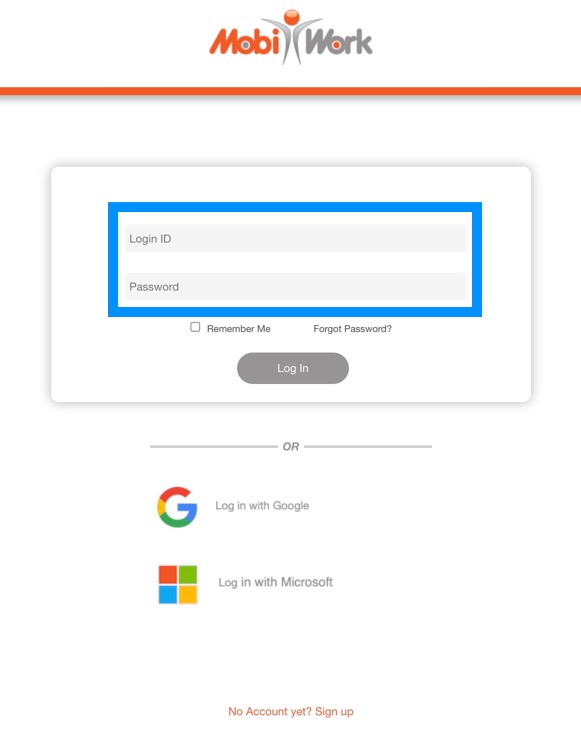
- Once you reach the login screen on either web or mobile, enter the Username/Login ID and associated Password before selecting Log In:
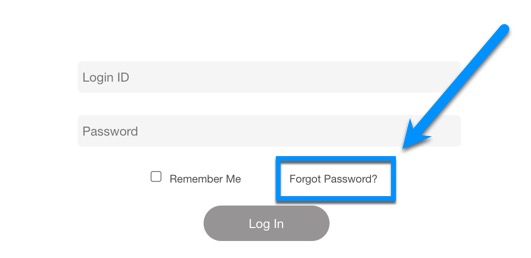
- If a user needs to reset their password, they can receive a reset link sent to their email address on file by choosing the "Forgot Password?" option:

Once your users log in to MobiWork, you, as an Admin will be able to validate their devices on MobiWork.
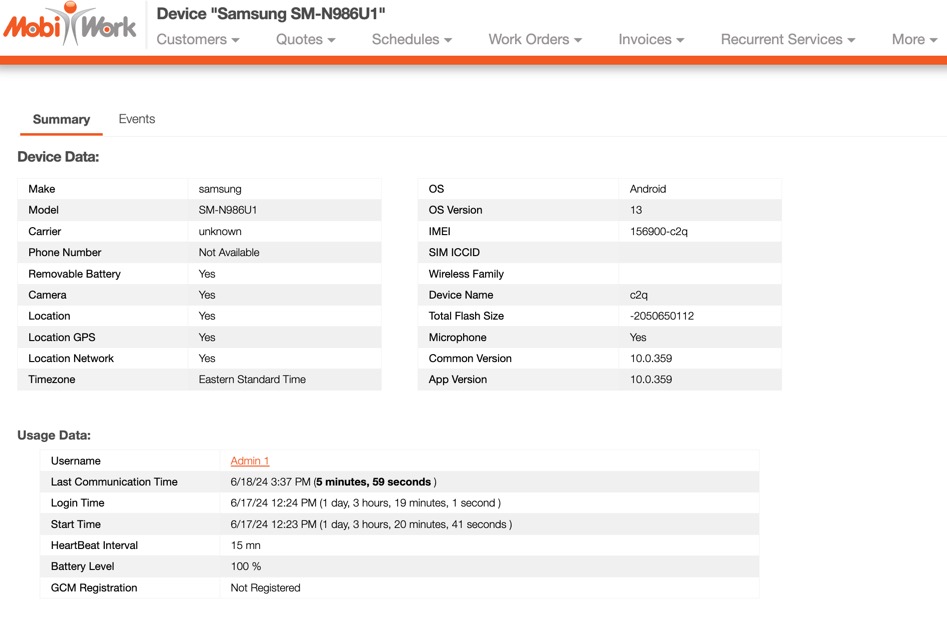
Whenever a user logs in, you'll be able to see device details, such as the manufacturer, location, and battery level. Let's show you what that looks like:
- If you haven't already, log in with your Login ID/Username and Password to the MobiWork application.
- This step will communicate device data with the MobiWork servers.
- Once you're logged in, return to MobiWork on your computer.
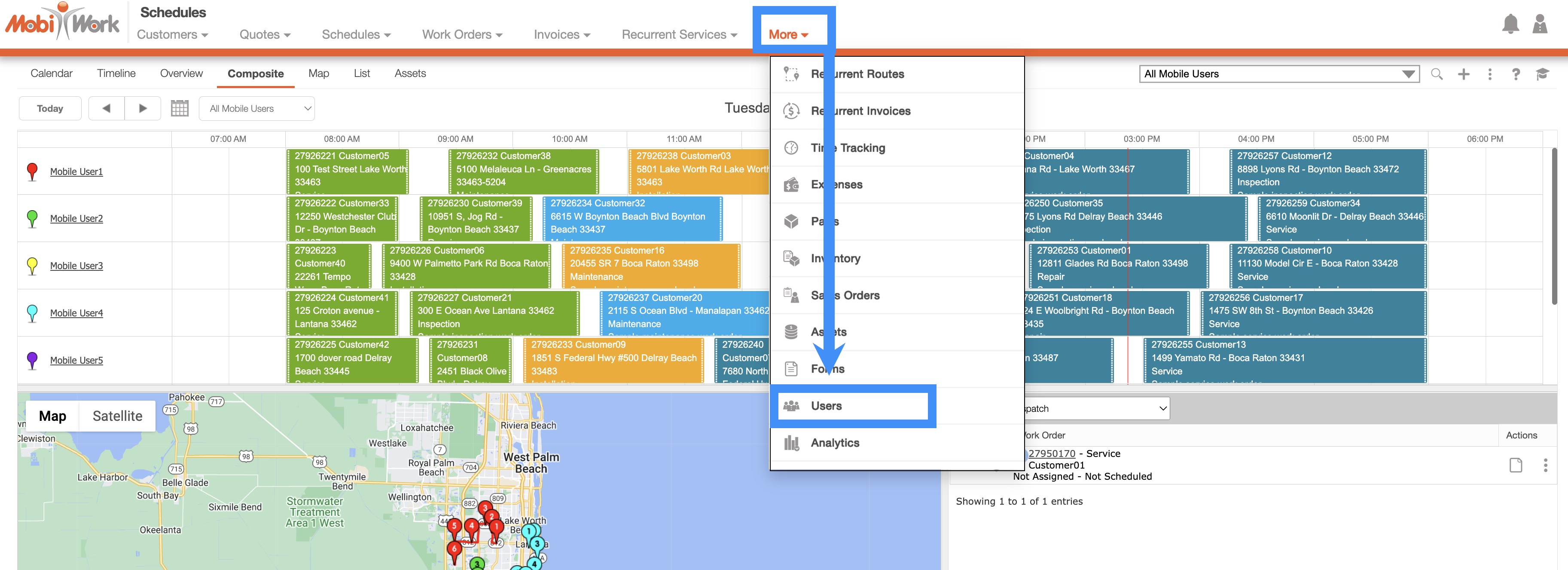
- Navigate to the More drop-down menu to choose Users:
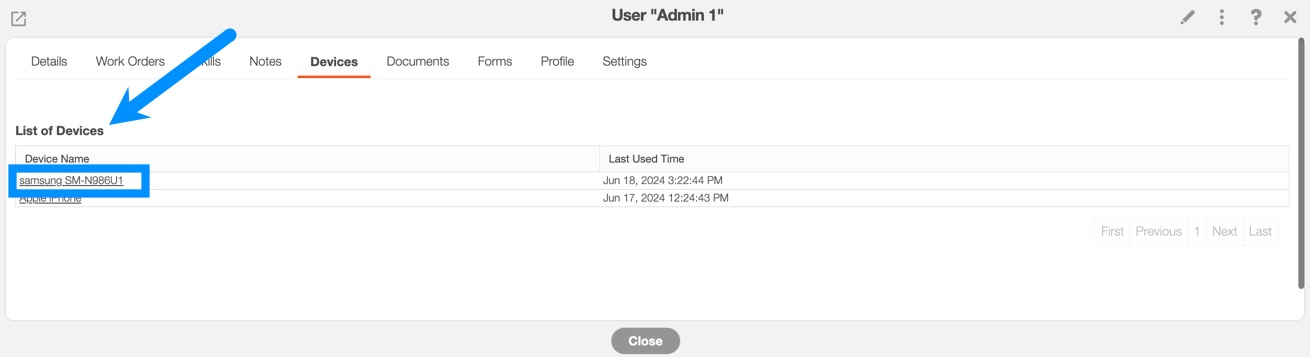
- Click on the Login ID of the selected user or select the View button:
- Under the heading, List of Devices, you should see your user's device:

When you first log on to MobiWork on the web interface application, you will have three different sign-on options:
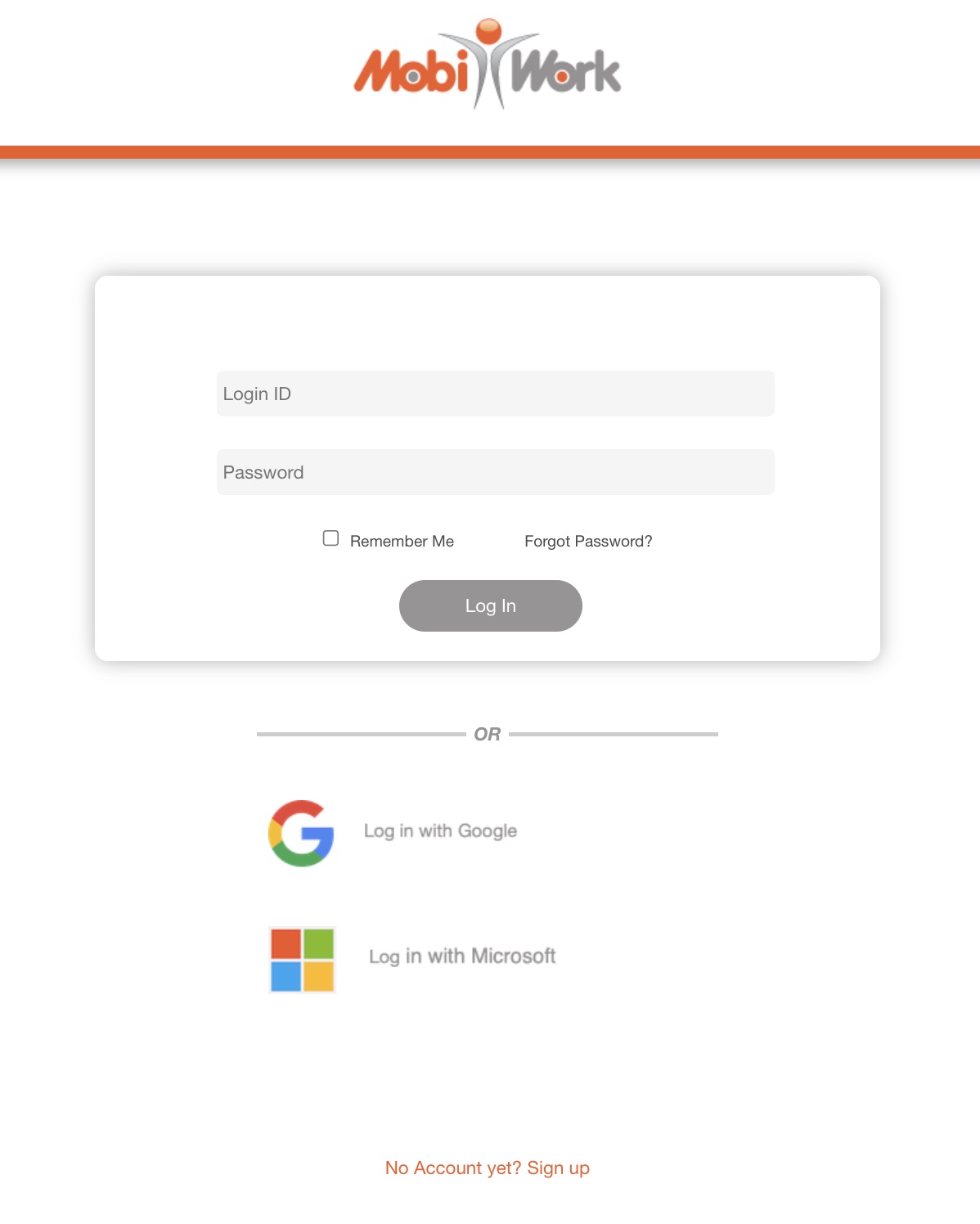
You can use the following methods to log-on to MobiWork:
Your MobiWork ID
Your Google account
Or your Microsoft account
Note: Please note that you will need to have a MobiWork account, prior to changing the log-on option to a different authentication method. For more information on how to change the log-on option, please see the Edit Log-On Credentials subsection.
Edit Log-On Credentials
To edit how a user logs on to MobiWork, you will need to access the Edit User pop-up window. For more information on how to access this pop-up window, please see the Edit User page.
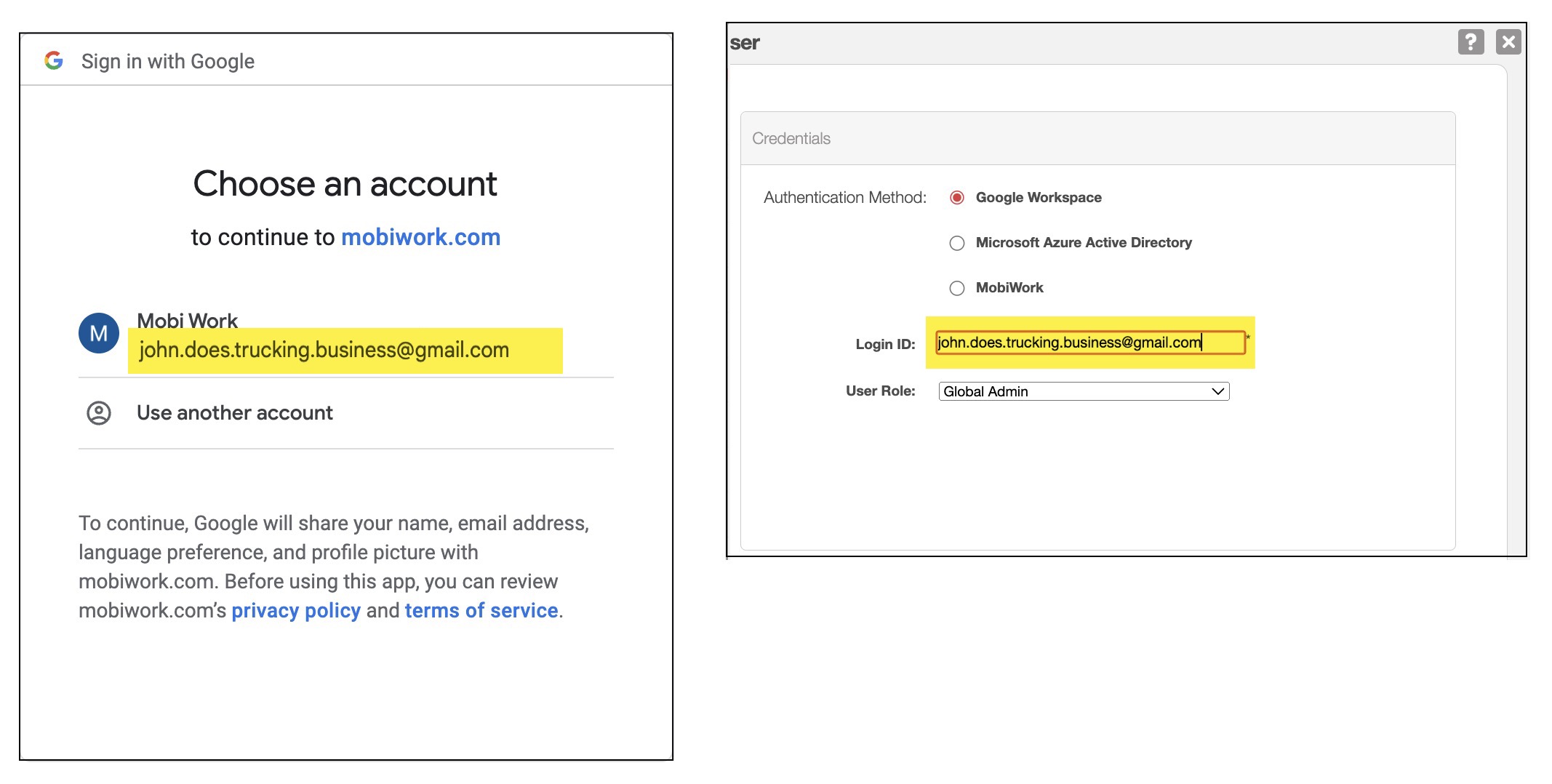
Once you have accessed this pop-up window, you can update which authentication method the user would like to use to log on to MobiWork:
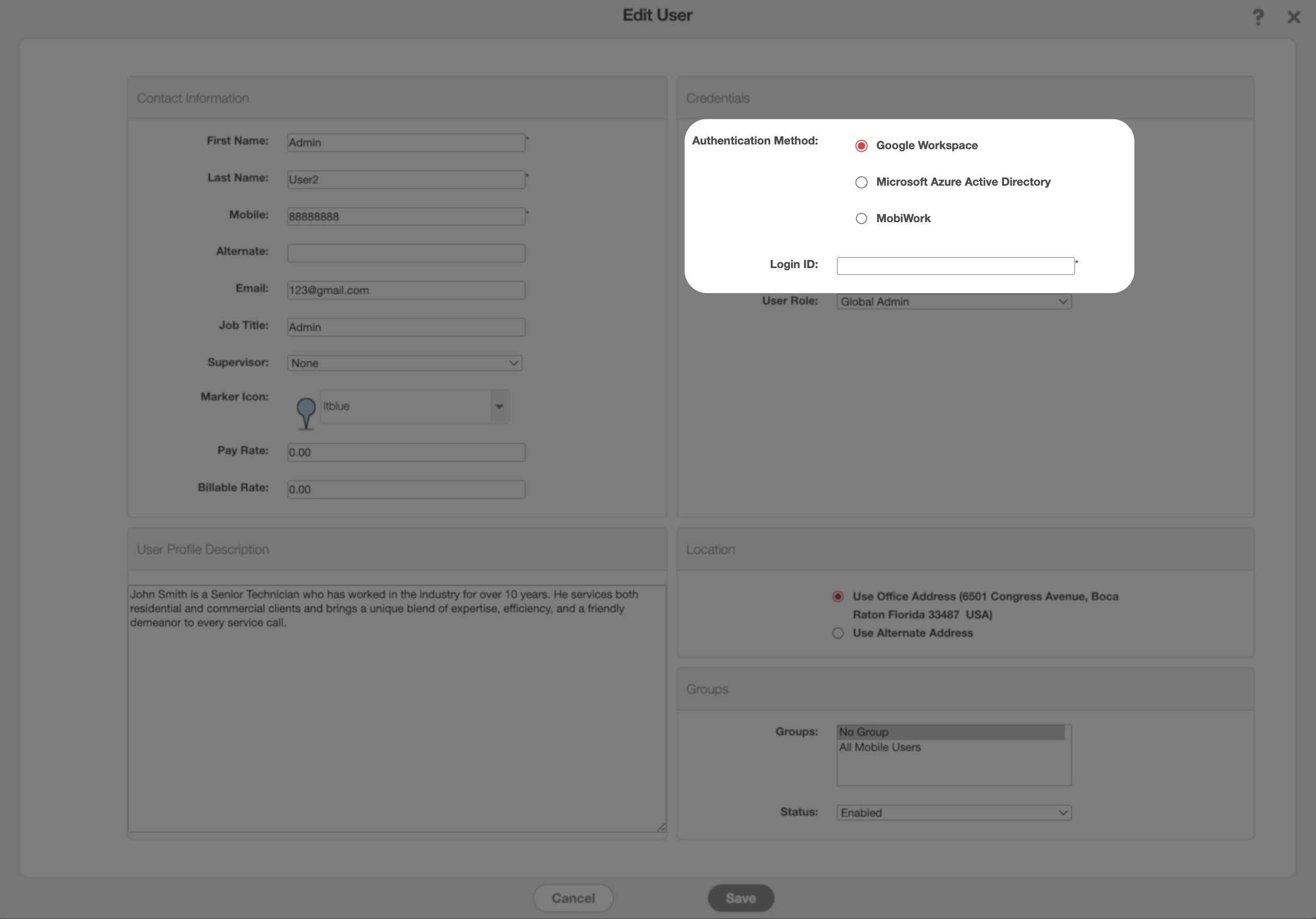
Use the Multiple Choice button to indicate which authentication method the user will use to log on to MobiWork.
Important: Please note that the Login ID MUST match the login email for your Google or Microsoft account. Failure to input the corresponding login ID will result in a failed log-in attempt:
Logging on With SSO
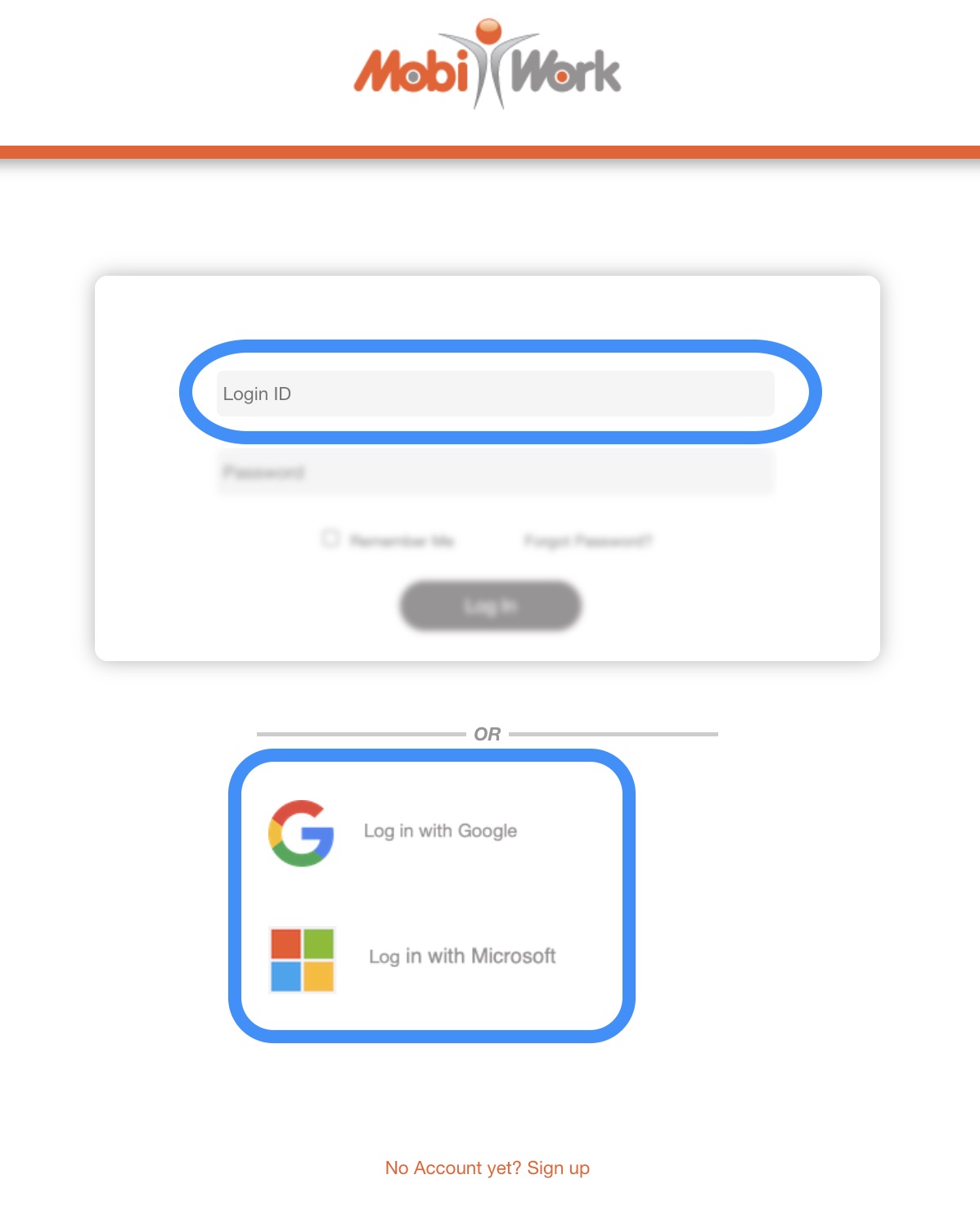
To log on with the selected authentication method, you will first need to be on the MobiWork log-in page.
Once you are on this page, enter the Login ID credentials in the "Login ID" field; then select the desired authentication method:
You will then be prompted to input your login credentials either for your Google account or your Microsoft account:
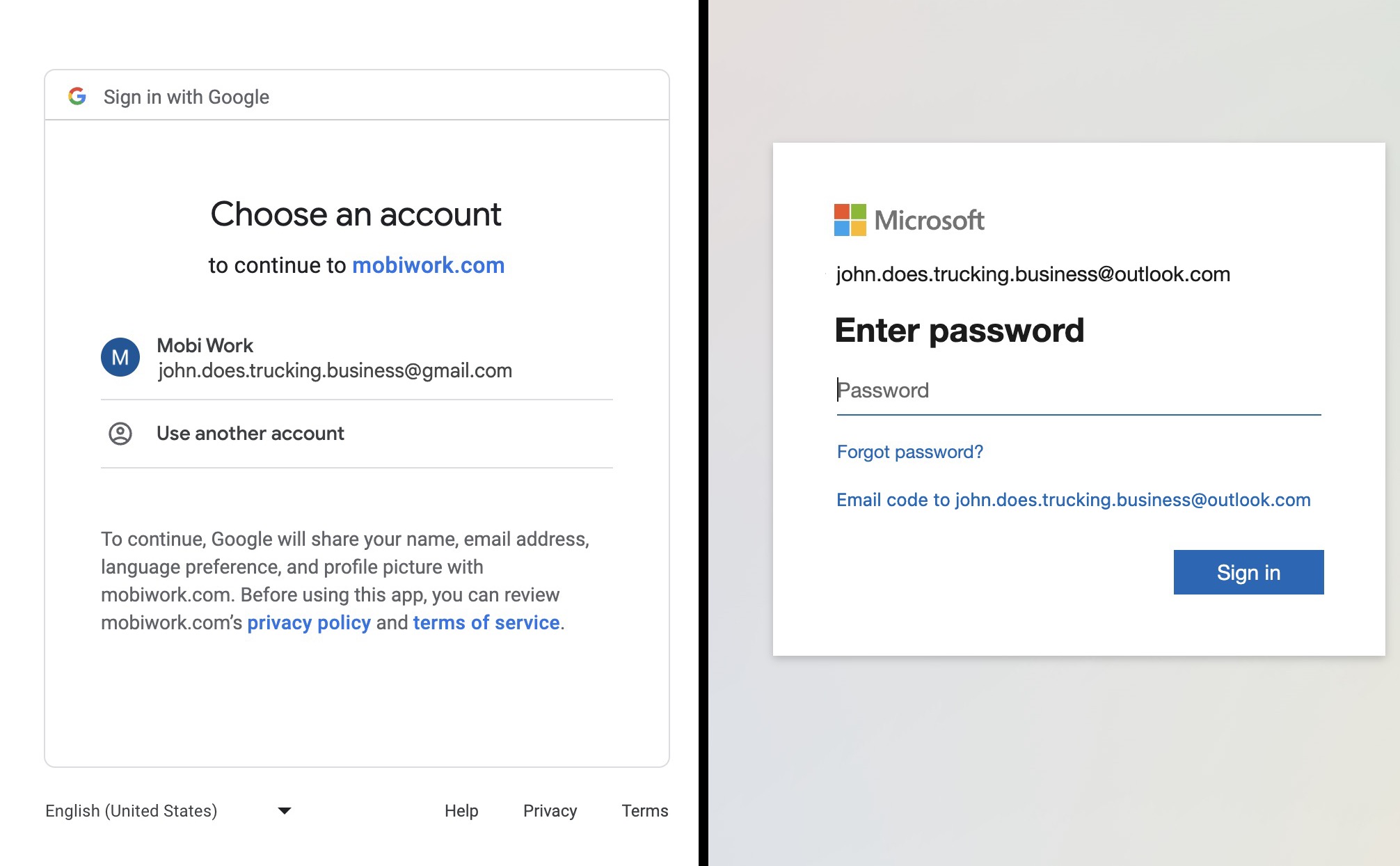
Note: Please note that if you cannot recall your Google or your Microsoft login credentials, please contact the respective company for assistance.