
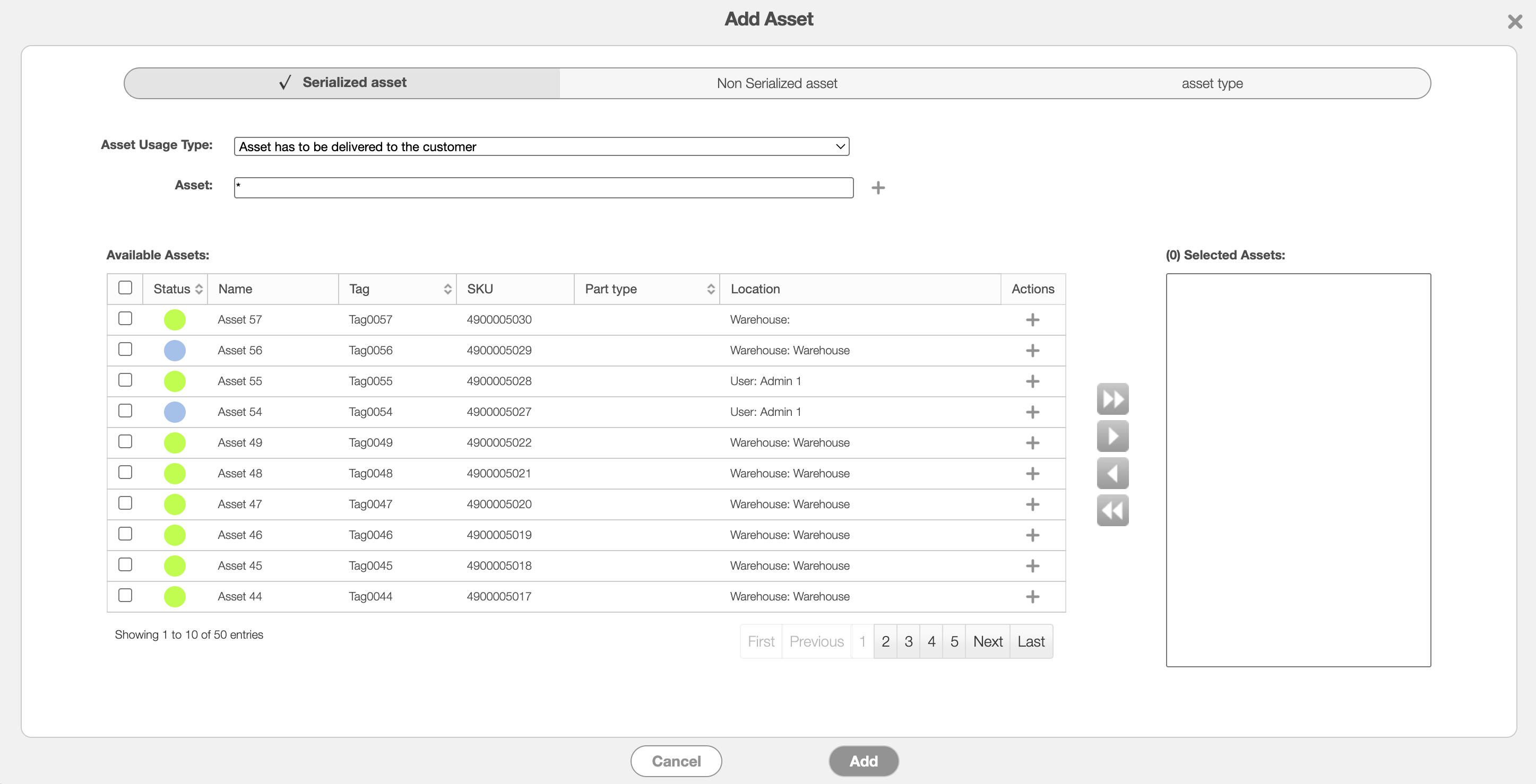
When adding an asset to a work order, the Add Asset pop-up window will allow you to:
Use the top-most toggle, to select the type of asset being used (i.e., serialized asset, non serialized asset, or asset type). A "Serialized Asset" is a specific individual asset, (e.g., a car with the license plate 123ABC); an "Asset Type" is a generic asset, (e.g., any type of car).
Define how the asset will be used for the work order (e.g., if the asset has to be delivered to the customer, is already at the customer site, etc.)
Use the "Asset" field to locate the specific asset. The corresponding color in the "Available Assets" table indicates the status of the asset; by hovering over the color icon, a text box will appear detailing the corresponding status. The colors and their corresponding asset statuses are defined below:
Green - Operational: The asset is in working condition and available for normal use. No known repairs or service issues are currently affecting its operational status.
Light Blue - Demobbed: The asset has been demobilized and is no longer actively assigned or deployed for operational use. It remains tracked in MobiWork but is not currently in active service.
Yellow - Operational Needs Repair: The asset is still operational but requires repairs, maintenance, or attention. Although it may remain usable, corrective action may be needed to restore it to full working condition.
Red - Out of Service: The asset is not currently available for use due to a malfunction, damage, or another condition that prevents it from operating. The asset should remain out of service until the issue has been resolved.
Dark Blue - Decommissioned: The asset has been permanently removed from active service and is no longer intended for operational use. It remains recorded in MobiWork for tracking and historical reference.
The image below highlights the Add Asset view when adding it to a work order:
If selecting a non serialized asset or asset type, you will also be able to input the corresponding quantity of assets being used.
Mark which assets will be used, and then use the corresponding Arrows to move assets to the "Selected Assets" column.
Once you are finished inputting the required data, click the Add button to confirm the asset usage with the work order.
For more information about adding an asset ot a work order, please see the View Work Orders page.