
To access the import or export actions for your assets, click on the More Actions button on the Assets feature page:
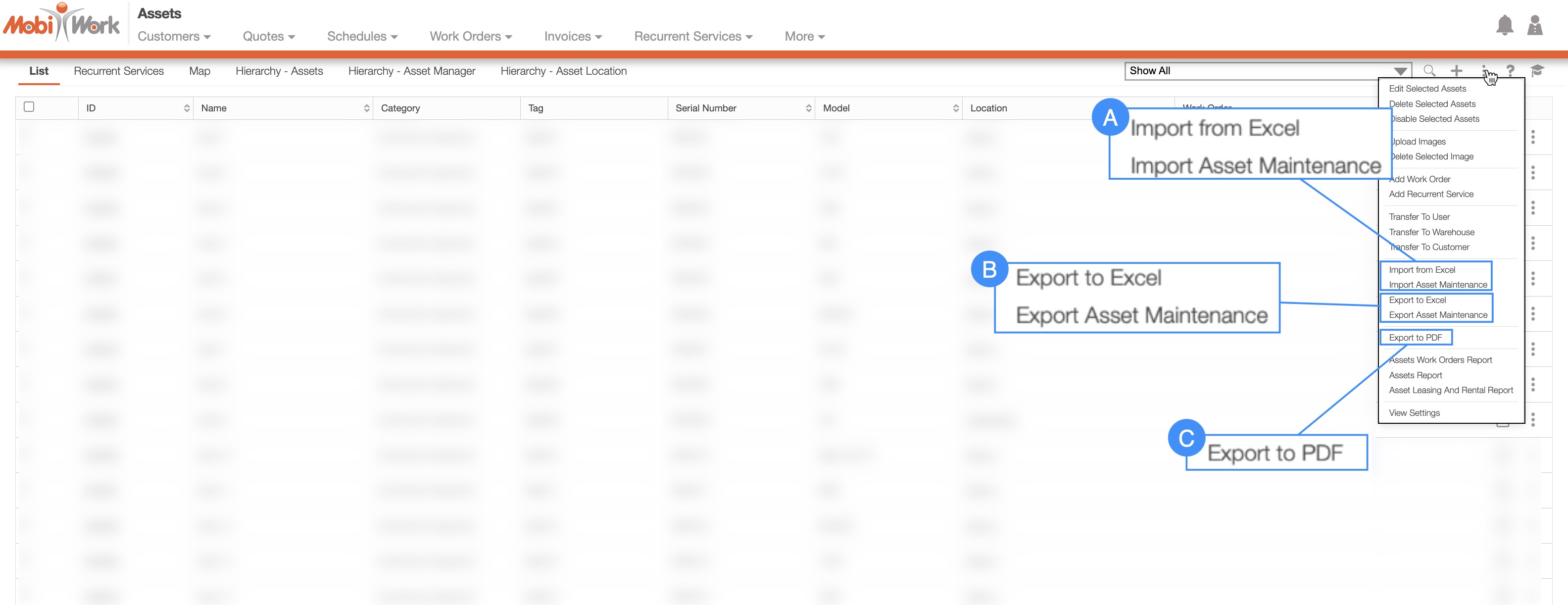
To export or import your assets, you will first need to access the Assets feature page. For more information about this page, please see the Asset List page.
You can import assets from your Excel document. Please note that to import the assets correctly, the Excel document must be formatted in the correct manner (please see the image below for the correct headings and order):
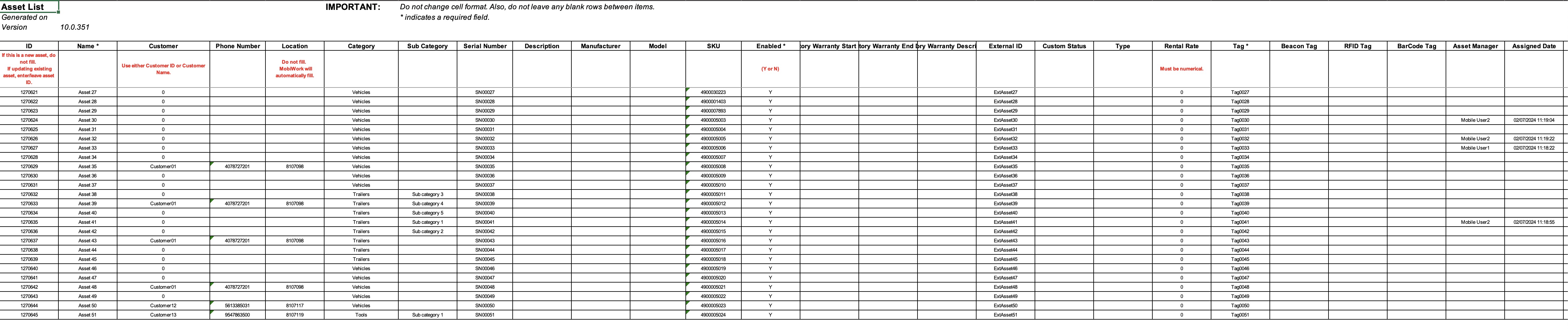
Once you have entered the assets in the Excel document correctly, you can upload that document to MobiWork:
You can use this method to upload multiple assets at once.
First, access the Assets feature page. Please see the Asset List page for more information on how to access this page.
When you are on the Assets feature page, select the More Actions button and from the drop-down click on the "Import From Excel" option:
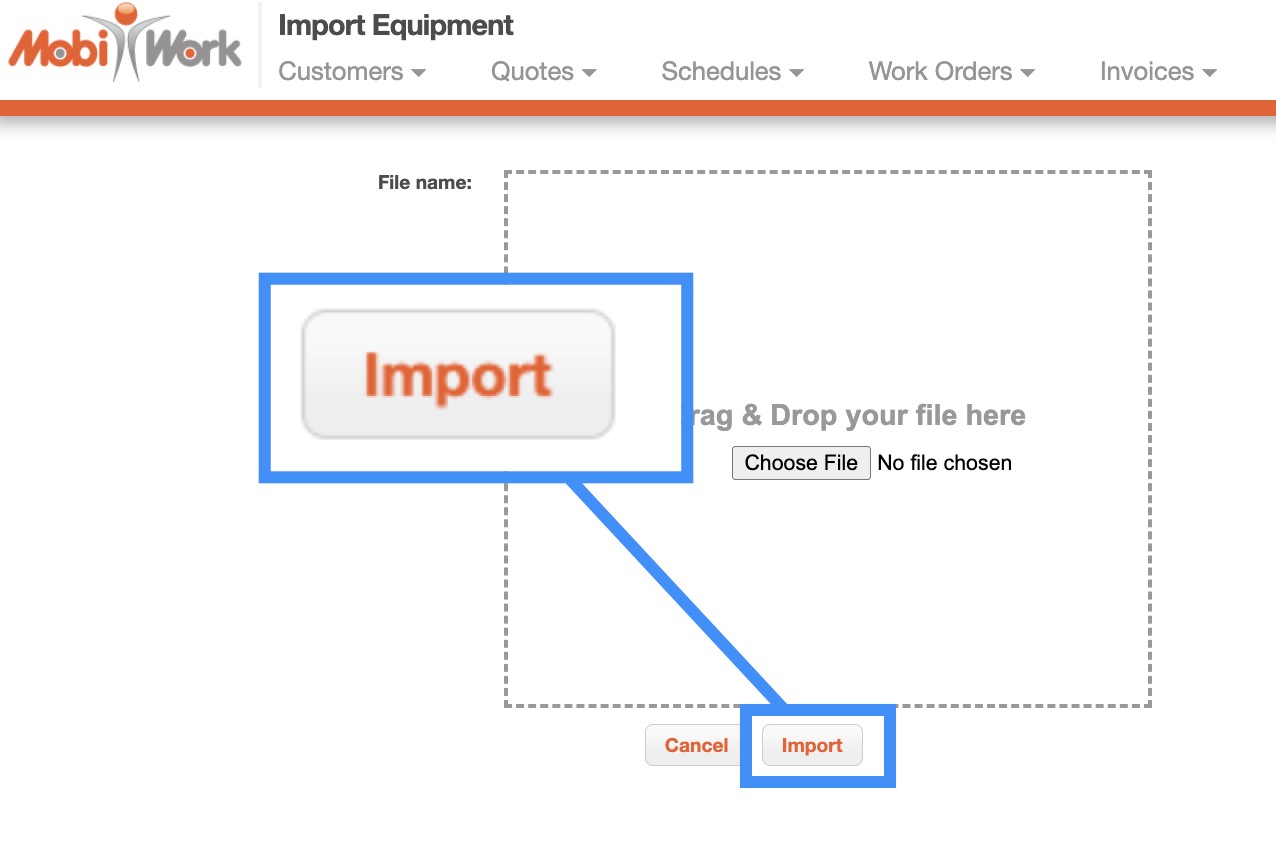
Upload your Excel file to the drag & drop feature and then click on the Import button:
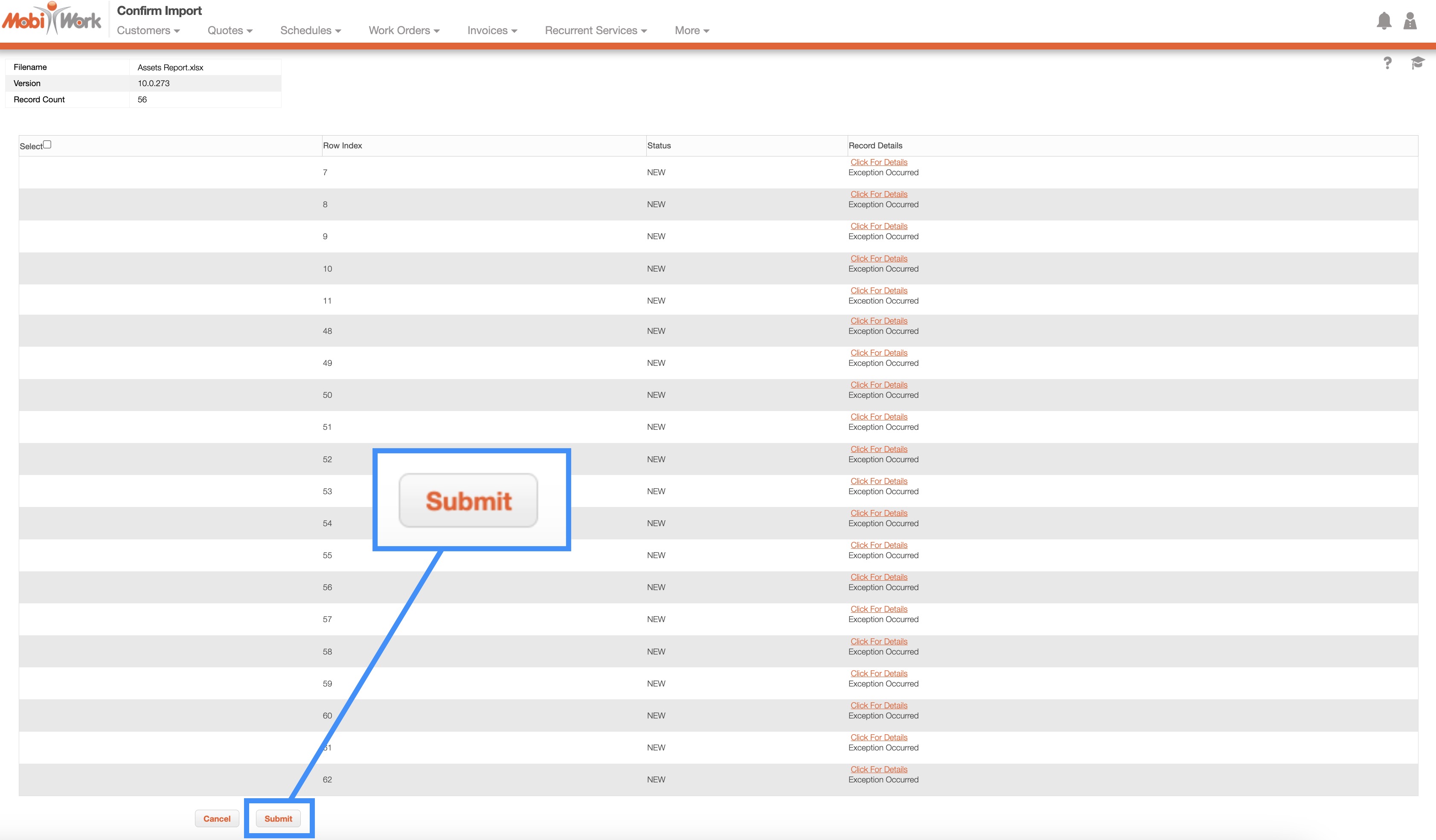
You will then be redirected to the Confirm Import page. Confirm your imported Excel file by hitting the Submit button:
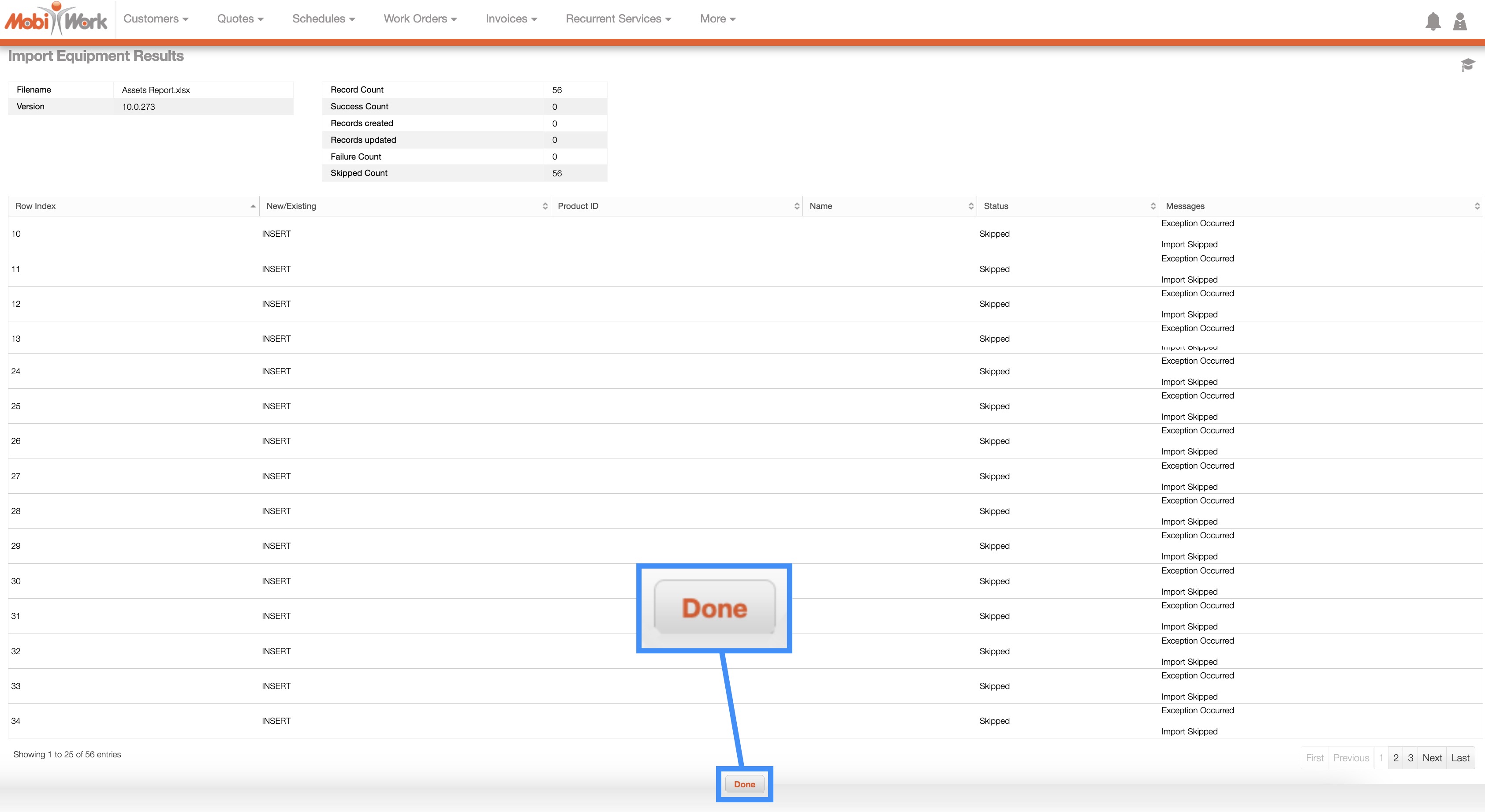
Once you are redirected to the Import Work Order Results page, click the Done button:
The newly uploaded assets from Excel will then be displayed in MobiWork with your other assets.

Note: Please note that in the Excel document, a double asterisk (**) indicates a conditional field, while a single asterisk (*) denotes a required field.
You can also edit assets in bulk through Excel; this process will enable you to update more than just the value of the assets:
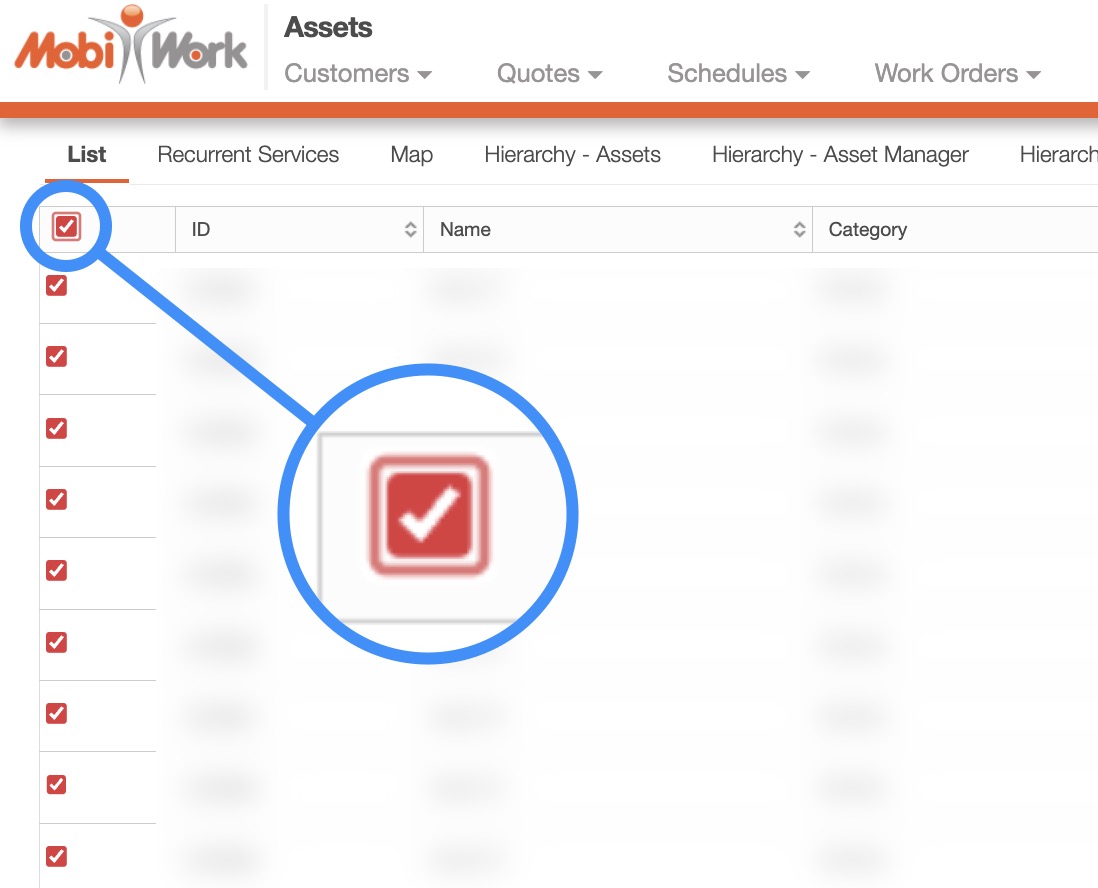
- Please note that if you would like to export all your assets into Excel you can click on the topmost checkbox (Multiple Selection Area) located in the Assets feature page columns. Likewise, if you do not select any entries ALL records will be exported:
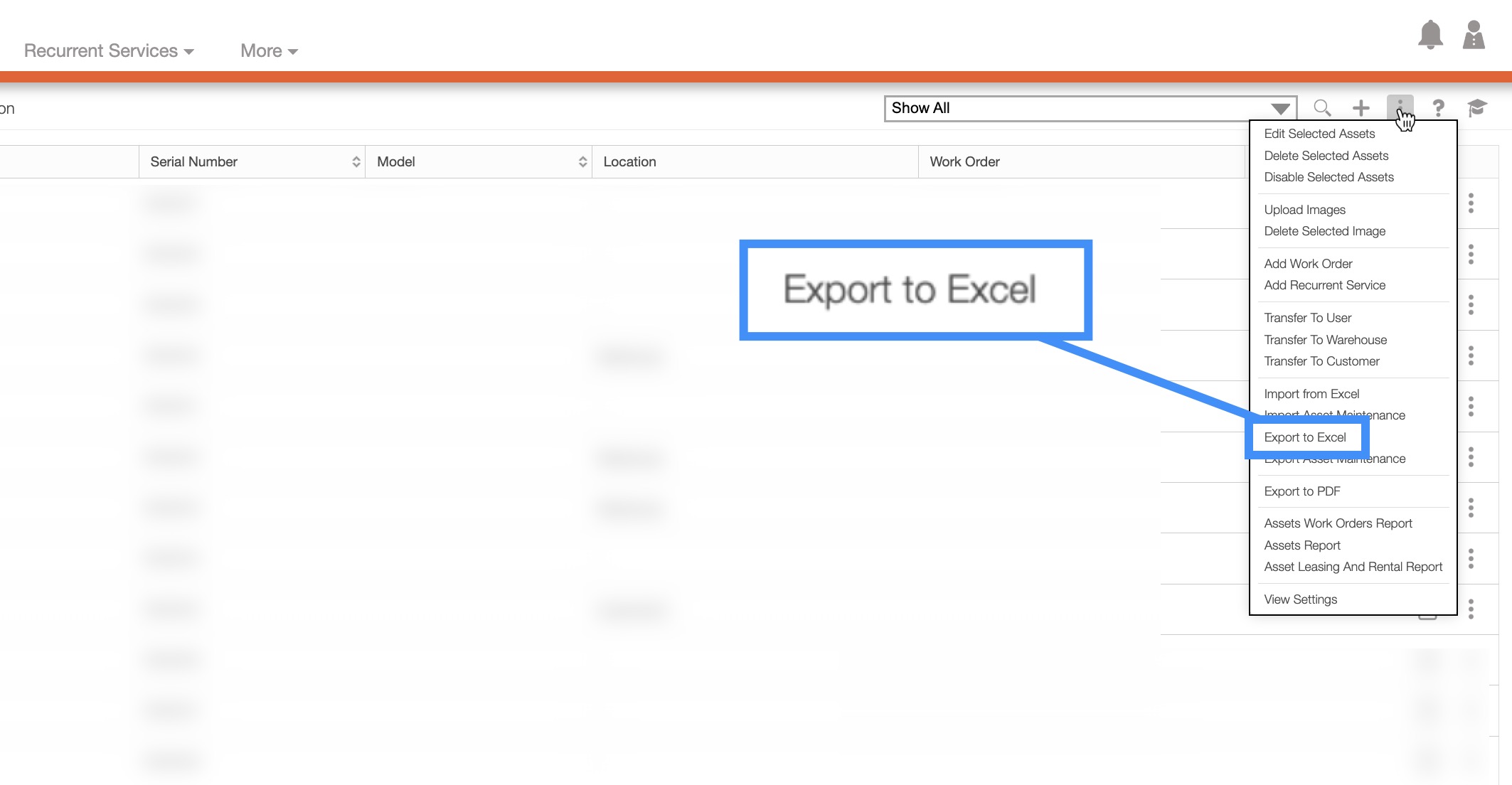
Click on the More Actions button and from the drop-down menu select the "Export to Excel" option:
The Excel file will automatically download, and you will be able to locate it in your computer's Download folder.
This export will display the basic asset data (e.g., Asset name, the customer information of the customer who has the asset, the manufacturer, the serial number, etc.) in an easy-to-read format. You can then use Excel to easily navigate through your company's assets:
Note: Please note that in the Excel document, a double asterisk (**) indicates a conditional field, while a single asterisk (*) denotes a required field.