
After sending the purchase order request to the vendor with the "Send to Vendor" option from the Individual Actions button and your shipment has arrived, you can indicate in MobiWork that the requested items have been received. When the purchase order shipment arrives, you can specify which items have been received as well as the exact quantity.
You will be able to perform these actions from the View Purchase Order pop-up window by clicking on the Individual Actions button and selecting the "Shipment Received" option from the drop-down:
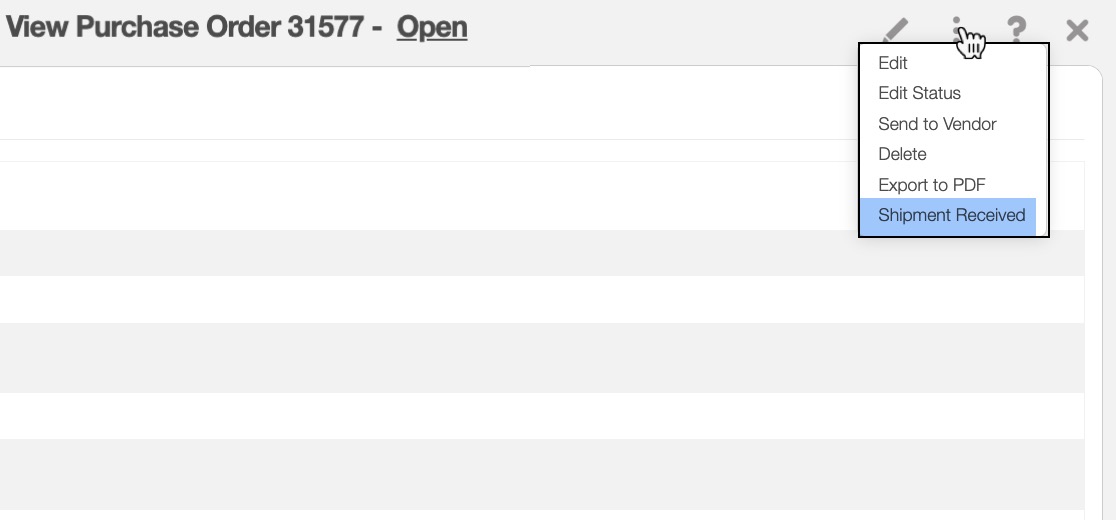
The following subsection, will go into detail regarding the Shipment Received pop-up window.
Once you select the "Shipment Received" option from the View Purchase Order pop-up window, the Shipment Received pop-up window will then appear.
In this pop-up window you will be able to input the quantity of the parts being received:
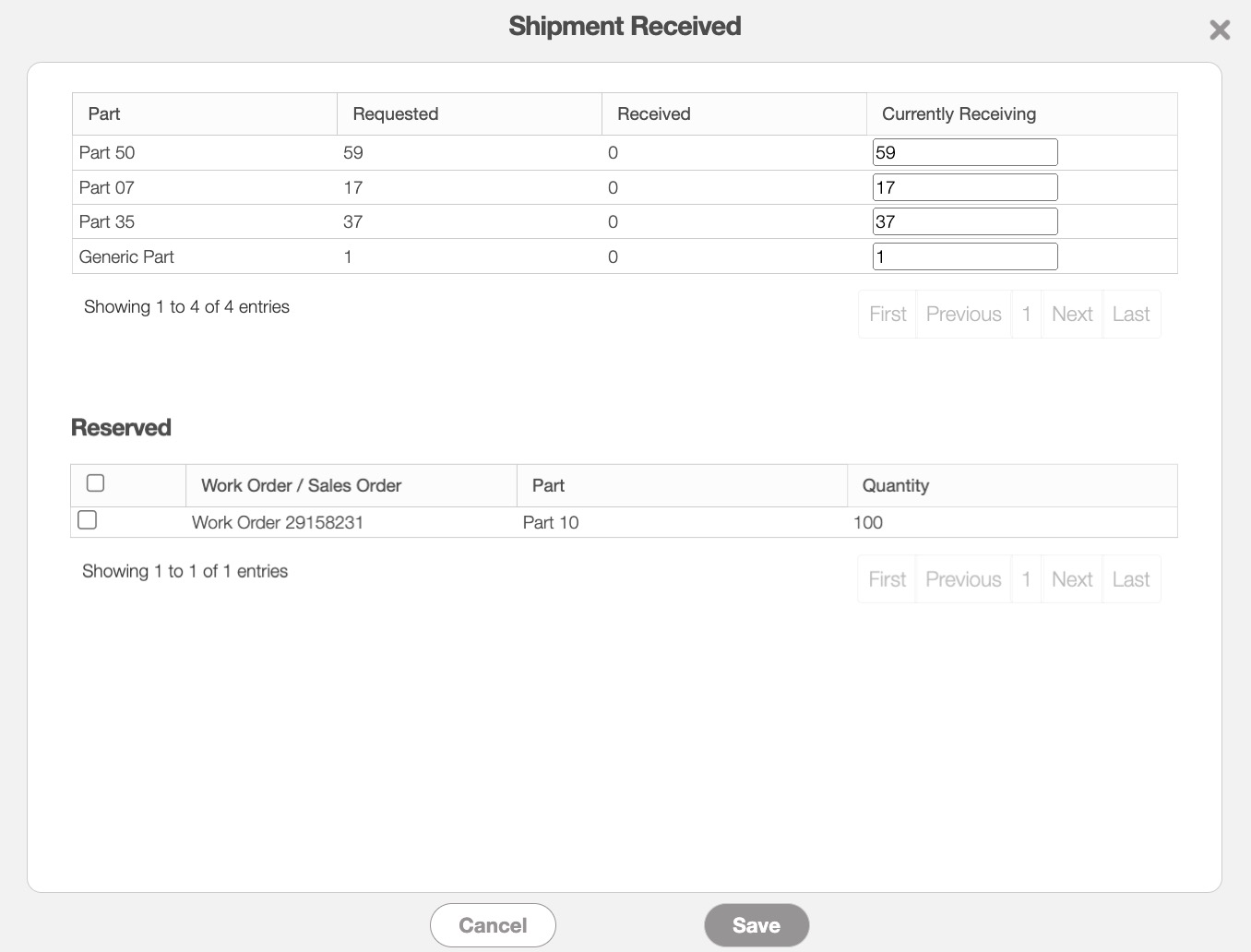
You cannot enter a quantity greater than what was requested in the purchase order, but you can input a quantity less than the requested amount for a partial order.
Once you are satisfied with the information entered, click on the Save button to record the data. If the purchase order was generated through the work order's "Parts and Services" panel, you will be able to view the amount reserved for the work order. For more information on how to generate a purchase order through the work order's "Parts and Services" panel, please see the Add Purchase Order section.