The most direct way to update a purchase order is through the Purchase Orders feature page. For more information on how to access this page, please see the Purchase Order List section for more information.
Once, you are on the Purchase Orders feature page, there are several different ways you can edit a purchase order:
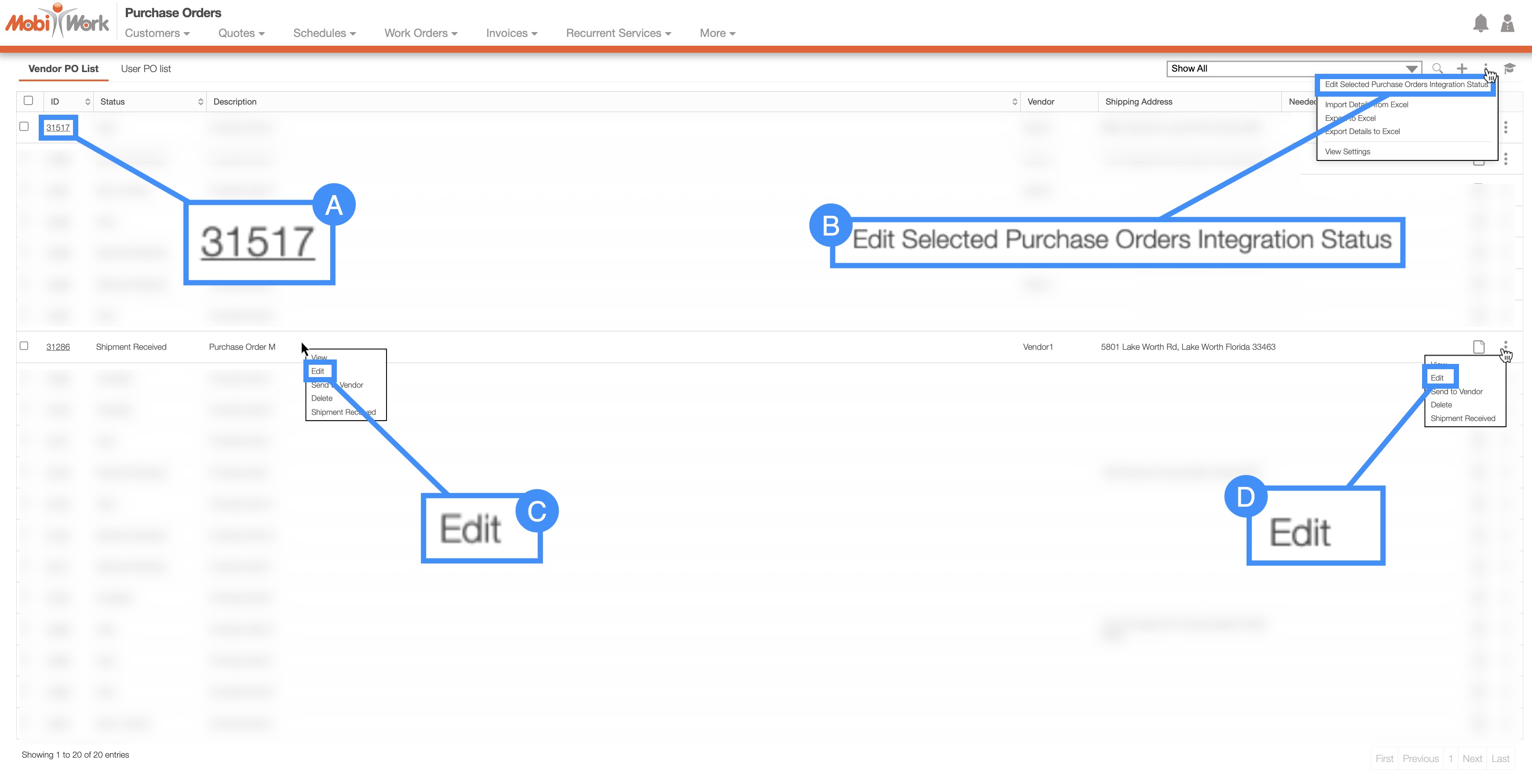
- Click on the purchase order ID to open the Purchase Order pop-up window. Then click on the Pencil icon, the "Edit" option, or the "Edit Status" option from the Individual Actions drop-down:
Please note that there are several ways that you can access the View Purchase Order pop-up window. Please see the View Purchase Order page for the different ways that you can open the View Purchase Order pop-up window.
Right-click on a purchase order to open the right-click options. (The options that are displayed when you right-click on a purchase order are also available when you select the Individual Actions button).
Select the More Actions button from the "Global Actions" section. Please note that this option will give you the ability to edit multiple purchase orders at once.
Click on the Individual Actions button (the three vertical dots) from the "Actions" column. (The options that are displayed from the Individual Actions button are the same as when you right-click on a purchase order).
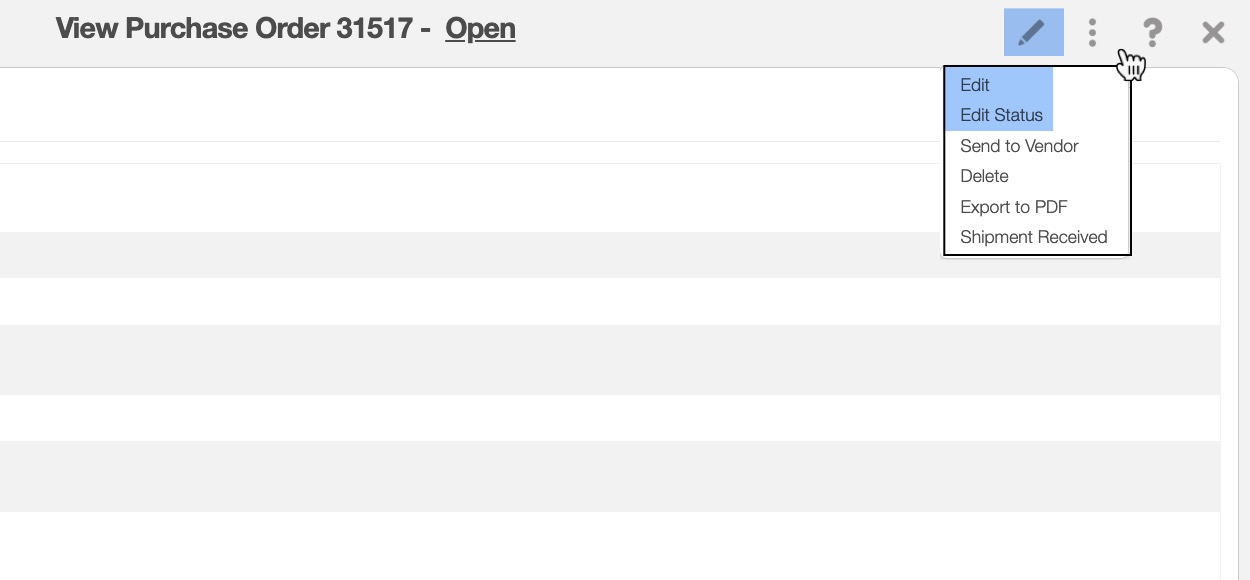
The option to edit a purchase order is different from editing the status; with the "Edit" option you can update more fields (e.g., not only the status but also the description, the purchase order type, etc.). Editing the status will only change the status of a selected purchase order.
There are several different ways to edit an individual purchase order. The section, How to Access the Page, will illustrate how to access the Edit Purchase Order pop-up window.
Regardless of how you choose to edit an individual purchase order, the Edit Purchase Order pop-up window will then appear:
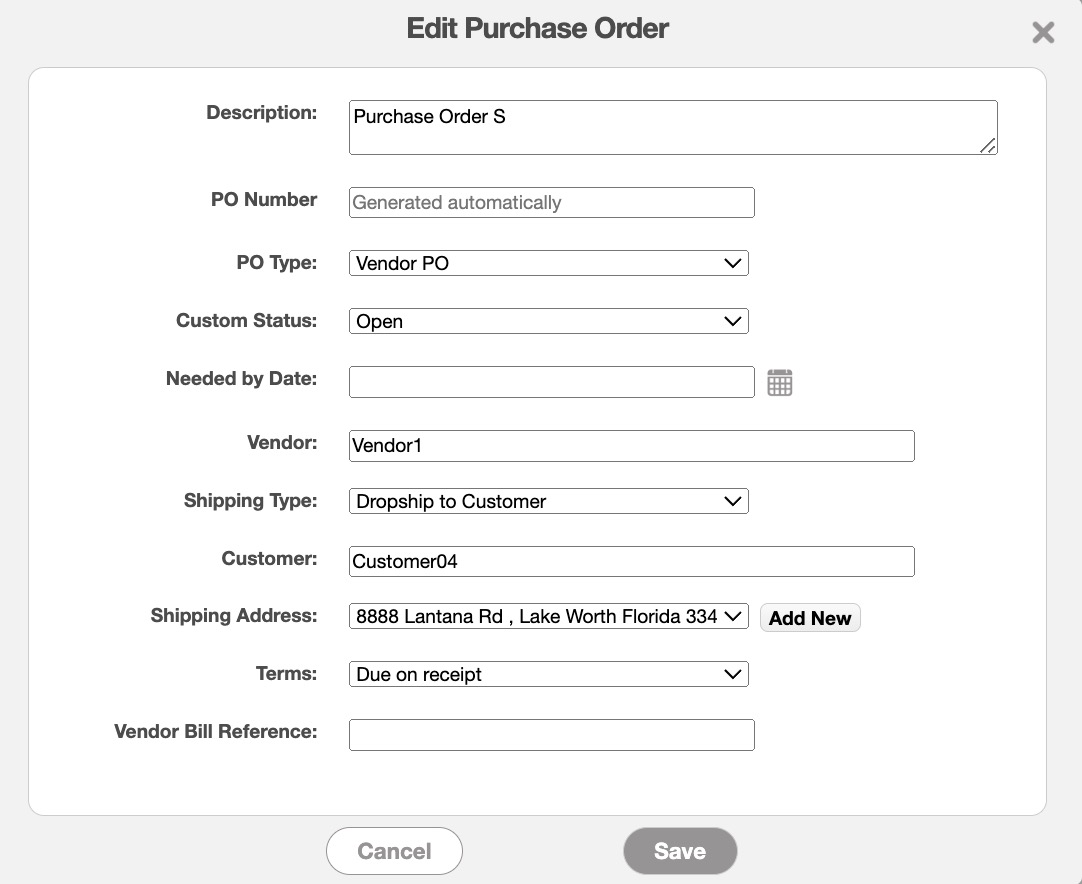
The terms found in the Edit Work Order pop-up window are defined below:
| Name: | Description: |
|---|---|
| "Description" | The title or description associated with the purchase order. |
| "PO Number" | The unique identification number assigned to the purchase order. |
| "PO Type" | Specifies the type of purchase order; you can select either a vendor or a user type. |
| "Custom Status" | The status of the purchase order. The status can be "Open," "Sent to Vendor," "Shipment Received," or "Cancelled." |
| "Needed By Date" | The required date by which the purchase order must be fulfilled. |
| "Vendor" | The vendor responsible for fulfilling the purchase order. |
| "Shipping Type" | The method chosen for delivering the items, such as dropship to customer, ship to warehouse, or ship to project. |
| "Customer" | The client or entity for whom the purchase order is being processed, or who will ultimately receive the goods or services from the vendor. |
| "Shipping Address" | The destination address where the ordered parts or products are to be delivered (this can include your warehouse or the customer's address). |
| "Terms" | The payment terms for the purchase order. |
| "Vendor Bill Reference" | The identifier or reference number associated with a bill or invoice issued by a vendor. |
Instead of editing the entire purchase order, MobiWork gives you the option to update only the status.
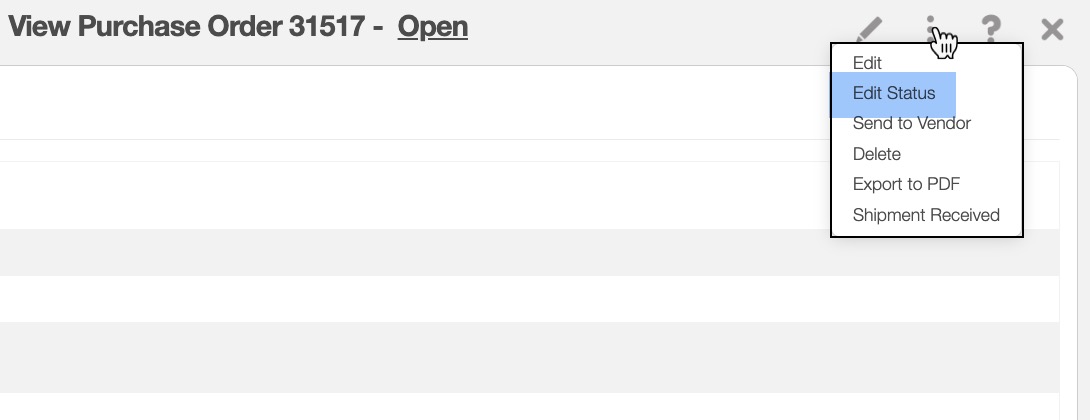
You can modify the purchase order status in the View Purchase Order pop-up window by clicking on the Individual Actions button and selecting the "Edit Status" option from the drop-down:
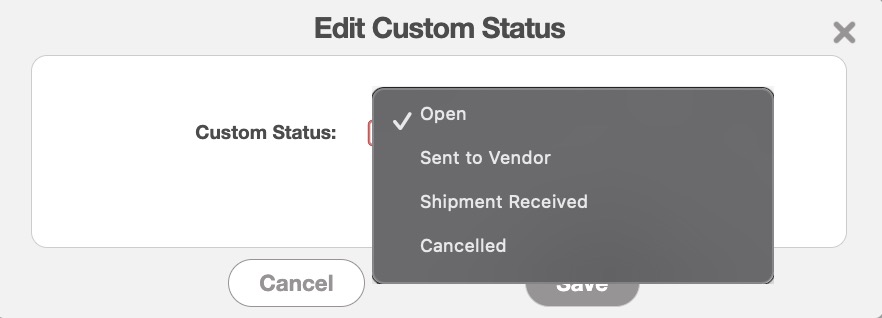
Next, the Edit Custom Status pop-up window will open. Here, you can select the new status for the purchase orders, followed by clicking the Save button to confirm your changes:
MobiWork allows you to edit multiple purchase orders at once, thus saving you time from having to update purchase orders one at a time. You can update multiple purchase orders in two ways: through the More Actions button or through Excel.
With More Actions
You can access the More Actions button through the Purchase Orders feature page. For more information on how to access this pages, please see the Purchase Order List page:
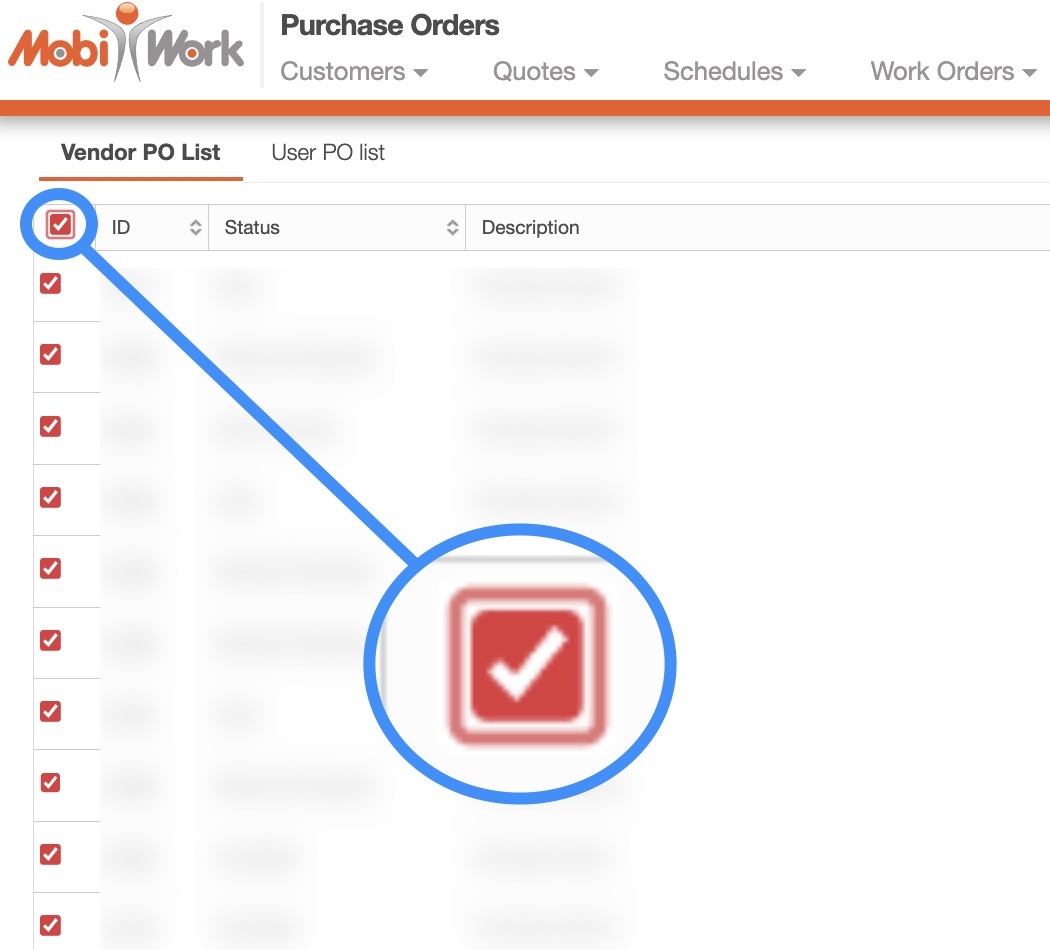
Check off the desired purchase orders you would like to edit; if you would like to edit all your purchase orders you can click on the topmost checkbox (Multiple Selection Area) located in the Purchase Order "Vendor PO List" or the "User PO List" columns:
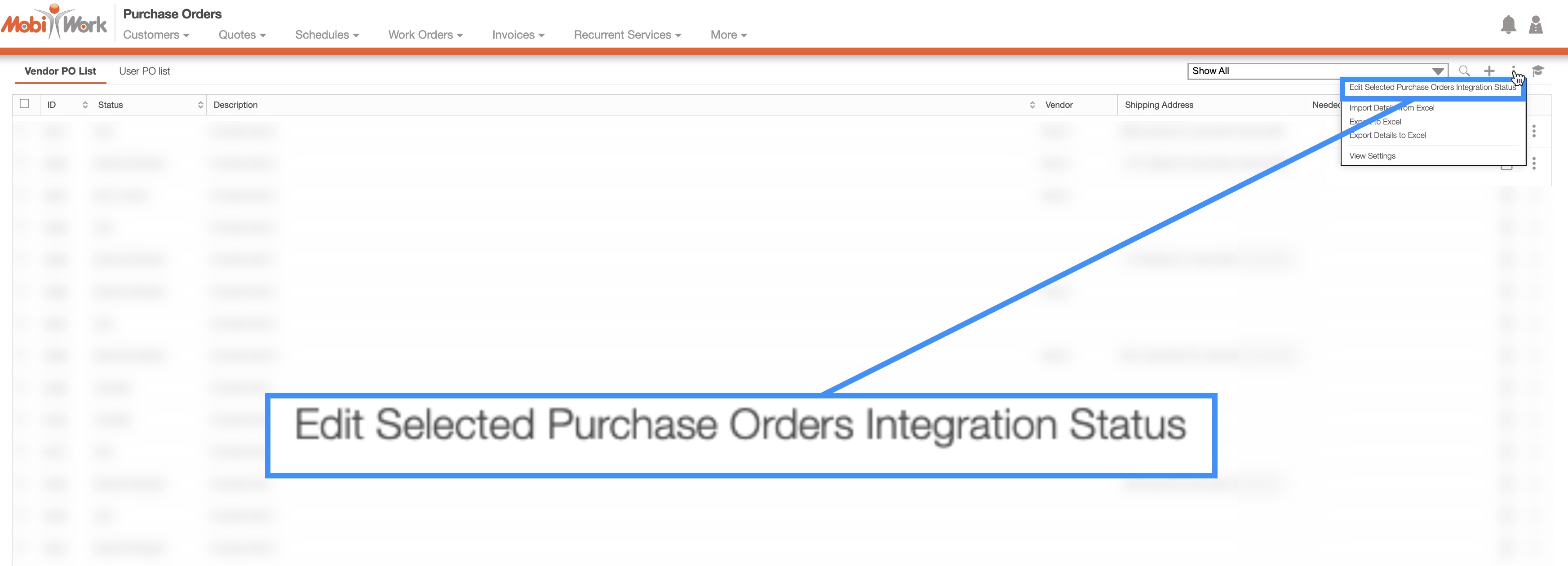
Click on the More Actions button and from the drop-down select the "Edit Selected Purchase Orders Integration Status" option:
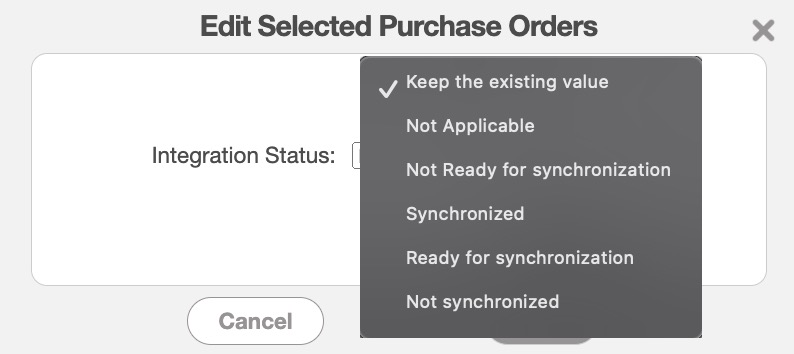
With Excel
You can also edit purchase orders in bulk through Excel; this process will enable you to update more than just the status of the purchase orders:
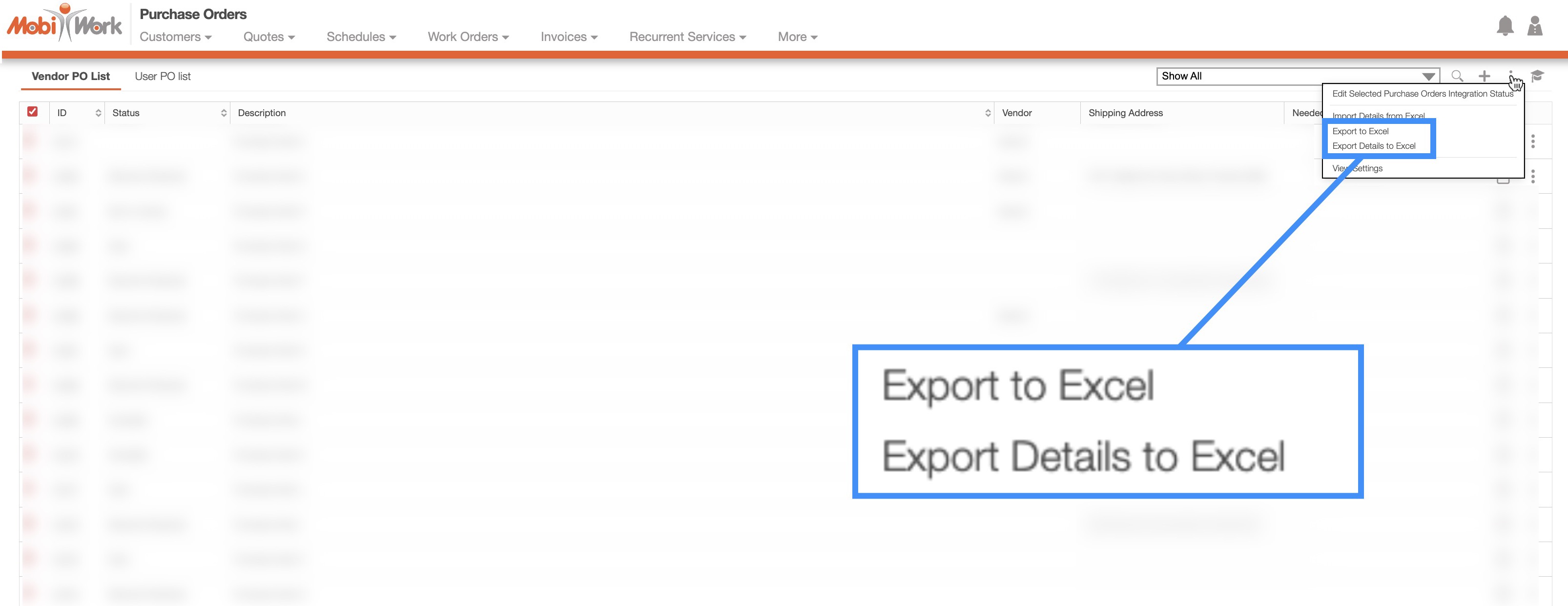
First, you would need to select the desired purchase orders and use the "Export Details to Excel" option. For more information on how to export purchase orders please see the Add Multiple Purchase Orders or the Edit Multiple Purchase Orders page:
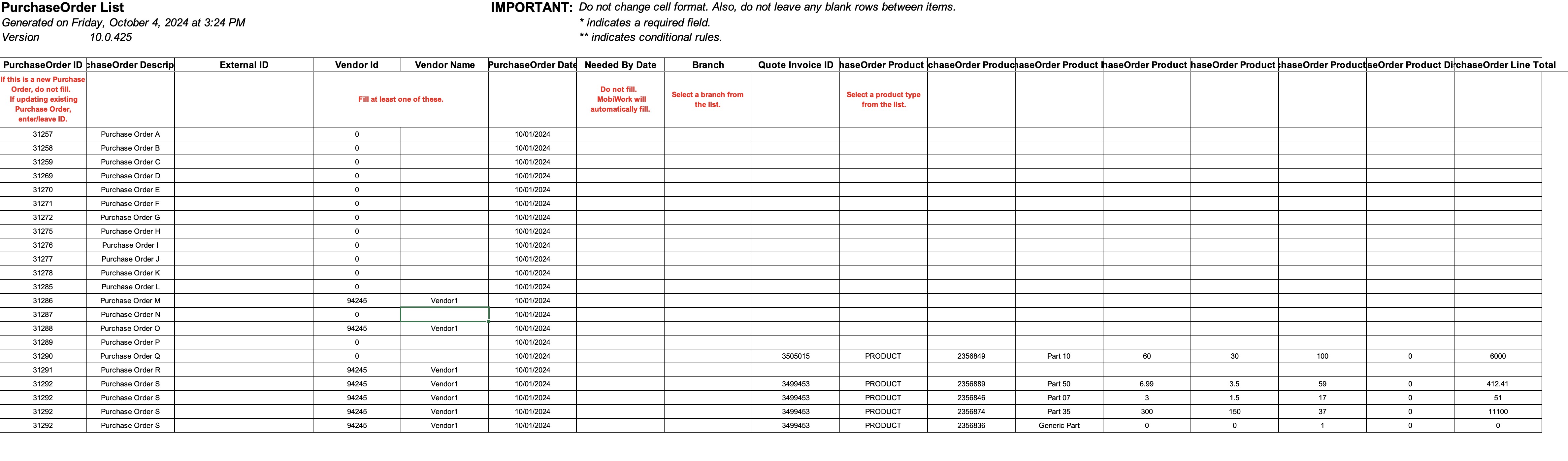
Once you have the exported file, you can make the changes directly to the Excel document.
Once you are done updating your purchase orders, you can import the Excel file back into MobiWork. For more information on how to import purchase orders, please see the Add Multiple Purchase Orders or the Edit Multiple Purchase Orders page.
Note: Please note that if you would like to export all your entries into Excel you can click on the topmost checkbox (Multiple Selection Area). Likewise, if you do not select any entries ALL records will be exported.
To edit parts in a purchase order, you will first need to access the View Purchase Order pop-up window.
online-help.platform.features.purchaseOrders.edit.intro1

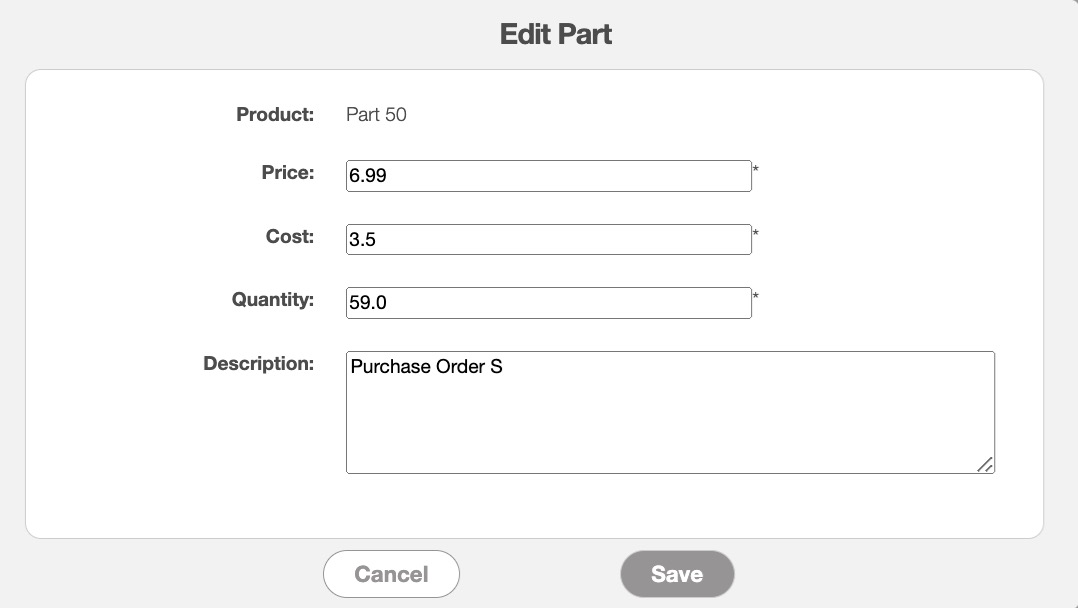
The pop-up window will then appear, and you will be able to edit the product as well as adjust the price, cost, quantity, and description for the purchase order.
Once you are satisfied with the information entered, click the Save button: