
There are a couple of ways you can add a recurrent invoice into MobiWork. You can add an invoice through the Recurrent Invoice List page, on the Recurrent Services pop-up window, or even by converting an invoice. The subsections below will go into further detail about the different ways you can add a new recurrent invoice.
From the Recurrent Invoice Drop-Down
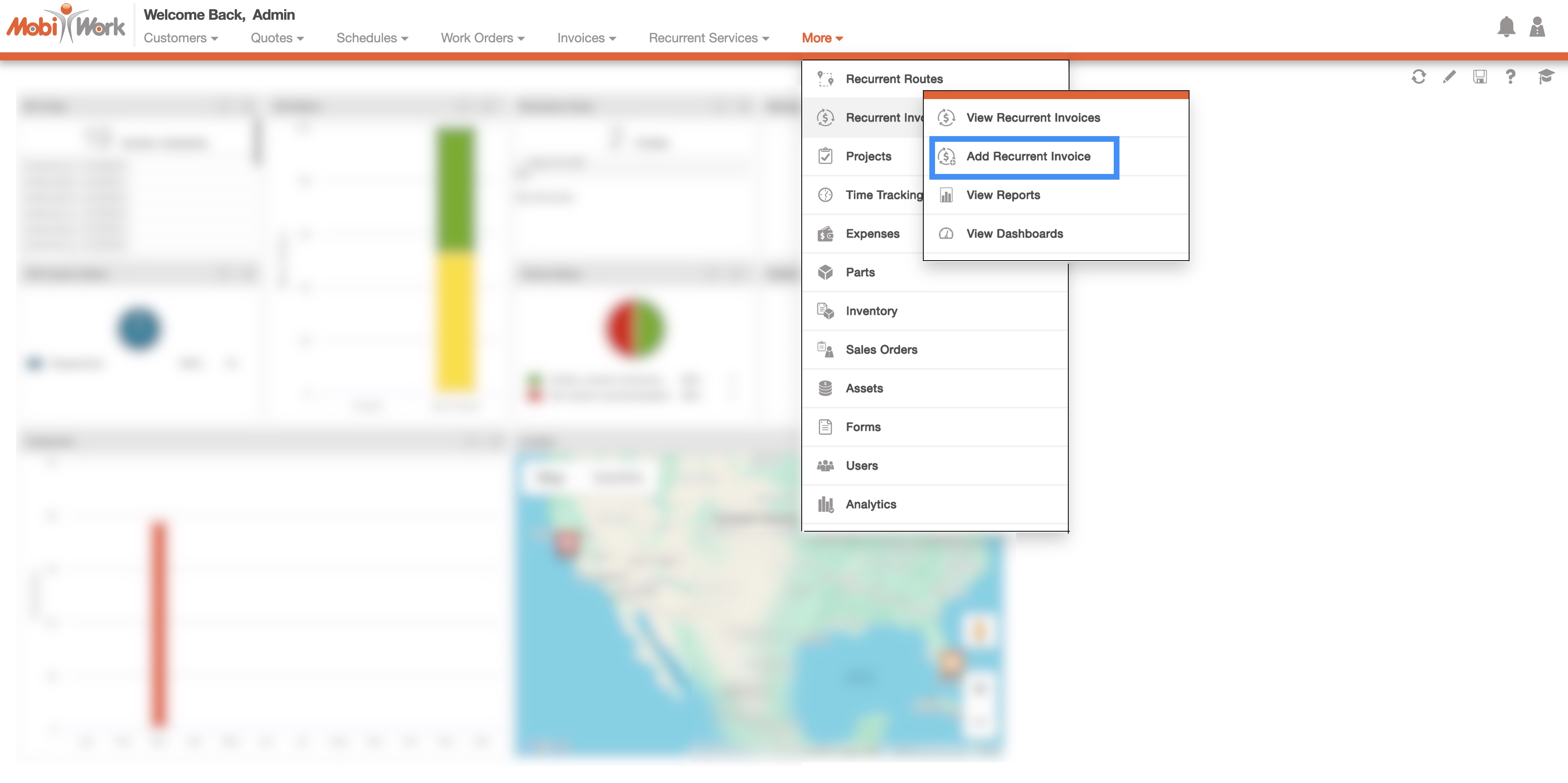
The fastest and easiest way to add a recurrent invoice is by accessing the drop-down menu from the Invoice feature from your MobiWork menu:
- Hover over the Recurrent Invoice feature from your MobiWork menu:
- Select the "Add Recurrent Invoice" option from the drop-down.
- The Add Recurrent Invoice pop-up window will then appear.
From the Recurrent Invoice List
Another convenient way to add a recurrent invoice is by accessing the "Recurrent Invoice List" tab. Please see the Recurrent Invoices List section for more information on how to access this page.
On the "List" tab, you will also be able to import multiple invoices into Excel or sync your recurrent invoices to QuickBooks:
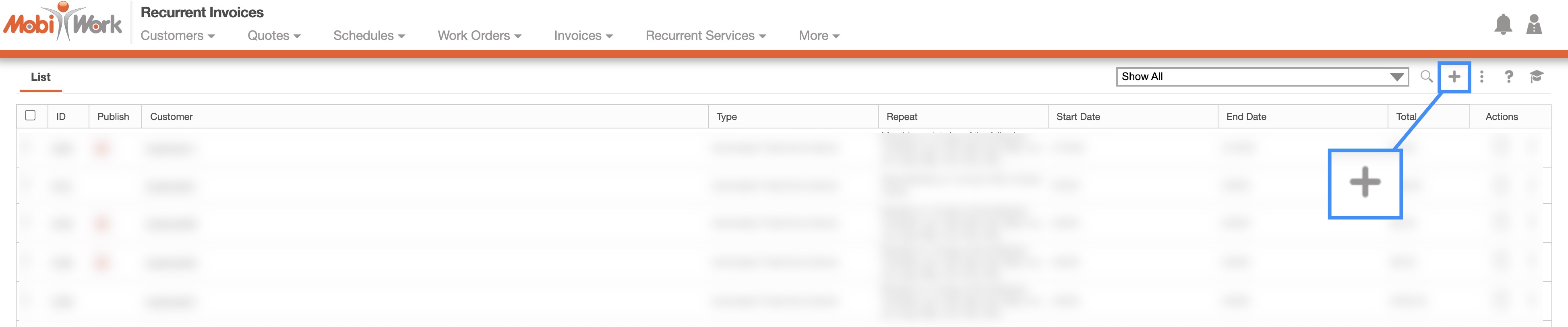
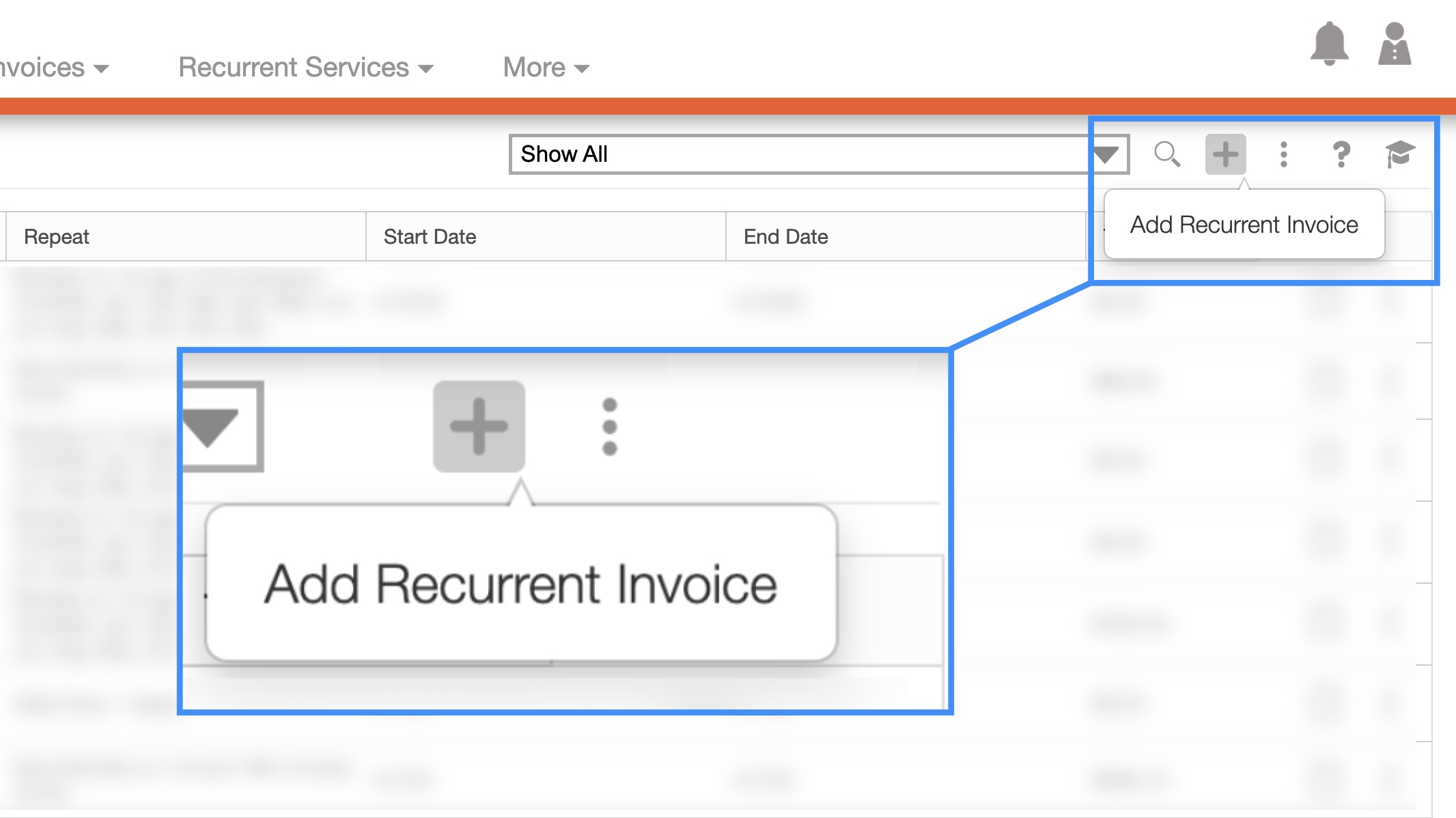
Plus Sign- Adds a recurrent invoice.
More Actions- Allows you to access the import drop-down actions (which will allow you to add multiple recurrent invoices at once)
For more information on how to import multiple recurrent invoices, please see the Add Multiple Recurrent Invoices section.
To add a recurrent invoice from the "List" tab, please see the steps below:
- Once you are on the "List" tab click on the Plus Sign button:
- The Add Recurrent Invoice pop-up window will then appear.
Invoices
You can also generate a recurrent invoice from a standard invoice. This can be done from the Invoice List page or from the View Invoice pop-up window. From the Invoice List page, you can create a recurrent invoice from the following methods:
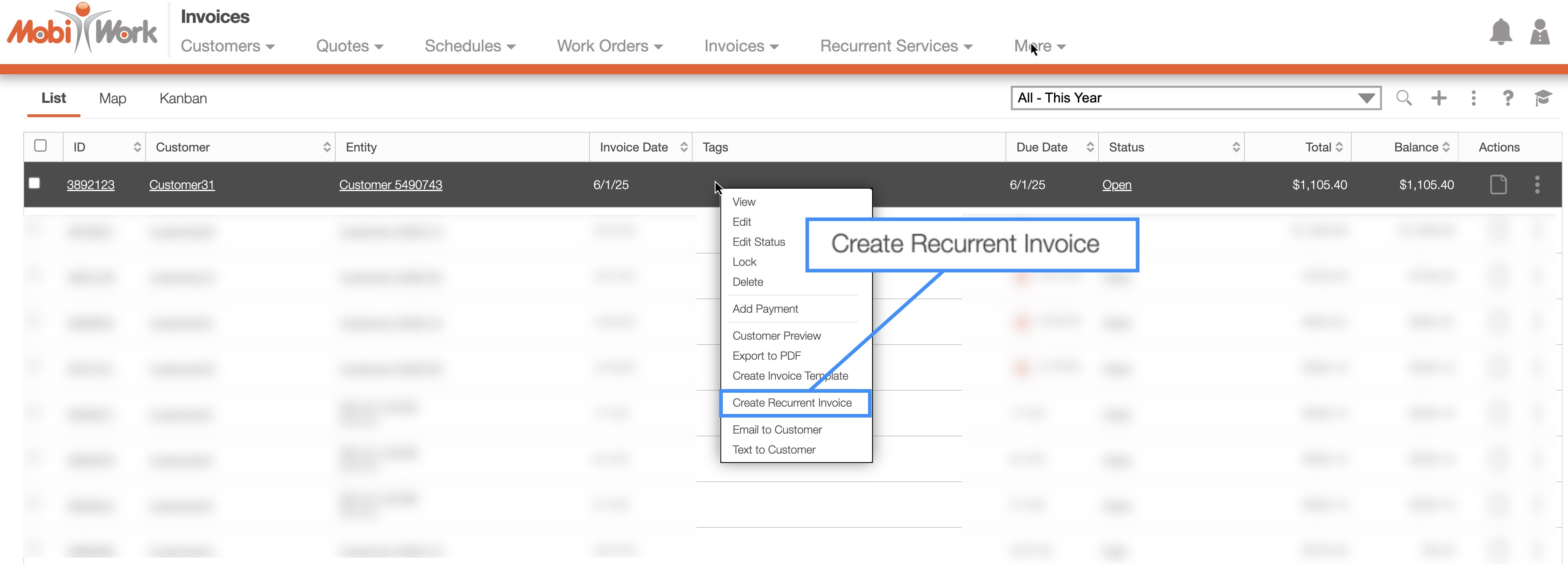
By right-clicking on the selected invoice and selecting the "Create Recurrent Invoice" option.
Or by selecting the "Create Recurrent Invoice" option from the Individual Actions button.
Likewise, you create a recurrent invoice directly from the View Invoice pop-up window. The video below will showcase how to create a recurrent invoice from the View Invoice pop-up window:
For more information on how to access the Invoice List page or from the View Invoice pop-up window, please see the Invoice List page or the View Invoice page.
Recurrent Services
You can also create a recurrent invoice from the View Recurrent Service pop-up window's "Invoicing" panel.
On the "Invoicing" panel there are two different ways to create a recurrent invoice:
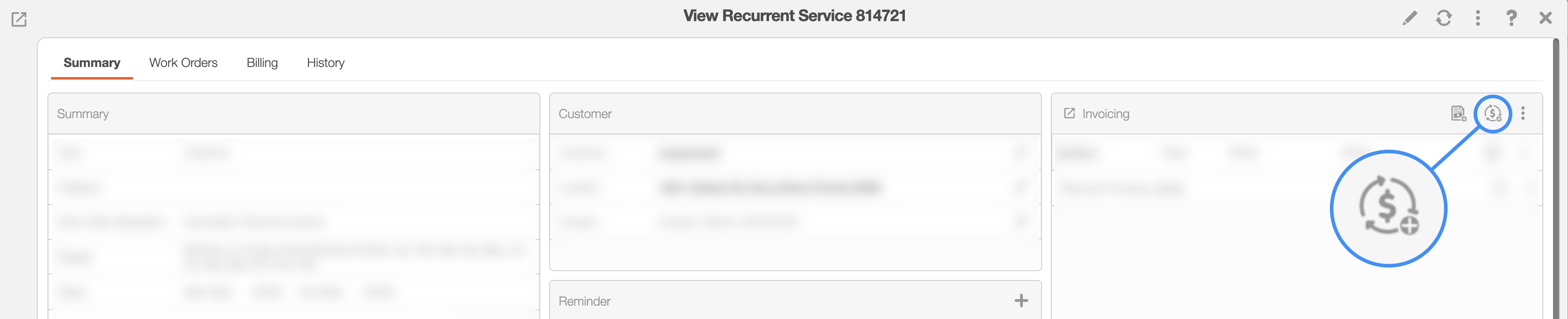
You can click on the Add Recurrent Invoice button.
Or select the "Add Recurrent Invoice" option from the Individual Actions button.
Either option will allow you to open the Add Recurrent Invoice window.
Regardless of the method that you choose to add a recurrent invoice, the Add Recurrent Invoice pop-up window will appear. From this window you will be able to input the user who sold the items for the recurrent invoice, the auto-renewal, how often the recurrent invoice should be performed and more:
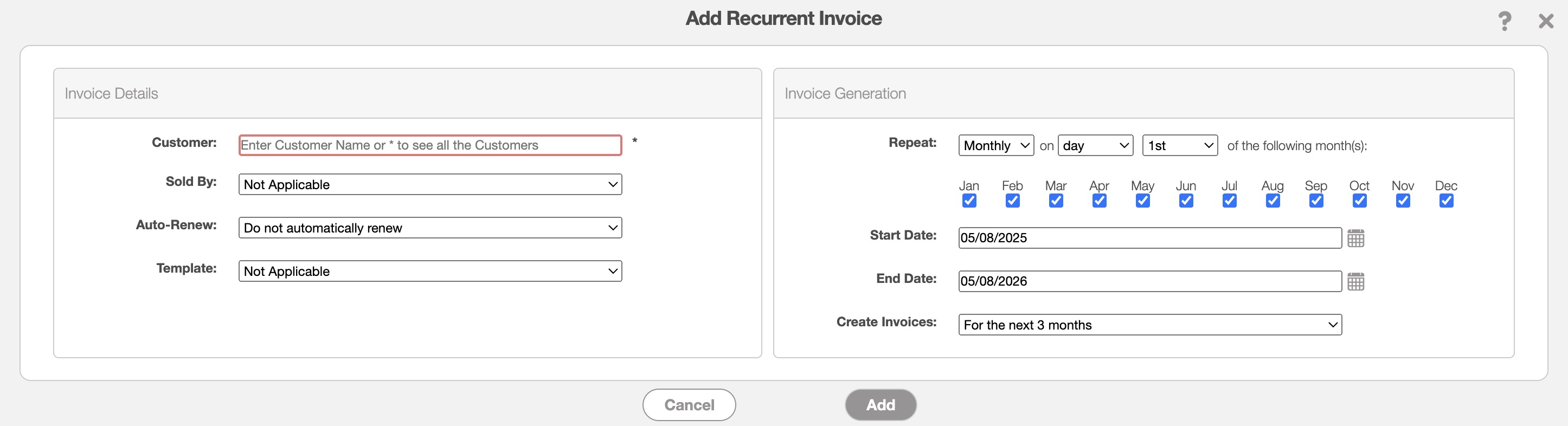
From the Add Recurrent Invoice pop-up window, you can also input the following:
The user who sold the items listed on the recurrent invoice or the user in charge of creating the recurrent invoice.
The auto-renewal date, which updates the end date of the recurrent invoice.
The invoice template that the recurrent invoice is based off of.
The interval in days, weeks, or months in which the recurrent invoice is scheduled to repeat.
The start and ending dates of the recurrent invoice.
And the create invoices drop-down which will specify how often invoices are generated automatically and outlines the conditions for their creation.
For more information on how invoices are automatically generated from a recurrent invoice, please see the Invoice Generation From Recurrent Invoices page.
If you would like to adjust the invoice details, please see the Edit Recurrent Invoice page.
The terms listed in the Add Recurrent Invoice pop-up window are defined below:
| Name: | Description: |
|---|---|
| "Customer" | The customer associated with the recurrent invoice. |
| "Sold By" | The user assigned to the recurrent invoice who will earn the commission. |
| "Auto-Renew" | The auto-renewal date, which updates the end by date of the recurrent invoice. Depending on the setting selected, you can extend the end by date of the recurrent invoice so that once it reaches the specified date it will renew. You will be able to select the following options: to not have the recurrent invoice automatically renew, have it automatically renew for six months, a year, or two years. |
| "Template" | You can select an invoice template to apply to your recurrent invoice. This will allow you to use an invoice that is already formatted with the terms, details, etc. for a specific situation. |
| "Repeat" | Specifies the interval in days, weeks, or months at which the recurrent invoice is scheduled to repeat. |
| "Start Date" | The date that the recurrent invoice is set to begin. |
| "End Date" | The date that the recurrent invoice is set to end. |
| "Create Invoices" | The invoice generation setting, which allows for automatic creation based on a specific time interval. |
Once you have created a new recurrent invoice, it is time to populate it with the required parts and services. You can also add discounts and markups as well as sections to help separate the recurrent invoice items for clearer organization.
You can also easily add a part, service, or section to the recurrent invoice's line items by clicking on the respective icon:
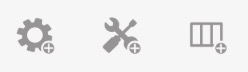
The following subsections will illustrate how to add these different entries to the recurrent invoice.
Add Part
In the "Line Items" panel click on the Individual Actions in the top-right. From the drop-down menu that appears, select the "Add Part" option:

The Select Part pop-up window will appear. From there, choose the desired part:
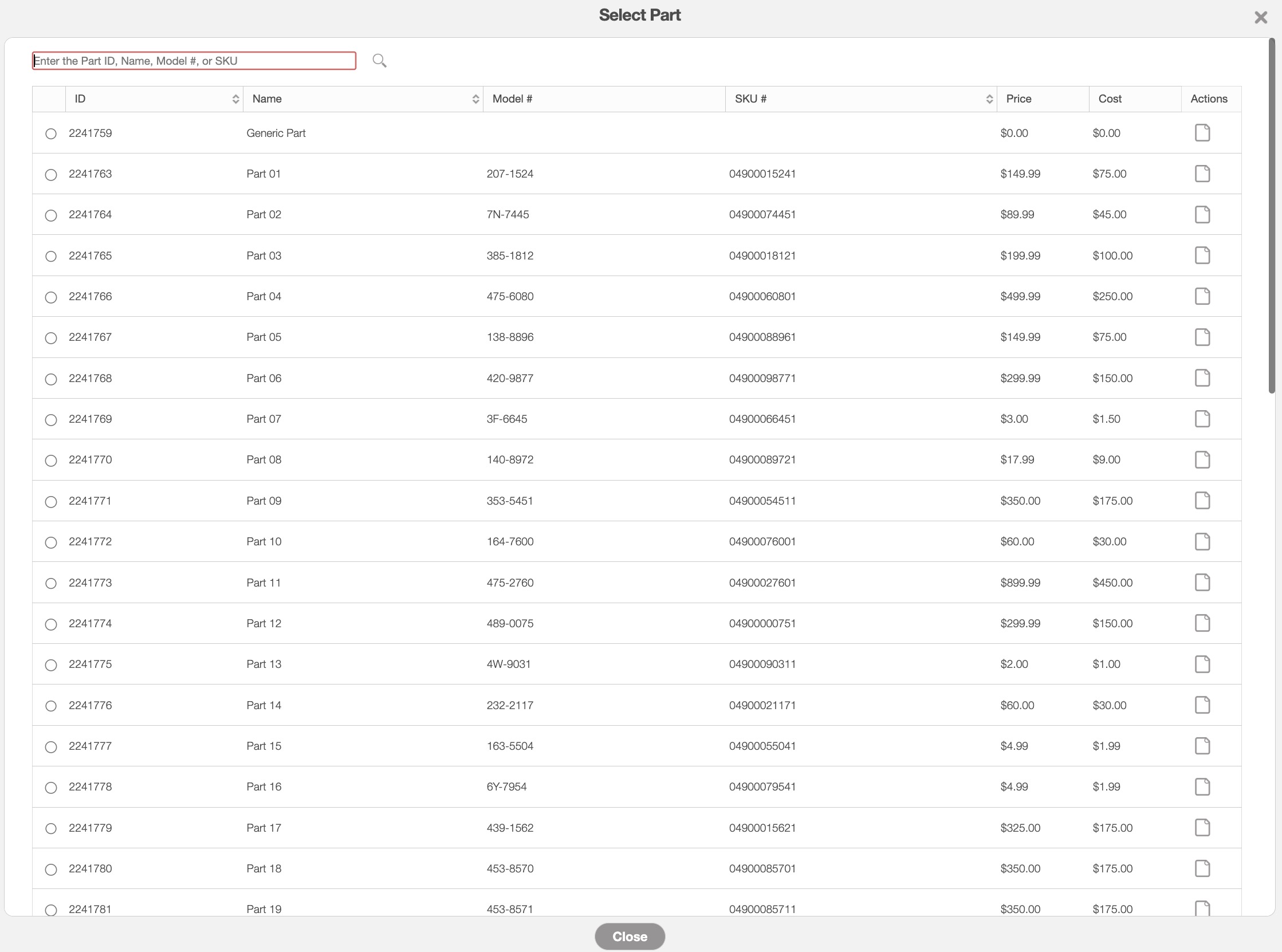
After selecting a part from the Select Part pop-up window, the Add Part to Recurrent Invoice pop-up window will appear, allowing you to adjust the quantity, section, and other details:
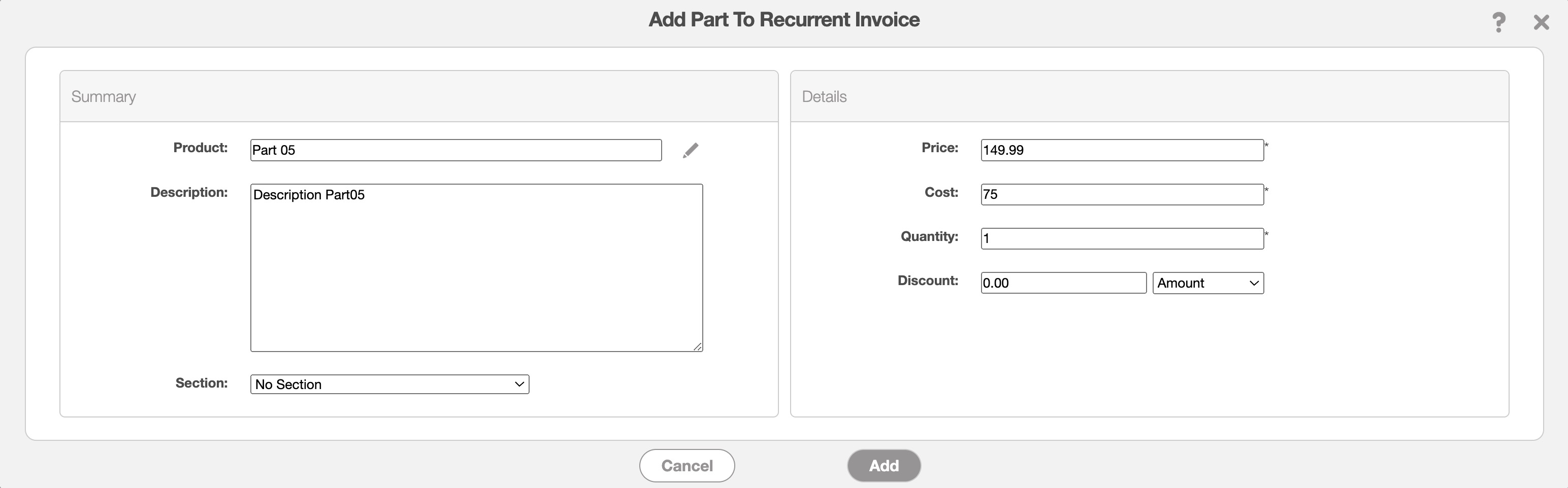
In this pop-up window enter the following details:
Product- The name of the part or product. By clicking the Pencil icon you can reselect the desired product.
Description- The description of the part or product. This field is optional.
Price and Cost- These fields will be automatically filled based on the saved data you have in your parts catalog; however, you can directly edit the price and cost when adding it to the recurrent invoice. For more information about your parts catalog, please see the Parts List (Catalog) page.
Quantity- Specify the quantity of the part or product needed for the recurrent invoice.
Discount- If applicable, you can enter an individual discount for the selected part.
Section- You can also directly add the part to a specific section for better organization of the invoice line items.
Add Service
In the "Line Items" panel click on the Individual Actions in the top-right. From the drop-down menu that appears, select the "Add Service" option:

The Select Service pop-up window will appear. From there, choose the desired service:
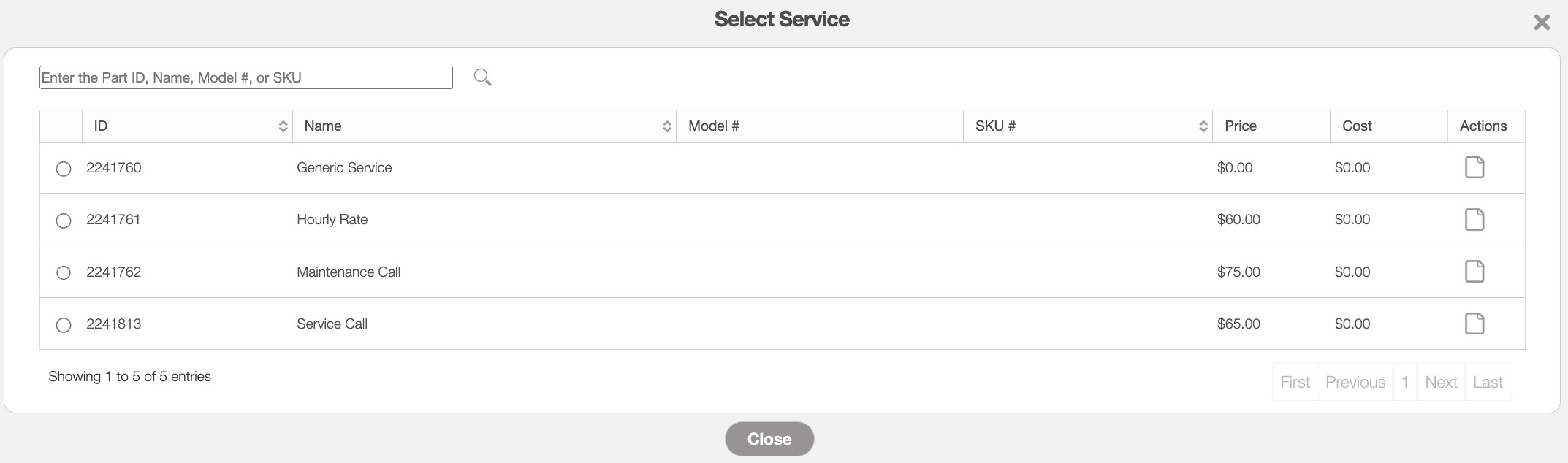
After selecting a service from the Select Service pop-up window, the Add Service to Recurrent Invoice pop-up window will appear, allowing you to adjust the quantity, section, and other details:
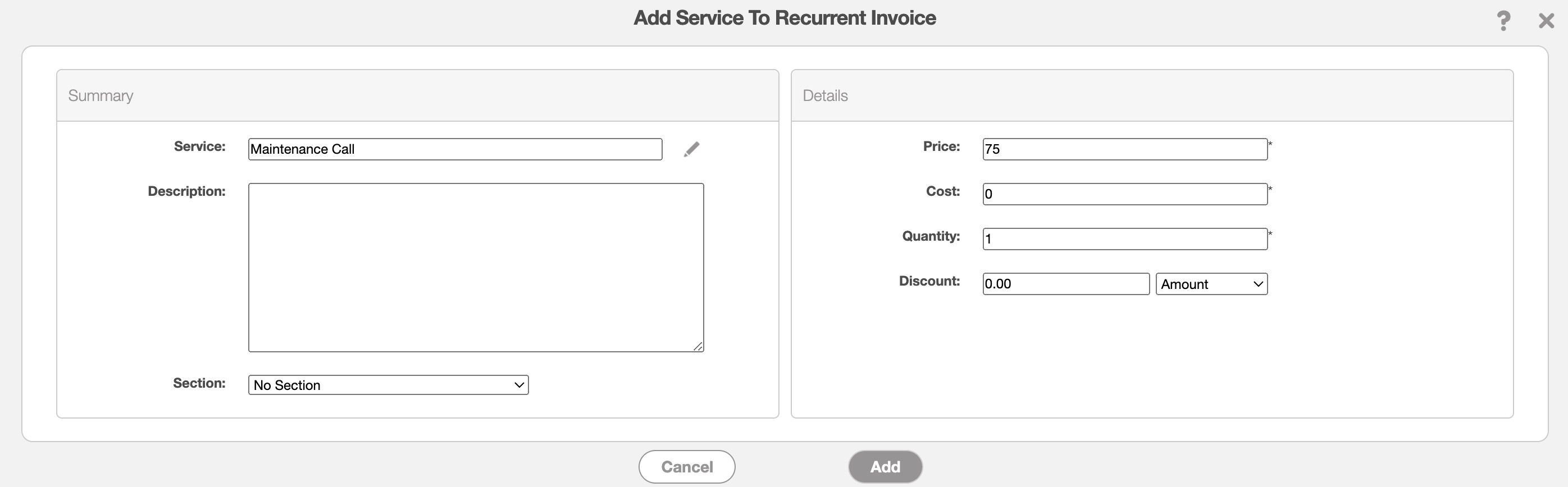
In this pop-up window enter the following details:
Service- The name and type of service.
Description- The description of the service. This field is optional.
Price and Cost- These fields will be automatically filled based on the saved data you have in your services catalog; however, you can directly edit the price and cost when adding it to the recurrent invoice. For more information about your services catalog, please see the Service List (Catalog) page.
Quantity- Specify the hours worked by the user for the service.
Discount- If applicable, you can enter an individual discount for the selected service.
Section- You can also directly add the part to a specific section for better organization of the invoice line items.
Add Discount
In the "Line Items" panel click on the Individual Actions in the top-right. From the drop-down menu that appears, select the "Add Discount" option. This discount option will allow you to add a discount to the entire recurrent invoice.
You will be able to add additional general discounts to choose from, from the Invoice Settings page. For more information on how to add or edit a general discount, please see the Invoice Settings page:

Once you click on the "Add Discount" option, the Apply Discount pop-up window will appear:
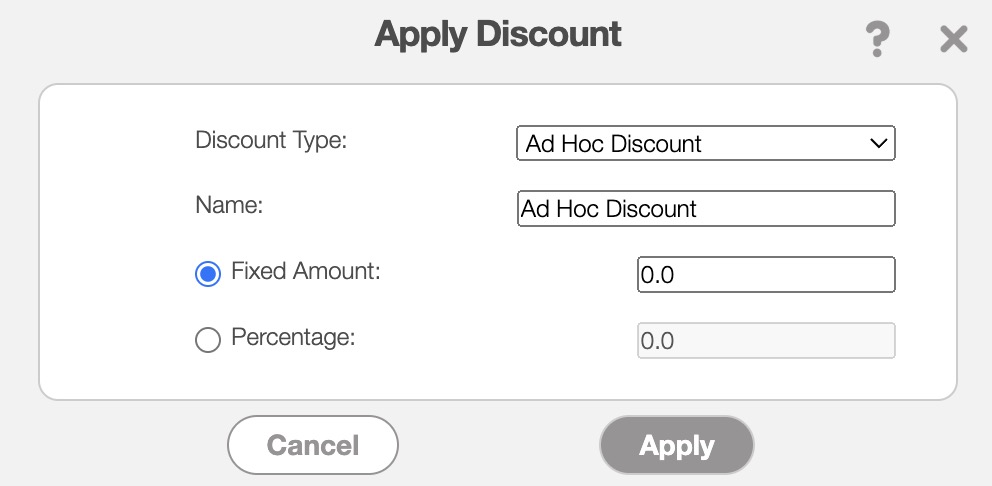
In this pop-up window select the type of discount you would like to apply. If the selected discount has predefined values for the fixed amount and percentage, these values will be automatically applied. If there are no predefined values for the selected discount, you can manually input the fixed amount and percentage.
After applying this discount, you will be able to see it in the "Total & Balance" panel of your recurrent invoice:
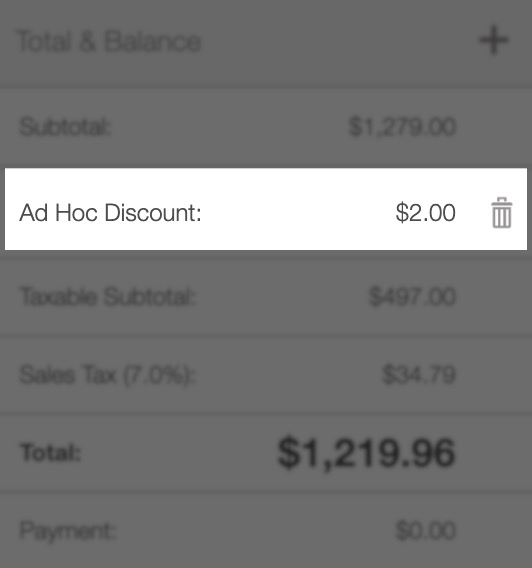
If you decide to no longer apply the discount, you can select the Trash Can icon next to the discounted amount.
Add Markup
In the "Line Items" panel click on the Individual Actions in the top-right. From the drop-down menu that appears, select the "Add Markup" option.
You will be able to add additional markups to choose from, from the Invoice Settings page. For more information on how to add or edit a markup, please see the Invoice Settings page:

Once you click on the "Add Markup" option, the Add Markup pop-up window will appear:

In this pop-up window select the type of markup you would like to apply. If the selected markup has predefined values for the fixed amount and percentage, these values will be automatically applied. If there are no predefined values for the selected markup, you can manually input the fixed amount and percentage.
After applying this markup, you will be able to see it in the "Total & Balance" panel of your recurrent invoice:
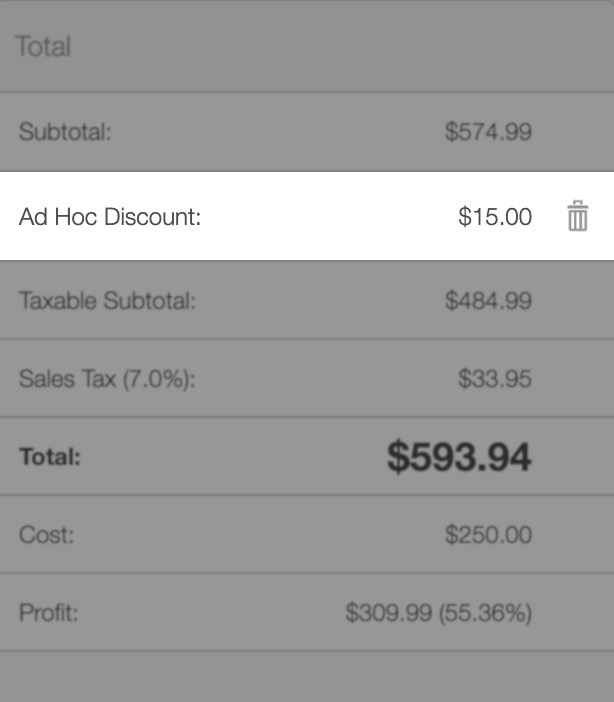
If you decide to no longer apply the markup, you can select the Trash Can icon next to the marked-up amount.
Add Section
In the "Line Items" panel click on the Individual Actions in the top-right. From the drop-down menu that appears, select the "Add Section" option:

Once you click on the "Add Section" option, the Add Section pop-up window will appear:
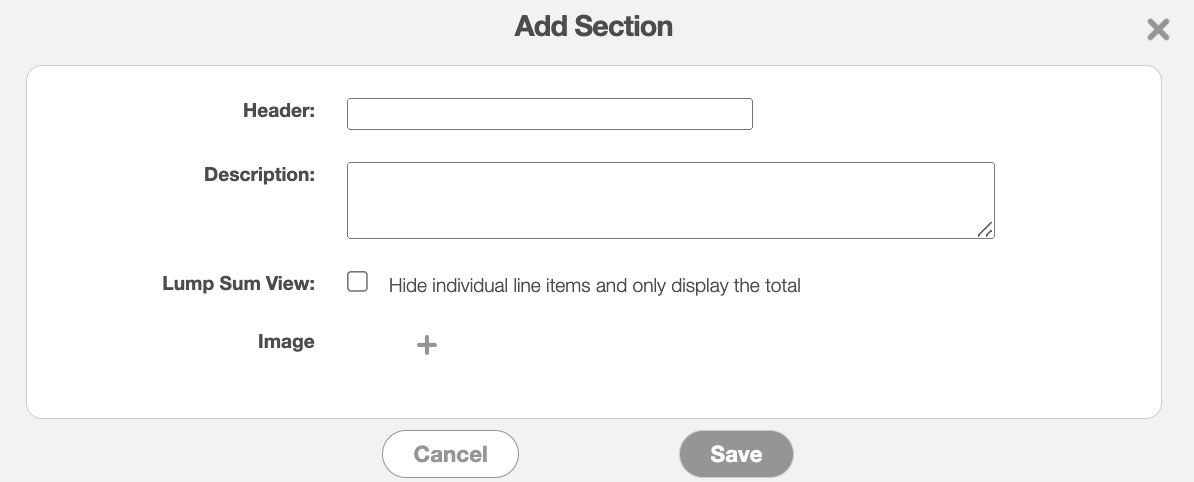
In this pop-up window enter the following details:
Header- The name of the section.
Description- The description of the section.
Lump Sum View- By clicking on the lump sum view for the Add Section pop-up window, you will be able to hide the individual line items for the items listed in the specified section. This option is different from the "Lump Sum View" checkbox in the Add Recurrent Invoice pop-up window and the Edit Recurrent Invoice pop-up window; this lump sum view will apply to the entire recurrent invoice.
Image- Allows you to upload a small image for the section.
The section will then appear in the "Line Items" panel; the parts and services listed under it will be contained in the respective section:
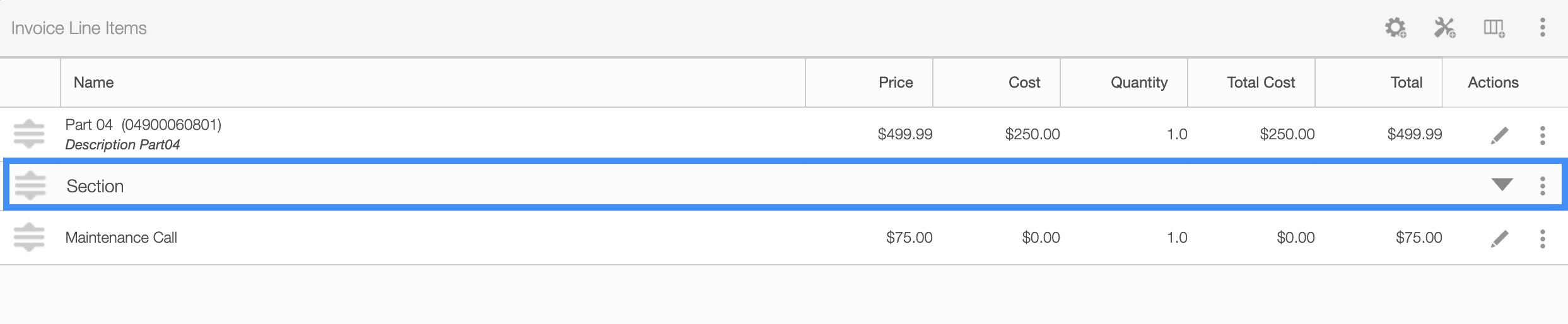
You can add parts or services to a specified section through the Add Part to Recurrent Invoice or Add Service to Recurrent Invoice pop-up window and selecting the desired section from the "Section" drop-down.
You can enable a recurrent invoice that has been disabled. Once a recurrent invoice is enabled, MobiWork can use the configured schedule to generate invoices automatically, helping reduce manual billing and ensuring customers are billed consistently.
You will be able to enable a recurrent invoice through the "List" tab. For more information how to access this page, please see the Recurrent Invoice List page.
Note: Please note that if you would like to reinstate a recurrent invoice, you can enable that recurrent invoice; this will then reactivate the recurrent invoice that is already within the system.
To search for enabled or disabled recurrent invoices, open the New Search pop-up window and ensure that the "Enabled" field is set to the "Show All" option:
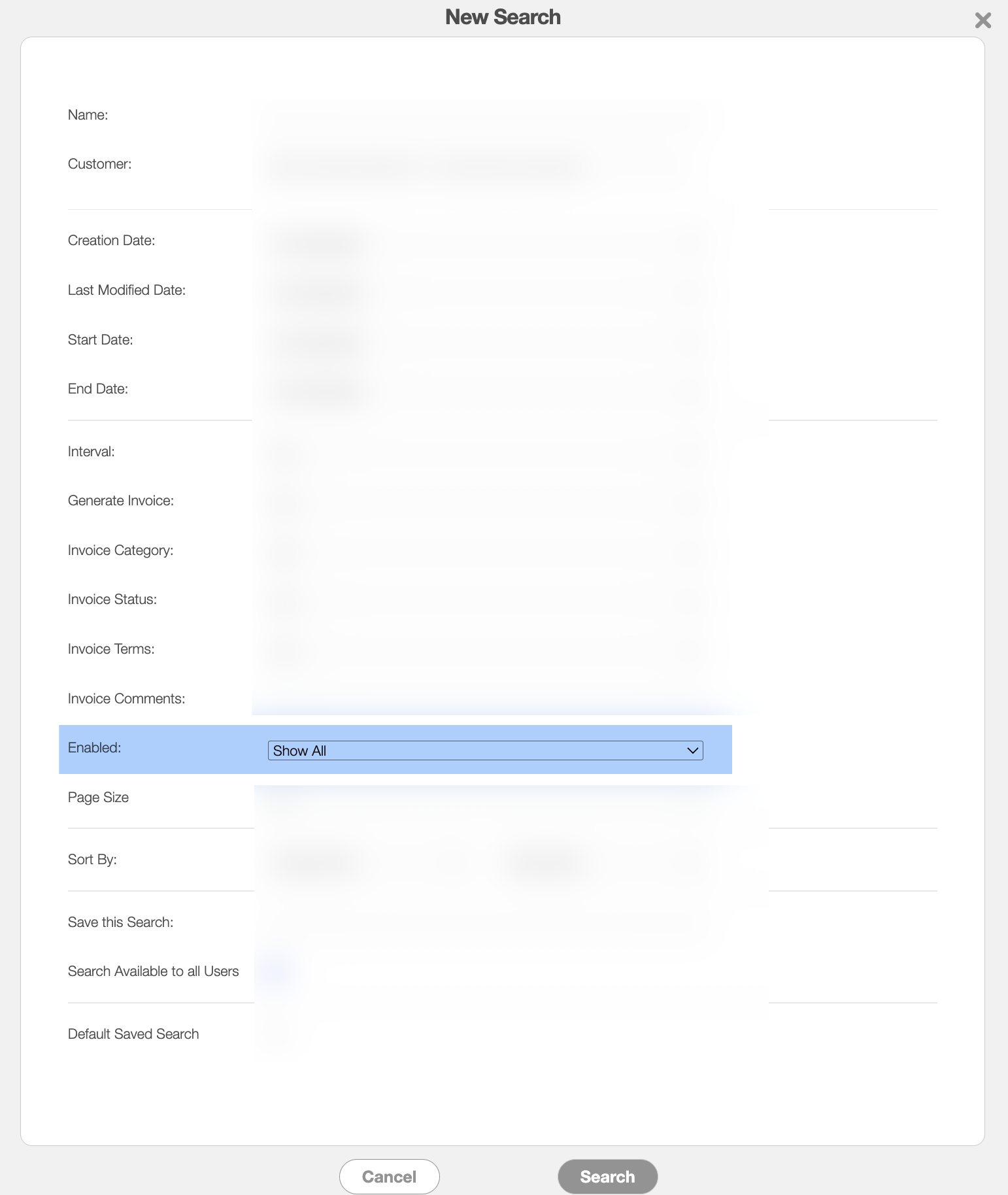
Once this is done, there are three different ways you can enable a recurrent invoice:

Clicking on the recurrent invoice's ID to open the View Recurrent Invoice pop-up window:
In the upper right-corner of the View Recurrent Invoice pop-up window, select the "Enable" option from the Individual Actions drop-down:
Please note that there are many ways that you can access the View Recurrent Invoice pop-up window. Please see the View Recurrent Invoice page for the different ways that you can open the View Recurrent Invoice pop-up window.
Click on the Individual Actions (the three vertical dots) and from the drop-down select the "Enable" option. (The options that are displayed from the Individual Actions button are the same as when you right-click on a recurrent invoice).
Right-click on a user to open the right-click options and from the drop-down, select the "Enable" option. (The options that are displayed when you right-click on a recurrent invoice are also available when you select the Individual Actions button).
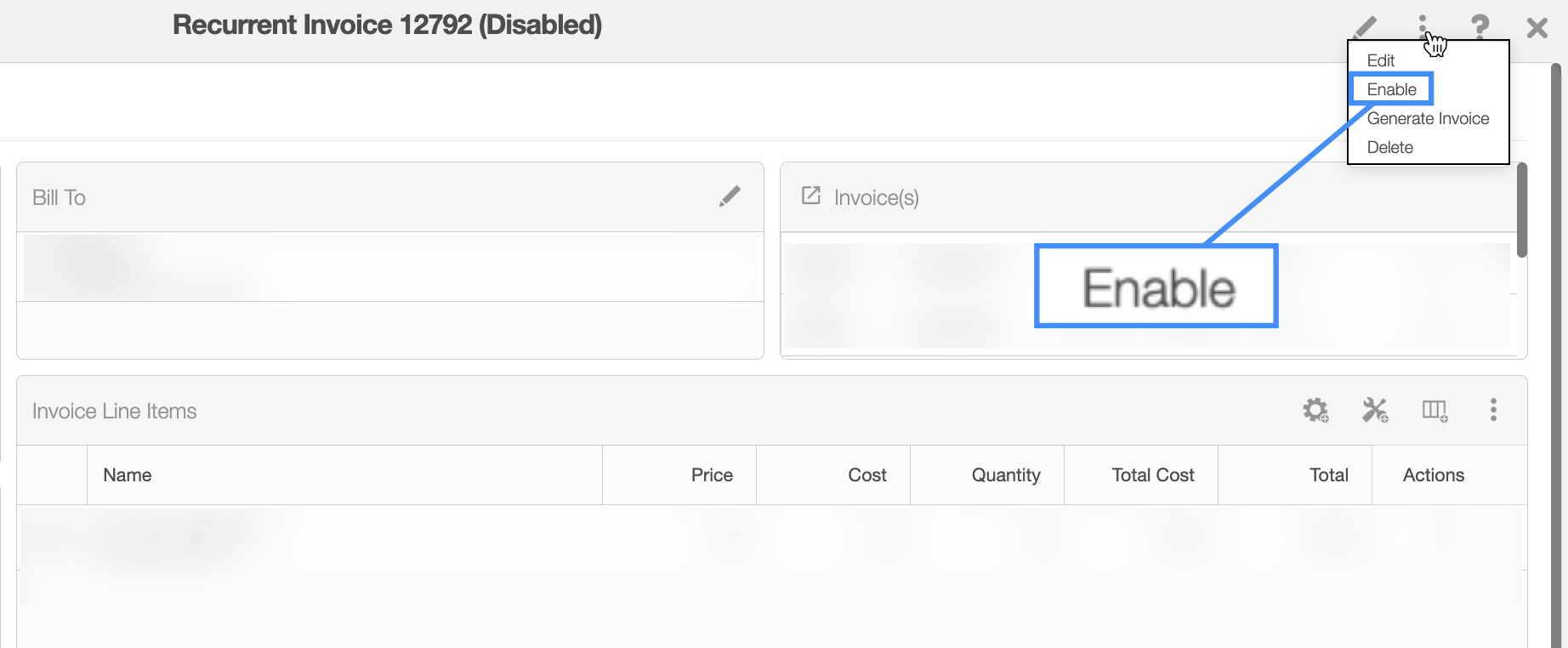
Regardless of the method you choose to enable a single recurrent invoice, the Confirm Enable pop-up window will appear:
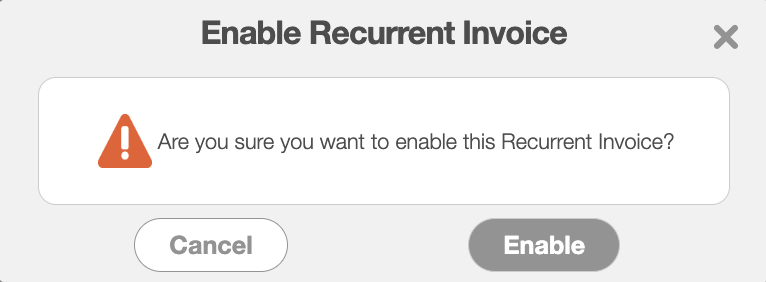
Click the Yes button to confirm that the recurrent invoice should be enabled, and the recurrent invoice will automatically be set as active.