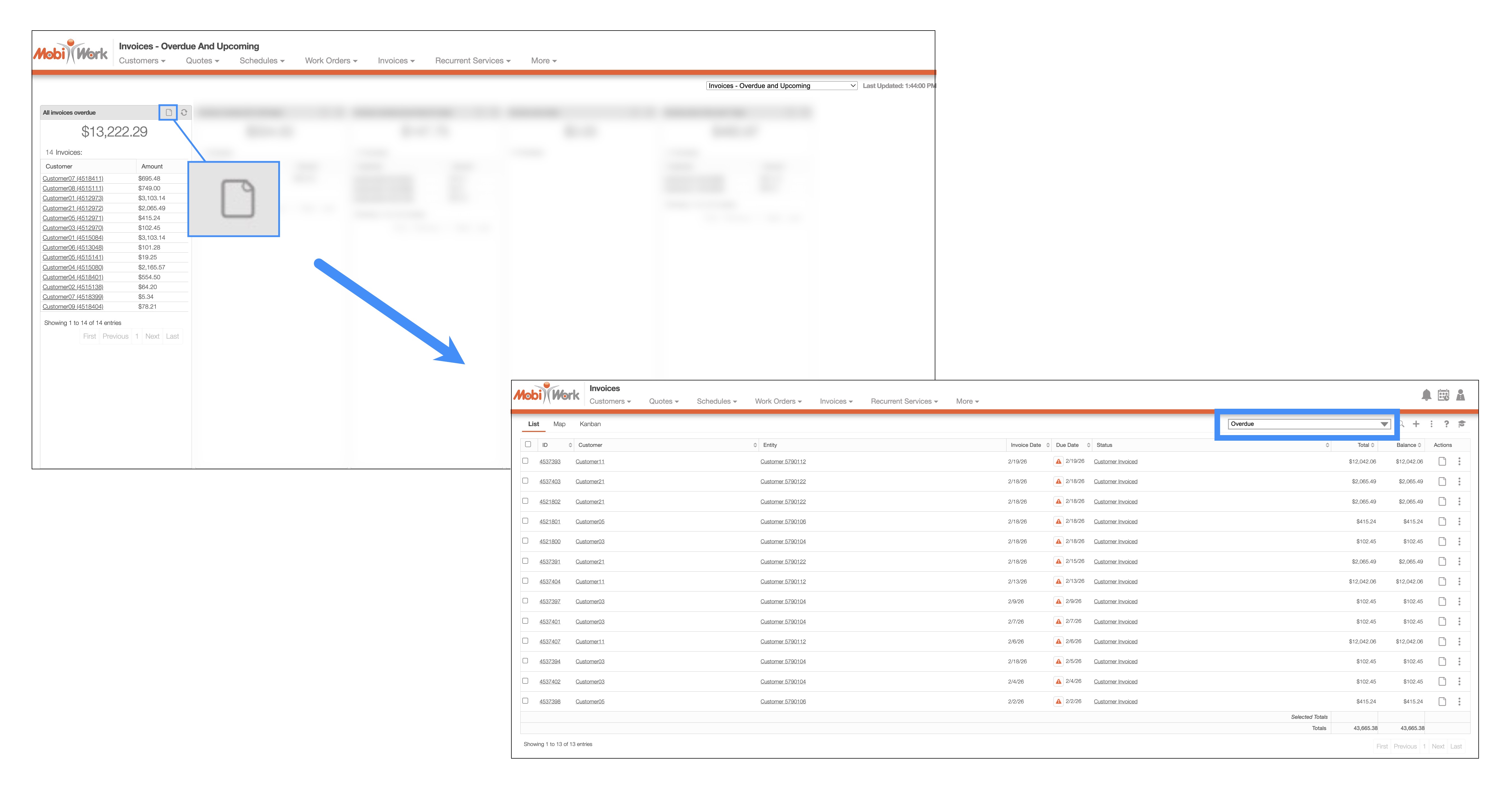
MobiWork offers a wide variety of different dashboards; each dashboard is populated with an assortment of panels that provide key operational data. For example, the "Invoice - Overdue and Upcoming" dashboard will display all overdue invoices within the designated date range and criteria.
Instead of wasting time navigating through multiple screens, you can assess team productivity, billing status, and job progress in one place and take immediate action where needed.
Furthermore, by clicking on the View icon on the corresponding panel, you will immediately be directed to the related List page with the appropriate predefined saved search applied. This functionality allows you to quickly navigate and glean the requisite operational data in your desired format:
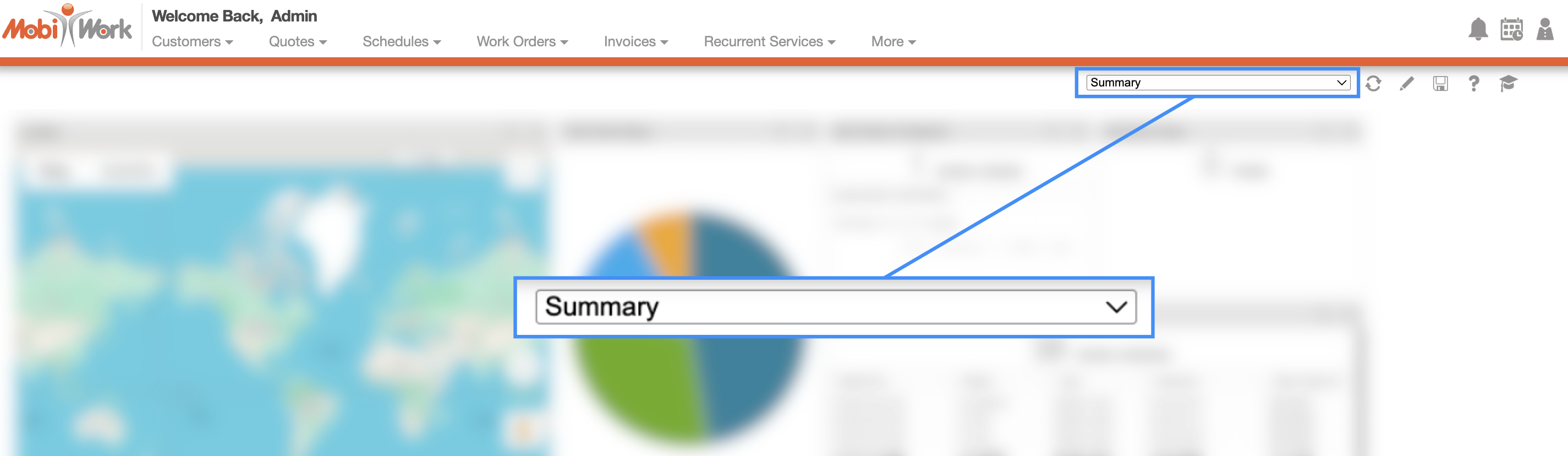
To access the desired dashboard panel, navigate to your MobiWork dashboard page.
On this page, select the desired dashboard panel; the page will then refresh with the updated information:
The "All Users Time Tracking" dashboard panel will display the time tracking for all your users:
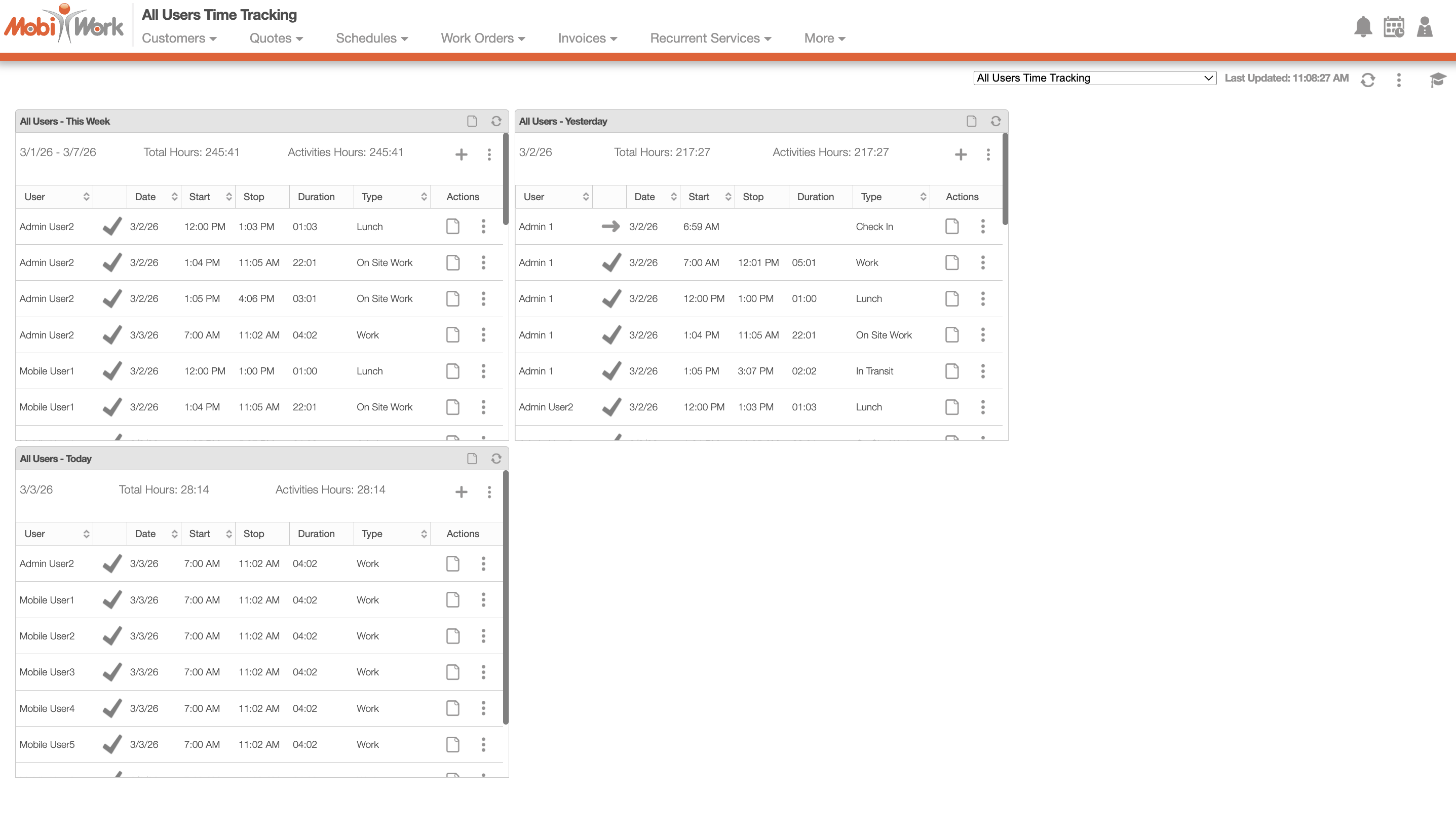
Each of the panels will display a different time frame, date range, and total hours for your users.
The panels will display the following data:
The "All Users - This Week" panel will display all the users' time tracking for the work week.
The "All Users - Yesterday" panel will display all the users' time tracking for the previous day.
And the "All Users- Today" panel will display all your users' time tracking for the current day.
The date range of when the time tracking took place, the total hours, and the activties hours time frame will be summarized towards the top of each panel.
With the Plus Sign icon, you will be able to add time tracking entries for selected users.
The Individual Actions section will allow you to access the View Time Tracking pop-up window of the selected user, as well as, edit the start/stop time, edit the duration, delete, or resume a stopped entry.
For more information about time tracking, please see the Time Tracking page.
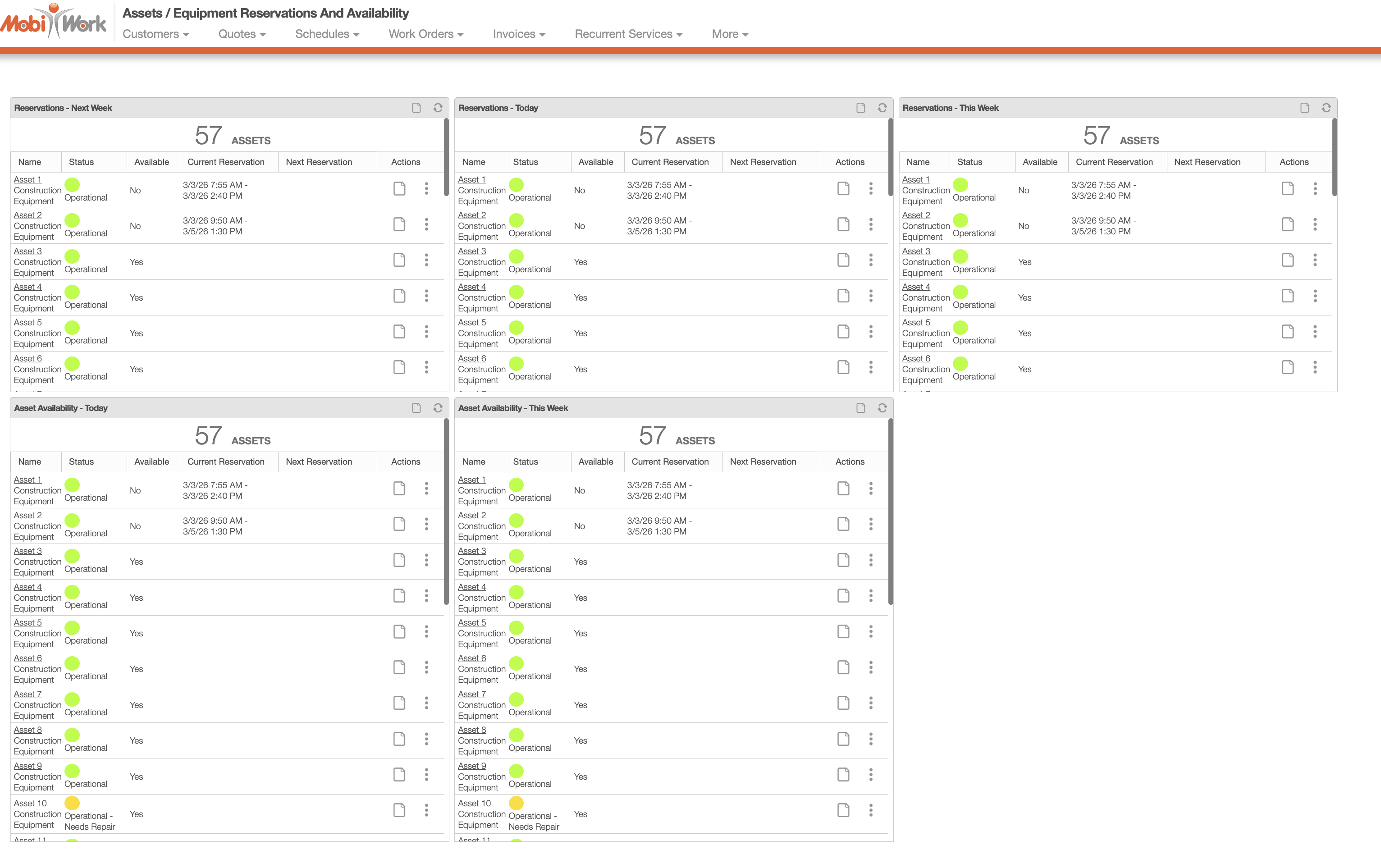
The "Assets / Equipment Reservations and Availability" dashboard highlights the assets that are currently reserved by your users and customers:
The "Assets / Equipment Status" dashboard provides a clear, at-a-glance overview of the current status of all your assets:
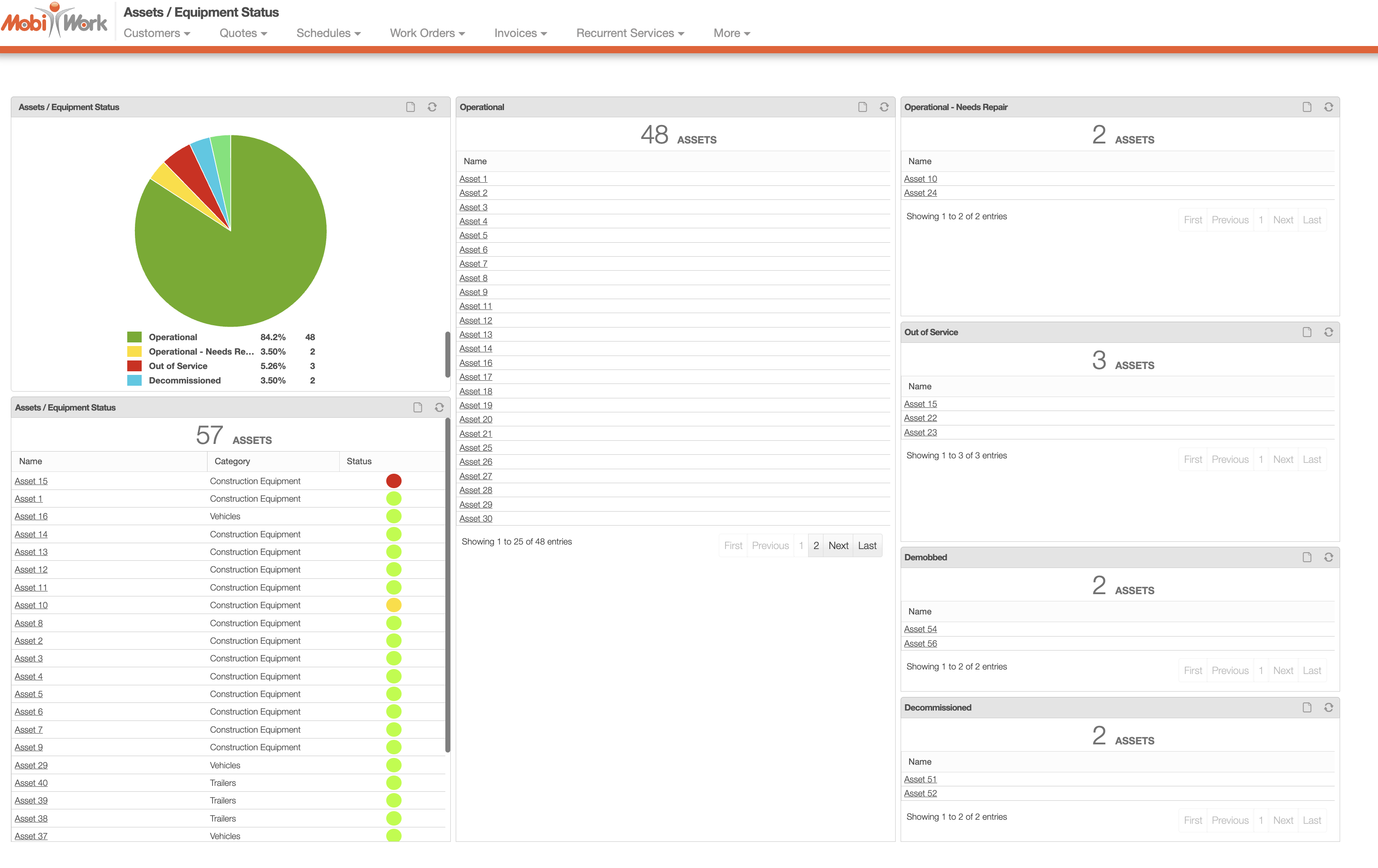
This dashboard includes seven panels, each designed to give you focused visibility into asset conditions:
The top-most "Assets / Equipment Status" panel displays all the assets in a pie chart; this format allows for easy visiblity and also highlights the percentage of how many assets are in which status.
The "Assets / Equipment Status" panel below the pie chat, displays all your assets and their corresponding status in a list format.
The "Operational" panel will only display assets that are fully functional.
The "Operational - Needs Repair" displays assets that are still operational but require repair or maintenance.
The "Out of Service" panel lists assets that are temporarily out of rotation.
The "Demobbed" panel will display demobbed assets.
The "Decommissioned" panel will highlight assets that are permanently removed from service and no longer in circulation.
Each panel displays the asset's current status along with its name and category, allowing you to quickly identify and manage equipment across your organization.
These panels are populated by the asset's corresponding status on the View Asset pop-up window. For more information about the asset's status, please see the Asset View page.
The Customer Requests dashboard displays all customer requests received by your company in one centralized view. It includes four panels that organize requests based on their current status, allowing you to quickly monitor progress and response times:
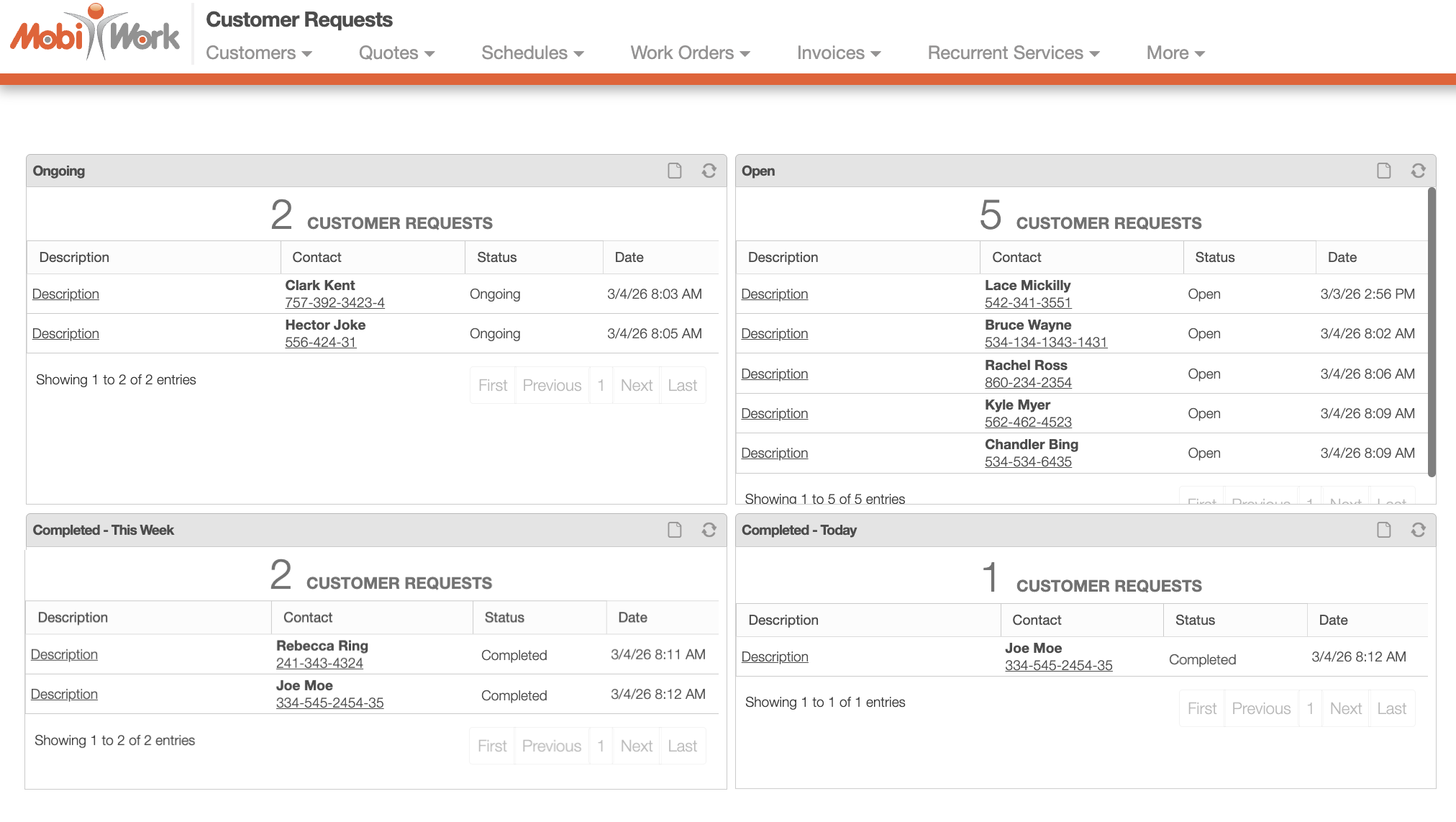
The statuses tracked by the panels are defined as follows:
The "Ongoing" panel will have requests that have been submitted and are awaiting action by your team.
The "Open" panel will show requests have been submitted but have not yet been addressed.
The "Completed - This Week" panel shows requests that have been completed for that week.
and the "Completed - Today" panel shows requests that have been resolved for the current day.
For more information about customer requests, please see the Customer Requests page.
The "Estimates - Status" dashboard will display the status of all your company's quotes. The five top-most panels will display the data in a pie chart format, allowing you to quickly glean your quote data with a cursory glance:
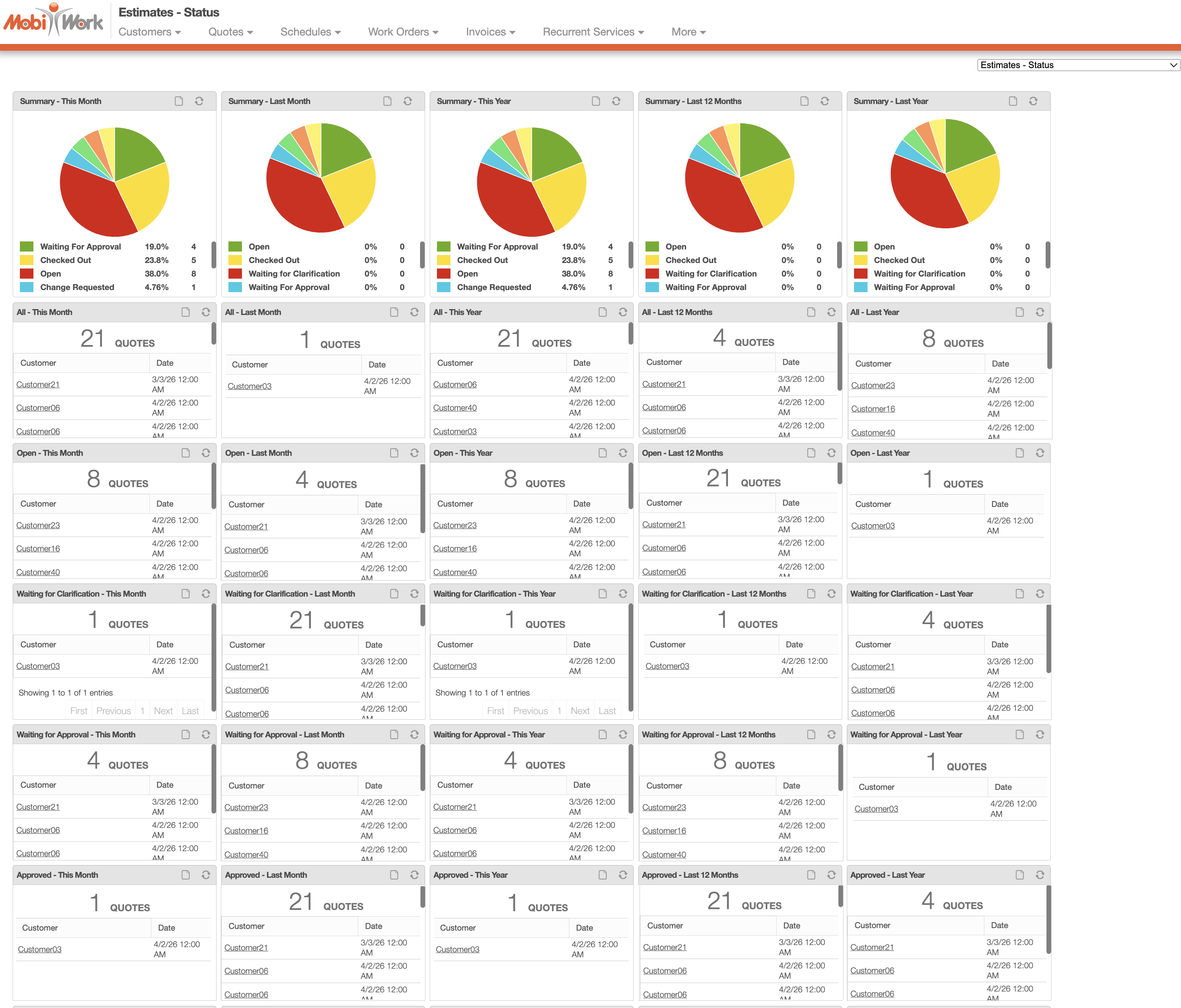
The subsequent panels will display the total number of quotes with the corresponding status and date range. For more information about the quote status, please see the View Quote page.
The "Estimates - Status" dashboard will display the summary of all your quotes. This dashboard has a large variety of panels that are formulated to give you the most up-to-date and complete information regarding your company's quotes:
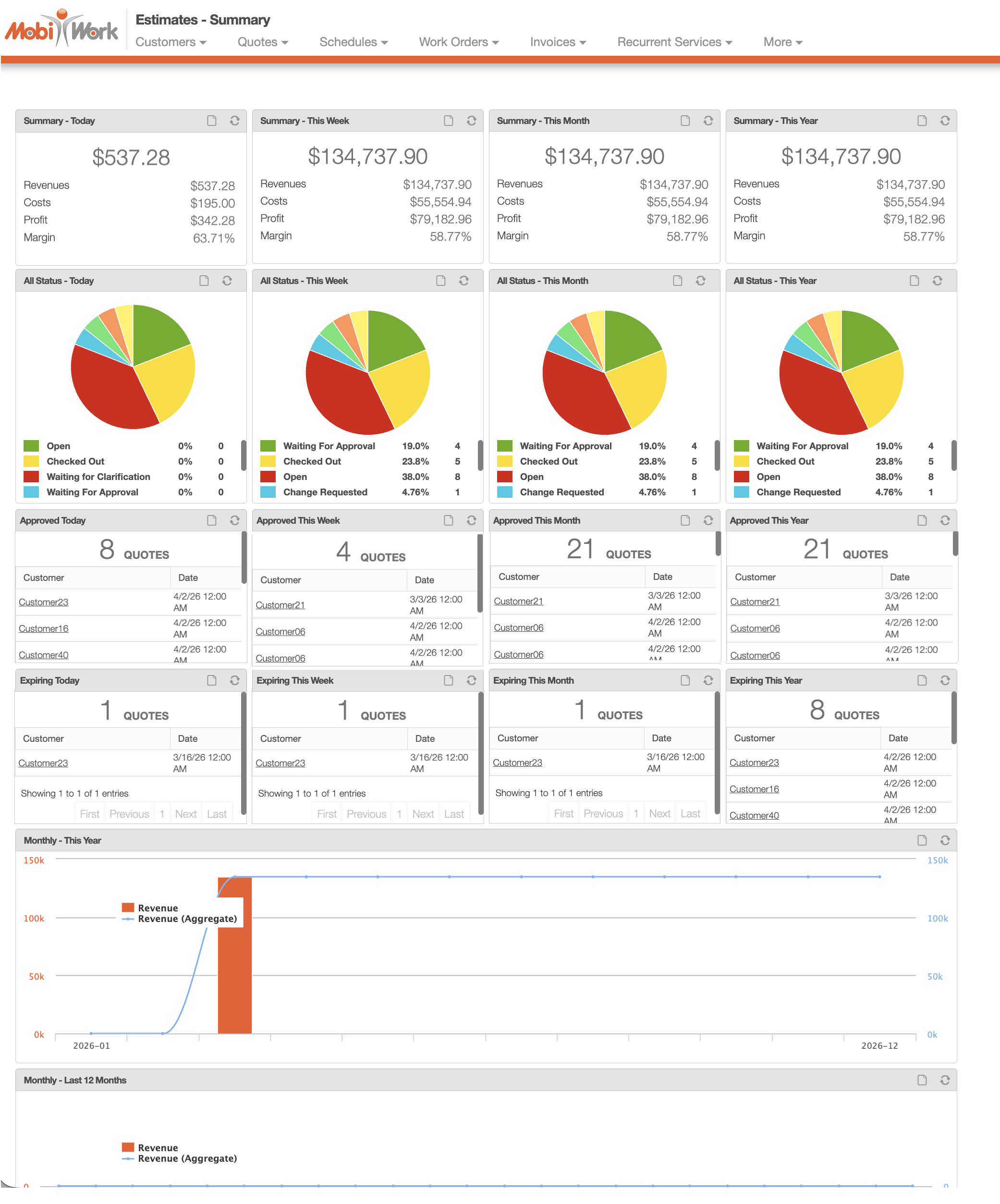
Not only is there a comprehensive assortment of panels, but each panel structures the data in different a format thus granting heightened visibility and increased operational oversight.
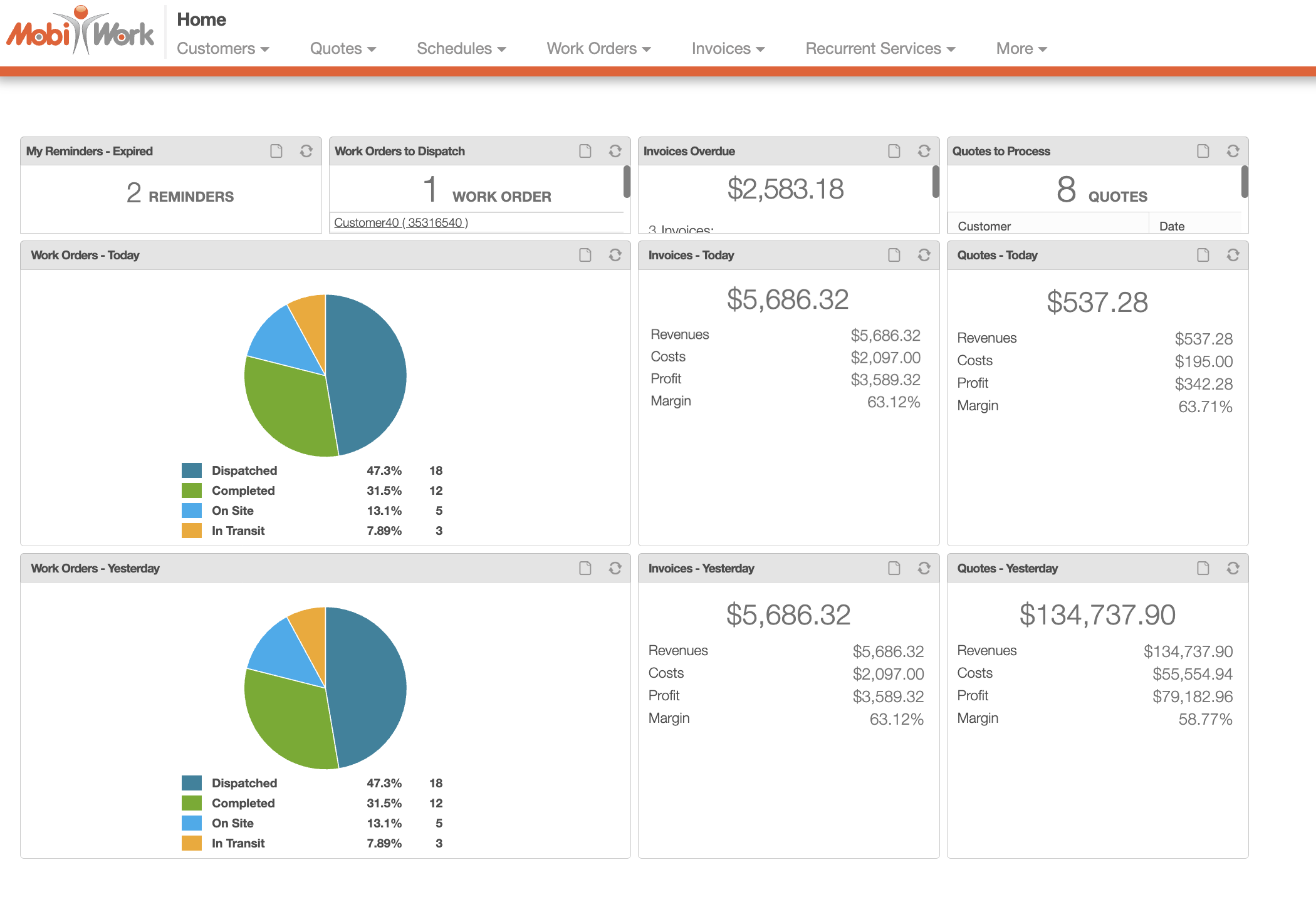
The "Home" dashboard will display a summary of your company's work orders, reminders, and invoices; thus, giving you immediate insight to all of your company's operations:
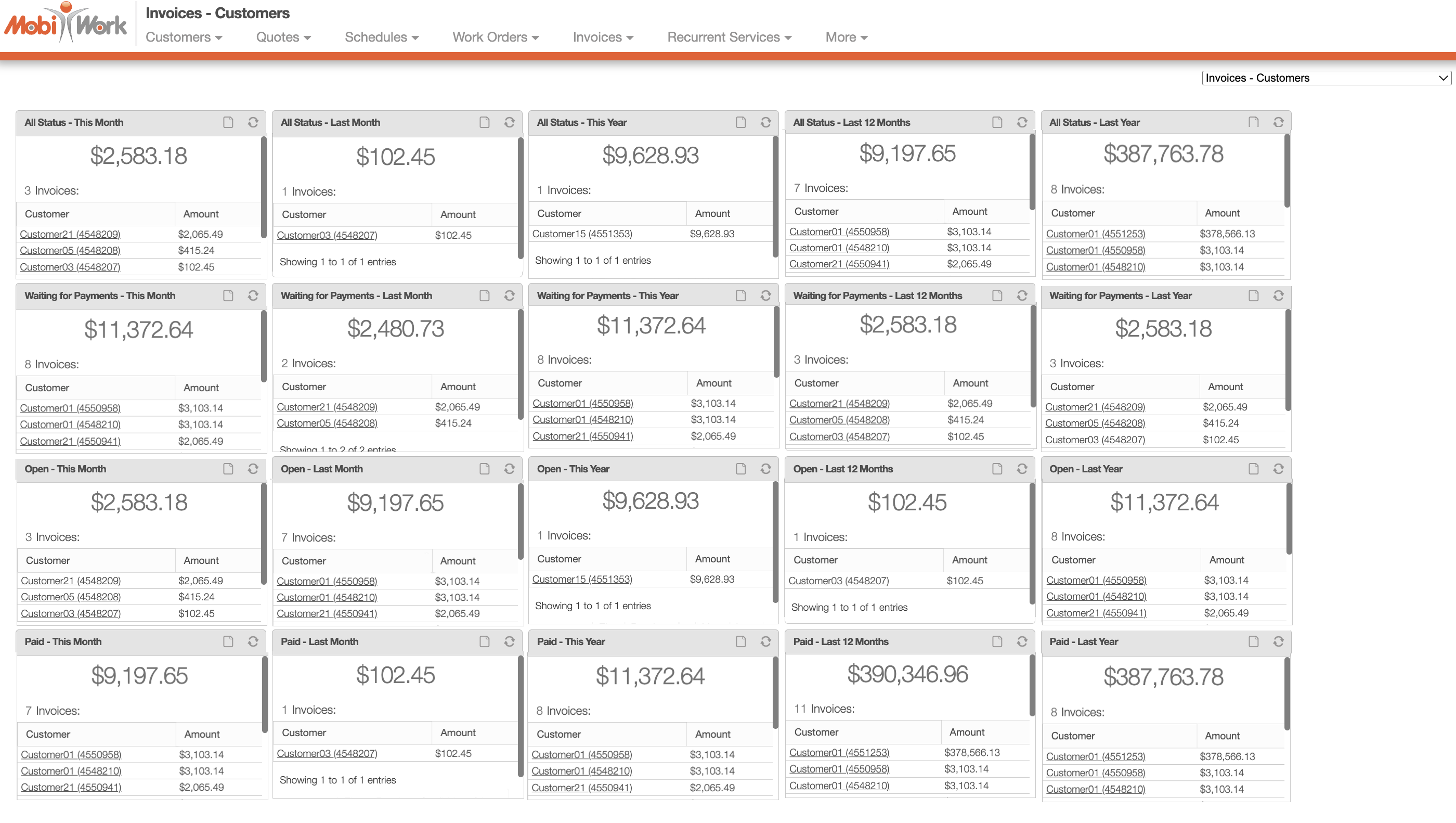
The "Invoices - Customers" dashboard will display all your invoices and their corresponding statuses:
With the "Invoice - Overdue and Upcoming" dashboard panel, you can quickly glean the date range of your overdue invoices:
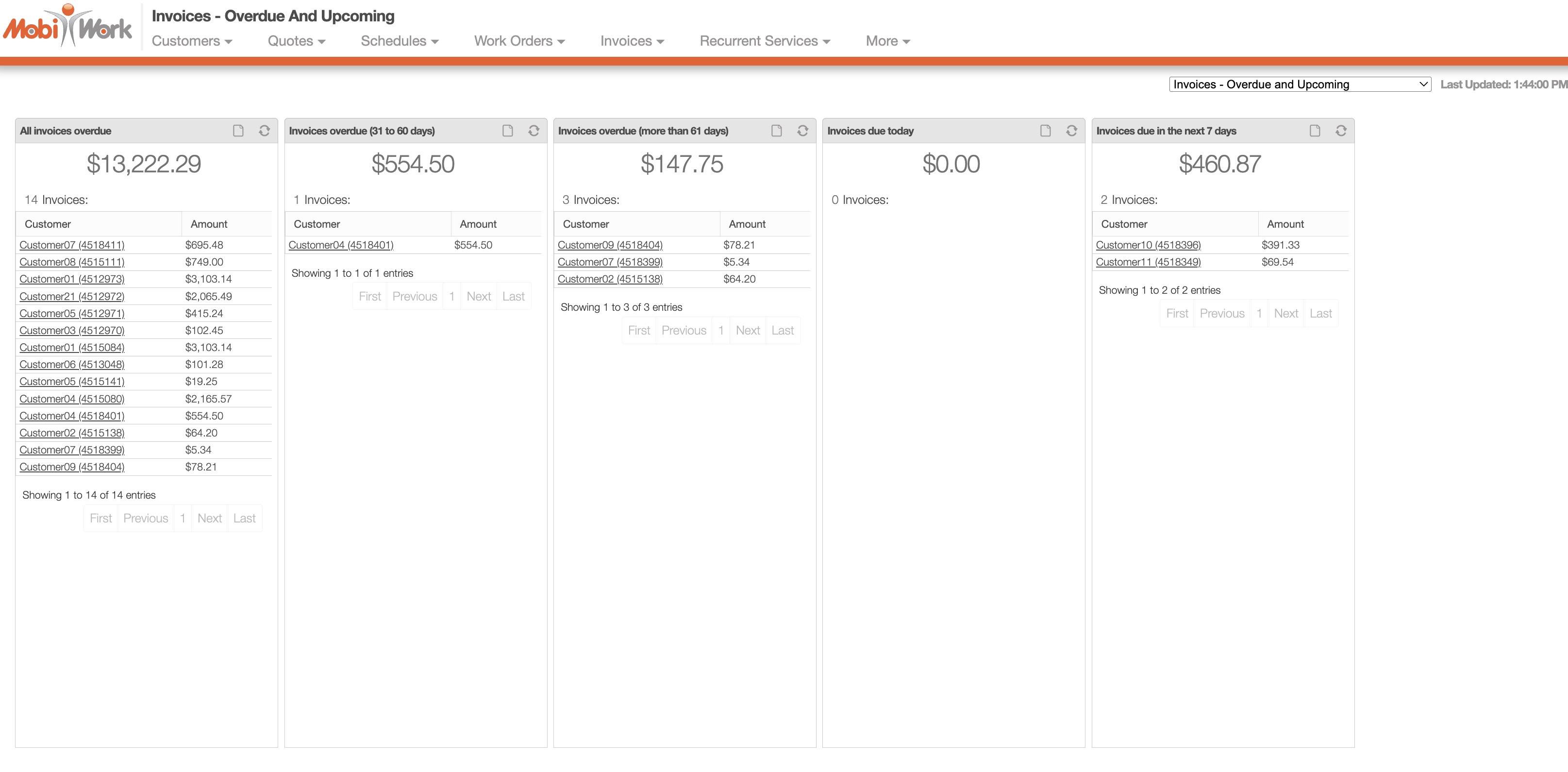
The dashboard panel will display:
All Invoices Overdue- Will display all invoices that are currently overdue regardless of the invoice date.
Invoices Overdue (31 to 60 days)- This column will display invoices that are overdue from the last 31 to 60 days.
Invoices Overdue (more than 61 days)- Invoices that are overdue more than 61 days will be displayed here.
Invoices Due Today- Will display invoices with an invoice date that is due today.
Invoices Due in the Next 7 Days- Displays invoices that are due in the next seven days.
The "Invoice - Overdue and Upcoming" dashboard uses the data from the "Invoice Date" field to populate the designated kanban columns.
Note: Please note, that in order for the invoice to appear on the dashboard the invoice status must be set to "Customer Invoiced." If the invoice status is not set accordingly, then the invoice will not appear in the "Invoice - Overdue and Upcoming" dashboard panel.
The "Invoices - Status" dashboard will display the status of all your company's invoices. The five top-most panels will display the data in a pie chart format, allowing you to quickly glean your invoice data with a cursory glance:
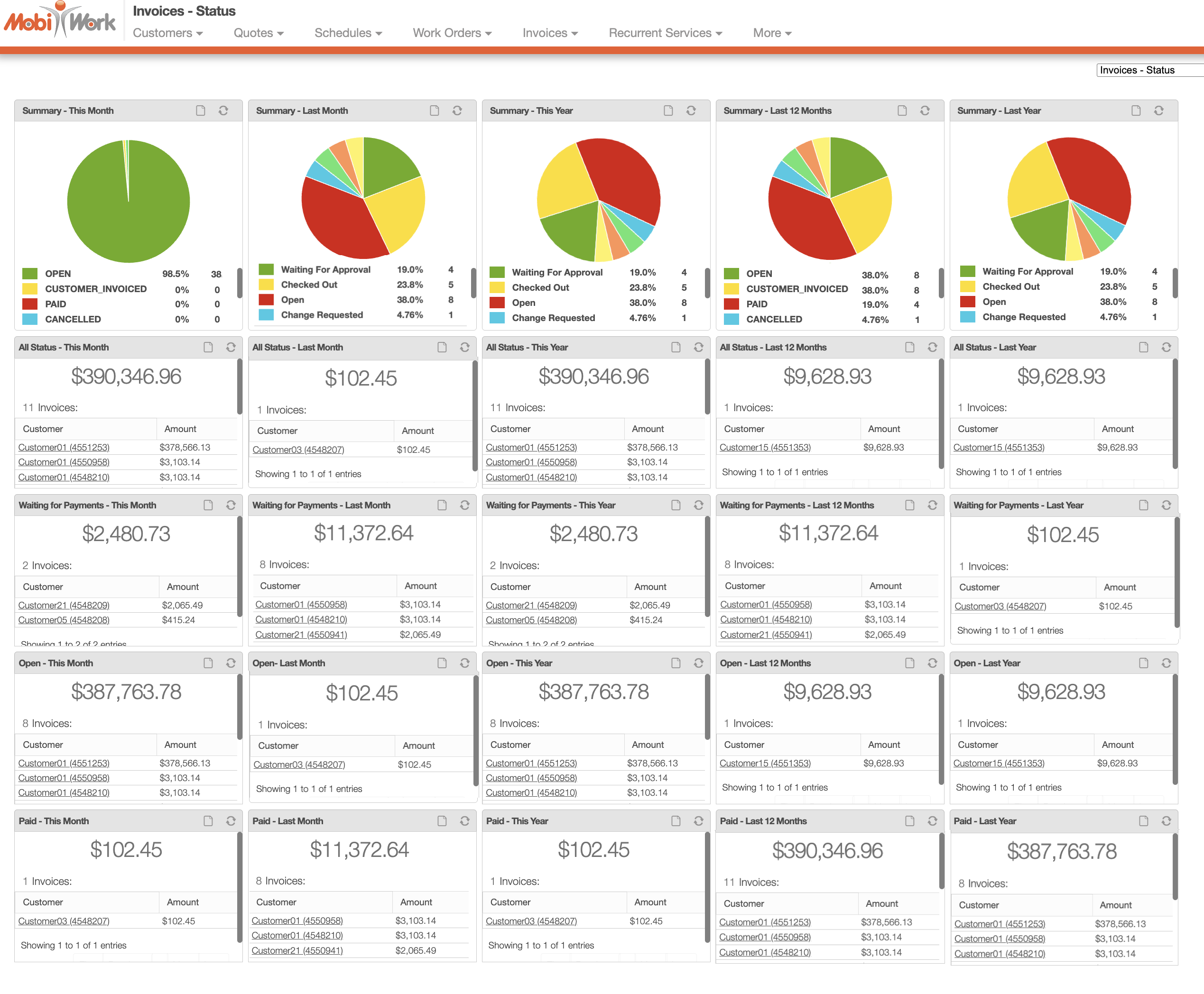
The subsequent panels will display the total number of invoices with the corresponding status and date range. For more information about the invoice status, please see the View Invoice page.
The "Invoices - Summary" dashboard will display the summary of all your invoices. This dashboard has a large variety of panels that are formulated to give you the most up-to-date and complete information regarding your company's invoices:
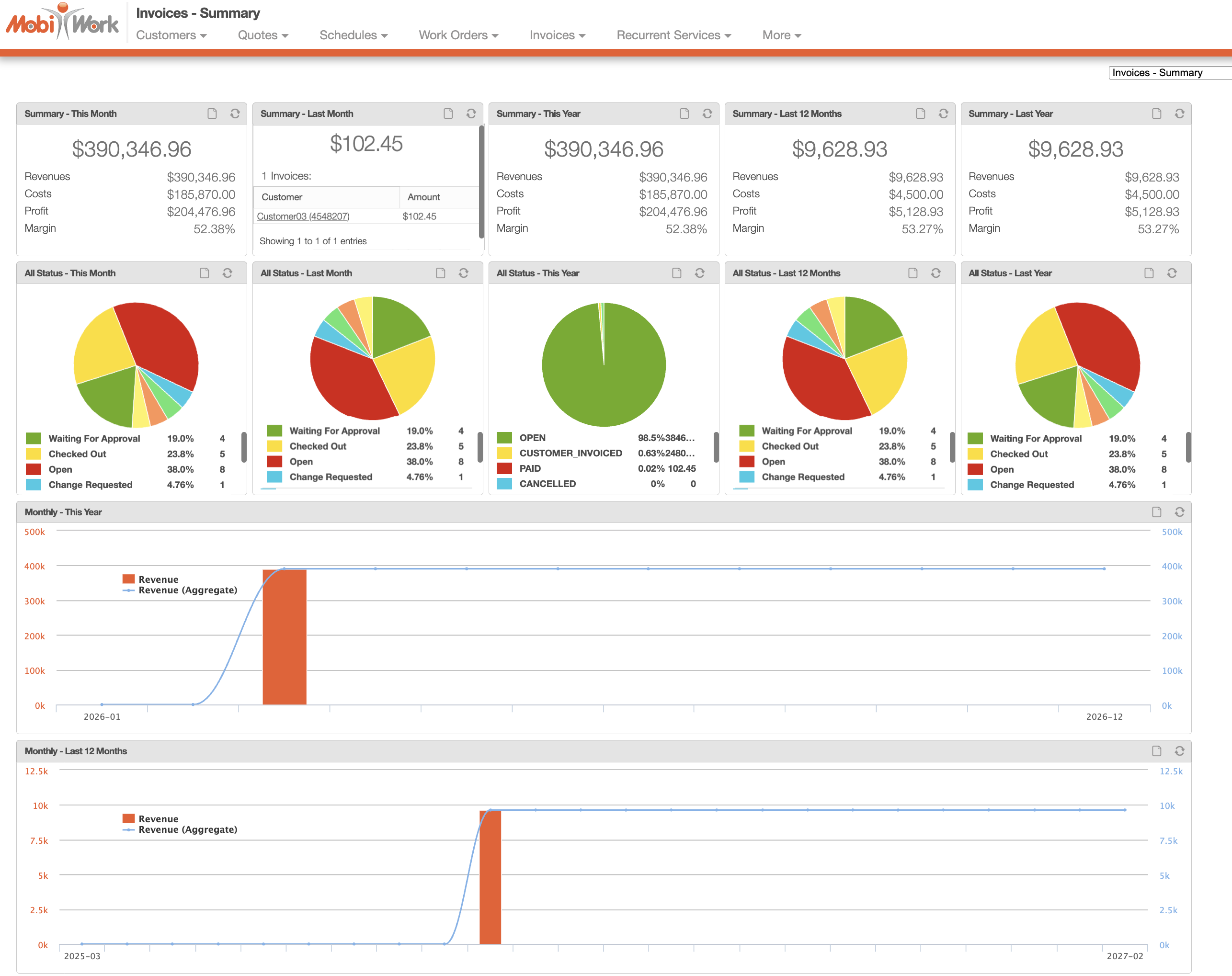
Not only is there a comprehensive assortment of panels, but each panel structures the data in different a format thus granting heightened visibility and increased operational oversight.
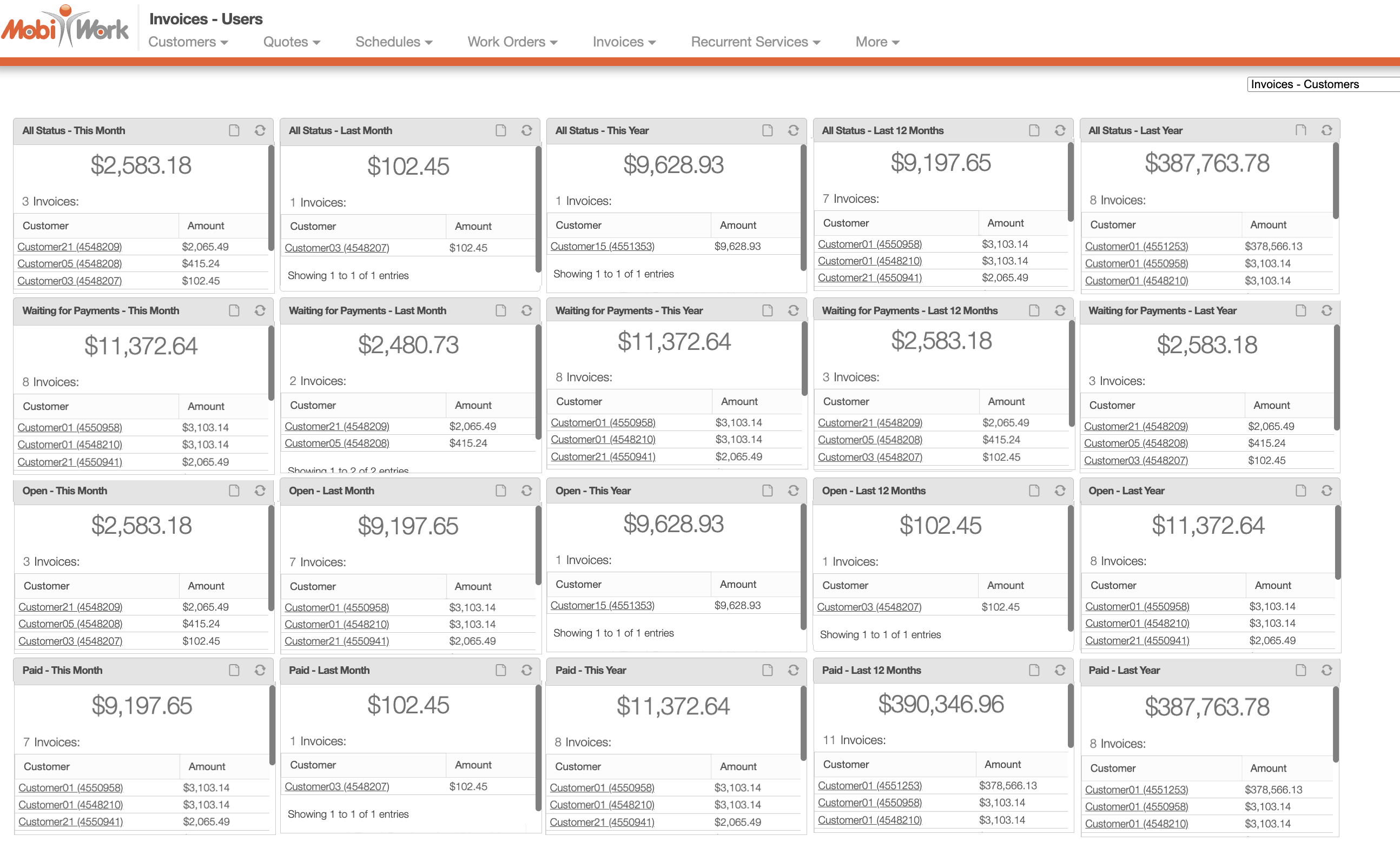
The "Invoices - Users" dashboard will display all your invoices and their corresponding statuses:
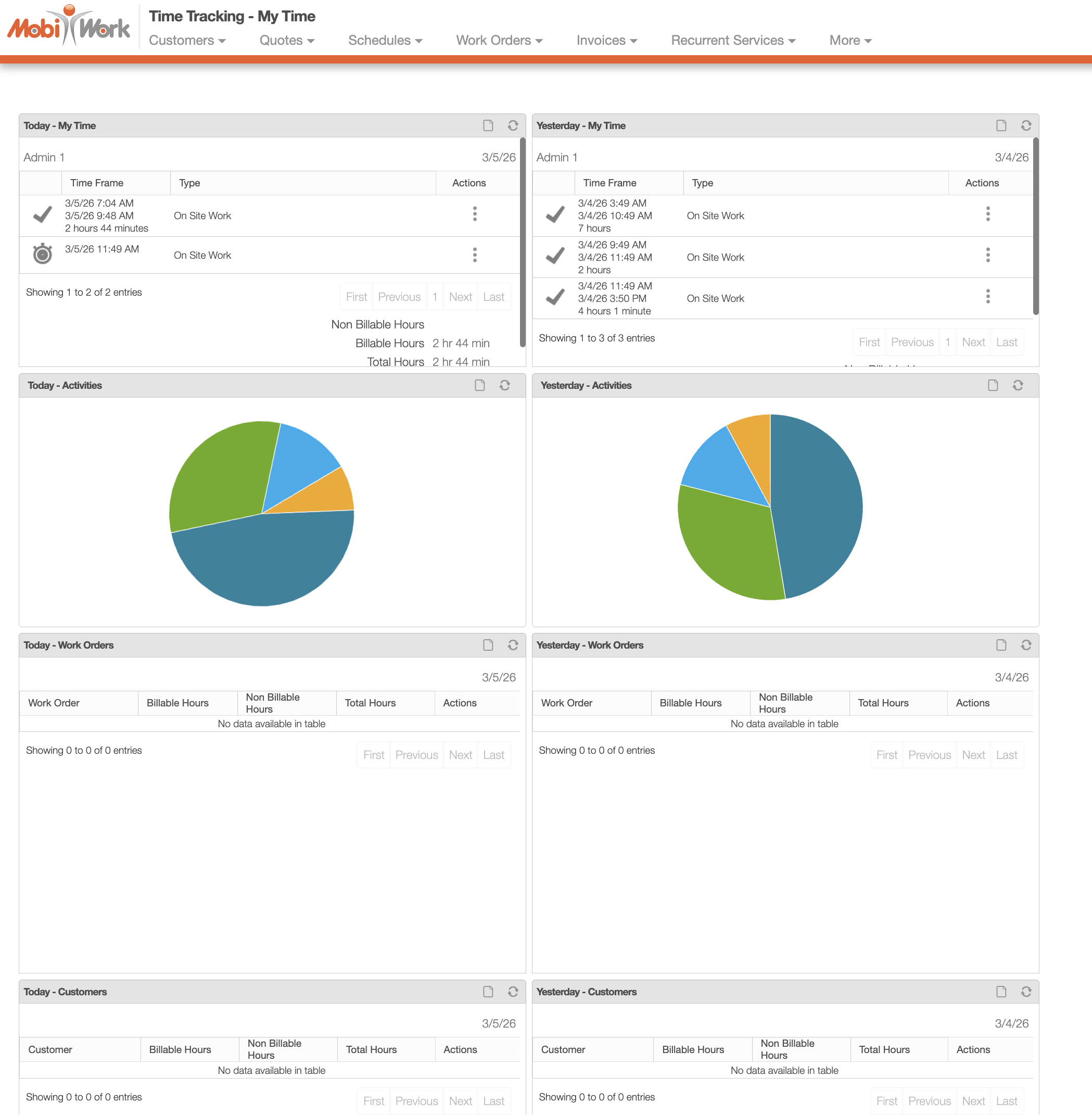
The "Invoices - Users" dashboard will display your time tracking:
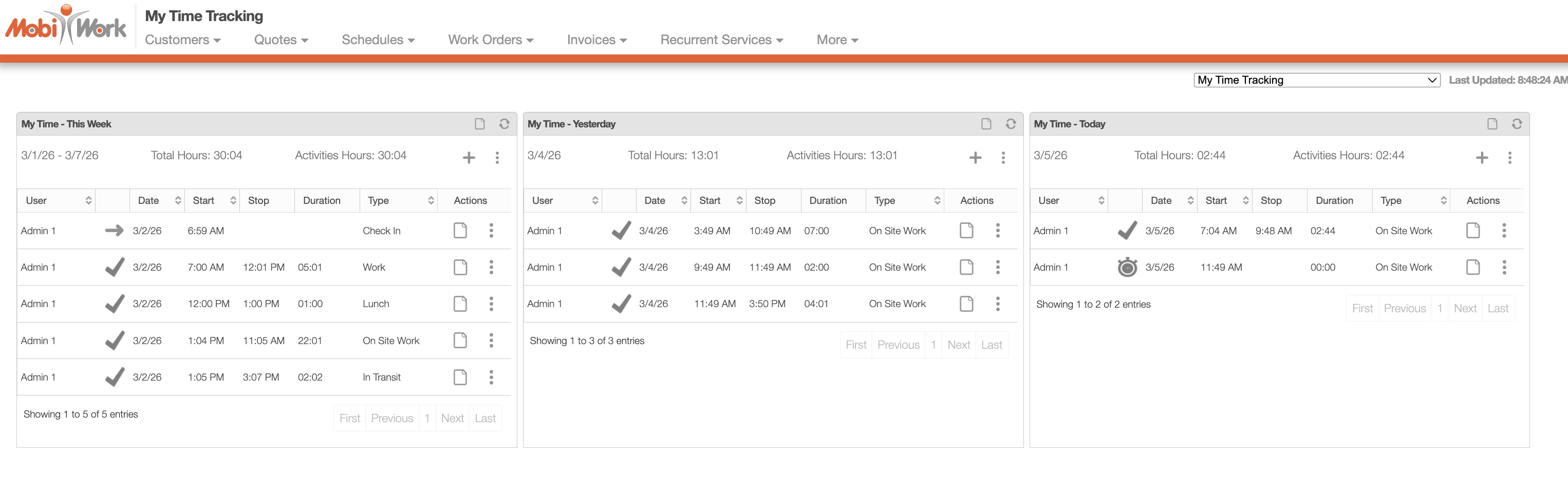
There are three different panels that show your time tracking summary. The first panel highlights your time tracking for the week, while the second shows your time tracking for the day before. The last panel will display your time tracking data for the current day.
The "Notifications" dashboard will display all the reminders and notifications that are set for your account. There are seven different panels that will aggregate your alarm and notification summary data:
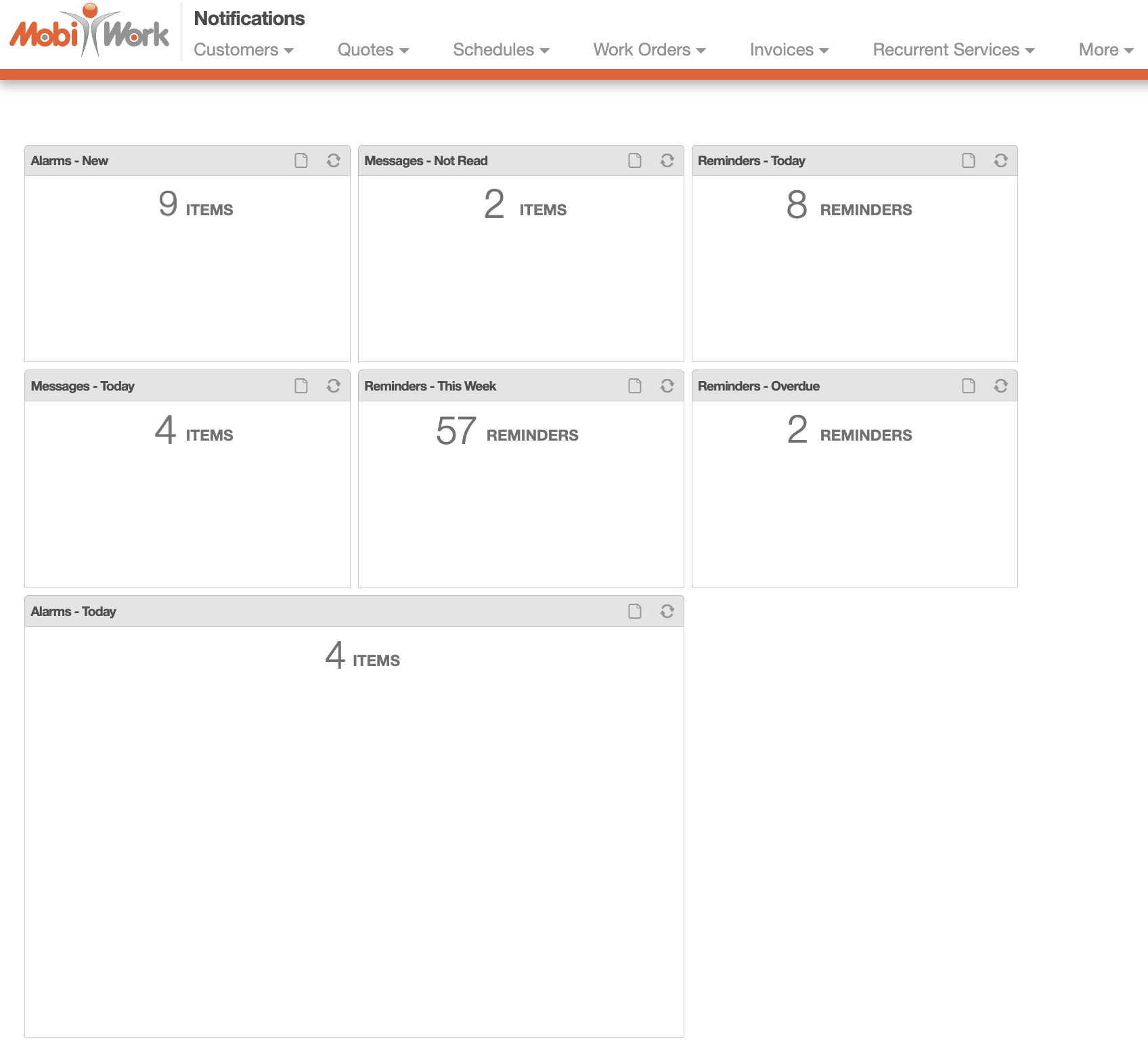
Depending on the panel, you will be able to see your total number of alarms or notifications, anyyhing new that has come in, anything that's overdue, as well as anything that you have not read yet. If you would like more information about reminders and notifications, please see the Alarms page.
The "Recurrent Services - Customers" dashboard will list all the scheduled recurrent services for your customers. The panels will also show which ones are currently overdue and which ones are in the warning phase:
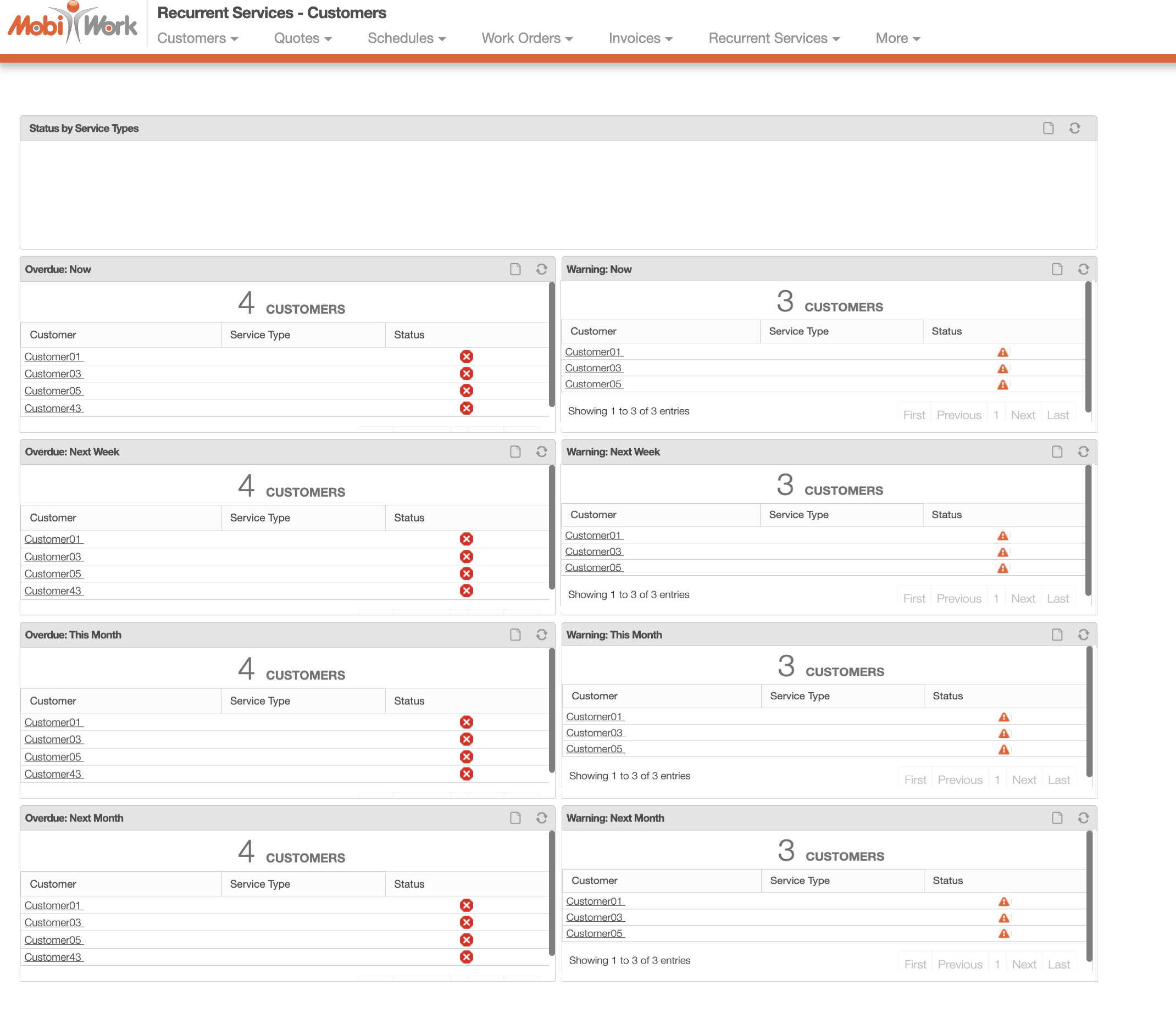
The "Summary" dashboard is the default dashboard that generates when you log onto MobiWork:
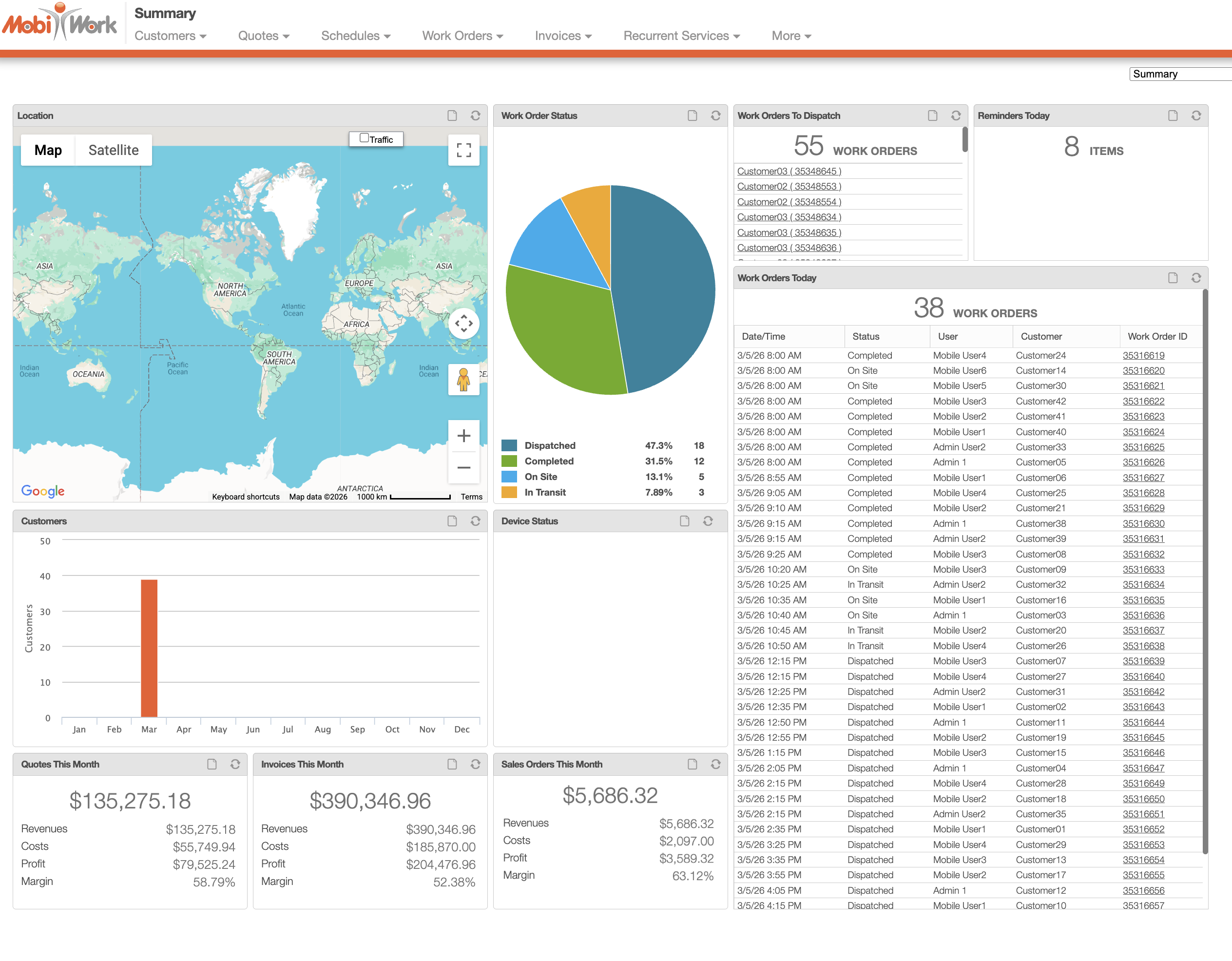
This dashboard is your comprehensive guide to your company's operations. You will be able to obtain key information regarding:
your quotes, invoives, and sales orders.
your work orders
any reminders set for the current day
and more!
The "Time Tracking - All Users" dashboard panel will display the time tracking for all your users:
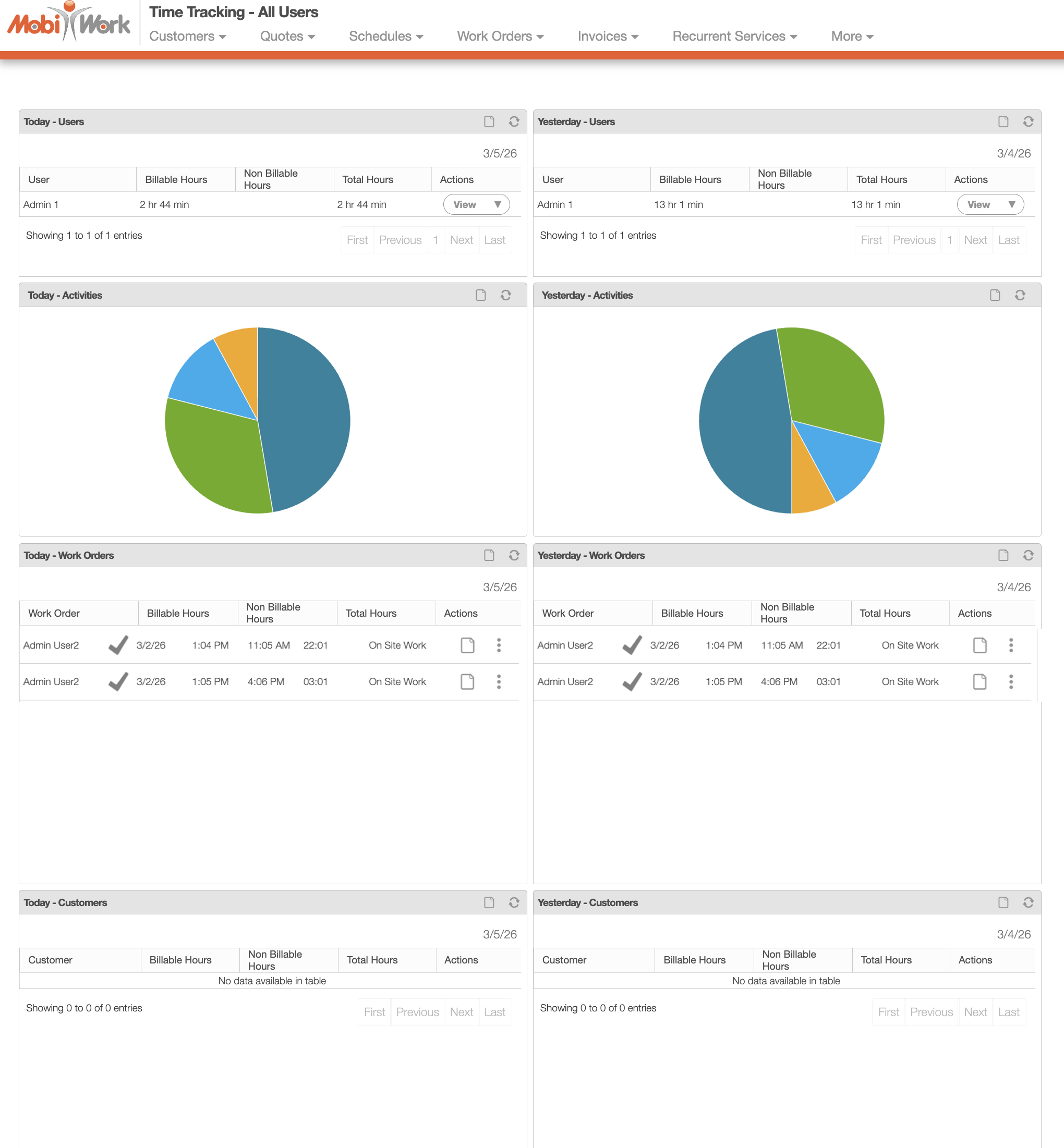
The "Time Tracking - My Time" dashboard will display your time tracking:
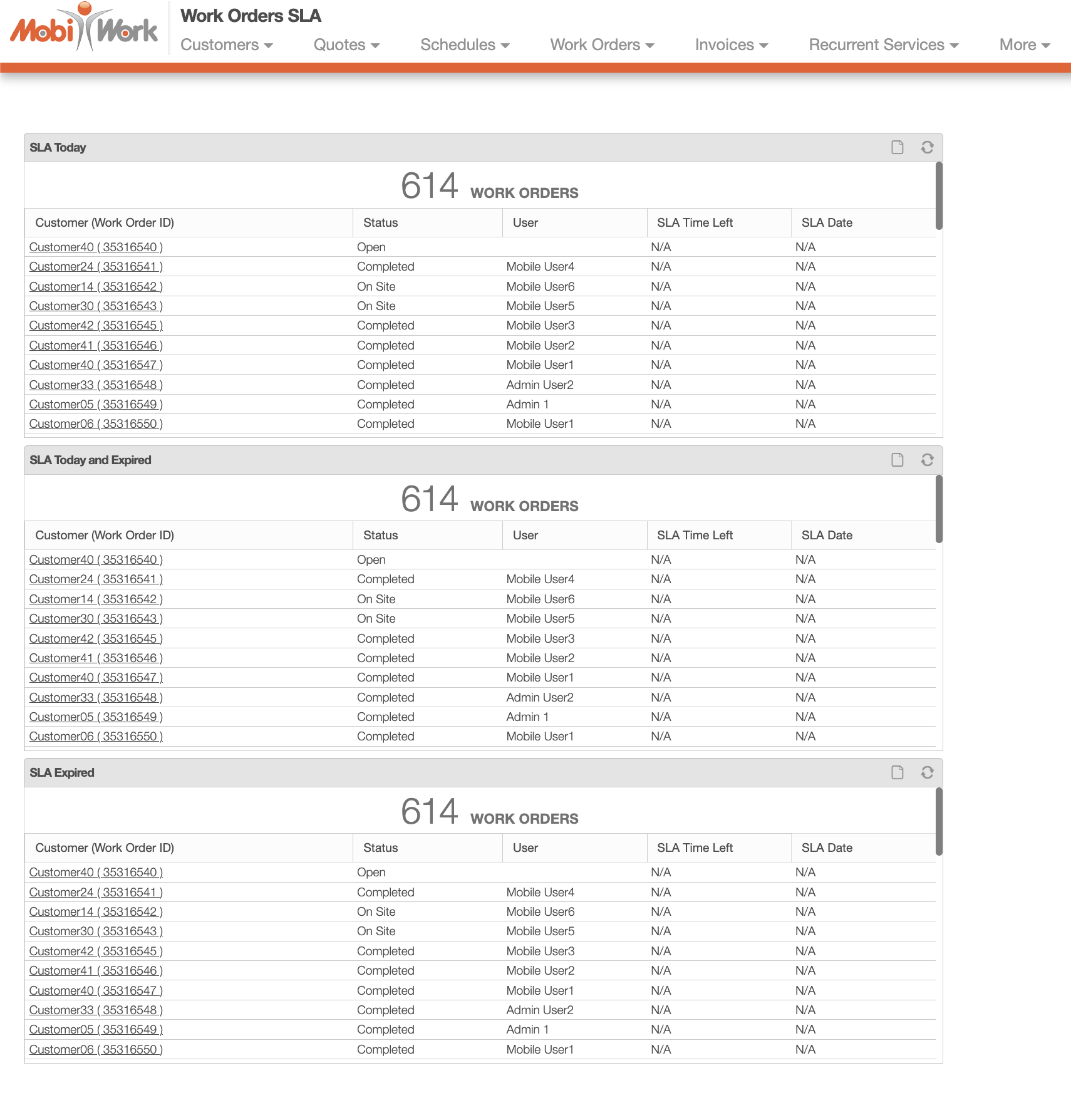
The "Work Orders SLA" dashboard will showcase the SLA status of your work orders: