
To reassign a work order to another user, you will first need to be on the Schedule feature page. For more information on how to access this page, please see the Schedule List page.
There are two different ways to reassign a work order to another user:
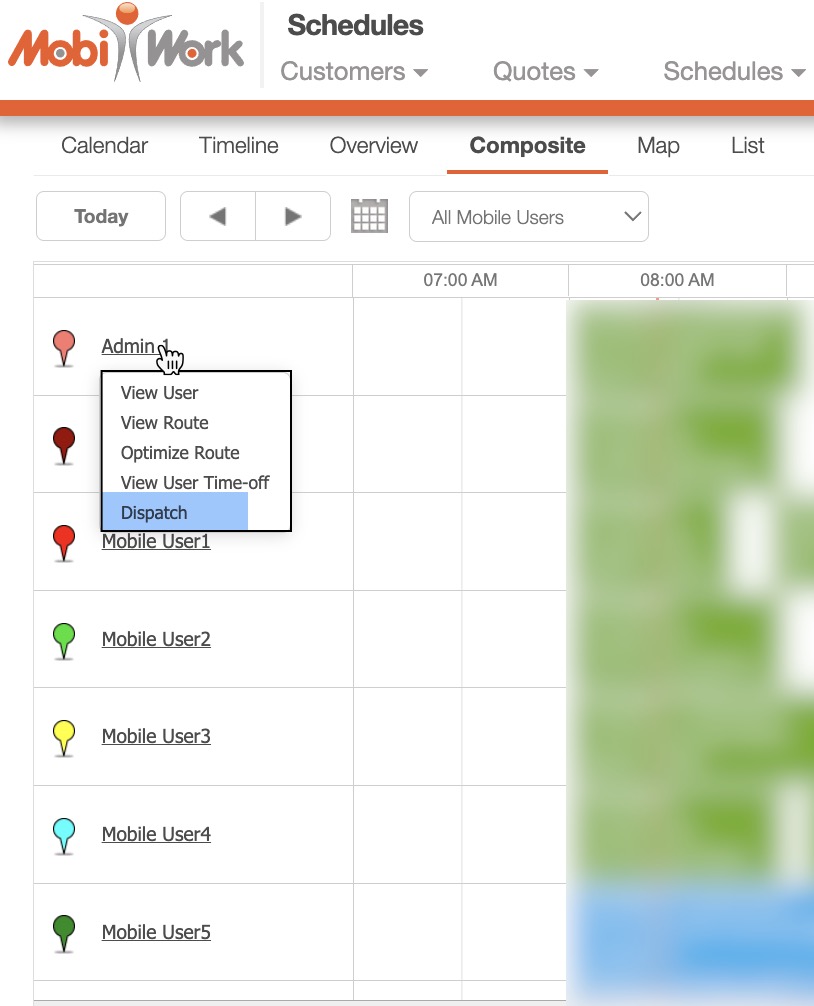
- In the Schedule feature, on the "Timeline" or "Composite" tabs, you can select a user and choose the "Dispatch" option from the drop-down menu:
- This action will open the Dispatch Work Orders pop-up window:
- In the Schedule "Calendar," "Timeline," or "Composite" tabs, you can also drag & drop a work order to a new user. For more information on how to accomplish this action, please see the Schedule List page.
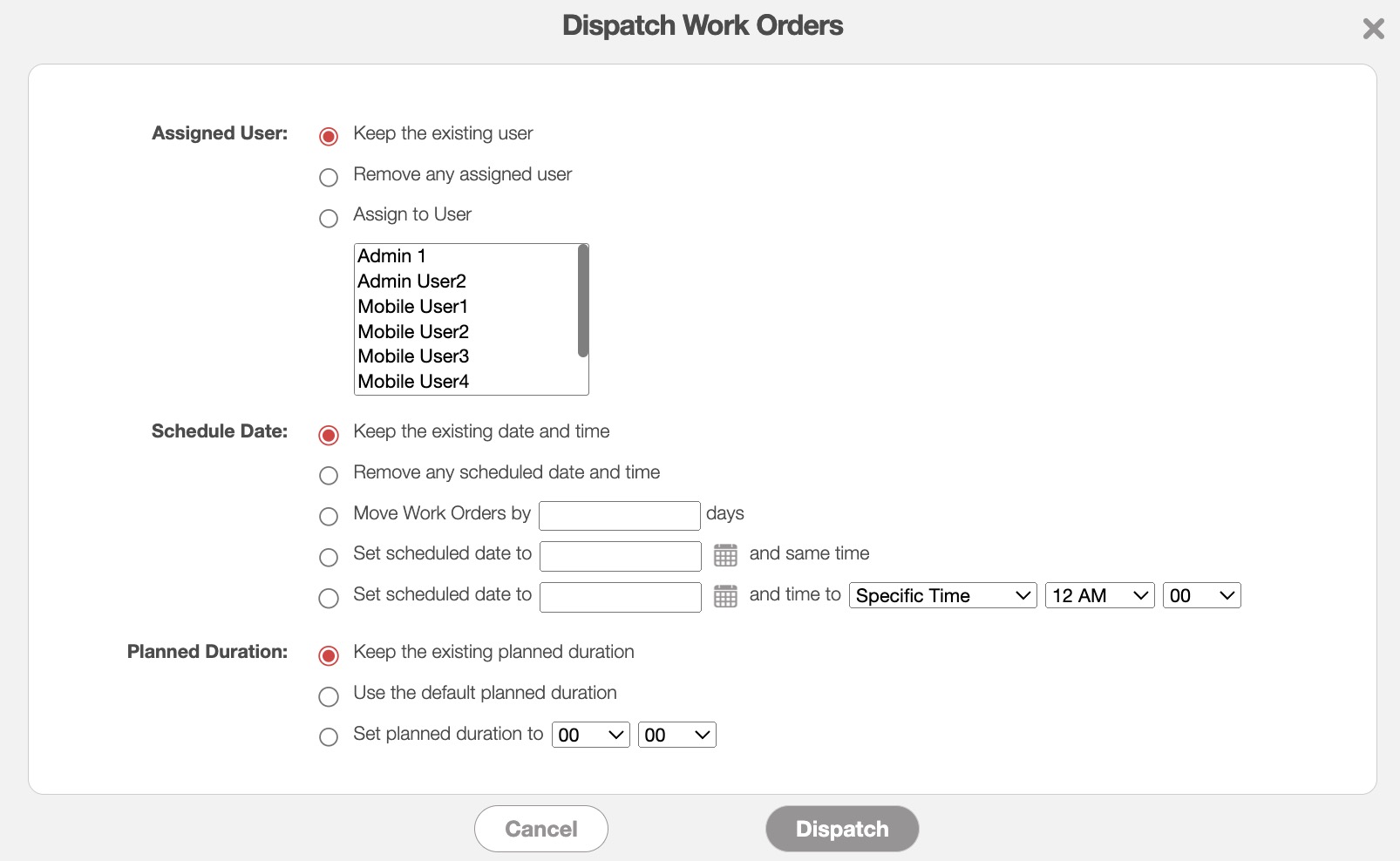
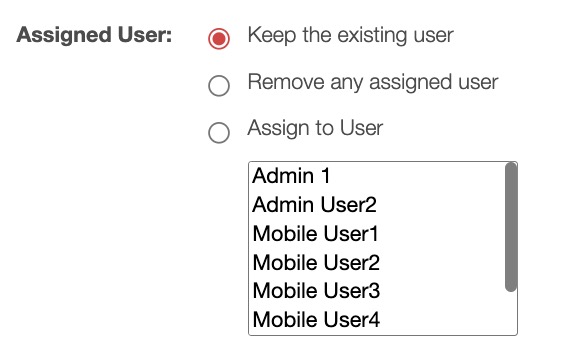
When the Dispatch Work Orders pop-up window appears, you can:
Choose to keep the existing user.
Remove the existing user.
Reassign the work order to a new user by selecting the new user from the User List.
Once you have selected the new user you want and are satisfied with your changes to the work order click on the Dispatch button:
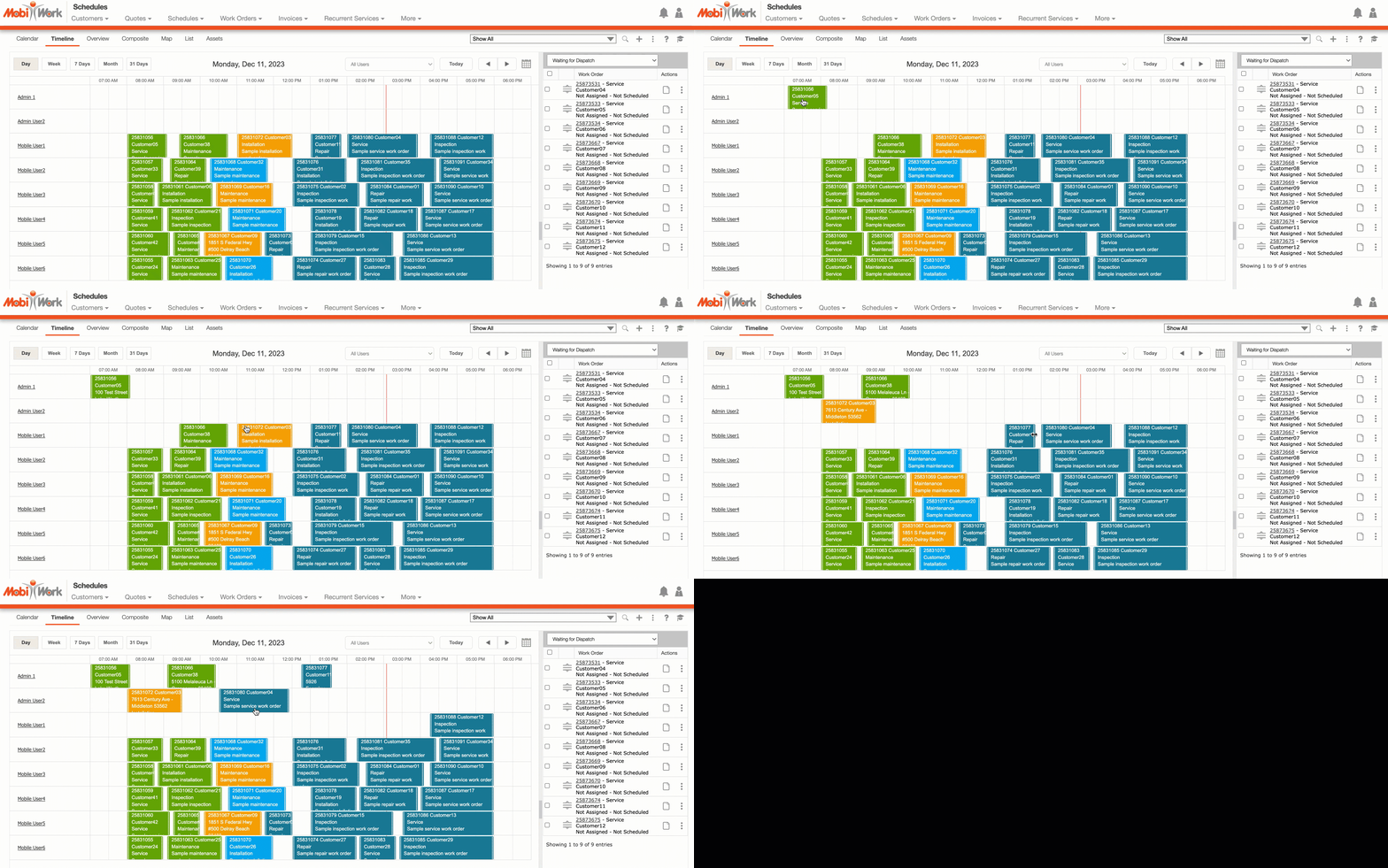
Within the Schedule "Calendar," "Timeline," and "Composite" tabs you will also be able to drag & drop a work order to a new user. You can drag & drop a work order by clicking on the selected work order and dragging it to the new user:
You can also edit the user assigned to the work order and the duration of the work order through the View Work Order pop-up window.
For more information on how to access this page, please see the View Work Order page.
Once you are on this page, click on the Individual Actions from the "Scheduling & Dispatching" column. From the drop-down you can either select the:
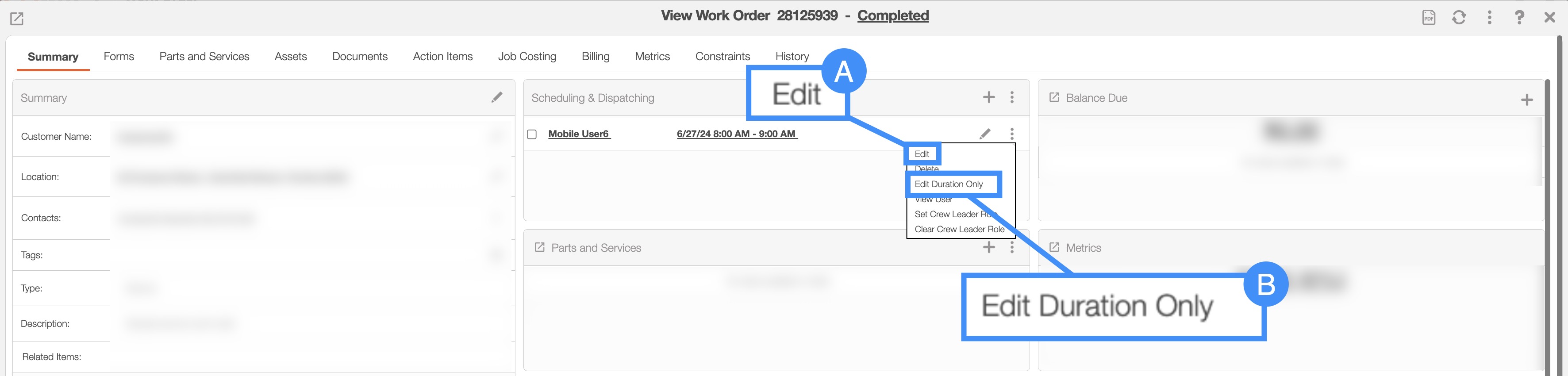
"Edit" option to reassign the work order to another user.
Or the "Edit Duration Only" option to update the planned time spent on the work order:

Within the work order feature, you will also have the option to repeat a schedule or appointment.
This action is different from the duplicating a work order feature, as this option will only repeat the scheduled work order appointment instead of the entire work order:

The duplicated schedule or appointment will then be listed in the "Scheduling & Dispatching" panel:

In this pop-up window you can select the following:
The date range for the repeated work order.
The work order start time.
And the assigned users.
And the assigned users.
Once you are satisfied with the entered data, click the Add button to generate the work orders. Please note that the scheduled appointment will be generated for each selected day. For instance, if you choose to repeat the appointment for the first work week in June, five appointments will be generated.