
There are many different ways you can add reminders in MobiWork; reminders can be added from the Reminders "List" tab or the Customers "List" tab. Additionally, whenever you access the view pop-up window of a selected entity, you can add an associated reminder for a user. For example, you can add a reminder from the View Work Order pop-up window or the View Quote pop-up window. The following subsections will highlight how to add reminders in MobiWork.
From the Reminders' More Actions
On the Reminders "List" tab you will be able to add a reminder by clicking on the Plus Sign button:
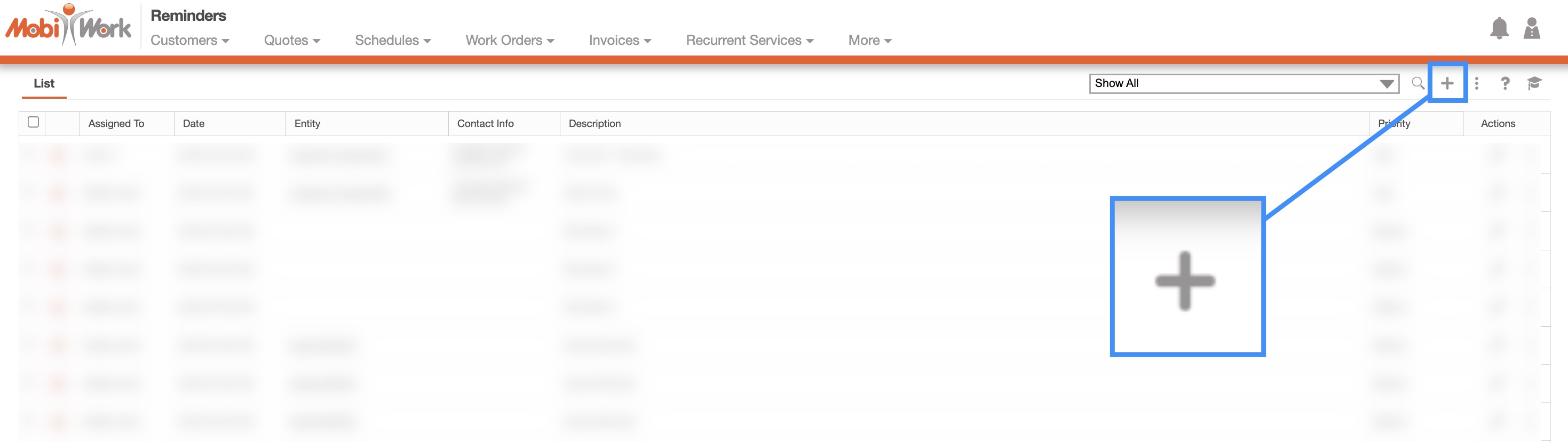
Customer List Page
While on the Customers "List" tab you will be able to add a reminder on the selected customer profile through the following methods:
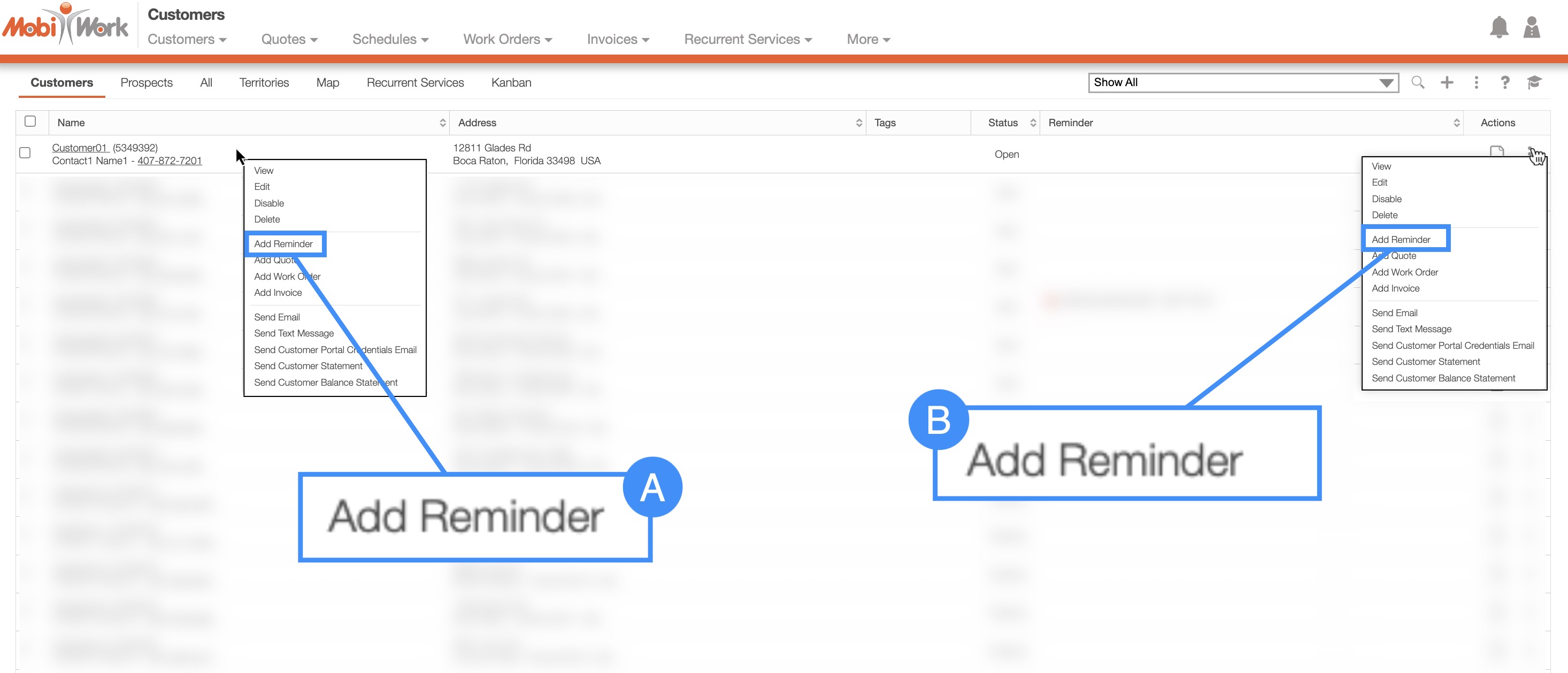
By right-clicking on the customer and selecting the "Add Reminder" option from the drop-down.
Or by clicking on the Individual Actions button and selecting the "Add Reminder" option from the drop-down.
You can also add a reminder through the View Customer pop-up window. For more information on adding a reminder through the entity's view pop-up window, please see the subsequent subsection.
Selected Entity's View Pop-up Window
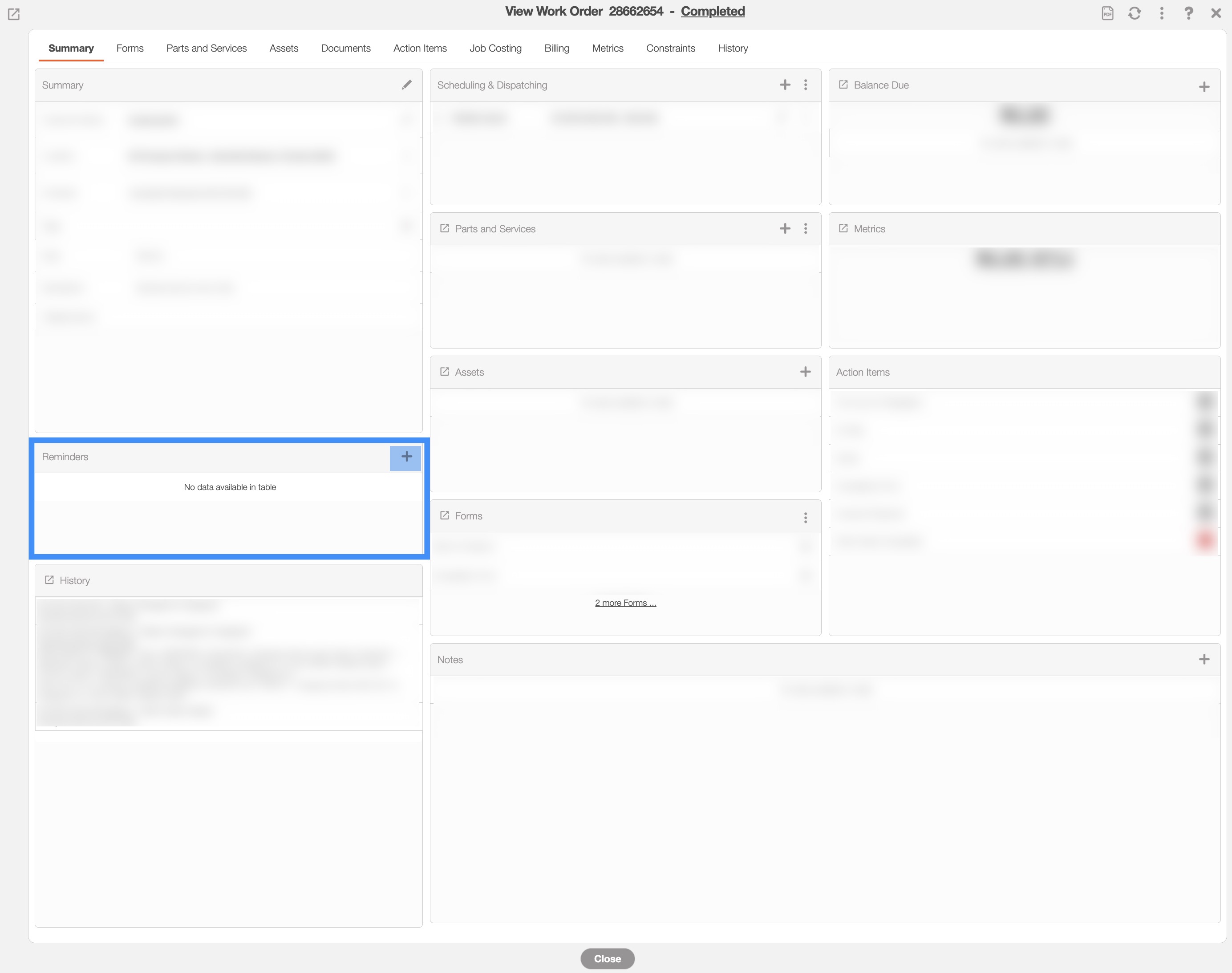
In any selected entity's view pop-up window, you can add a reminder by clicking the Plus Sign in the "Reminders" panel.
The example below shows how to add a reminder in the View Work Order pop-up window, however, the process is the same in any of MobiWork's entity's view pop-up windows:
Regardless of how you add a reminder, the Add Reminder pop-up window will appear.
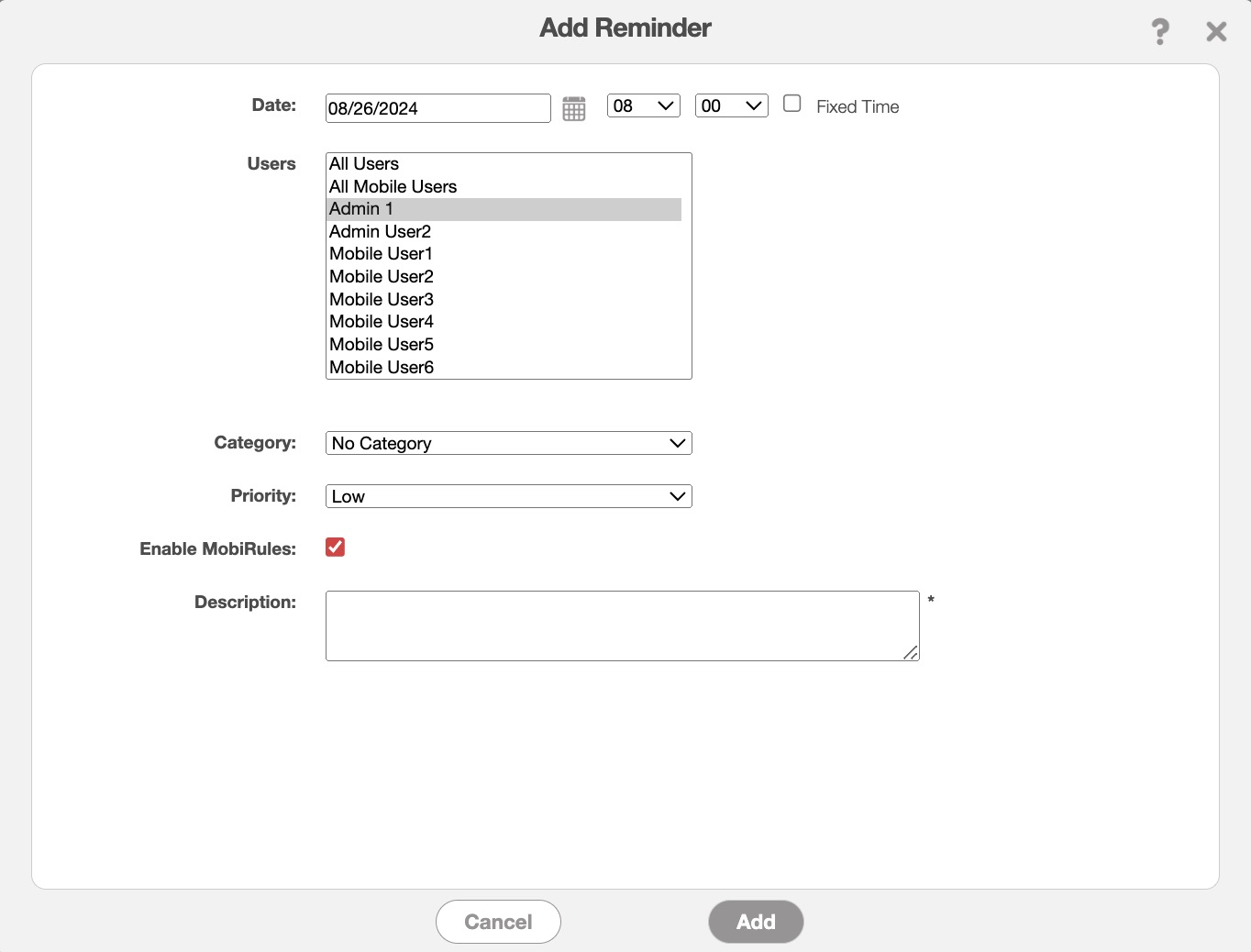
In this pop-up window, you can specify the following data:
The date and time when the reminder is set to occur.
The user or users that the reminder is intended for. You can set up Groups to send batch reminders to multiple users at once.
The reminder category.
The priority level of the reminder (i.e., high, medium, low).
And the description of the reminder.
Once you are satisfied with the information entered, click on the Add button to save the reminder.
Further definitions for all the terms in the Add Reminder pop-up window can be found below:
| Name: | Description: |
|---|---|
| "Date" | The date and time that the reminder is set to occur. Once the reminder date has passed, the overdue icon will be displayed. Any associated MobiRules will be triggered, automatically sending an email notification to the user assigned to the reminder. |
| "Users" | The user or users that the reminder is intended for. |
| "Category" | The classification assigned to the reminder, used to organize and group similar types of reminders for easy management. |
| "Priority" | The urgency level assigned to a reminder (e.g., high, medium, low), indicating its importance and helping prioritize tasks or actions. |
| "Enable MobiRules" | Allows you to choose whether to enable MobiRules with the reminder. Please Contact Us for additional information regarding MobiRules. |
| "Description" | A detailed explanation or summary of the reminder, providing key information and context about the task or event. |