There are many different ways you can delete reminders in MobiWork; reminders can be deleted from the Reminders "List" tab or the Customers "List" tab. Additionally, whenever you access the view pop-up window of a selected entity, you can delete an associated reminder for a user. For example, you can add a reminder from the View Work Order pop-up window or the View Quote pop-up window. The following subsections will highlight how to delete reminders in MobiWork.
From the Reminders' More Actions
On the Reminders "List" tab you will be able to delete either a single reminder or multiple reminders at once:
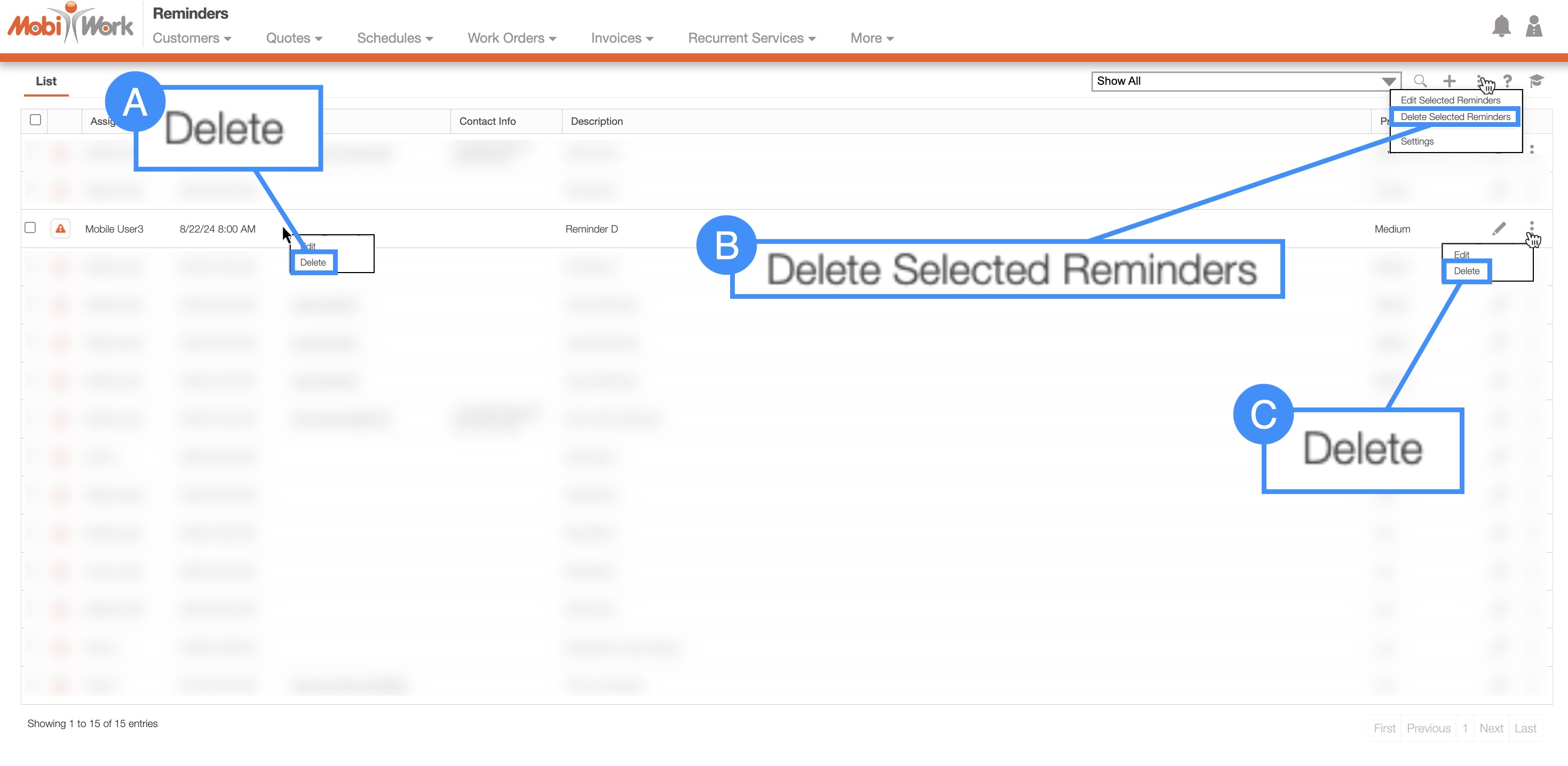
You can delete reminders on this tab through the following methods:
By right-clicking on the reminder and selecting the "Delete Reminder" option from the drop-down.
You can select the More Actions button from the "Global Actions." Please note that this option will give you the ability to delete multiple reminders at once.
By clicking on the Individual Actions button and selecting the "Delete Reminder" option from the drop-down.
Customer List Page
While on the Customers "List" tab you will be able to delete a reminder from the selected customer profile through the following methods:
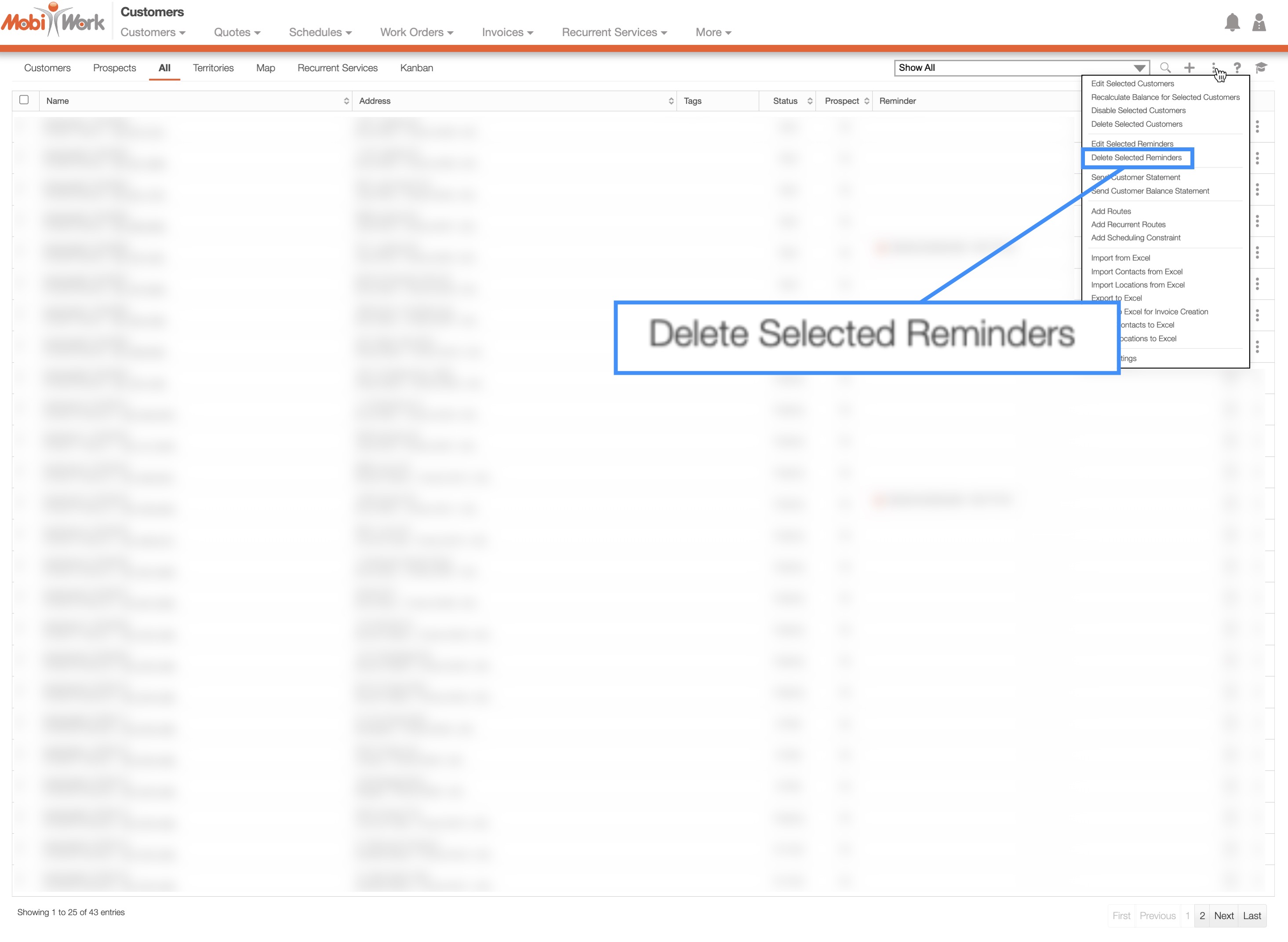
You can select the More Actions button from the "Global Actions." Please note that this option will give you the ability to delete multiple reminders at once.
You can also delete a reminder through the View Customer pop-up window. For more information on deleting a reminder through the entity's view pop-up window, please see the subsequent subsection.
Selected Entity's View Pop-up Window
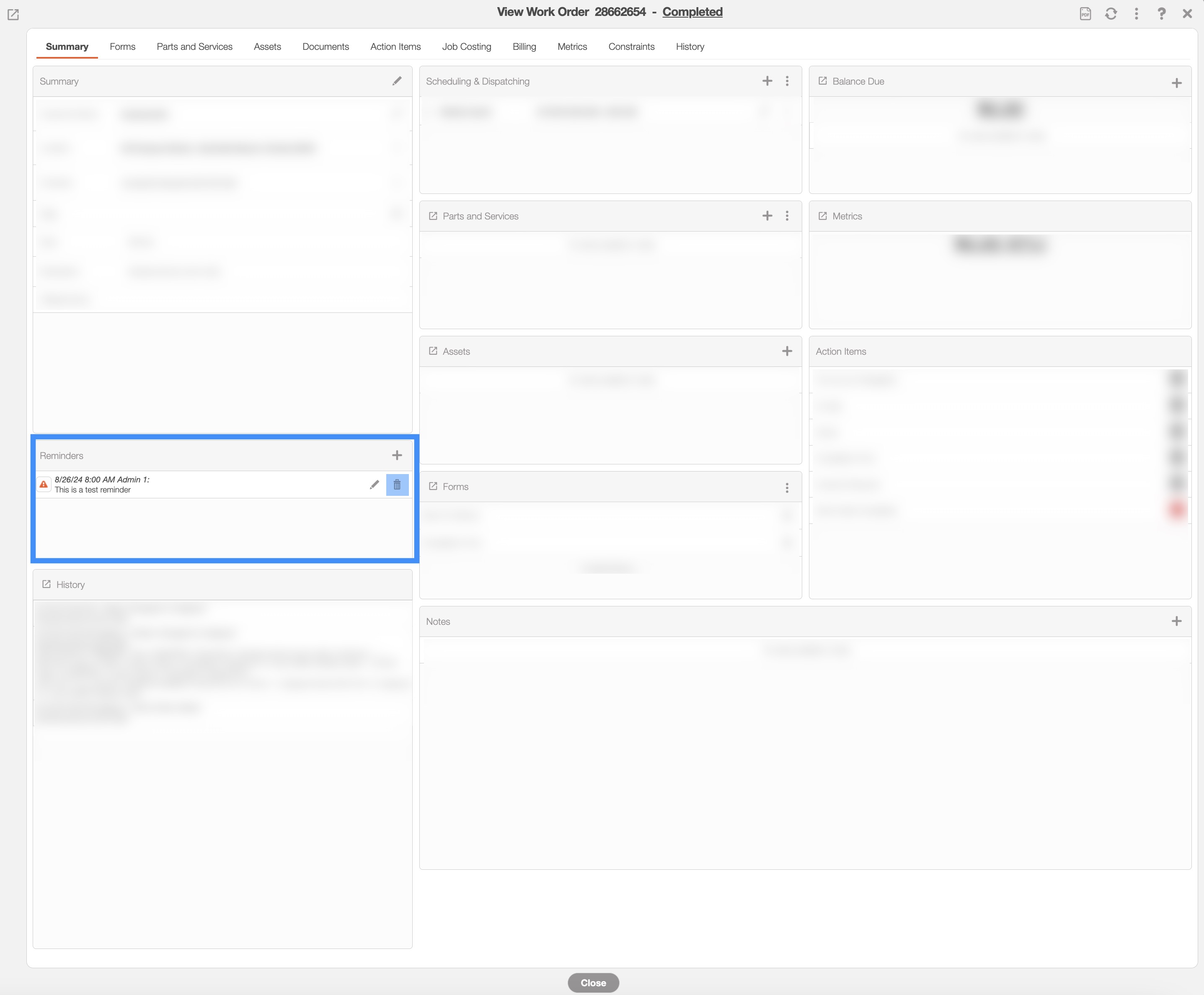
In any selected entity's view pop-up window, you can delete a reminder by clicking the Trash Can icon in the "Reminders" panel.
The example below shows how to delete a reminder in the View Work Order pop-up window, however, the process is the same in any of MobiWork's entity's view pop-up windows:
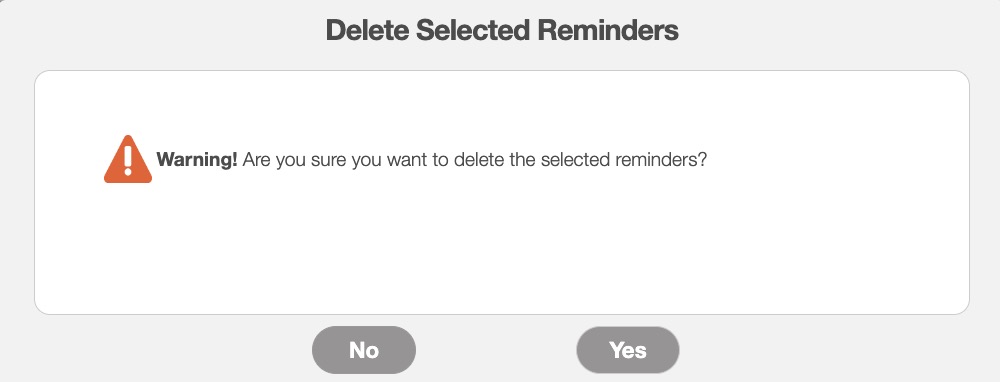
Regardless of how you delete a reminder, the Confirm Delete pop-up window will automatically appear:
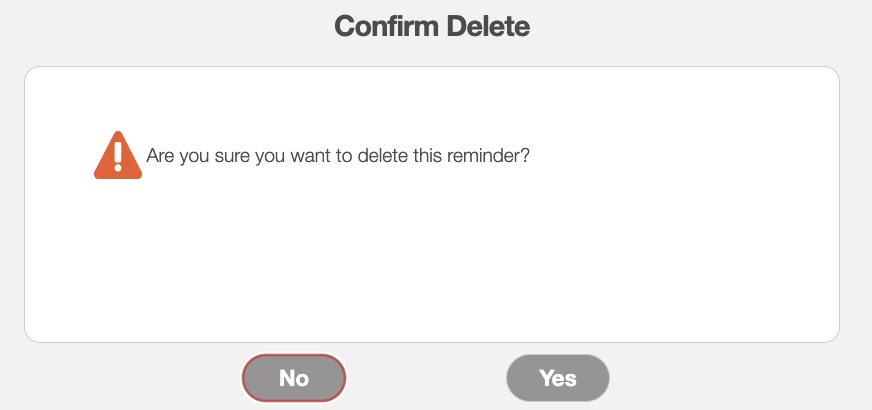
Click on the Yes button to confirm deletion of the reminder.
You can also delete multiple reminders at once. You can either delete multiple reminders from the Customers "List" tab or from the Reminders "List" tab.
If you are on the Reminders "List" tab, select the reminders you want to delete. Or if you are on the Customers "List" tab, select the customers with the associated reminders you wish to delete.
Once you have selected the reminders or customers associated with the reminders, click on the More Actions button and from the drop-down select the "Delete Selected Reminders" option:
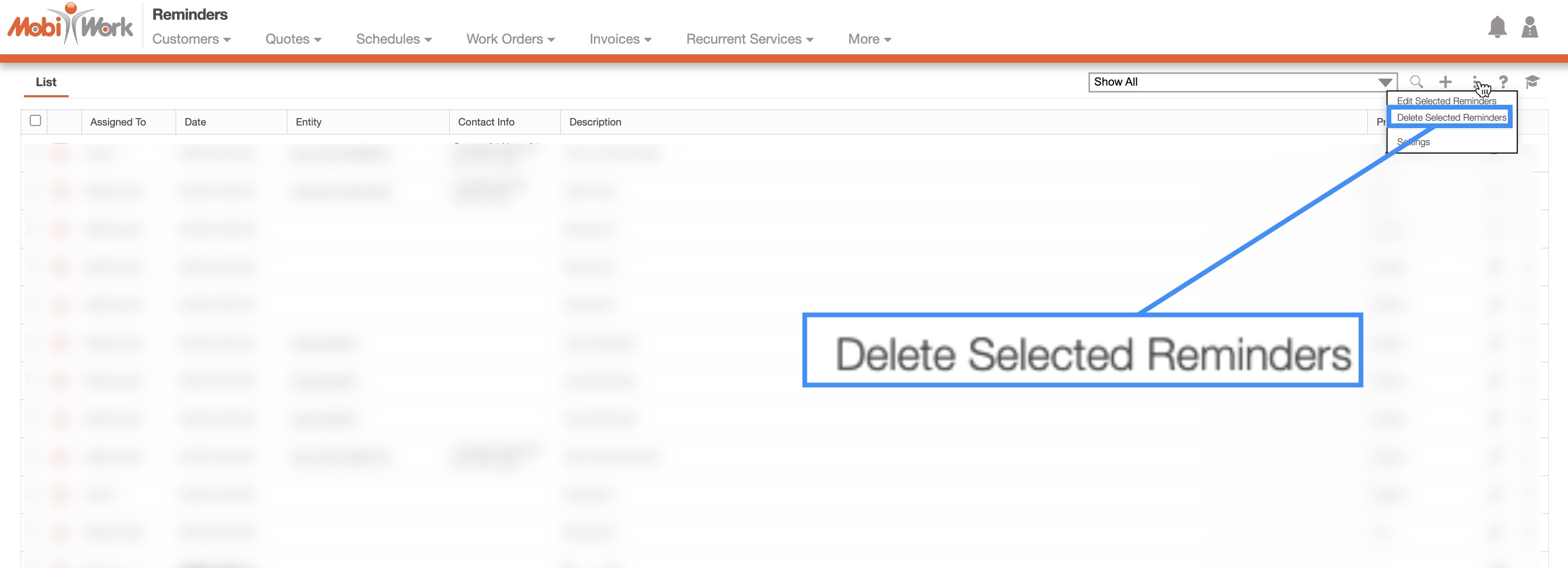
Note: Both the Reminders "List" tab and Customers "List" tab will have the "Delete Selected Reminders" option from the More Actions drop-down.
The Delete Multiple Reminders pop-up will then appear; in this pop-up window, click on the Yes button to confirm deletion of the reminders: