From the Reminders "List" tab you can access the Settings page:
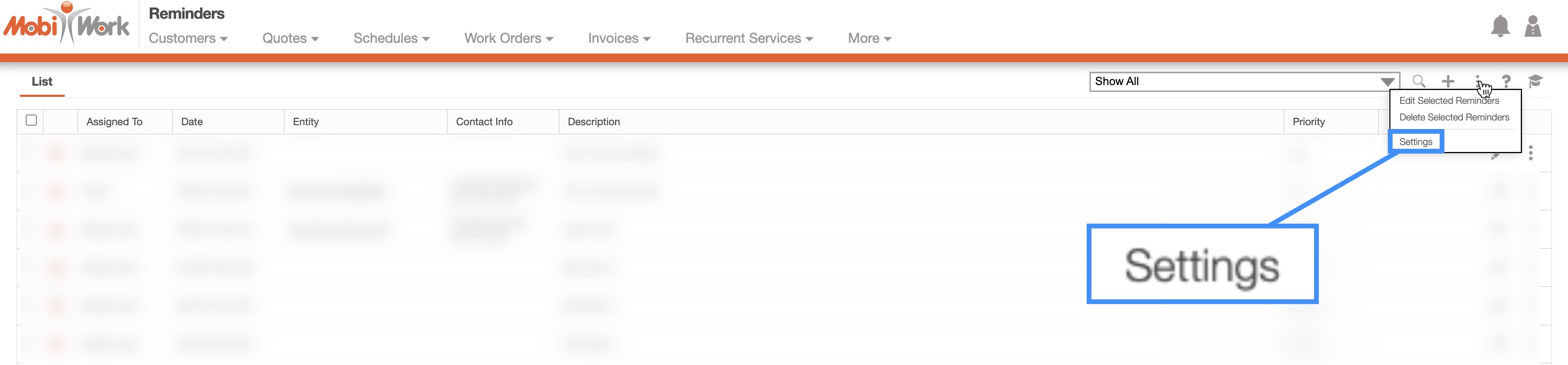
Click on the More Actions button, and from the drop-down select the "Settings" option. You will then be redirected to the Settings page.
Once you are on the Reminders Settings page there will be two different sections:
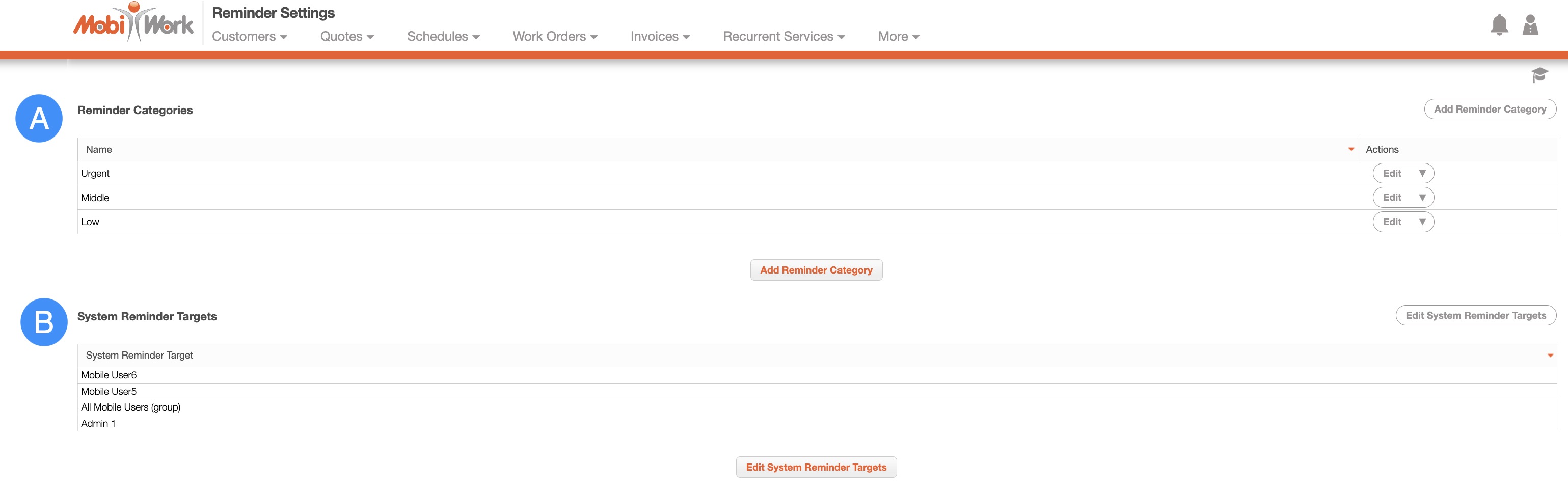
The "Reminder Categories" section will allow you to categorize your reminders into specific classifications (e.g., High Priority, Urgent, Quote Reminders.):

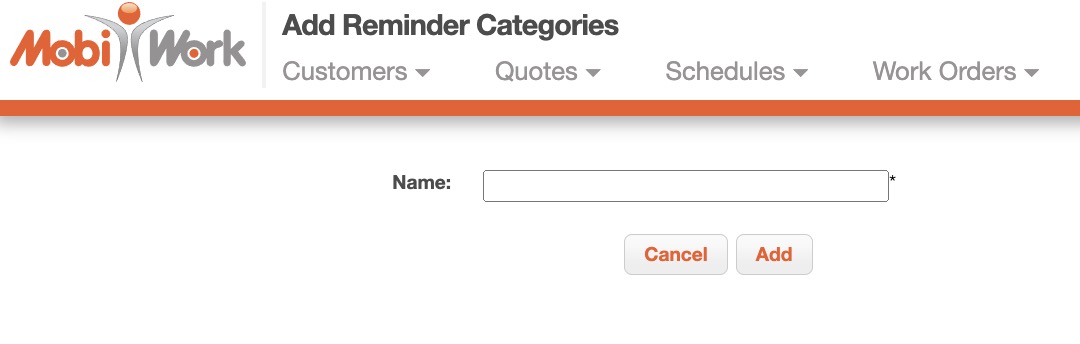
To add a new reminder category, click the Add Reminder Category button. You will then be redirected to the Add Reminder Categories page where you can input the name of your new category:
The terms found in the "Reminder Categories" section are defined below:
| Name: | Description: |
|---|---|
| "Name" | The name of the reminder category. |
| "Actions" | Will allow you to edit or delete the reminder category. |
The "System Reminder Targets" section will allow you to select users for system target reminders.
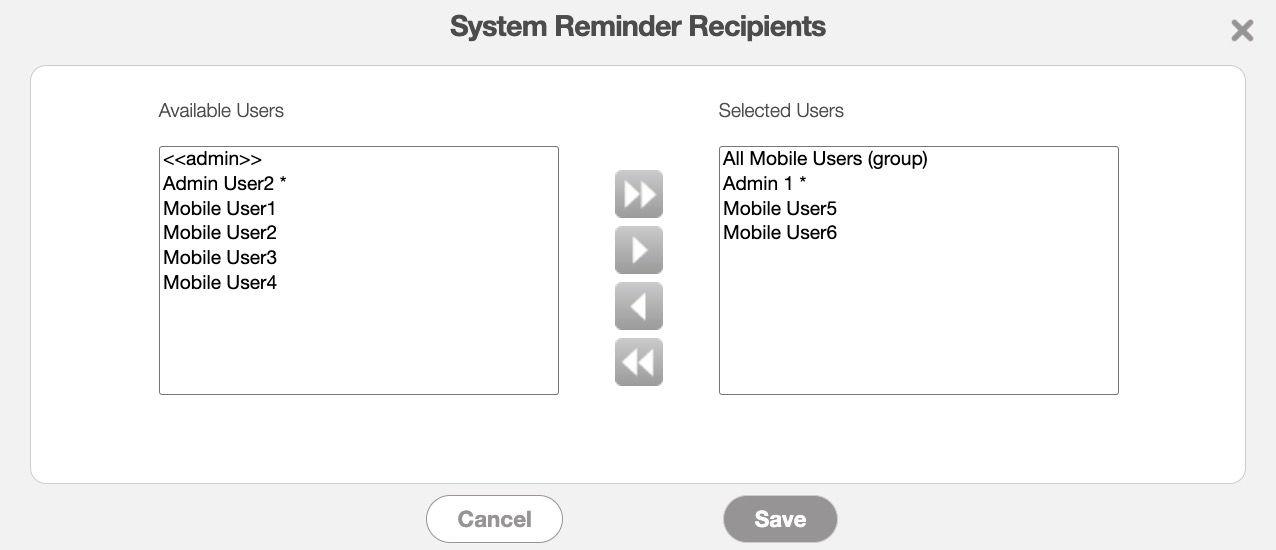
To add or edit users for system target reminders, click the Edit System Reminder Targets button:

In the System Reminder Recipients pop-up window, select the users you want to set as the system reminder targets using the corresponding arrows. Once you are satisfied with your selections, click the Save button to confirm: