To add a new device, you (or the specified user) will first need to have the physical mobile device, tablet, etc. in front of you. You will also need to have the login credentials for the specified user:
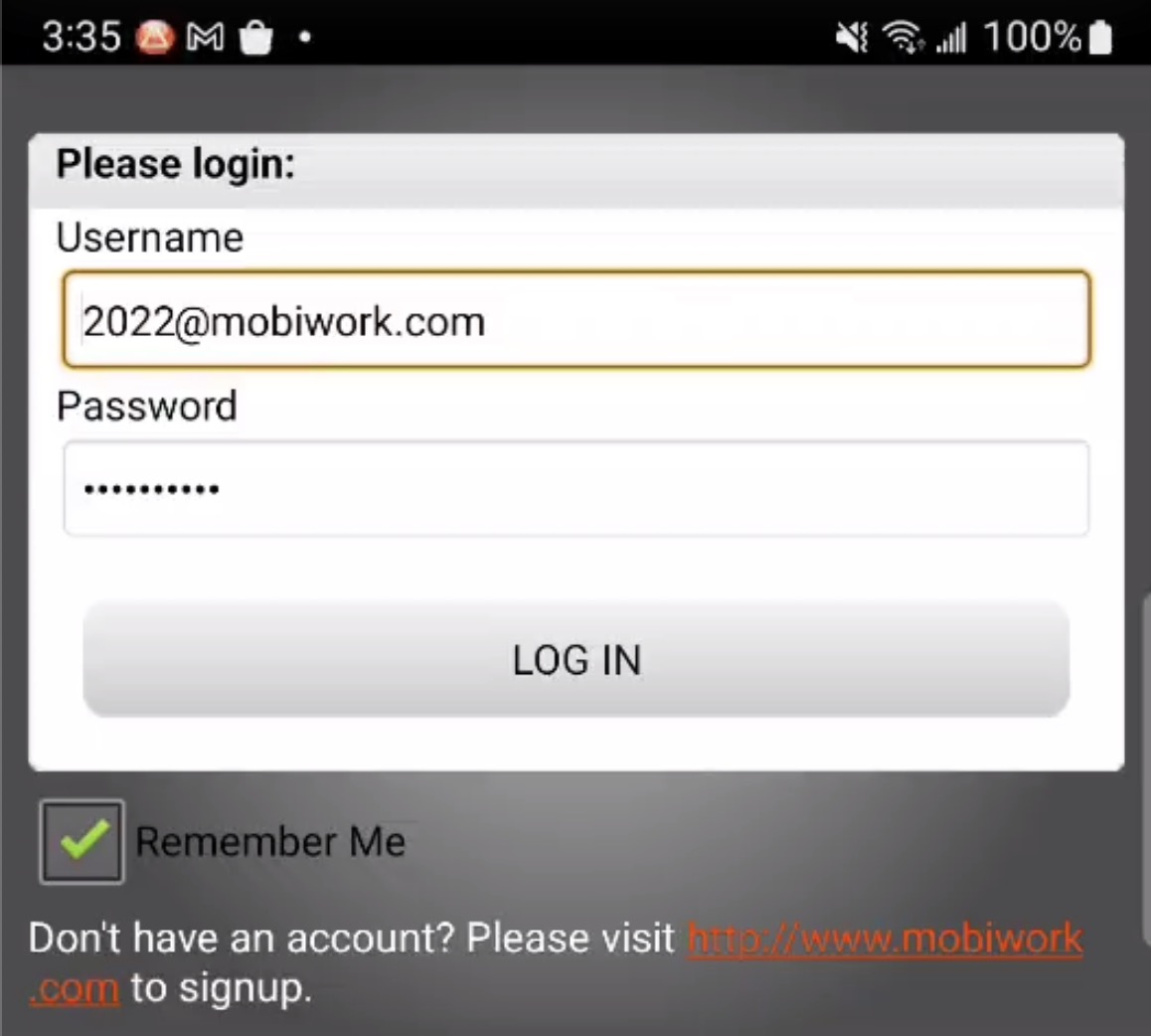
For more information on how to obtain your user's login information, please see the View User page.
Once you or the user logins with the specified credentials, the device will be automatically added to the Devices feature page:

Please note that the device where the user initially logs on will be their primary device displayed on the Devices feature page. For example, if the user first logs on with an Apple phone and then subsequently logs on with an Android phone, the Apple phone will be the displayed device on the Devices feature page.
You can import the user device list from your Excel document. Please note that in order to import the data correctly, the Excel document must be formatted in the correct manner (please see the image below for the correct headings and order):

Once you have entered the data in the Excel document correctly, you can upload that document to MobiWork.
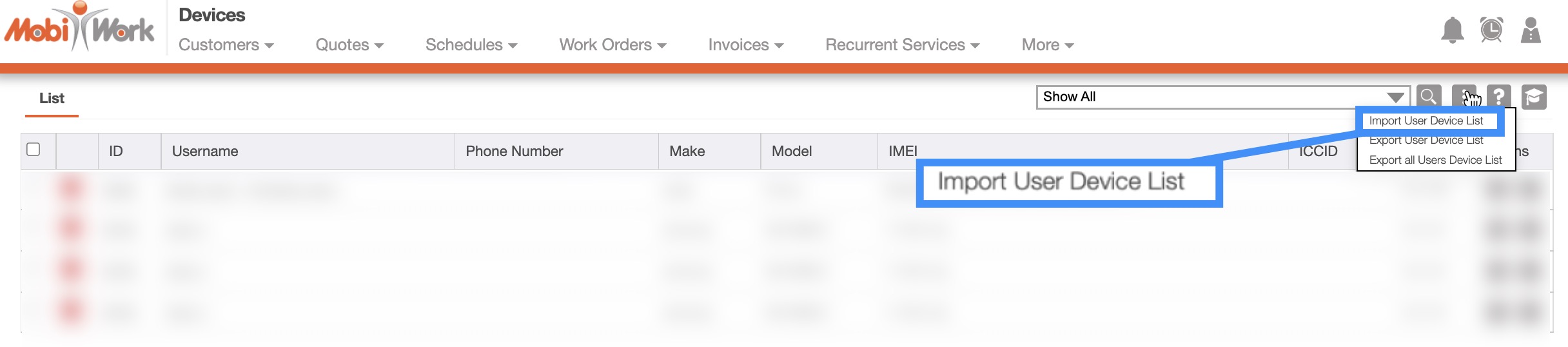
Select the More Actions button and from the drop-down click on the "Import User Device List" option:
Upload your Excel file to the drag & drop feature and then click on the Import button:
You will then be redirected to the Confirm Import page. Confirm your imported Excel file by hitting the Submit button:
Once you are redirected to the Import Users Device Results page, click the Done button:
The newly uploaded user devices from Excel will then be displayed in MobiWork with your other listed devices.