
In MobiWork, you can configure recurrent routes to repeat annually on specific days for scenarios where the interval is asymmetrical or inconsistent. To do this, open the Edit Recurrent Route pop-up window and select the "Every Year on Specific Days" option from the "Repeat" drop-down menu:
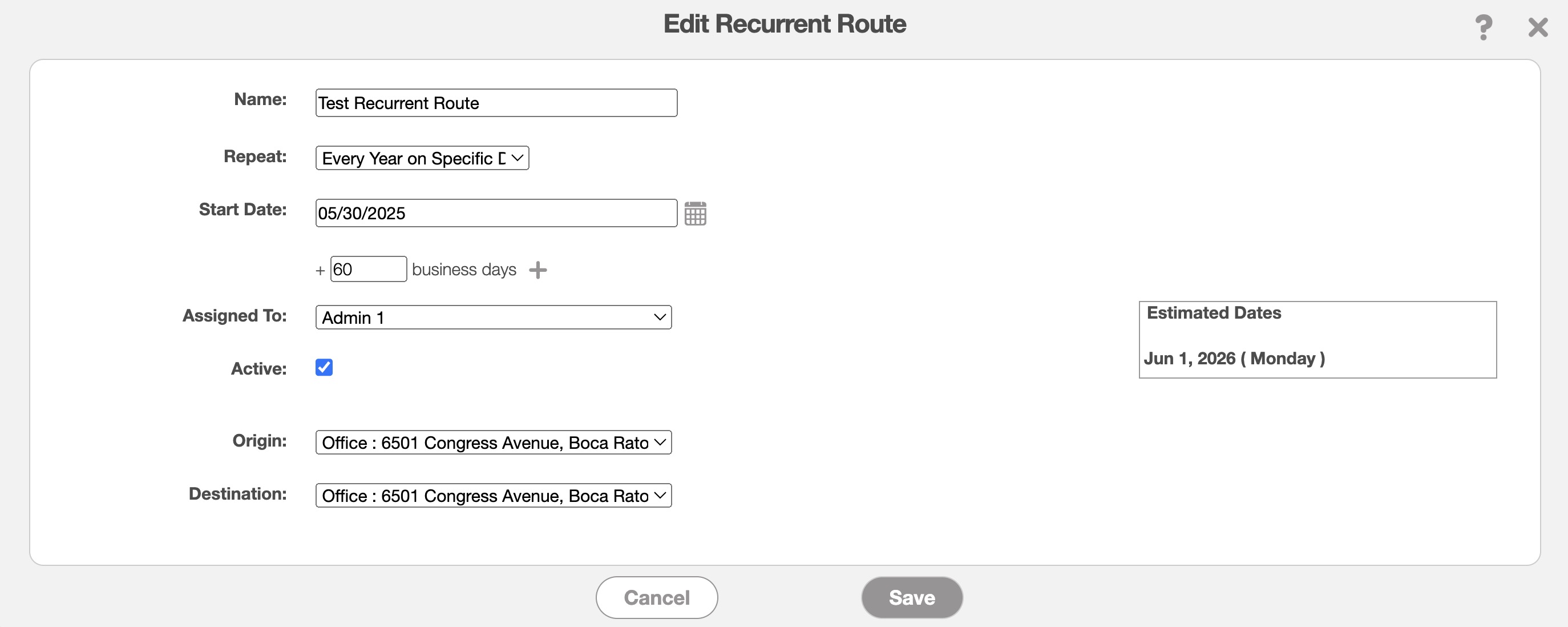
Next, enter the number of days from the original start date. The system will calculate the recurring dates based on this number, and subsequent routes will be generated accordingly.
You will be able to see these routes in the "Estimated Dates" section of the Edit Recurrent Route pop-up window.
To add additional recurrence dates, click the plus sign next to the "Business Days" field and enter the desired number of days in the provided space.
Please note that the number of days is always calculated from the original start date, ensuring consistent scheduling.
Note: Weekends are skipped. If the date falls on a weekend, then the date is automatically moved to the next business day. For example, if the base date is 7/1 and you add 5 days, the result is 7/6, which falls on a Saturday. Therefore, the date is moved to Monday, 7/8.