Create a Recording of Your iOS Device
Overview Video

Step by Step
To create a recording on your iOS device, you will first need to add the "Screen Recording" option to your Control Center (the menu that appears when you swipe down on your device).
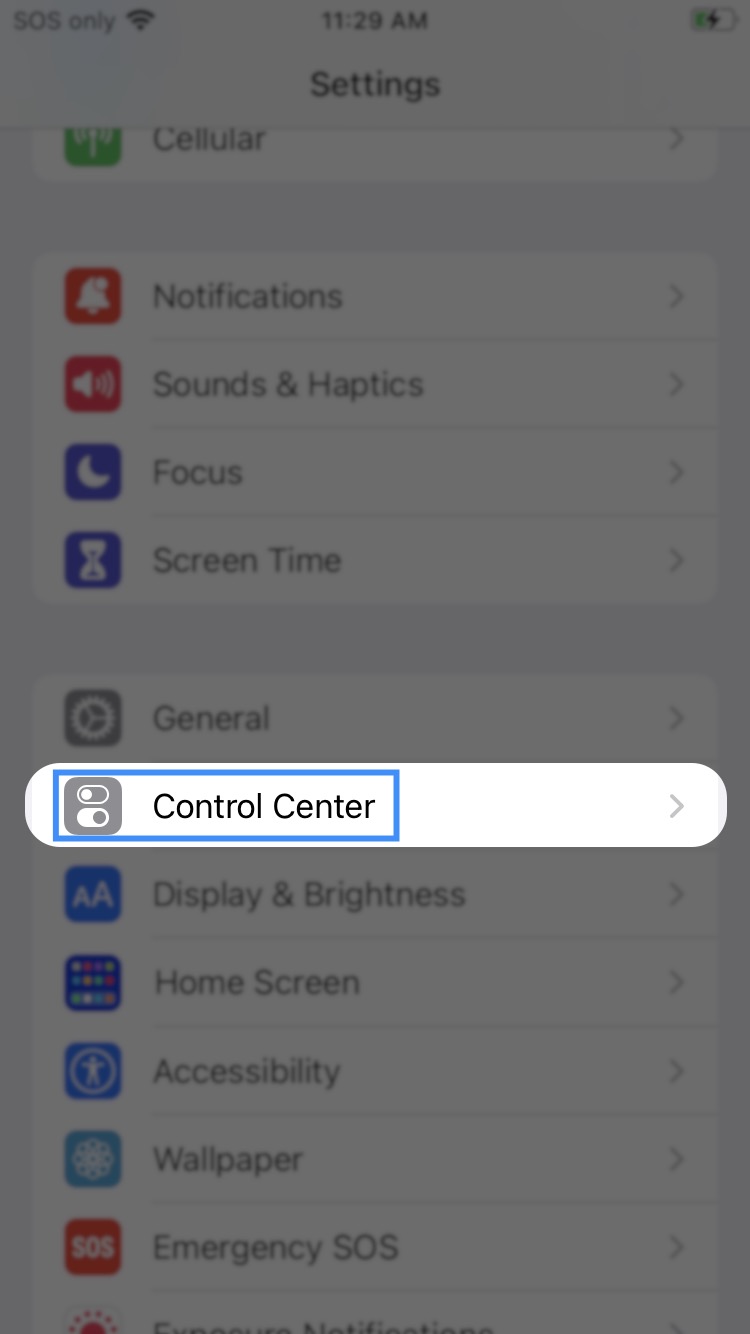
- To add the "Screen Recording" option to your Control Center, you will need to access the Settings app and click on the "Control Center" option:
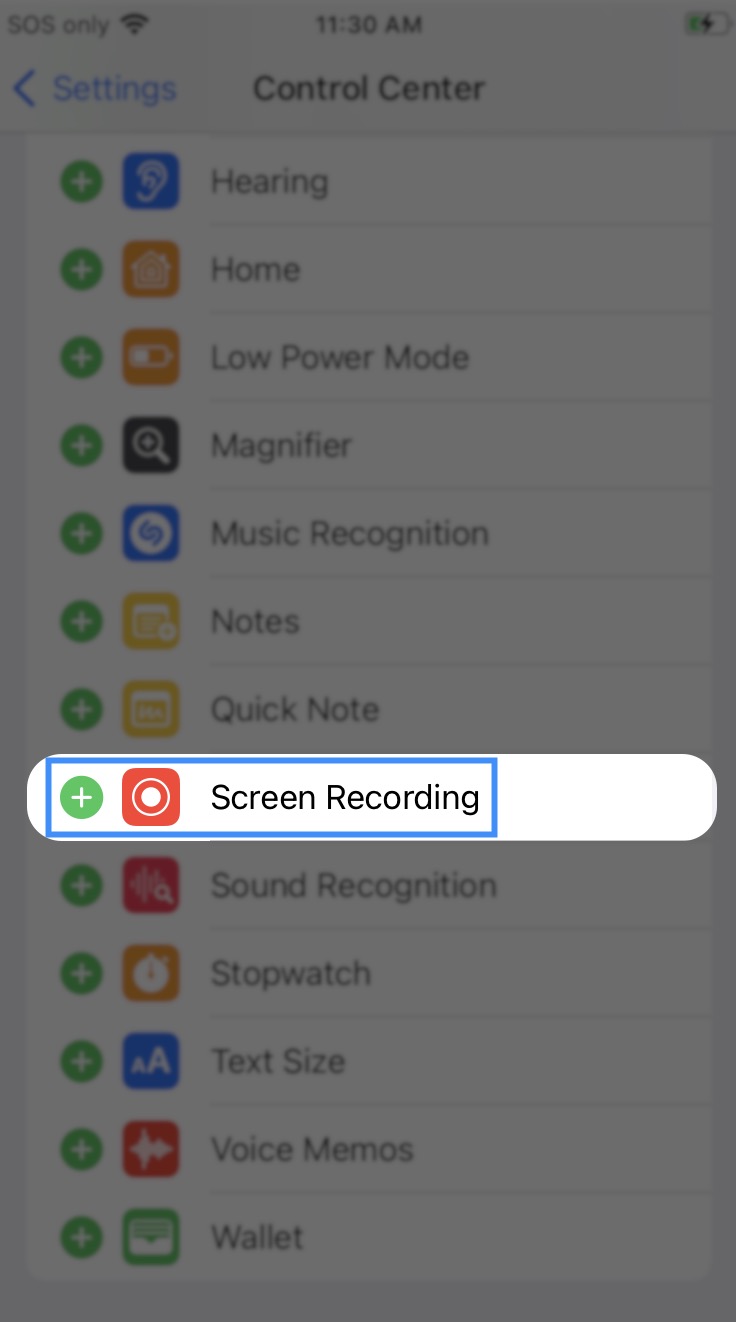
- Once you are in the Control Center Settings, click the green Plus Sign button on the "Screen Recording" option:
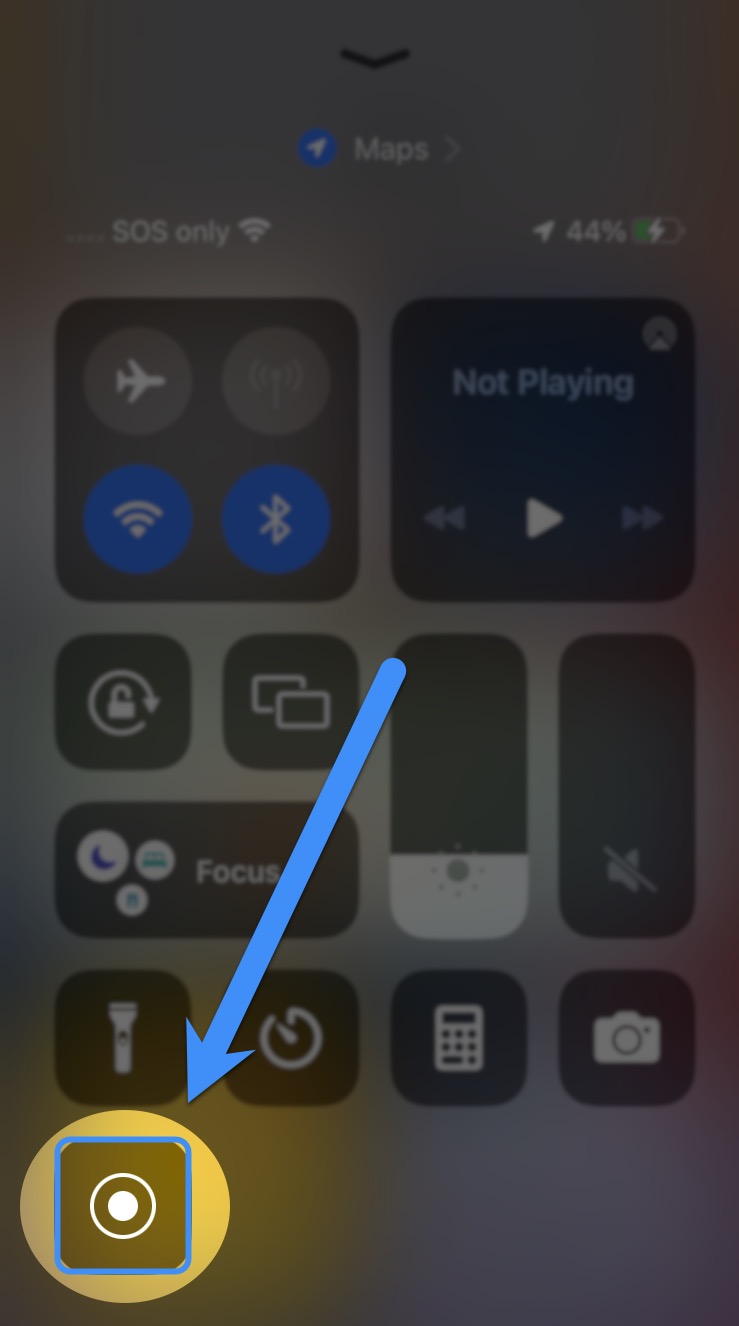
- Now that you have the "Screen Recording" option on your Control Center, you can select the Record button to record the device's content:
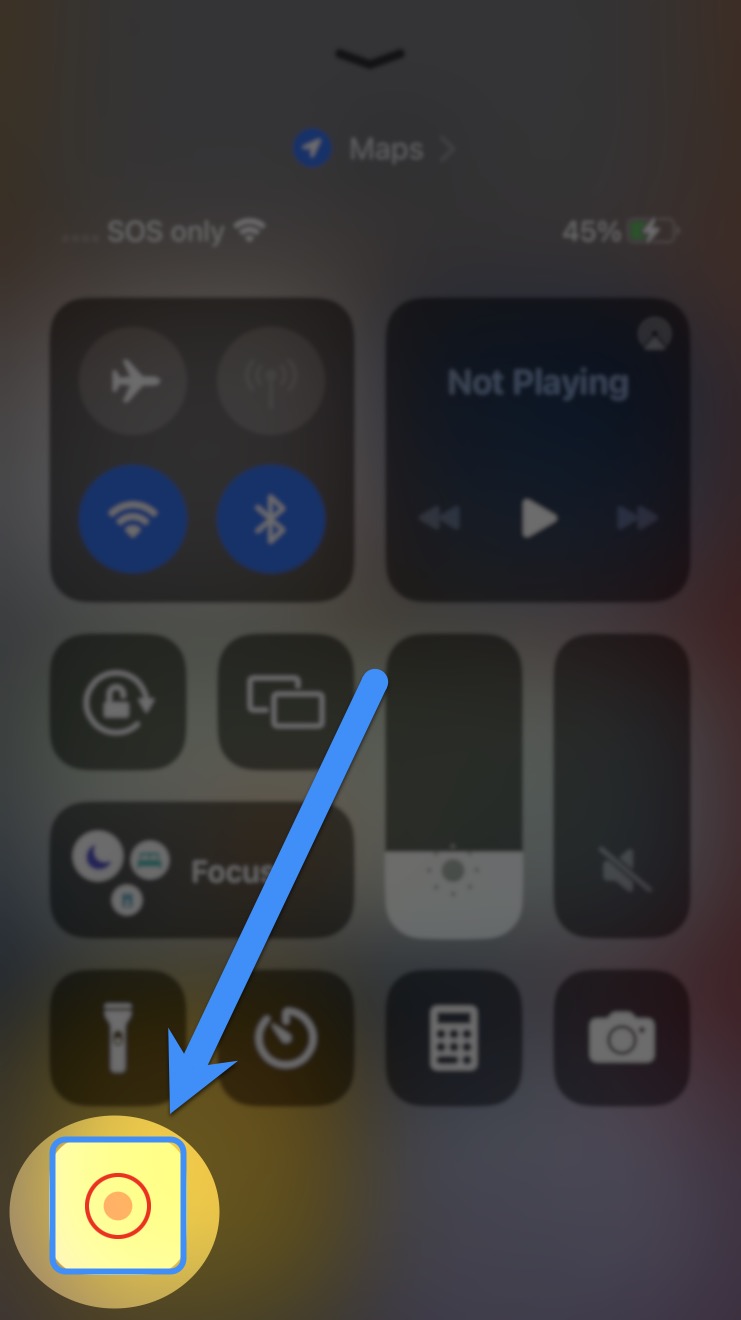
- To stop the recording, access the Control Center again and click the red Record button:
Create a Recording of Your Android Device
Overview Video
Step by Step
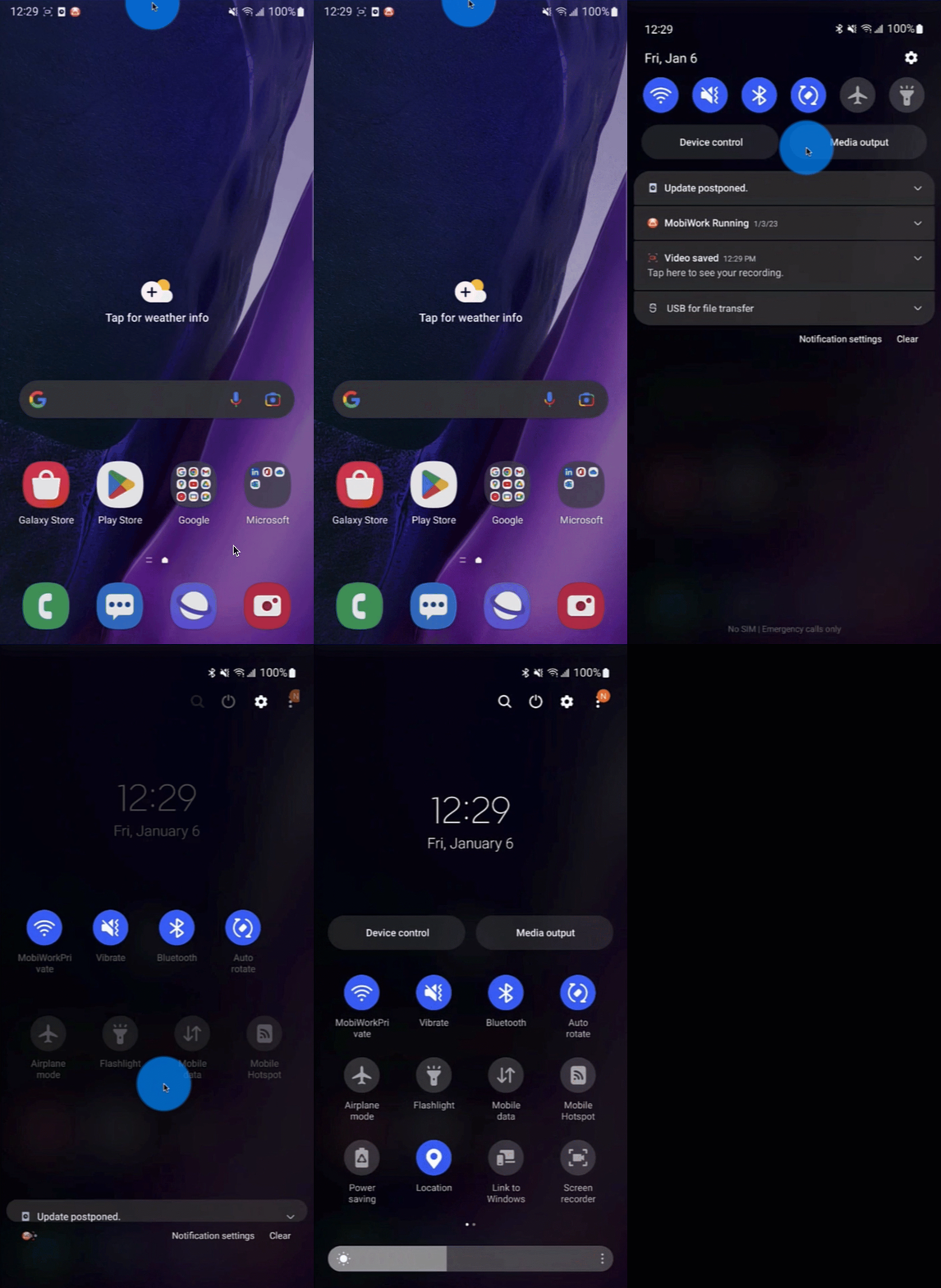
- To access the ability to record your Android phone you will first need to swipe down on your device twice:
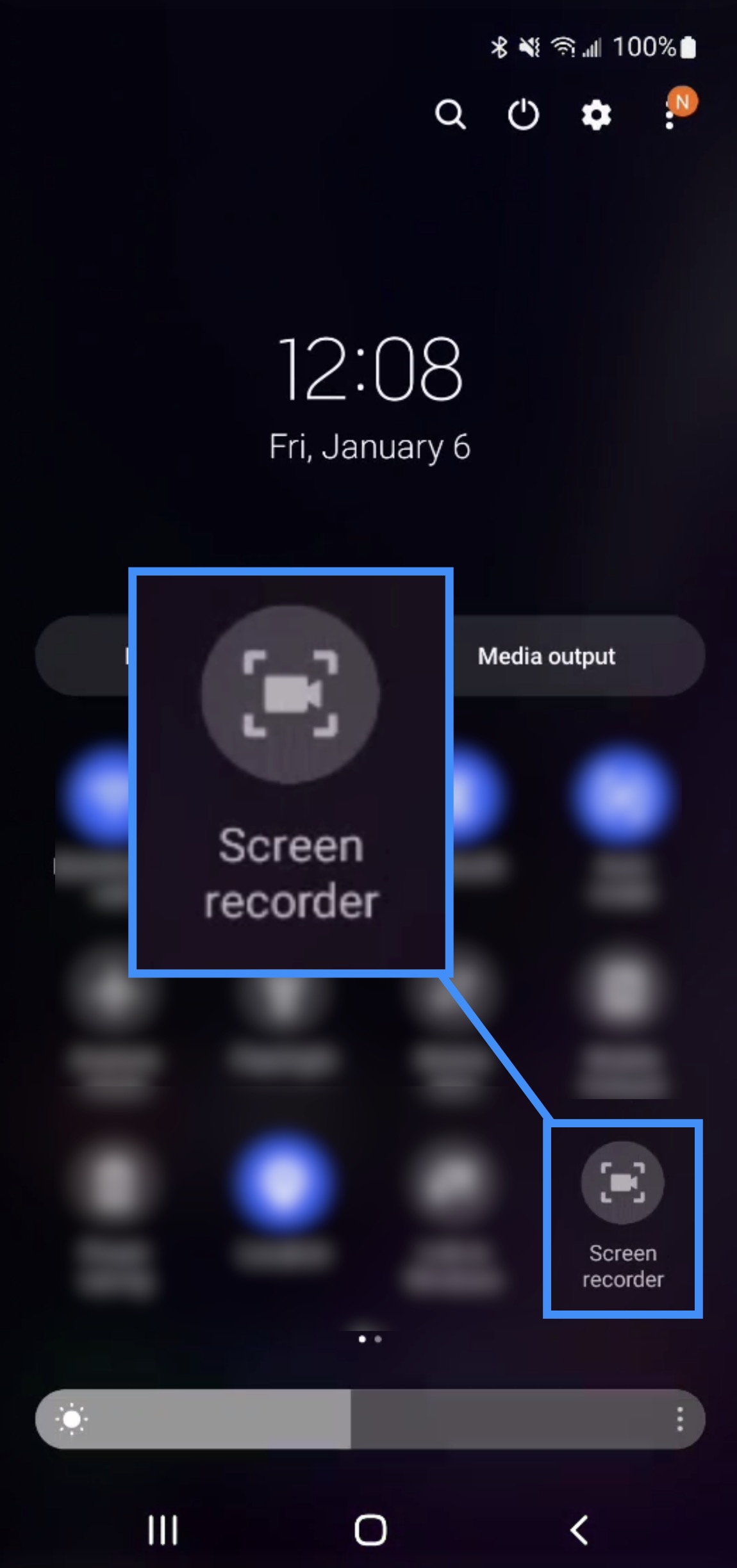
- Next, tap on the Screen Record button:
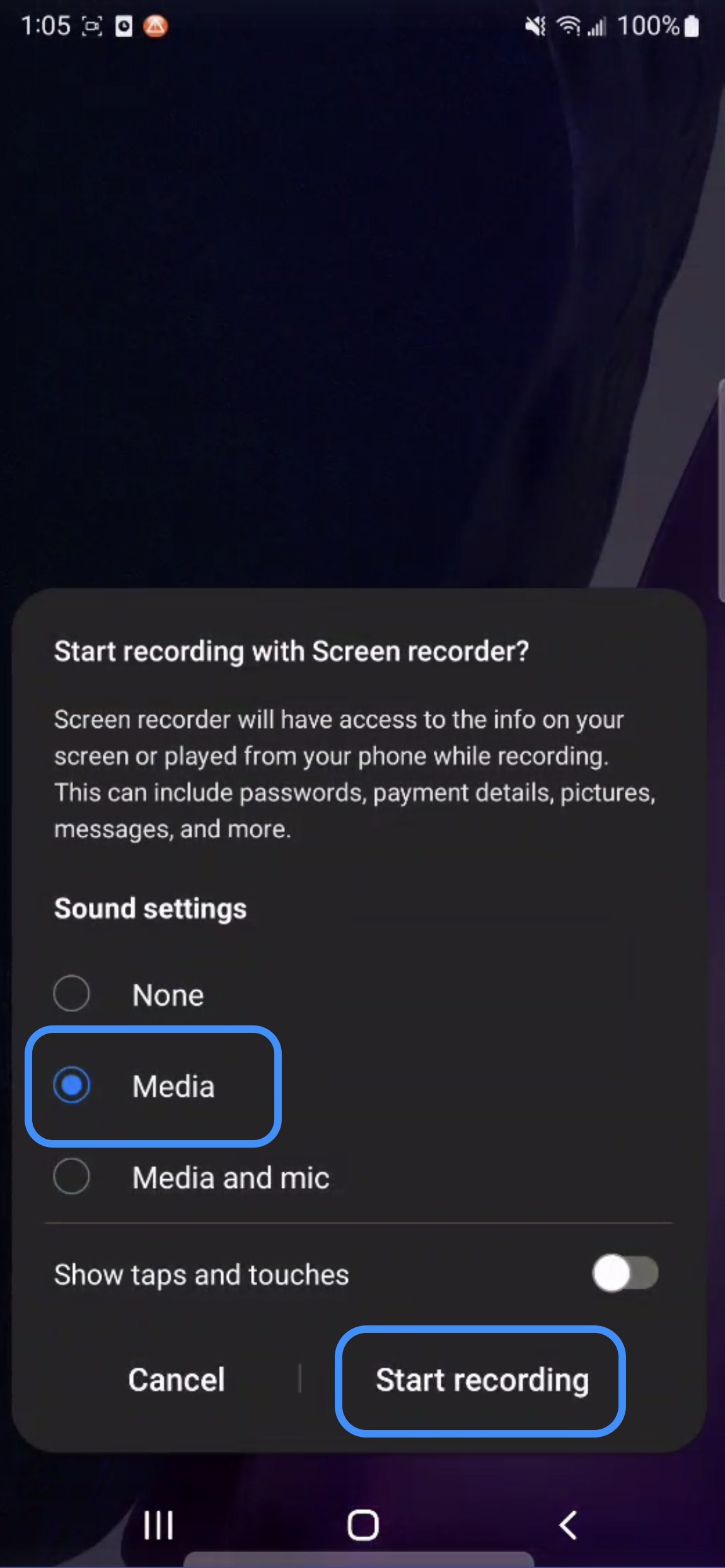
- You will then be asked to confirm if you would like to start recording and what aspects of your device you would like to record. Click the "Media" option and then select the Start Recording button to begin recording:
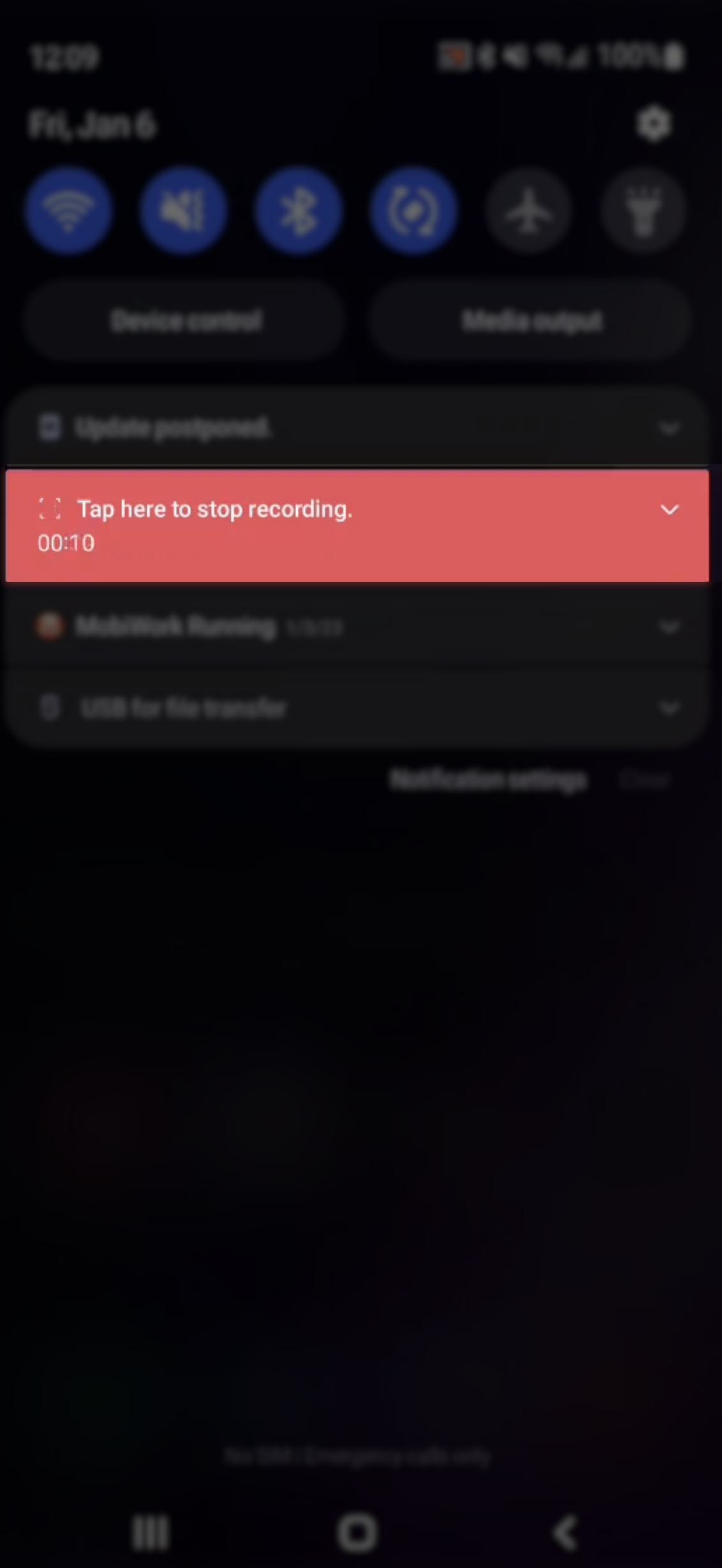
- To stop recording, swipe to access the menu again, and select the "Tap Here to Stop Recording" option: