
Create a Recording of Your Mac Computer
Overview Video

Step by Step
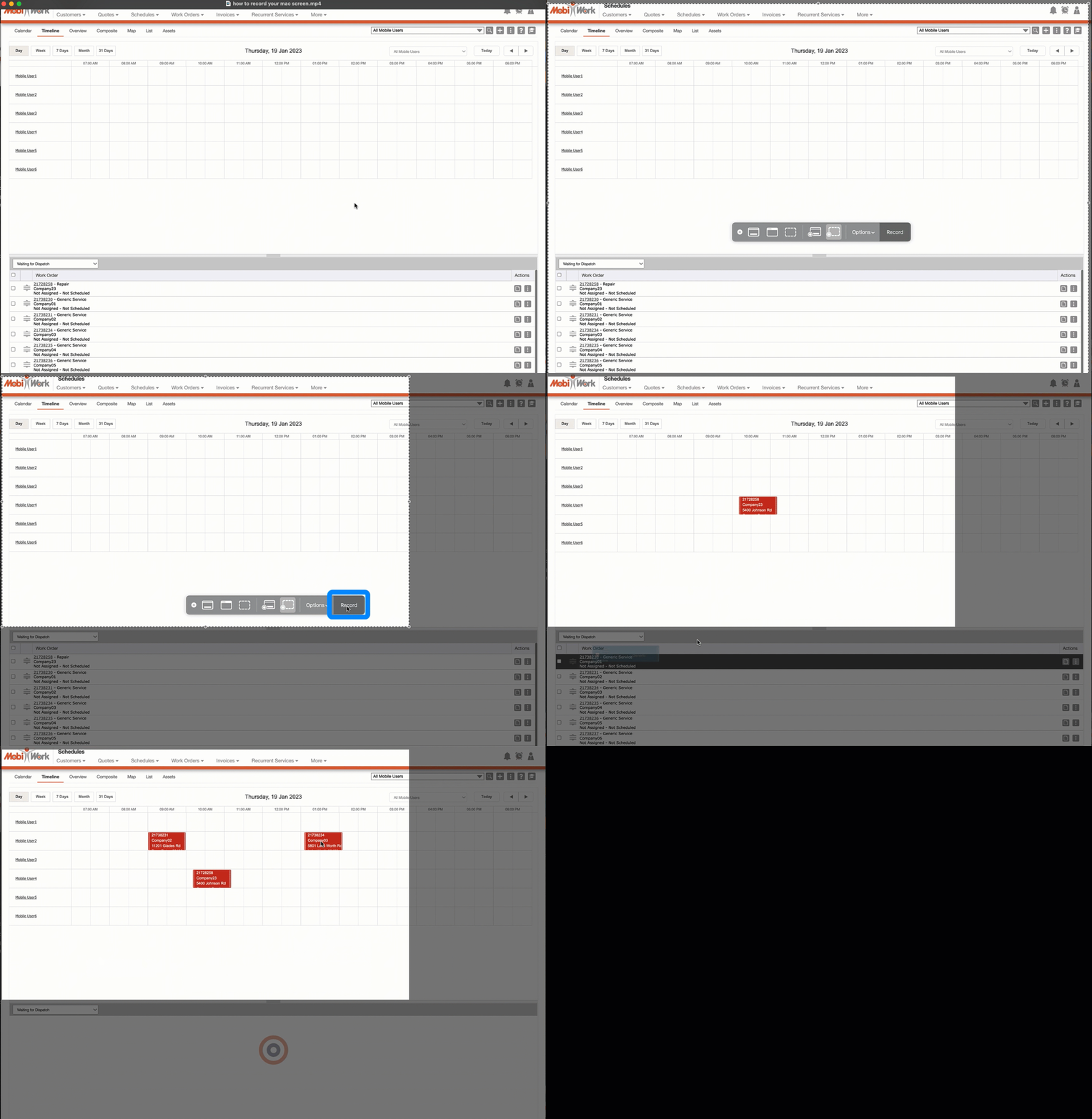
- On your keyboard click and hold the Shift, Command, and the number 5 keys simultaneously, until the screen capture appears on your monitor.
- Resize your screen as desired and select the "Record Selected Portion" option from the tool bar. Once you are ready to record, click the Record button:
- To stop your recording, simultaneously hold the Shift, Command and 5 keys again, and then click on the Stop button.
Create a Recording of Your Windows Computer
Overview Video
Step by Step
Note: Please note that in order to record your screen in Windows, you will need to have the Xbox Game Bar video capture tool set up; this tool is available in Windows 10 and 11. To access the Xbox Game Bar, click on the Windows Logo Key and the G on your keyboard simultaneously.
- In the Xbox Game Bar window, enter the desired video settings (e.g., audio, max video length, etc.). Once finished, you will be ready to record your Windows screen.
- Click on the Windows Logo Key, Alt key, and the G key on your keyboard simultaneously to start recording.
- Once you are finished recording, click on the Windows Logo key, Alt key, and the G key on your keyboard simultaneously to stop recording.
- Your recordings will be stored in the "Captures" folder; this folder is located in the File Explorer.