Add Twilio as Your Text Message Processor
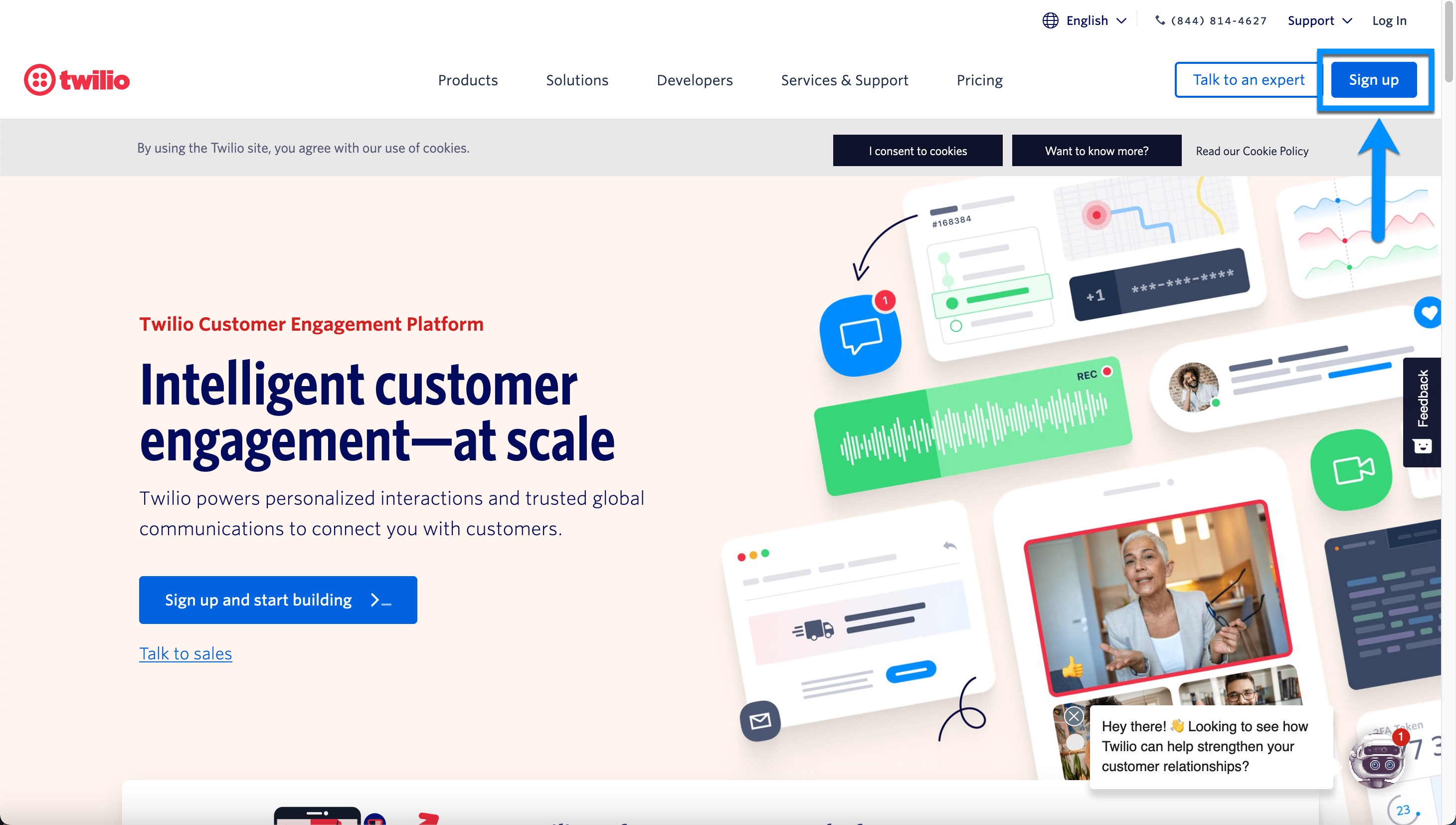
- First, if you do not already have one, please create a Twilio account. You can login or sign-up on their site (www.twilio.com) and you'll be taken through the steps for creating an account:
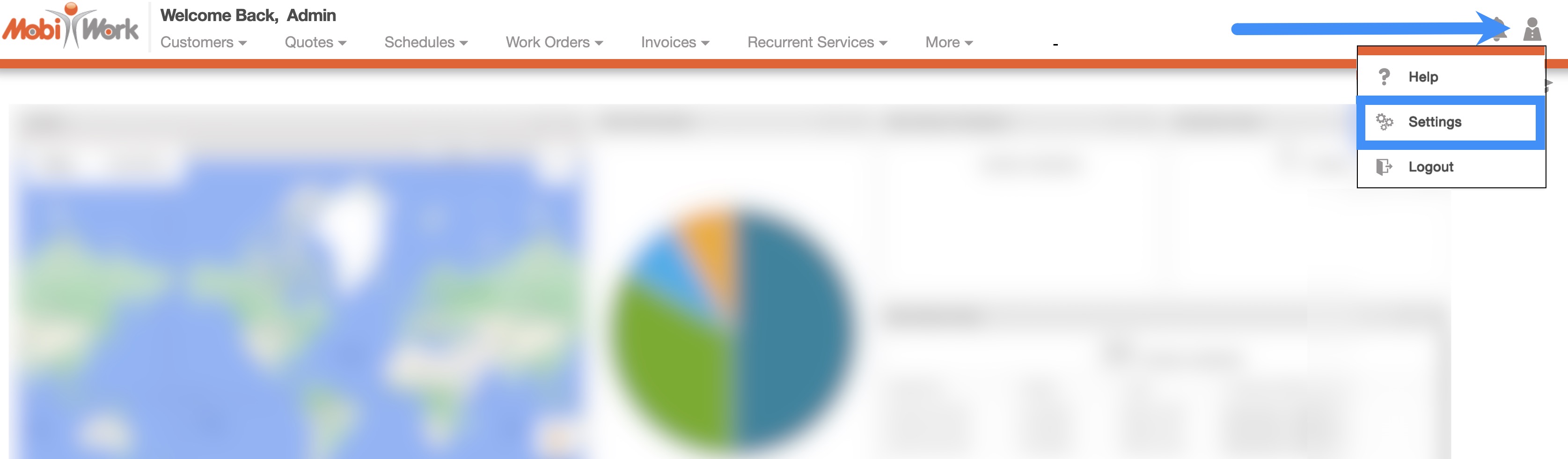
- Once the account is created, return to MobiWork. Navigate to the User icon, and from the drop-down menu choose the "Settings" option:
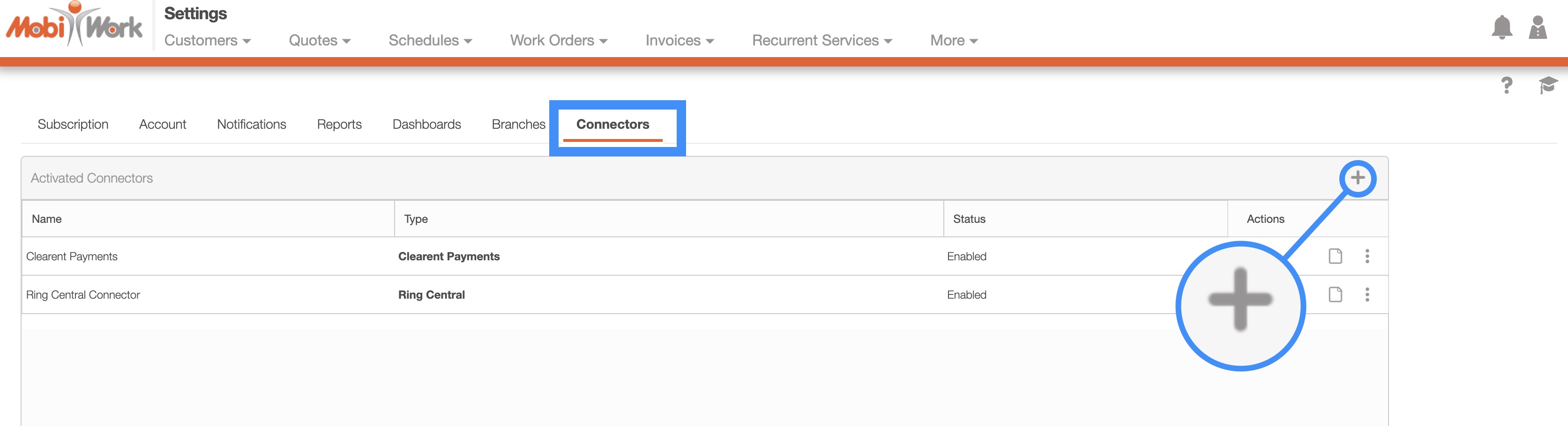
- Click the "Connectors" tab, then click on the Plus Sign button to add a new connector:
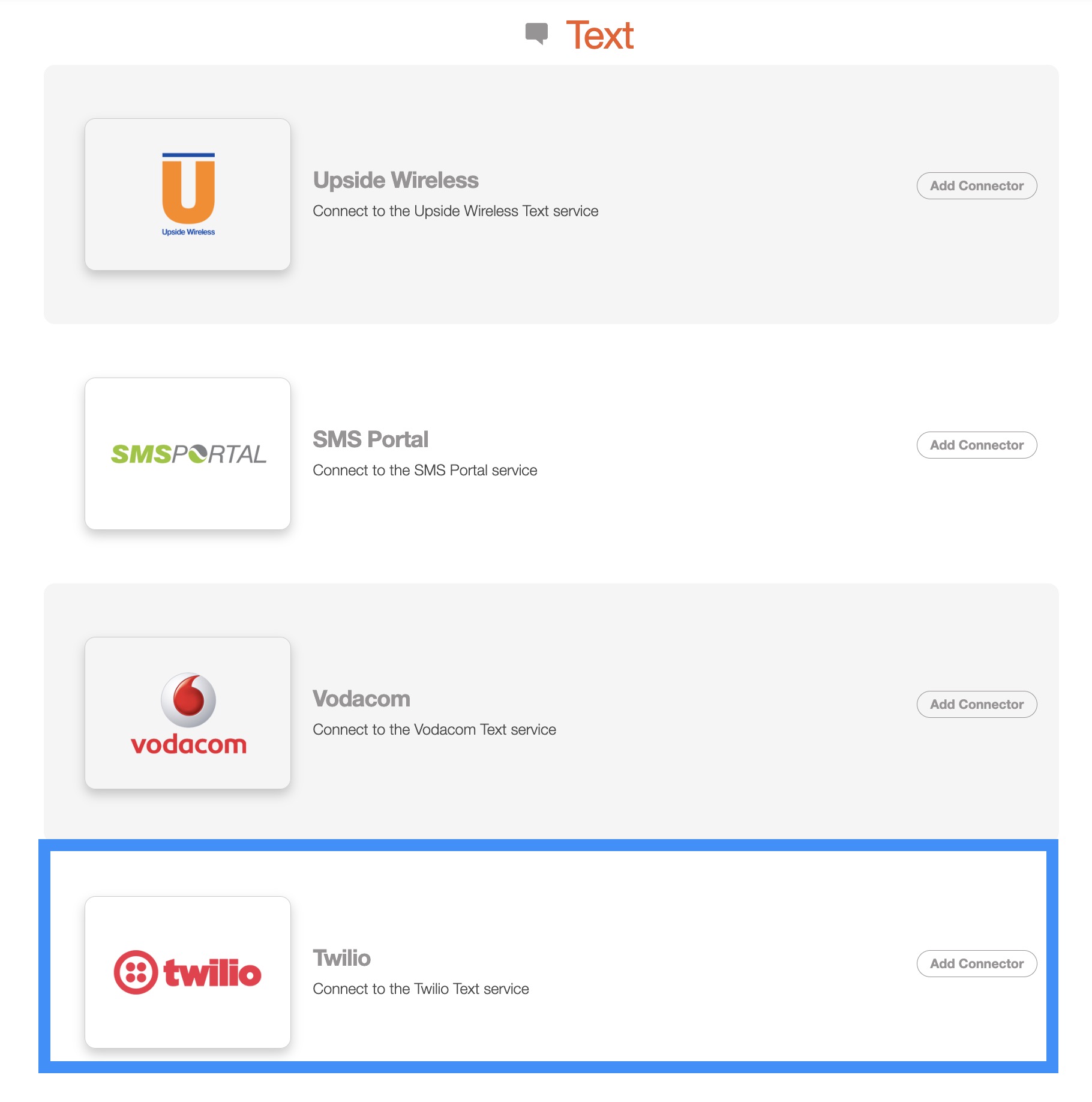
- Next, scroll down to the Text section, find Twilio listed and click Add Connector:
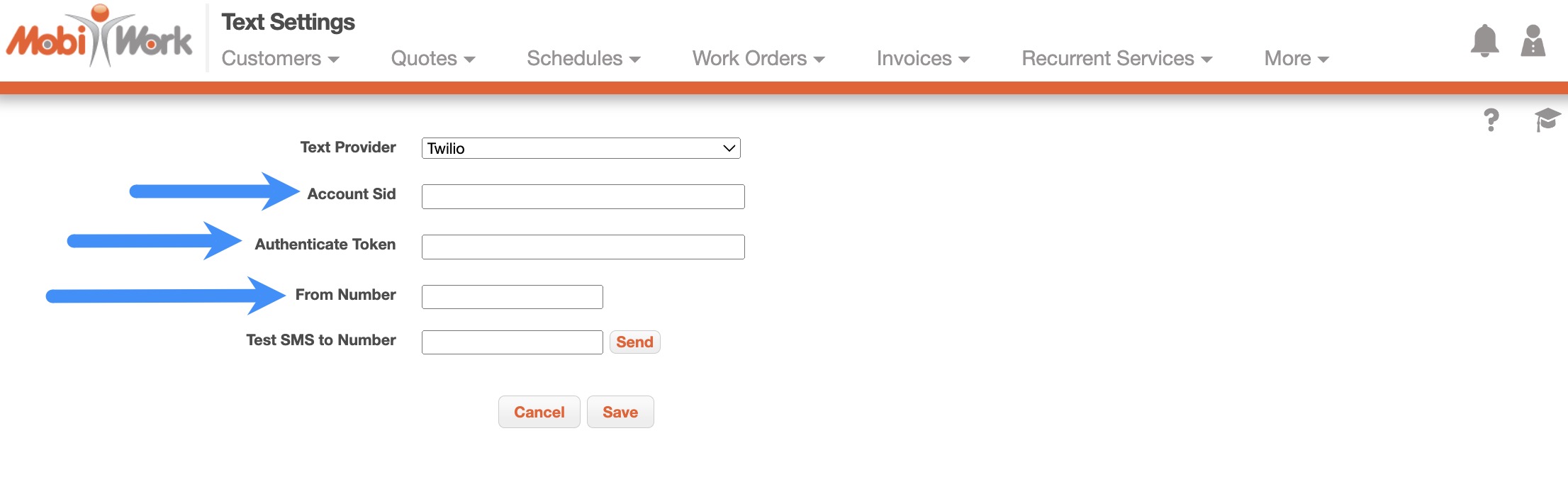
- On the next screen, use your Twilio account information (found on the Twilio Dashboard) to populate the necessary information in the correct fields in MobiWork:
- The Test Text Messaging (SMS) to Number field is for testing the connector. Enter a phone number that can receive a text message, then click the Send button. If everything is set up properly, you'll receive a "Successfully Sent" message. If you do not receive this message, create a support ticket and we'll be happy to assist!
Add Upside Wireless as Your Text Message Processor
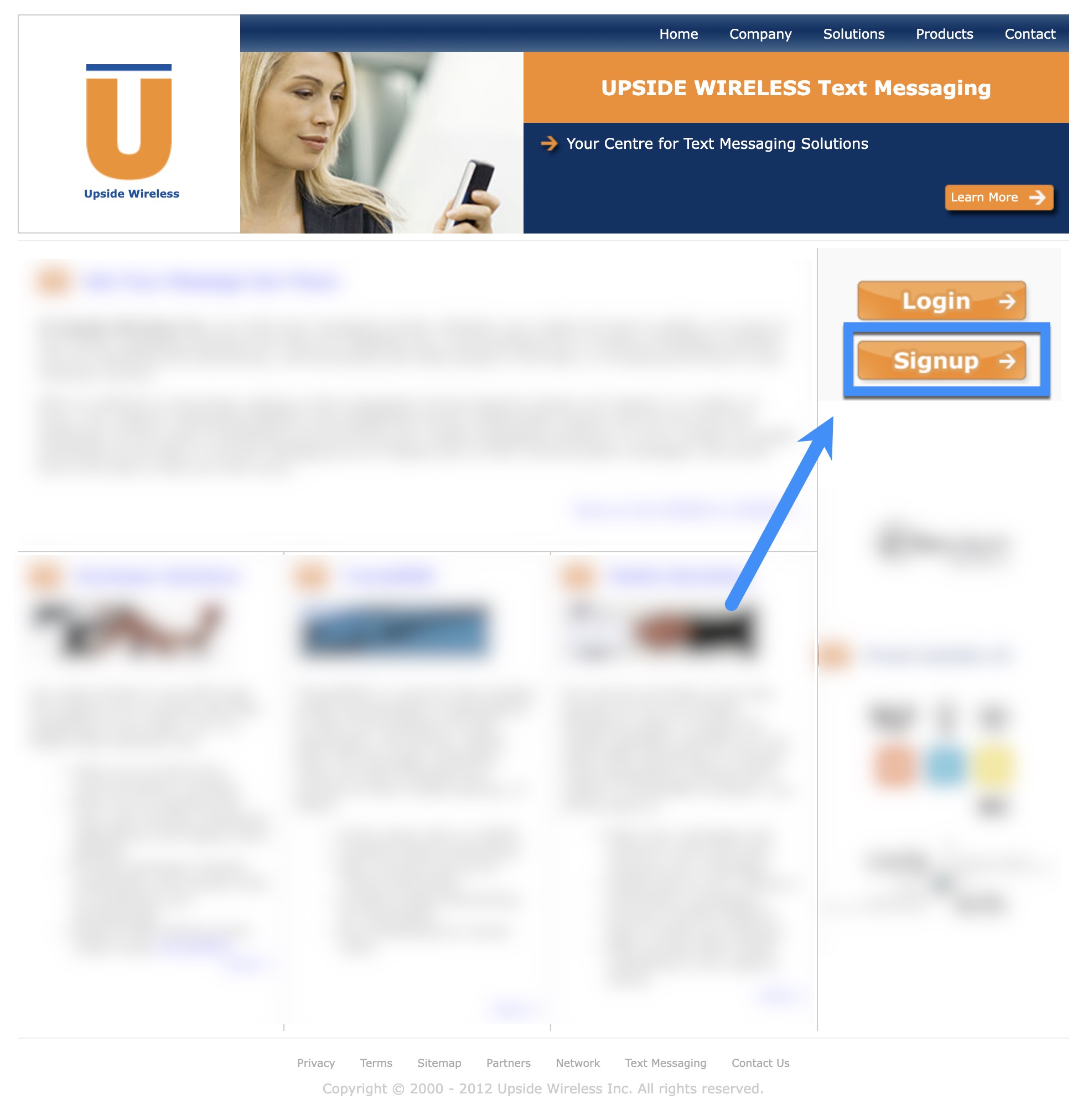
- First, if you do not already have one, please create a Upside Wireless account. You can login or sign-up on their site (www.upsidewireless.com) and you'll be taken through the steps for creating an account:
- Once the account is created, return to MobiWork. Navigate to the User icon, and from the drop-down menu choose the "Settings" option:
- Click the "Connectors" tab, then click on the Plus Sign button to add a new connector:
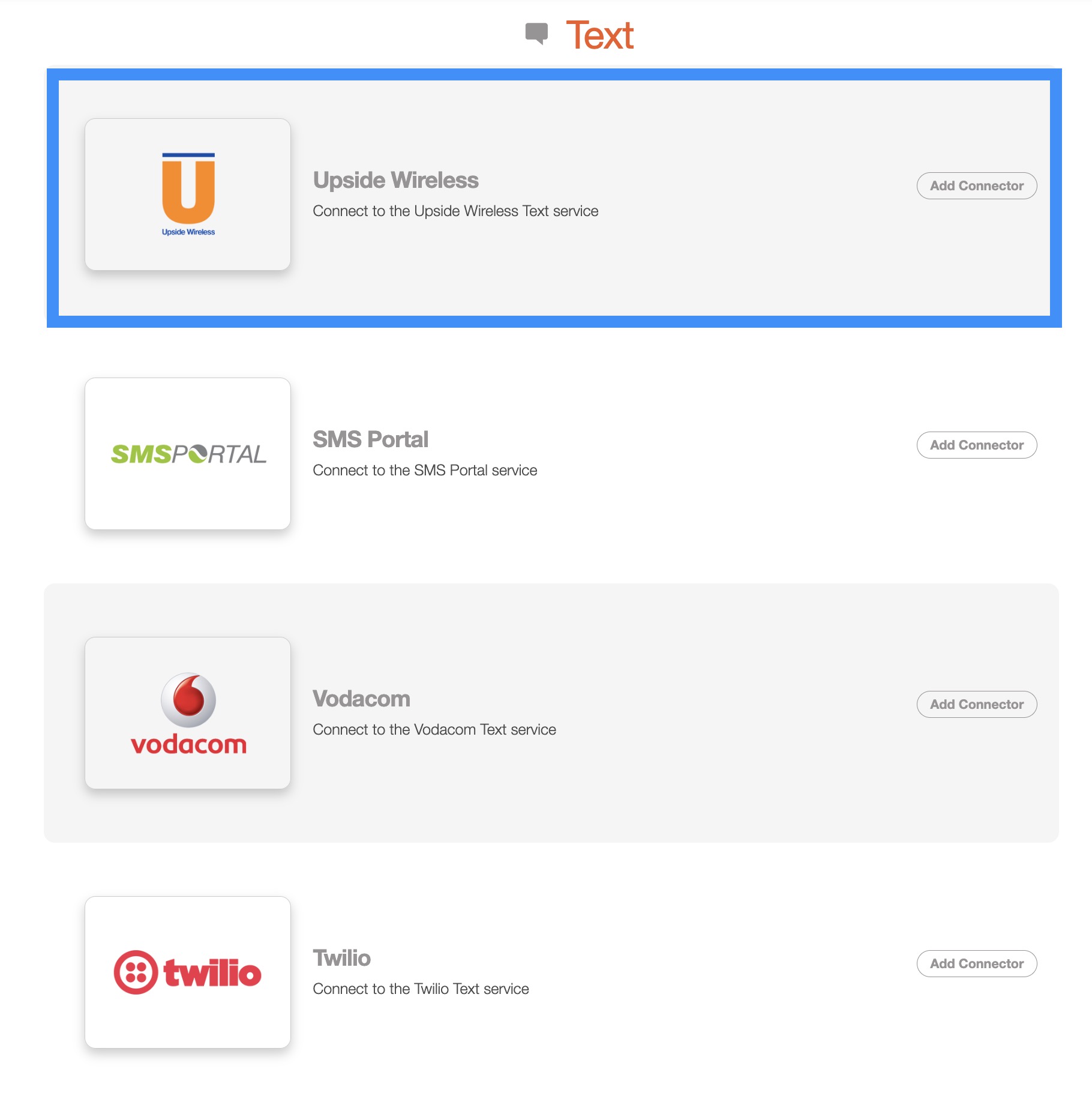
- Next, scroll down to the Text section, find Upside Wireless listed and click Add Connector:
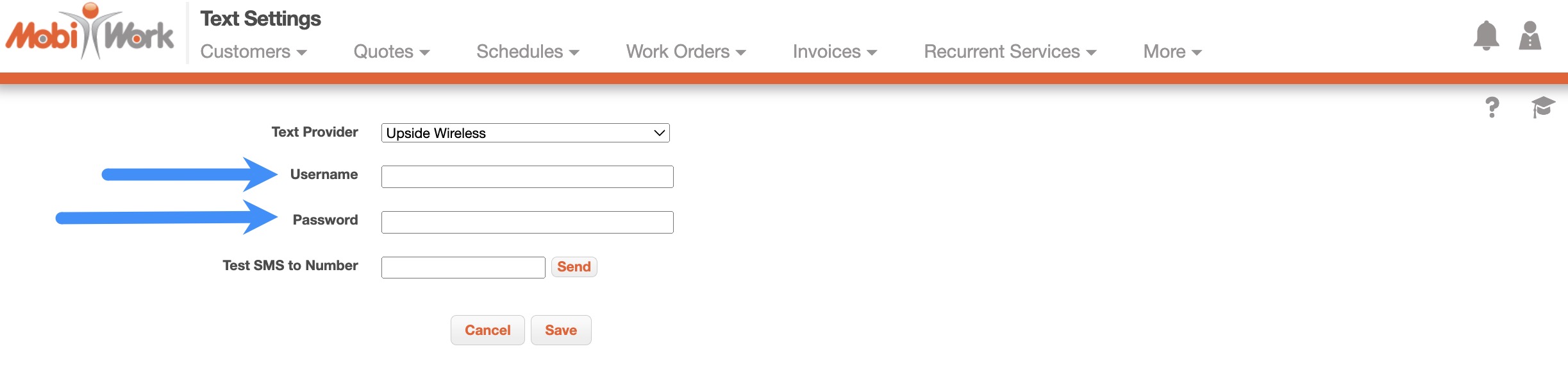
- On the next screen, use your Upside Wireless account information (found on the Upside Wireless Dashboard) to populate the necessary information in the correct fields in MobiWork:
- The Test Text Messaging (SMS) to Number field is for testing the connector. Enter a phone number that can receive a text message, then click the Send button. If everything is set up properly, you'll receive a "Successfully Sent" message. If you do not receive this message, create a support ticket and we'll be happy to assist!
Add SMS Portal as Your Text Message Processor
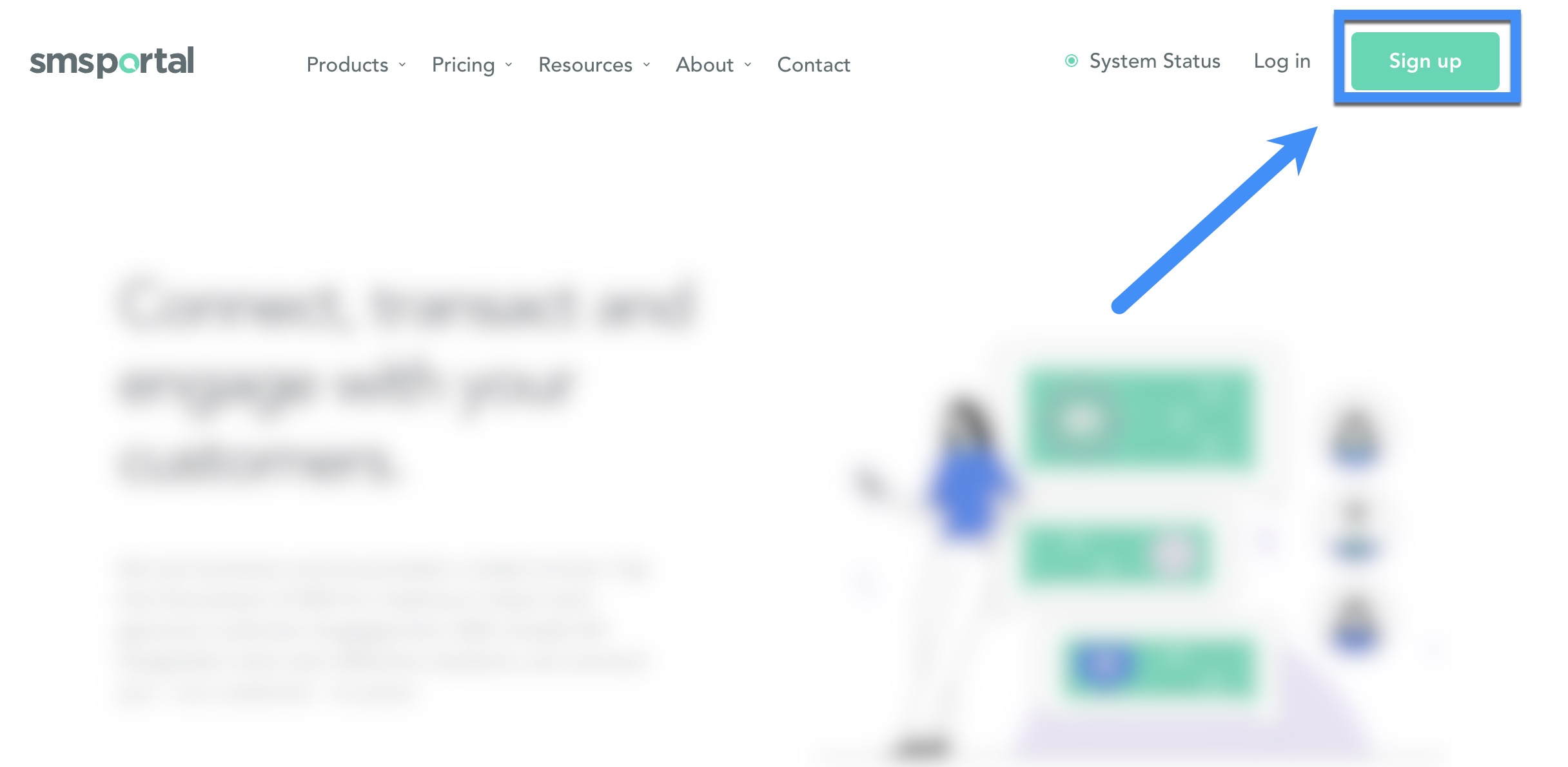
- First, if you do not already have one, please create a SMS Portal account. You can login or sign-up on their site (www.smsportal.com) and you'll be taken through the steps for creating an account:
- Once the account is created, return to MobiWork. Navigate to the User icon, and from the drop-down menu choose the "Settings" option:
- Click the "Connectors" tab, then click on the Plus Sign button to add a new connector:
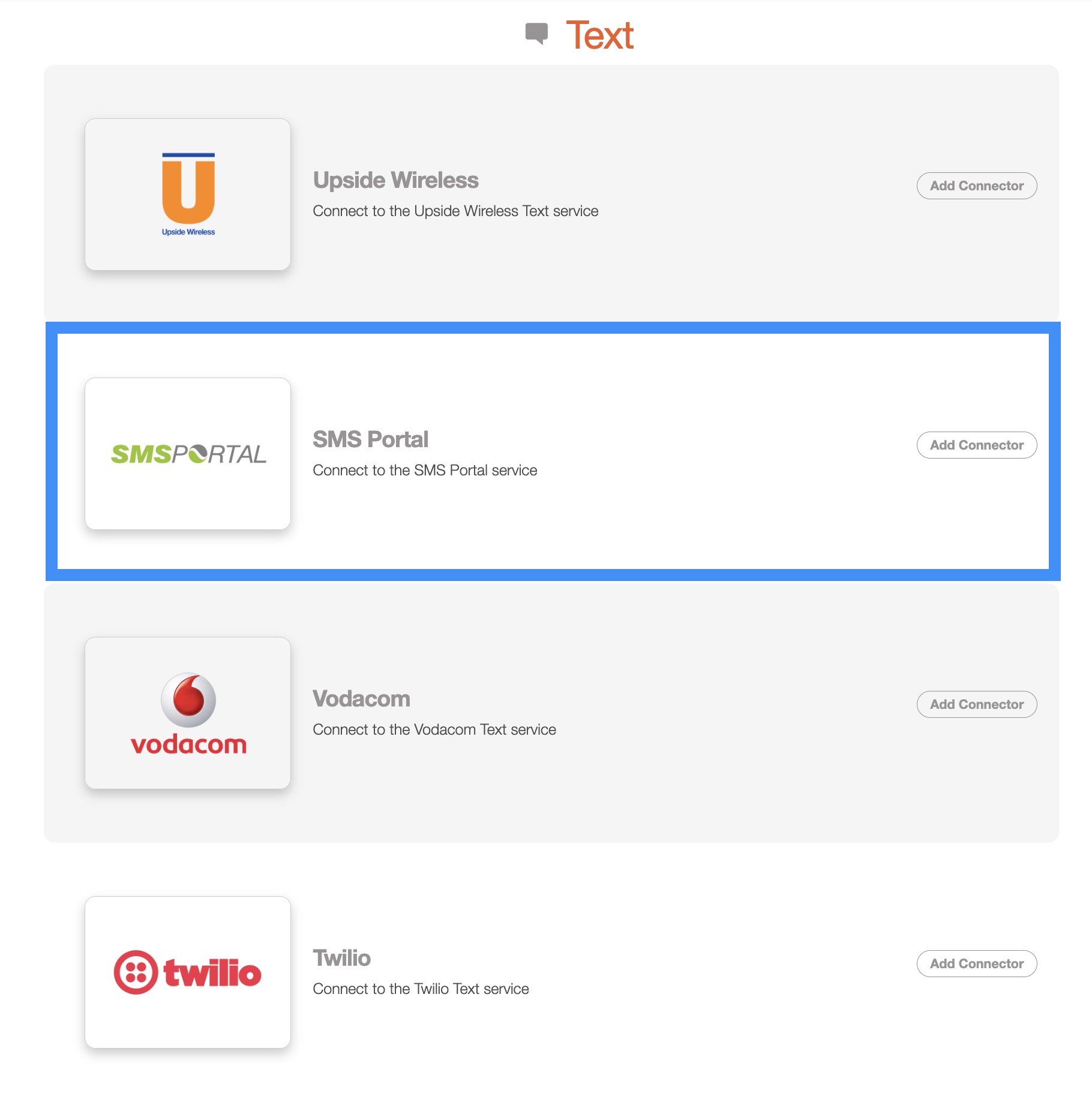
- Next, scroll down to the Text section, find SMS Portal listed and click Add Connector:
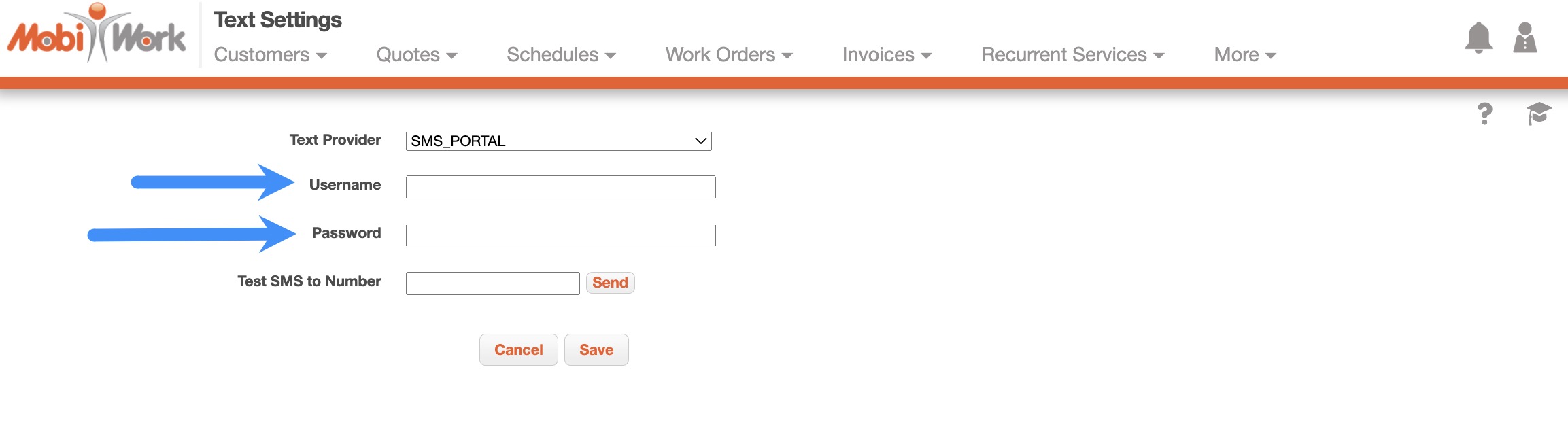
- On the next screen, use your SMS Portals account information (found on the SMS Portal Dashboard) to populate the necessary information in the correct fields in MobiWork:
- The Test Text Messaging (SMS) to Number field is for testing the connector. Enter a phone number that can receive a text message, then click the Send button. If everything is set up properly, you'll receive a "Successfully Sent" message. If you do not receive this message, create a support ticket and we'll be happy to assist!
Add Vodacom as Your Text Message Processor
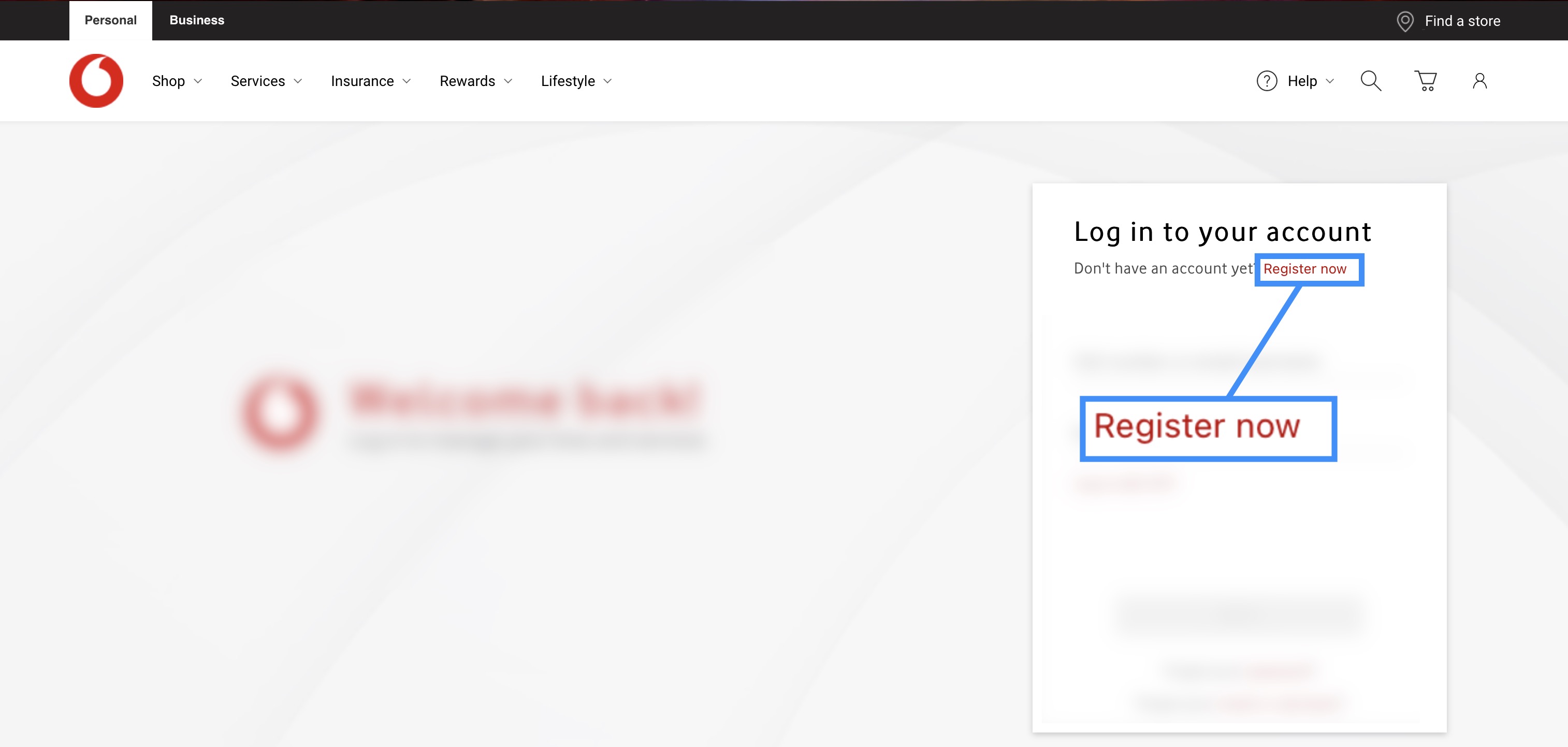
- First, if you do not already have one, please create a Vodacom account. You can login or sign-up on their site (www.vodacom.com) and you'll be taken through the steps for creating an account:
- Once the account is created, return to MobiWork. Navigate to the User icon, and from the drop-down menu choose the "Settings" option:
- Click the "Connectors" tab, then click on the Plus Sign button to add a new connector:
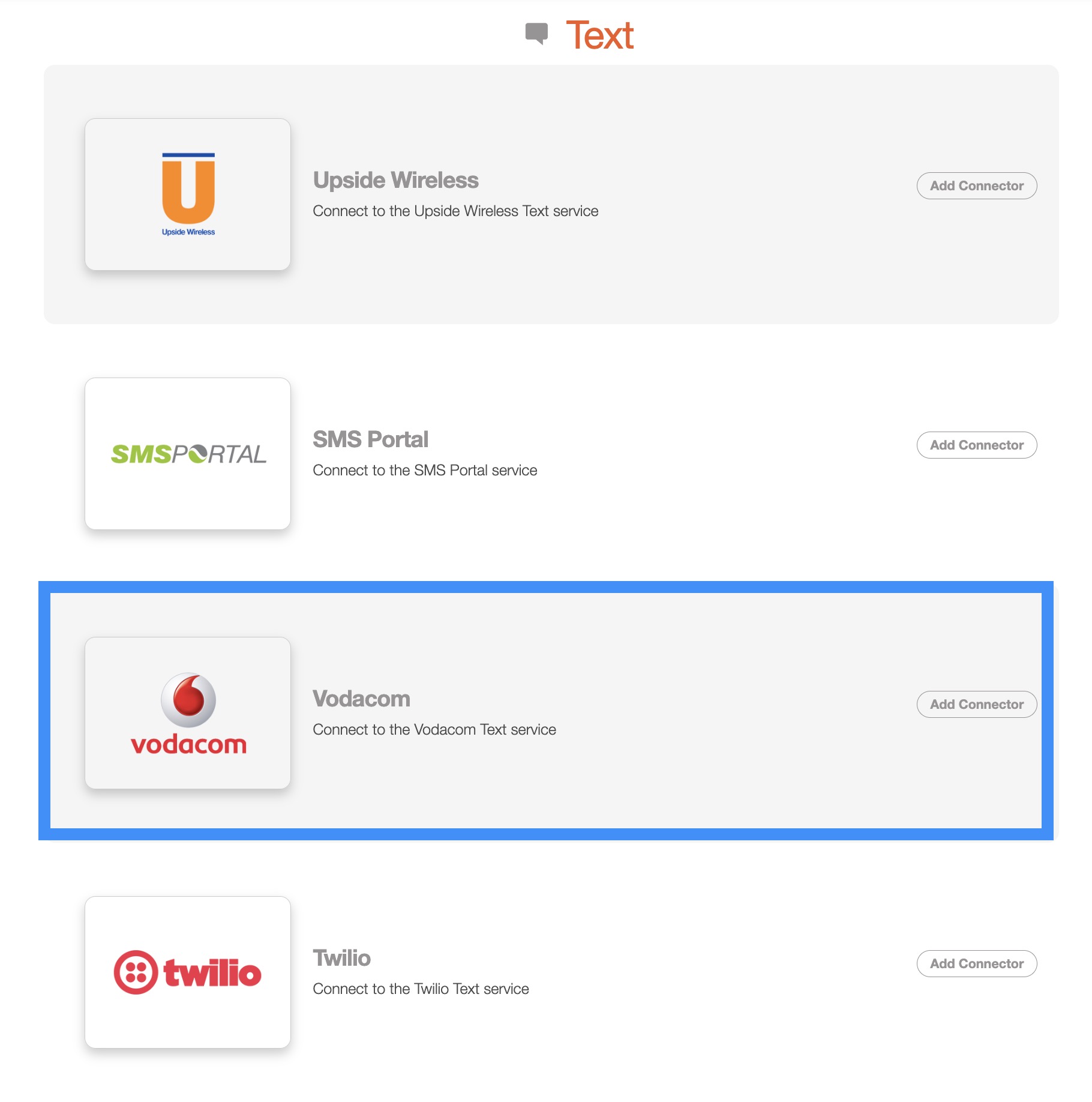
- Next, scroll down to the Text section, find Vodacom listed and click Add Connector:
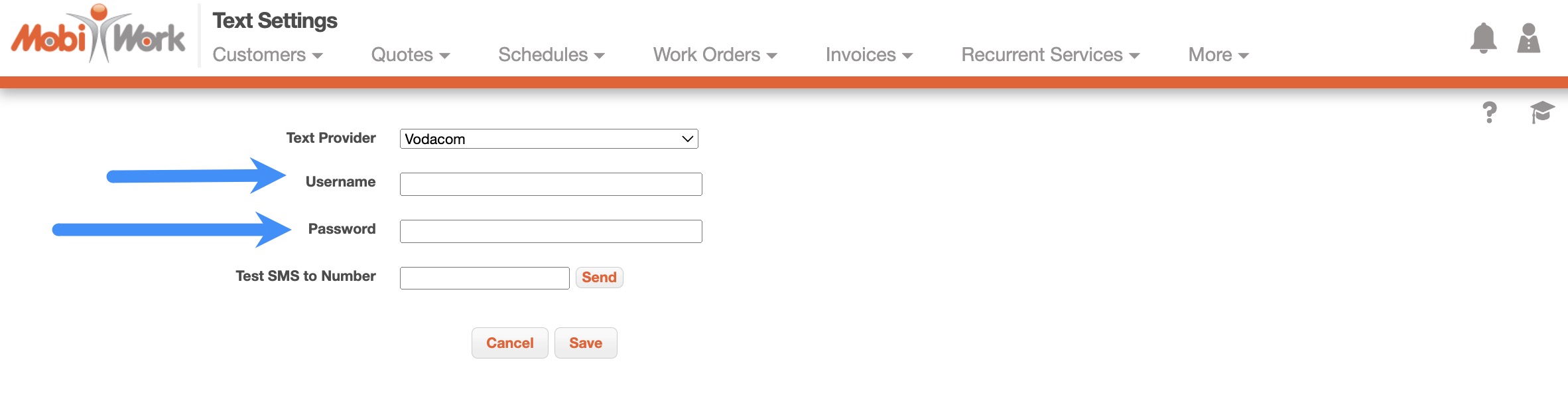
- On the next screen, use your Vodacom account information (found on the Vodacom Dashboard) to populate the necessary information in the correct fields in MobiWork:
- The Test Text Messaging (SMS) to Number field is for testing the connector. Enter a phone number that can receive a text message, then click the Send button. If everything is set up properly, you'll receive a "Successfully Sent" message. If you do not receive this message, create a support ticket and we'll be happy to assist!