
This section will highlight how to add a MobiRule text action to your MobiWork account; this action is helpful if you want to automate a text message to be sent once a trigger happens within MobiWork.
To ensure that your text messages are sent, please confirm that the following criteria are met:
You must first have a Text Message Connector installed in your MobiWork Web Application. Please see the Adding a Text Message Connector for more information on how to add a text message connector to your MobiWork account.
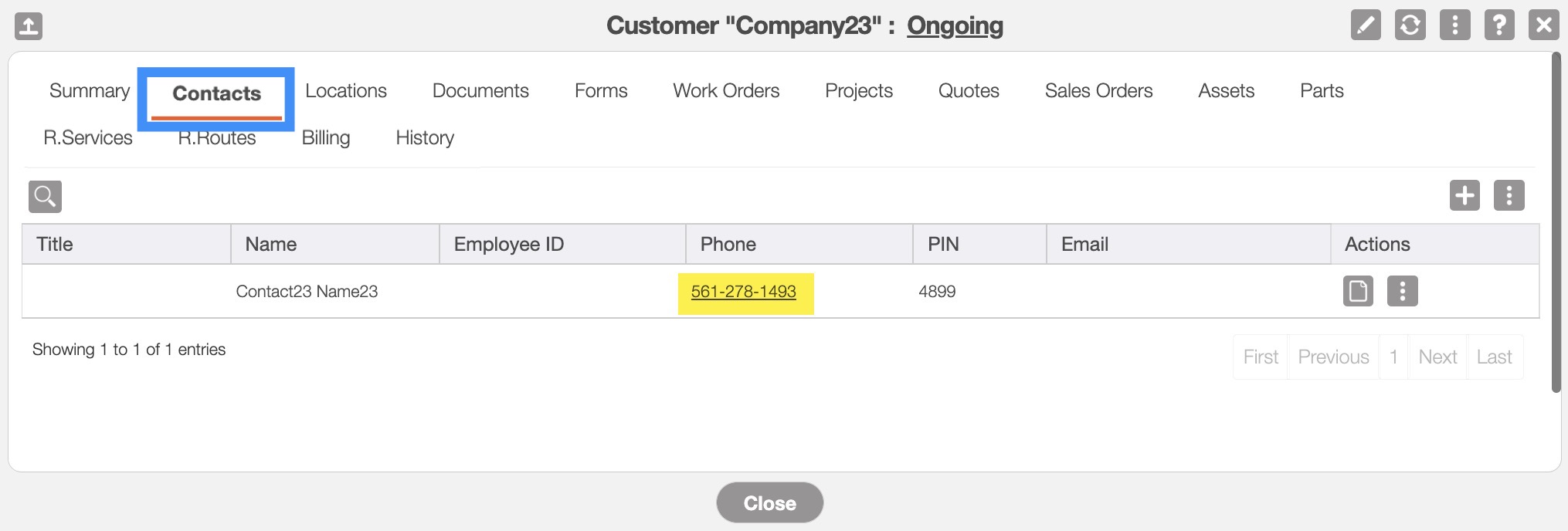
The customer must have a cell phone number associated with their profile. For a new customer you can add the cell number directly onto their profile; please see the Add Customer. For an already existing customer, please see the Edit Customer(s) page for more information on how to edit their contact details:
Overview Video

Step by Step
STEP 1: Access Account Settings:
- Hover over the User icon in the top-right of your MobiWork webpage:
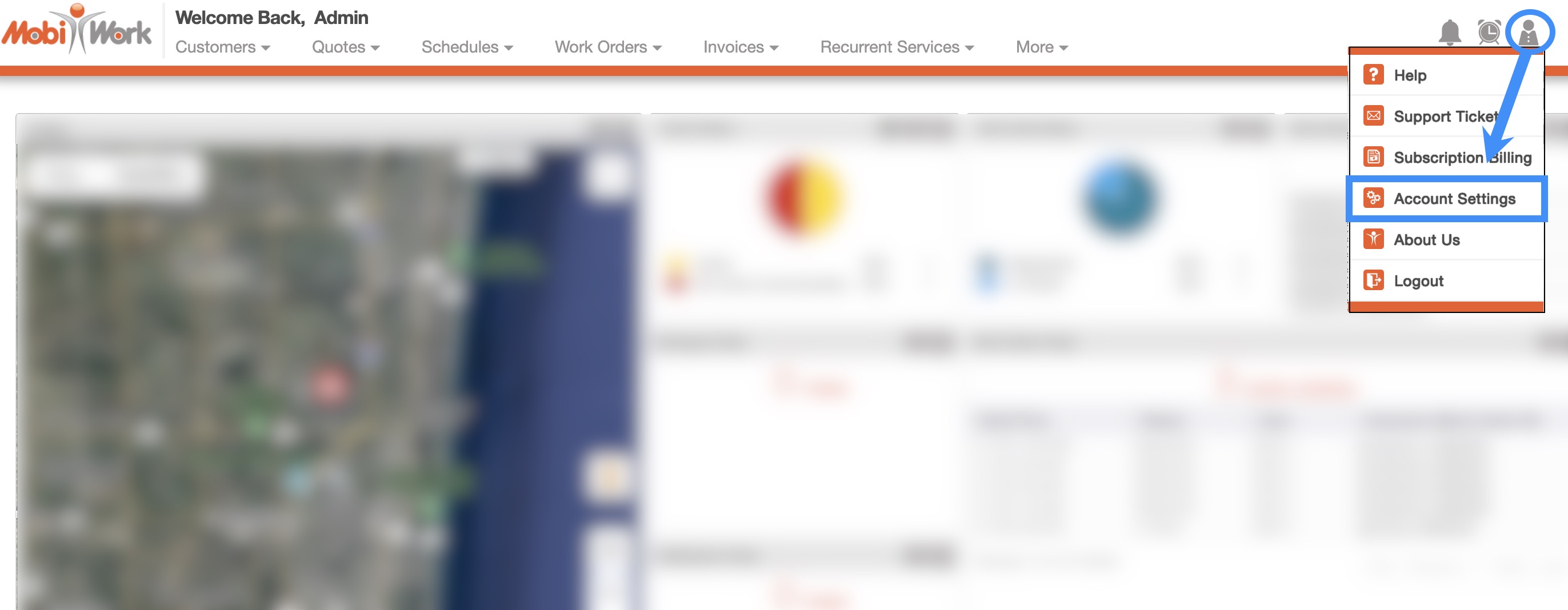
From the drop-down select "Account Settings" option.
STEP 2: Access the Configuration Tab
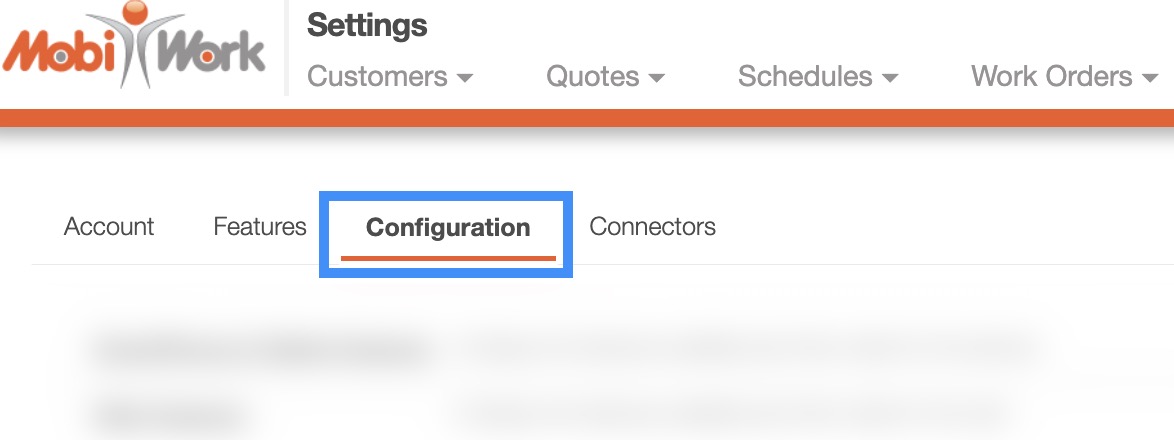
- You will be redirected to the Settings page. On this page, click on the "Configuration" tab:
STEP 3: Access the MobiRules hyperlink
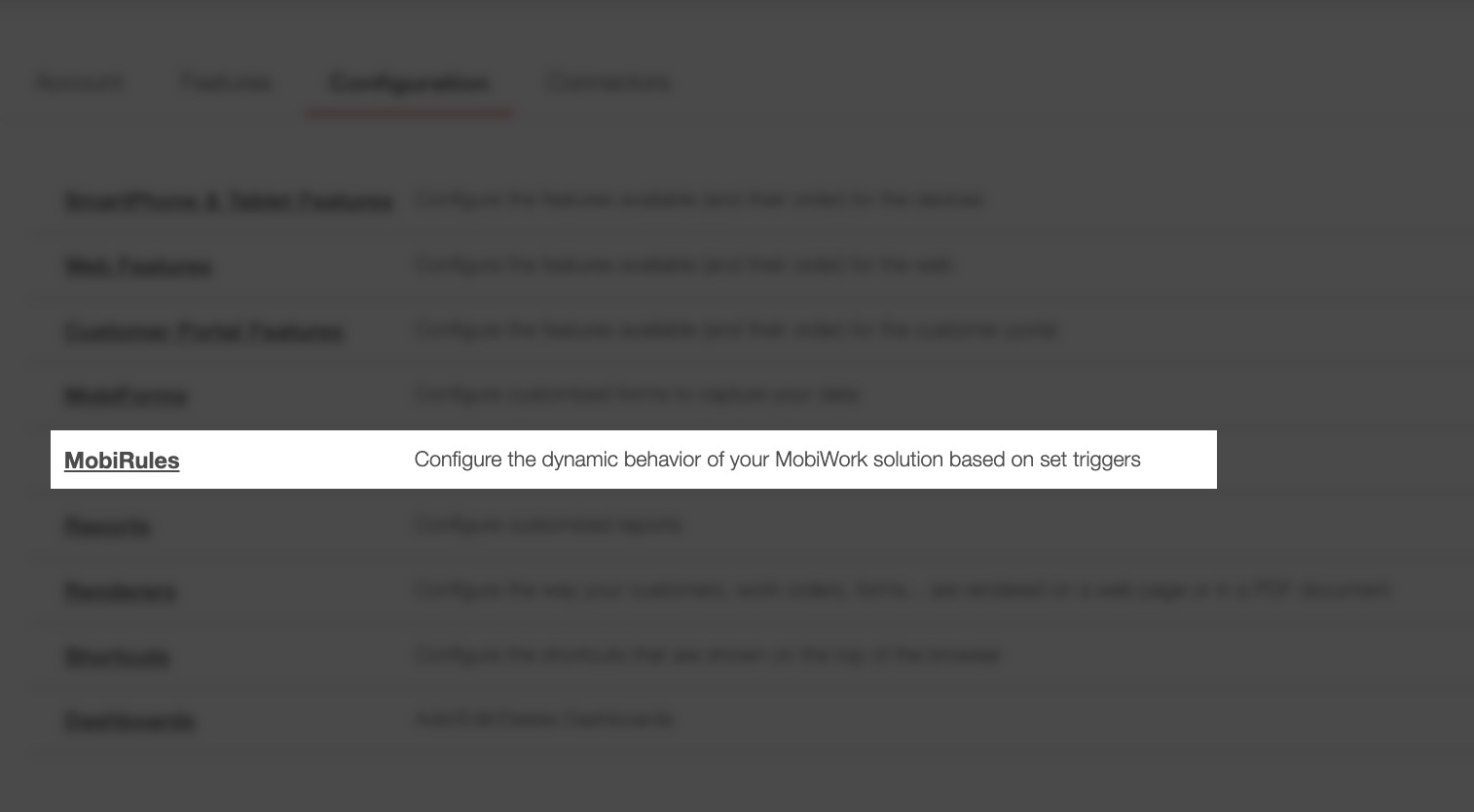
- Select the MobiRules hyperlink from the "Configuration" tab:
STEP 4: Access the Actions Tab of the selected MobiRule
- Regardless, if you are editing or creating a new MobiRule, you will need to access the "Actions" tab to add a Text Message action to your selected MobiRule.
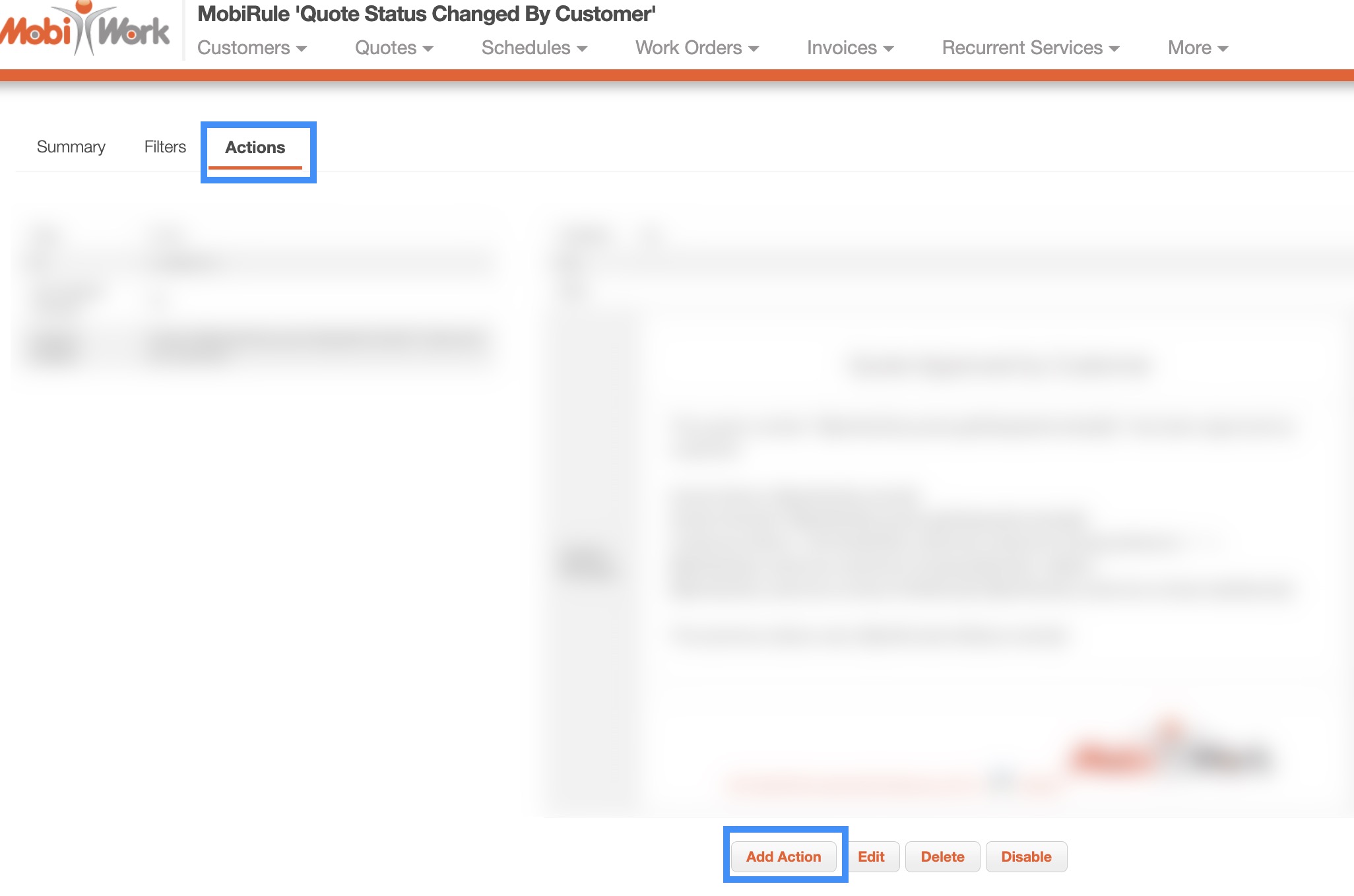
Once you are on the "Actions" tab, click the Add Action or Add Text button.
Note: In order for the MobiRule to automatically send a text message, you will first need a trigger denoting what the MobiWork catalyst is for dispatching the message.
STEP 5: Modify the Text Action
- Once you click on the Add Action or the Add Text button, you will then be redirected to the Add Action page. On this page select the "Text" option from the Type drop-down and click Add:
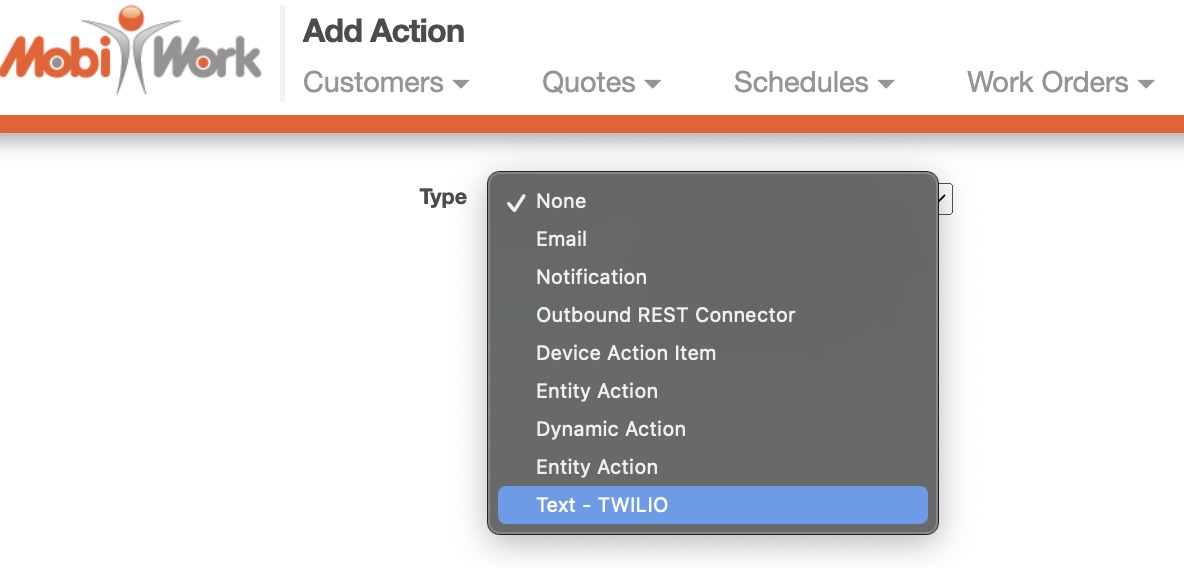
STEP 6: Select Text Recipient
- Once you select, the "Text" option from the Type drop-down and click the Add button, you will be able to select which recipients will receive the text message:
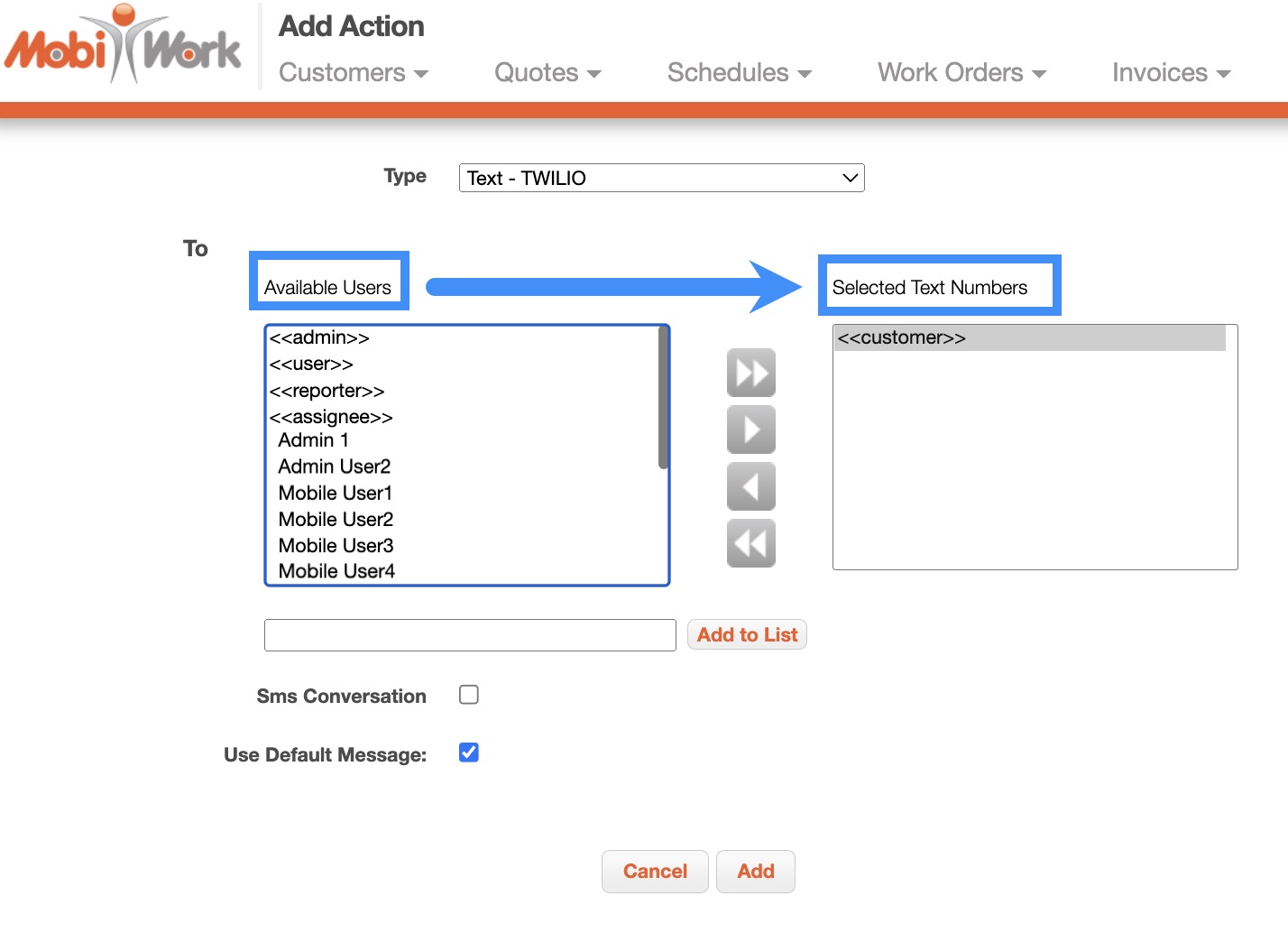
For example, if you want your customers to receive the text message, move the "Customer" option from "Available Users" column to the "Selected Text Numbers" column:
STEP 7: Compose Message
- Uncheck the Use Default Message option to write your custom text message:
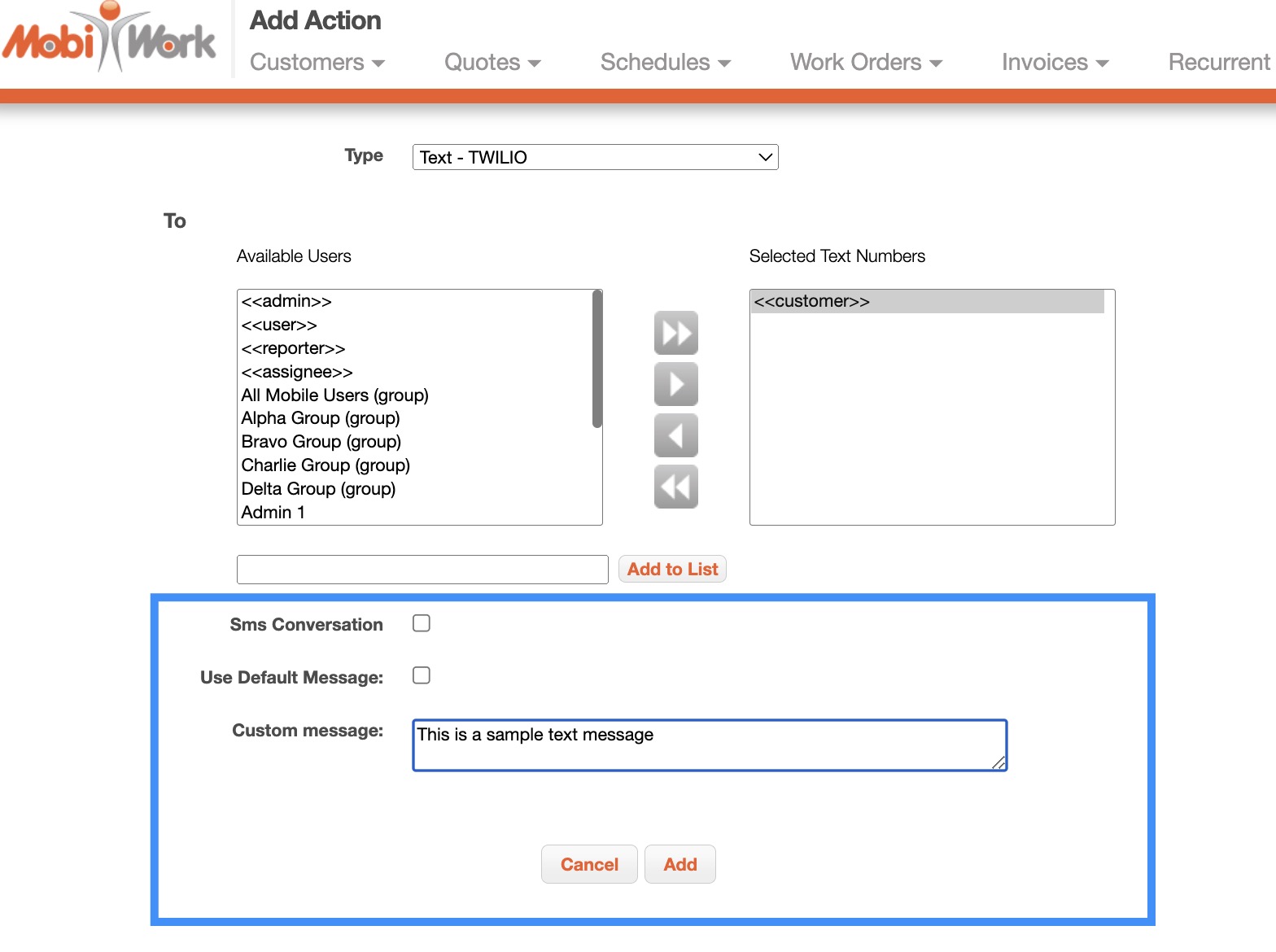
When done composing your MobiRule text message or if you are satisfied with the default message, click the Add button.