
To delete your vendor(s) you will first need to be on the Vendor "List" page. Please see the Vendors List page, for more information on how to access this site:
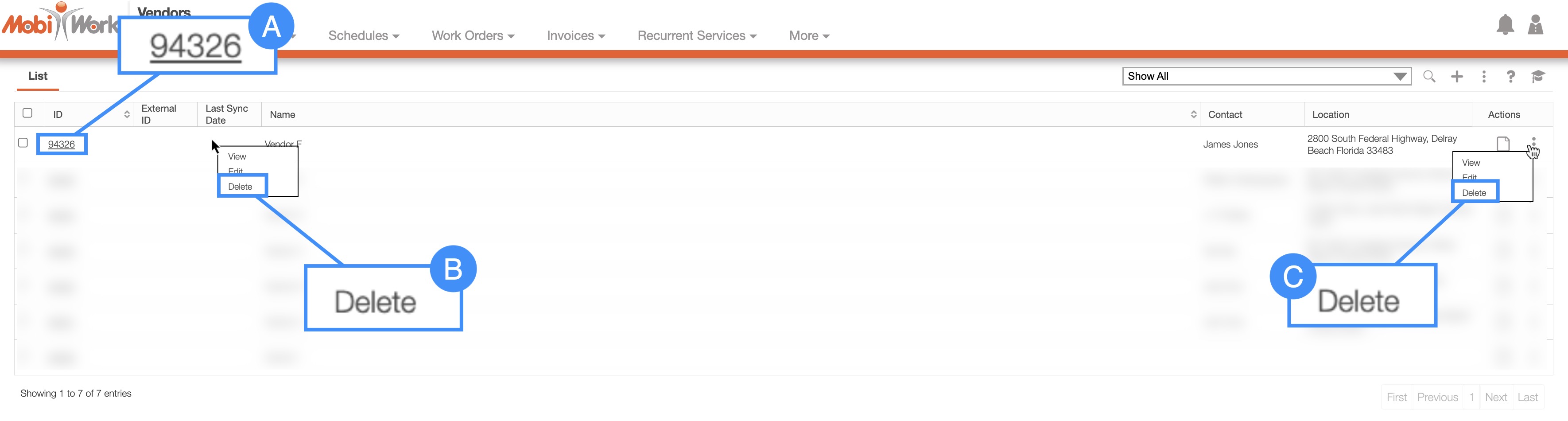
Once, you are on the Vendor "List" tab, there are several different ways you can delete a vendor:
Clicking on the vendor ID to open the View Vendor pop-up window. On this pop-up window, select the "Delete" option from the Individual Actions button:
Please note that there are several ways that you can access the View Vendor pop-up window. Please see the View Vendor page for the different ways that you can open the View Vendor pop-up window.
Right-clicking on a vendor to open the right-click options. (The options that are displayed when you right-click on a vendor are also available when you select the Individual Actions button.)
Clicking on the Individual Actions button (the three vertical dots) from the "Actions" column. (The options that are displayed from the Individual Actions button are the same as when you right-click on a vendor).
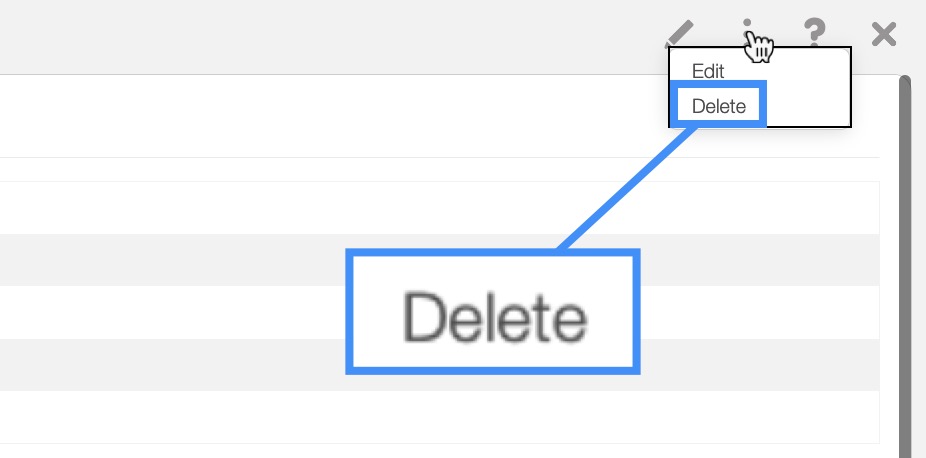
The How to Access the Page section will highlight how to access the delete function for a vendor. Regardless of how you choose to delete a vendor, a warning pop-up will appear asking to confirm if you would like to delete this vendor, and informing you that the deletion of the vendor is permanent:
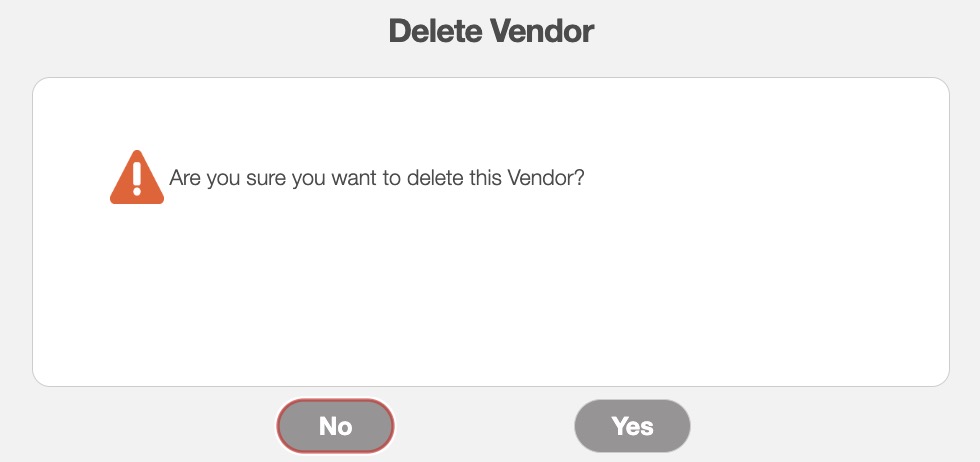
Please note that if the vendor is associated with a purchase order or part, the vendor will be removed from these records without affecting the purchase order or part itself.