
There are several different ways you can access the View Vendor pop-up window in MobiWork.
The following sections demonstrate some common methods of how to access the View Vendor pop-up window from your MobiWork web platform.
Vendor List Page
The easiest way to access the View Vendor pop-up window is through the "List" tab. For more information on how to access the "List" tab, please see the Vendor List page.
Once you are on the "List" tab, there are four different ways to access the View Vendor pop-up window:
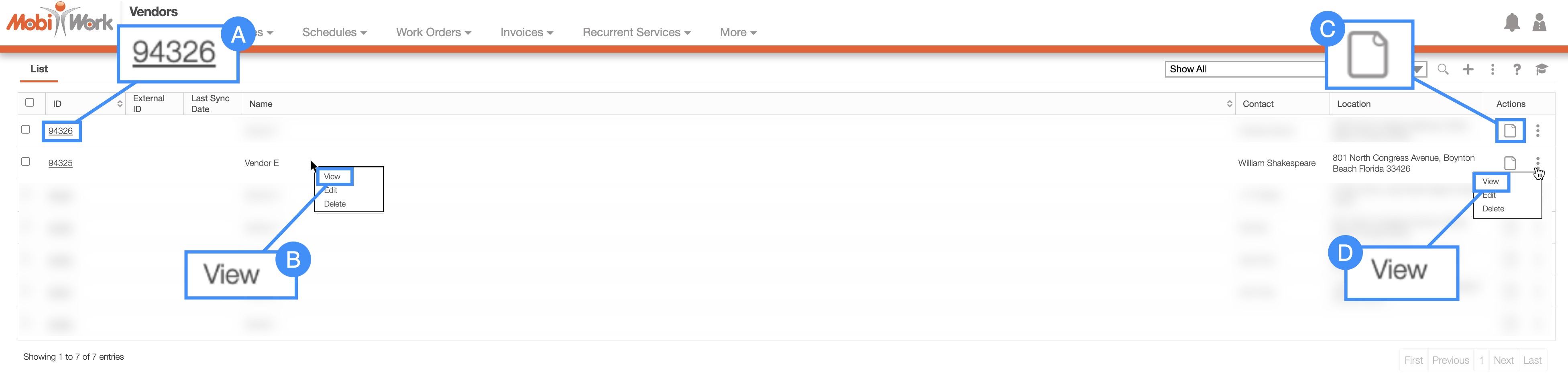
Select the desired vendor ID.
Right-click on the selected vendor and click on the "View" option from the drop-down.
Select the View icon under the "Actions" column
Click on the "View" option from the Individual Actions drop-down.
Purchase Orders
Another way you can access the View Vendor pop-up window is through the View Purchase Order pop-up window. For more information on how to access the View Purchase Order pop-up window please see the View Purchase Order page.
Once you are on the View Purchase Order pop-up window, click on the vendor hyperlink:
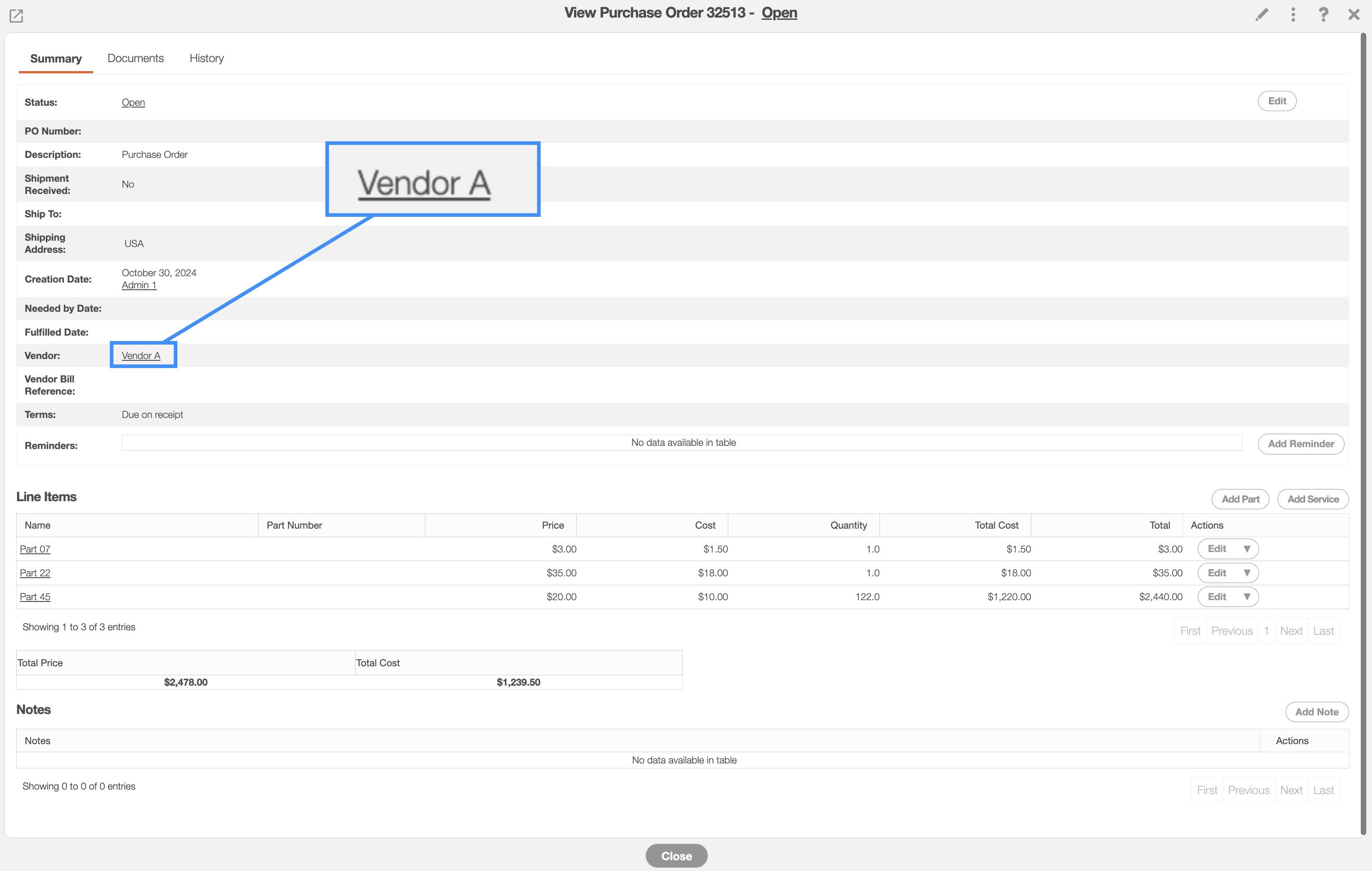
The View Vendor pop-up window will then automatically open.
Once you open the View Vendor pop-up window, you will be automatically directed to the "Summary" tab:

These features are available in all four tabs and in both, the pop-up window, and the full-size view:
Please note that if you would like to easily close this pop-up window, you can click on the esc button from your keyboard.
Vendor Full-Size View
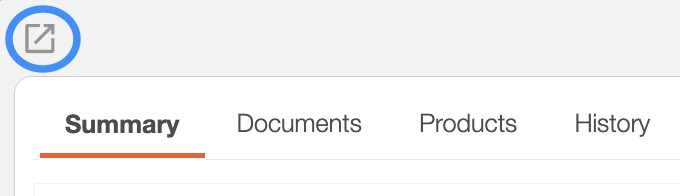
By clicking on the upwards arrow in the left-hand corner, you can expand the View Vendor pop-up window so that it is full-size:
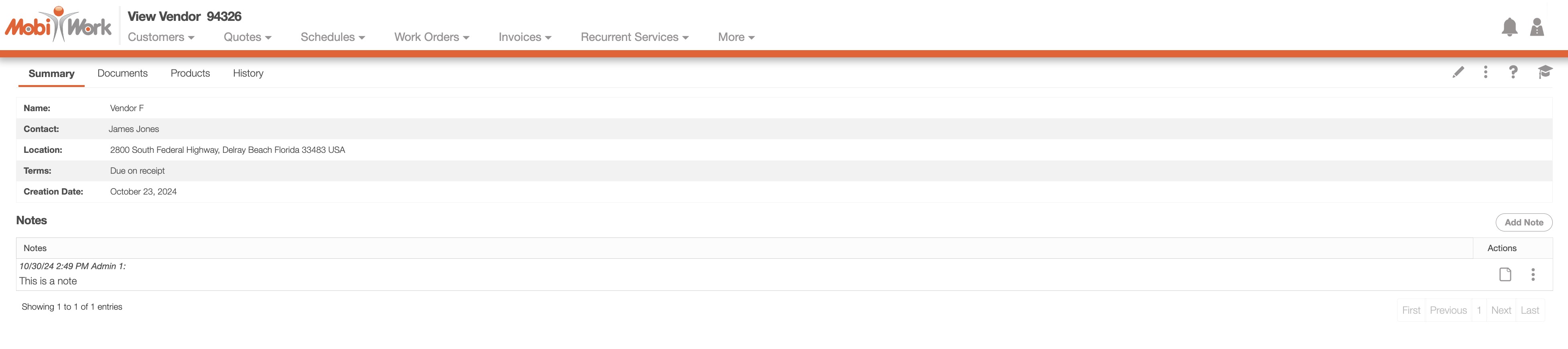
The full-size View Vendor pop-up window can be seen below. All the tabs, buttons, and features are identical to how they would appear in the pop-up window:
Vendor Tabs
There are four tabs in all for the View Vendor pop-up window; each tab displays different information regarding the vendor:

You can navigate to other tabs by clicking on the desired tab.
Vendor ID
The vendor ID will be displayed towards the top of the View Vendor pop-up window:
Upper Right Corner Actions
The Vendor's Upper Right Corner Actions can be found in the top-right corner of the View Vendor pop-up window. These actions are located in this section, regardless of the tab you are on:
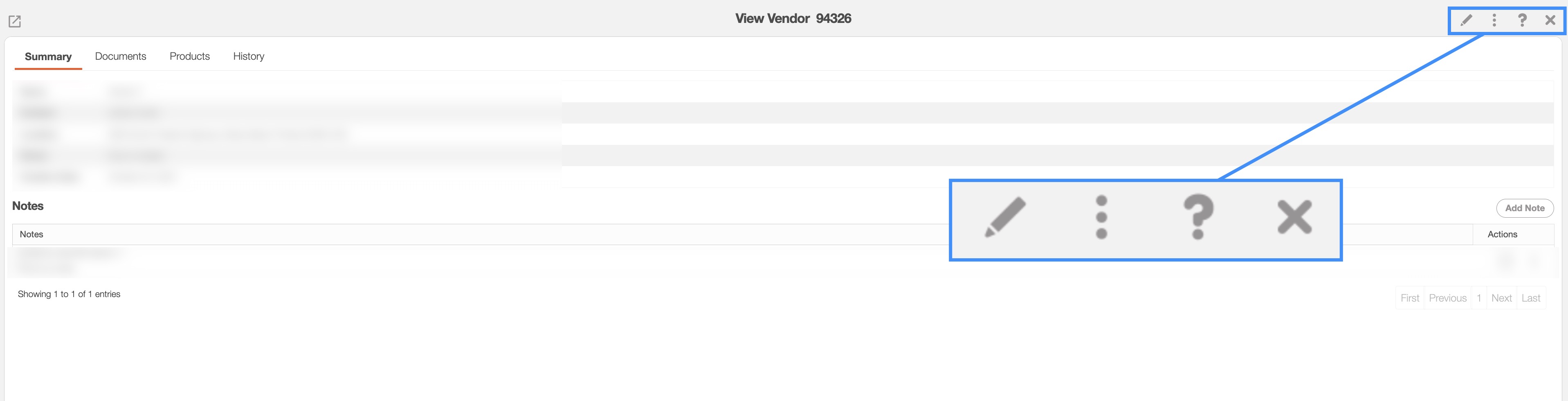
The Upper Right Corner Actions section includes:
The Pencil icon will allow you to edit the vendor.
The Individual Actions button will allow you to perform various actions.
The Question Mark button which will direct you to the respective MobiWork Features page.
The X button will close out of the View Vendor pop-up window.
After clicking on the vertical three dots in the top-right corner, the Individual Actions drop-down menu will appear:
From the Individual Actions drop-down menu, you can select various actions that will help manage the specified vendor.
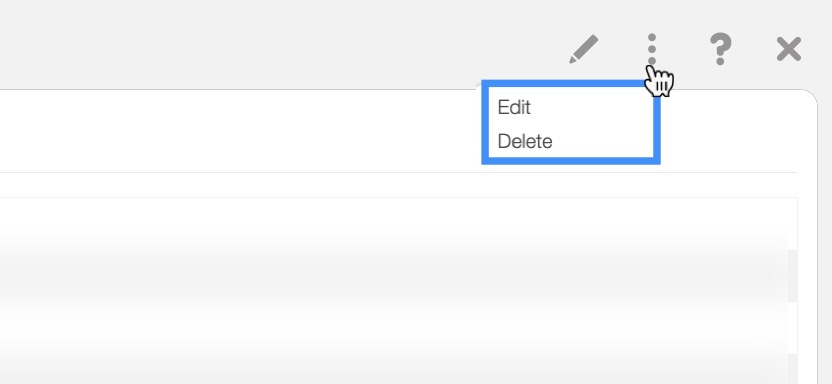
The complete list of actions found in the Individual Actions drop-down menu are defined below:
| Name: | Description: |
|---|---|
| "Edit" | Enables the user to modify details associated with the selected vendor. |
| "Delete" | Deletes the vendor profile from MobiWork. |
The "Summary" tab is the default tab that will appear once you open the View Vendor pop-up window. This tab will display all the requisite information regarding a vendor; the information is also displayed in an accessible and practical manner.
You will be able to see the business name of the vendor, the vendor's contact name, the terms of payment for the vendor, and when the vendor account was created in MobiWork.
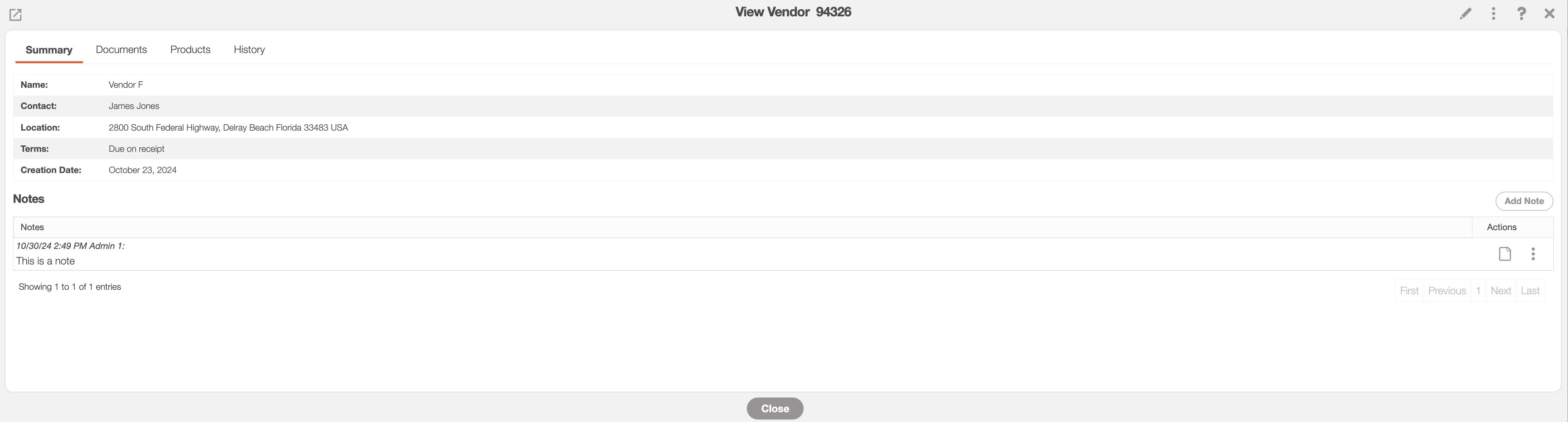
The data found on this tab are further defined below:
| Name: | Description: |
|---|---|
| "Name" | The official name of the vendor as it appears in MobiWork. |
| "Contact" | The primary contact person at the vendor's address. |
| "Location" | The physical address or operational site associated with the vendor. |
| "Term" | The payment terms agreed upon with the vendor, such as net 30 or net 60 days. |
| "Creation Date" | The date the vendor record was initially created in MobiWork. |
| "Notes" | The "Notes" panel will contain any additional notes related to the vendor. To add a note, click the Plus Sign in the upper right corner. To edit a note, click on the Pencil icon or if you would like to delete a note, click on the Trash Can icon. |
The "Documents" tab will allow you to store vendor-specific documentation (e.g., contracts, photos, etc.) for future use. This tab will also list the type of document file, the date it was uploaded, the user who uploaded it, and more.
To add a new document or file, you must click on the Plus Sign button and then drag & drop or choose a file to upload.
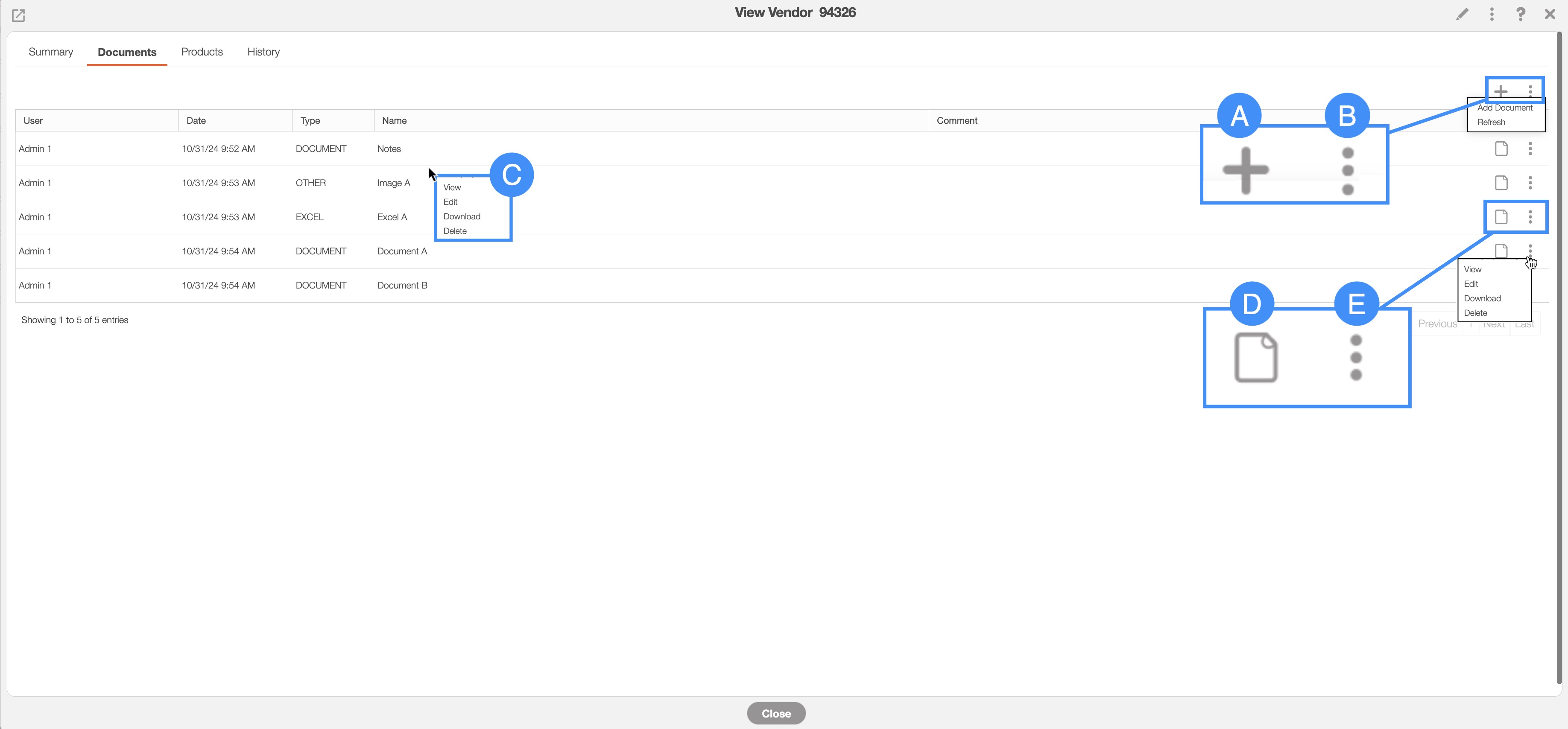
Only after you upload a file or document to this tab will you be able to access the Action options:
By right-clicking you will bring up the right-click actions. These actions are identical to the Individual Actions and will allow you to view, edit, download, or delete the document.
The Plus Sign will add a new document or file.
The topmost Individual Actions will allow you to add a new document or refresh the tab.
The View icon will allow you to view the image file in a new tab, window, or allow you to download the document.
The Individual Actions (the three dots next to the View icon) are identical to the right-click actions and will allow you to view, edit, download, or delete the document.
| Name: | Description: |
|---|---|
| "User" | The user who uploaded the document or file. |
| "Date" | The date the document or file was uploaded. |
| "Type" | The type of document (e.g., PDF, Word, image, Excel, etc.). |
| "Name" | The name of the document. |
| "Comment" | Any comments or notes associated with the document. |
| "Actions" | Allows you to view, edit, download, or delete the document. |
The "Products" tab displays all parts and products associated with the selected vendor. To associate parts or products with a vendor, first open the View Part pop-up window.
Please see the View Part page, for more information on how to access the View Part pop-up window.
Once you are on the View Part pop-up window, click on Pencil icon located within the "Sourcing" panel:
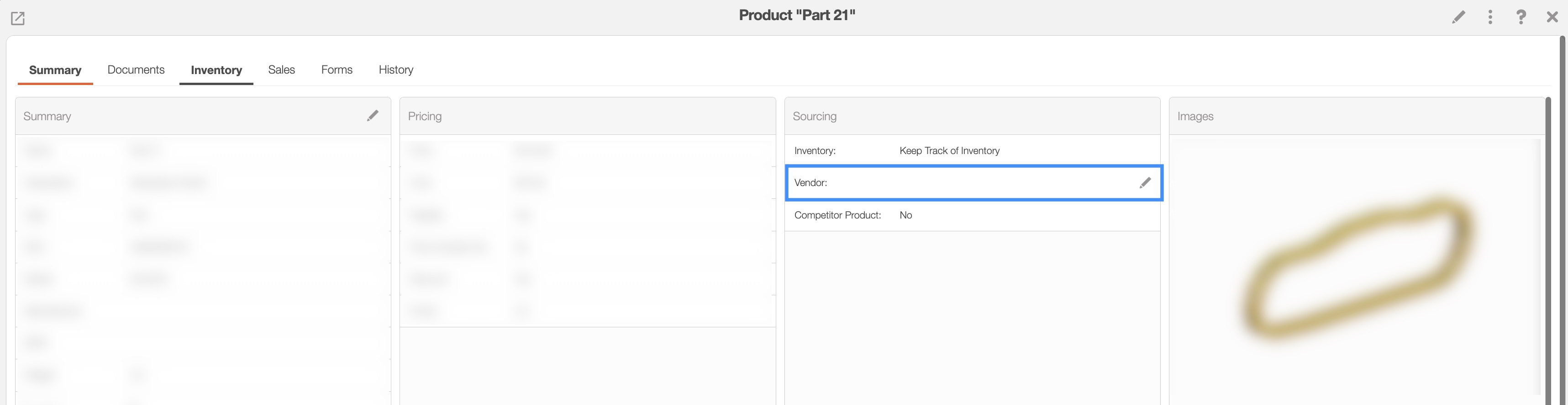
This action will open the Associate Vendor pop-up window:
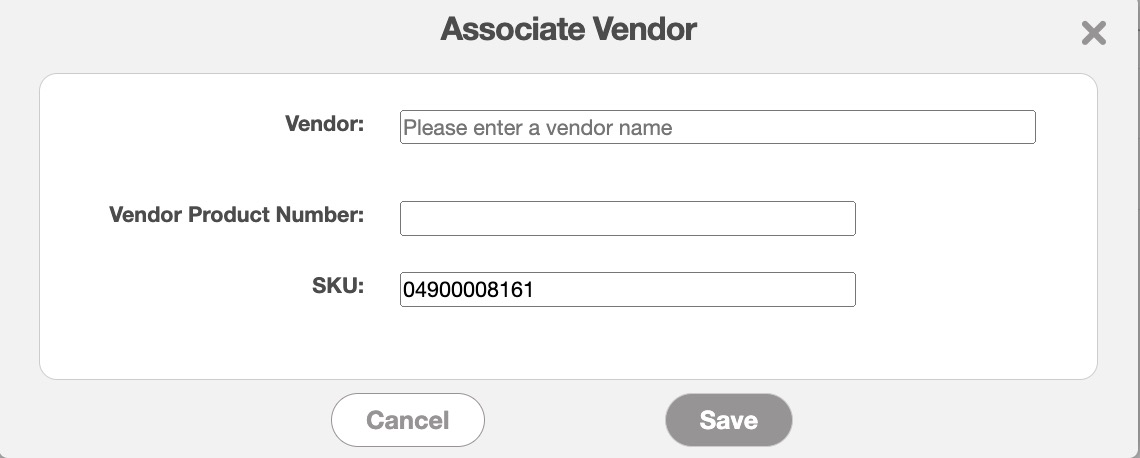
In this pop-up window you can enter the following information:
The vendor you would like to associate with the part or product. You can use the asterisk (*) to search through all your vendors.
The vendor's product number assigned by the vendor to recognize and reference the specific part.
And the SKU number; this number is automatically pulled from the part or product data.
After verifying the information, click Save button to confirm the vendor association.
The part or product will then appear under the "Products" tab for that vendor:
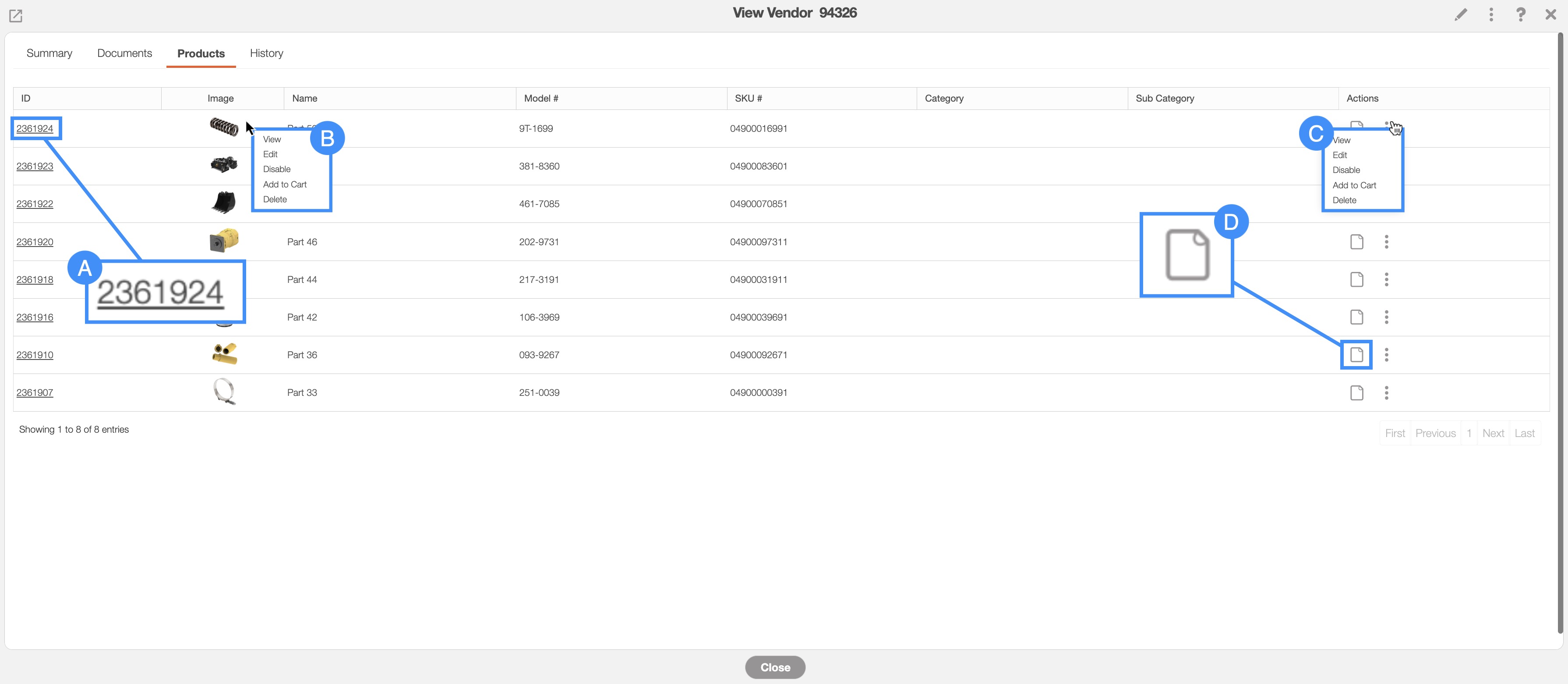
In the "Vendor" tab of the View Vendor pop-up window, you can see all parts and products associated with the vendor. You will also have options to view, edit, disable, delete, or add any part to a sales order.
From the "Products" tab you will be able to perform the following actions:
By clicking on the Product ID, you will be able to access the View Part pop-up window.
By right-clicking you will bring up the right-click actions. These actions are identical to the Individual Actions and will allow you to view, edit, disable the part, add the part to the cart, or delete the part.
By clicking on the Individual Actions button (the three dots next to the View icon) you will be able to view, edit, disable the part, add the part to the cart, or delete the part. These actions are the same as the right-click actions.
The View icon will allow you to open the View Part pop-up window.
The terms found in the "Products" tab are defined below:
| Name: | Description: |
|---|---|
| "ID" | A unique internal identification number assigned to the part within the MobiWork system. |
| "Image" | The representative image of the part. |
| "Name" | The designated name or title of the part for easy identification. |
| "Model #" | The model number of the part. |
| "SKU #" | The stock keeping unit number of the part. |
| "Category" | The category that the part is classified under. |
| "Subcategory" | A more specific classification that falls under the primary category, providing further organization for the part. |
| "Actions" | Allows you to view, edit, disable, add to cart, or delete the selected part. |
The "History" tab lists the historically recorded details of the vendor, including the created date, last modified date, and more.
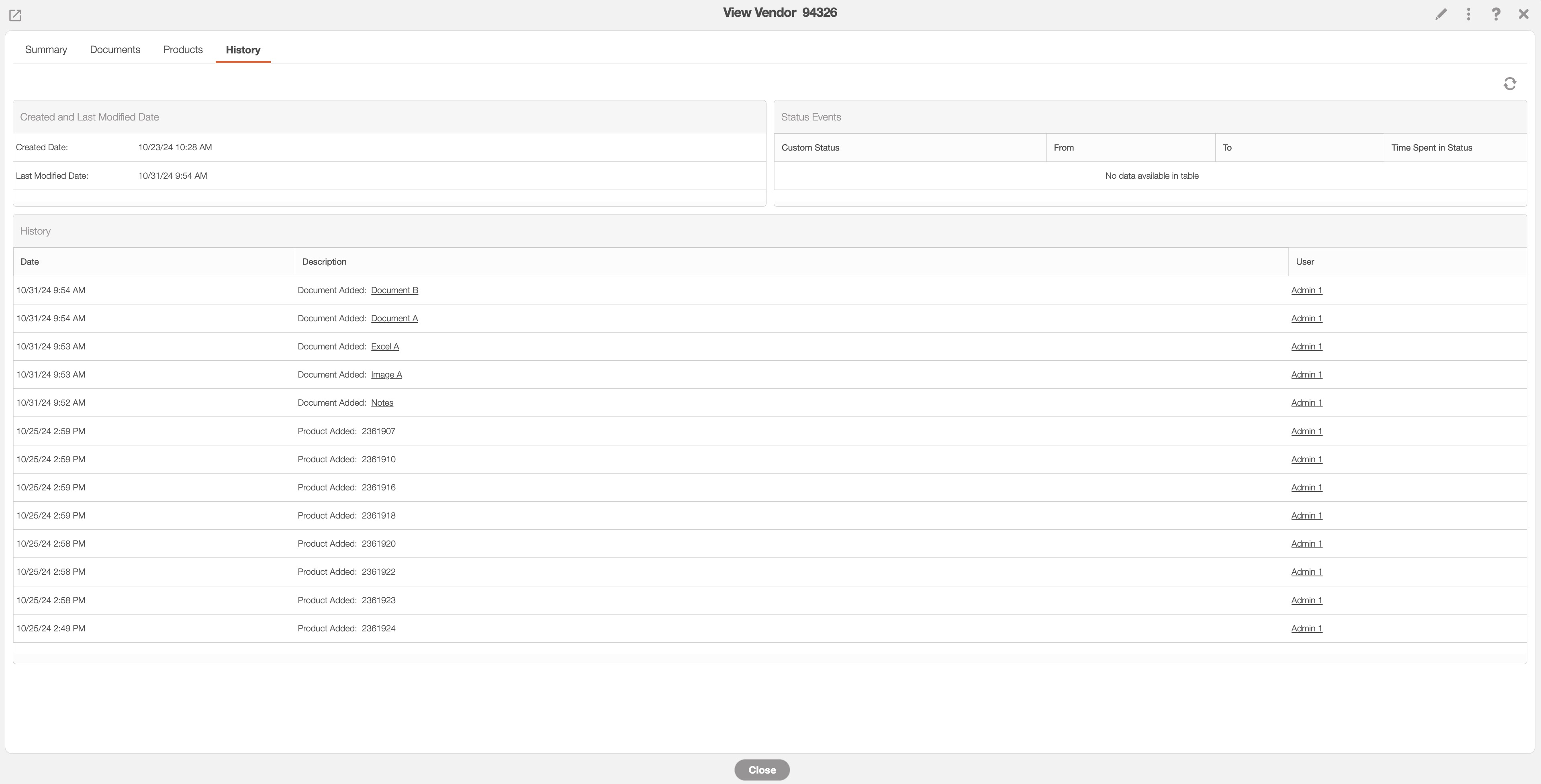
The "History" tab has three different subsections that stores historical data of the vendor. These columns are the "Created and Last Modified Date," "Status Events," and "History" subsections:
Created and Last Modified Date
The "Created and Last Modified Date" will list the date that the vendor was created in the system as well as the date the vendor information was last modified.
In the "Created Date" field the date when the vendor was created in MobiWork will be displayed.
The "Last Modified Date" field will display the date when the vendor was last updated.
Status Events
The "Status Events" subsection will display the date that the vendor was created.
The terms found in the "Status Events" subsection are defined below:
| Name: | Description: |
|---|---|
| "Custom Status" | The designated custom status of the vendor. |
| "From" | The date that the custom status was assigned to the vendor. |
| "To" | The date that the custom status was no longer assigned to the vendor. |
| "Time Spent in Status" | The total time duration that the vendor spent in the designated status. |
History
The "History" column will display the historical data of the vendor (e.g., when parts are added to the vendor and more). The data in this panel will automatically generate when a specified event or status is reached.
The columns for the "History" tab are defined below:
| Name: | Description: |
|---|---|
| "Date" | The date an activity occurred on the vendor. |
| "Description" | The part ID and description of actions taken on the part. |
| "User" | The user who performed the specified action. |