
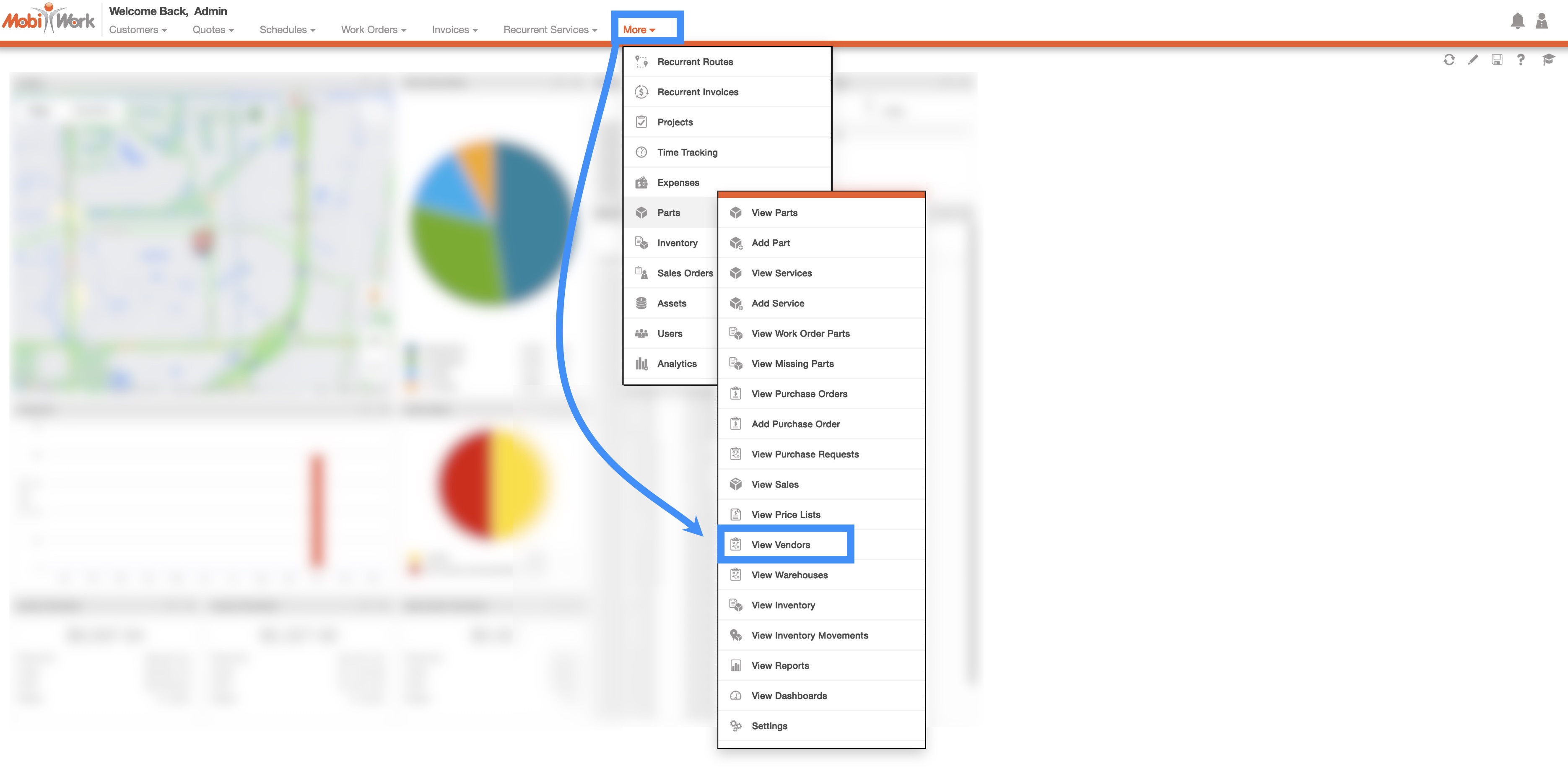
You can access the Vendors feature page by hovering over the Products feature from your MobiWork menu; from the drop-down that appears click on the "View Vendors" option:
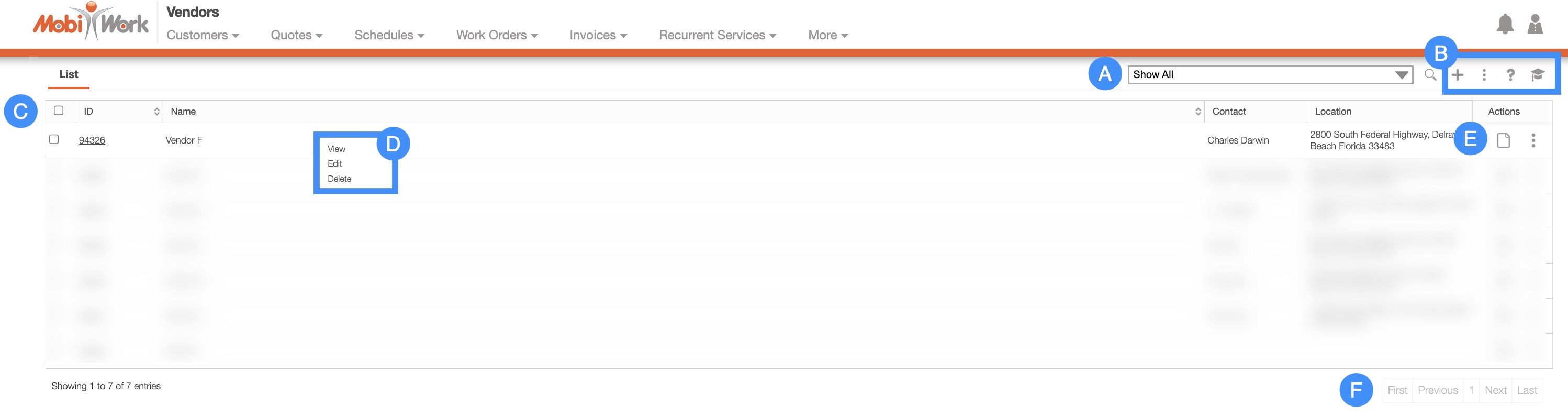
The "List" tab is the default tab you will be brought to once you access the "View Vendors" option; from this page you can see all the vendors associated with your company summarized on one page.
Below is a list of the main features that are located on the "List" tab page:
MobiWork is committed to simplifying data management for your business, by offering a range of search options to streamline your workflow. From the free-text search, which allows you to enter specific search queries directly, to the ability to create your own saved searches for your everyday use, MobiWork has you covered. Furthermore, you can use the predefined saved searches that MobiWork already provides to locate a specific query or date range (e.g., created today).
These search functions are consistent across all MobiWork features, with the only differences being the predefined search data and the parameters for the new search. The following subsections will outline the various search features that are available to you.
Free-Text Search
You can type in the search bar (free-text search) to locate a specific vendor. Once you click in the search bar, the search drop-down menu will automatically appear. You can use the search drop-down menu or continue typing your own search parameters:

When typing in the search bar, the drop-down menu will provide some helpful search criteria. With free-text search you will also be able to search by:
Vendor ID
Vendor Name
If the number of vendors surpasses the number range, the subsequent number of vendors will be found on the next page:
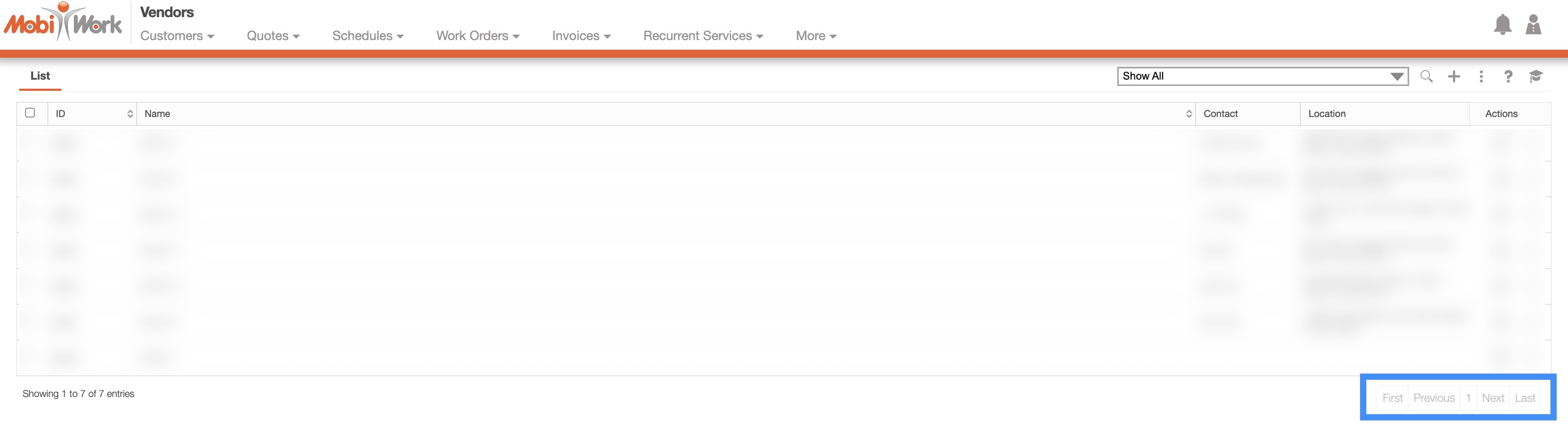
To navigate through these pages, use the First, Previous, Next, and Last buttons located towards the bottom of the Vendors section.
Predefined Saved Searches
Saved searches are a powerful search tool where the search-criteria has been saved for future use; to access the saved searches drop-down, click in the search bar. The default saved search for Vendors is the "Show All" search.
These saved searches will appear in the drop-down menu and can also be used for dashboards and reports:

You can access any of these saved searches by clicking on the "Search Area" and selecting your desired "Predefined Saved Search" from the drop-down menu.
If you would like to view all your vendors, click on the "Show All" option from the drop-down menu:

Please note that once you name a new saved search, you will be unable to rename it (instead you would need to delete your saved search and create a new one).
New Search
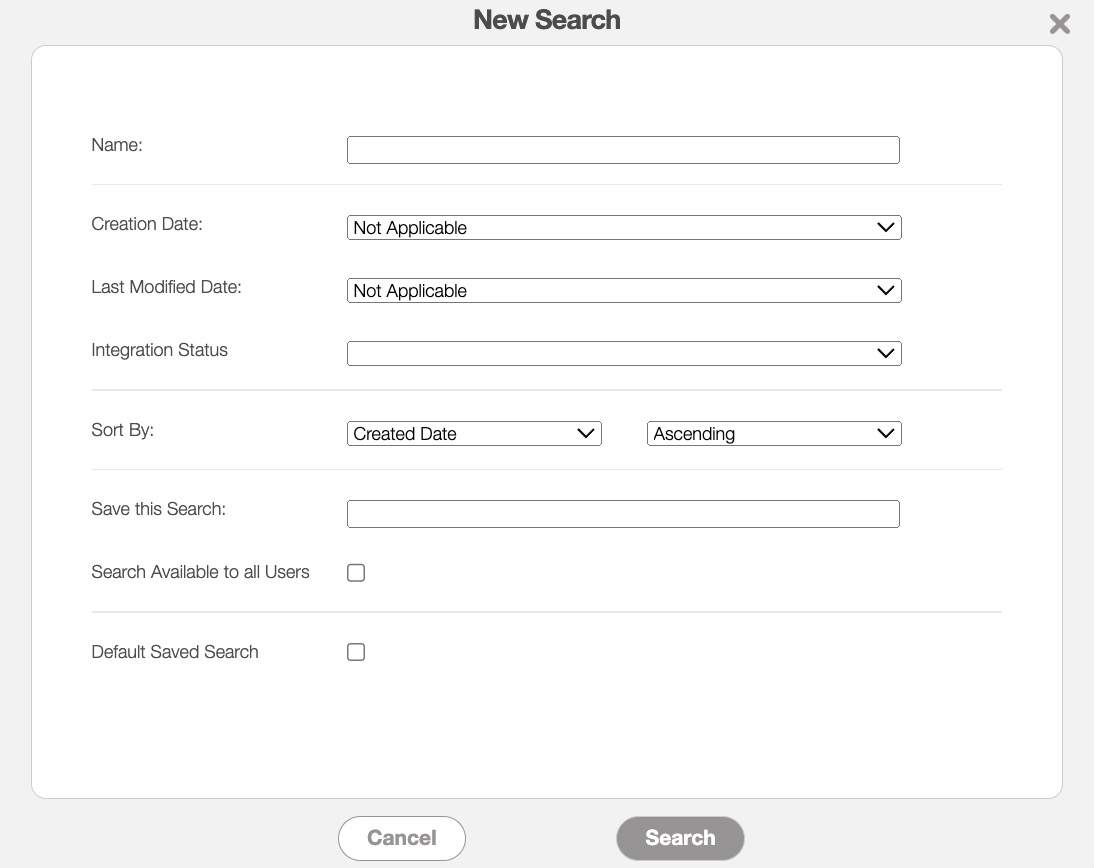
To create a new saved search, select the "Create a New Advanced Search" option from the drop-down menu:

After clicking on "Create a New Advanced Search," a pop-up window will appear where you can enter your data in the appropriate fields. If you would like to exit from this pop-up window you can click on the esc button from your keyboard.
Once you have finished inputting the required information, you can save the search, make it available to all users, or make it your default search:
Please note that the data used to create a saved search can also serve as the basis for generating reports in MobiWork.
Further definitions for all the terms in the New Search pop-up window can be found below:
| Name: | Description: |
|---|---|
| "Name" | The name of the vendor search. |
| "Creation Date" | The date that the vendor was created in MobiWork. |
| "Last Modified Date" | The date that the vendor was last updated. |
| "Integration Status" | The status of integrating with a third-party software solution such as QuickBooks. Includes the options: Not Applicable, Not Ready for Integration, Integrated, Ready for Integration, and Not Integrated. |
| "Sort by" | Sorts your search in ascending or descending order by: Created Date, ID, or Name. |
| "Save this Search" | Allows the search parameters to be saved under a name to be reused in the future. |
| "Search Available to all Users" | Allows the search to be available to all users. |
| "Default Saved Search" | Sets the saved search as the default view when accessing the search feature in the future. |
Manage Saved Searches
After creating a saved search, you can adjust the search criteria (e.g., dates, tags, categories, etc.) to include more data or to be more selective in the data that is being searched.
Please note that the data used to create a saved search can also serve as the basis for generating reports in MobiWork.
Any new searches that are added can be managed or edited in the Manage Saved Searches pop-up window:

To manage, edit, or remove any Saved Searches you can access the "Manage Saved Searches" option in the drop-down menu; the Manage Saved Searches pop-up window will then appear:
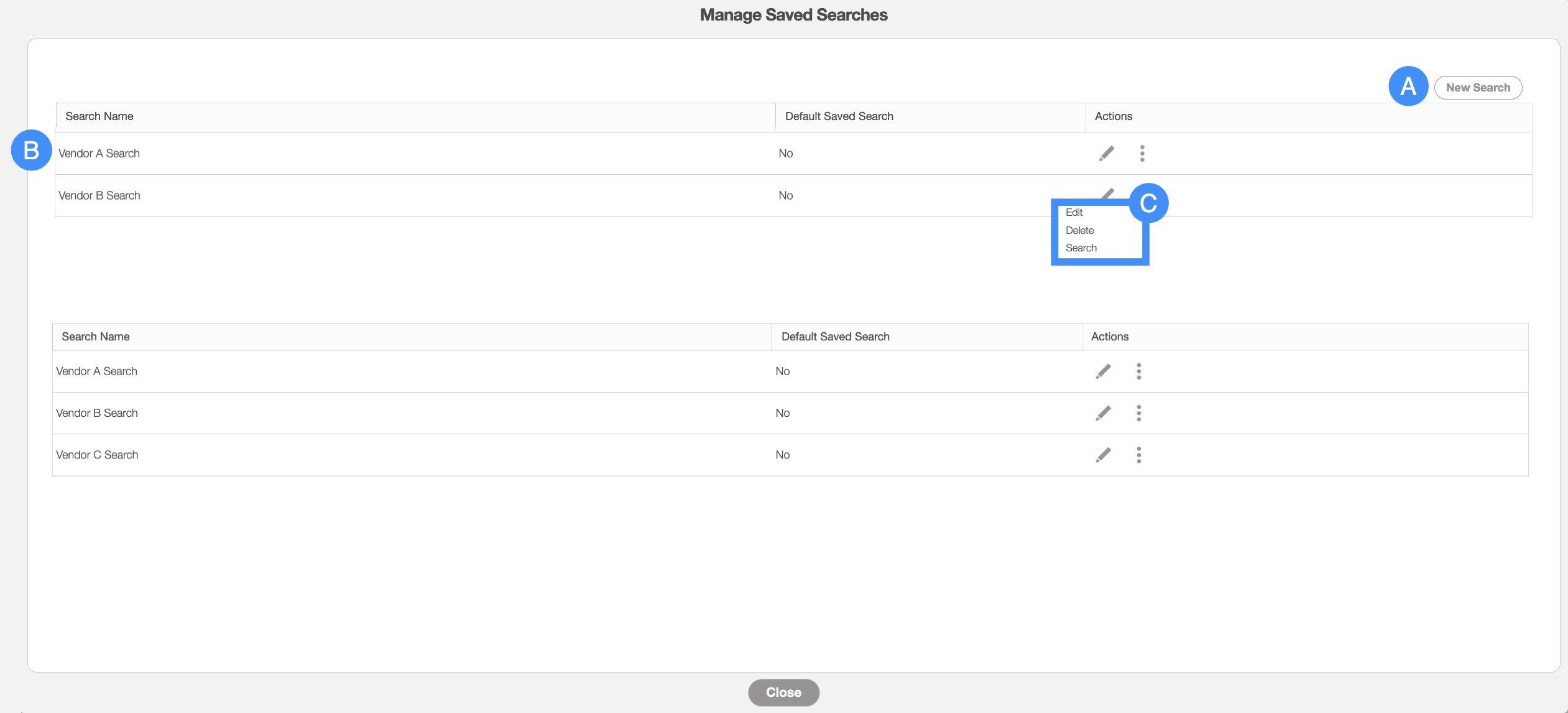
You can add a new saved search by clicking the New Search button in the top right of the pop-up window.
You can rearrange the order of the saved searches by clicking, then dragging & dropping the selected Search.
You can edit or delete a selected saved search by using the drop-down menu under the "Actions" column.
If you would like to easily close this pop-up window, you can click on the esc button from your keyboard.
The "Global Actions" section is located at the top-right of your Vendor feature page:
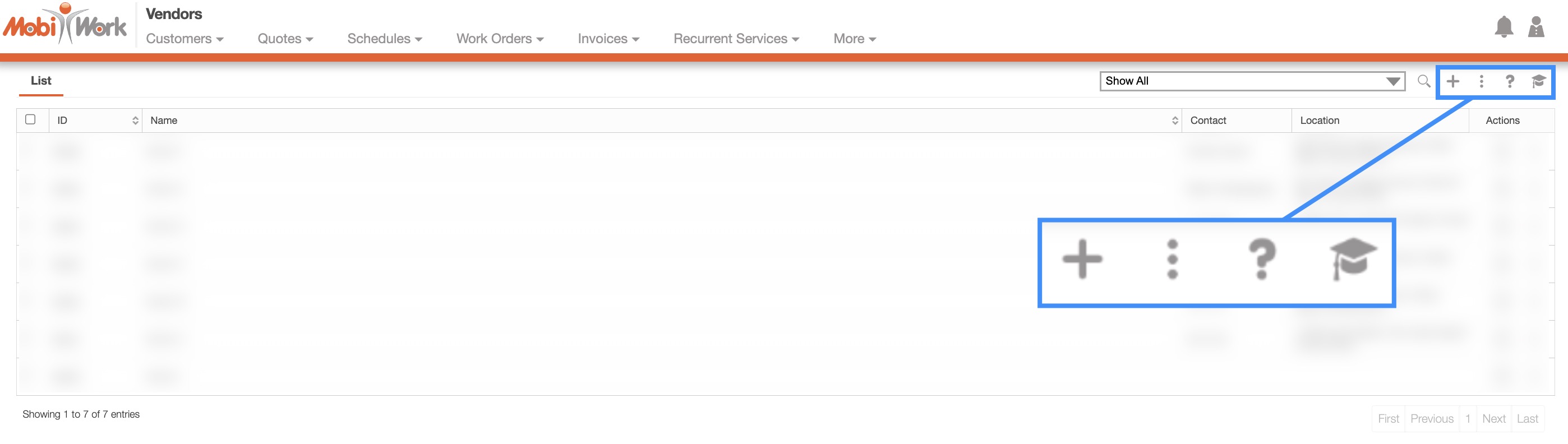
The "Global Actions" section includes:
The Plus Sign button which will allow you to quickly add a new vendor.
The More Actions button (represented by the three vertical dots) which will allow you to import/export the vendors from excel.
The Question Mark button which will direct you to the respective MobiWork Features page.
The Graduation Cap which will activate the Onboarding Assistant.
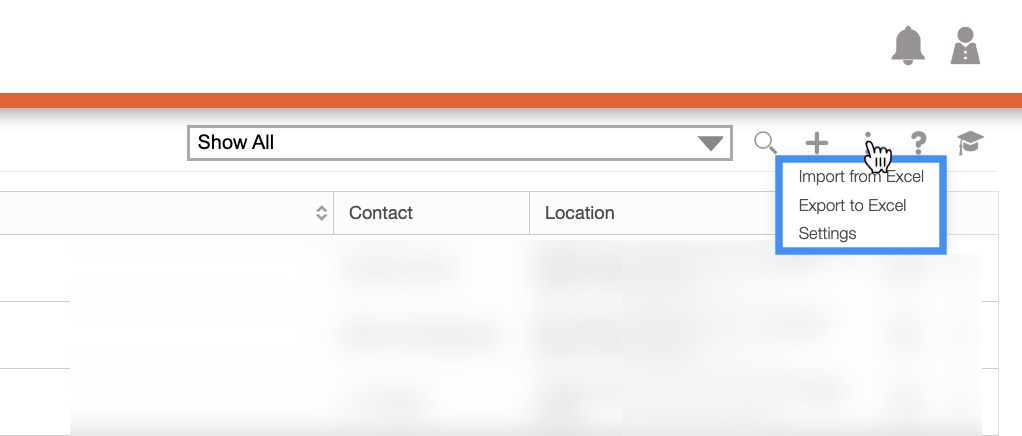
After clicking on the vertical three dots in the top-right corner, the More Actions drop-down menu will appear.
From the More Actions drop-down menu, you can select various actions that will help to manage your vendors.
These actions can be performed on a single vendor or on multiple vendors.
The complete list of actions found in the More Actions drop-down menu are defined below:
| Name: | Description: |
|---|---|
| "Import From Excel" | Imports vendors from Excel into MobiWork. |
| "Export to Excel" | Exports the selected vendors to Excel. |
| "Settings" | Directs you to the Settings page. |
The "List" tab will display the data associated with the vendor and will allow you to perform actions on the selected vendor.
List Tab Columns
In the "List" tab, the columns are structured to display specific data related to each individual vendor.
These columns are organized as: "ID," "Name," "Contact," "Location," and "Actions:"

The corresponding rows under the column headings will display the relevant vendor data.
The checkboxes (multiple selection area) found to the left of the "ID" column, will allow you to select either one or multiple vendors to view, edit, remove, etc.:
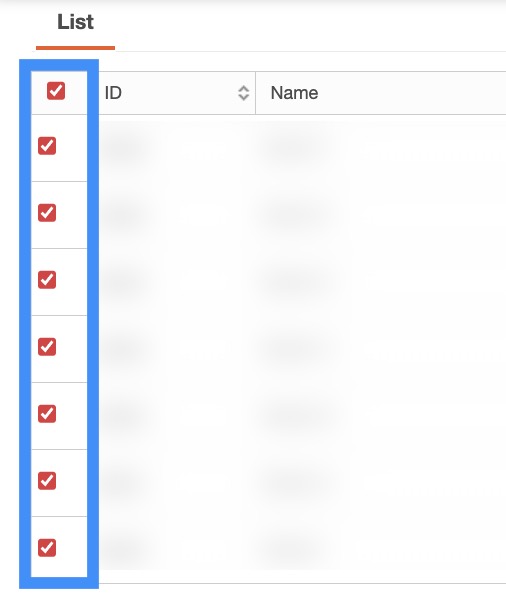
By clicking the topmost checkbox in the column heading you will select all the vendors.
The "List" tab column headings are defined as:
| Name: | Description: |
|---|---|
| "ID" | The ID of the vendor. |
| "Name" | The business name of the vendor. |
| "Contact" | The name of the vendor contact. |
| "Location" | The location where the vendor's business resides. |
| "Actions" | The View icon and the Individual Actions button can be found here; these buttons will allow you to perform actions on a vendor |
List Tab Individual Actions
When selecting a vendor and clicking on the Individual Actions button (the three vertical dots under the "Actions" column) you will be able to view, edit, or remove the selected vendor.
Any actions that are done with the Individual Actions button will only apply to the selected vendor:
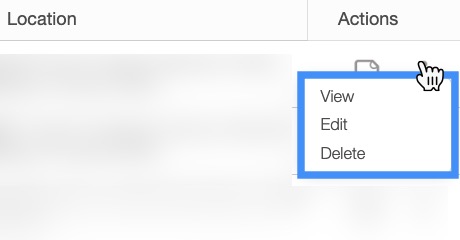
The View icon found under the "Actions" column will allow you to quickly access the View Vendor pop-up window of the selected vendor:

The options that are displayed when you select the Individual Actions button are also available under the right-click actions.
List Tab Right-Click Actions
When right-clicking with your mouse on a vendor in the "List" tab, you will be able to view, edit, or remove the selected vendor.
The options that are displayed when you right-click on a vendor, are also available when you select the Individual Actions button.
Any actions that are done with the right-click actions will only apply to the selected vendor:
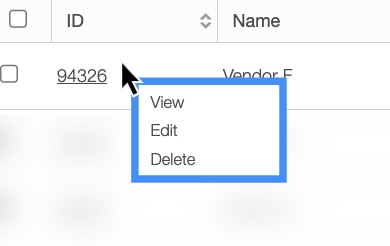
The definitions for the actions found in the Individual Actions button and when you right-click in the "List" tab are below:
| Name: | Description: |
|---|---|
| "View" | Opens the View Vendor pop-up window. |
| "Edit" | Edits the selected vendor. |
| "Delete" | Deletes the selected vendor. Please note that this is a nonreversible action, in which the vendor will be deleted. |