
The most direct way to update a vendor is through the Vendor page. For more information on how to access this page, please see the Vendor List section for more information. Once, you are on the Vendor page, there are several different ways you can edit a vendor:
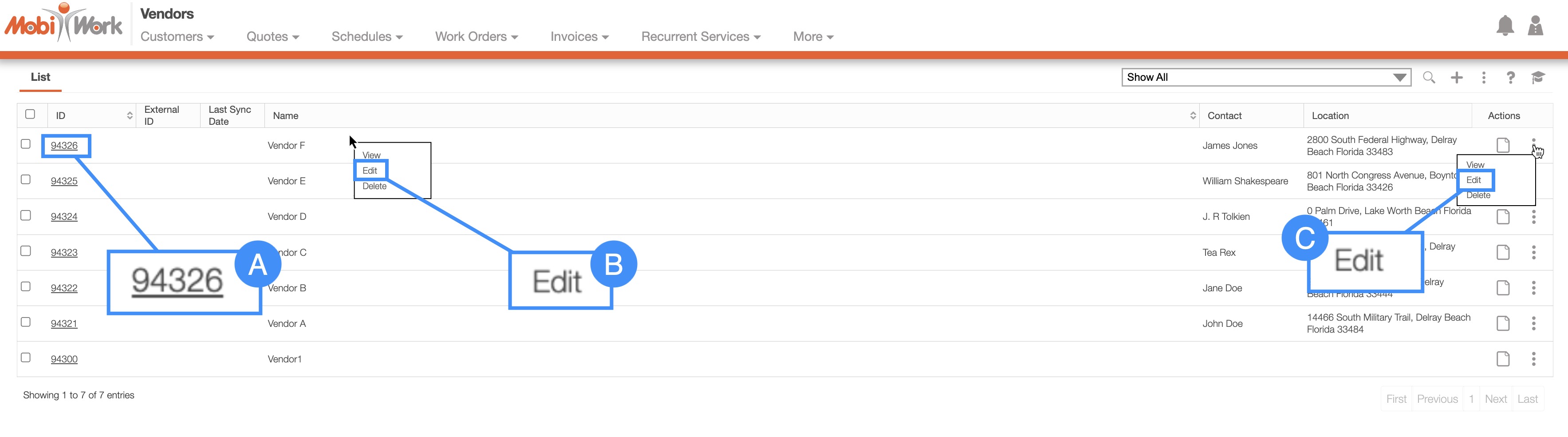
Click on the vendor ID to open the View Vendor pop-up window. Then click on the Individual Actions button and from the drop-down select the "Edit" option:
- Please note that there are several ways that you can access the View Vendor pop-up window. Please see the View Vendor page for the different ways that you can open the View Vendor pop-up window.
Right-click on a vendor to open the right-click options. (The options that are displayed when you right-click on a vendor are also available when you select the Individual Actions button).
Click on the Individual Actions button (the three vertical dots) from the "Actions" column. (The options that are displayed from the Individual Actions button are the same as when you right-click on a vendor).
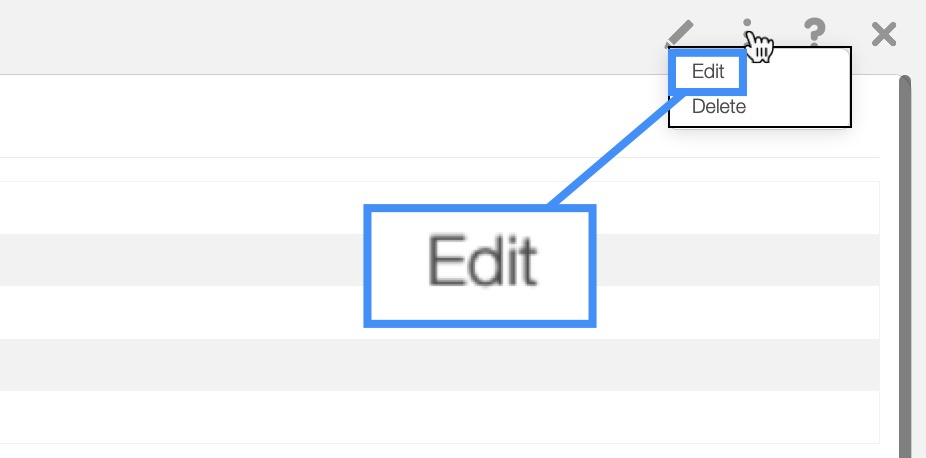
There are several different ways to edit an individual vendor. The section, How to Access the Page, will illustrate how to access the Edit Vendor pop-up window.
Regardless of how you choose to edit an individual vendor, the Edit Vendor pop-up window will then appear:
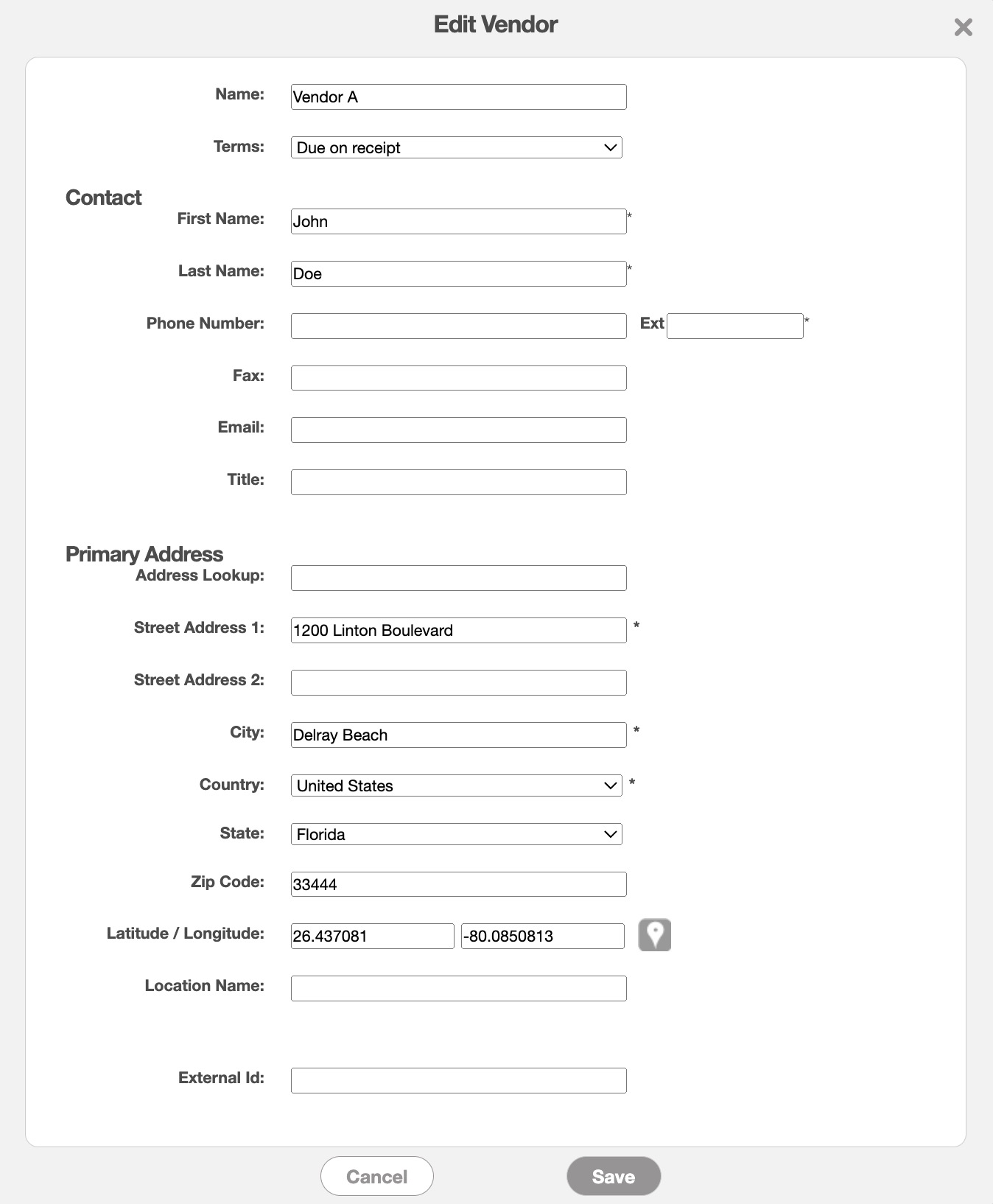
The terms found in the Edit Vendor pop-up window are defined below:
| Name: | Description: |
|---|---|
| "Name" | The registered or business name of the vendor as stored in MobiWork. |
| "Terms" | The payment terms established with the vendor, such as net 30 or net 60 days. |
| "First Name" | The given name of the main contact person for the vendor. |
| "Last Name" | The surname of the main contact person for the vendor. |
| "Phone Number" | The direct phone number for reaching the vendor's primary contact. |
| "Fax" | The fax line for the main contact at the vendor's address. |
| "Email" | The email address associated with the primary vendor contact. |
| "Title" | The honorific or professional title (e.g., Mr., Mrs., Dr.) of the vendor's primary contact person. |
| "Address Lookup" | Allows you to input the entered address as well as offer suggestions. |
| "Street Address" | The specific street address where the vendor's main office is located. |
| "City" | The city associated with the vendor's primary address. |
| "Country" | The country where the vendor's primary office is based. |
| "State" | The state or province for the vendor's main address. |
| "Zip Code" | The postal or zip code for the vendor's location. |
| "Latitude/Longitude" | The GPS coordinates for the vendor's primary location. |
| "Location Name" | A label used to identify or name the vendor's location. |
| "External ID" | The external ID (outside of MobiWork) of the customer; this ID will work as an additional identifier for your vendor. |