
There are several different ways that your customer can add a new work order. The examples below are some of the most straightforward.
From the Work Orders Drop-Down
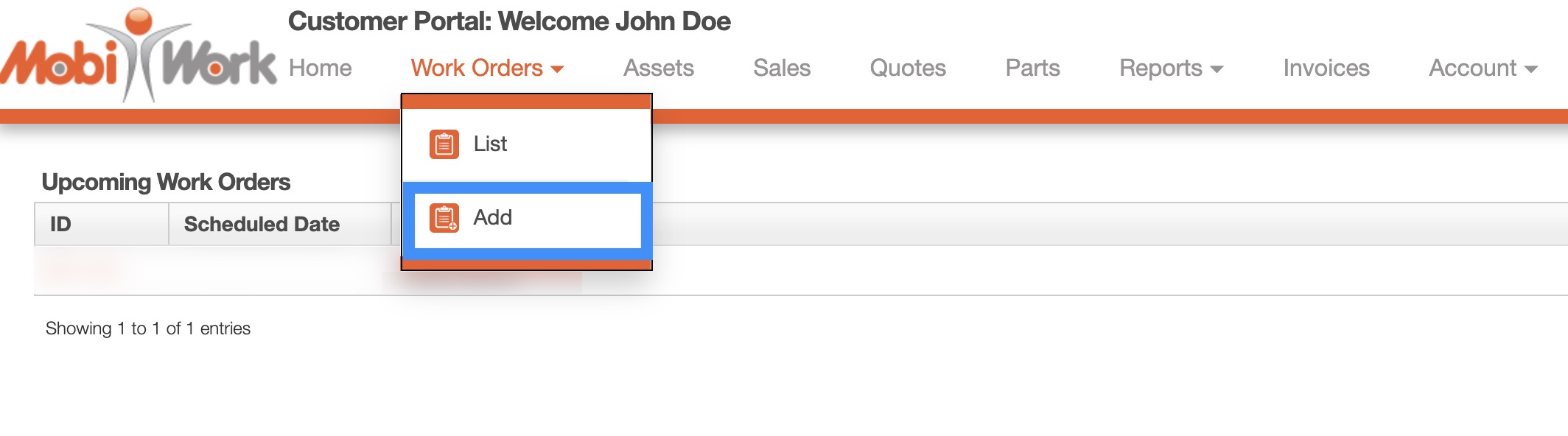
One of the easiest ways for a customer to add a new work order is by hovering over the Work Orders drop-down from the Customer Portal menu and selecting the "Add" option:
Work Orders Page
Another way a customer can add a work order is through the Work Orders page. For more information on how to access this page, please see the Work Orders page:
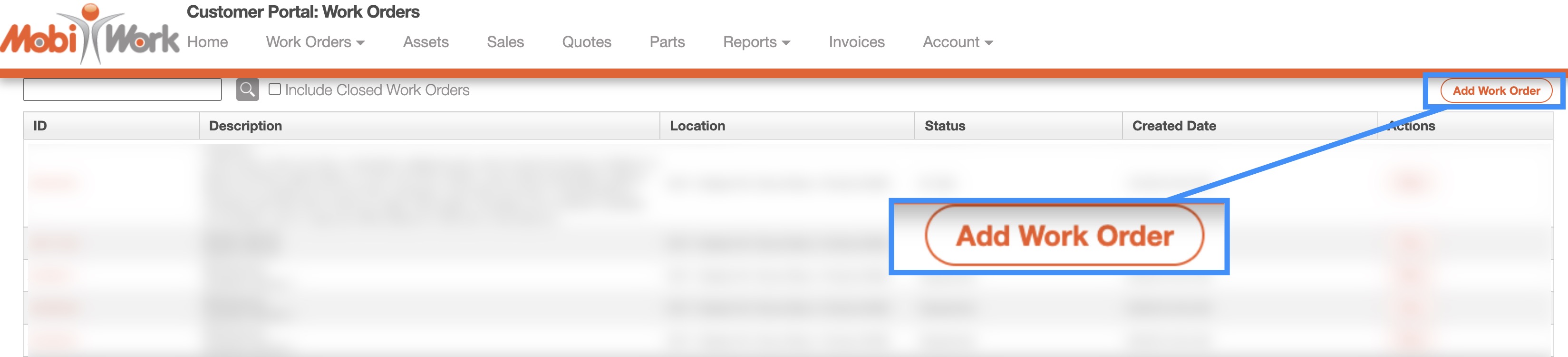
The customer can add a work order by clicking on the Add Work Order button.
Home Page
A customer will also be able to add a work order from the Home page. The customer can access this page by clicking on the Home page from the Customer Portal menu:

The customer can add a work order by clicking on the Add Work Order button.
Regardless of the method that the customer chooses to add a work order, they will be redirected to the Customer Portal: Add Work Order page:
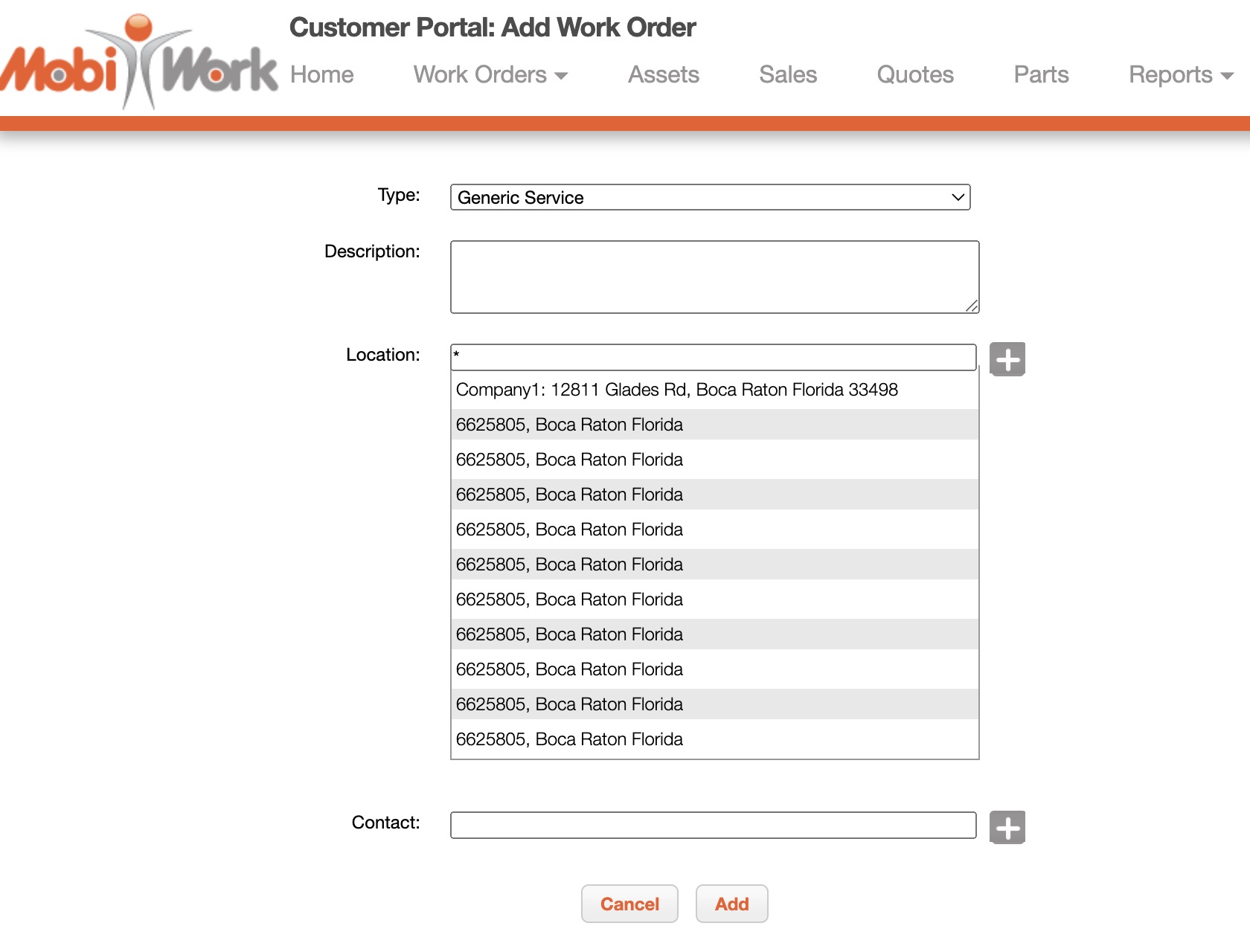
On this page, the customer should indicate:
The type of work order being performed.
A description of the work order
The location where the work order is being performed
The preferred customer contact for the work order
Once the customer is satisfied with the work order details, they should click the Add button to submit the work order.