MobiWork allows you to completely delete a payment or remove a payment from an invoice. The "Remove from Invoice" action will remove the payment from the invoice and apply it as a credit to the customer's account.
To access either action, you will first need to access the View Invoice pop-up window. For more information on how to access the View Invoice pop-up window, please see the View an Invoice page. Once you are on the View Invoice pop-up window, click on the "Payments" tab:
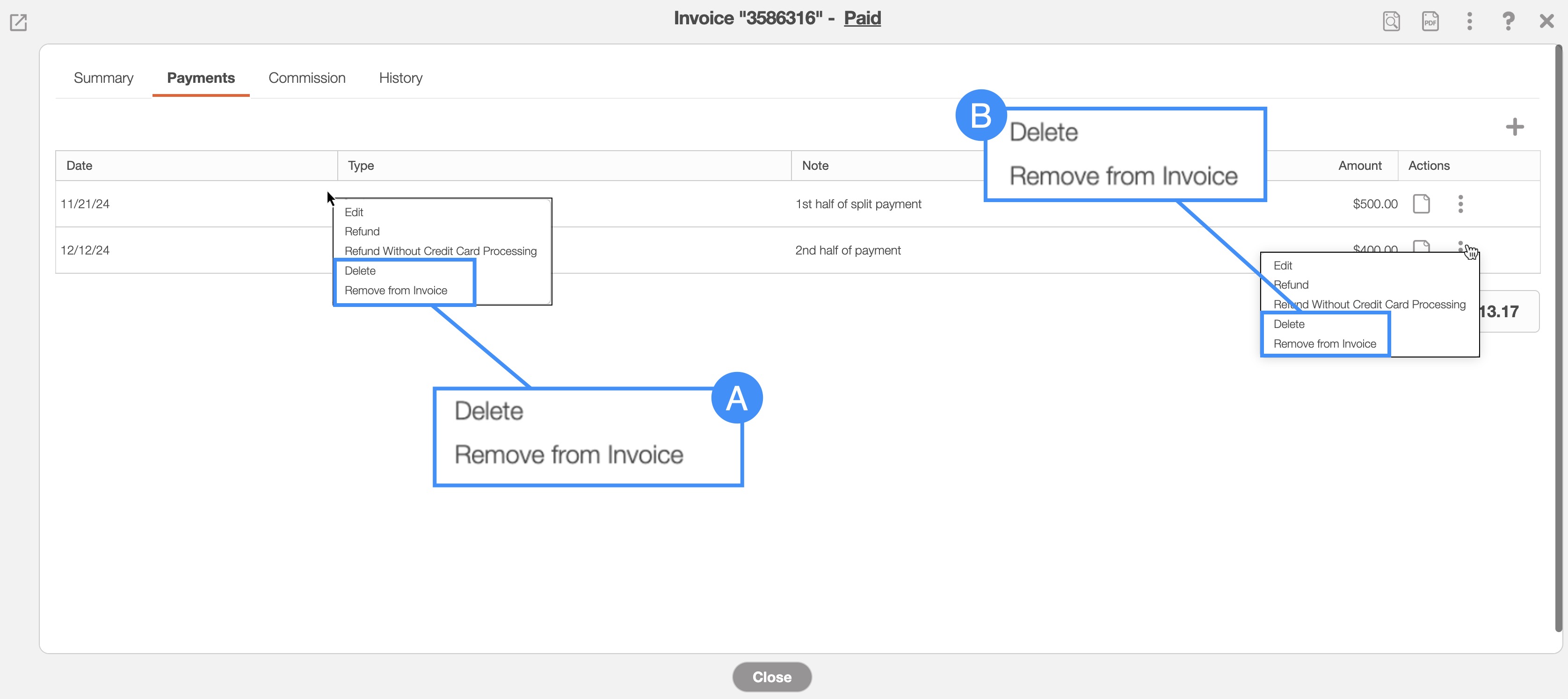
From this tab you can delete the payment or remove it from the invoice through the following actions:
Right-click on the selected payment, and from the drop-down select the "Delete" or "Remove from Invoice" the option.
Click on the Individual Actions button, and from the drop-down select the "Delete" or the "Remove from Invoice" option.
After selecting the "Delete" option in the View Invoice pop-up window, the Delete Payment pop-up window will appear:
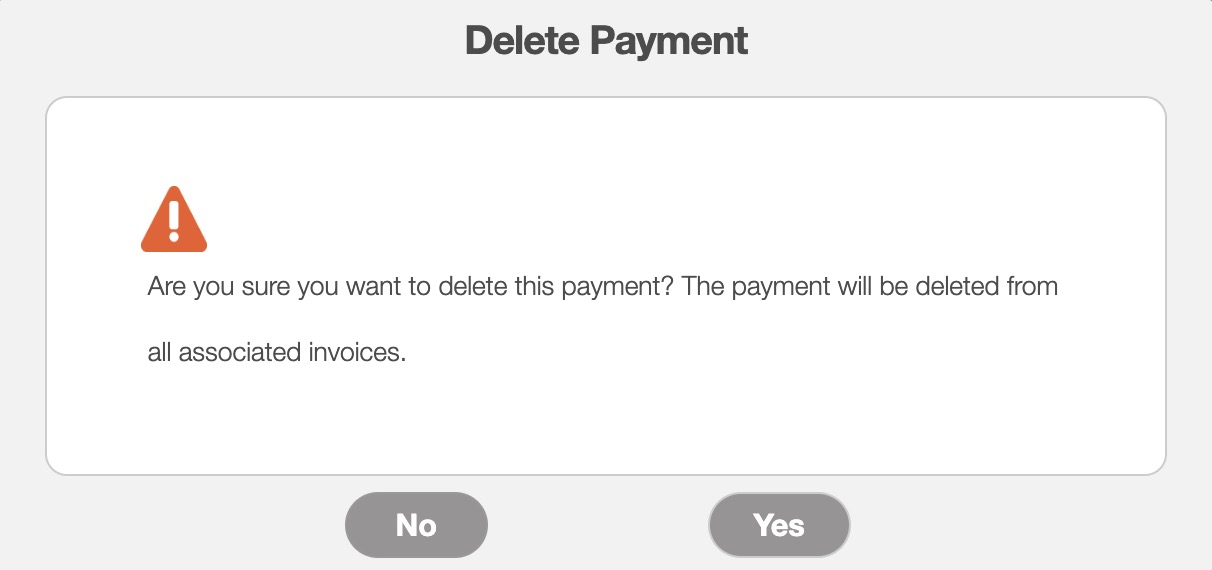
If you are positive you would like to delete the payment, click the Yes button to confirm.
Note: If a payment that was processed with a credit card processor is deleted, the payment will automatically be refunded.
MobiWork allows users to delete a payment without deleting through the payment processor. This action is helpful when a payment has already been deleted directly through the payment processor, such as Clearent or Stripe. In these cases, the payment should be removed from MobiWork without triggering a second deletion at the processor level.
This functionality helps keep MobiWork payment records synchronized with the processor while preventing duplicate deletions.
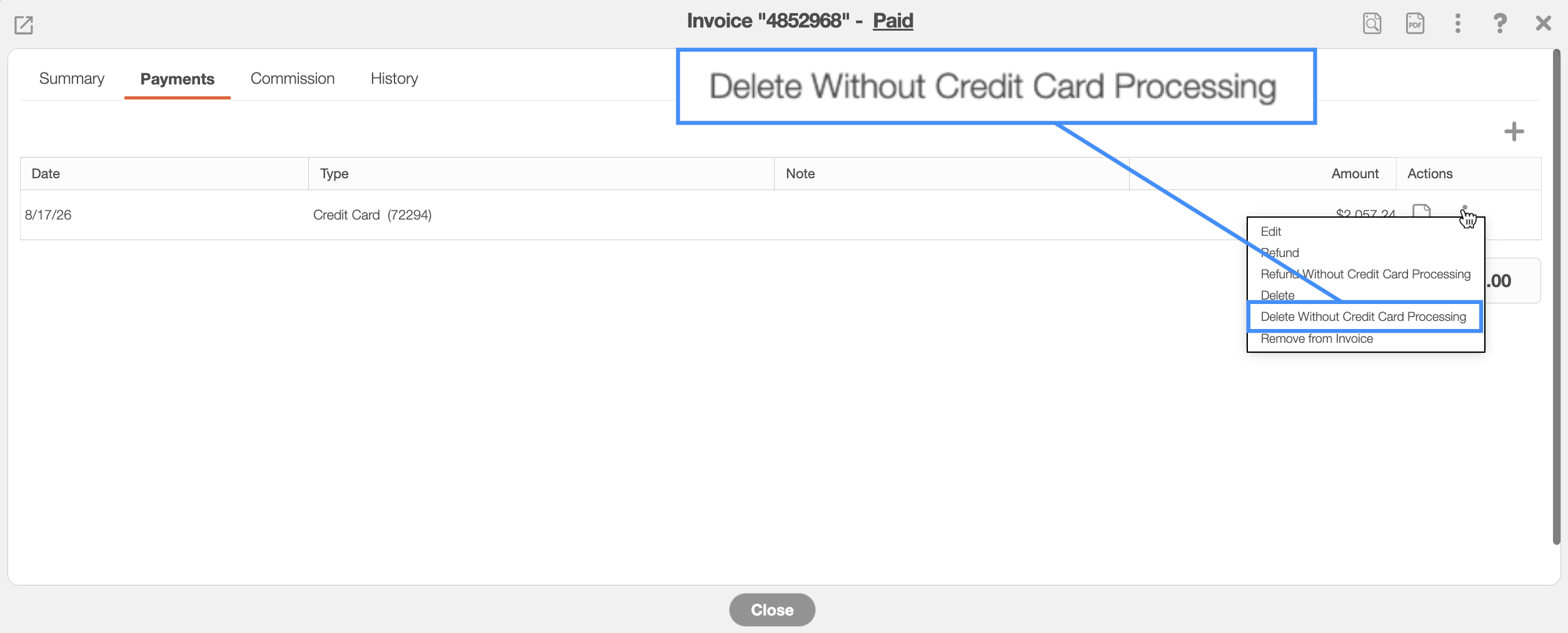
To delete the credit card payment, select the "Delete Without Credit Card Processing" option when you click on the Individual Actions drop-down of the corresponding payment:
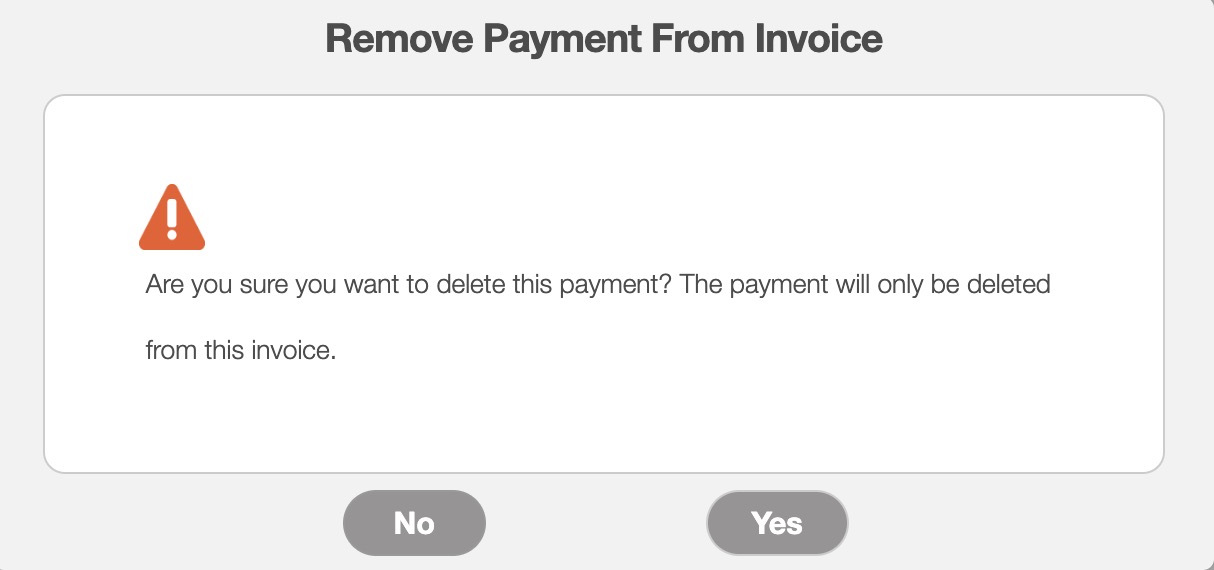
After selecting the "Remove from Invoice" option in the View Invoice pop-up window, the Remove Payment from Invoice pop-up window will appear.
To confirm removal, click the Yes button. This action will remove the payment from the invoice and transfer the funds to the customer's credit:
The credit can then be applied to future payments. For more information on how to apply customer credit for future payments, please see the Add Payment page.
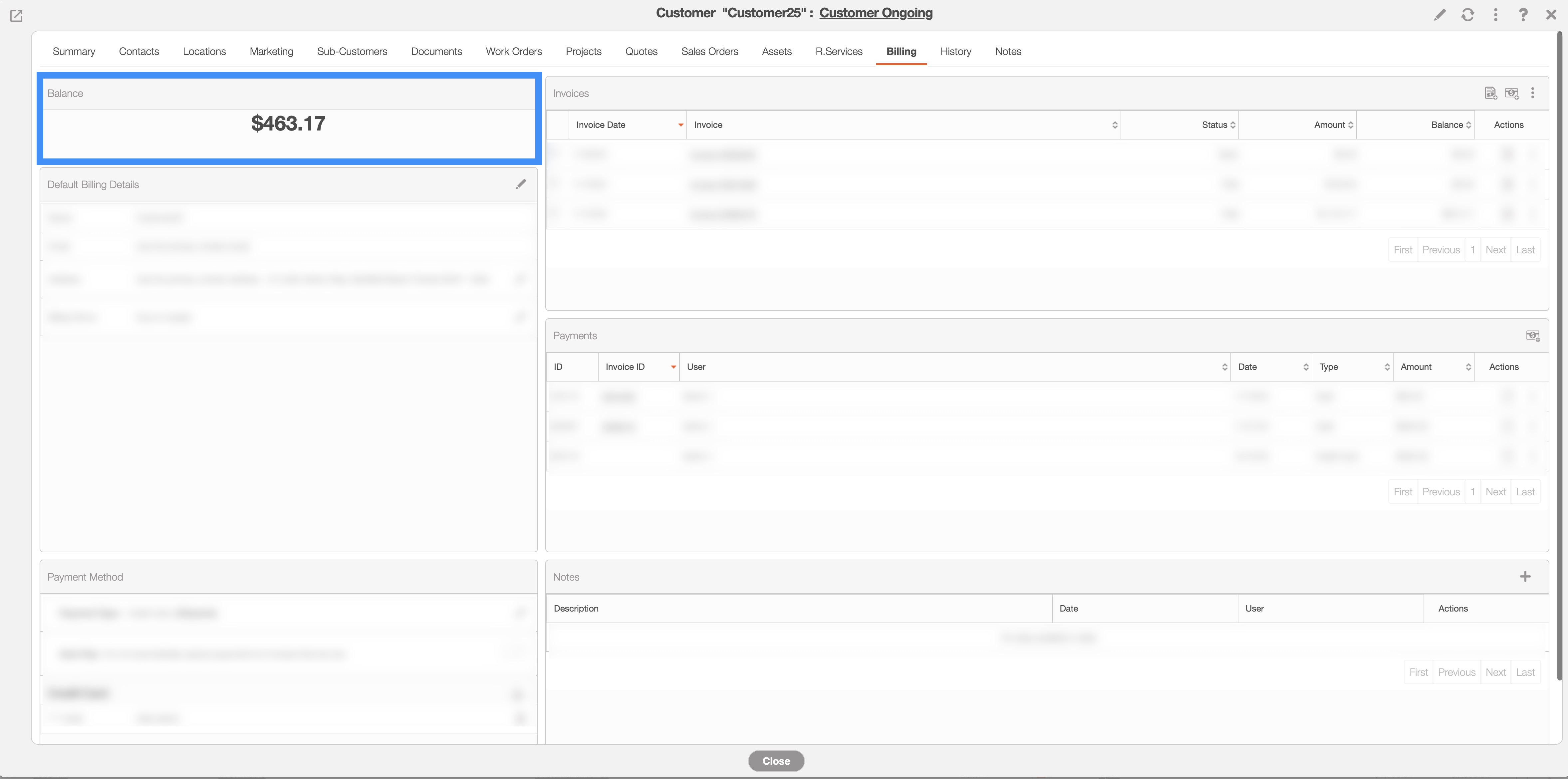
You will be able to see the customer's credit on the "Balance" panel in the View Customer pop-up window's "Billing" tab. For more information on how to access this tab, please see the View Customer page: