
There are several ways to refund a payment in MobiWork, depending on the payment method used. You can issue refunds through either the View Payment pop-up window or the View Invoice pop-up window.
In the View Payment pop-up window, you can refund payments made via cash, check, or similar methods. However, credit card payments cannot be refunded from this window.
The View Invoice pop-up window will allow you to refund all types of payments, including credit card payments. For more information on how to access these pop-up windows, please see the View Payments page or the View an Invoice page.
The sections below outline how to perform the access the "Refund" action from either the View Payment or View Invoice pop-up window.
View Payment Pop-up Window
From the View Payment pop-up window, you will be able to refund payments made via cash, check, or similar methods.
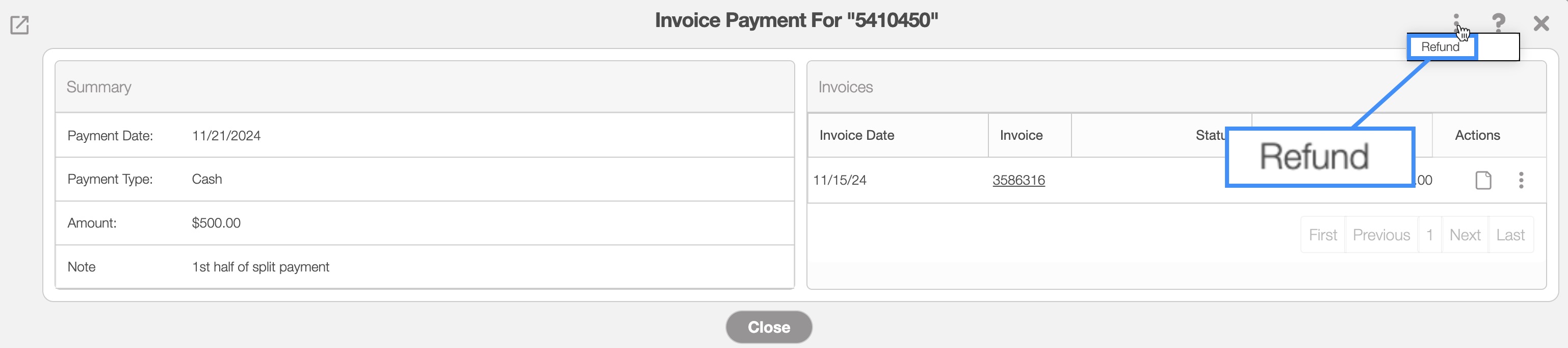
You can access the refund action from the Individual Actions button in the top-right corner of the View Payment pop-up window:
Once you click on the "Refund" action from the drop-down, the Add Refund pop-up window will appear.
View Invoice Pop-up Window
From the View Invoice pop-up window, you can refund payments made via cash, check, or similar methods, as well as payments made with credit cards:
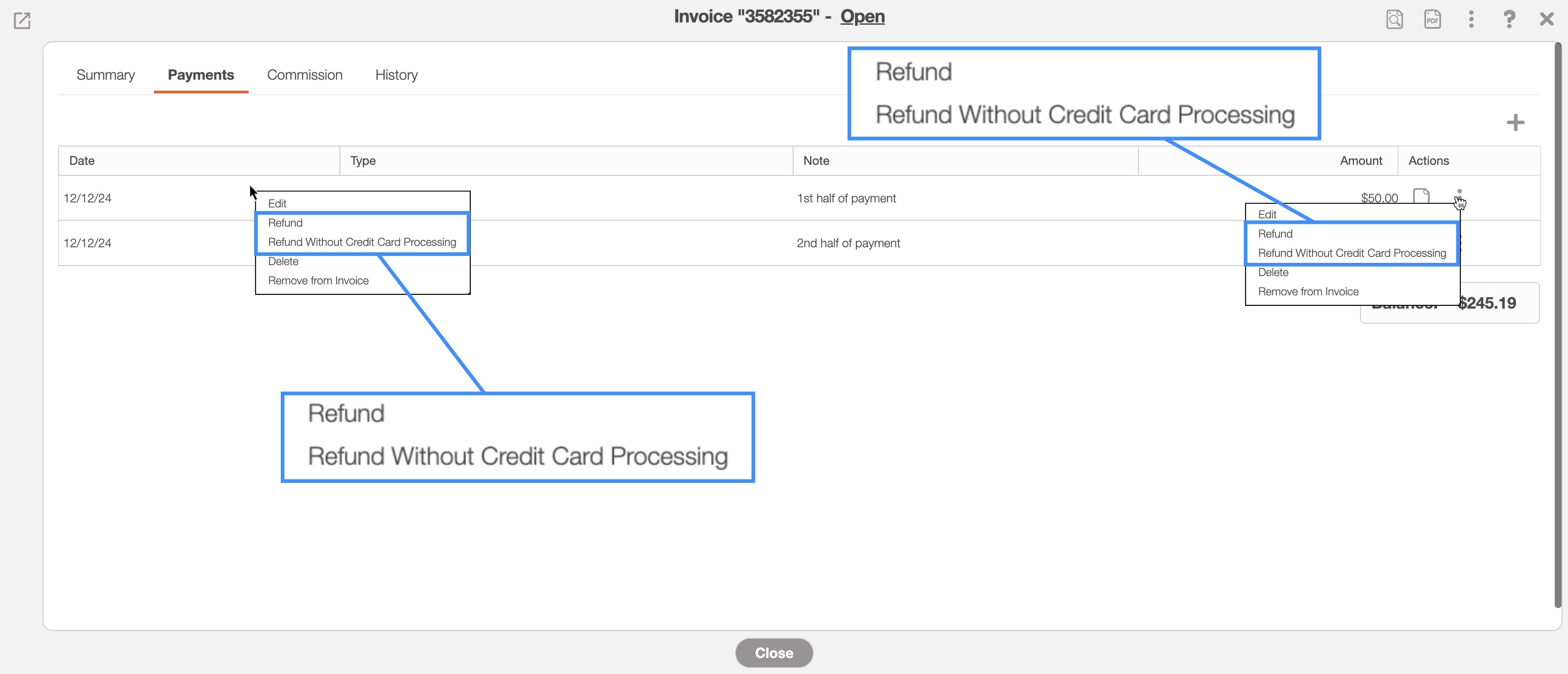
To issue a refund, navigate to the "Payments" tab in the View Payment pop-up window. Here, you can click the Individual Actions button or right-click the selected payment. From the drop-down menu, choose either the "Refund" action or the "Refund Without Credit Card Processing" action.
If the payment was processed using a credit card connector (e.g., Stripe, Clearent, or Braintree), selecting the "Refund" action will process the credit card refund directly.
Choosing the "Refund Without Credit Card Processing" action will open the Add Refund pop-up window, where you can finalize the refund details.
Note: When using the "Refund" action for a credit card payment processed through a credit card connector, the refund will automatically process the full credit card amount.
Once you have accessed the Add Refund pop-up window you can input either the full or a partial refund amount:
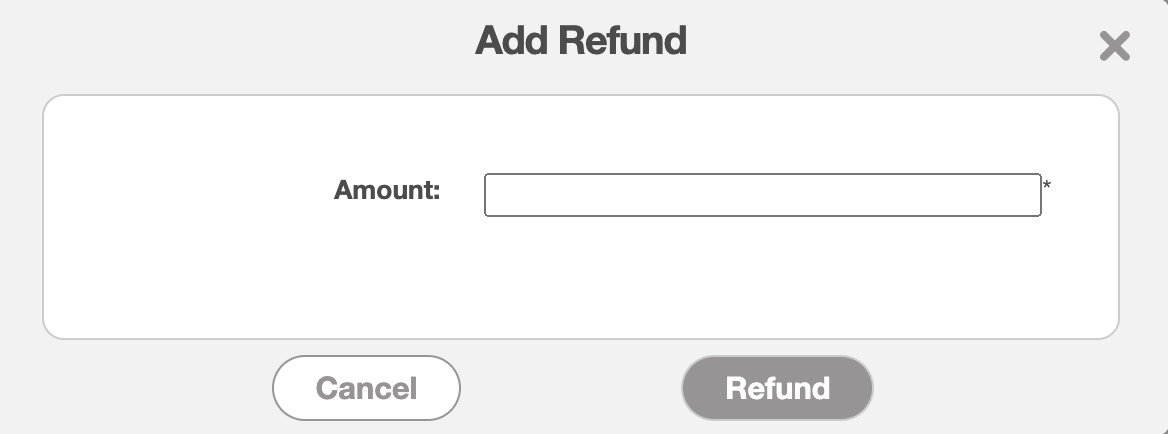
When you are satisfied with the amount, click the Refund button to process the refund. This Add Refund pop-up window will allow you to refund the payments made with cash, check, or similar method.
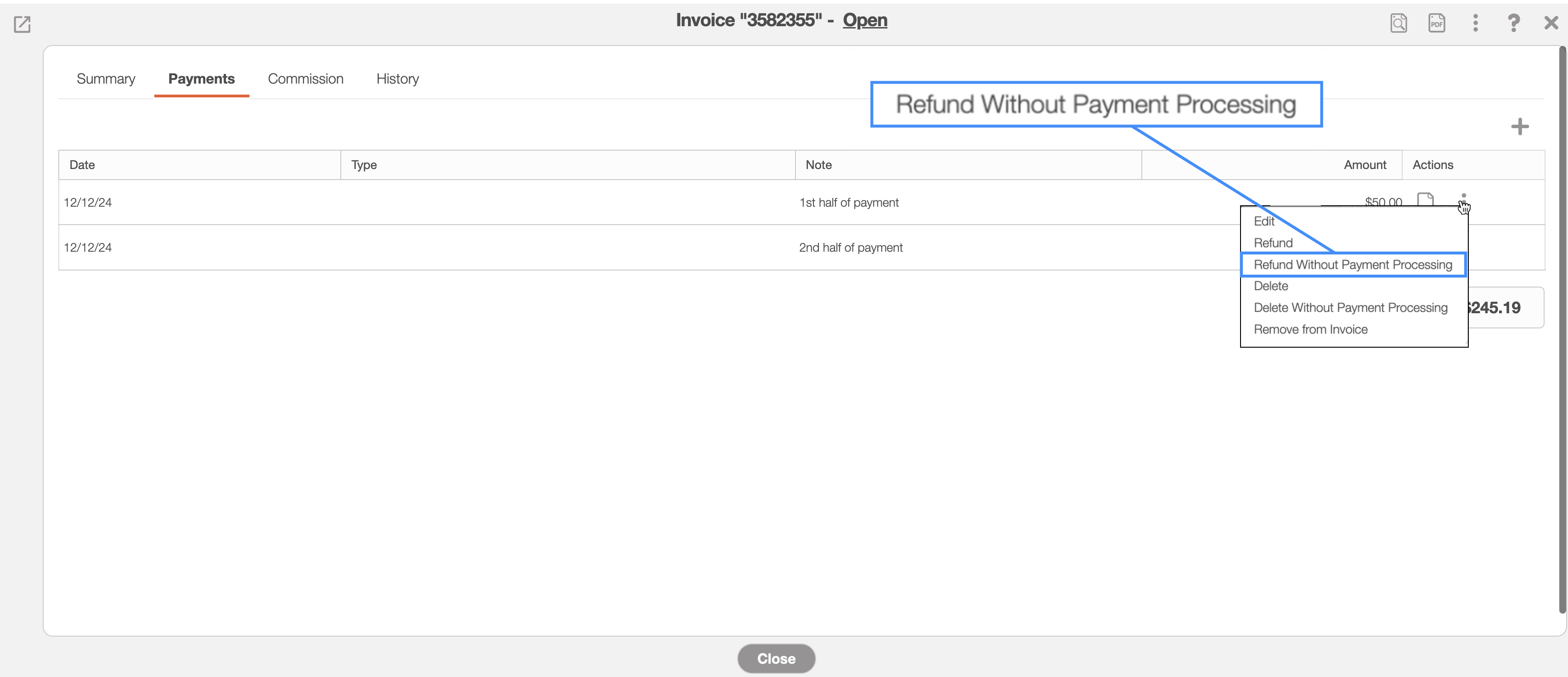
MobiWork allows users to refund a payment without initiating a refund through the payment processor. This action is helpful when a payment has already been refunded directly through the payment processor, such as Clearent or Stripe. In these cases, the payment should be removed from MobiWork without triggering a second refund transaction at the processor level.
This functionality helps keep MobiWork payment records synchronized with the processor while preventing duplicate refunds.
To refund the credit card payment, select the "Refund Without Credit Card Processing" option when you click on the Individual Actions drop-down of the corresponding payment:
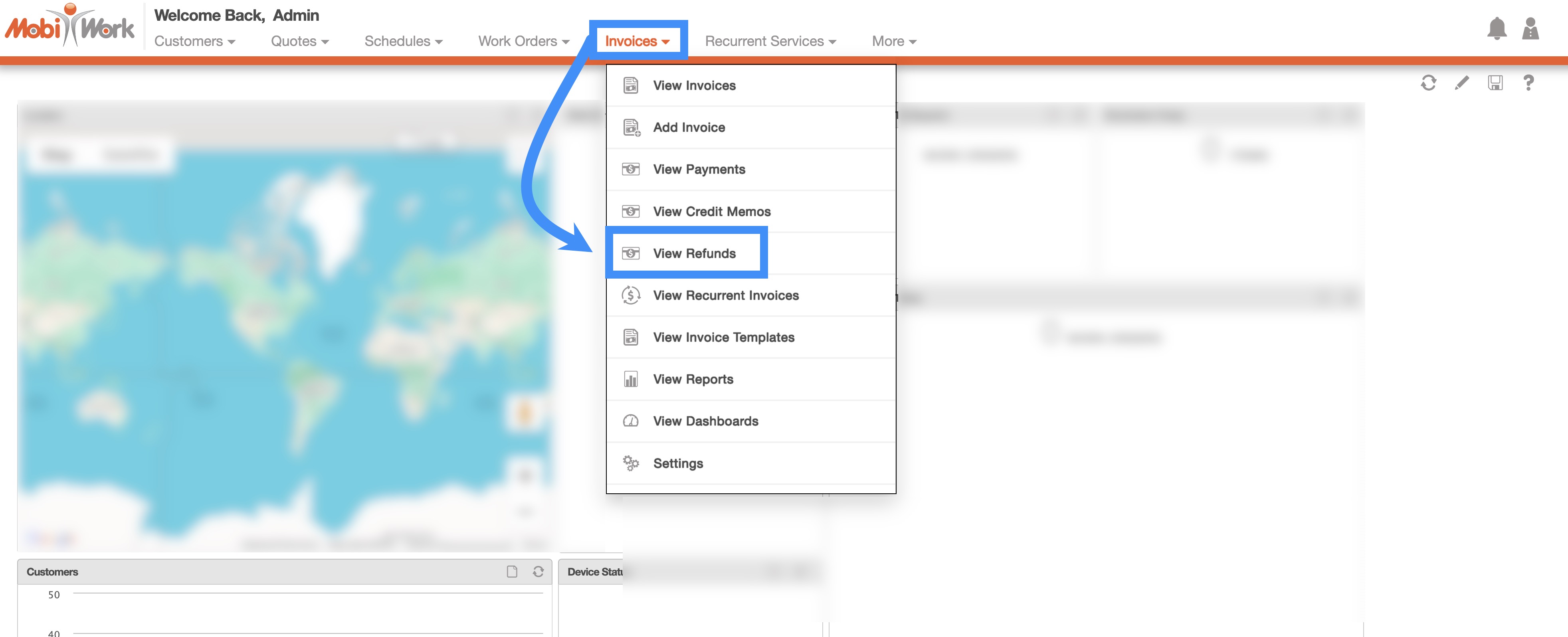
You will be able to access and view all the processed refunds on the Refunds page. You can access this page by hovering over the Invoices feature and then clicking on the "View Refunds" option:
Refund List Tab Layout
The Refunds page will be structured in a similar manner to the Payments page, consisting of a search bar, the "Global Actions", and the list columns:
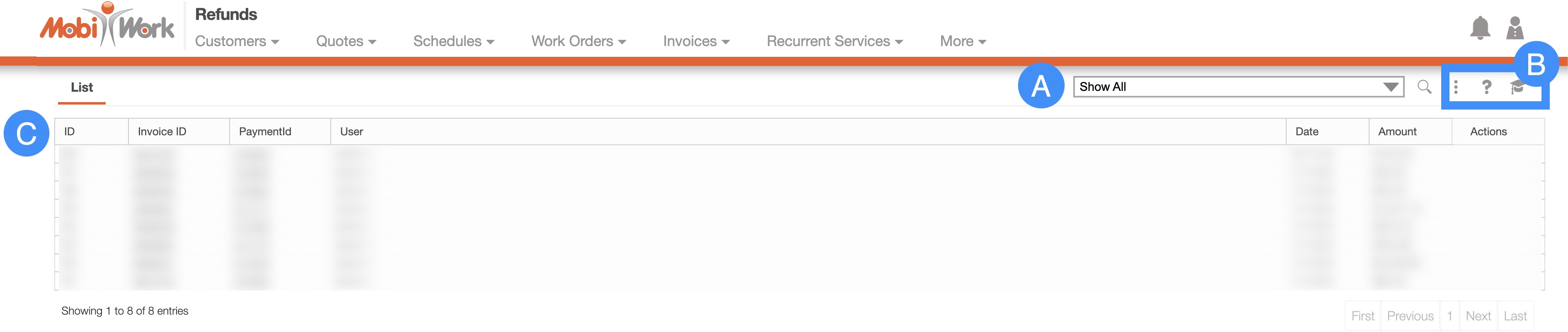
Search Area- The Search bar allows you to search through your refunds. Like the Payments page, you will be able to use the free-text search, predefined searches, new searches, and manage searches.
Global Actions- The "Global Actions" section will allow you to export a refund report, direct you to the Help page, or open the Onboarding Assistant.
List Columns- The List columns will display the ID, Invoice ID, Payment ID, Date, Amount, and Actions associated with the refund.