
There are several ways you can access the View Payment pop-up window; the following subsections will highlight some of the methods you can use in accessing the View Payment pop-up window:
Payments List Page
The easiest way to access the View Payment pop-up window is through the "List" tab. For more information on how to access the "List" tab, please see the Payments List page.
Once you are on the "List" tab, there are three different ways to access the View Payment pop-up window:
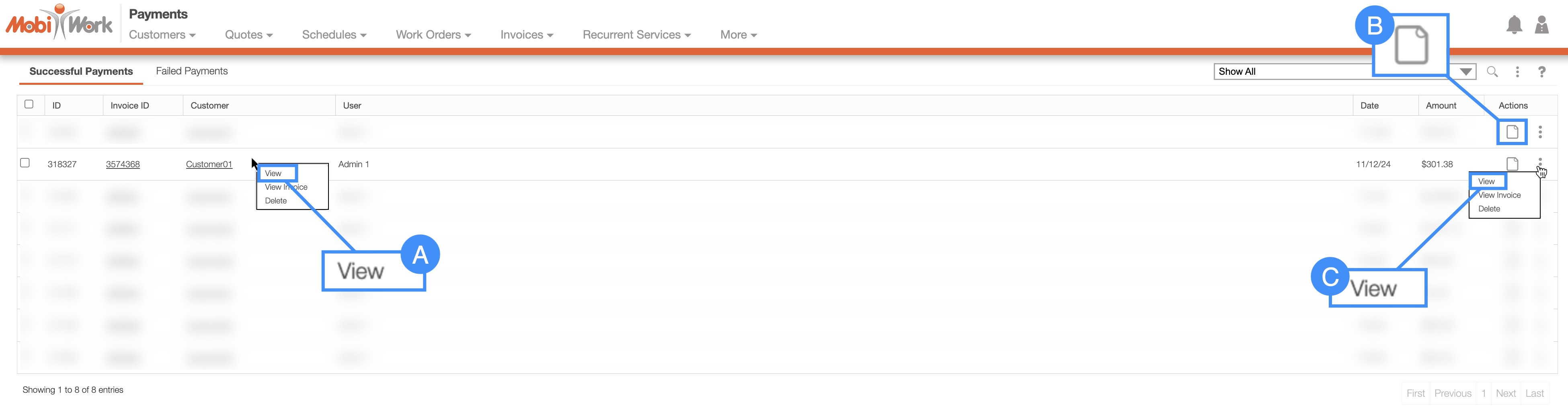
Right-click on the selected payment and click on the "View" option from the drop-down.
Click on the "View" option from the Individual Actions drop-down.
Select the View icon under the "Actions" column.
View Invoice Pop-up Window
You can access the View Payment pop-up window through the View Invoice pop-up window. For more information about how to access the View Invoice pop-up window, please see the View an Invoice page.
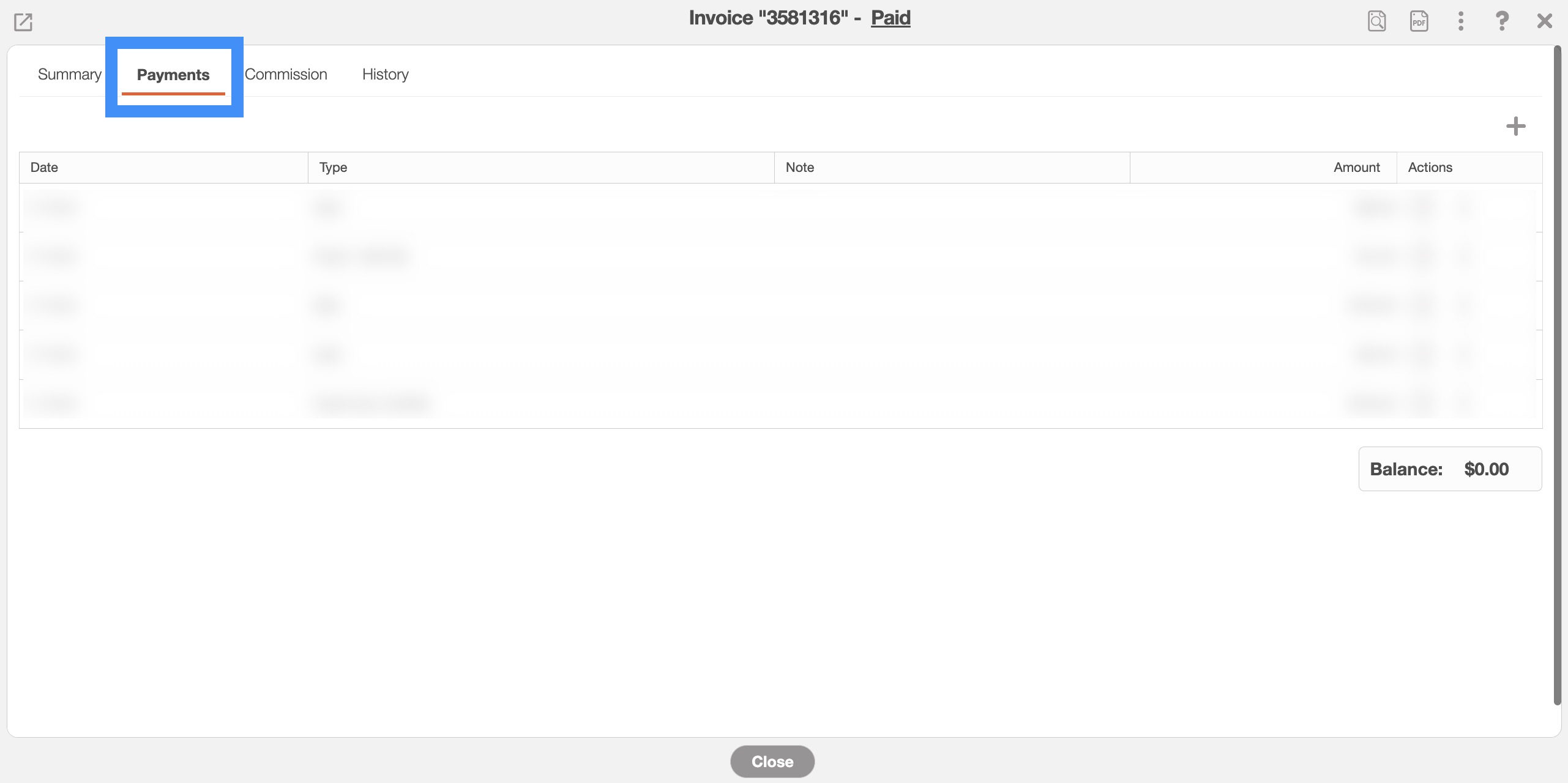
Once you are on the View Invoice pop-up window, click on the "Payments" tab:
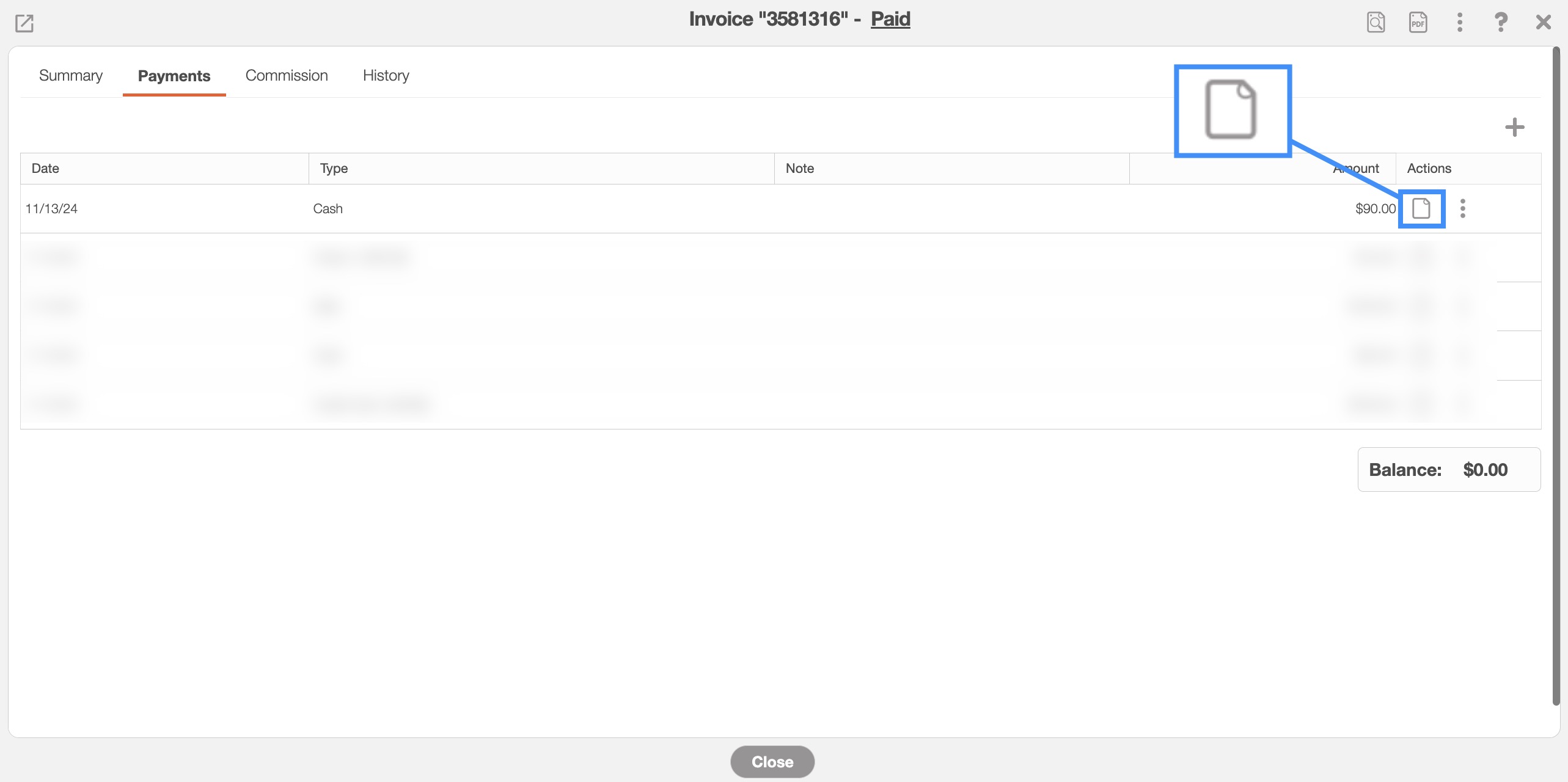
On the View Invoice "Payments" tab, you can click on the View icon to access the View Payment pop-up window:
Refund List Page
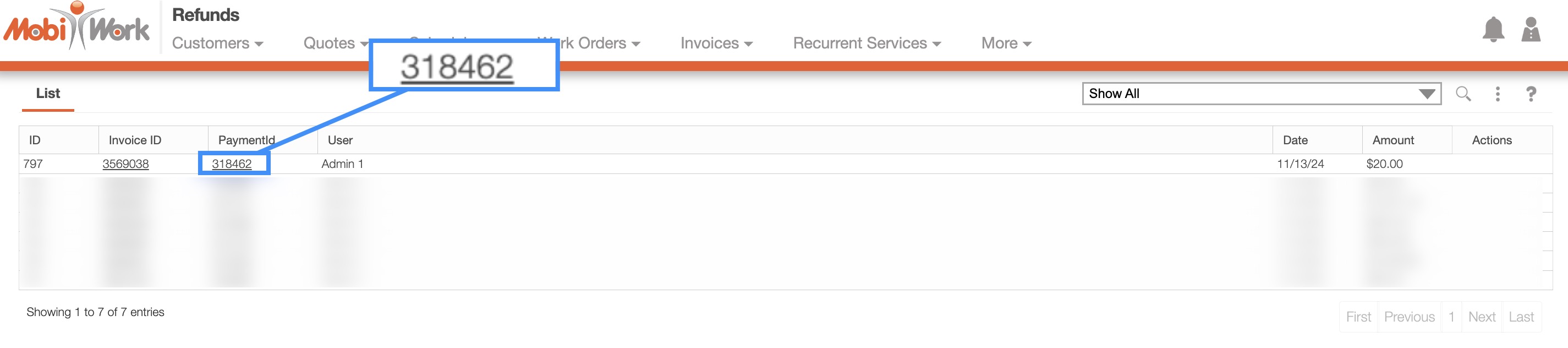
You can also access the View Payment pop-up window by clicking on the payment ID from the Refunds feature page:
For more information about refunding payments, please navigate to the Refund Payment page.
Regardless of the method you choose, the View Payment pop-up window will appear. This pop-up window will display information regarding the payment as well as allow you to refund a non-credit card payment.
More information regarding refunding payments, including credit card payments, can be found on the Refund Payment page:
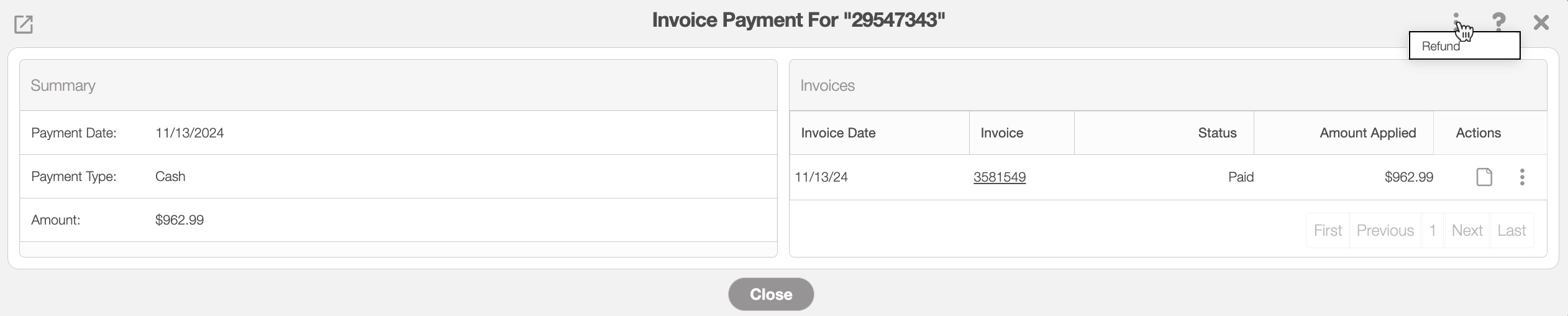
You will be able to refund the payment of a non-credit card payment by clicking on the Individual Actions button in the top right corner and from the drop-down selecting the "Refund" option.
The list of terms found in the View Payment pop-up window can be found below:
| Name: | Description: |
|---|---|
| "Payment Date" | The date that the payment was issued |
| "Payment Type" | The type of payment used for the invoice (e.g., cash, credit card, check, etc.). |
| "Amount" | The total payment amount |
| "Payment Date" | The date the payment was recorded on the invoice. |
| "Invoice ID" | The invoice ID associated with the payment |
| "Invoice Status" | The status of the invoice (i.e., "Open," "Checked Out," "Service Completed," "Customer Invoiced," "Paid," and "Cancelled") which demonstrates various stages of the invoicing process. For more information about the invoice status please see the View an Invoice page. |
| "Amount Applied" | The total payment amount allocated to the invoice. |
| "Actions" | The View icon and the Individual Actions button will allow you to access the View Invoice pop-up window. |