
There are several different ways you can add a payment; payments can be added for invoices, quotes, and even to a customer's account.
The subsections below will highlight the different ways to add a payment.
Invoice List Page
The easiest way to add a payment to an invoice is through the "List" tab. For more information on how to access the "List" tab, please see the Invoices List page.
Once you are on this tab, there are two different ways you can add a payment to the selected invoice:
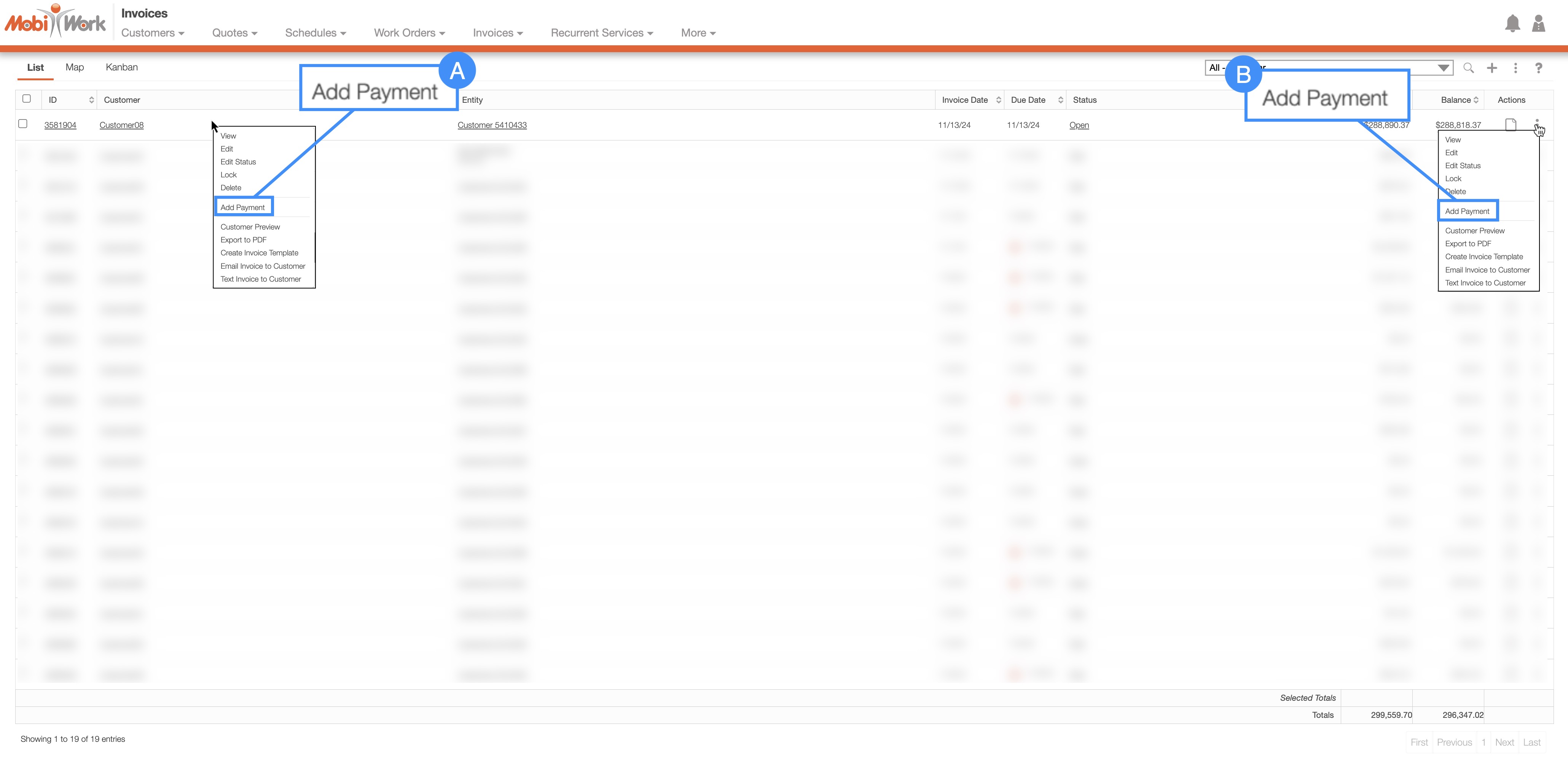
Right-click on the selected invoice and choose the "Add Payment" option from the drop-down.
Click on the Individual Actions button and from the drop-down choose the "Add Payment" option.
View Invoice Pop-up Window
Another way to add a payment to an invoice is through the View Invoice pop-up window. For more information on how to access this pop-up window, please see the View an Invoice page.
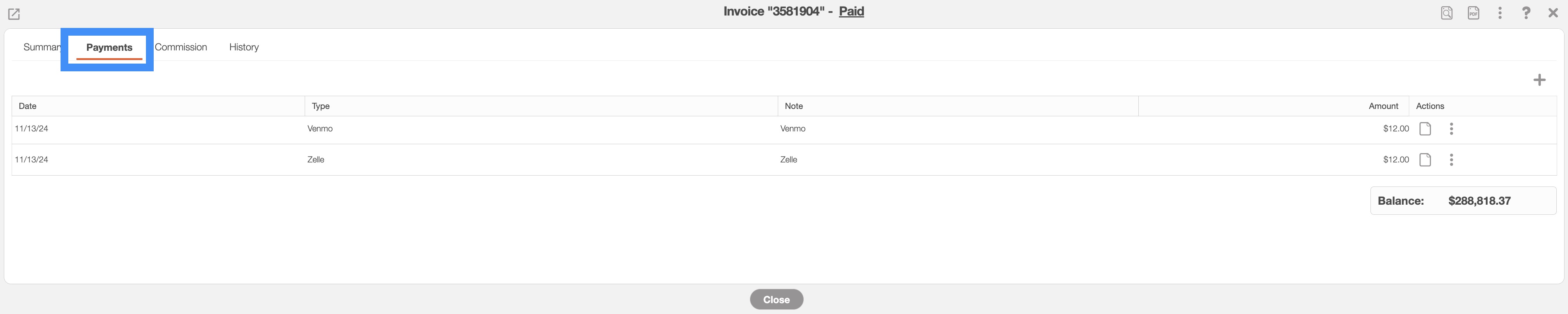
Once you are on the View Invoice pop-up window, click on the "Payments" tab:
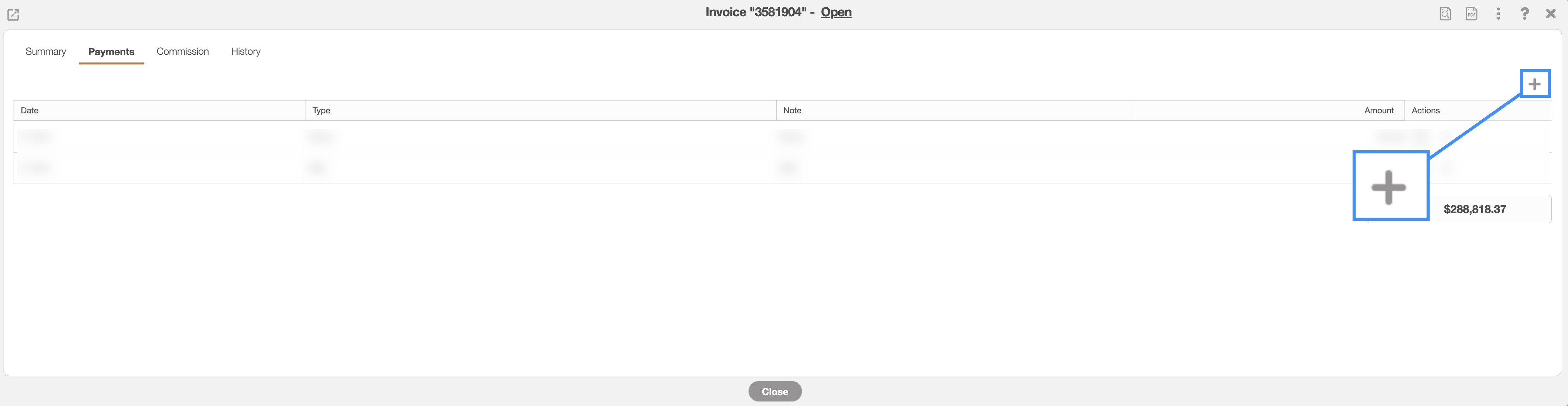
In the "Payments" tab, select the Plus Sign to add a payment to the invoice:
View Work Order Pop-up Window
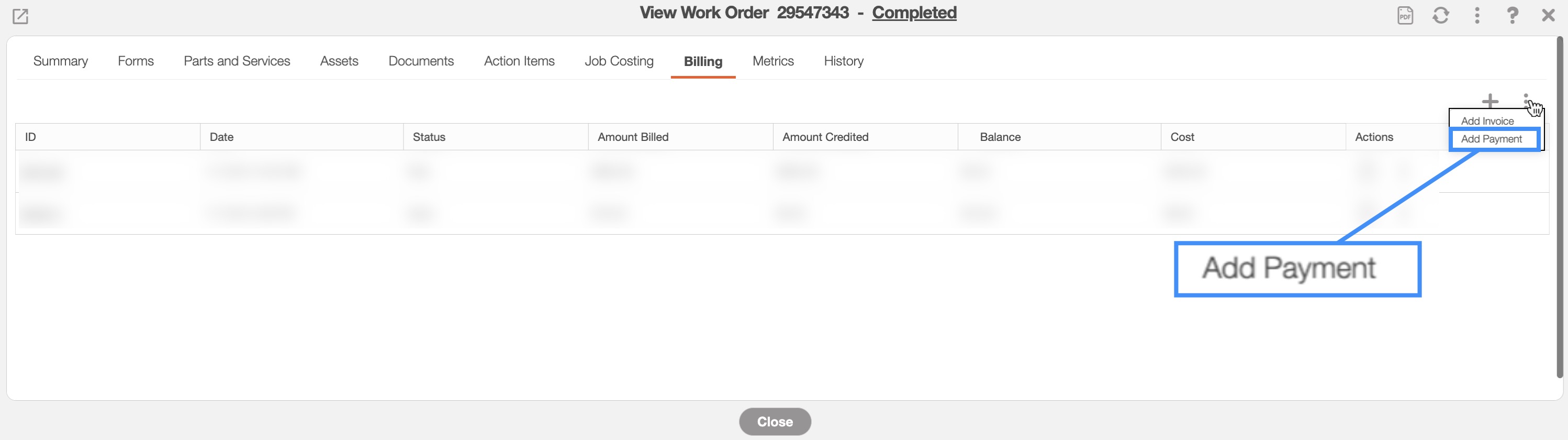
You will also be able to add a payment through the View Work Order pop-up window's "Billing" tab.
For more information on how to access this pop-up window, please see the View Work Order page:
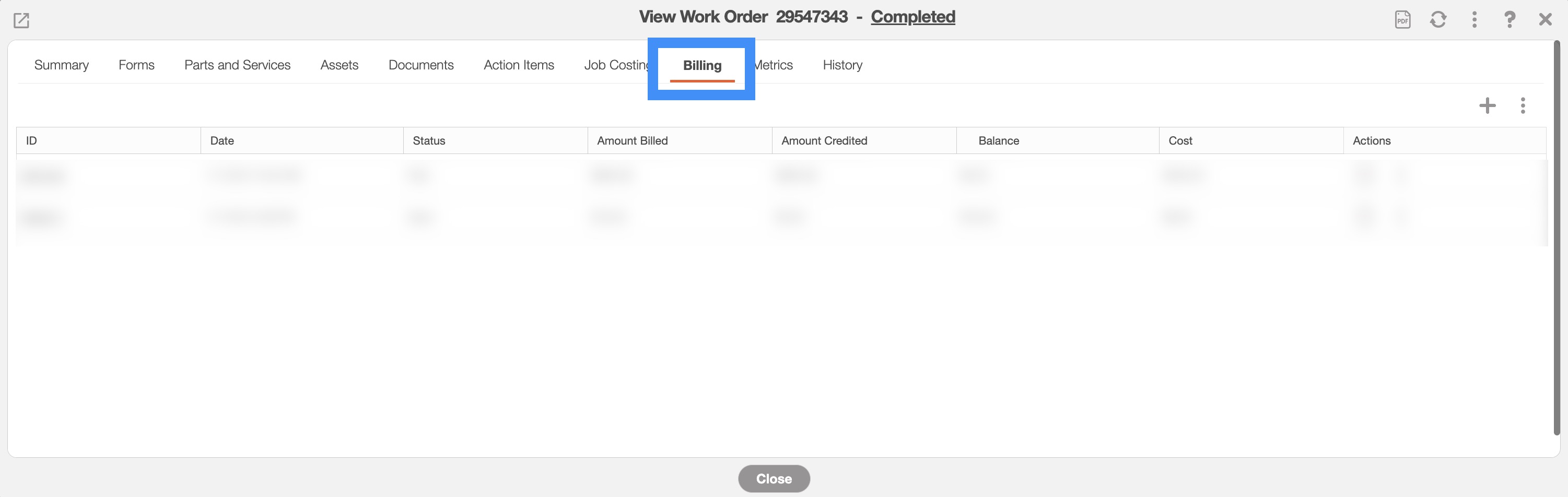
From the "Billing" tab, click on the Individual Actions button, and from the drop-down select the "Add Payment" option:
View Customer Pop-up Window
You can also issue a payment directly into a customer account by accessing the View Customer pop-up window. For more information on how to access this pop-up window, please see the View Customer page.
Once you are on the View Customer pop-up window, click on the "Billing" tab and select the "Balance" sub-tab:

In the "Balance" sub-tab, click on the Individual Actions button and from the drop-down that appears select the "Add Credit to Account" option:
Depending on how you add a payment (e.g., through the invoice, through the customer profile, or through the work order) the Add Payment pop-up window will have different options and features; the images below will highlight the differences between each of the pop-up windows.
Add Payment for an Invoice
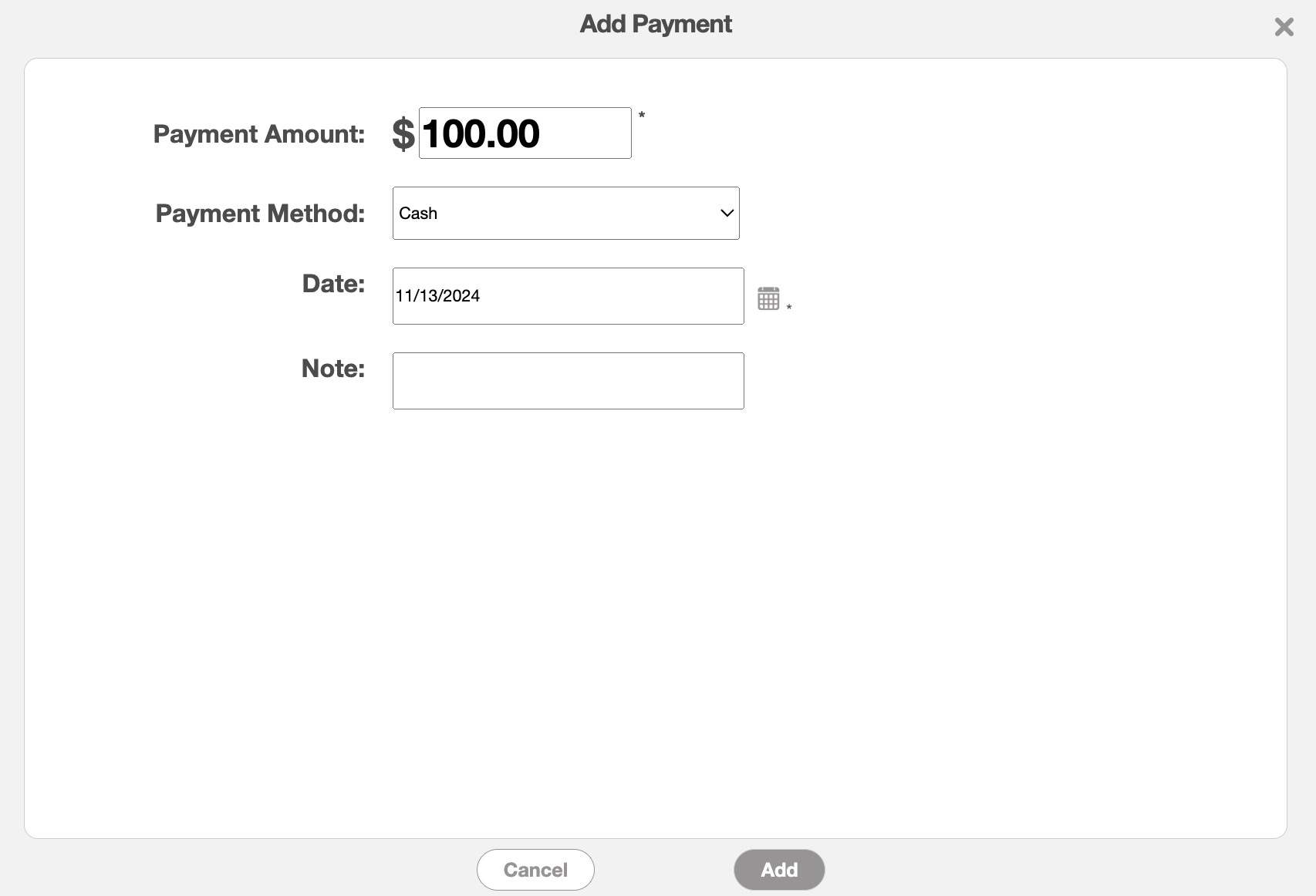
The standard Add Payment pop-up window that opens from the View Invoice pop-up window, will allow you to input the type of payment (i.e., cash, credit card, or check), the payment date, the payment amount, and any notes associated with the payment:
Add Payment for a Customer
When you add a payment through the View Customer pop-up window, the Add Payment pop-up window will open. In this Add Payment window, you can apply a single payment to multiple outstanding invoices associated with the customer. You also get the choice of using a previous credit card or adding a new credit card to the selected payments:
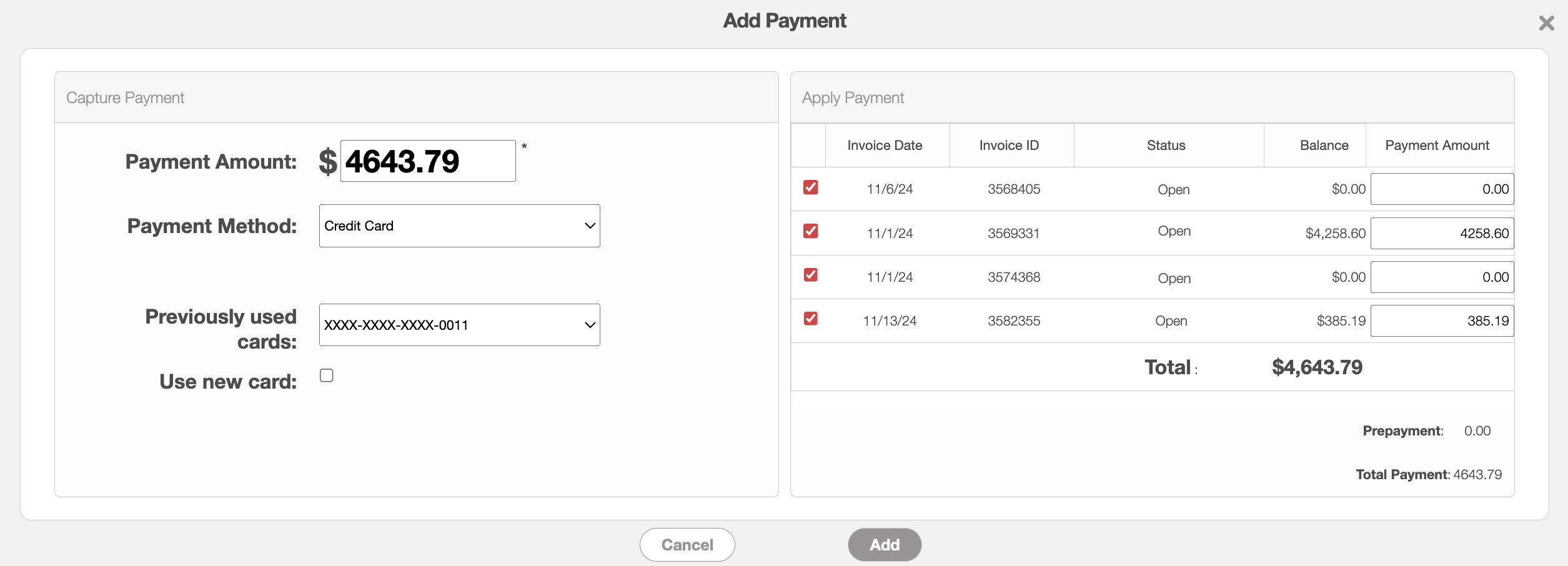
You will also be able adjust the payment amount and payment type and see the total amount of all the invoices combined.
Add Payment for a Work Order
If you add a payment from the View Work Order pop-up window, the Add Payment pop-up window will appear, but you will also have the option to decide which outstanding invoice the payment is intended for:
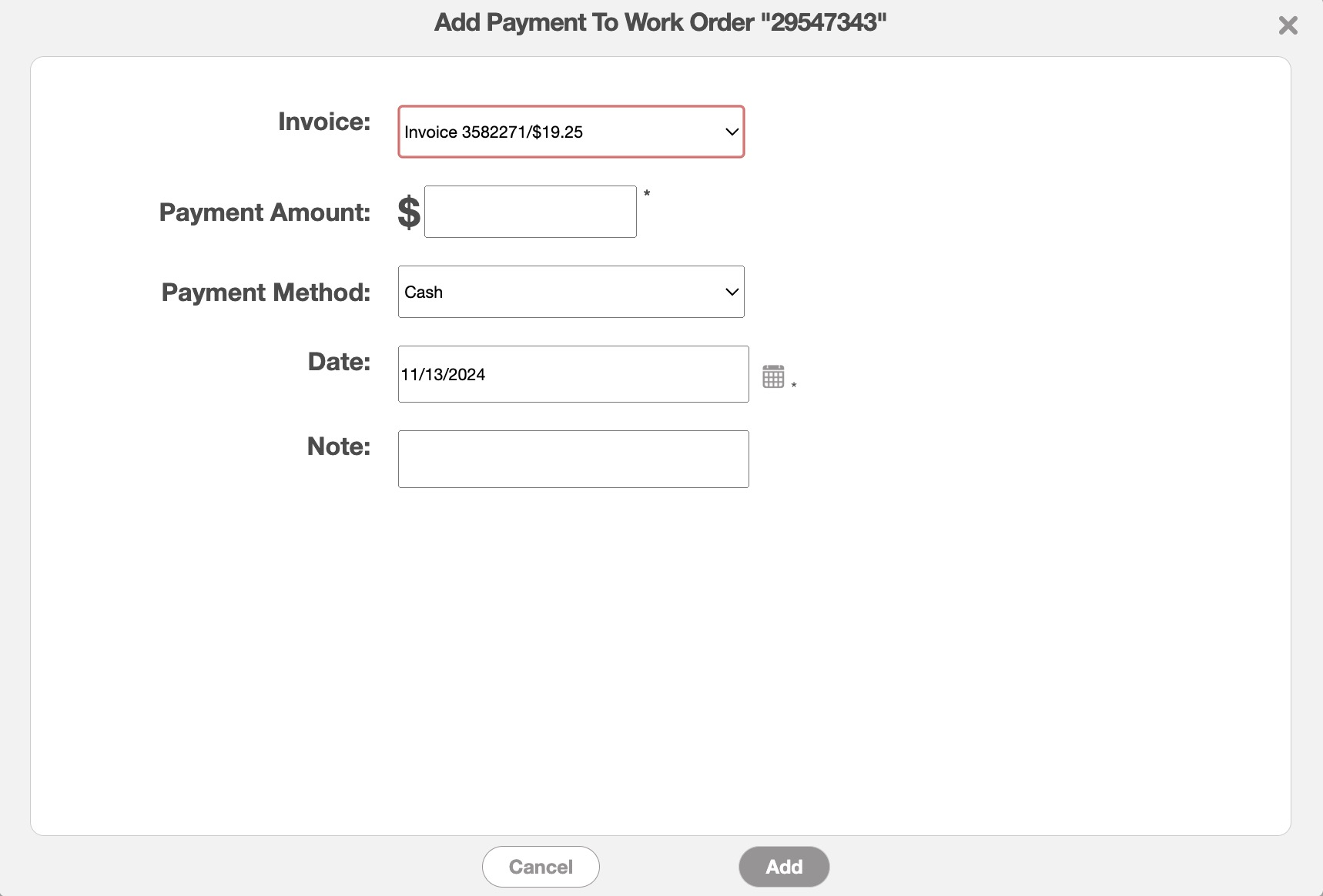
You will also be able adjust the payment amount, payment type and add a note to the payment.
Adding Payment Details
Regardless of which payment window you access, you will need to complete the following fields:
Enter the payment amount in the "Payment Amount" section (this can be either the full amount or a partial amount).
Use the "Payment Method" drop-down to indicate the method of payment (i.e., cash, credit card, or check). You will be able to select additional payment methods from your MobiWork Settings page; please see the Account Settings page for additional information.
The date will automatically register the current date (you can adjust the date by clicking the Calendar button).
For payments added to the invoice or work order, you will also be able to add a note.
Once you are satisfied with all the data, click the Add button to add the payment.
The "Cash" option is one of the default payment options that will appear from the "Payment Method" drop-down, without requiring setup in the Account Settings page. To add a cash payment to an invoice, work order, or customer account you will first need to access the Add Payment pop-up window.
Once you are on this pop-up window, use the "Payment Method" drop-down and select the "Cash" option to indicate that the payment will be rendered in cash:
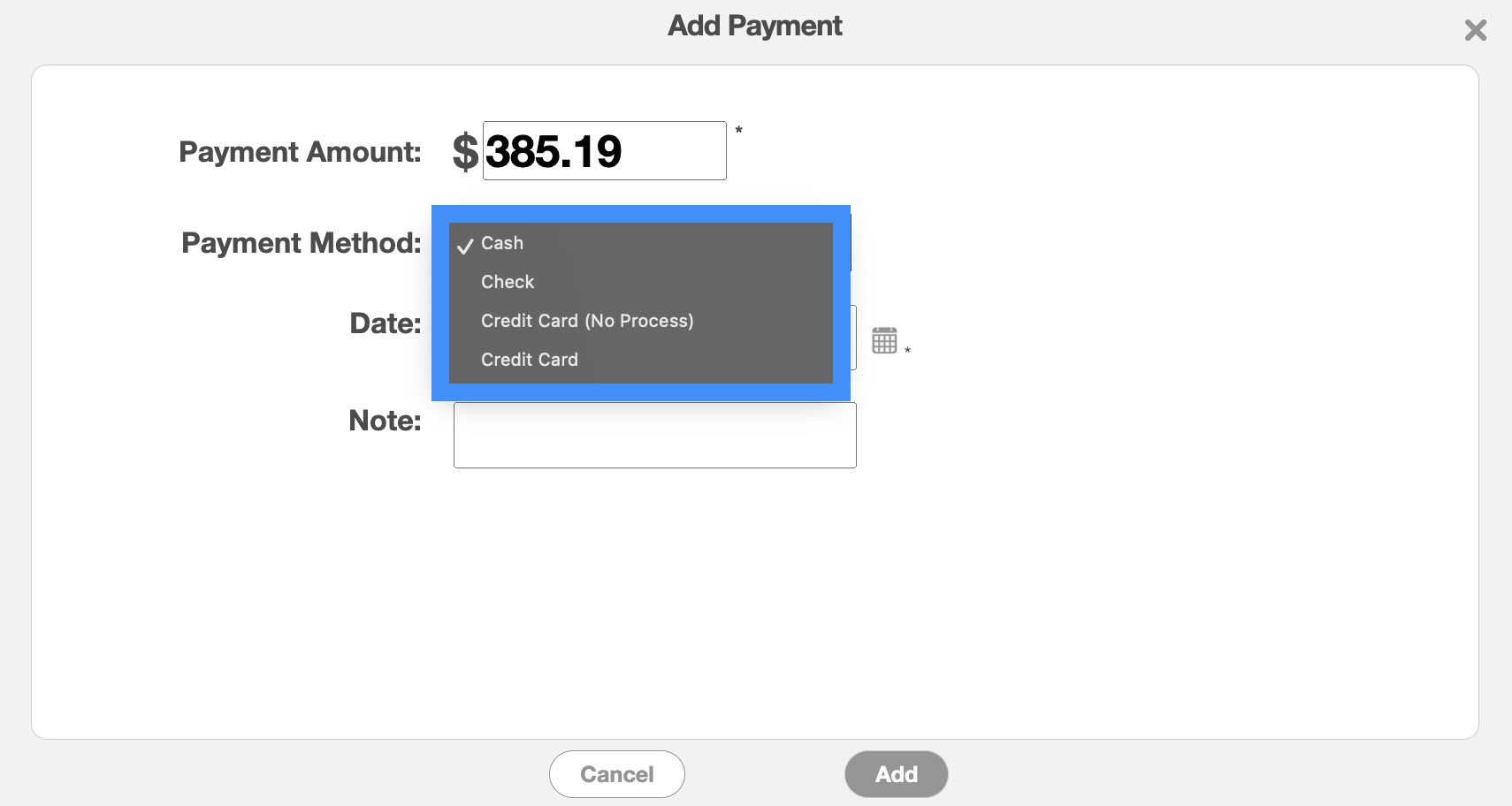
After selecting the "Cash" option, input the dollar amount and the appropriate date. Once you are satisfied with the data entered click the Add button.
The "Check" option is one of the default payment options that will appear from the "Payment Method" drop-down, without requiring setup in the Account Settings page. To add a check payment to an invoice, work order, or customer account you will first need to access the Add Payment pop-up window.
Once you are on this pop-up window, use the "Payment Method" drop-down and select the "Check" option to indicate that the payment will be paid by check:
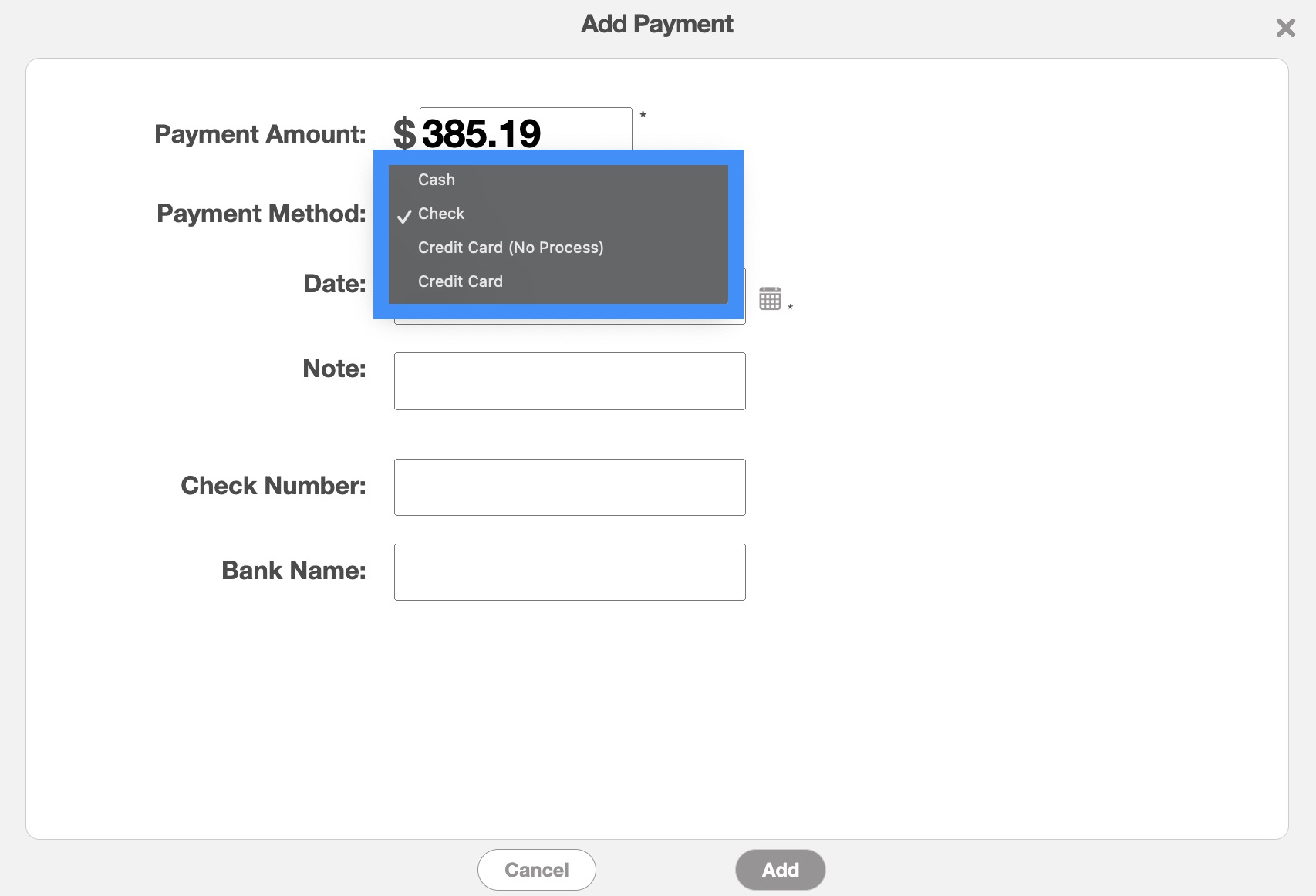
After selecting the "Check" option, input the payment amount, check number, bank name, and the appropriate date. Once you are satisfied with the data entered click the Add button.
The "Credit Card (No Process)" option is one of the default payment options that will appear from the "Payment Method" drop-down, without requiring setup in the Account Settings page.
You can use a credit card (no process) payment if you do not have a Credit Card Connector connected within MobiWork. The credit card (no process) payment will register that a credit card payment was taken with another device/system (e.g., the credit card [no process] payment is done outside of the MobiWork system but recorded for consistency). To add a credit card (no process) payment to an invoice, work order, or customer account you will first need to access the Add Payment pop-up window.
Once you are on this pop-up window, use the "Payment Method" drop-down and select the "Credit Card (No Process)" option to indicate that the payment will be issued by a credit card on another system/device:
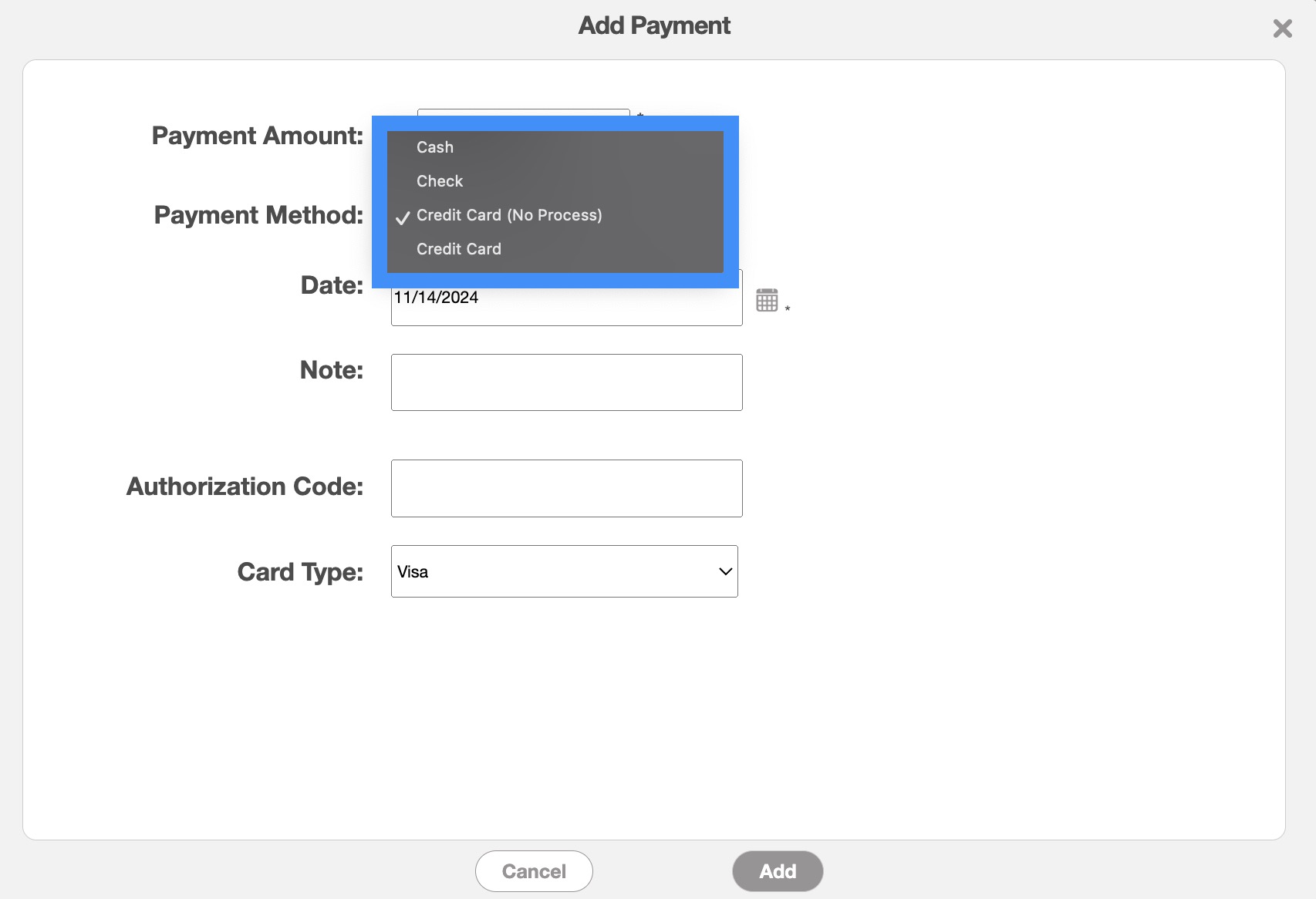
After selecting the "Credit Card (No Process)" option, input the payment amount and the appropriate date. Once you are satisfied with the data entered click the Add button.
The "Credit Card" option is one of the default payment options that will appear from the "Payment Method" drop-down, without requiring setup in the Account Settings page. The "Credit Card" payment option will only display if you have a Credit Card Connector connected within MobiWork (e.g., Clearent, Braintree, or Stripe). This option will register both the payment and card details, unlike the "Credit Card (No Process)" option, which only logs a record of the transaction without processing the card information.
For more information about how to add a Credit Card Connector, please see the Clearent or Stripe sections.
To add a credit card payment to an invoice, work order, or customer account you will first need to access the Add Payment pop-up window.
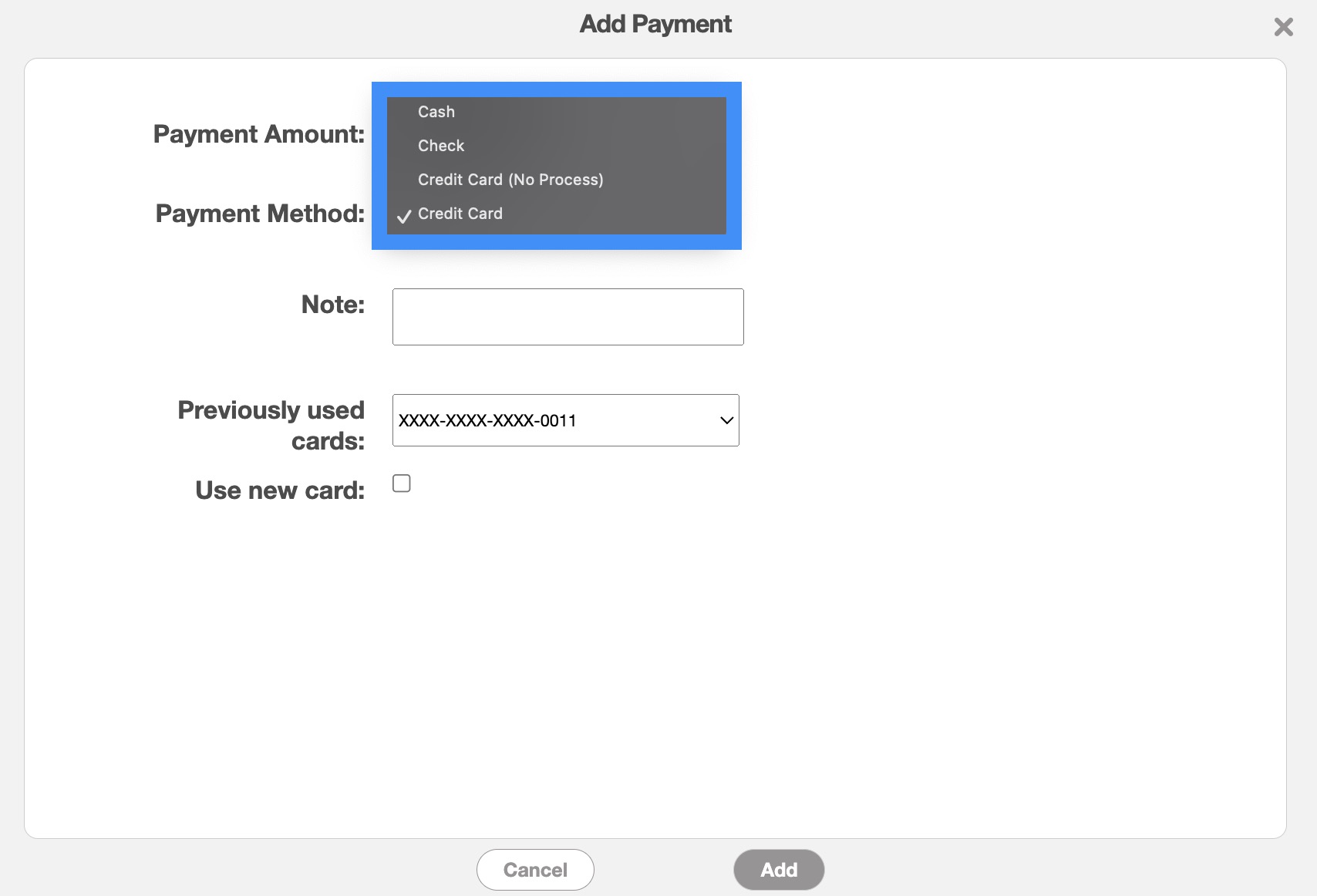
Once you are on this pop-up window, use the "Payment Method" drop-down and select the "Credit Card" option to indicate that the payment will be issued by a credit card:
After selecting the "Credit Card" option, input the payment amount, credit card information, and the appropriate date. Once you are satisfied with the data entered click the Add button.
Note: This credit card can be saved for future payments, auto pay, or batch payments.
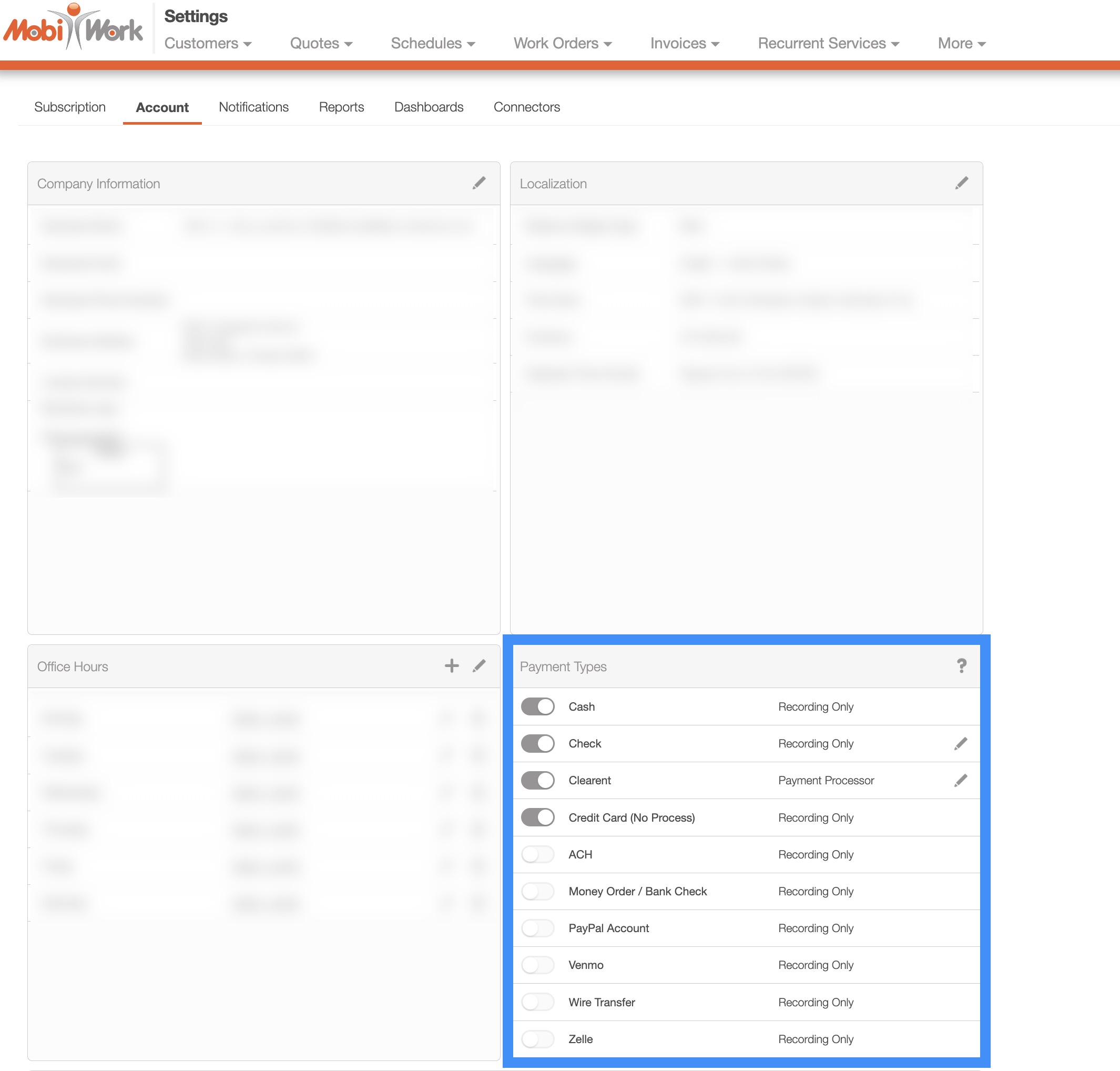
The "ACH" payment option for Clearent will not be available by default. To ensure that the "ACH" payment is active, you will first need to activate it from the Account Settings page.
Make sure that the Clearent toggle is activated; this toggle will encompass all payments with your Clearent payment processor, including credit cards. Edit the Clearent payment type by clicking the Pencil icon:
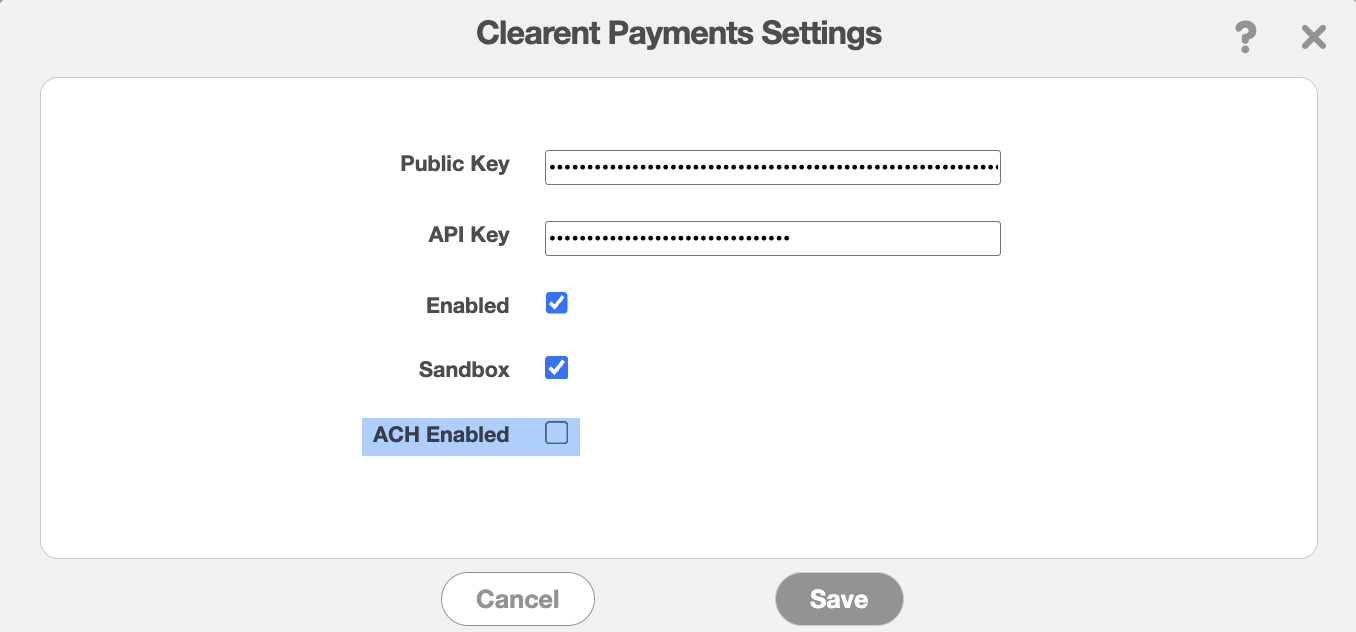
The Clearent Payment Settings pop-up window will appear. In this pop-up window, ensure that the "ACH Enabled" checkbox is marked:
Once this payment type is updated, you will be able to record the ACH payment details. To add the ACH payment to an invoice, work order, or customer account you will first need to access the Add Payment pop-up window.
Once you are on this pop-up window, use the "Payment Method" drop-down and select the "Credit Card" option to indicate that the payment will be issued through your Clearent connector:
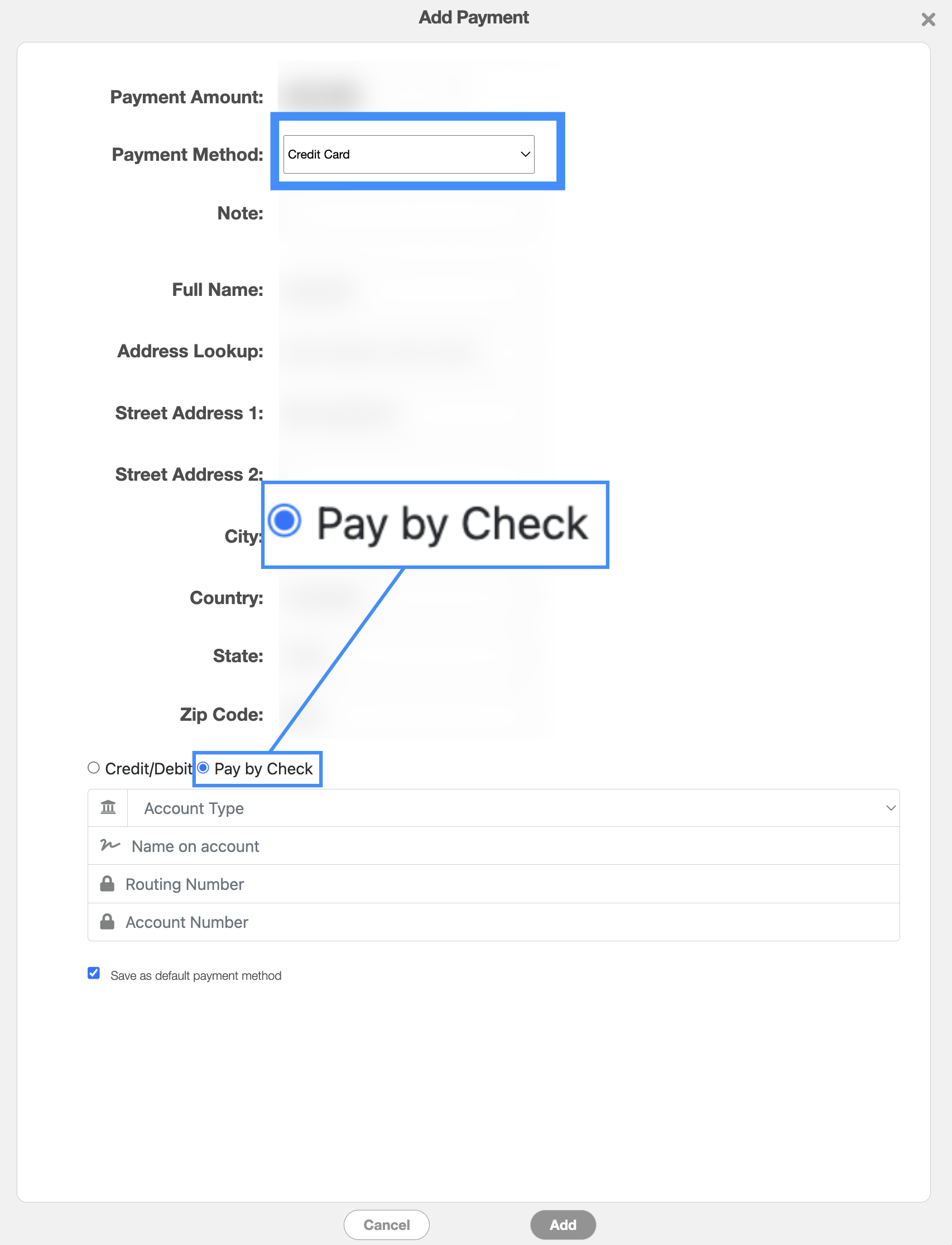
After selecting the "Credit Card" option, you can choose to pay with credit card or check. To pay with check, select the "Pay by Check" option. You will then be able to input the account type, the name of the account holder, the routing number, and the account number. Once you are satisfied with the data entered click the Add button.
Note: Please note these ACH payments are only supported if the Clearent connector is installed and configured on your MobiWork account. For more information about the Clearent Connector, please see the Clearent page. For more information on how to issue an ACH payment with Stripe, please see the Stripe Connector page.
The "ACH (No Process)" payment option will not be available by default. In order to process an "ACH (No Process)" payment, you will first need to activate it from the Account Settings page:
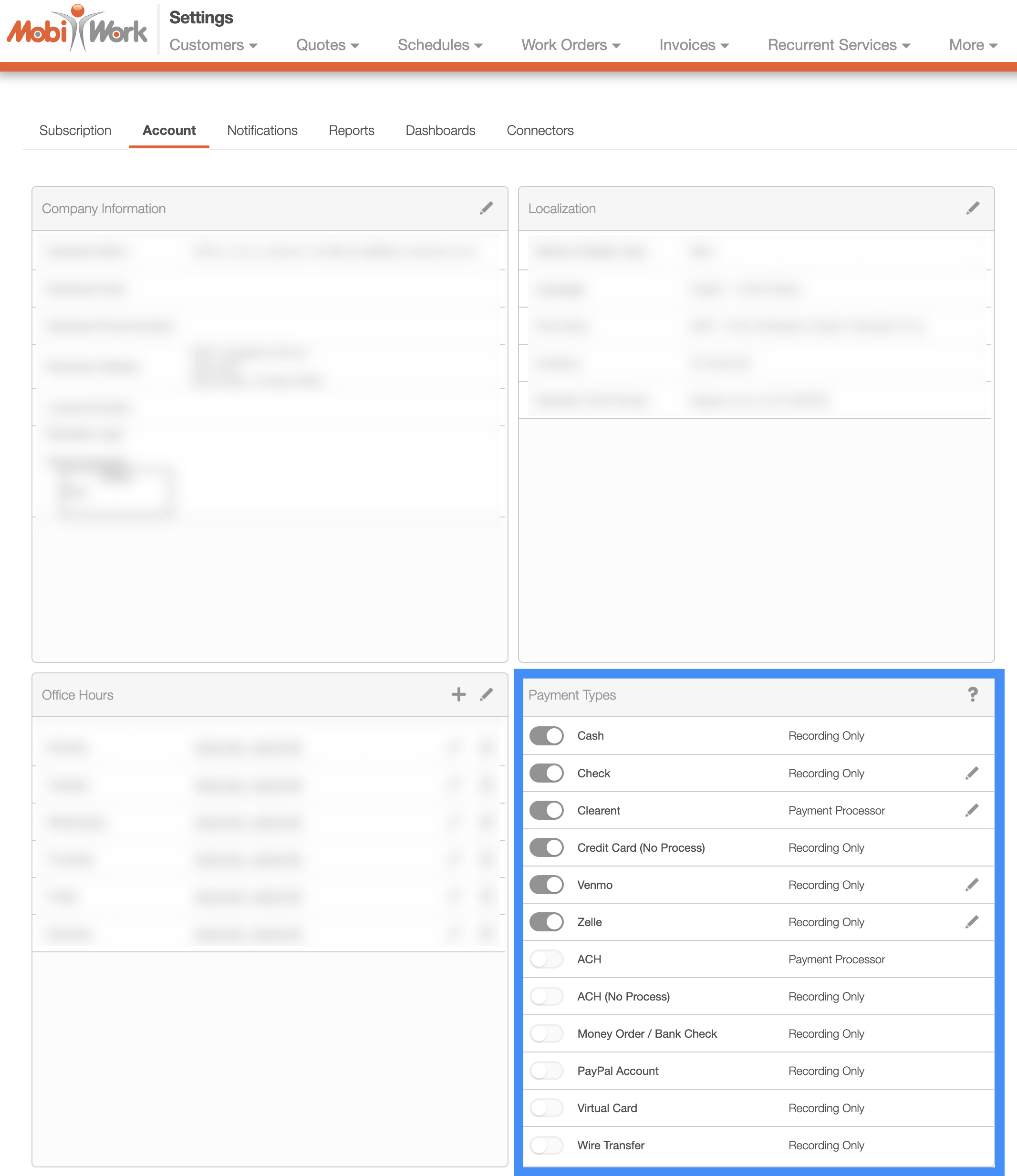
Once this payment type is toggled, you will be able to record the ACH payment details. You can use the "ACH (no process)" payment if you do not have a Credit Card Connector connected within MobiWork. The ACH (no process) payment will register that an ACH payment was taken with another device/system (e.g., the ACH [no process] payment is done outside of the MobiWork system but recorded for consistency).
To add the ACH payment to an invoice, work order, or customer account you will first need to access the Add Payment pop-up window. Once you are on this pop-up window, use the "Payment Method" drop-down and select the "ACH (No Process)" option to indicate that the payment will be issued on another system/device:
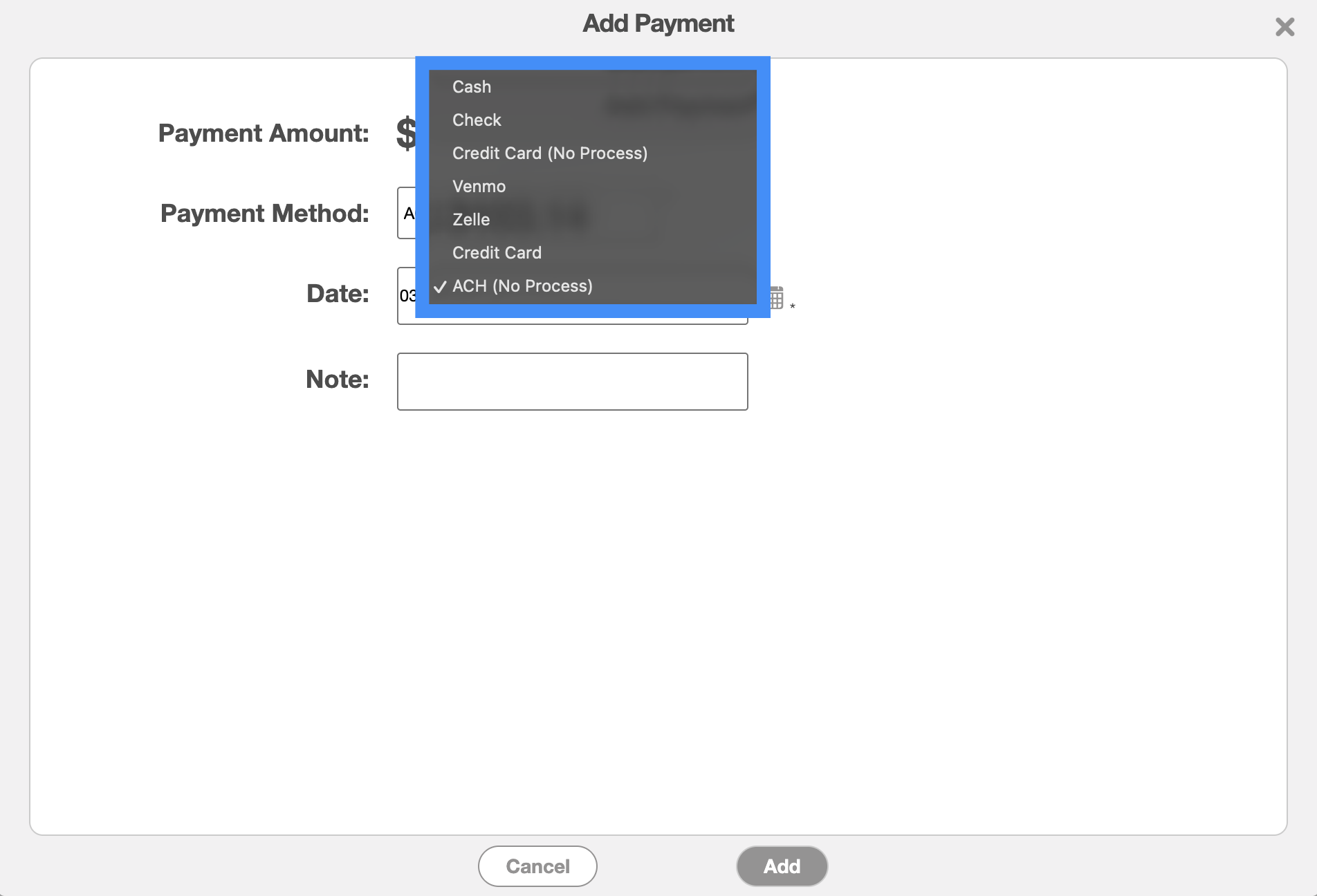
Please note that the ACH payment is done outside of the MobiWork system but recorded for consistency.
The "Money Order/Bank Check" payment option will not be available by default.
In order to process a "Money Order/Bank Check" payment, you will first need to activate it from the Account Settings page:
Once this payment type is toggled, you will be able to record the money order or bank check payment details. To add the bank check or money order payment to an invoice, work order, or customer account you will first need to access the Add Payment pop-up window. Once you are on this pop-up window, use the "Payment Method" drop-down and select the "Money Order/Bank Check" option to indicate that the payment will be issued by a bank check or money order payment:
After selecting the "Money Order/Bank Check" option, input the payment amount and the appropriate date. Once you are satisfied with the data entered click the Add button.
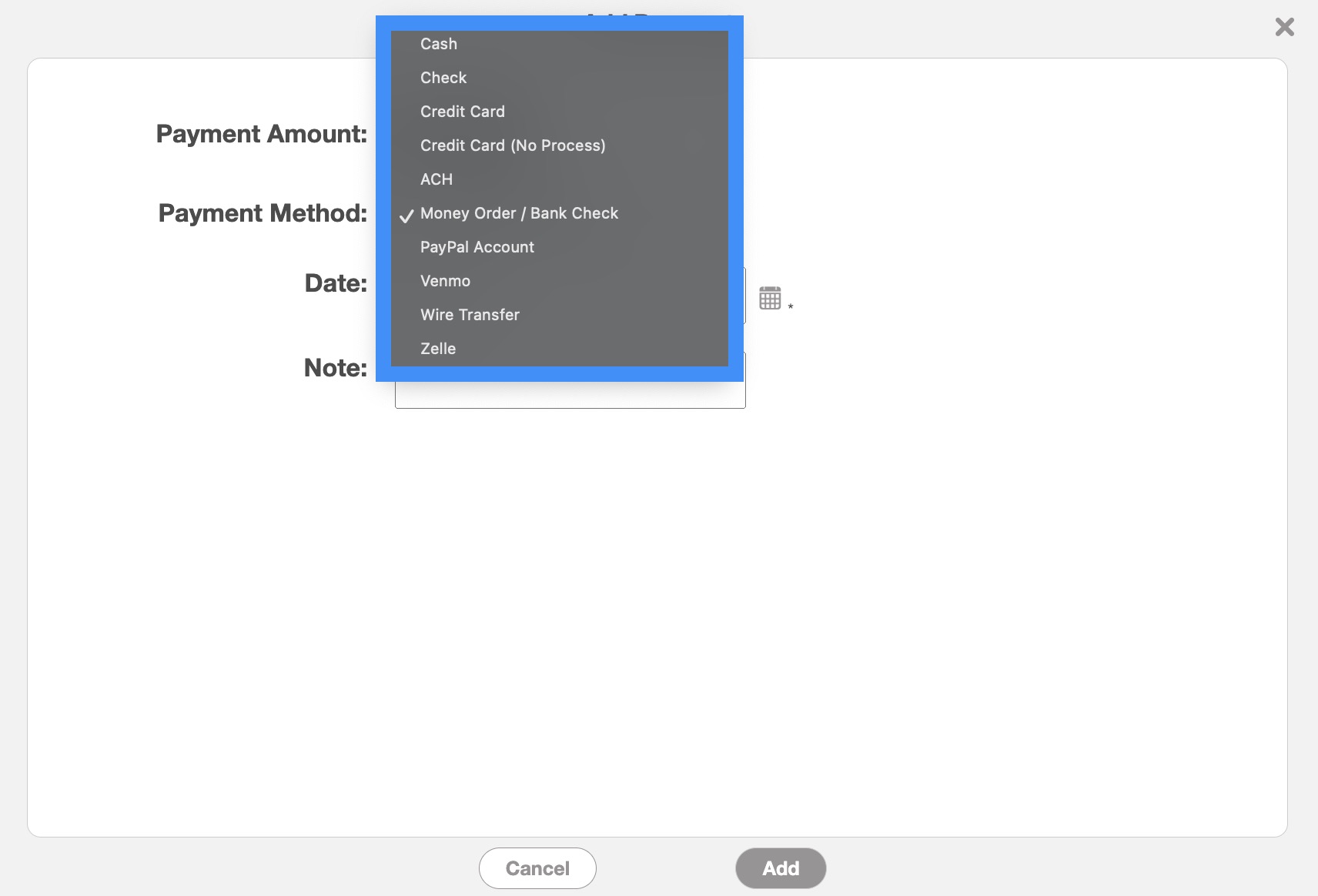
Please note that the money order and bank check payment are done outside of the MobiWork system but recorded for consistency.
The "Paypal" payment option will not be available by default. In order to process a "Paypal" payment, you will first need to activate it from the Account Settings page:
Once this payment type is toggled, you will be able to record the Paypal payment details.
To add a Paypal payment to an invoice, work order, or customer account you will first need to access the Add Payment pop-up window. Once you are on this pop-up window, use the "Payment Method" drop-down and select the "Paypal" option to indicate that the payment will be issued by Paypal:
After selecting the "Paypal" option, input the payment amount and the appropriate date. Once you are satisfied with the data entered click the Add button.
Please note that the Paypal payment is done outside of the MobiWork system but recorded for consistency.
The "Venmo" payment option will not be available by default. In order to process a "Venmo" payment, you will first need to activate it from the Account Settings page:
Once this payment type is toggled, you will be able to record the Venmo payment details. To add a Venmo payment to an invoice, work order, or customer account you will first need to access the Add Payment pop-up window.
Once you are on this pop-up window, use the "Payment Method" drop-down and select the "Venmo" option to indicate that the payment will be issued by Venmo:
After selecting the "Venmo" option, input the payment amount, Venmo details, and the appropriate date. Once you are satisfied with the data entered click the Add button.
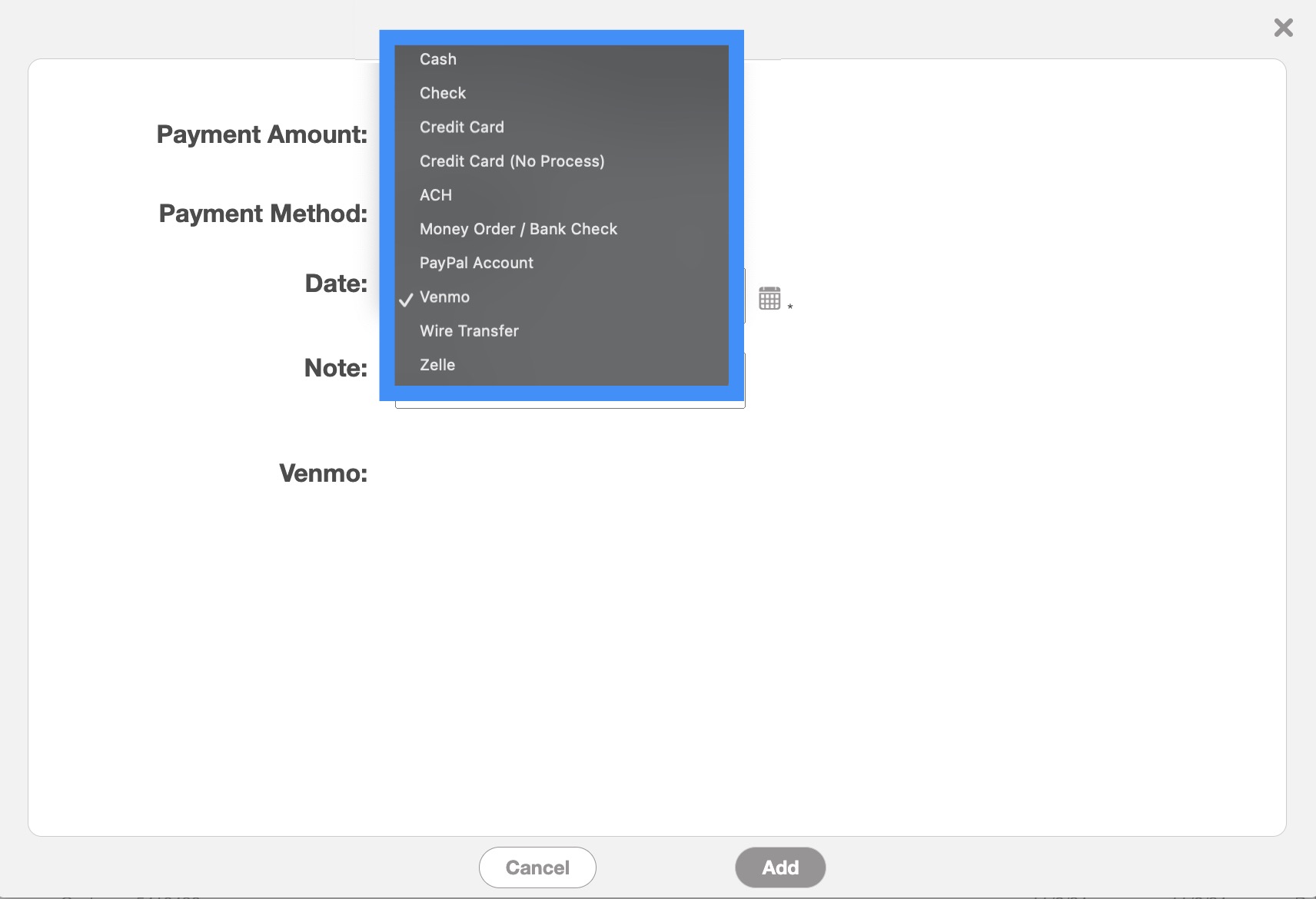
Please note that the Venmo payment is done outside of the MobiWork system but recorded for consistency.
The "Wire Transfer" payment option will not be available by default. In order to process a "Wire Transfer" payment, you will first need to activate it from the Account Settings page:
Once this payment type is toggled, you will be able to record the wire transfer payment details. To add a wire transfer payment to an invoice, work order, or customer account you will first need to access the Add Payment pop-up window.
Once you are on this pop-up window, use the "Payment Method" drop-down and select the "Wire Transfer" option to indicate that the payment will be issued by wire transfer:
After selecting the "Wire Transfer" option, input the payment amount, wire transfer details, and the appropriate date. Once you are satisfied with the data entered click the Add button.
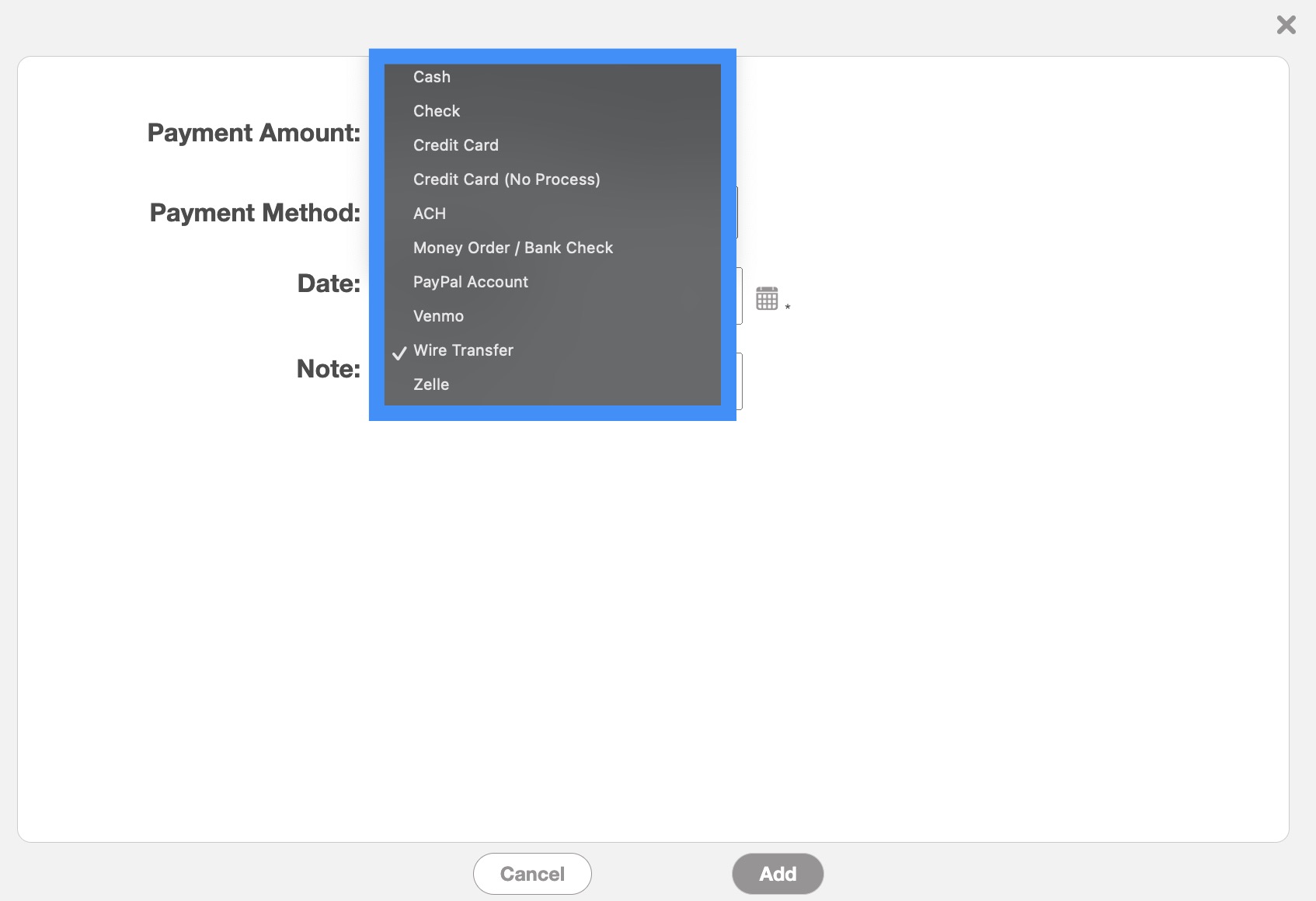
Please note that the wire transfer payment is done outside of the MobiWork system but recorded for consistency
The "Zelle" payment option will not be available by default. In order to process a "Zelle" payment, you will first need to activate it from the Account Settings page:
Once this payment type is toggled, you will be able to record the Zelle payment details. To add a Zelle payment to an invoice, work order, or customer account you will first need to access the Add Payment pop-up window.
Once you are on this pop-up window, use the "Payment Method" drop-down and select the "Zelle" option to indicate that the payment will be issued by Zelle:
After selecting the "Zelle" option, input the payment amount, Zelle details, and the appropriate date. Once you are satisfied with the data entered click the Add button.
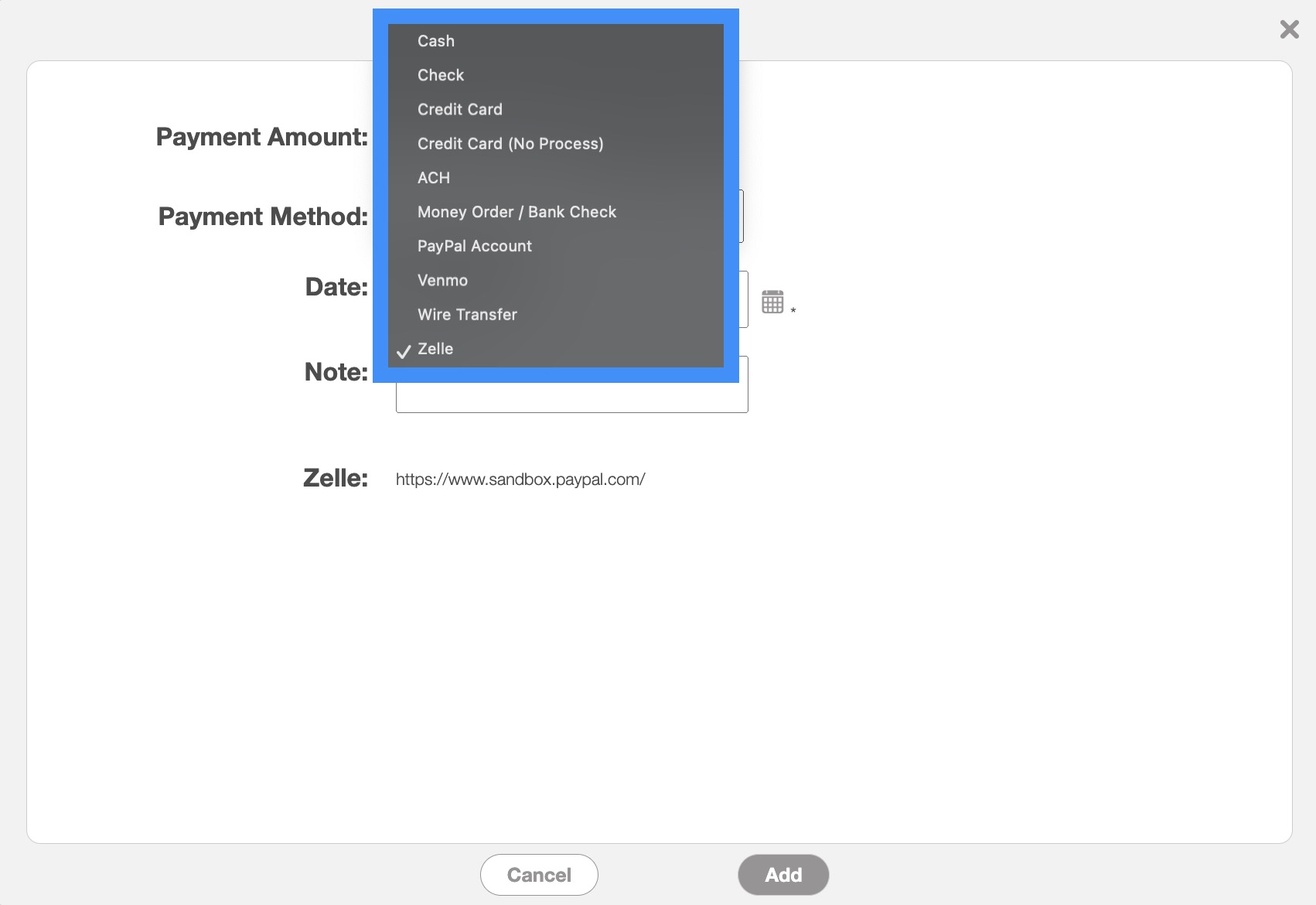
Please note that the Zelle payment is done outside of the MobiWork system but recorded for consistency.
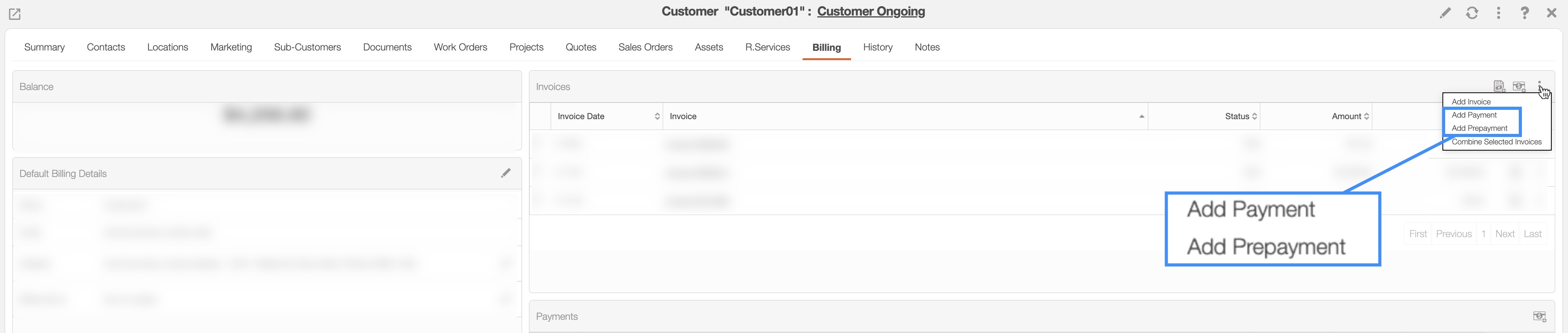
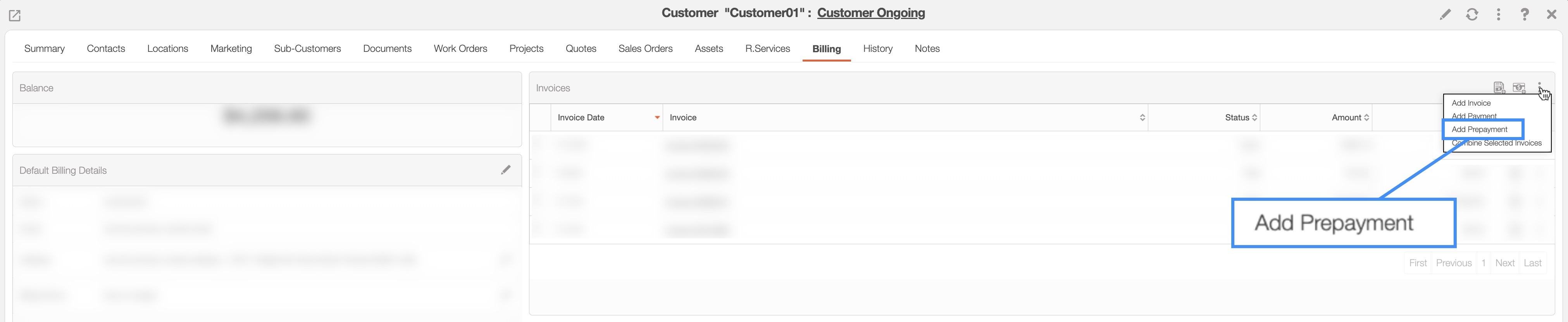
A prepayment is a payment made in advance on the customer's profile that can be applied to future invoices. You will be able to add a prepayment amount to the customer's profile by accessing the View Customer pop-up window's "Billing" tab.
Once you are on the "Billing" tab, click on the Individual Actions button on the "Invoices" panel. From the drop-down that appears, select the "Add Prepayment" option:
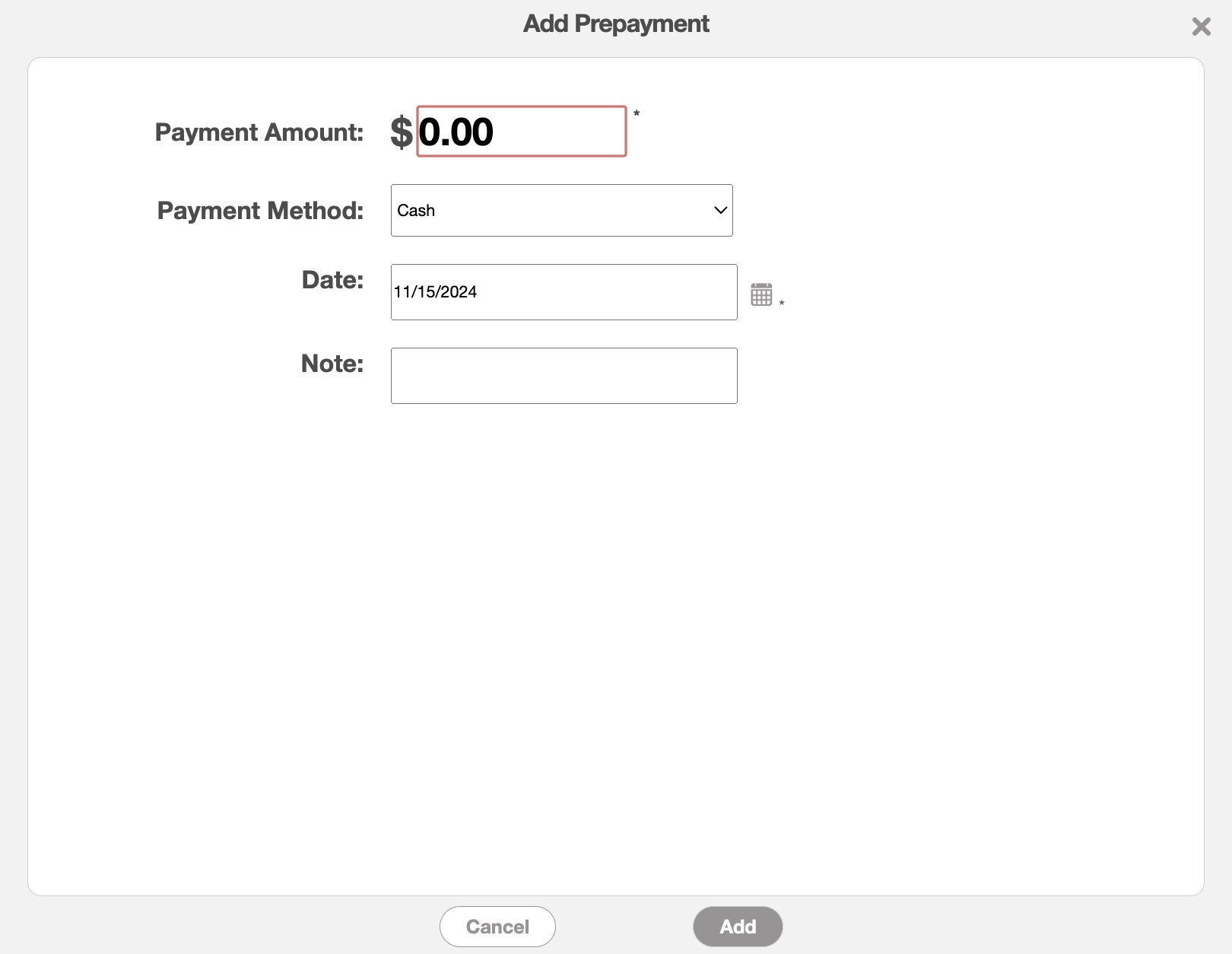
In the Add Prepayment pop-up window enter the prepayment amount, the payment method, the date, and any associated notes. Click the Add button to confirm the prepayment details:
Once the prepayment amount is added in MobiWork, you will be able to apply it for future invoices. To add a prepayment to an invoice, work order, or customer account you will first need to access the Add Payment pop-up window.
Once you are on this pop-up window, use the "Payment Method" drop-down and select the "Unapplied Payment" option to indicate that the payment will be issued by a prepayment:
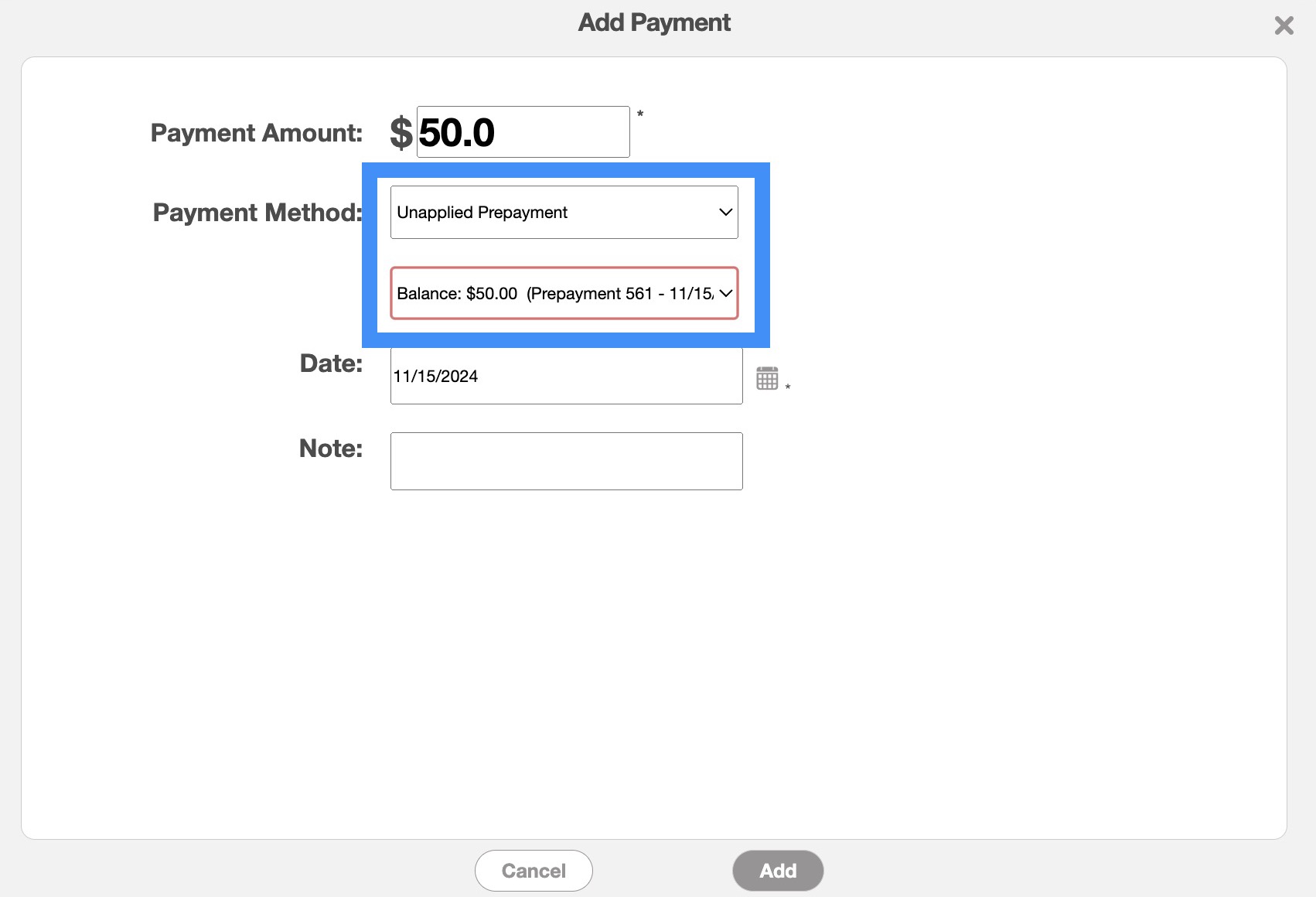
The secondary drop-down will allow you to indicate the balance where you would like the prepayment to stem from. After selecting the "Unapplied Payment" option, input the payment amount, and the appropriate date. Once you are satisfied with the data entered click the Add button.
MobiWork enables automated payments for customers, eliminating the need to manually set up individual payments. Each day at 2:30 AM following the payment due date, MobiWork processes the auto-payment automatically.
To issue an auto payment, please ensure you have a payment connector attached to your MobiWork account. Please see the Connectors Framework page, for instructions on how to add a payment connector to your account.
After connecting your payment method, please confirm that each customer profile is associated with a credit card. For more information on how to associate a customer profile with a credit card, please see the Clearent Connector or Stripe Connector page.
Note: In order for the auto payment to go through, please ensure that the invoice status is set to "Customer Invoiced."
To set up the auto pay feature, you will first need to be on the "Billing" tab for the View Customer pop-up window. Once you are on this tab, toggle the Auto Pay button so that it says, "Automatically capture payments for invoices that are due." This action will activate automatic payments for due invoices:
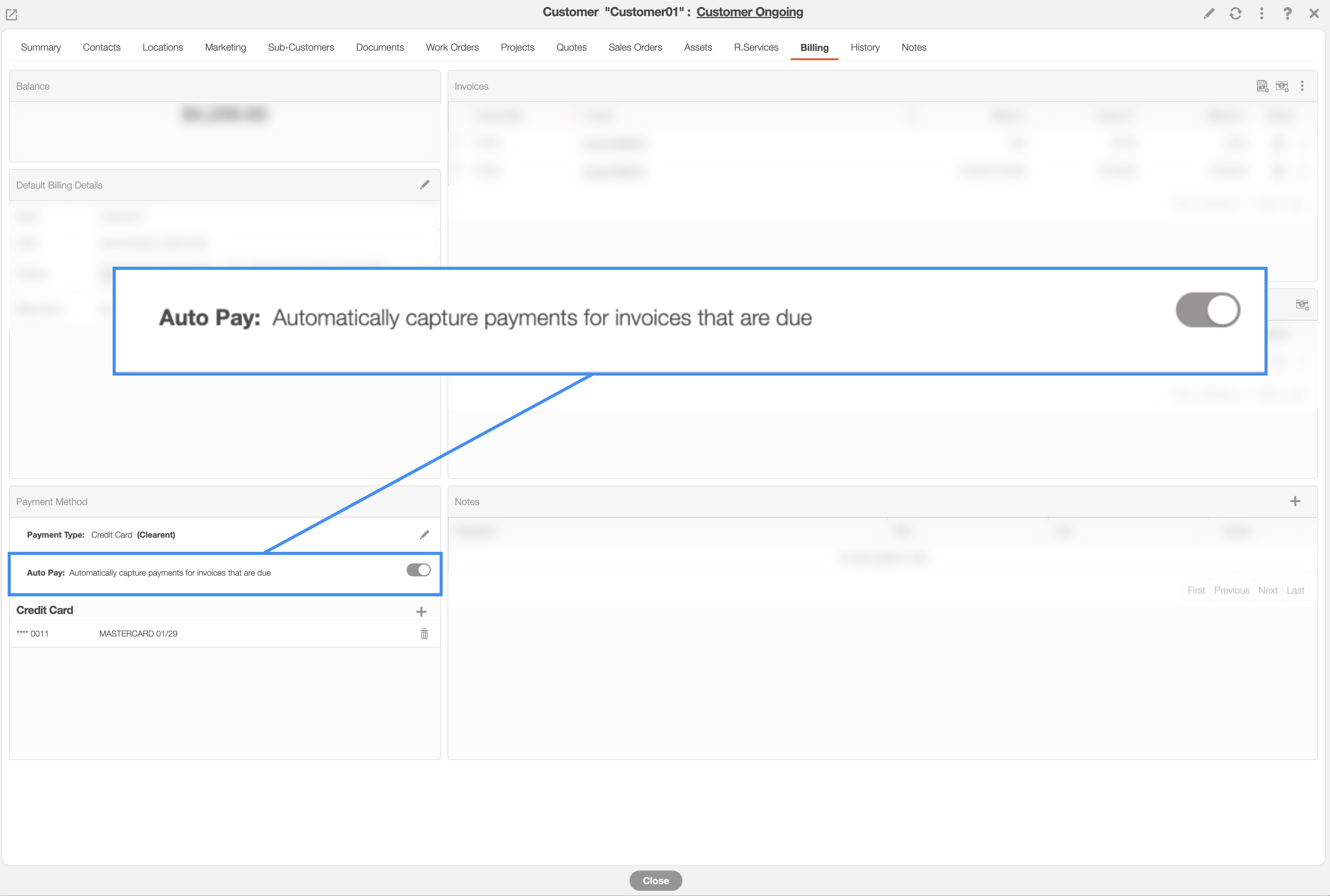
The auto pay feature can still be performed even if no default credit card is selected on the customer profile. If only one card is on file, MobiWork will automatically use it. If multiple cards are associated with the profile, then the most recently added card will be used for payments.
Note: If you need to prevent auto pay for a specific invoice, toggle off the Auto Pay button in the customer profile before the invoice due date; otherwise, the payment will be processed automatically.
To confirm if the payment has successfully gone through, you can view the payment data in the following areas:
In the "Payments" dashboard panel.
The "Payments" or "History" tab for the View Invoice pop-up window.
The Payment "List" tab.
Also if successful, the payment status of the invoice will automatically be switched to the "Paid" status.
When a payment is successfully processed, the invoice status will automatically update to "Paid."
Note: Please ensure that the "Invoice Date" is set before the "Due Date," otherwise the payment may not go through.
Important: The auto pay function will not work if you are on a MobiWork free trial.
MobiWork will allow you to issue batch payments to multiple customers simultaneously. To issue a batch payment, please ensure you have a payment connector attached to your MobiWork account. Please see the Connectors Framework page, for instructions on how to add a payment connector to your account.
After connecting your payment method, please confirm that each customer profile is associated with a credit card. For more information on how to associate a customer profile with a credit card, please see the Clearent Connector or Stripe Connector page.
Before issuing a batch payment, the invoice must should be set to "Customer Invoiced." Once these criteria are met, you are ready to issue batch payments.
First navigate to the Invoice List page.
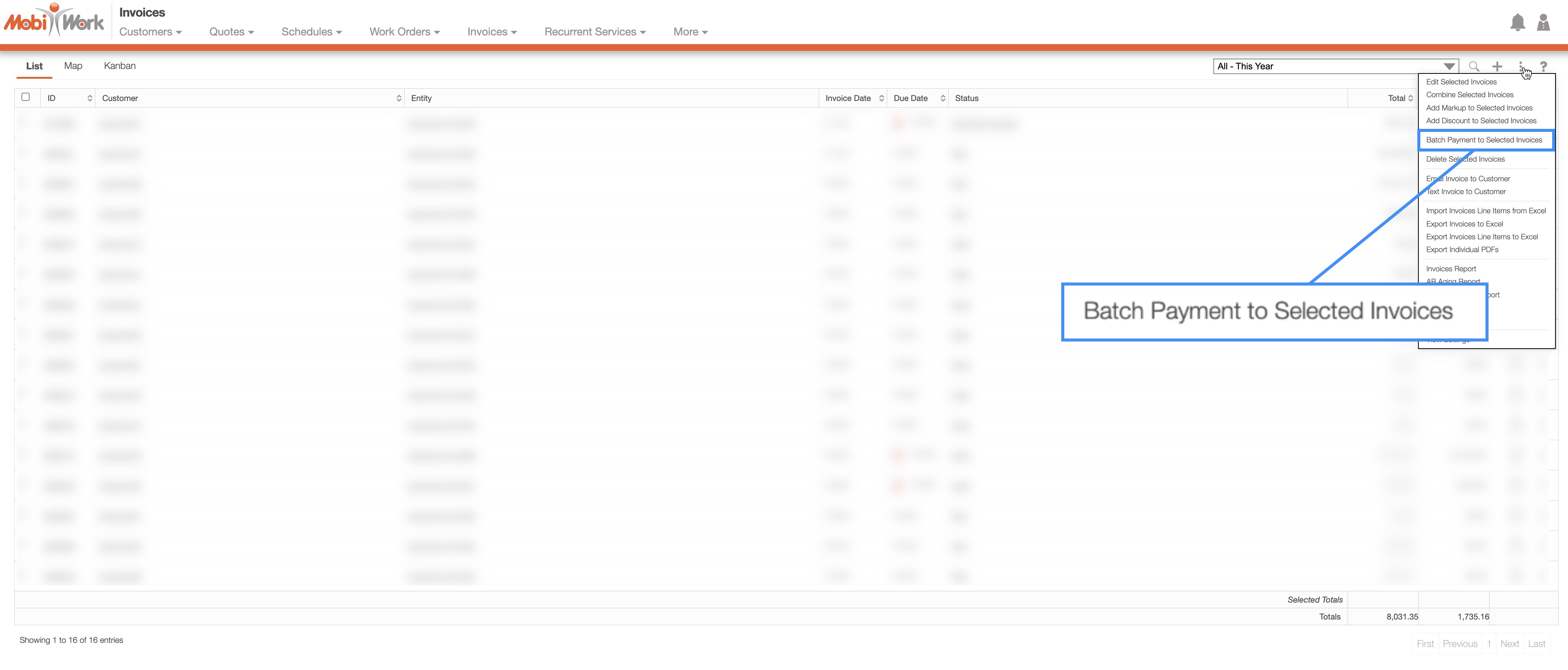
Then select the desired invoices you would like to issue a batch payment for and click on the More Actions button:
From the drop-down that appears select the "Batch Payment to Selected Invoices" option.
The Batch Pay pop-up window will then appear, displaying the results of the batch payment process:
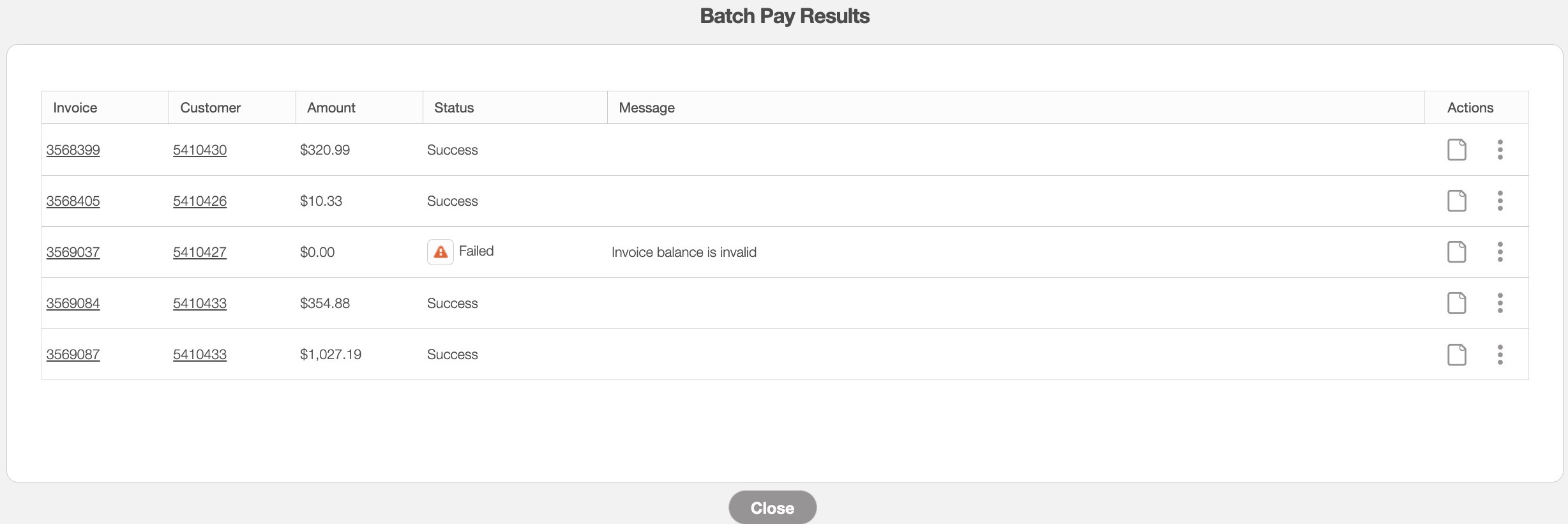
If a payment fails, you will receive a "Failed" status, a message explaining the reason for the failure, and a Caution Sign icon next to the failed payment:

If the payment was processed successfully, the payment status will have the "Success" status:

In this window, you can view which payments were successful and identify any that failed, along with the reasons for the failures.
Common errors that may occur when initiating a batch payment include the following:
The invoice balance is zero.
The customer status is not set to "Customer Invoiced."
Or no card is on file for the customer profile.
You will be able to view the successful batch payment from the "History" tab of the View Invoice pop-up window.
Note: Please note that the batch pay is not available for ACH payments.
When a payment is successfully processed, the invoice status will automatically update to "Paid."
To add a deposit payment, your quote must first include a required deposit amount. For more information on creating a quote with a deposit amount, please see the Add Quote page.
Once the quote is created with the specified deposit amount, you can either:
Create an invoice for the deposit and process the payment as you would for any invoice. Please see the View Invoice Pop-up Window subsection for detailed instructions on applying a payment to an invoice.
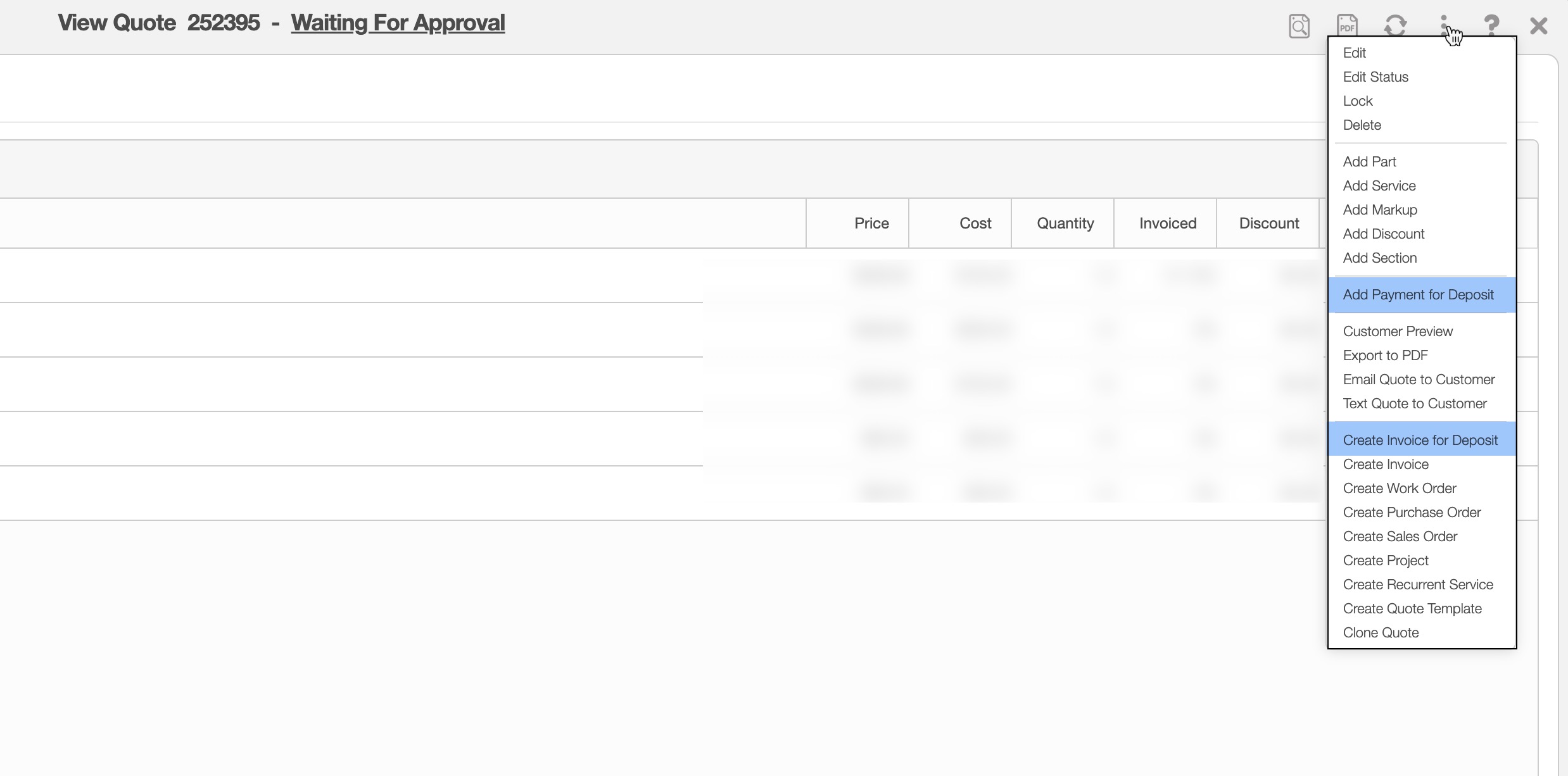
Or apply the deposit payment directly by selecting the "Add Payment for Deposit" from the Individual Actions drop-down menu.
When you choose the "Add Payment for Deposit" option, the Add Payment pop-up window will appear. The payment amount will default to the deposit amount specified in the quote, though you can adjust it if needed:
After selecting your preferred payment method and modifying the payment amount (if necessary), enter the appropriate payment date. Once all the information is correct, click the Add button to complete the process:
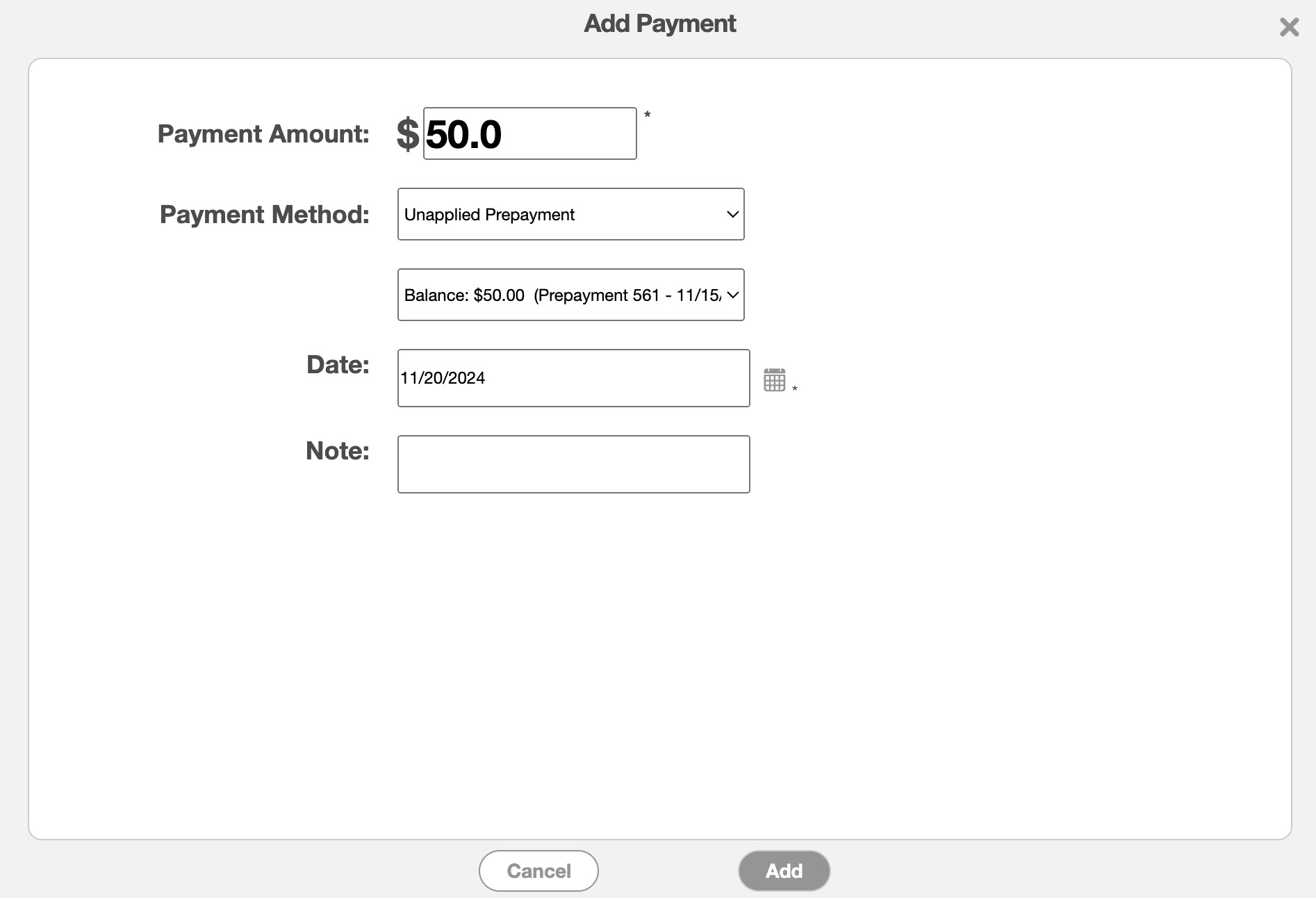
If there is no invoice associated with the quote, then adding a payment for deposit will automatically generate an invoice for deposit.
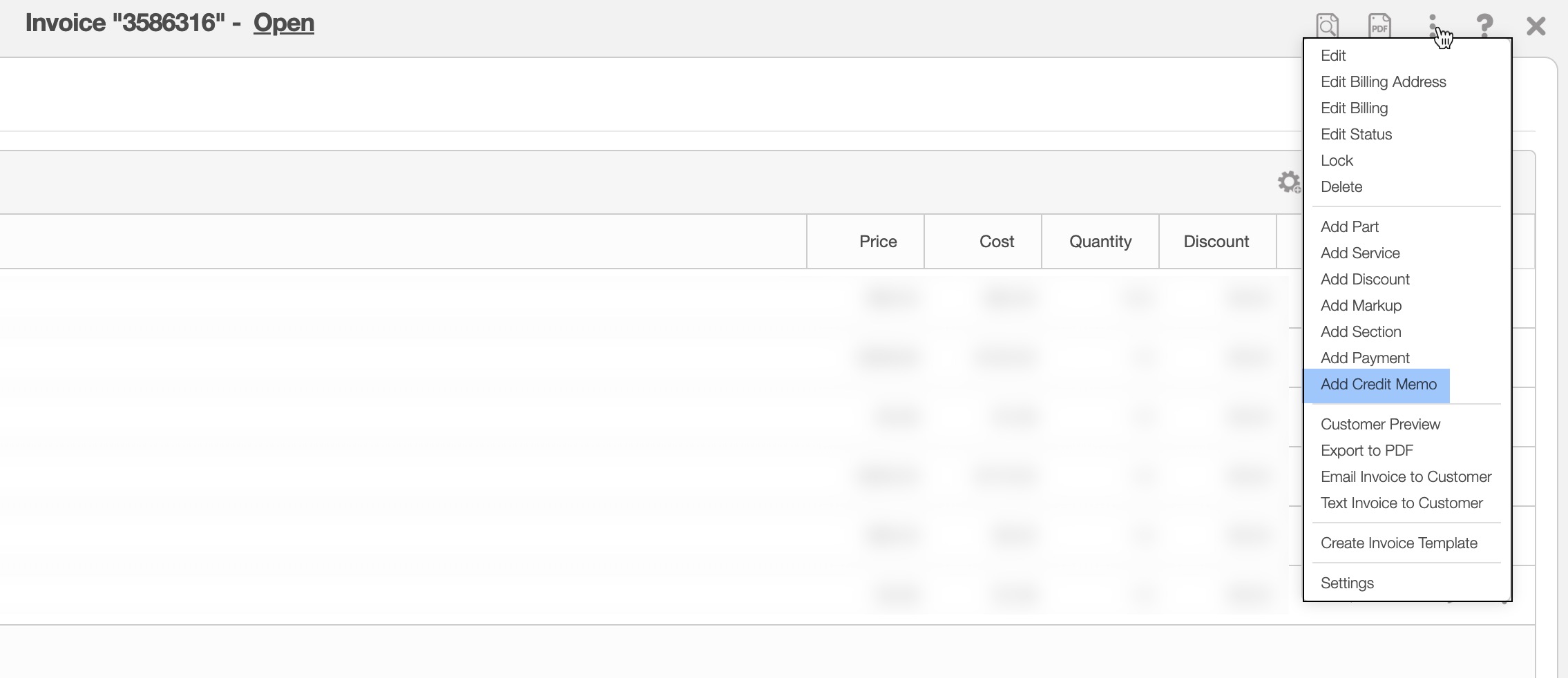
You can also apply a credit memo as a payment toward an invoice. A credit memo represents a credit issued by your company due to an overpayment, returned goods, or a billing adjustment.
To issue a credit memo for a customer, open the customer's View Invoice pop-up window. From the Individual Actions drop-down menu, select the "Add Credit Memo" option. This action will open the Add Credit Memo pop-up window:
The credit memo amount will default to the invoice amount, though you can adjust it if needed. Enter the date and any relevant notes. Once you are satisfied with the entered details, click the Add button:
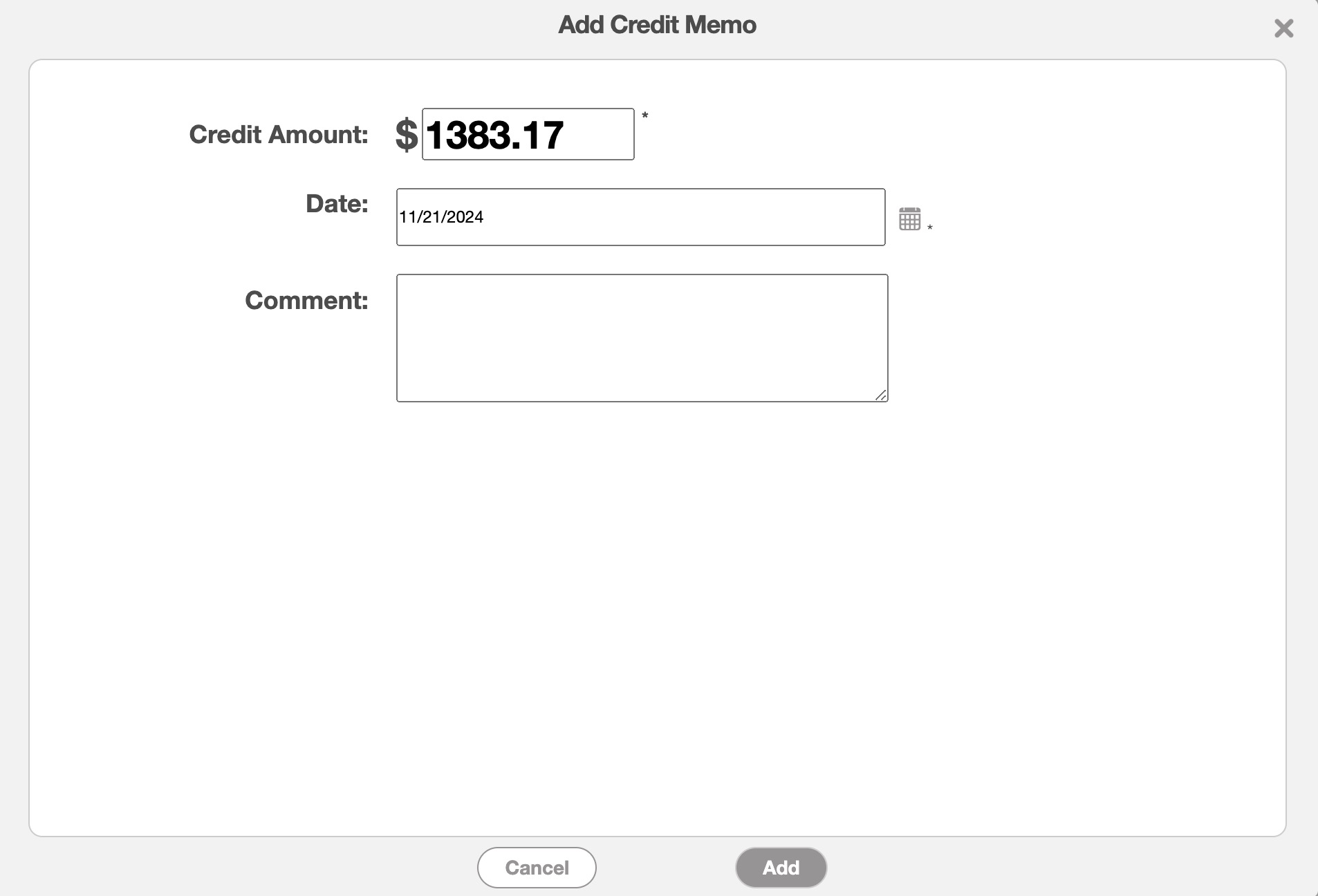
The credit memo will then be applied as a payment to the invoice.
Once a credit memo is applied directly to an invoice, the amount will be applied to the balance:
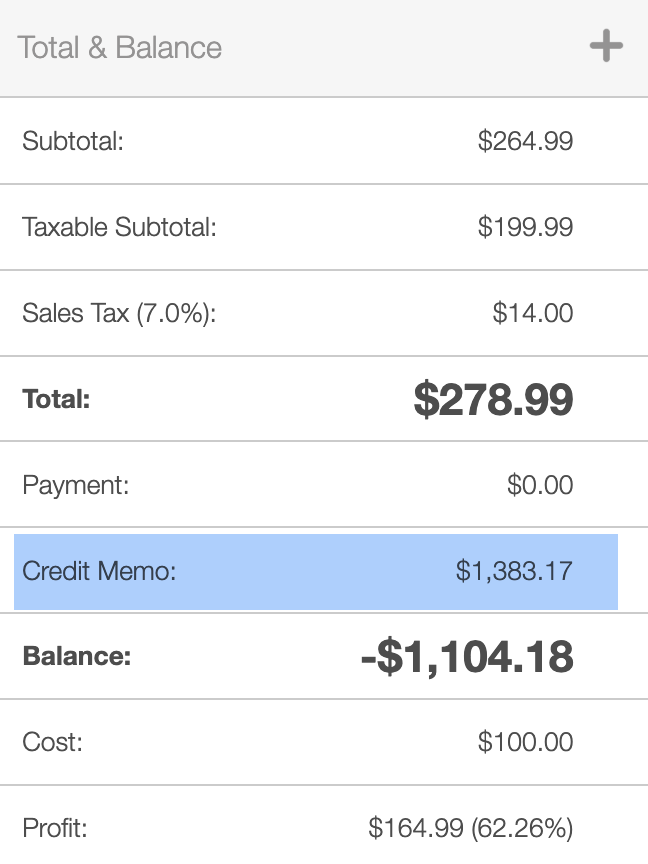
Any remaining credit that is not applied to the invoice will remain available on the customer's account. You can view the remaining credit from the customer profile on the "Balance" panel and apply it to future invoices as needed:
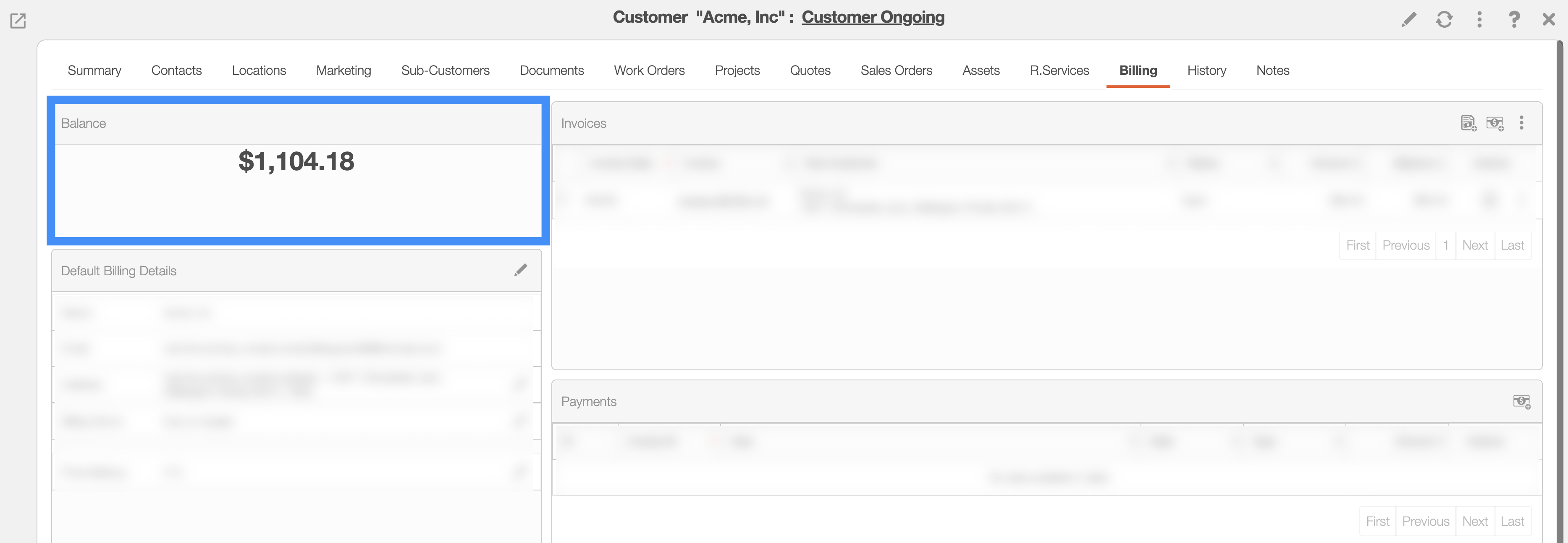
Within MobiWork, you can easily split a payment between different payment methods (e.g., half the payment can be rendered with cash and the remaining half can be paid with check).
To split a payment, you will first need to access the Add Payment pop-up window.
From this pop-up window, input the desired partial amount along with the other required information (e.g., date, bank number, etc.). Once you are satisfied with the entered data, click the Add button:
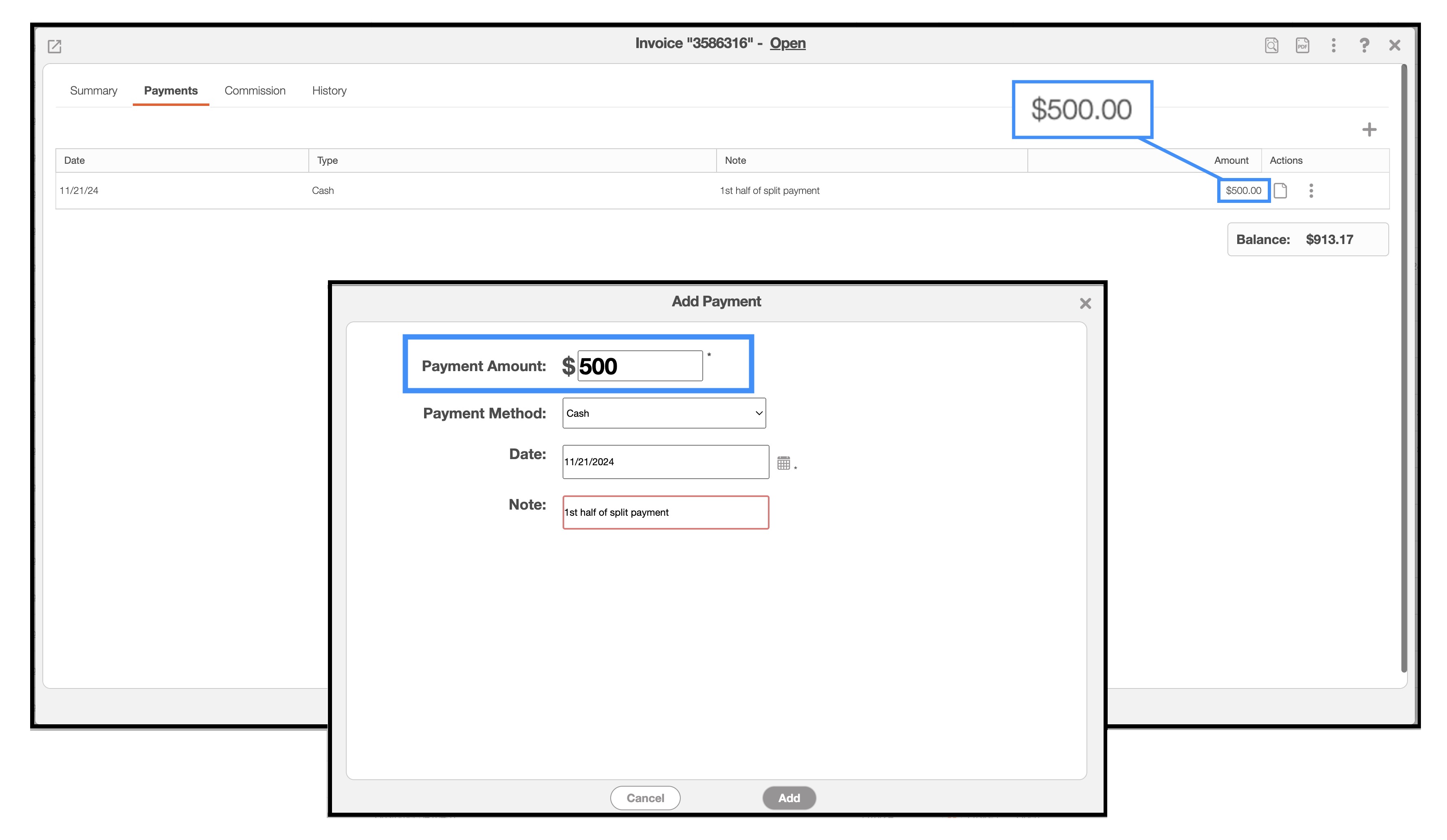
Access the Add Payment pop-up window of the same invoice and input the remaining amount and required payment details:
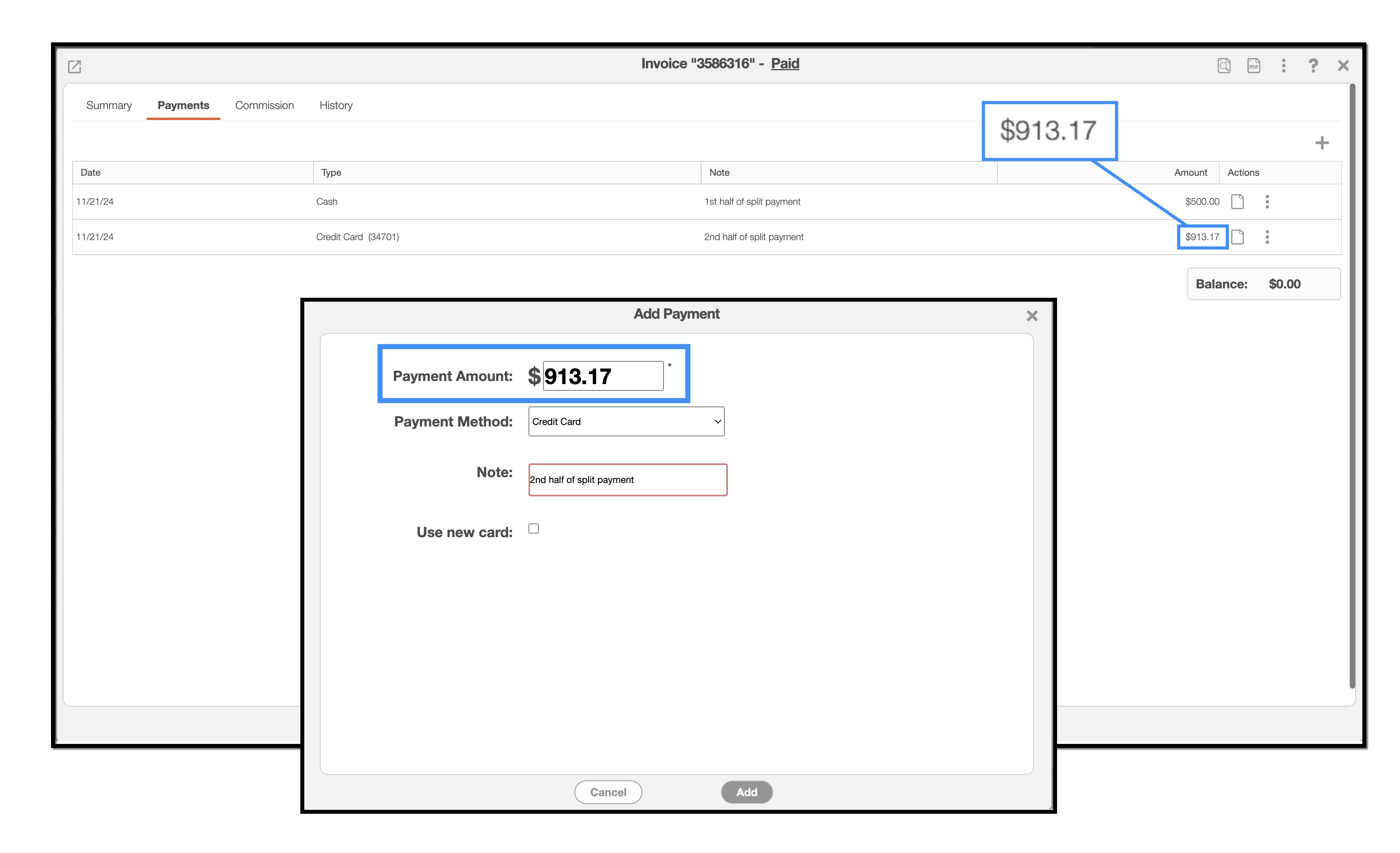
You can repeat this process as many times as necessary until the balance is paid in full:
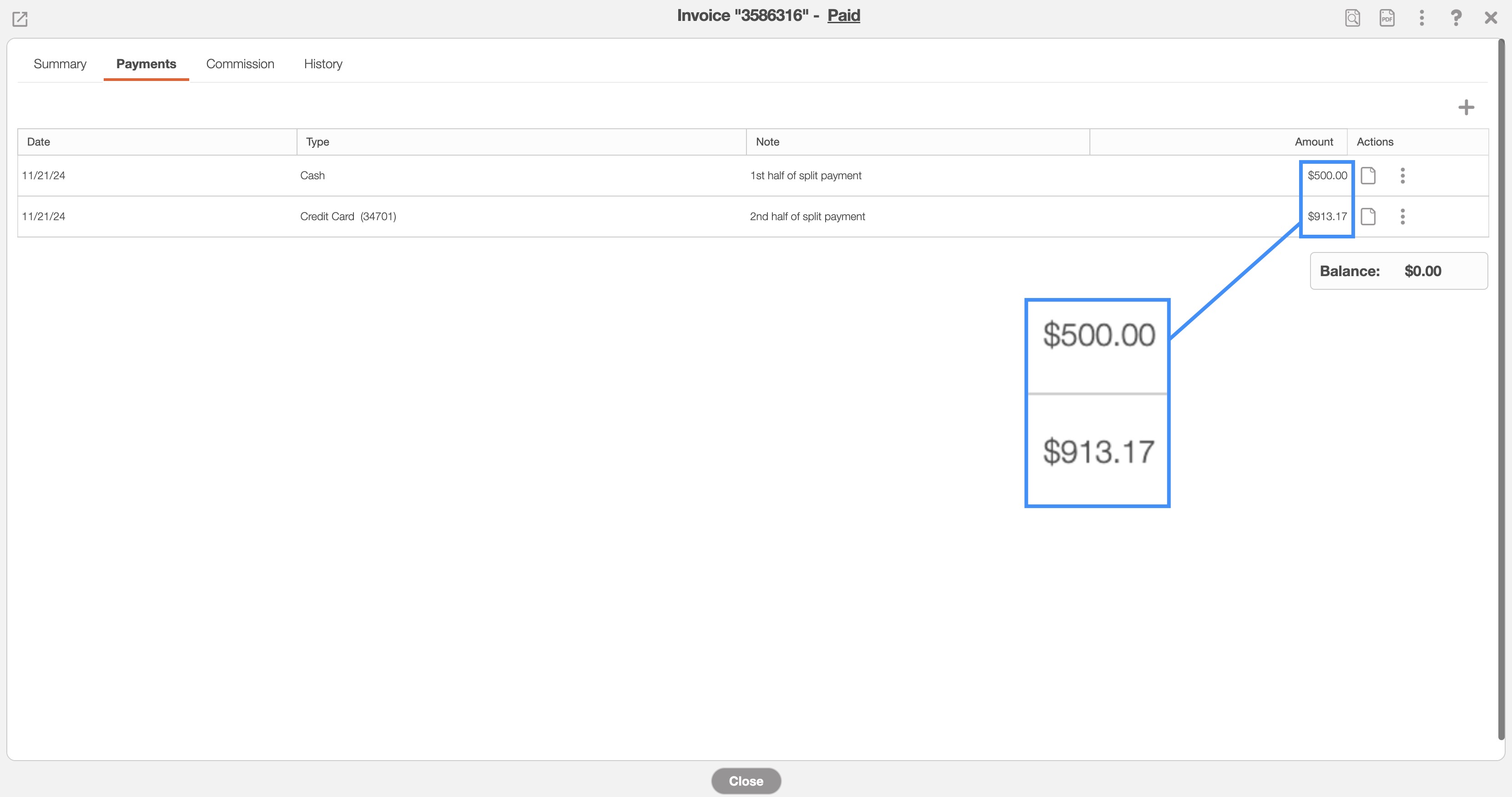
You can also split a payment across multiple invoices for the same customer. To do this, start by navigating to the customer profile and accessing the "Billing" tab.
Once on the Billing tab, go to the "Invoices" Panel and select the invoices you want to apply the payment to:
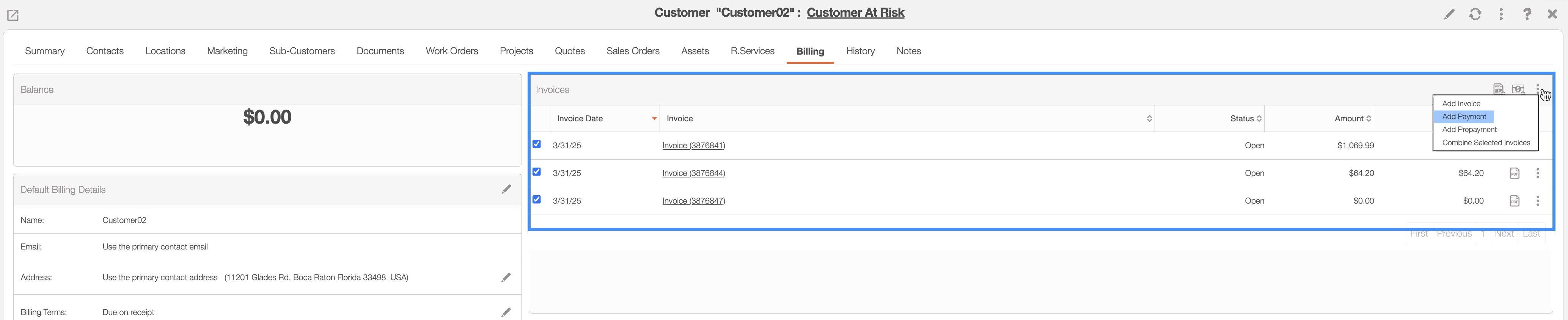
Next, click on Individual Actions and choose "Add Payment" from the drop-down menu.
The Add Payment window will appear:
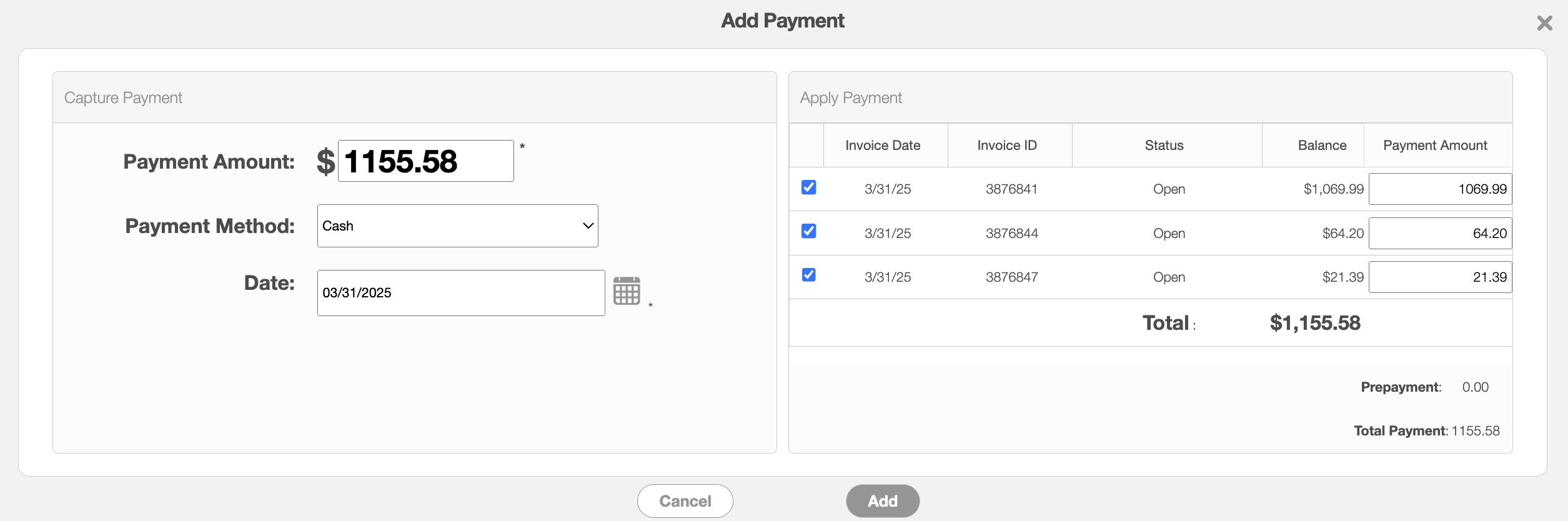
In this window, you can specify the following details:
Payment amount
Payment method
Payment date
The specific invoices you want to apply the payment to; you can use the topmost checkbox to select all of the invoices.
Once you have entered the necessary information, click the Add to confirm. The payment will automatically be applied to the selected invoices.