
There are a couple of different ways that you can add a new quote into MobiWork, including directly from the "List" tab.
From the Quotes' Drop-Down
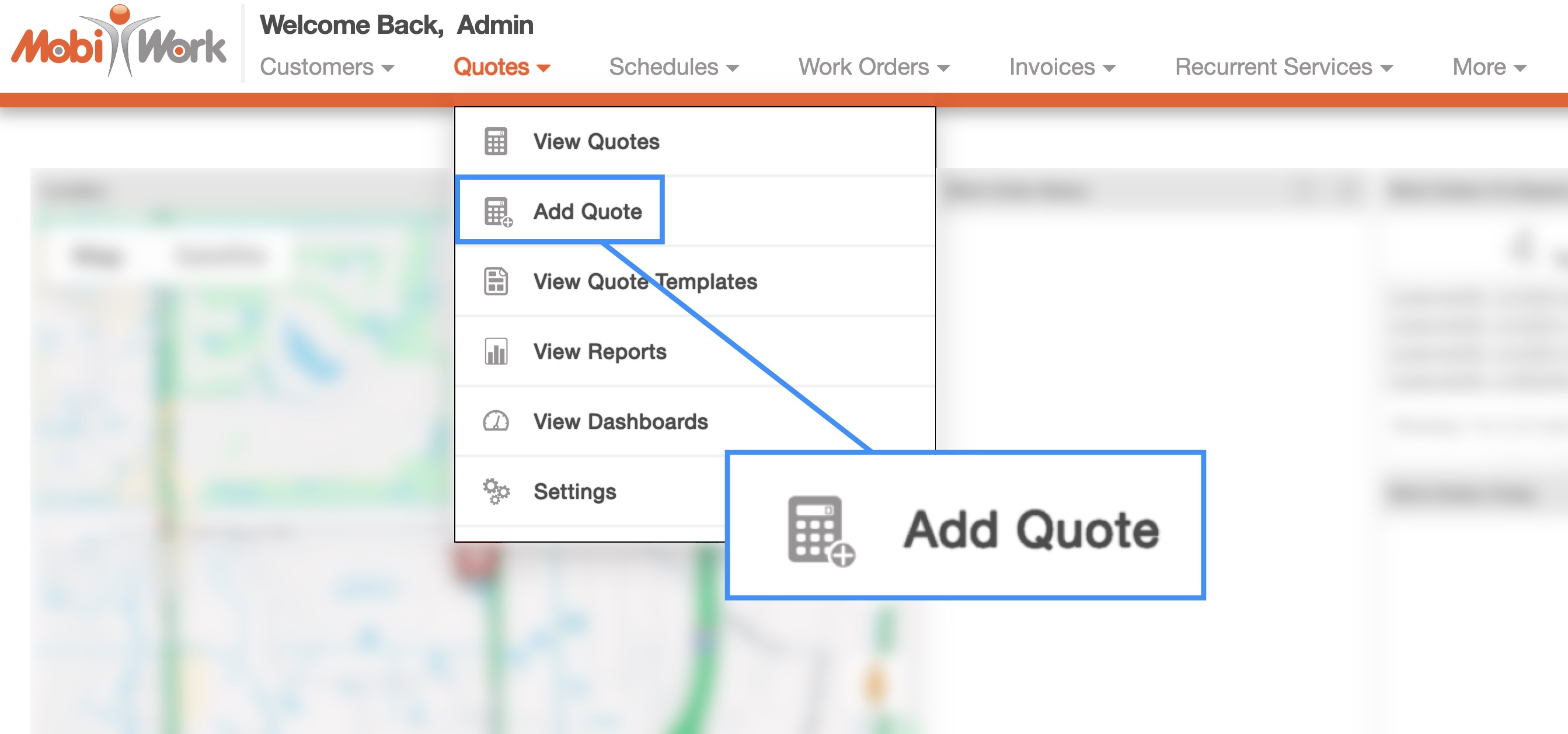
- The fastest and easiest way to add a quote is by accessing the drop-down menu from the Quotes feature located in your MobiWork menu:
Select the "Add Quote" option from the drop-down.
The Add Quote pop-up window will then appear.
From the Quotes' More Actions
On the Quotes feature tabs you will also be able to import your quotes from Excel or QuickBooks:
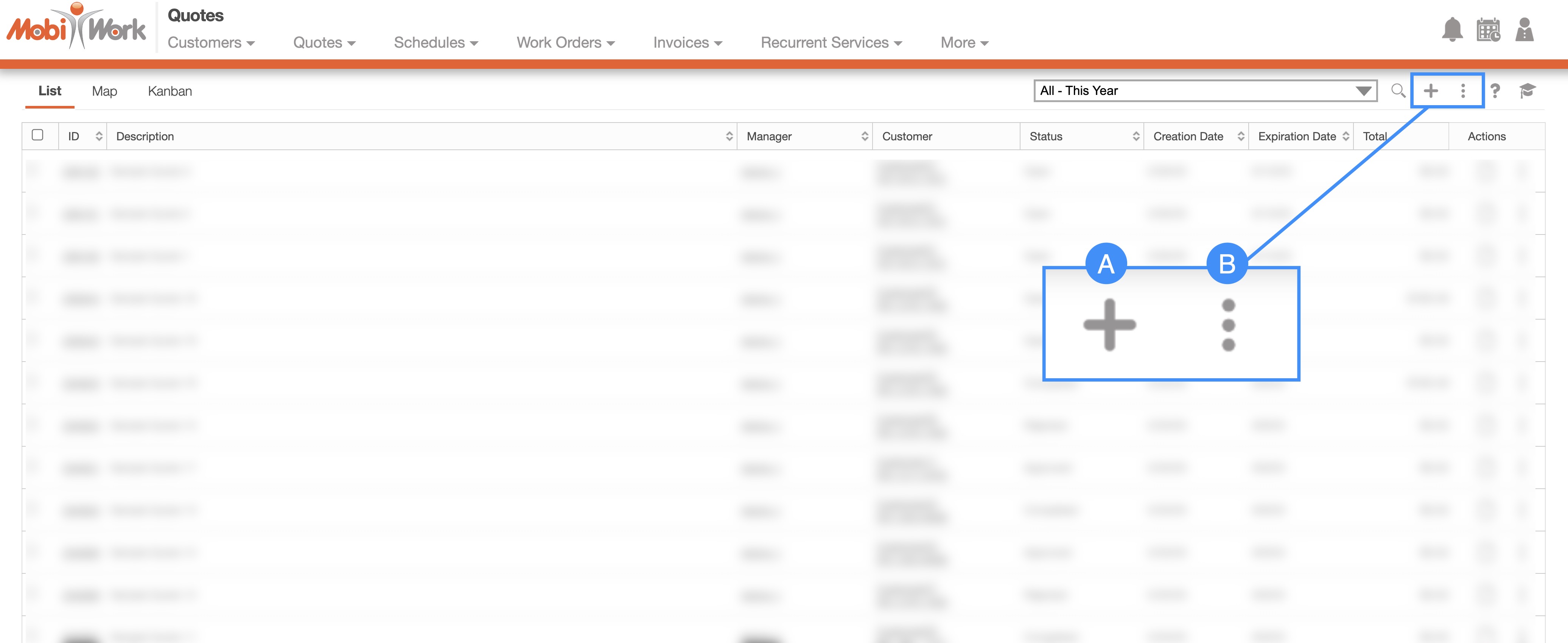
Plus Sign- Adds a new quote.
More Actions- Allows you to access the import drop-down actions.
The Plus Sign button will allow you to add a singular instance of a quote, while the import option will allow you to add multiple quotes.
From a Quote Template
You can add a quote from a quote generated template; this will have the added benefit of having your quote already formatted with the terms and details for a specific situation.
To add a quote from a template you must first be on the Quote Templates page. For more information on how to access this page and about quote templates please see the Quote Templates page:
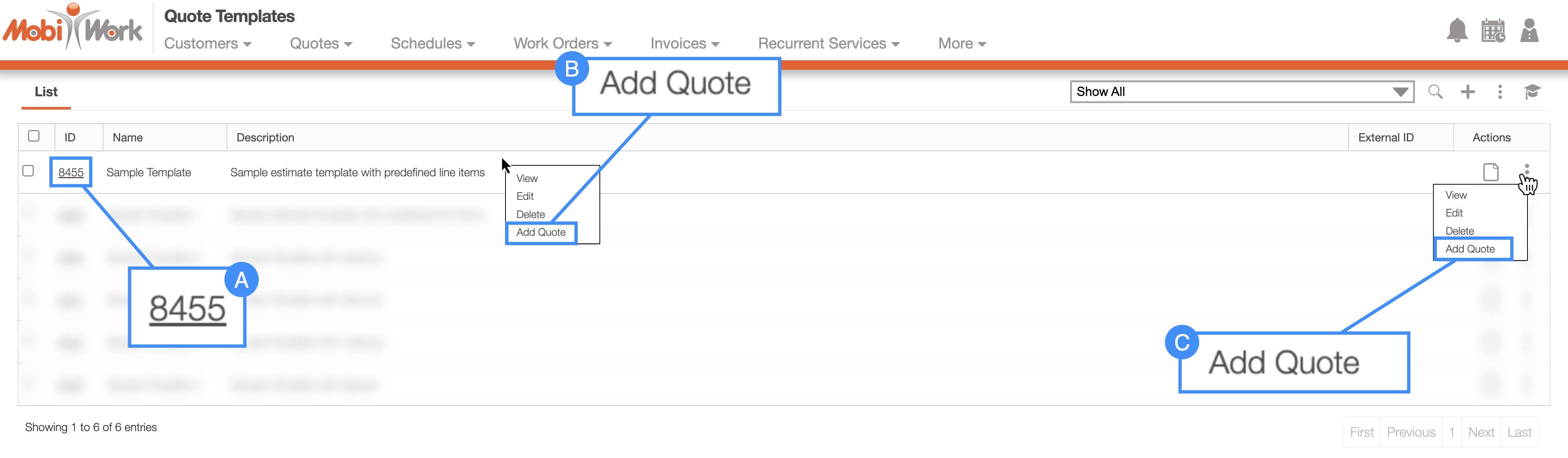
Click on the desired quote template ID and from the View Quote Template pop-up window click on the Individual Actions button and from the drop-down select the "Add Quote" option:
Right-click on the selected quote template and choose the "Add Quote" option from the drop-down.
Click on the Individual Actions button and from the drop-down choose the "Add Quote" option.
From the Customer Profile
Another way you can add a new quote, is through the Customers feature page. For more information on how to access Customers feature page, please see the Customers List section:
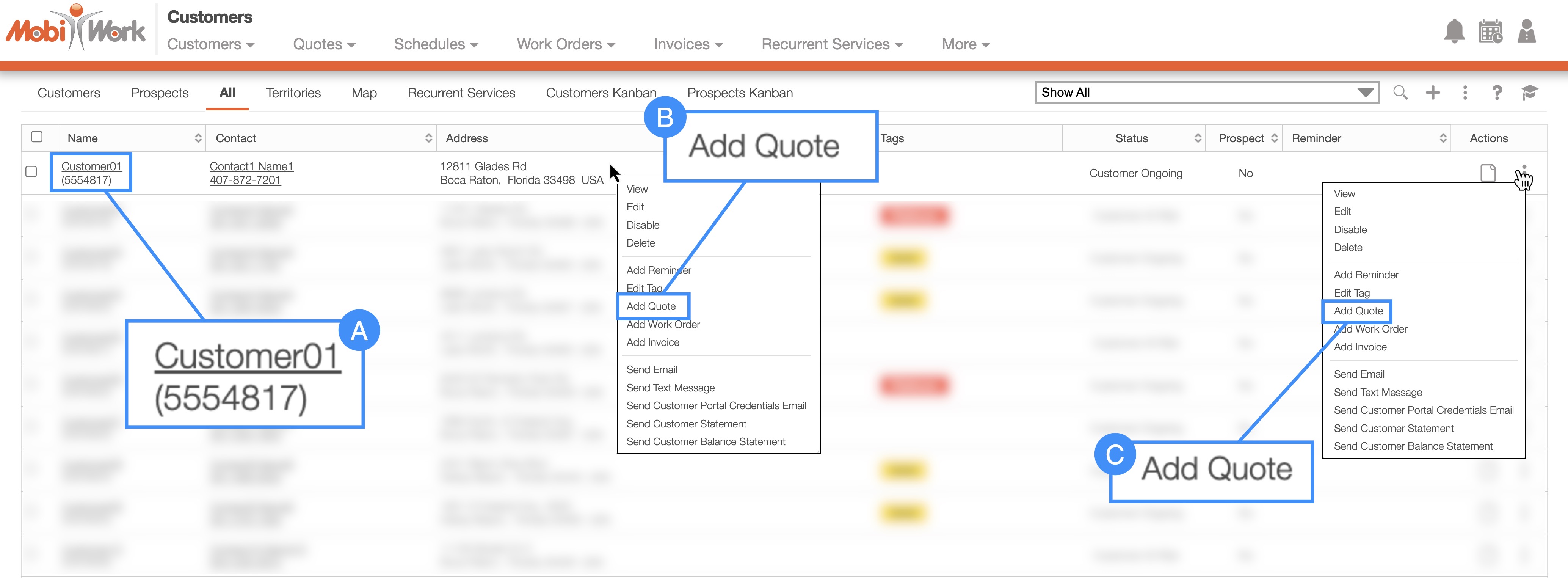
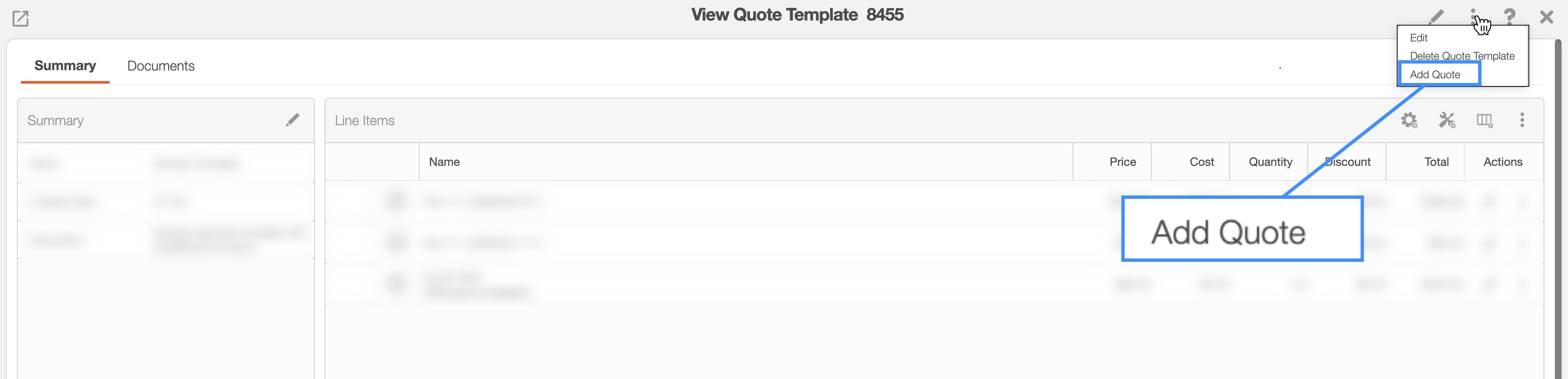
- Click on the desired customer name, and from the View Customer pop-up window click on the Individual Actions button. From the drop-down that appears, select the "Add Quote" option:
- You can also add a quote by clicking on the Plus Sign in the "Quote" column of the "Summary" tab:
Right-click on the selected customer and choose the "Add Quote" option from the drop-down.
Click on the Individual Actions button and from the drop-down choose the "Add Quote" option.
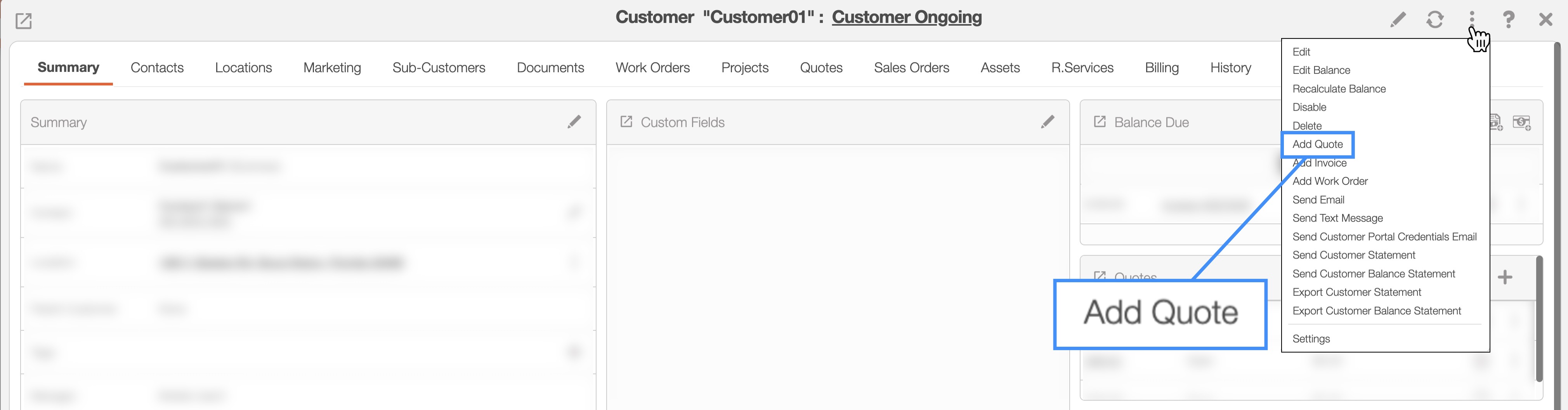
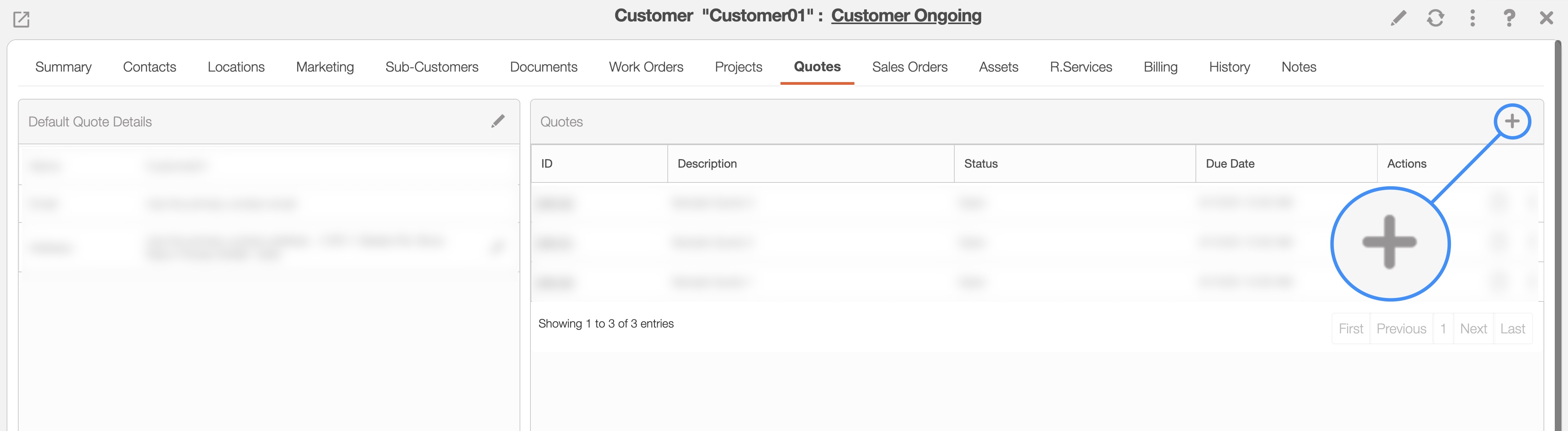
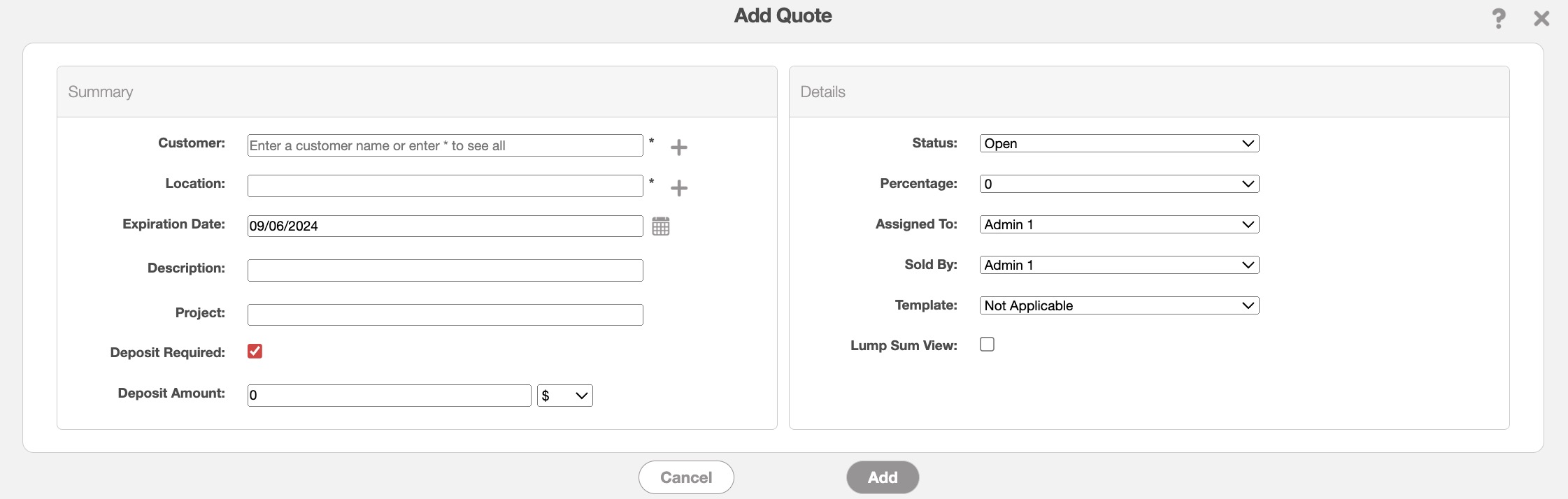
Regardless of the method that you choose to add a quote, the Add Quote pop-up window will appear. From this window you will be able to input the quote description, if a deposit is required, any special notes or comments regarding the quote and more:
Note: Please note that the maximum length for the quote title (description) is 64 characters; we recommend using the quote's line items for longer quote descriptions or the section header for comments (line items have a maximum length of 64,000 characters). You can access the line items or the section headers when adding parts or services to the quote; for more information about a quote's line items, please see the View Quote page.
The terms listed in the Add Quote pop-up window are defined below:
| Name: | Description: |
|---|---|
| "Customer" | The customer associated with the quote. |
| "Location" | The location or address of the customer. |
| "Contact" | The customer's contact name. |
| "Expiration Date" | The date that the quote is due to expire if not approved or rejected. |
| "Title" | The title serves as the quote's name and description. |
| "Project" | Specifies the associated project for the quote. |
| "Deposit Required" | If a deposit is required on the quote; if this option is checked input the deposit amount and if the amount should be a percentage (50%) or a number ($50). |
| "Deposit Amount" | The initial payment made by a customer when accepting a quote. |
| "Status" | The status of the quote (e.g., "Open," "Checked Out," "Waiting for Clarification," "Waiting for Approval," "Change Requested," "Approved," "Rejected," and "Completed"). |
| "Percentage" | The percentage field is for your sales pipeline and relates to the probability that the quote will convert into a sale. |
| "Assigned To" | The user the quote is assigned to. |
| "Sold By" | The user who made the quote sale. |
| "Template" | The quote template that the new added quote will imitate. |
| "Lump Sum View" | By clicking on the lump sum view, you will be able to hide the line items for the items listed in the entire quote. |
Once you have created a new quote, it is time to populate it with the required parts and services. You can also add discounts and markups as well as sections to help separate the quote items for clearer organization.
You can also easily add a part, service, or section to the quote's line items by clicking on the respective icon:
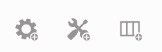
The following subsections will illustrate how to add these different entries to the quote.
Add part
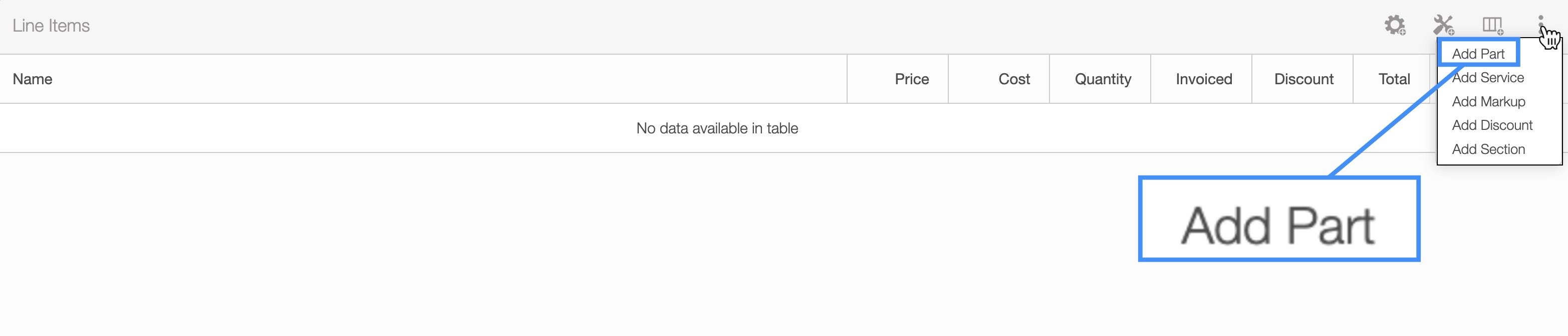
In the "Line Items" panel click on the Individual Actions in the top-right. From the drop-down menu that appears, select the "Add Part" option:
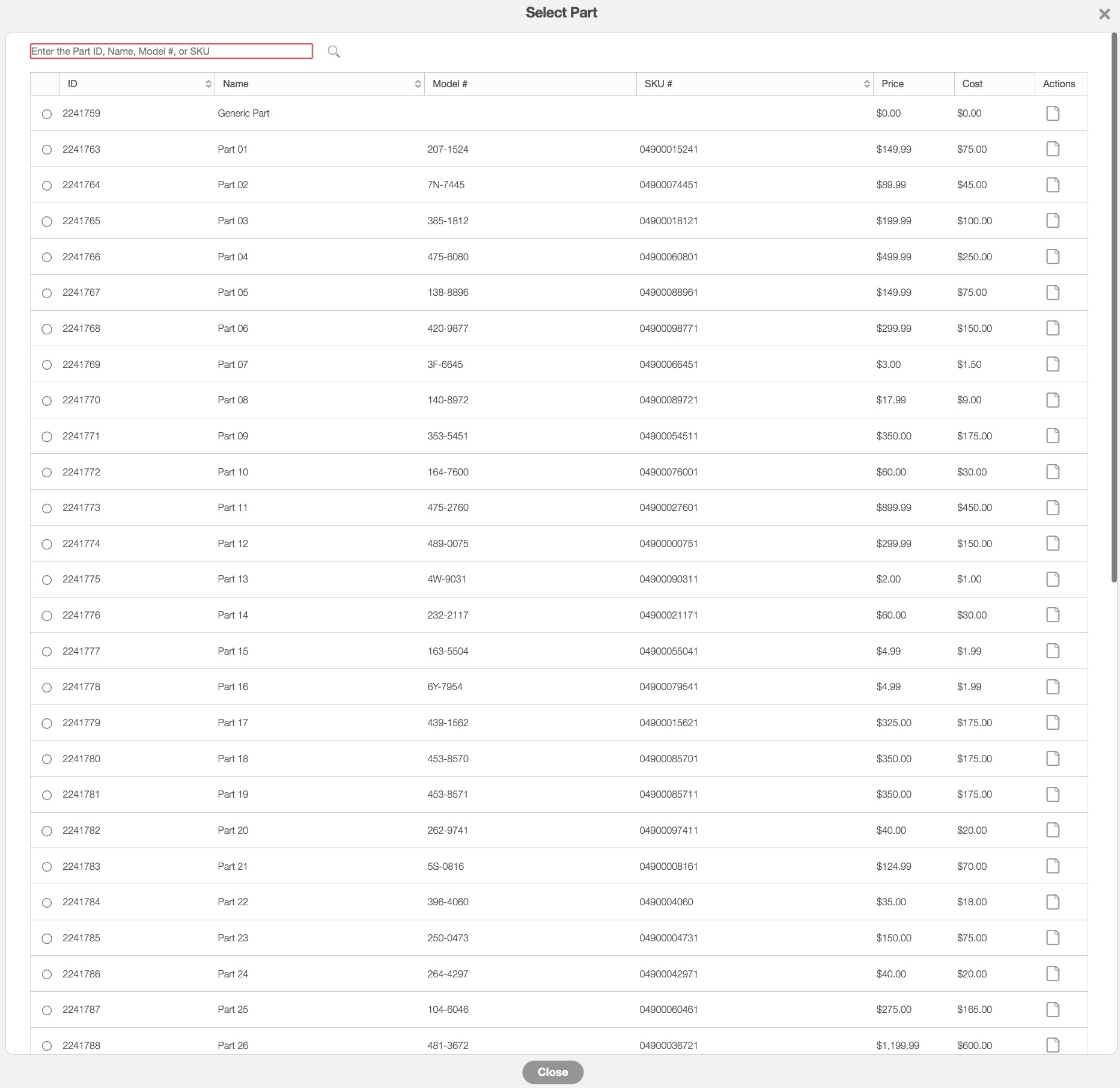
The Select Part pop-up window will appear. From there, choose the desired part:
After selecting a part from the Select Part pop-up window, the Add Part to Quote pop-up window will appear, allowing you to adjust the quantity, section, and other details:
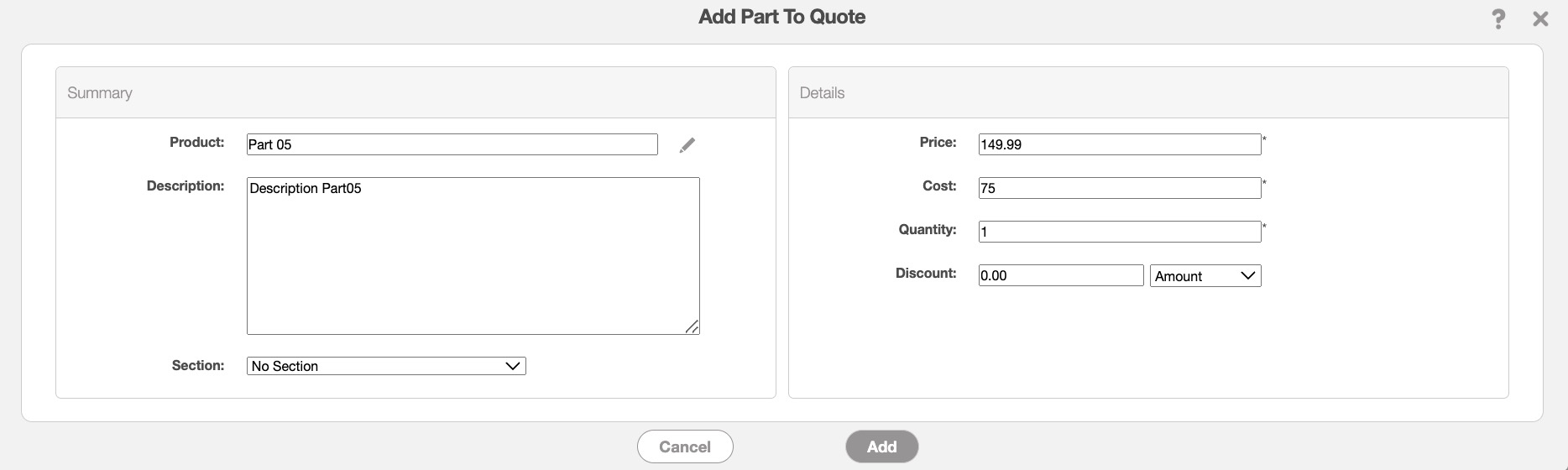
In this pop-up window enter the following details:
Product- The name of the part or product. By clicking the Pencil icon you can reselect the desired product.
Description- The description of the part or product. This field is optional.
Price and Cost- These fields will be automatically filled based on the saved data you have in your parts catalog; however, you can directly edit the price and cost when adding it to the quote. For more information about your parts catalog, please see the Parts List (Catalog) page.
Quantity- Specify the quantity of the part or product needed for the quote.
Discount- If applicable, you can enter an individual discount for the selected part.
Section- You can also directly add the part to a specific section for better organization of the quote line items.
Add service
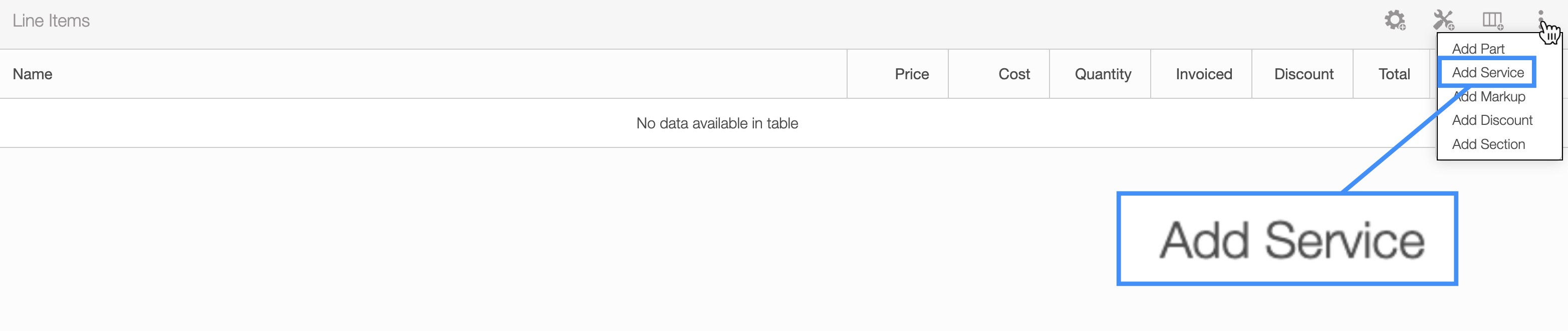
In the "Line Items" panel click on the Individual Actions in the top-right. From the drop-down menu that appears, select the "Add Service" option:
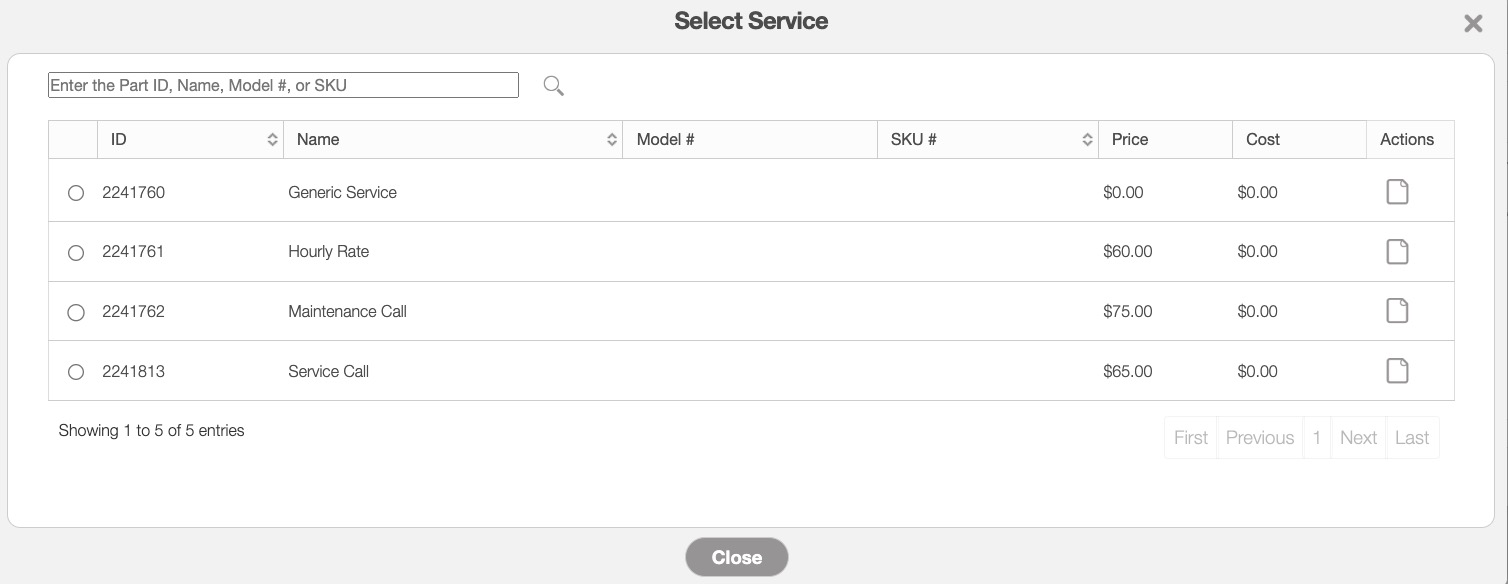
The Select Service pop-up window will appear. From there, choose the desired service:
After selecting a service from the Select Service pop-up window, the Add Service to Quote pop-up window will appear, allowing you to adjust the quantity, section, and other details:
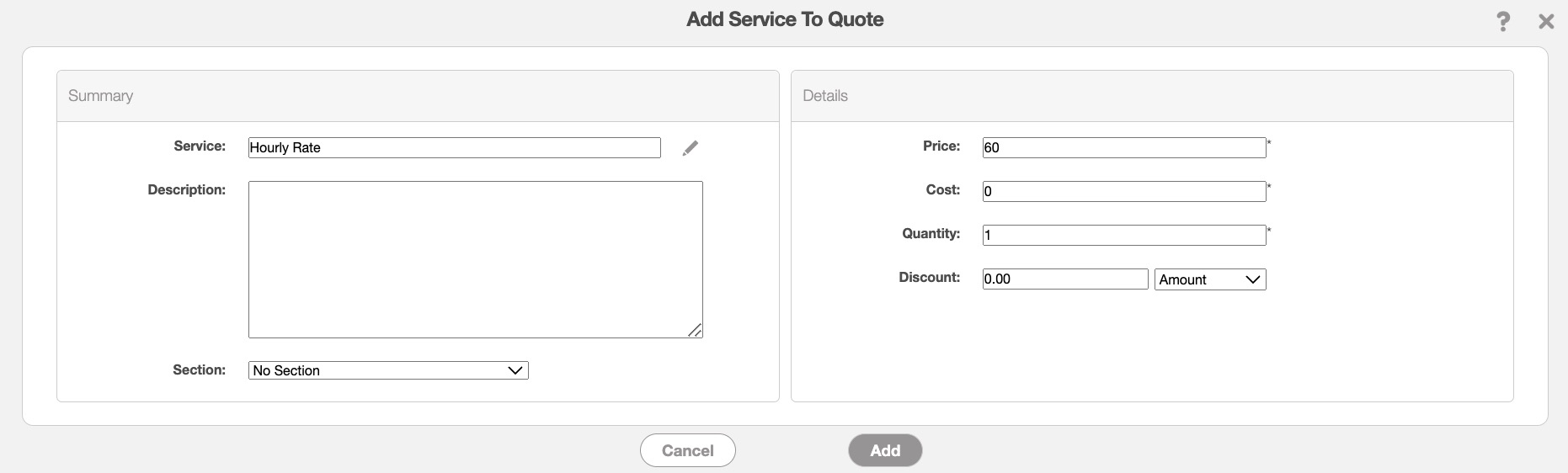
In this pop-up window enter the following details:
Service- The name and type of service.
Description- The description of the service. This field is optional.
Price and Cost- These fields will be automatically filled based on the saved data you have in your services catalog; however, you can directly edit the price and cost when adding it to the quote. For more information about your services catalog, please see the Service Catalog (list) page.
Quantity- Specify the hours worked by the user for the service.
Discount- If applicable, you can enter an individual discount for the selected service.
Section- You can also directly add the part to a specific section for better organization of the quote line items.
Add mark up
In the "Line Items" panel click on the Individual Actions in the top-right. From the drop-down menu that appears, select the "Add Markup" option.
You will be able to add additional markups to choose from, from the Quote Settings page. For more information on how to add or edit a markup, please see the Quote Settings page:
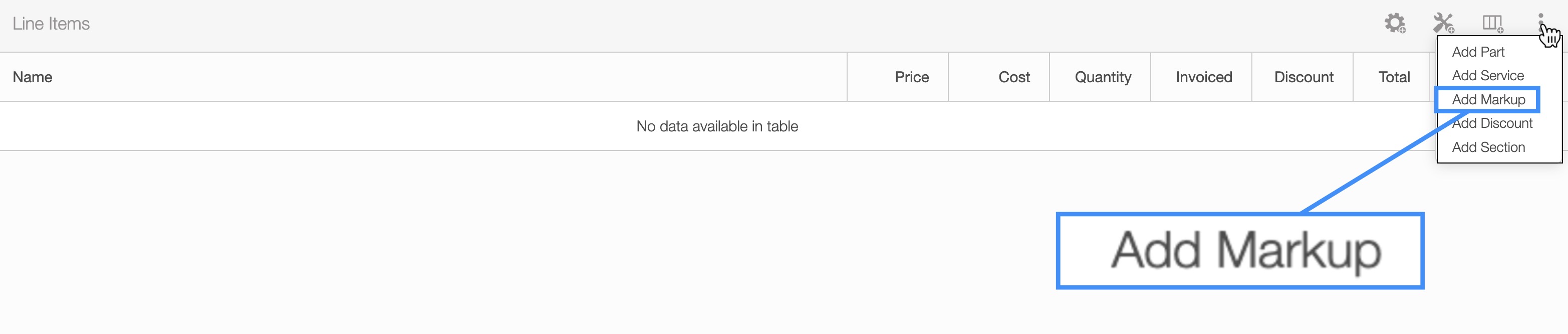
Once you click on the "Add Markup" option, the Add Markup pop-up window will appear:
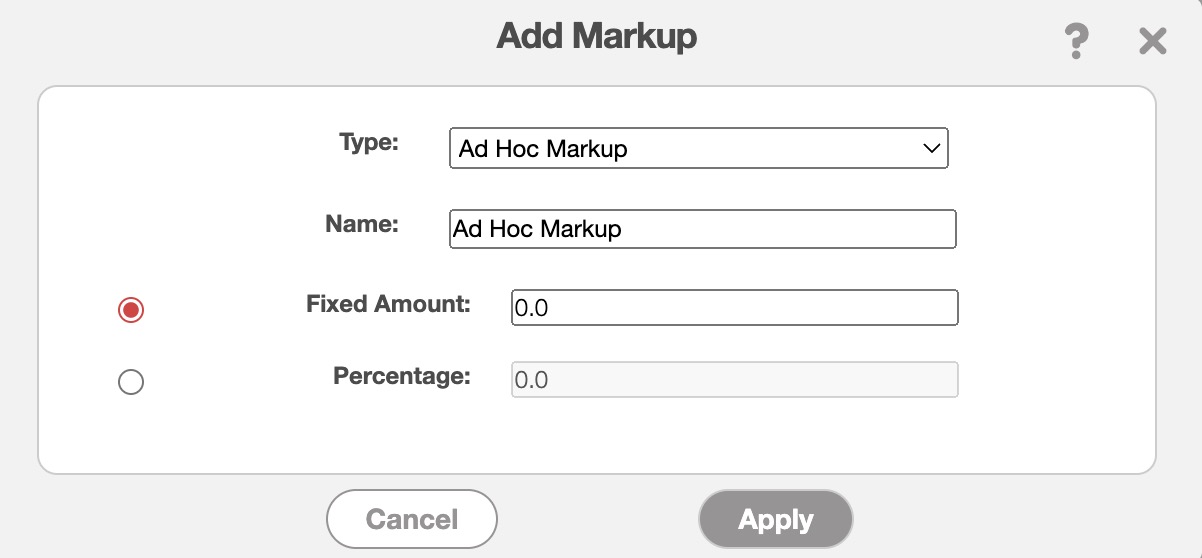
In this pop-up window select the type of markup you would like to apply. If the selected markup has predefined values for the fixed amount and percentage, these values will be automatically applied. If there are no predefined values for the selected markup, you can manually input the fixed amount and percentage.
After applying this markup, you will be able to see it in the "Total & Balance" panel of your quote:
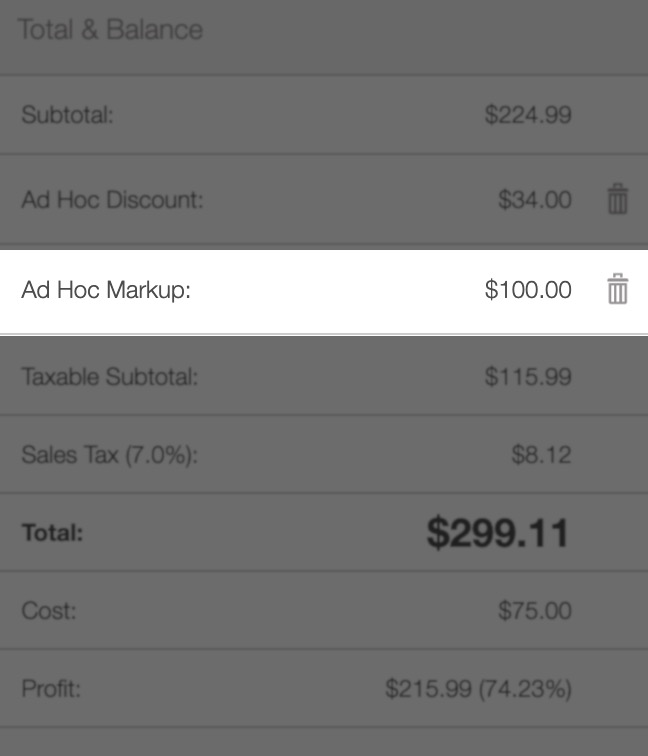
If you decide to no longer apply the markup, you can select the Trash Can icon next to the marked-up amount.
Add discount
In the "Line Items" panel click on the Individual Actions in the top-right. From the drop-down menu that appears, select the "Add Discount" option. This discount option will allow you to add a discount to the entire quote.
You will be able to add additional general discounts to choose from, from the Quote Settings page. For more information on how to add or edit a general discount, please see the Quote Settings page:
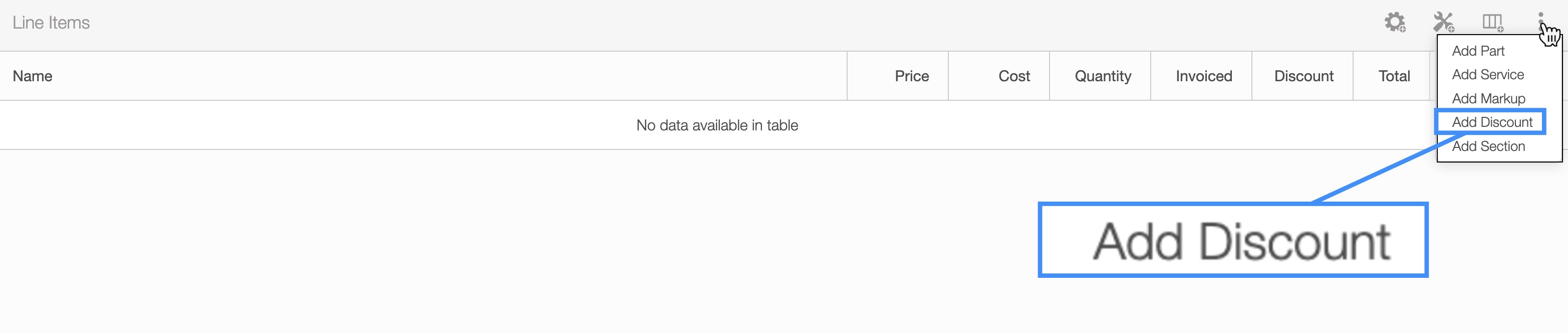
Once you click on the "Add Discount" option, the Apply Discount pop-up window will appear:
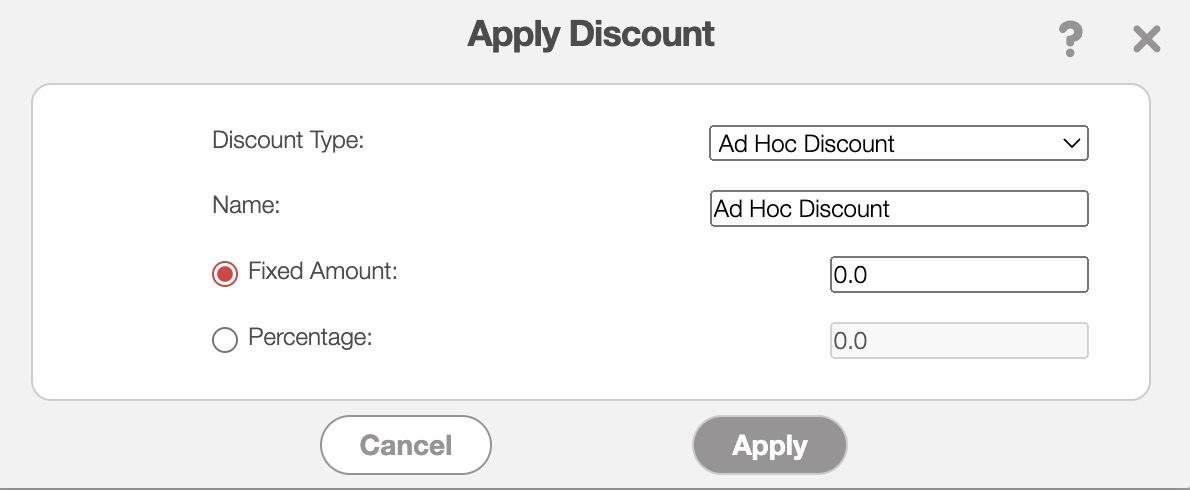
In this pop-up window select the type of discount you would like to apply. If the selected discount has predefined values for the fixed amount and percentage, these values will be automatically applied. If there are no predefined values for the selected discount, you can manually input the fixed amount and percentage.
After applying this discount, you will be able to see it in the "Total & Balance" panel of your quote:
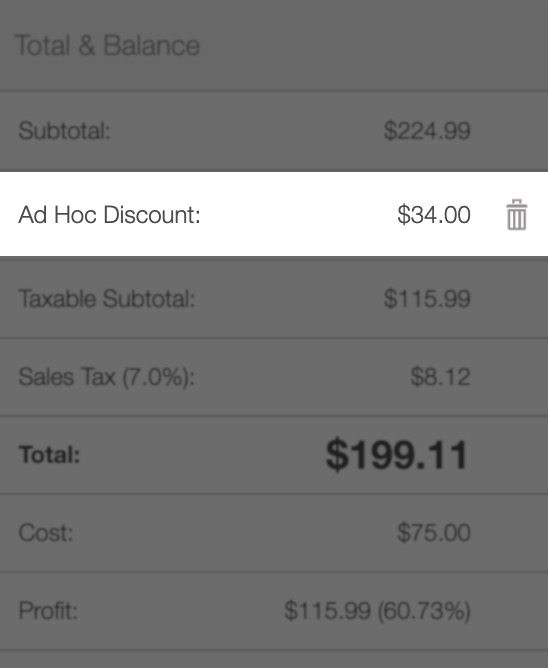
If you decide to no longer apply the discount, you can select the Trash Can icon next to the discounted amount.
Add section
In the "Line Items" panel click on the Individual Actions in the top-right. From the drop-down menu that appears, select the "Add Section" option:
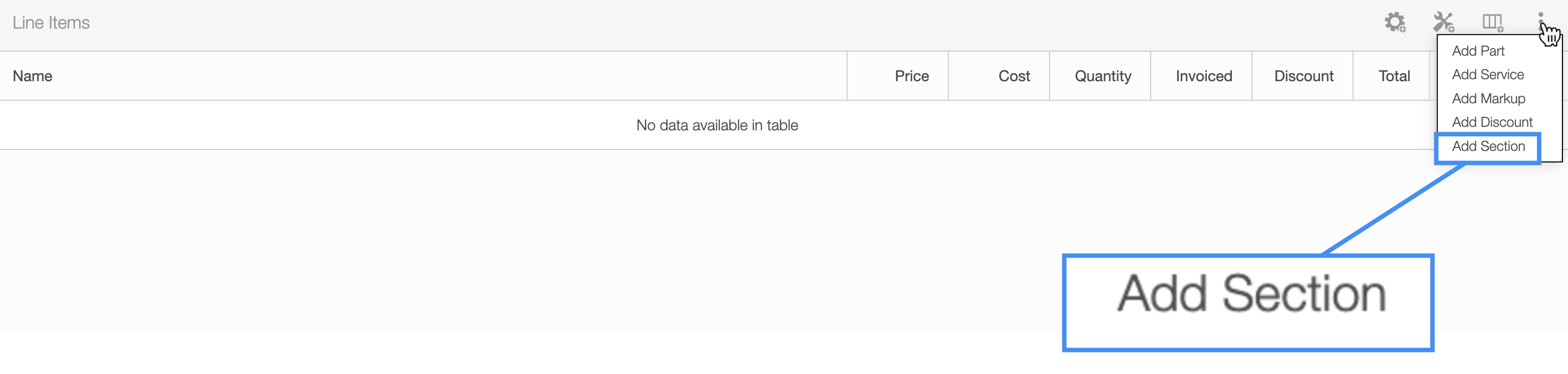
Once you click on the "Add Section" option, the Add Section pop-up window will appear:
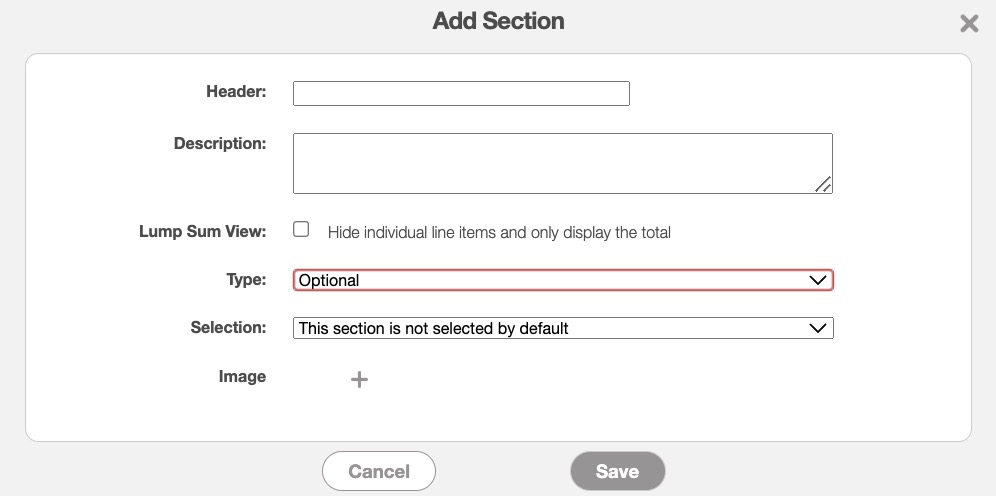
In this pop-up window enter the following details:
Header- The name of the section.
Description- The description of the section.
Lump Sum View- By clicking on the lump sum view for the Add Section pop-up window, you will be able to hide the individual line items for the items listed in the specified section. This option is different from the "Lump Sum View" checkbox in the Add Quote pop-up window and the Edit Quote pop-up window; this lump sum view will apply to the entire quote.
Type- The type drop-down indicates the category (i.e., Required, Optional, Alternate) to which the section, along with its corresponding parts and services, belongs. Optional or Alternate sections allow customers to select the options they prefer from the emailed quote. This is especially helpful for Good, Better, Best estimates.
Selection- If you select the Optional or Alternate types, then the "Selection" field will appear. This field will indicate if the parts or services in the section are selected by default.
Image- Allows you to upload a small image for the section.
The section will then appear in the "Line Items" panel; the parts and services listed under it will be contained in the respective section:
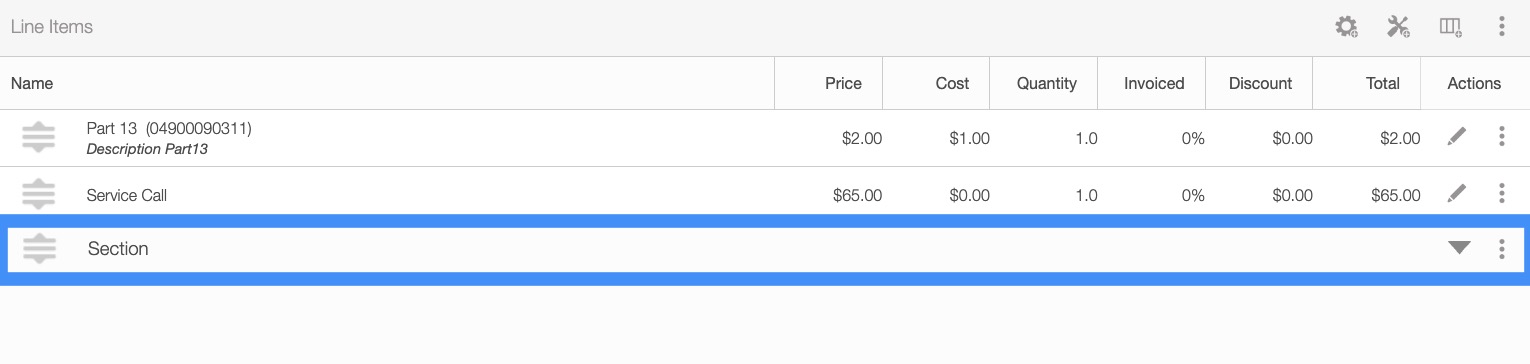
You can add parts or services to a specified section through the Add Part to Quote or Add Service to Quote pop-up window and selecting the desired section from the "Section" drop-down.
You can also use the section header to store comments about the quote.
Add multiple line items
You will be able to add multiple parts, services, and bundles by selecting the "Add Multiple Parts" option from the drop-down or the Plus Sign icon:
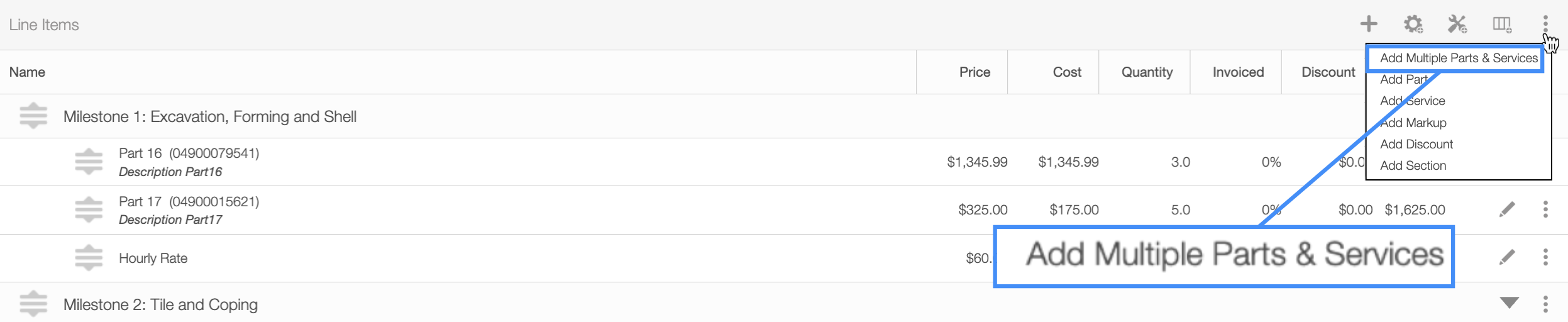
This action allows users to select multiple lines items simultaneously, thus improving efficiency and reducing the time spent on adding parts, services, and bundles individually.
In the Add Multiple pop-up window that appears, select the respective toggle (in the upper left corner of the window) to locate the desired part/service, bundle, part, or service. You can also use the search bar to quickly locate the specified line item:
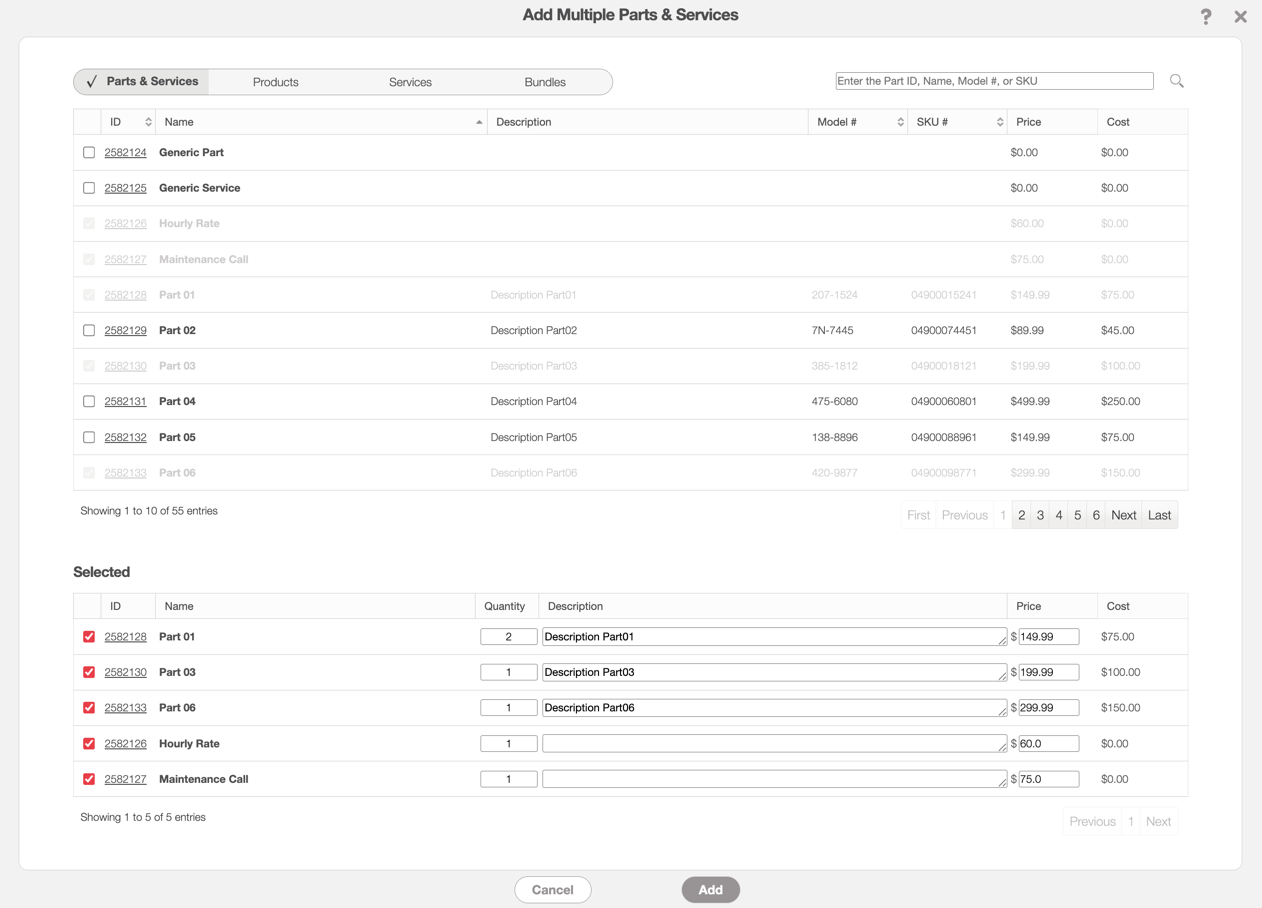
After marking the corresponding checkbox of the desired part, bundle, or service the selected line items will be relocated to the "Selected" section.
Once in the "Selected" section, you will be able to update the quantity, the description, as well as the price. Likewise, if you need to remove a part, service, or bundle from the "Selected" section, simply uncheck the selected line item.
Please note, that if you need to add a mark up or discount to the selected parts, services, or bundles this will need to be done separately by editing the individual line item. If you need to remove any of the line items after they have been added to the quote, you will also need to do this individually per line item.
Duplicating a quote provides a quick and convenient way to carry over essential data from an existing quote to a new one, without the need to create a separate template.
This method ideal for one-time use, whereas templates are better suited for recurring or standardized quotes.
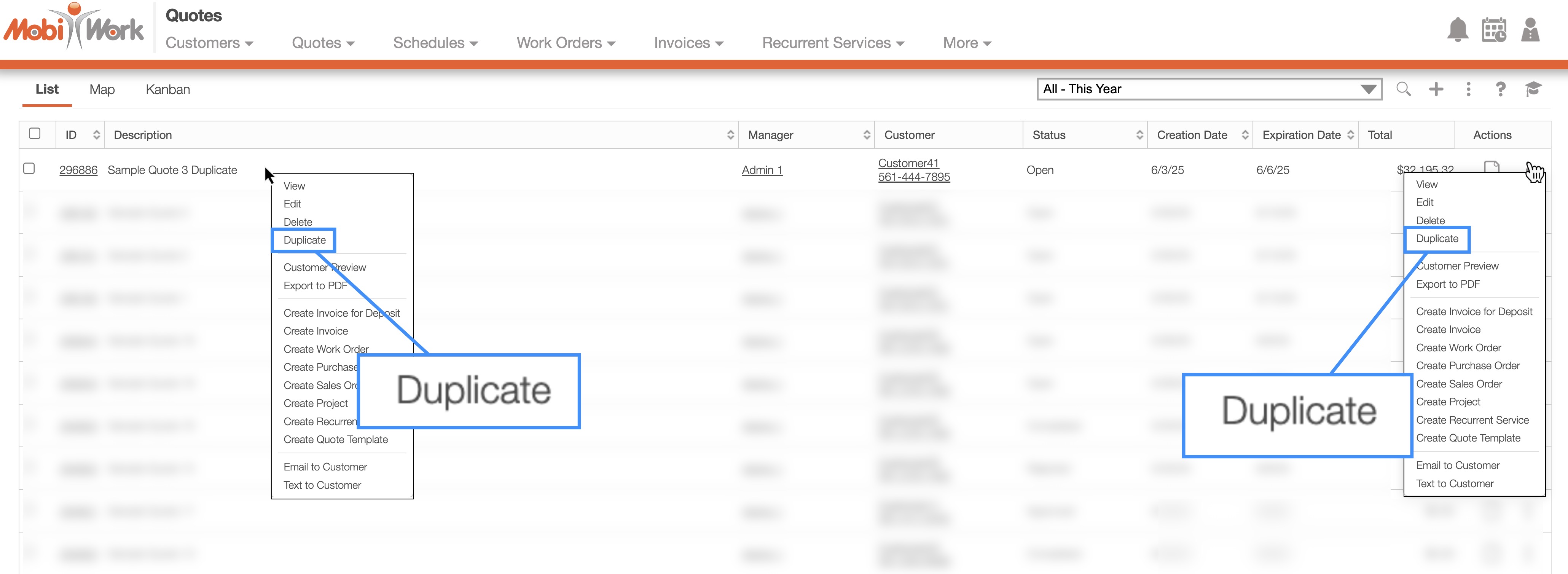
You can quickly duplicate an existing quote from either the "List" tab:
Or you can duplicate the quote from the View Quote pop-up window:
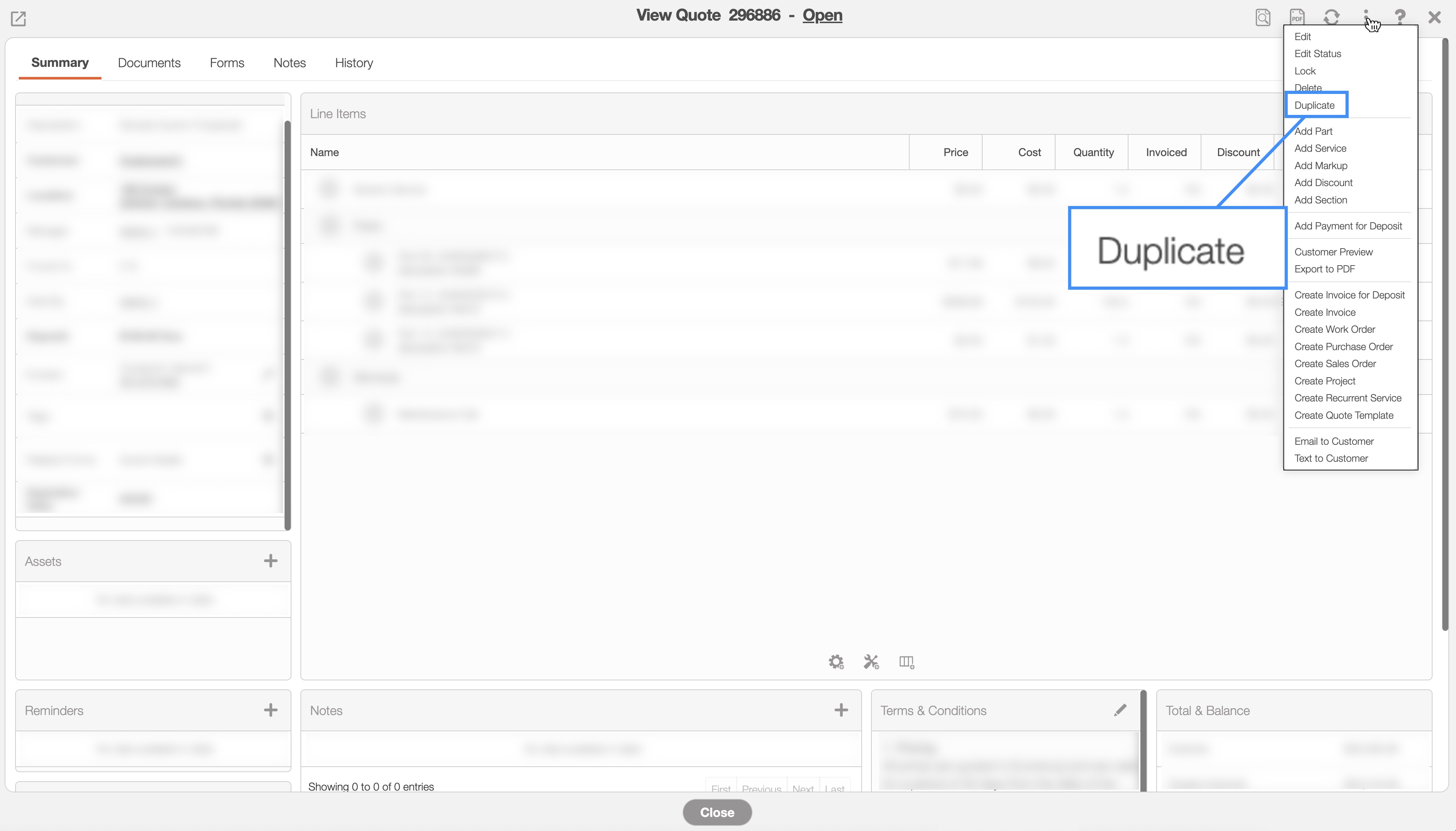
Regardless, of how you decide to duplicate a quote the Duplicate Quote pop-up window will appear. This pop-up window has the ssame fields as the Add Quote pop-up window.
In this pop-up window, you can specify the customer, deposit amount (if applicable), assigned quote manager, and other relevant details:
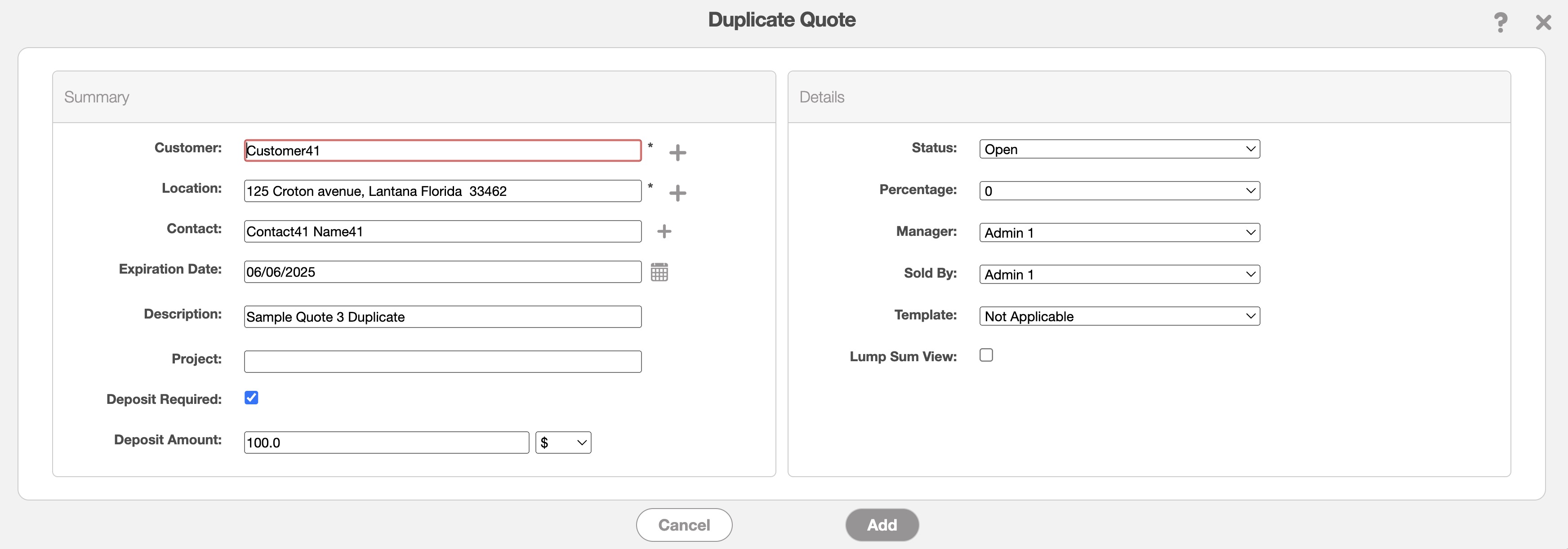
Please note that the line items and terms and conditions from the original quote will be duplicated. However, any associated assets, reminders, or notes from the original quote will not be carried over.