MobiWork simplifies deposit tracking as well as improves accounting and tax accuracy. When creating a quote that requires a customer deposit, you can ensure that the deposit credit is automatically applied to future invoices that are generated from the corresponding quote.
This deposit workflow also reduces the need for deferred revenue reclassification in accounting systems such as Sage. The following steps will detail how to create a deposit and apply a deposit credit for invoices generated from the quote.
Step 1: Create a Deposit Service Item
Before creating a deposit for your quote, first ensure that you have a line item that corresponds with the deposit credit.
While you can use a product to represent the deposit credit, for this example we will use a service. Using a product as the basis for the deposit credit will also require tax information, while the service does not. For more information on how to add a new service, please see the Add Service page.
Create a new service in the Add Service pop-up window; for this example, we will create a service item named "Deposit:"
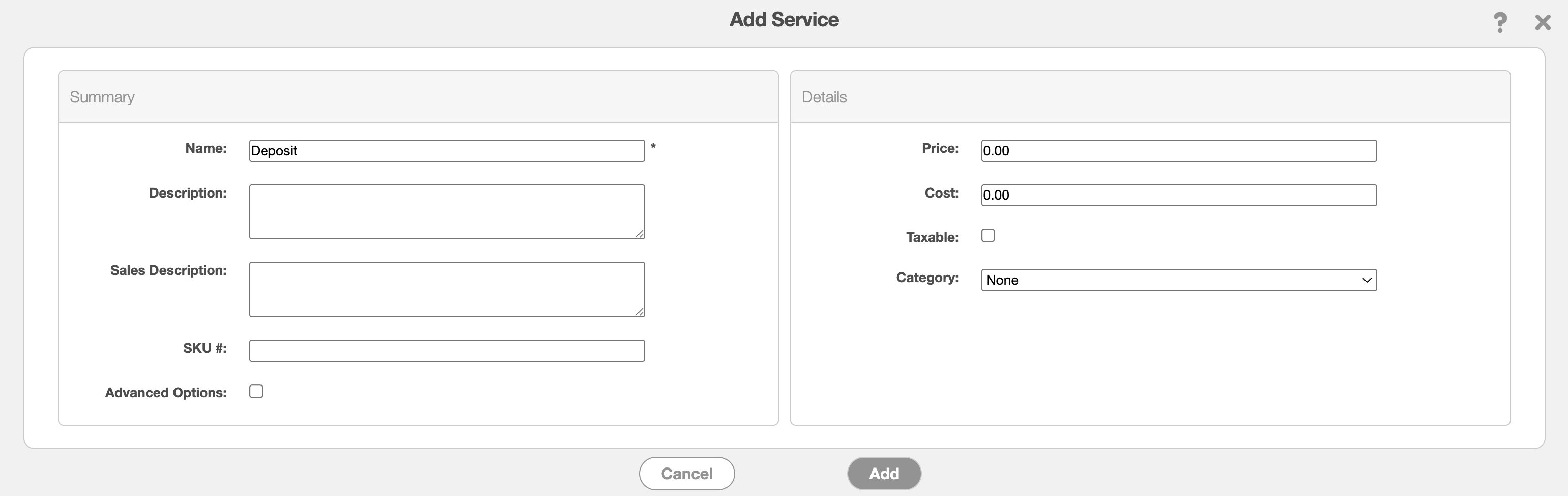
When the invoice is generated from the quote, this service item represents the paid deposit and serves as the default line item on the invoice. Unlike standard quote line items, this "Deposit" service item:
Uses the same deposit amount as the list deposit price
Is non-taxable.
Because the deposit is represented as a separate non-taxable service item, sales tax calculations remain accurate and are not affected by deposit percentages.
Step 2: Configure the Deposit Credit Discount
Next, navigate to the "Discount" section on the Invoice Settings page and create a discount that will be used to apply the deposit credits to future invoices generated from the quote. For more information on how to create a new discount, please see the Invoice Settings page.
For this example, we will create a discount named "Deposit Credit." Open the Add Discount pop-up window:
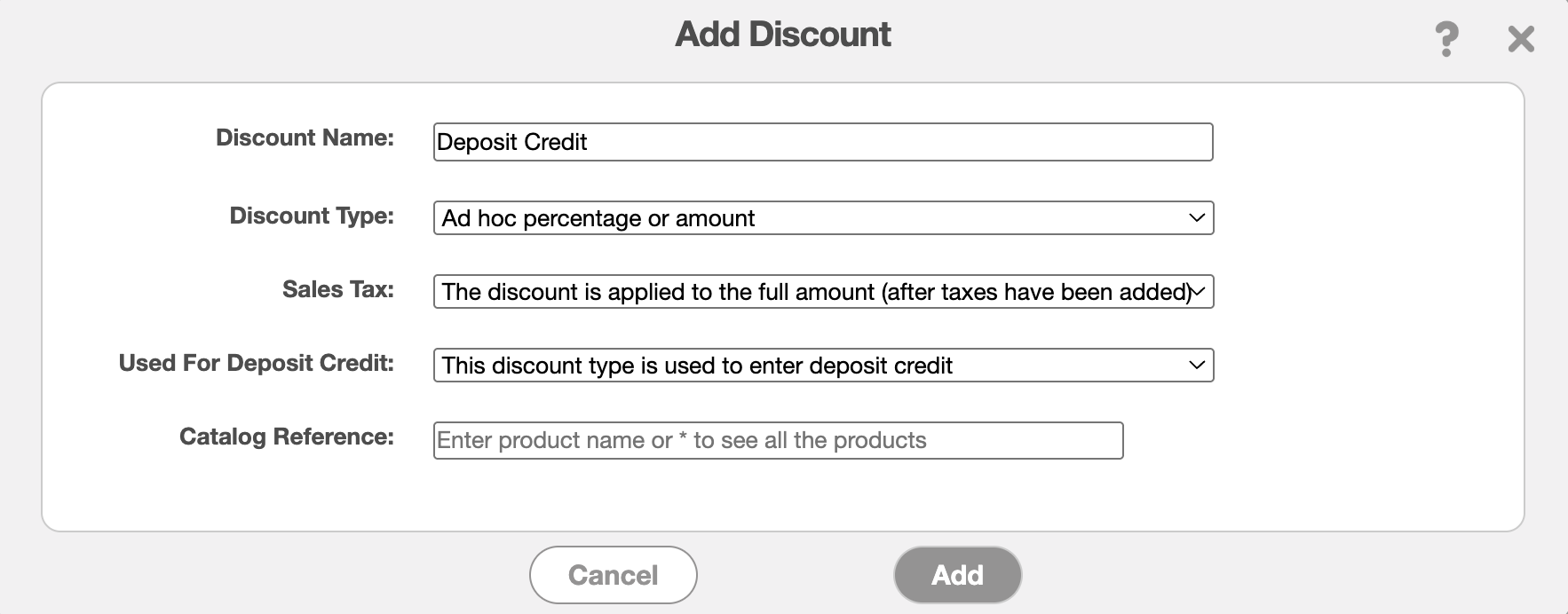
Then enter the following information:
In the "Discount Type" field, ensure that the "Ad hoc percentage or amount" is selected.
For the "Sales Tax" field, make sure the "The discount is applied to the future amount (after taxes have been added)" option is selected.
In the "Used For Deposit Credit" field, the "This discount type is used to enter the deposit credit" should be option should be chosen.
Click the Add button to save the new discount. This special discount type allows MobiWork to automatically apply previously paid deposits to invoices generated from the quote.
Step 3: Create the Quote and Deposit Invoice
When populating the quote, ensure that the service line item from Step 1 is added to the quote. This will allow the discount deposit to link to the corresponding deposit line item:
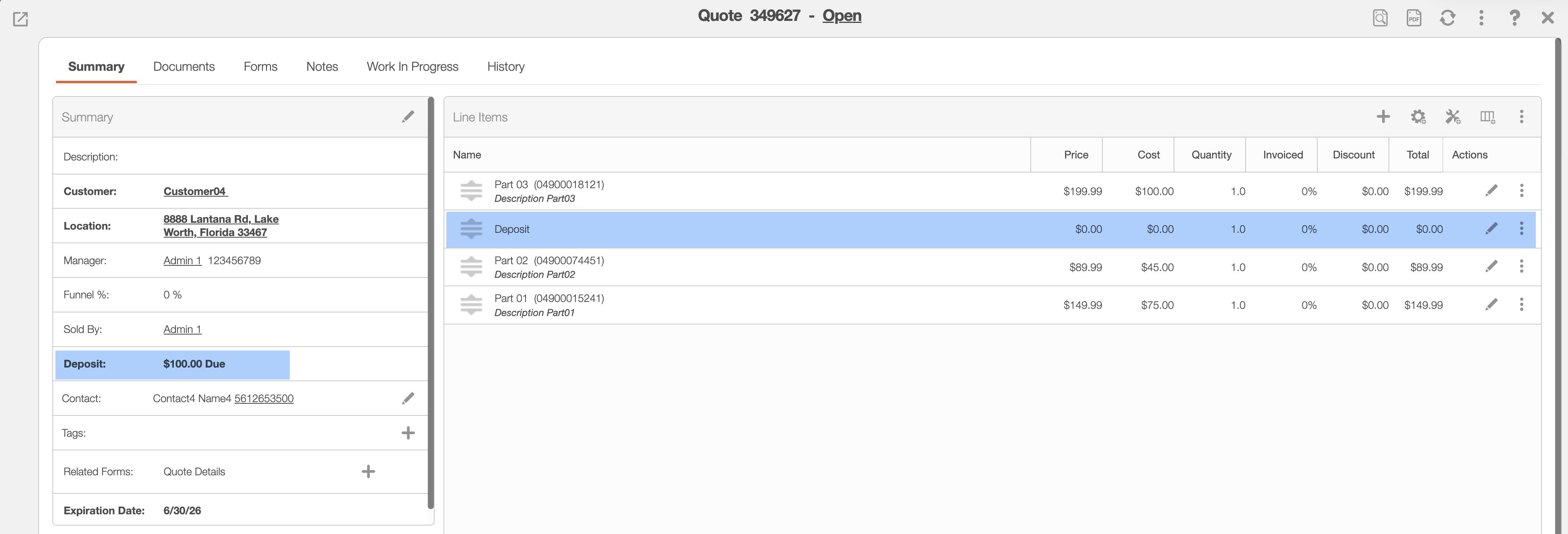
After creating the quote and adding the necessary products and services, you can then choose to "Add Payment for Deposit" or select the "Create Invoice for Deposit" option in order to generate the deposit-related invoice:
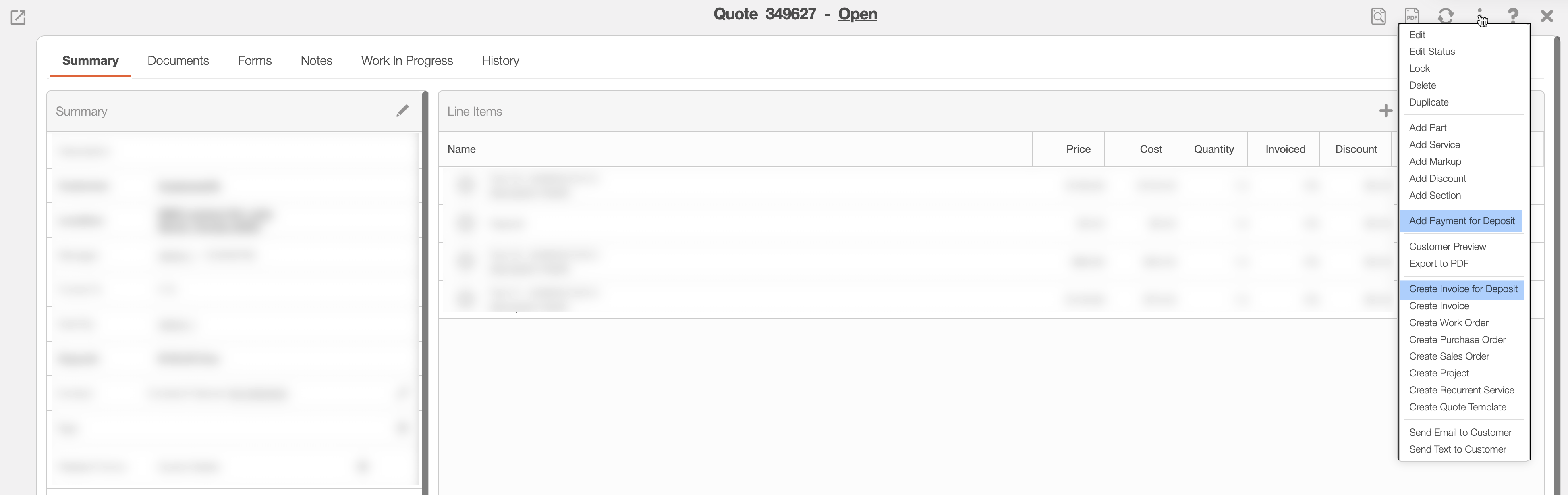
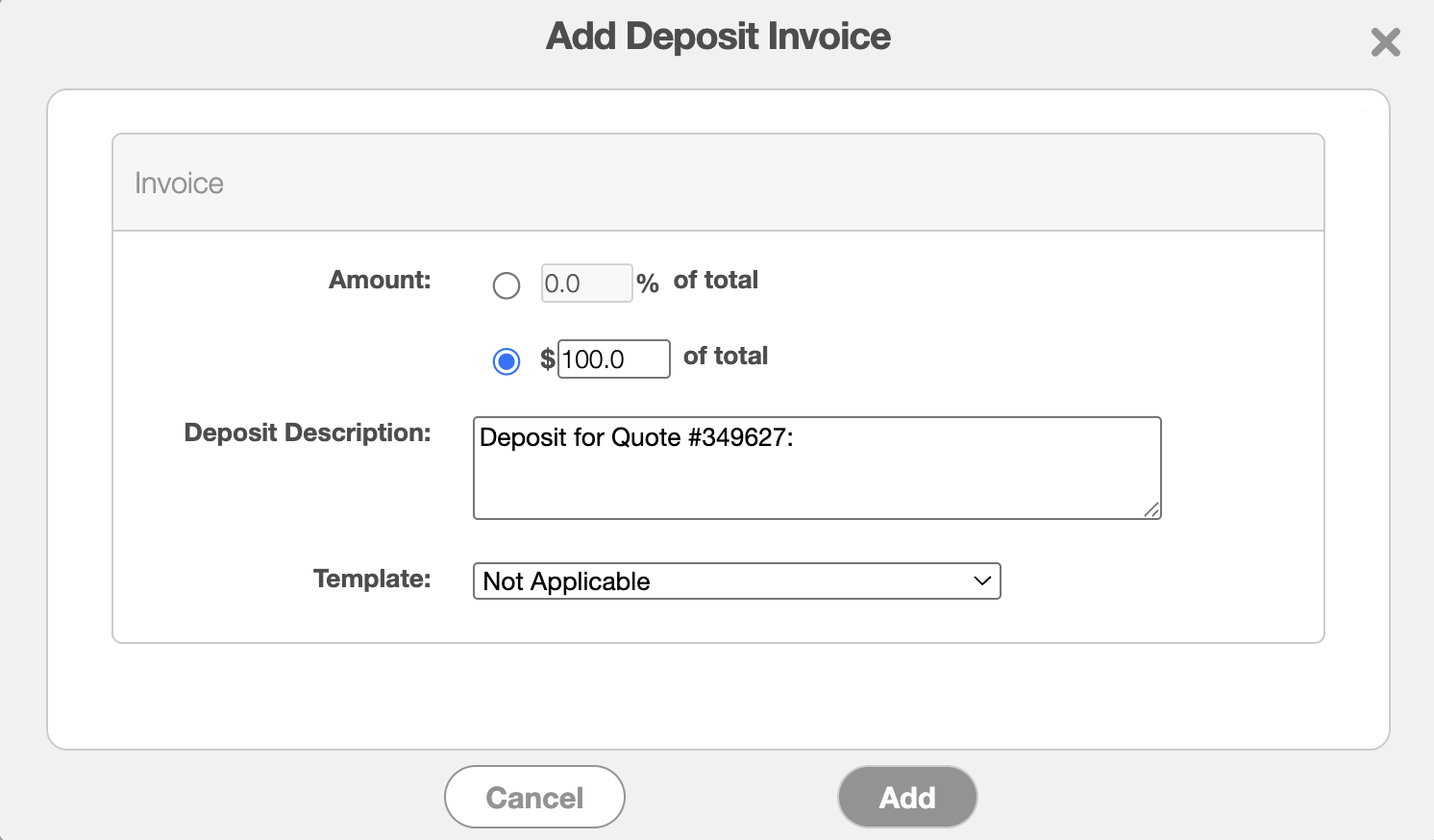
For this example, we will select the "Create Invoice for Deposit" option. The description will autogenerate, stating that the invoice is a deposit for the corresponding quote. Then enter the deposit amount being paid and click the Add button:
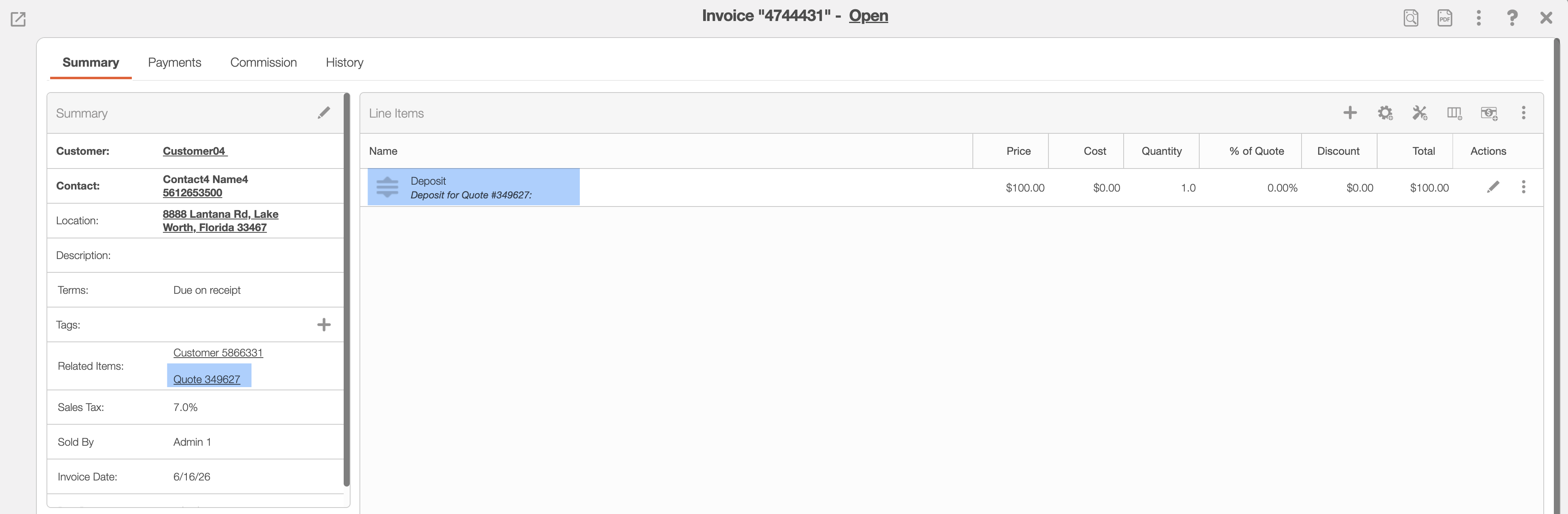
In the "Related Items" field, you will see a hyperlink that links the deposit invoice to the original quote, providing easy navigation between the two records. Additionally, the Deposit service line item will include an autogenerated note indicating that the line item represents a deposit for the associated quote.
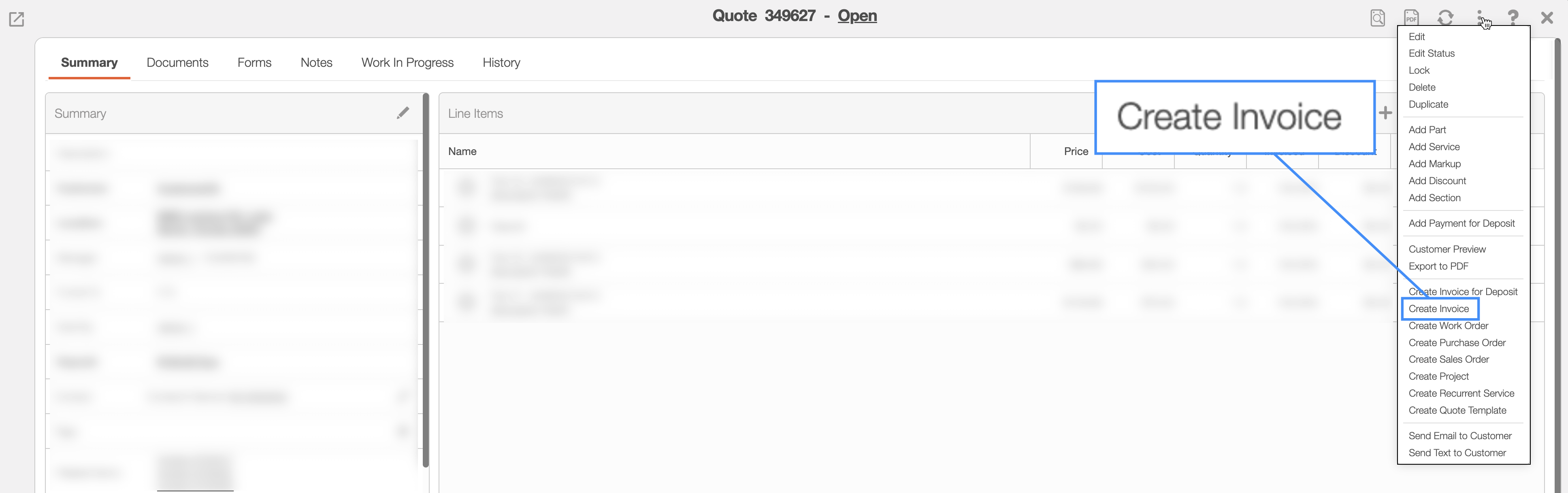
Return to the original quote and generate the invoice by selecting the "Create Invoice" option:
Whenever additional invoices are generated from the quote, MobiWork can apply the deposit as a credit. In the Add Invoice pop-up window, you will notice that there is a checkbox to apply the deposit credit to the invoice:
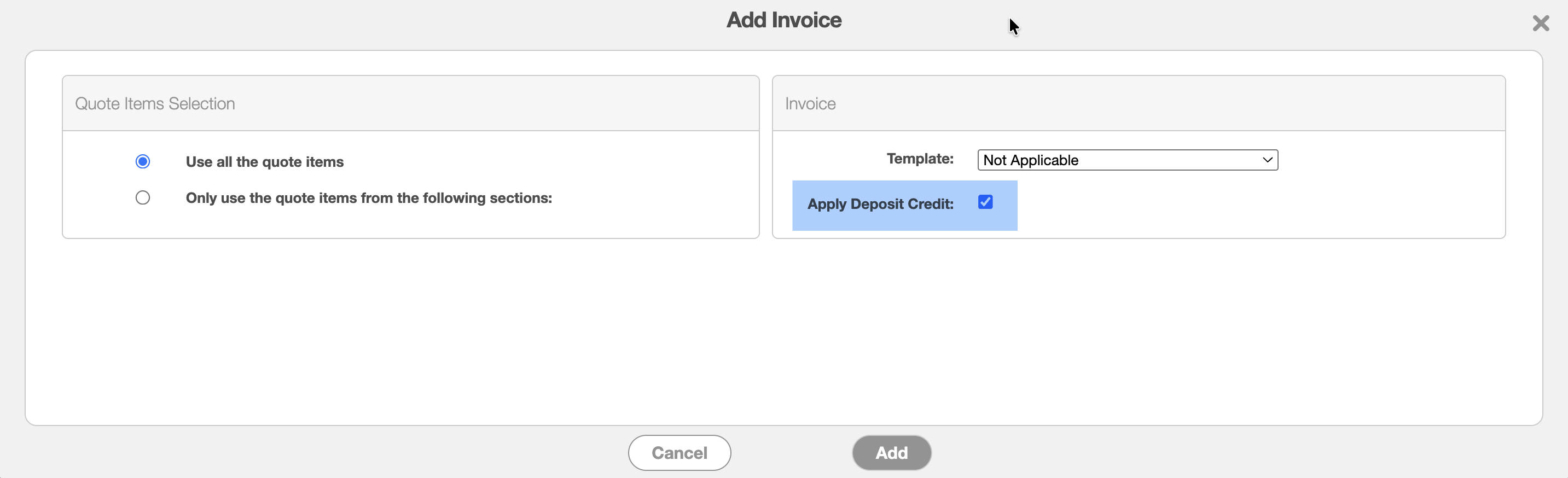
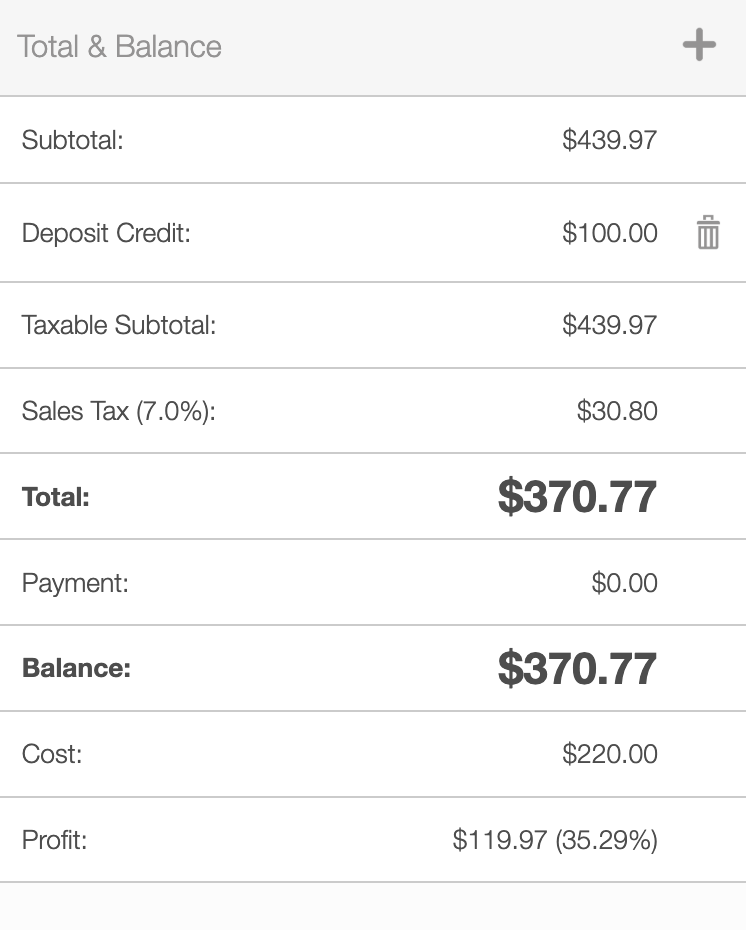
By checking on this option, the deposit credit will carry over to the new invoice, and the deposit amount will be excluded from sales tax calculations. The new invoice will be linked to the quote and will also have a note stating that the invoice was generated from the corresponding quote:
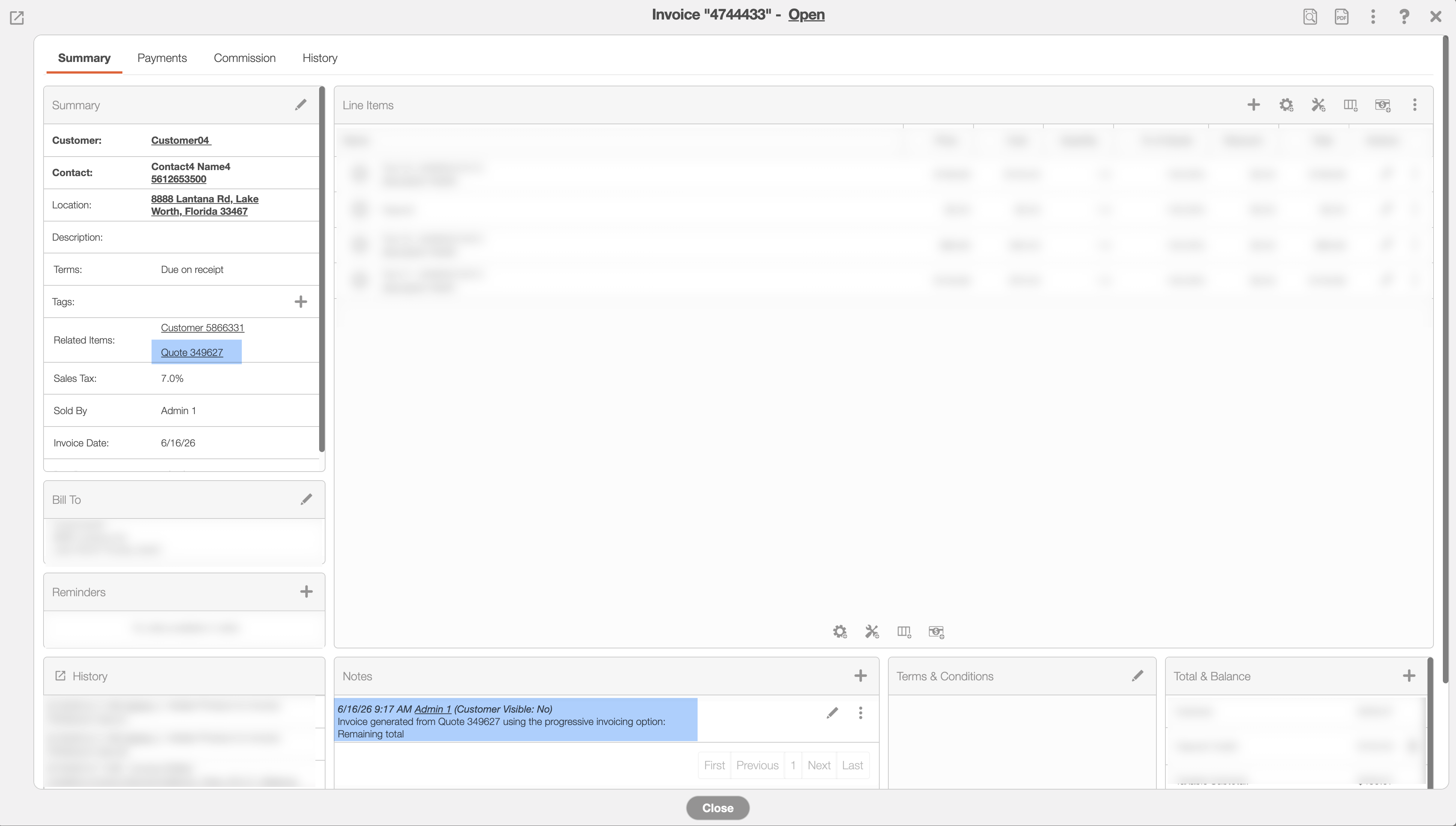
In the "Total & Balance" panel, you will notice the deposit credit has been applied: