To permanently remove a quote template, you must first be on the Quote Templates page. Once you are on this page you can edit a quote template in the following ways:
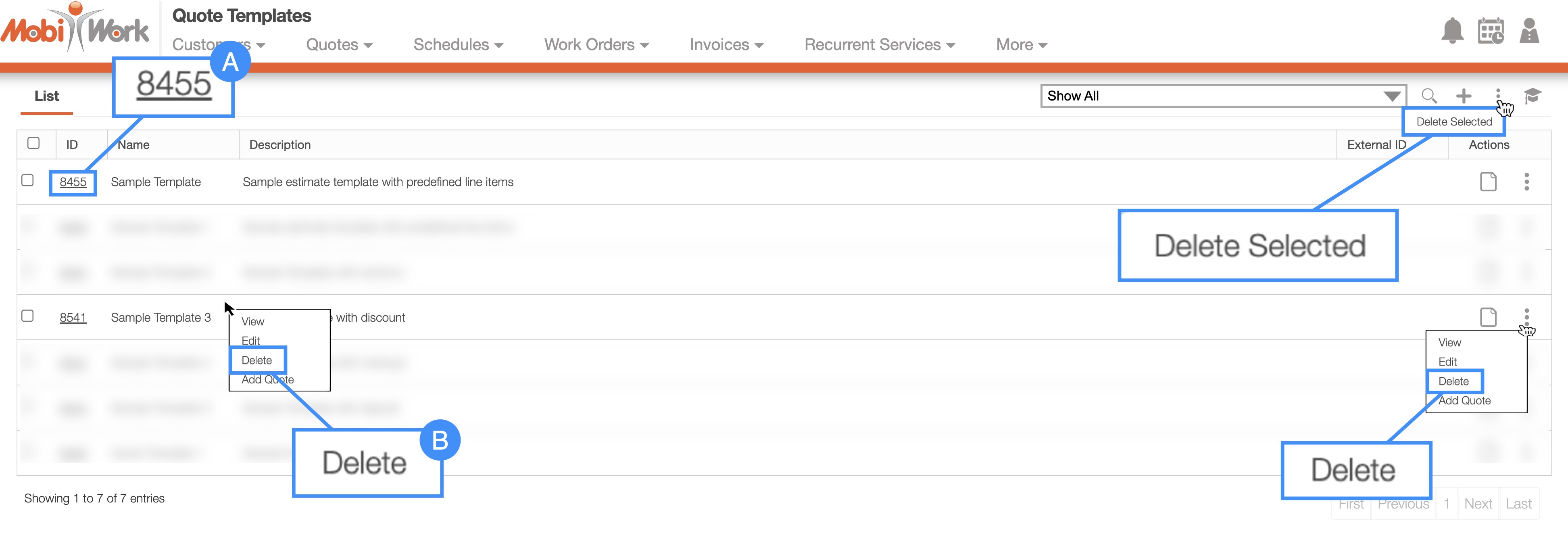
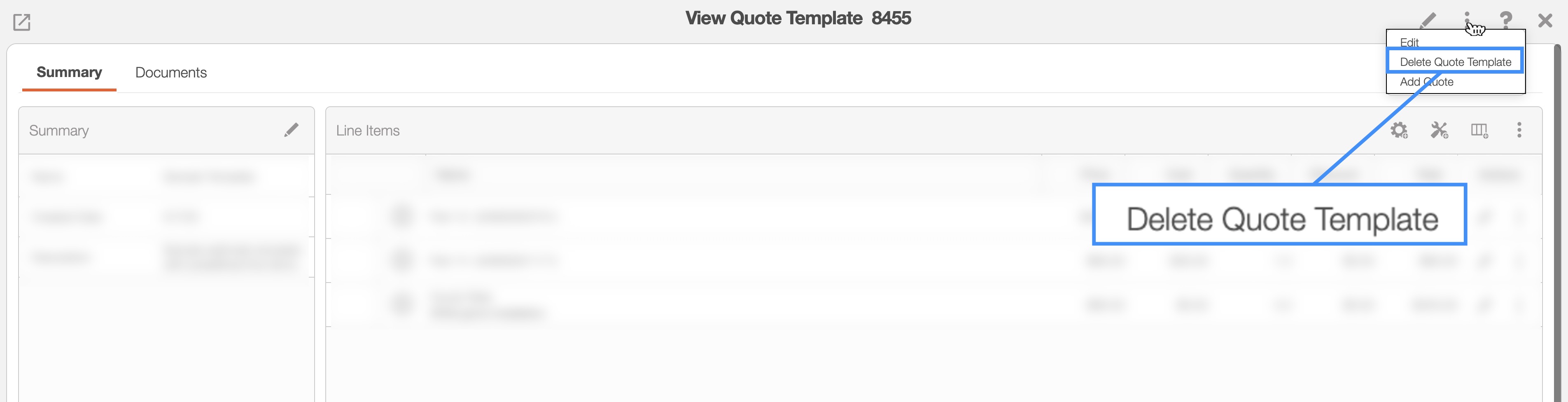
- By clicking on the desired quote template ID and from the View Quote Template pop-up window select the Individual Actions button:
- From the drop-down select the "Delete Quote Template" option:
- Right-click on the selected quote template and choose the "Delete" option from the drop-down.
online-help.platform.features.estimates.premier.quote_template_delete.paragraph3
Click on the Individual Actions button and from the drop-down choose the "Delete" option.
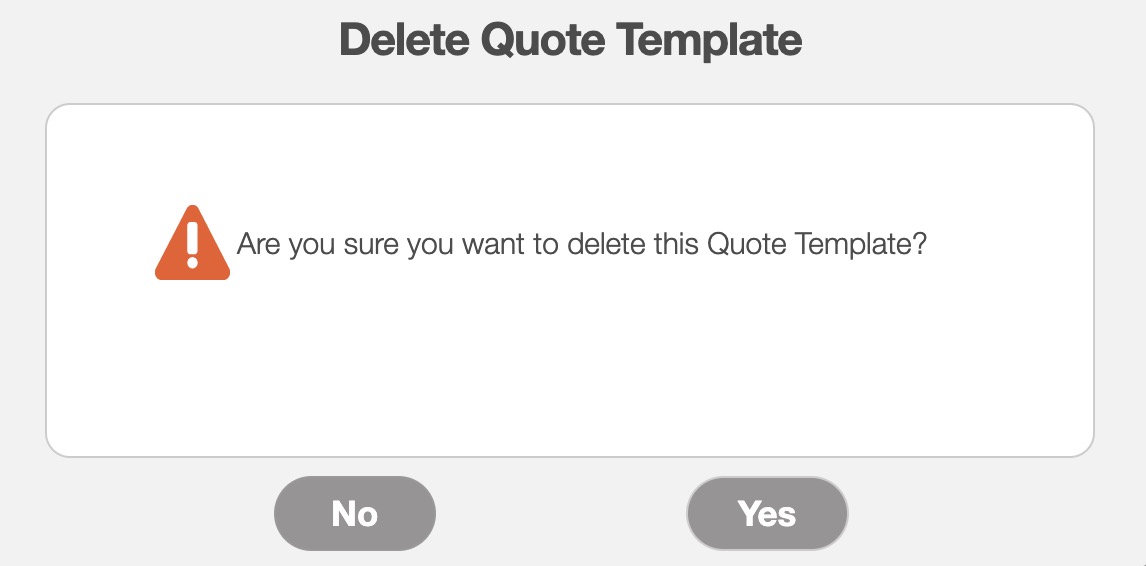
Regardless of the method that you choose (except for the "Delete Selected" option) If you decide to remove a single quote template then the Delete Quote Template pop-up window will appear. If you are sure you would like to remove the selected quote template, click the Yes button:
You will be able to delete the parts, services, sections, markups, and discounts listed in the quote's line items. The following subsections will illustrate how to delete these different line item entries.
Delete part
In the "Line Items" panel click on the selected part's Individual Actions. From the Individual Actions' drop-down menu that appears, select the "Delete" option. You can also delete the selected part by right-clicking on it and selecting the "Delete" option from the drop-down:
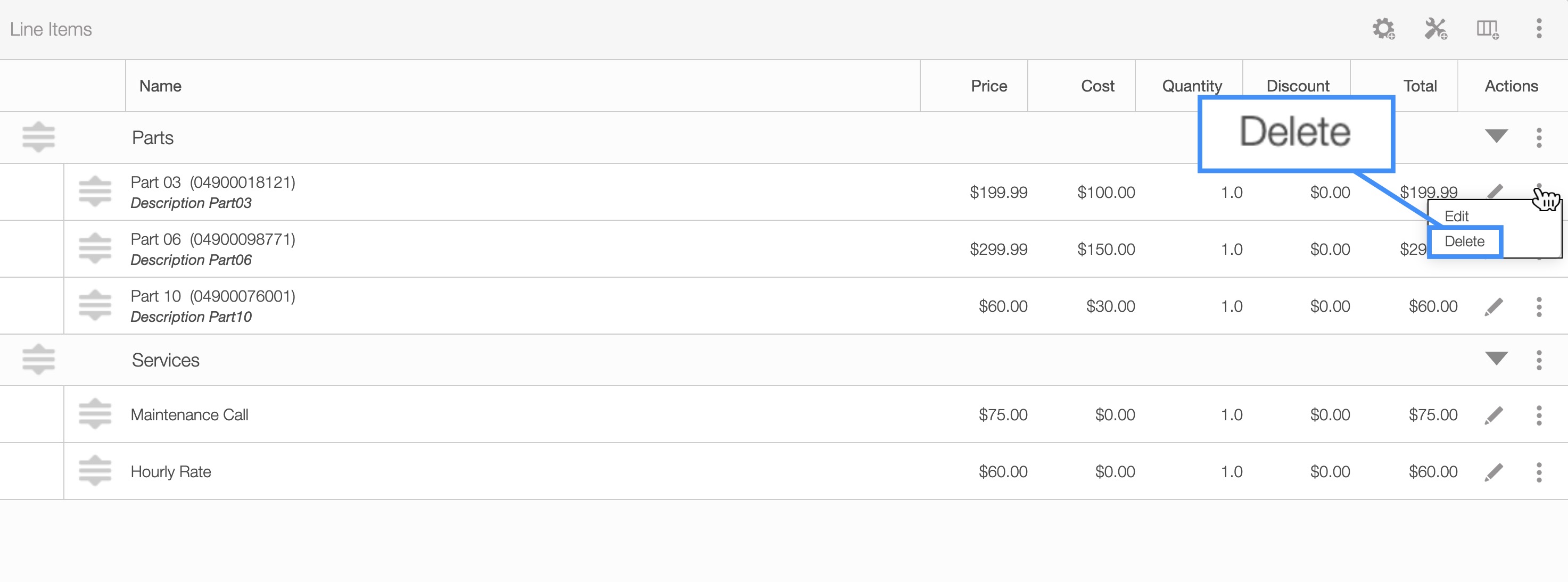
Once you click on the "Delete" option, the Confirm Delete pop-up window will appear:
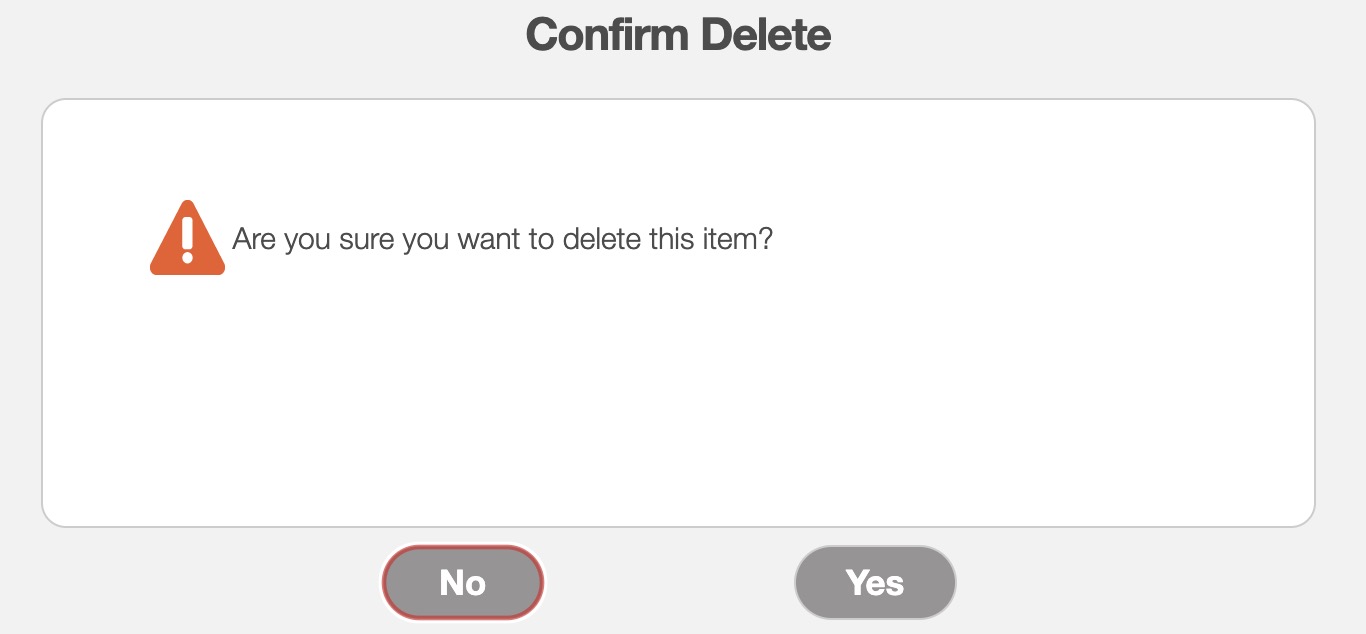
Click the Yes button to confirm you would like to delete the selected part.
Delete service
In the "Line Items" panel click on the selected service's Individual Actions. From the Individual Actions' drop-down menu that appears, select the "Delete" option. You can also delete the selected service by right-clicking on it and selecting the "Delete" option from the drop-down:
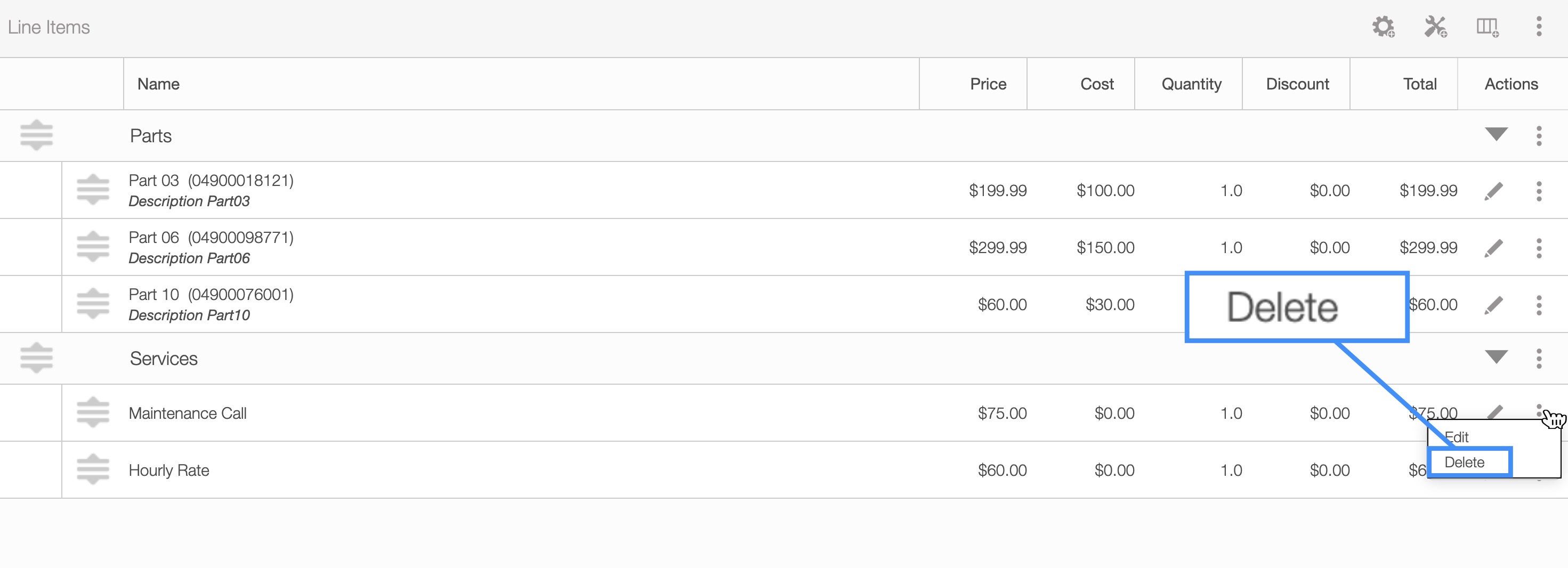
Once you click on the "Delete" option, the Confirm Delete pop-up window will appear:
Click the Yes button to confirm you would like to delete the selected service.
Delete section
In the "Line Items" panel click on the selected section's Individual Actions. From the Individual Actions' drop-down menu that appears, select the "Delete Entire Section" option. You can also delete the selected section by right-clicking on it and selecting the "Delete Entire Section" option from the drop-down:
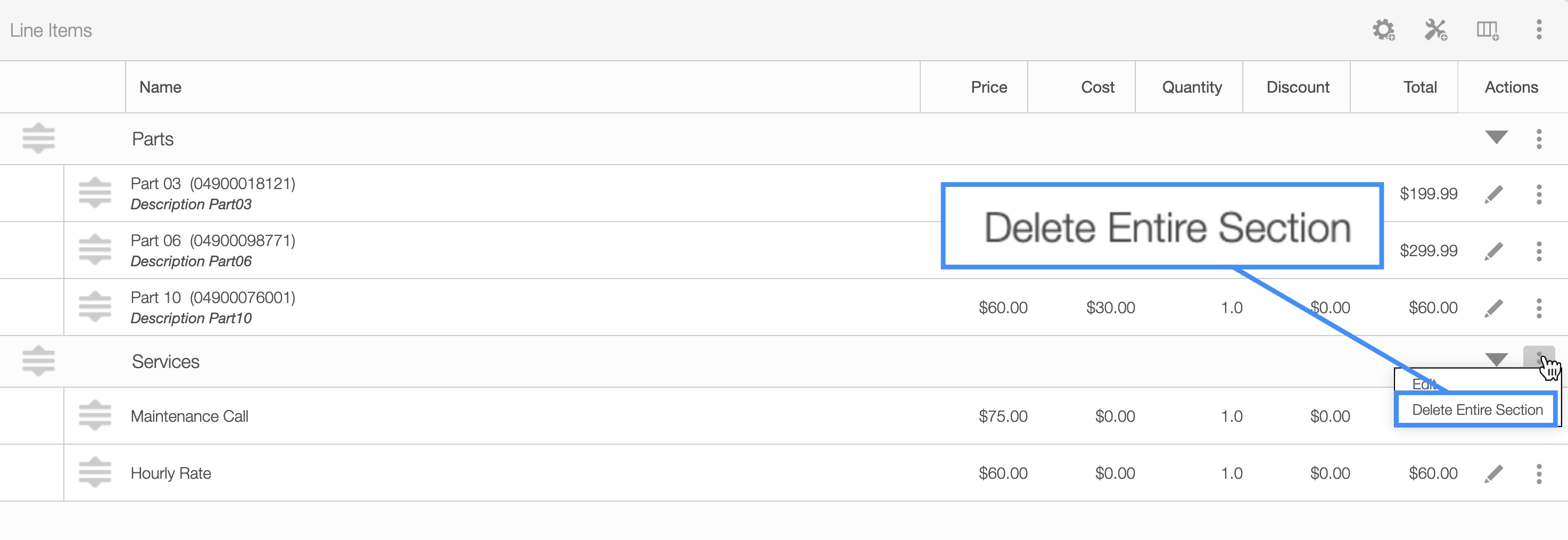
Once you click on the "Delete" option, the Confirm Delete pop-up window will appear:
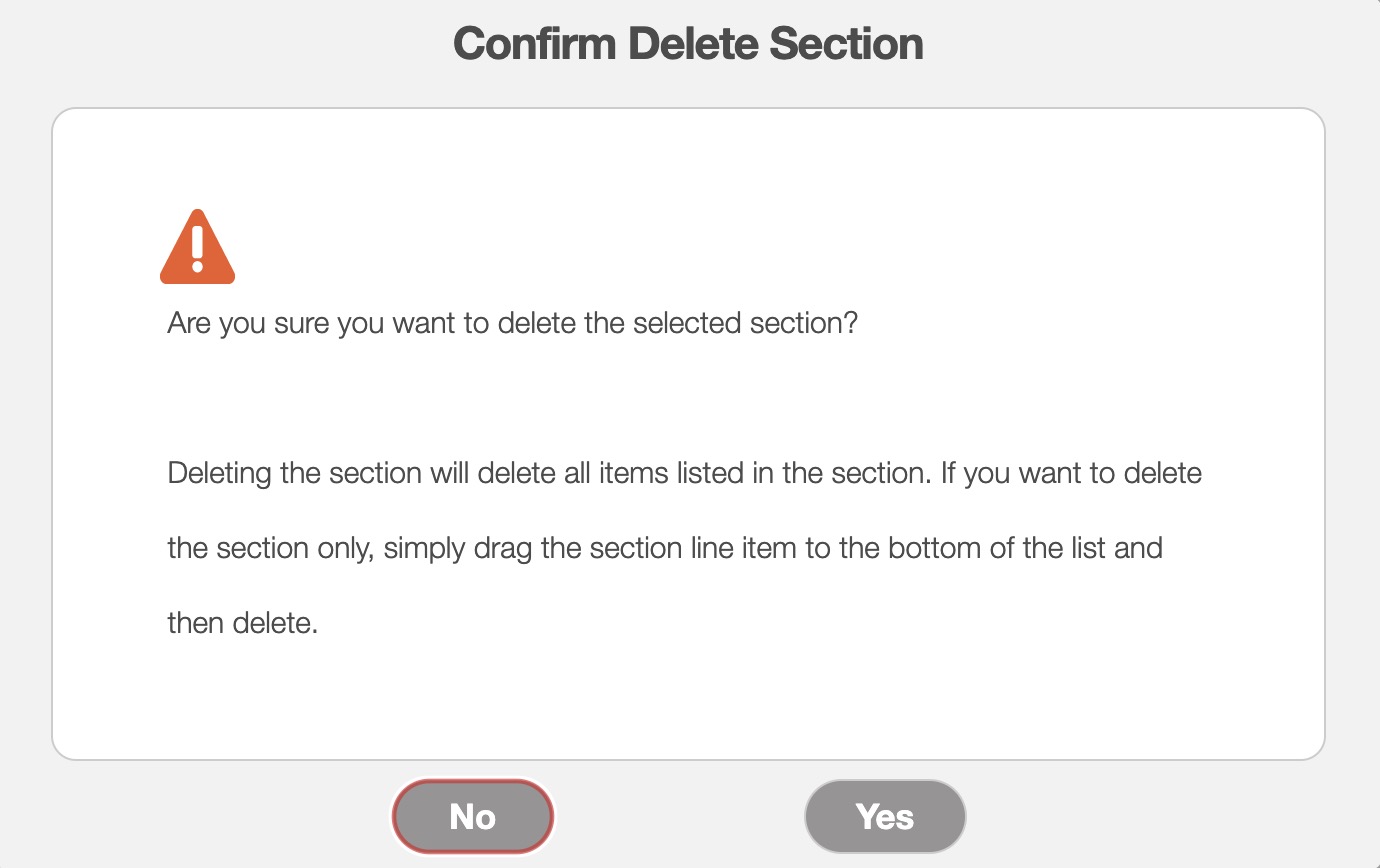
Click the Yes button to confirm you would like to delete the selected section. Please note that any parts or services that are listed under the section will also be removed.
Delete Markup
In the "Total & Balance" panel, locate the markup you would like to delete. Click on the corresponding Trash Can button next to the selected markup:
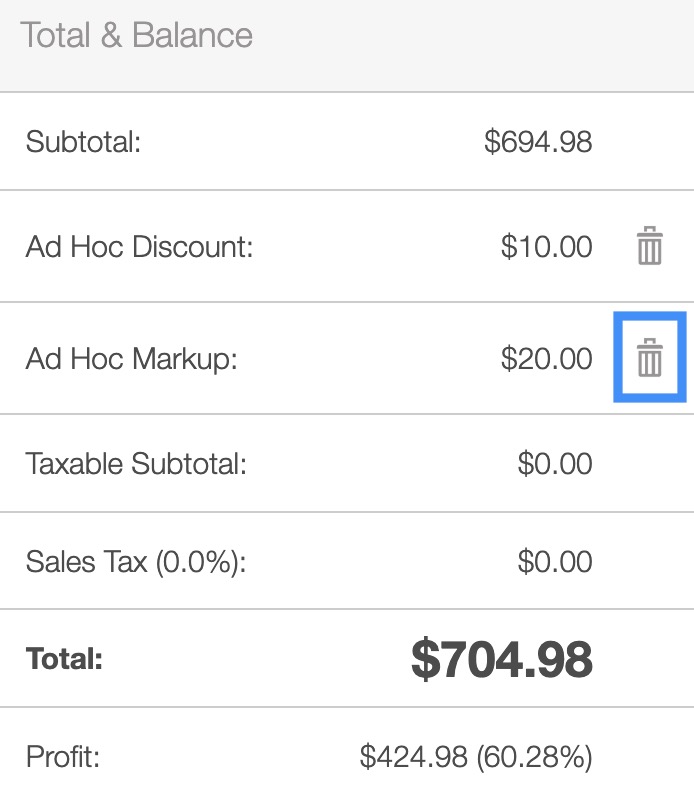
Once you click on the Trash Can button, the Delete Markup pop-up window will appear:
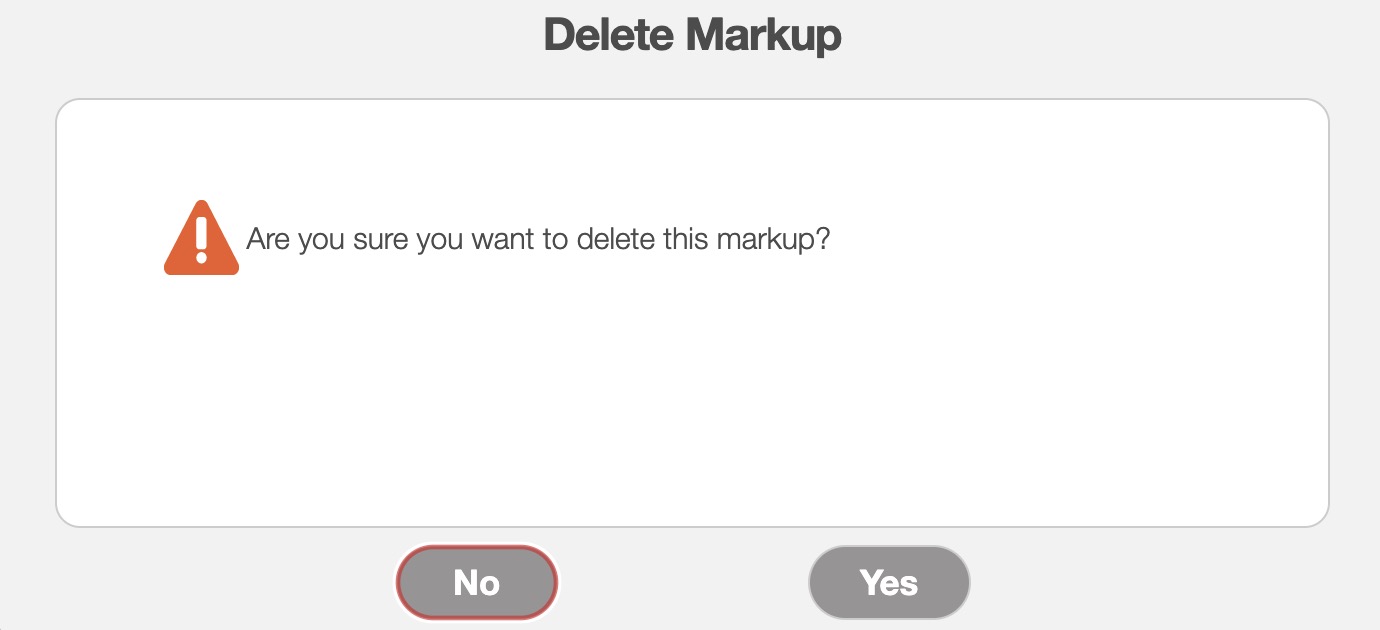
Click the Yes button to confirm you would like to delete the selected markup.
Delete Discount
In the "Total & Balance" panel, locate the discount you would like to delete. Click on the corresponding Trash Can button next to the selected discount:
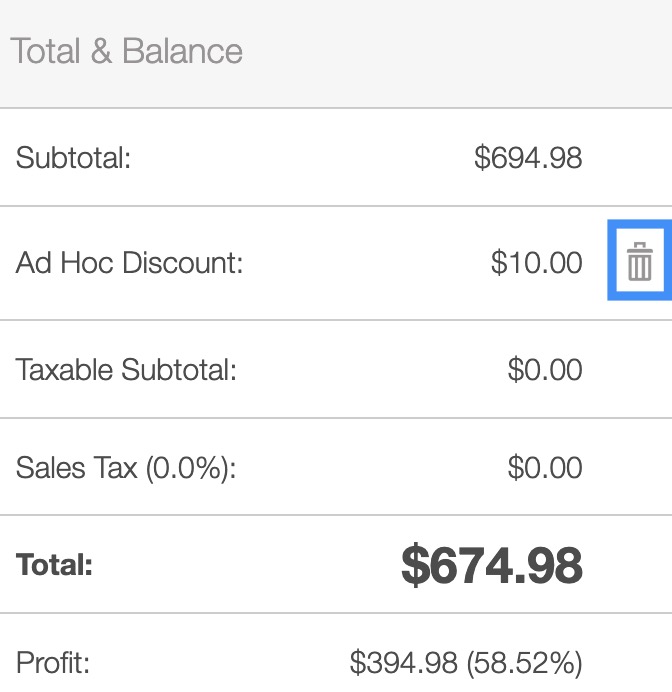
Once you click on the Trash Can button, the Delete Discount pop-up window will appear:
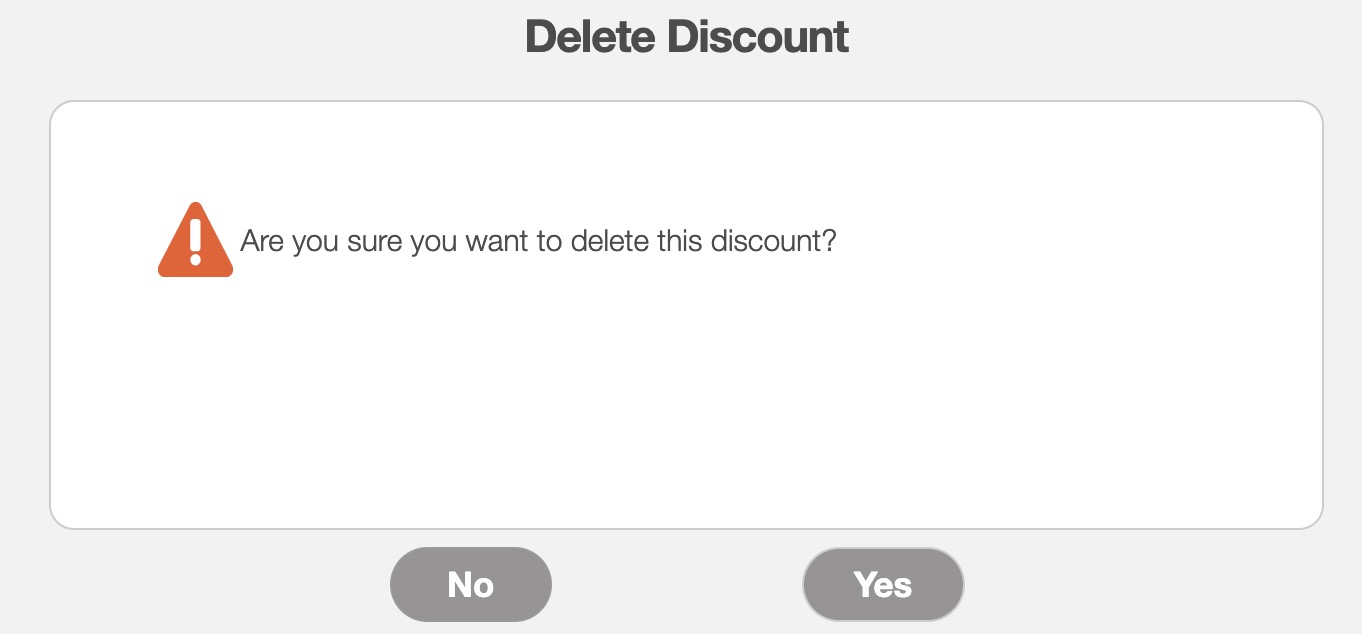
Click the Yes button to confirm you would like to delete the selected discount.
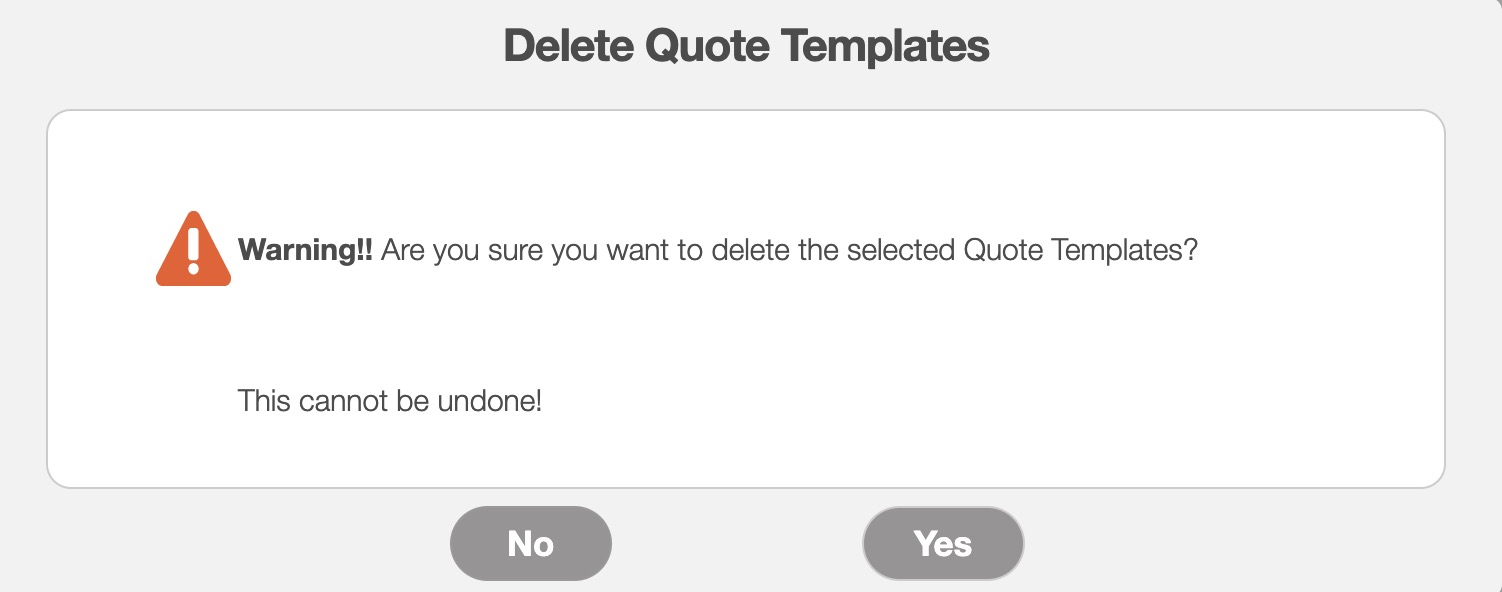
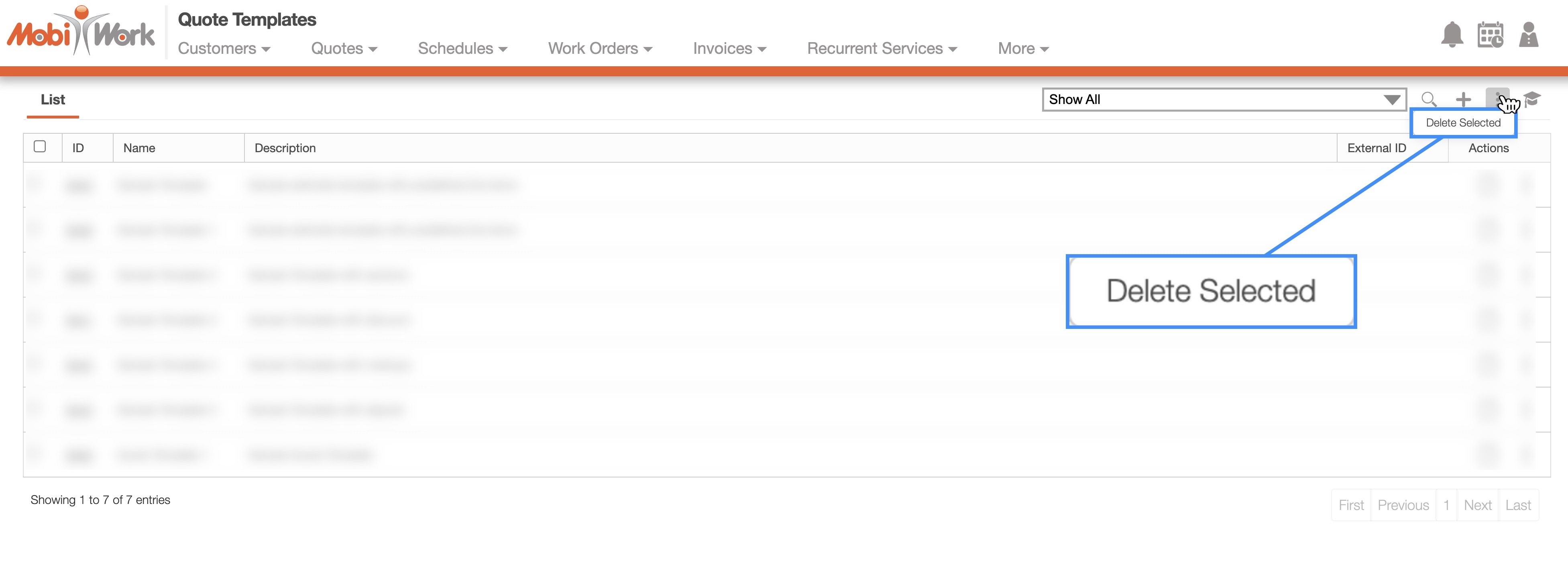
By choosing the "Delete Selected" quote template options you will receive the Delete Quote Templates pop-up window, informing you that this action cannot be undone:
If you are sure you would like to remove the selected quote templates, click the Yes button.