
Quote groups allow you to present multiple sections within a quote. While each section can stand on its own, you can then organize multiple sections into one or multiple groups within a quote. This creates a layered structure, allowing you to build more complex and structured quotes.
The images below demonstrate how the groups, sections, and line items are structured in the quote:
Groups- The group encases one or multiple sections:
Sections- The section is within the group and can have a representive image and description. The line items will be stored within the section as well as the section subtotal:
Line Items- The line items are the designated parts or services that make up the quote or invoice. They reside within the section:
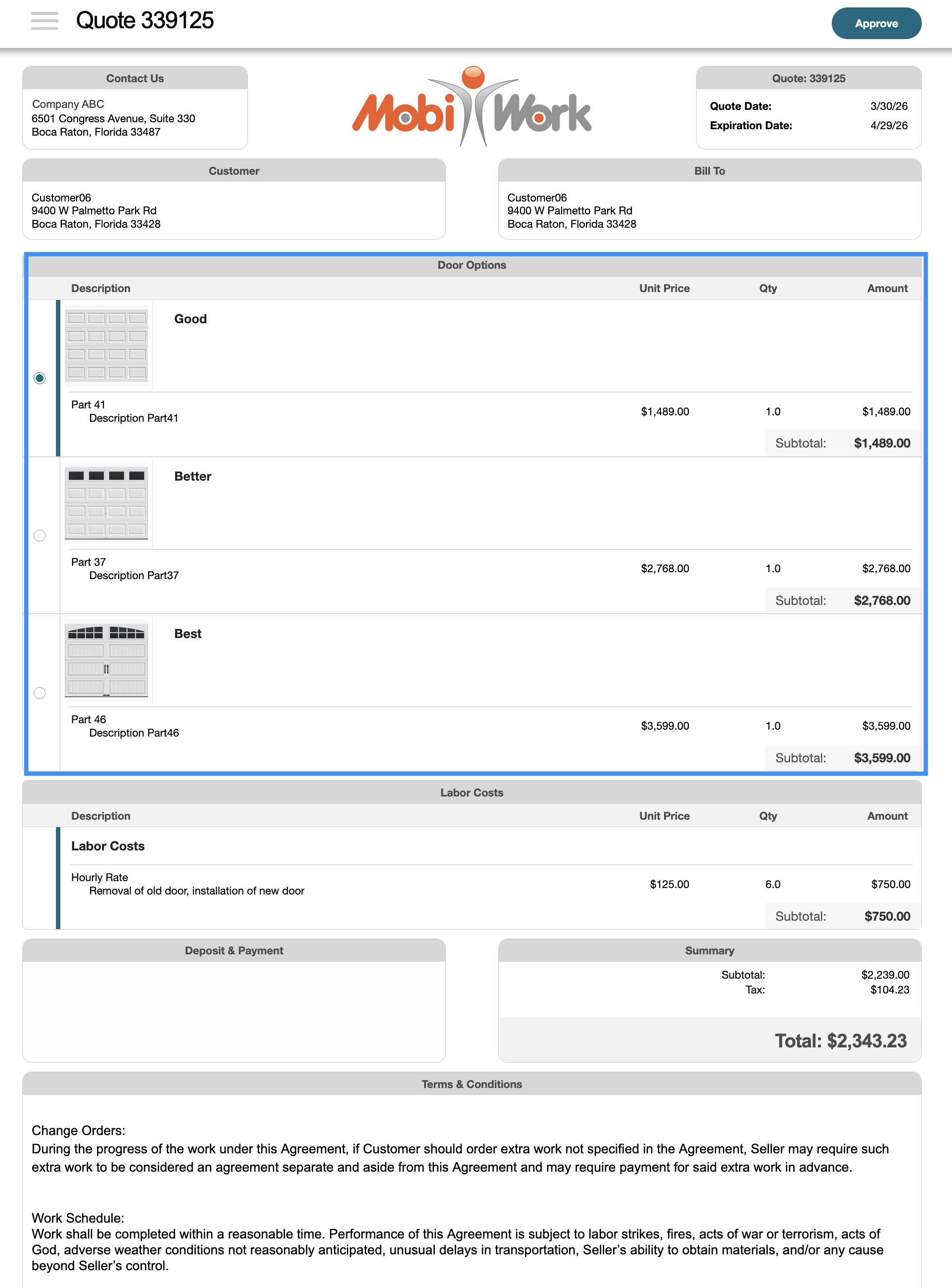
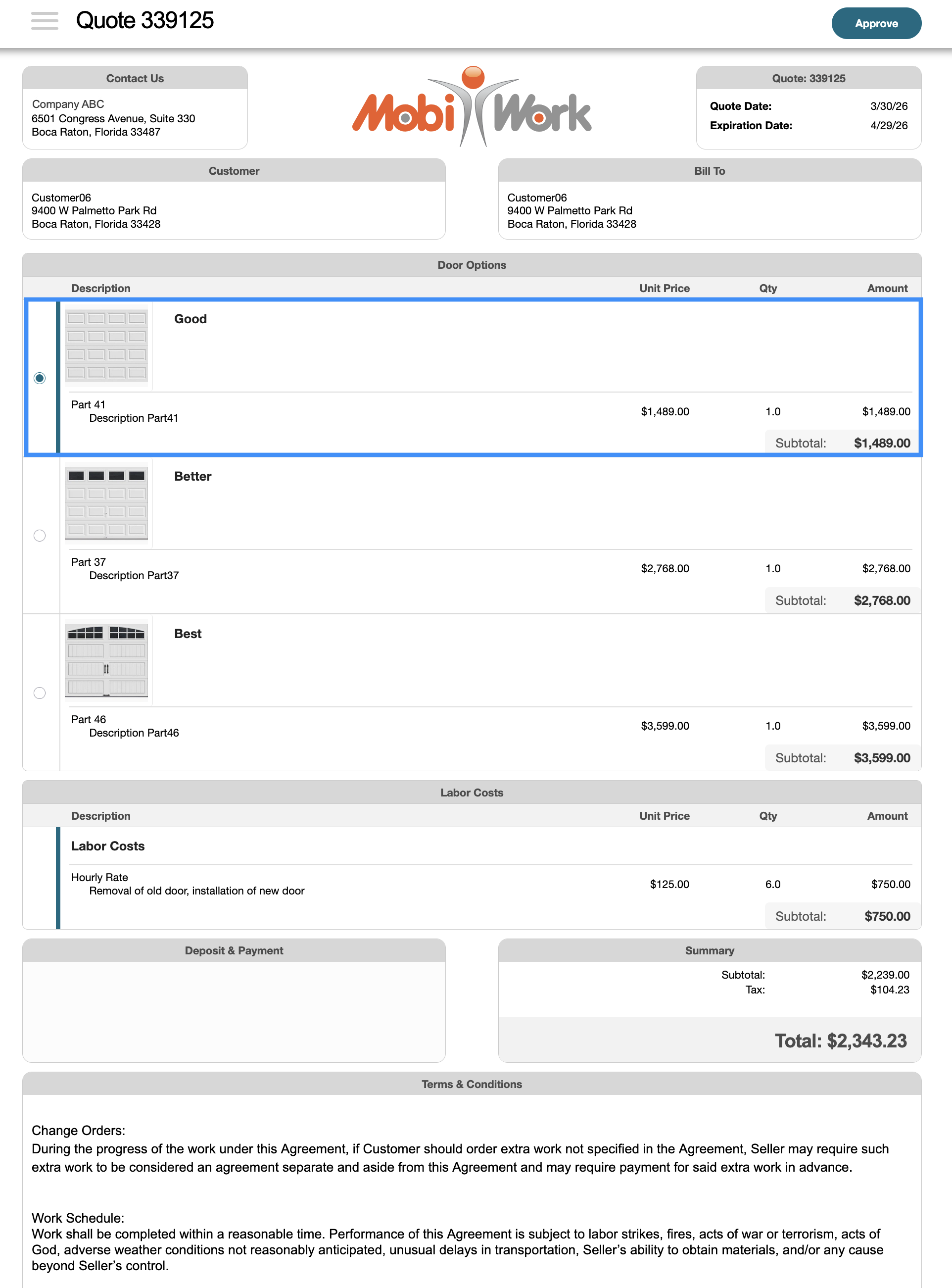
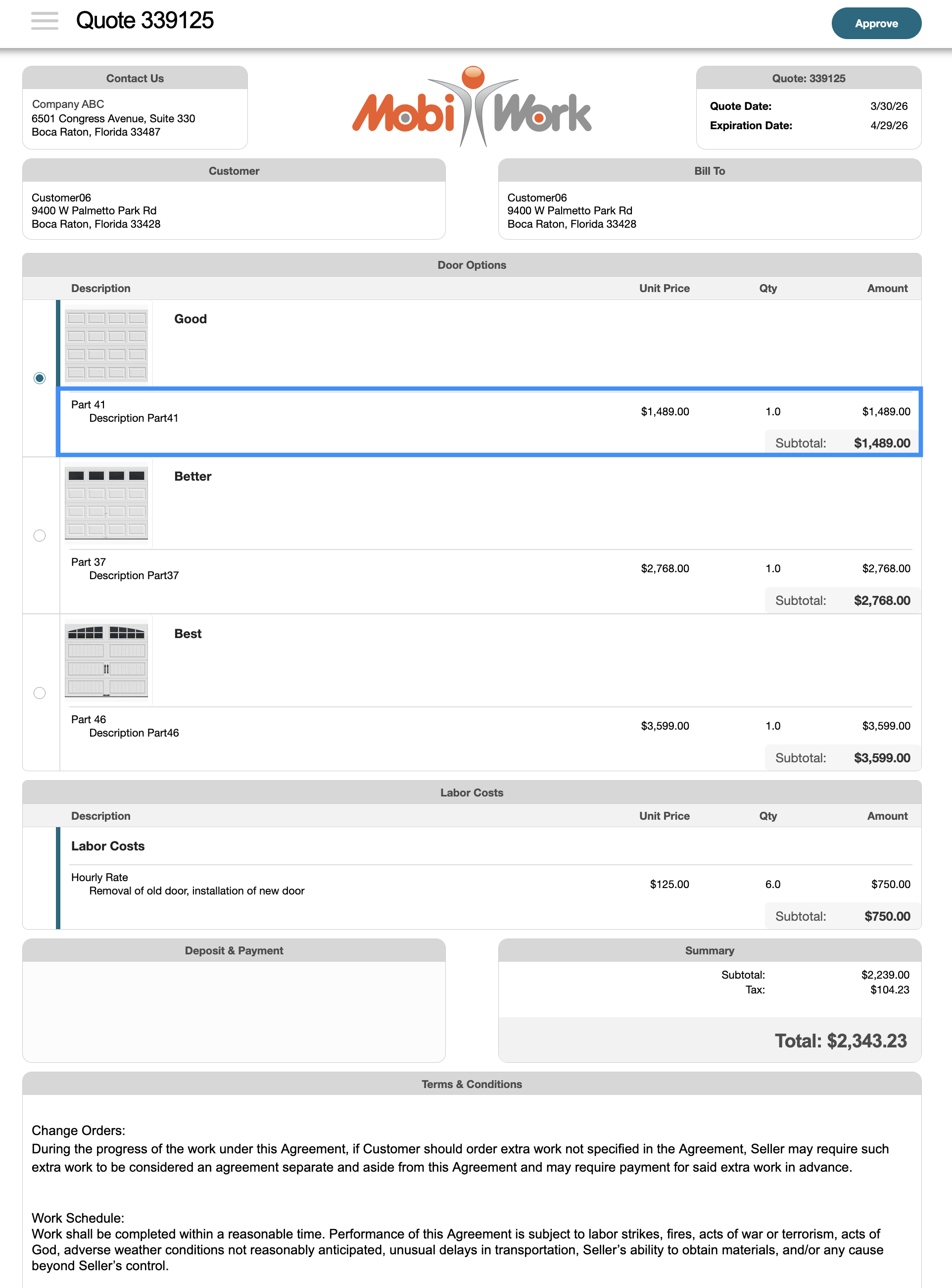
This is especially beneficial when using the Good / Better / Best application in a quote and letting the customer choose an option from the selected group or when using progressive invoicing to keep track of incremental payments towards a project.
To set up groups in a quote access either the Add Section or Edit Section pop-up windows. You can access these actions from the View Quote pop-up window:
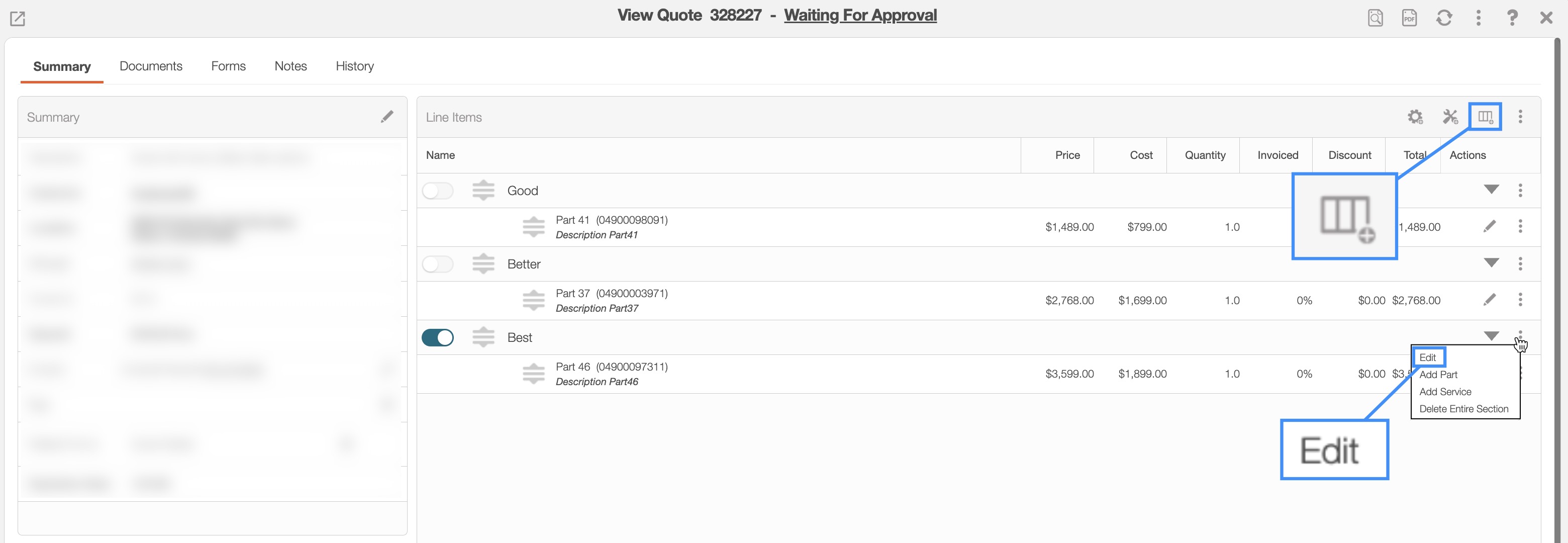
Within the group, you can insert the individual sections with the corresponding line items. It is through the Add Section or Edit Section pop-up windows that you can create and manage what options (including what sections) display within a group. When creating the section, you can specify how you want the section displayed.
For example, you can add an image that represents the designated section; this is especially beneficial for Good / Better / Best applications. You can also indicate if you would like to have the section selected by default. In other words, as soon as the customer opens the quote the desired group will already be selected. Thus, for a quote like a Good / Better / Best the "Best" option can already be chosen once the customer opens the quote preview.
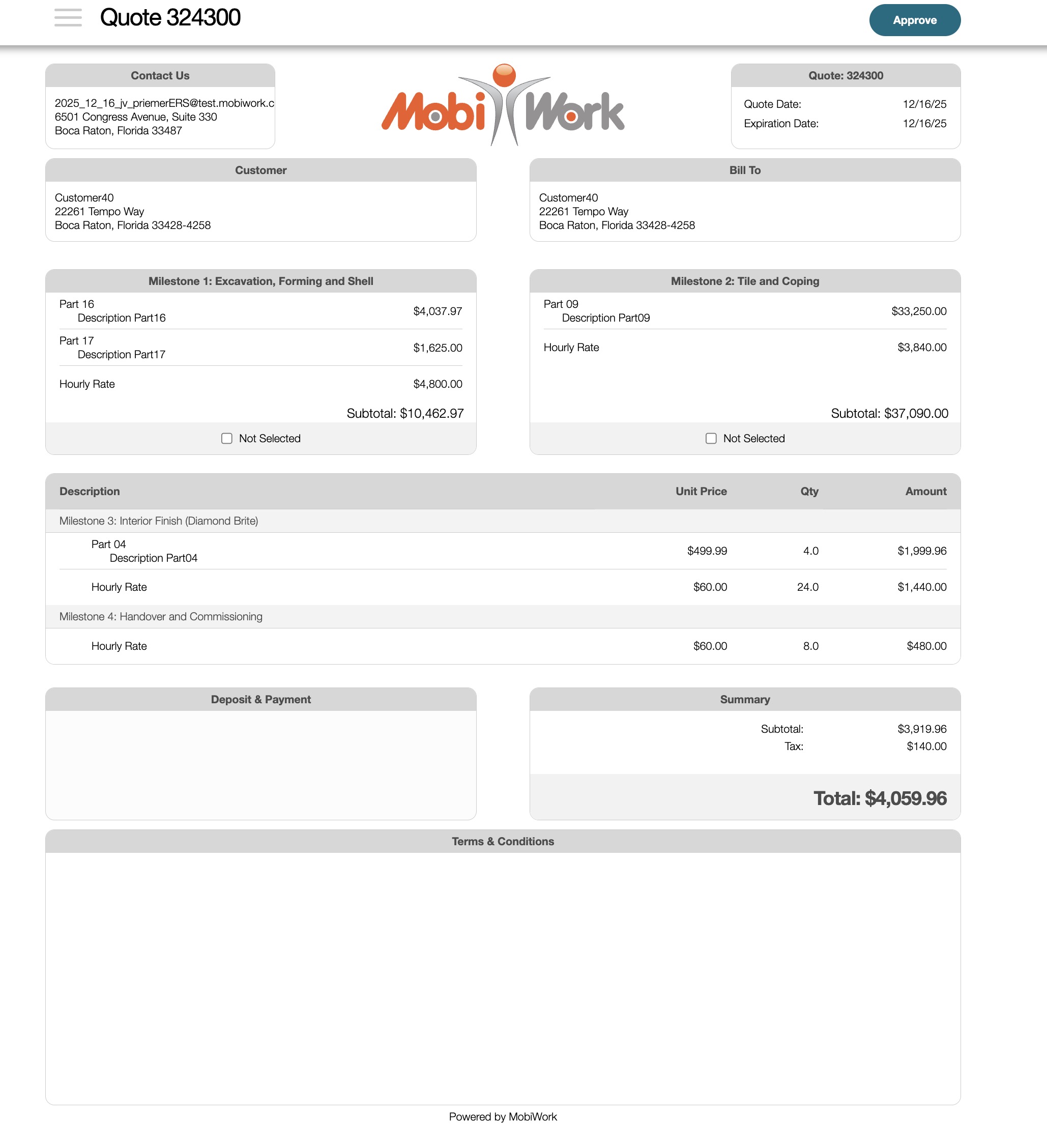
As shown in the example below, the customer can then select different options from the selected group that they would like to use in their final quote:
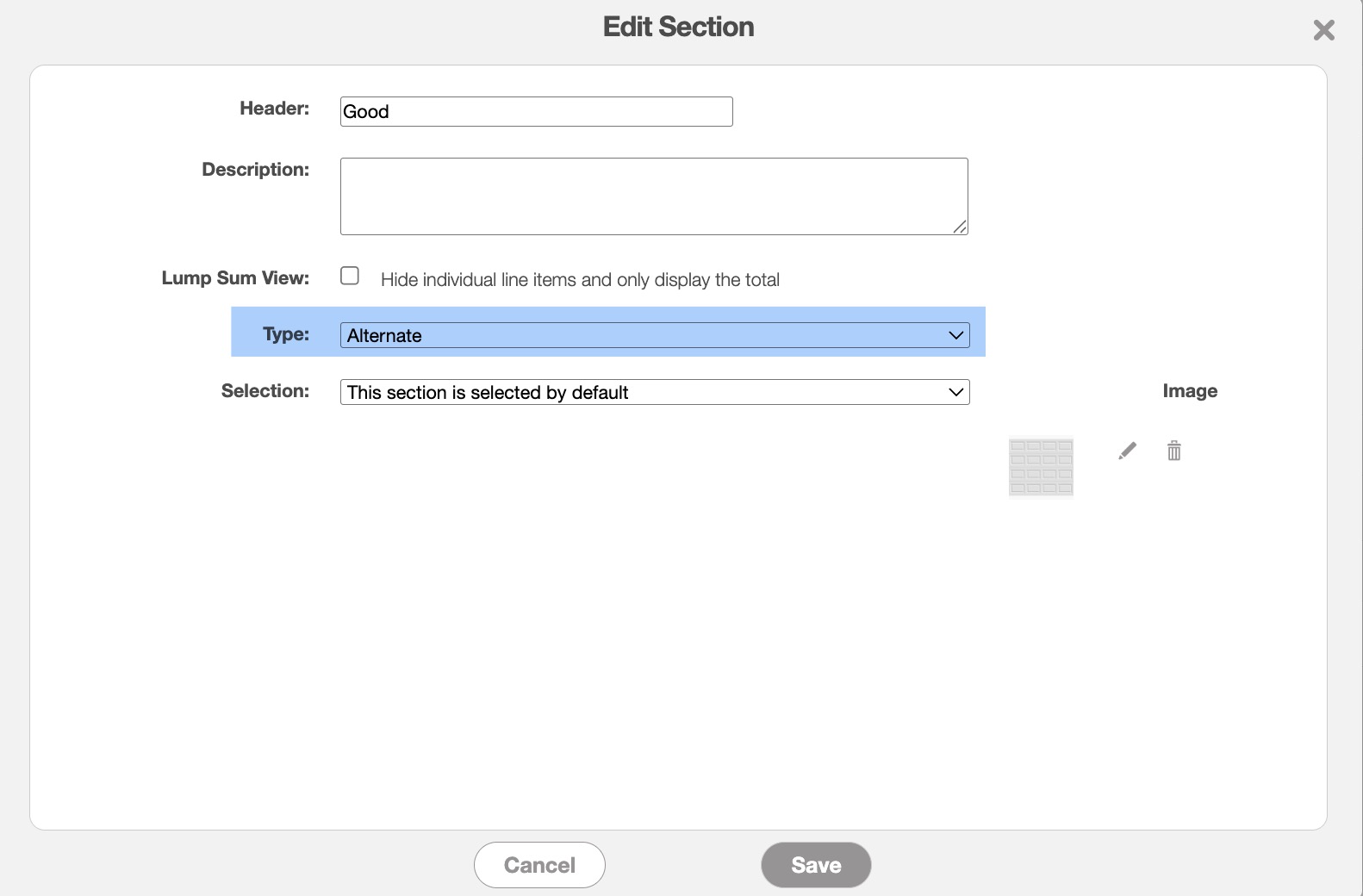
Each group represents a distinct decision set. If you have an additional set of choices, such as extended warranty options, you must create a separate section for that group, allowing the customer to make a selection independently. The customer will still be able to make selections across multiple groups or sections in the quote, thus granting them full flexibility.
The example below shows how the PDF appears with the groups and sections within the quote:
If you select the "Edit Section Group" option, then you will be able to rename the selected group.