
The easiest way to access the View Quote Template pop-up window is through the "List" tab. For more information on how to access the "List" tab, please see the Quote Template List page.
Once you are on the "List" tab, there are four different ways to access the View Quote pop-up window:
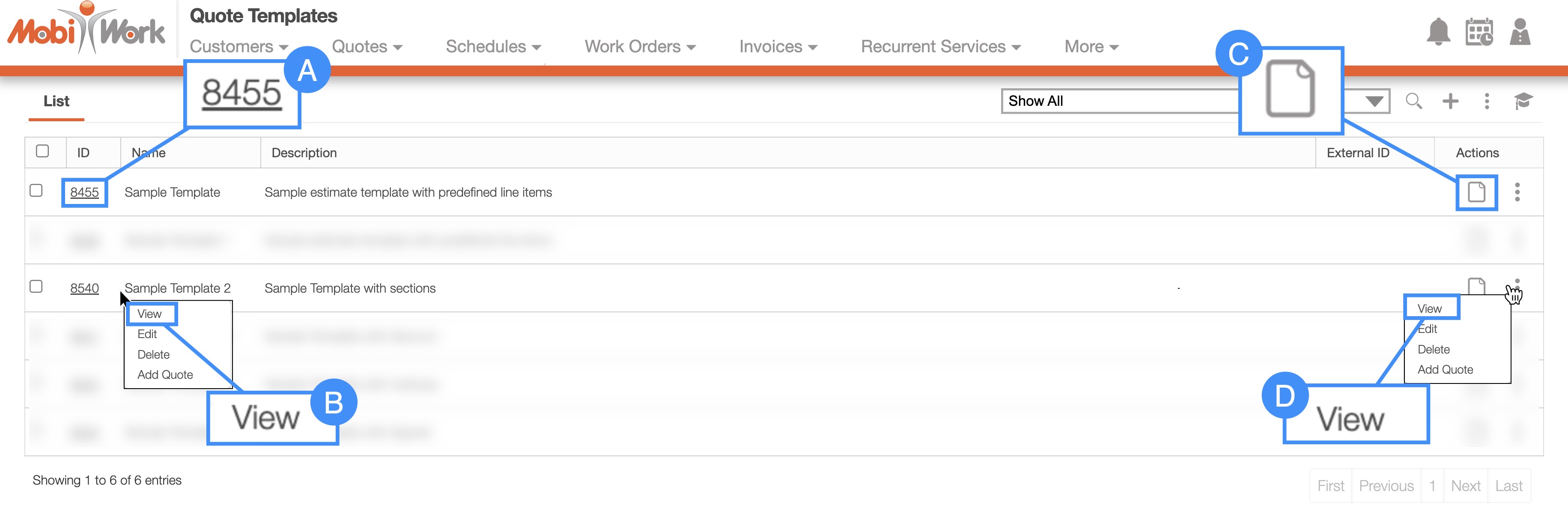
Select the desired quote template ID.
Select the View icon under the "Actions" column.
Right-click on the selected quote template and click on the "View" option from the drop-down.
Click on the "View" option from the Individual Actions drop-down.
Once you open the View Quote Template pop-up window, you will be automatically directed to the "Summary" tab:

These features are available in all two tabs and in both, the pop-up window, and the full-size view:
Quote Template Full-Size View
Quote Template Tabs
Quote Template ID
Upper Right Corner Actions
Please note that if you would like to easily close this pop-up window, you can click on the esc button from your keyboard.
Quote full-Size view
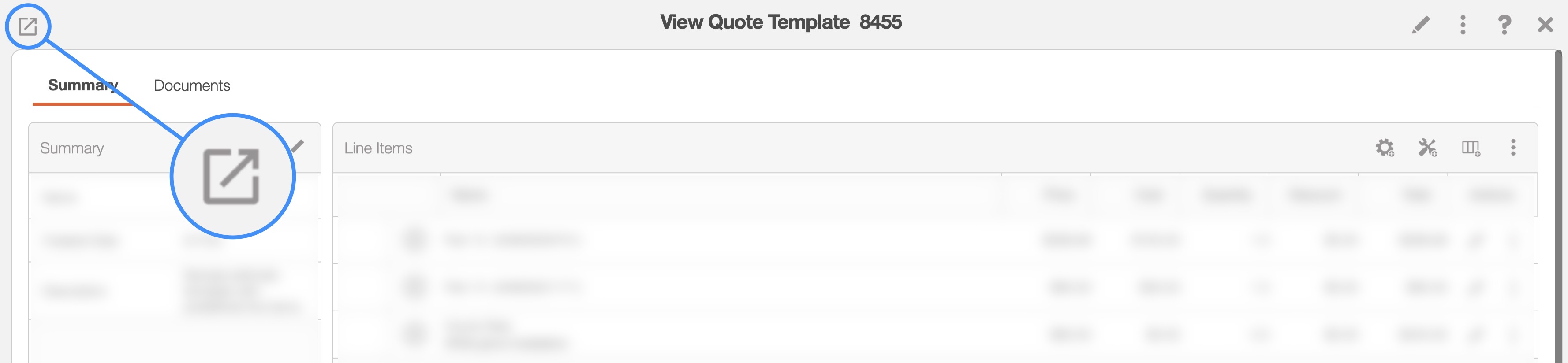
By clicking on the upwards arrow in the left-hand corner, you can expand the View Quote Template pop-up window so that it is full-size:
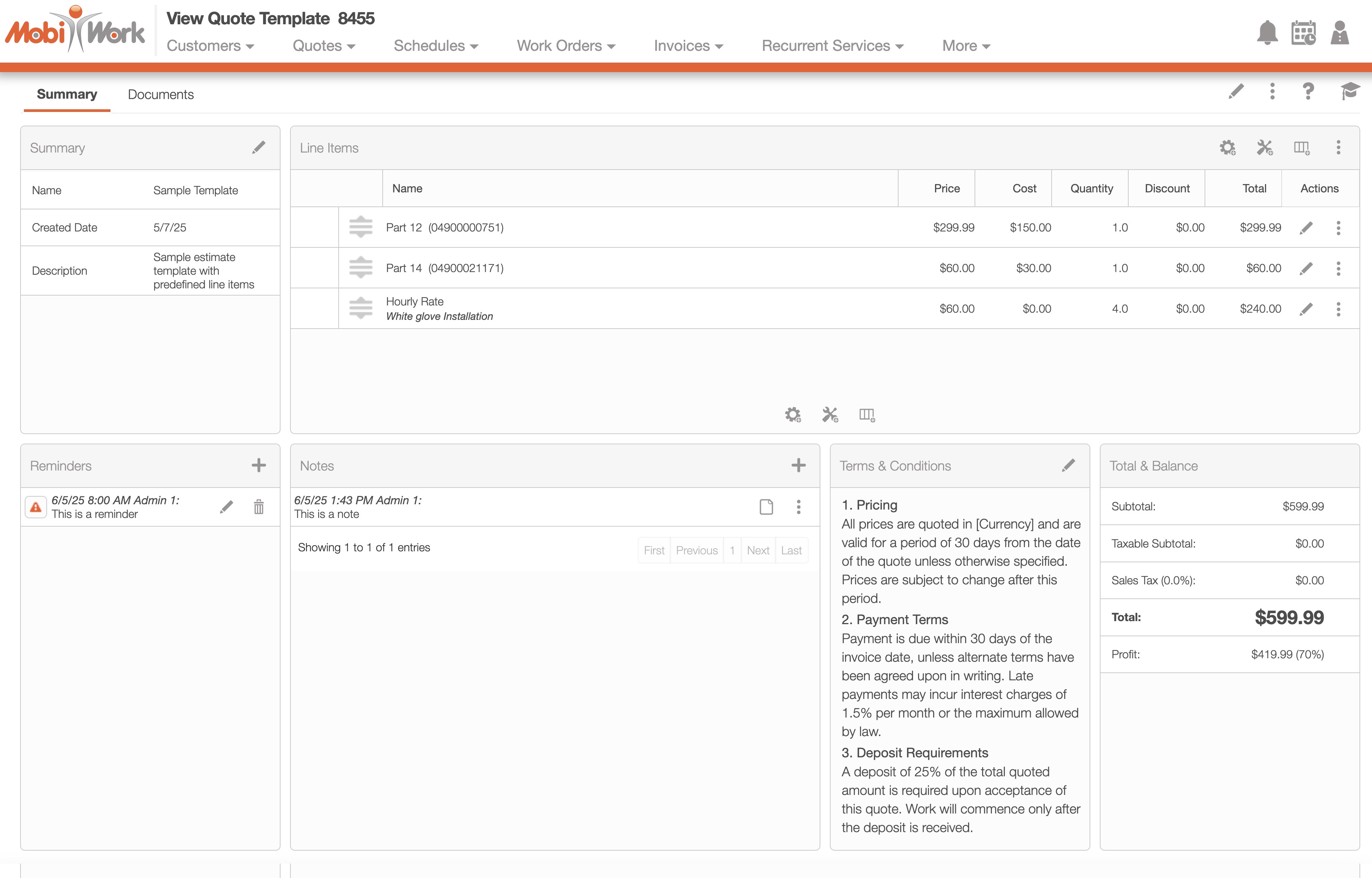
The full-size View Quote Template pop-up window can be seen below. All the tabs, buttons, and features are identical to how they would appear in the pop-up window:
Quote tabs
The View Quote Template pop-up window has two tabs; each tab displays different information regarding the quote template:
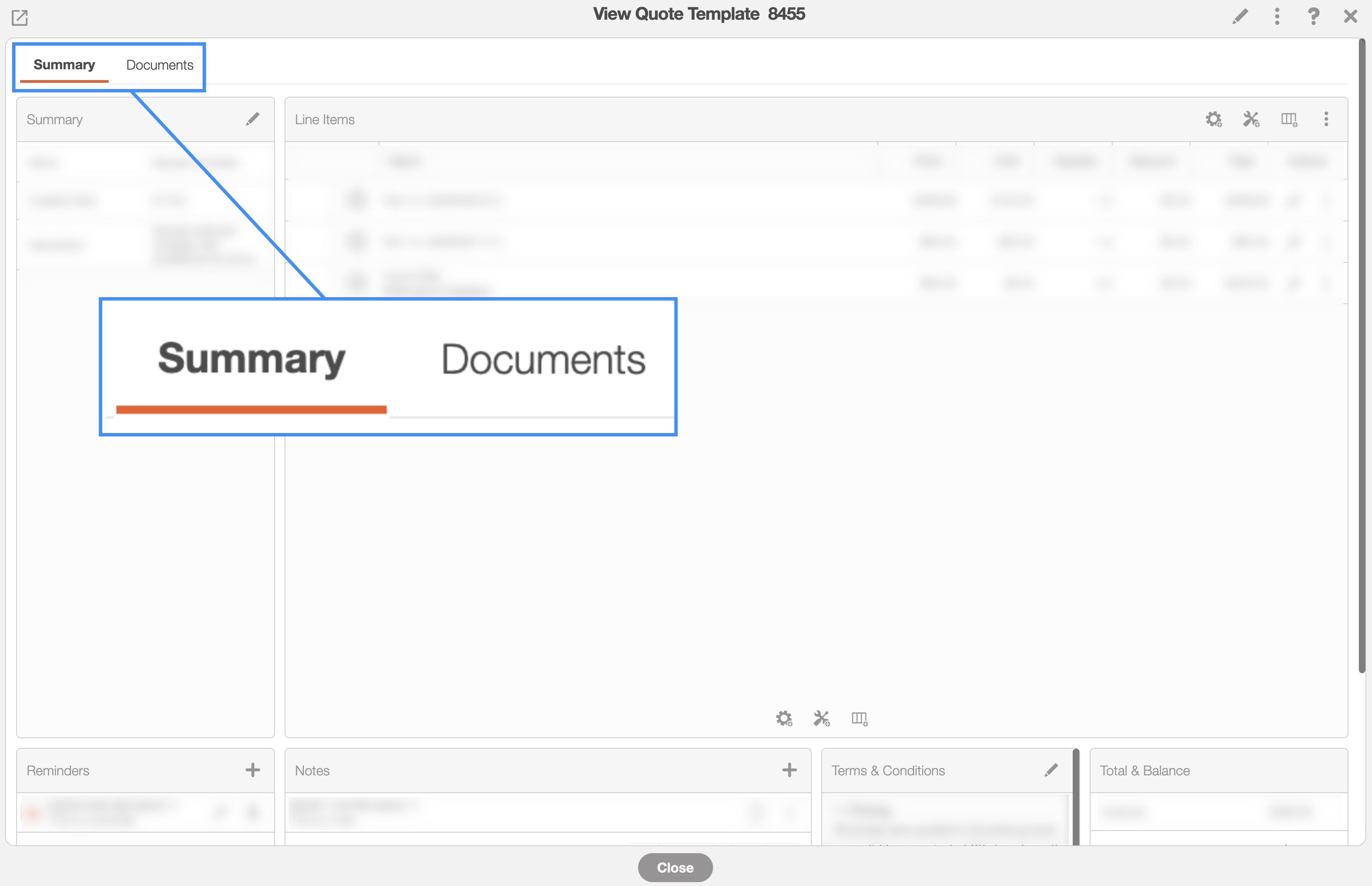
You can navigate to other tabs by clicking on the desired tab.
Quote template upper right corner actions
The Quote Template's Upper Right Corner Actions can be found in the top-right corner of the View Quote Template pop-up window. These actions are located in this section, regardless of the tab you are on:
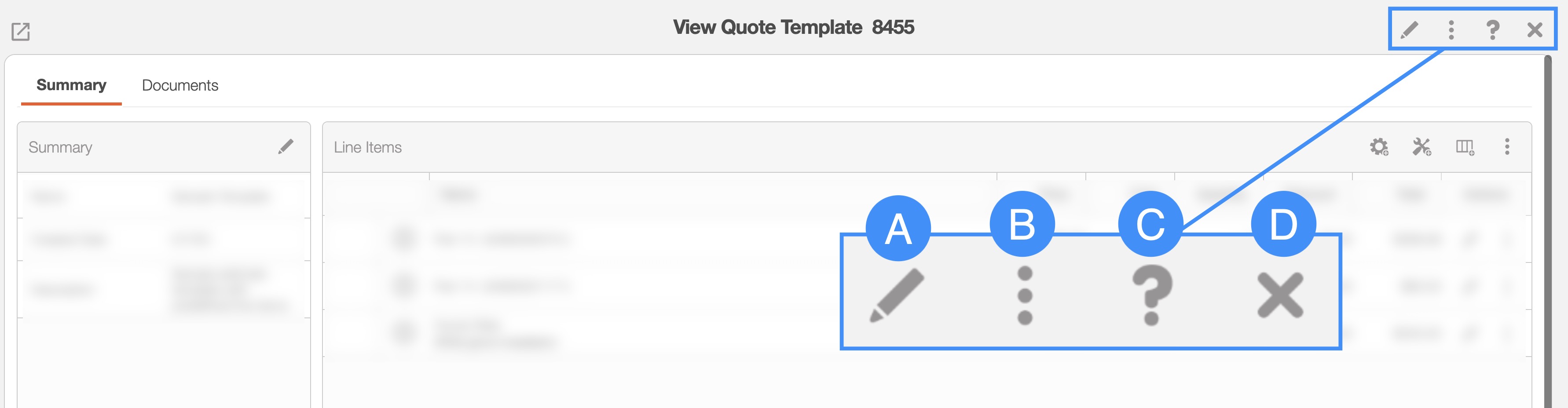
The Upper Right Corner Actions section includes:
The Pencil button will allow you to edit the quote template.
The Individual Actions will allow you to perform various actions.
The Question Markutton which will direct you to the respective MobiWork Features page.
The X will close out of the View Quote Template pop-up window.
After clicking on the vertical three dots in the top-right corner, the Individual Actions drop-down menu will appear:

From the Individual Actions drop-down menu, you can select various actions that will help manage the specified quote template.
The complete list of actions found in the Individual Actions drop-down menu are defined below:
| Name: | Description: |
|---|---|
| "Edit" | Allows the user to edit the details of the quote template. |
| "Delete Quote Template" | Allows the user to delete the quote template. This is a it permanent action and cannot be undone. |
| "Add Quote" | Allows you to generate a quote from the specified template. The quote's parts, services, deposits due, and title (description) will carry over to the new template. Any assets, reminders, notes, section headers, terms & conditions will not carry over. |
The "Summary" tab is the default tab you will be directed to; it will display all the requisite information regarding a quote template.
The panels found on the "Summary" tab will summarize the data from the other View Quote Template tabs, including notes, line items, and more:
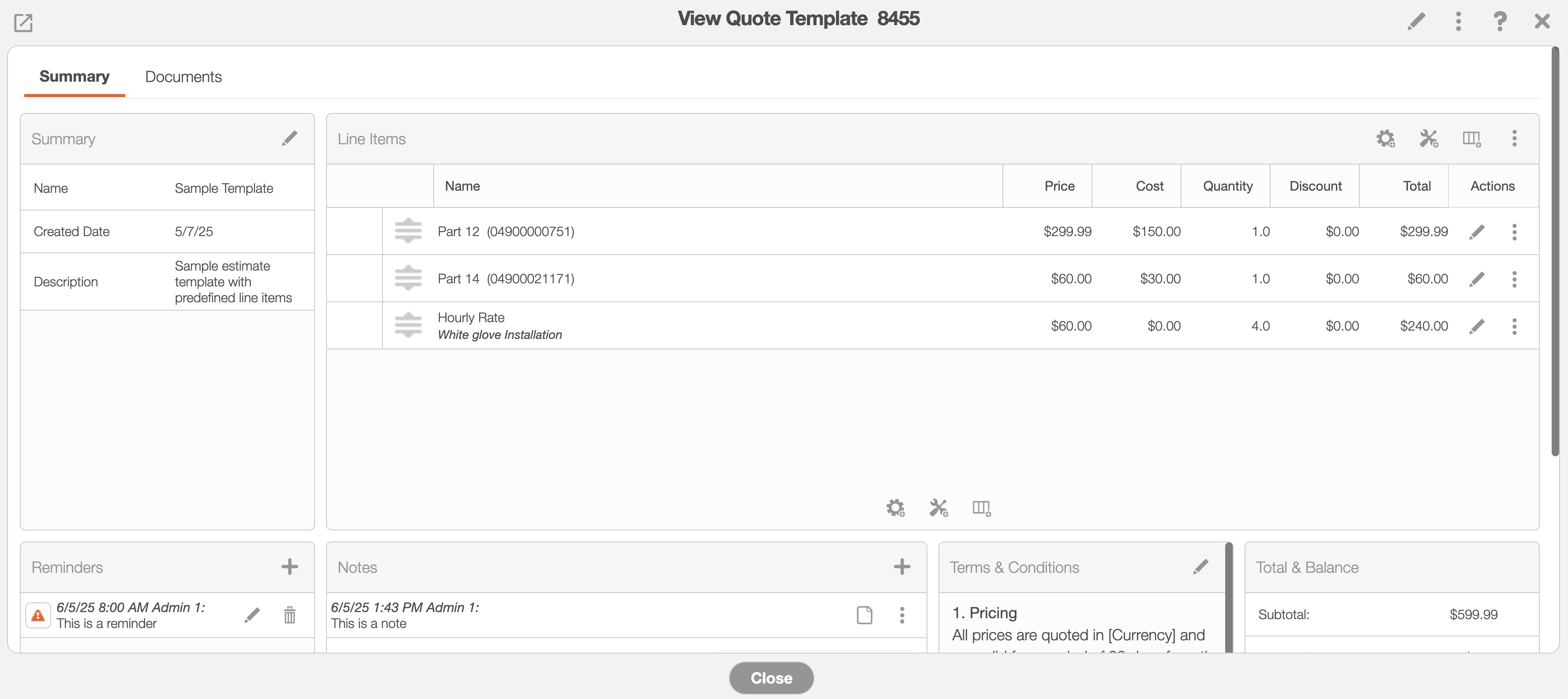
Where applicable, you can edit or add additional information directly in the "Summary" tab:
The Pencil icon will allow you to edit the selected data or field.
The Plus Sign icon will allow you to add additional reminders, notes, line items, etc.
The View icon will allow you to view the selected data in a separate window.
The Individual Actions button (the three dots) will display different options (e.g., view, edit, delete, etc.) depending on the corresponding panel.
The Trash Can icon will allow you to delete the selected data.
Sales Tax Note: Please note that MobiWork partners with Zip Tax. Zip Tax provides, free of charge, over 42,000 sales tax percentages based on the customer’s zip code. MobiWork also partners with Avalara for more advanced sales requirements. For more information about our Avalara connector, please see the Avalara Connector page.
The subsections below will go into more detail regarding the information found in the different View Quote Template panels.
Summary panel
The "Summary" panel will contain general quote template information, including the customer and contact information. The other information found in the "Summary" panel are described below:
| Name: | Description: |
|---|---|
| "Name" | The name of the quote template. |
| "Created Date" | The date that the quote template was created in MobiWork. |
| "Description" | The brief description of the quote template. |
Reminders panel
The "Reminders" panel will contain the scheduled reminders for the selected user(s). To add a reminder, click the Plus Sign in the upper right corner. To edit a reminder, click on the Pencil icon or if you would like to delete a reminder, click on the Trash Can icon.
When adding or editing a reminder, you can specify both the date for sending the reminder and the priority level of the task that the user(s) is being reminded of.
Quote line items
The "Quote Line Items" panel will allow you to add the parts, services, markups, and discounts to the quote template. You can also add a section divider to help keep the quote template line items organized or even add payments for the deposit amount.
By clicking on the Individual Actions of a specified part, service, markup, discount, or section you can edit the information or remove it entirely.
The columns found in the "Quote Line Items" panel are defined below:
| Name: | Description: |
|---|---|
| "Name" | The name of the part or service (this will also include the SKU information if available). |
| "Price" | The list price of the part or service; this is the price that the customer will be charged. |
| "Cost" | The cost of the part; this value represents the amount that your company has to spend on procuring the part or product. |
| "Quantity" | How much of a part is needed for the quote. In regard to services, this value refers to how many hours the user has worked and is charging the customer for. |
| "Invoiced" | The percentage amount being invoiced from the quote. |
| "Discount" | The discount of an individual part or service. This is different from the overall discount that can be applied to the quote as a whole. |
| "Total" | The total amount of the individual part or service which calculates the price, quantity, and discount. The total amount of the quote (including overall discounts and markups) can be located in the "Total & Balance" panel. |
| "Actions" | Will allow you to edit or remove the specified part or service. |
You can also easily add a part, service, or section to the quote template's line items by clicking on the respective icon:
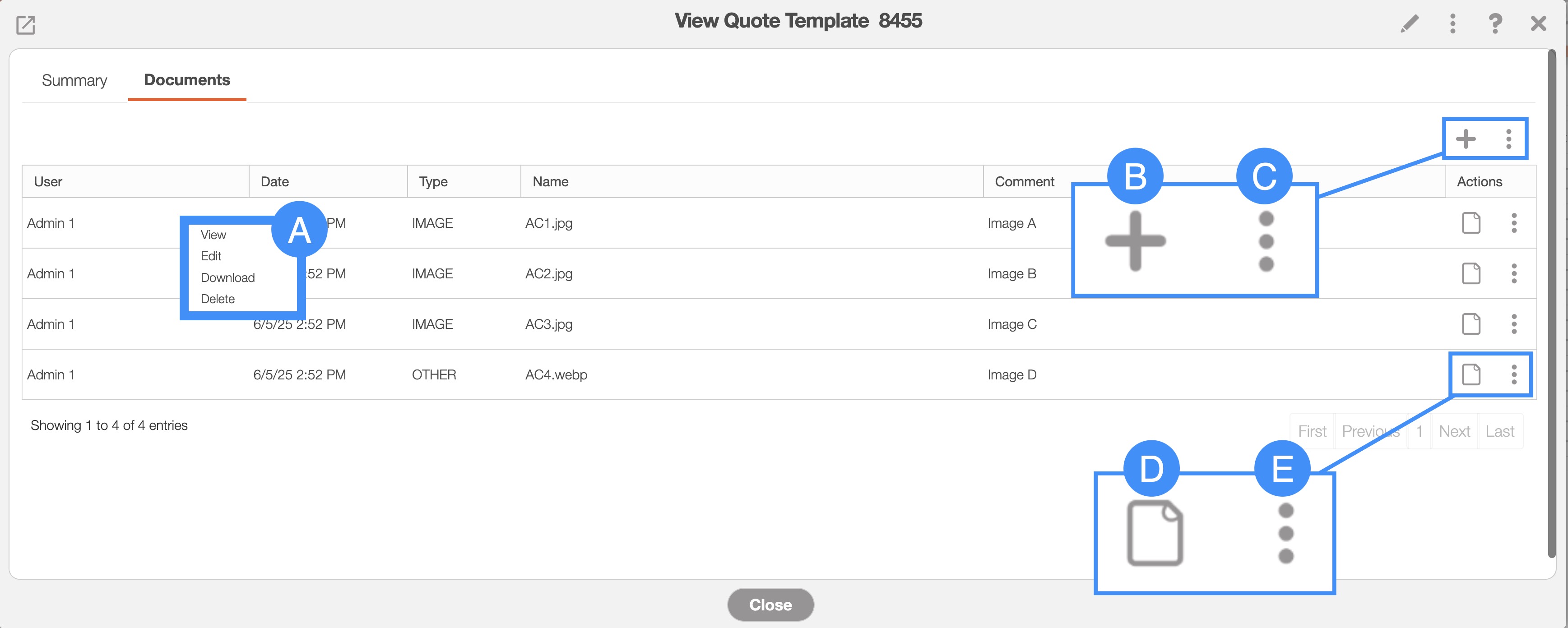
For more information about adding line items to your quote, please see the Add Quote Template page.
Notes
The "Notes" panel will allow you to add and manage notes related to quote template. To add a note, click the Plus Sign in the upper right corner.
The Add Note pop-up window will then appear:
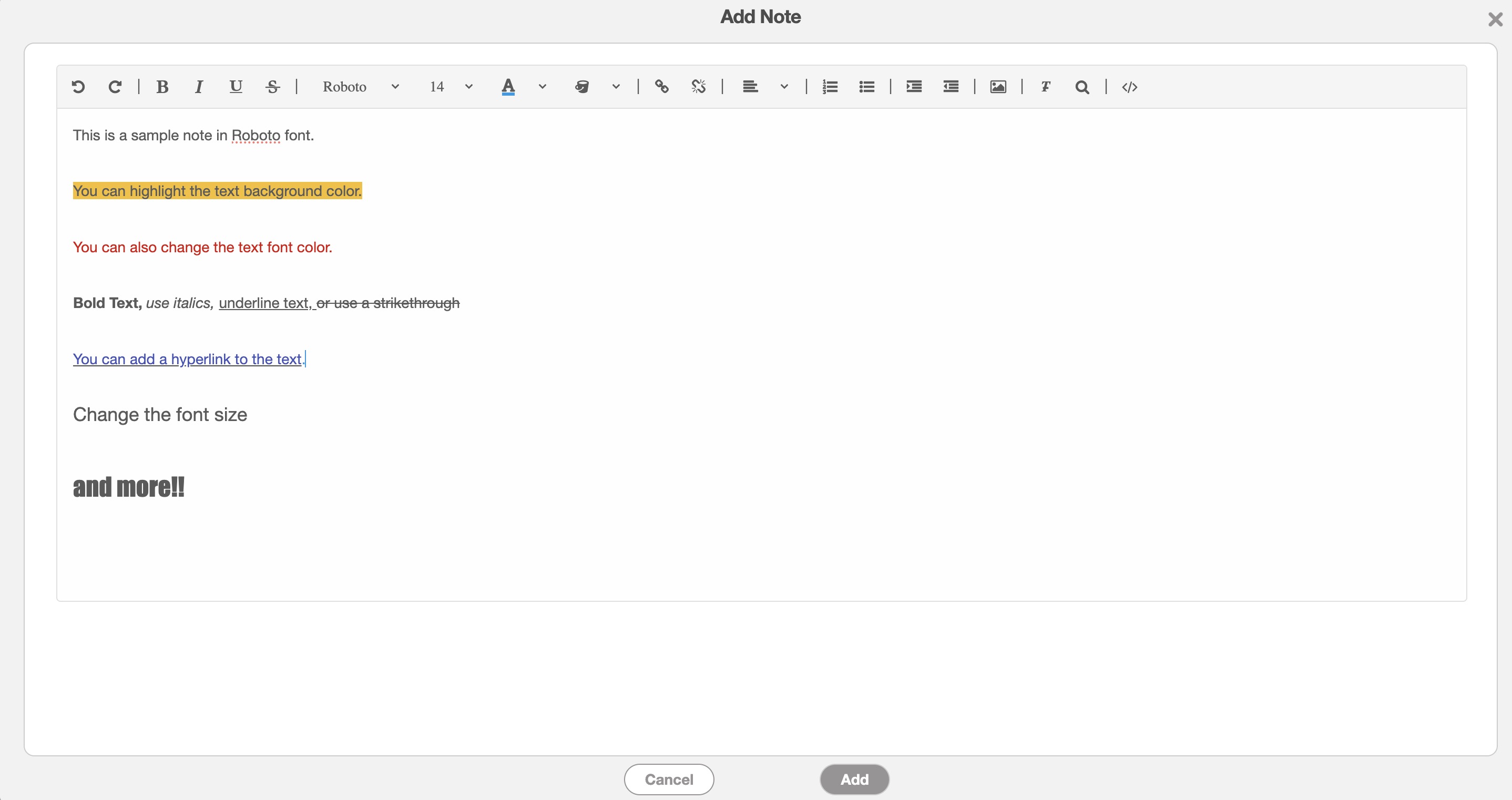
In this pop-up window, you will be able to format your text, insert hyperlinks, and more.
To edit or delete a note, return to the "Notes" panel and click the Individual Actions button. From the drop-down, you can then select the "Edit" or "Delete" option to either update or remove the note.
Terms and conditions
The "Terms and Conditions" section for quote templates, will allow you to create a template that will input specified terminology and phrases for the selected quote template. For more information about creating terms & conditions, and adding them to the quote, please see the Quote Settings section.
Total balance
The "Total & Balance" panel will contain the subtotal, sales tax, any payments applied to the quote template, the overall discounts, and markups, and more. The complete list of terms found in the "Total & Balance" panel are defined below:
| Name: | Description: |
|---|---|
| "Subtotal" | Represents the subtotal of the quote, before the calculation of any discounts or markups. |
| "Taxable (Subtotal)" | The subtotal amount of the quote that is subject to taxes. |
| "Sales Tax" | The sales tax being calculated by the quote. |
| "Total" | The total amount of the individual part or service which calculates the price, quantity, and discount. The total amount of the quote (including overall discounts and markups) can be located in the "Total & Balance" panel. |
| "Cost" | The total cost incurred by your company when procuring the part or product. |
| "Profit" | The financial gain obtained from the quote after subtracting all associated costs. |
The data in the "Total & Balance" panel is automatically calculated from the parts, services, overall markups, discounts etc. that are listed on the quote template.
The "Documents" tab will allow you to store quote-specific documentation (e.g., contracts, photos, etc.) for future use.
This tab will also list the type of document file, the date it was uploaded, the user who uploaded it, and more.
To add a new document or file, you must click on the Plus Sign button and then drag & drop or choose a file to upload:
The terms for the "Documents" tab are defined below:
| Name: | Description: |
|---|---|
| "User" | The user who uploaded the document or file. |
| "Date" | The date that the document or image file was uploaded. |
| "Type" | The type of document (e.g., PDF, Word, image, Excel, etc.). |
| "Name" | The name of the document. |
| "Comment" | Any comments or notes associated with the document. |
| "Actions" | Allows you to view, edit, download, or delete the document. |