
Duplicating a quote is different from creating or using a quote template. While templates are ideal if the parameters of the quote need to be reused on an ongoing basis, duplicating quotes is perfect for reproducing the required details for singular instances.
When duplicating a quote, key information like the customer, line items, terms and conditions, and if a deposit is required will be transferred to the new quote. Notes will not be transferred to the newly duplicated quote.
You can then adjust the quote date and status as needed to reflect the new estimate.
To duplicate a quote, you can access the "Duplicate" option by right-clicking on the selected quote, selecting the option from the Individual Actions drop-down, or directly through the View Quote pop-up window.
The example below shows how to access the "Duplicate" option from the View Quote pop-up window:
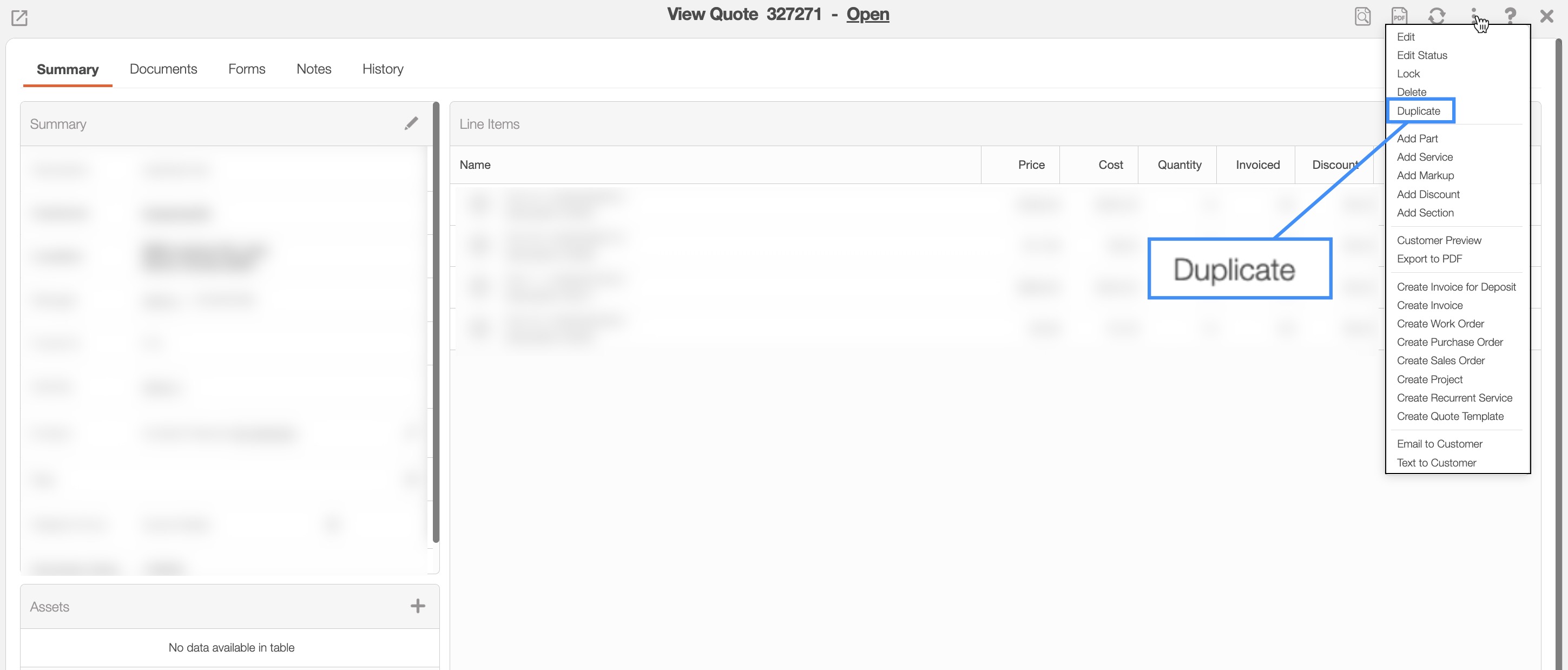
The Duplicate Quote pop-up window will then appear:
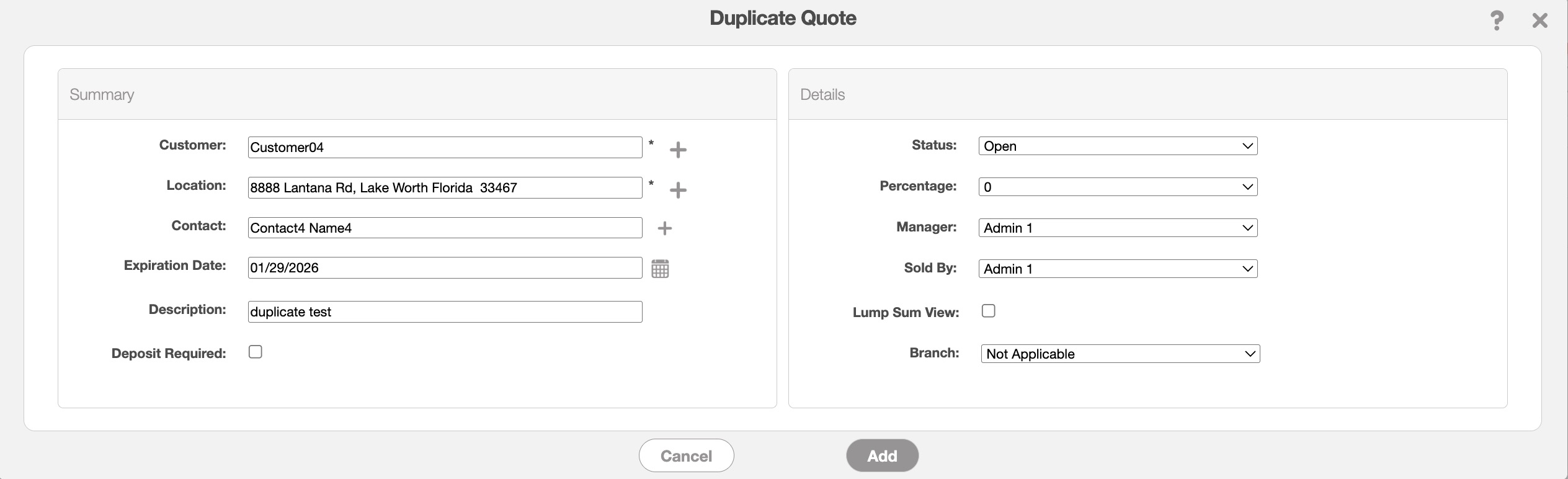
In this pop-up window you can enter the following details for the newly duplicated quote:
Customer- The customer associated with the quote.
Location- The location or address of the customer.
Contact- The customer's contact name.
Deposit Required- The initial payment made by a customer when accepting a quote.
Expiration Date- The date that the quote is due to expire if not approved or rejected.
Description- The name and brief description of the quote.
Status- Select the quote status (i.e. "Open," "Checked Out," "Waiting for Clarification," "Customer Invoiced," "Waiting for Approval," "Change Requested," "Approved," "Rejected," and "Cancelled") For more information about the quote status please see the View Quote page.
Percentage- The percentage field is for your sales pipeline and relates to the probability that the quote will convert into a sale.
Manager The individual responsible for managing the quote.
Sold By- The Sold By field will indicate the user who issued the commission. For more information about commissions, please see the User Commissions section.
Lump Sum View- If you prefer not to display individual prices and costs for line items, you can use the "Lump Sum View" option.
The quote will then be generated with the cloned details from the original quote; these replicated details include the customer, line items, and more.