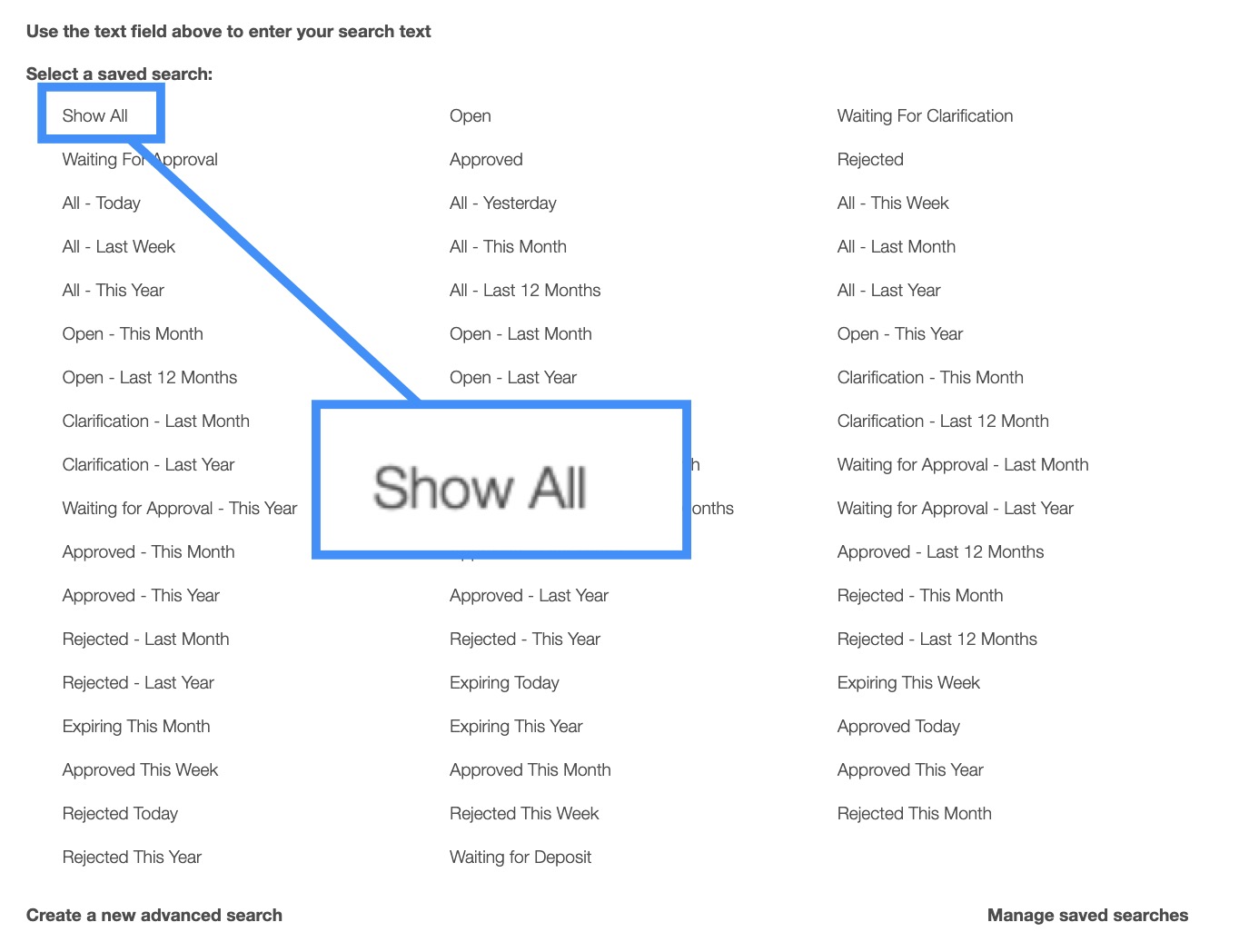
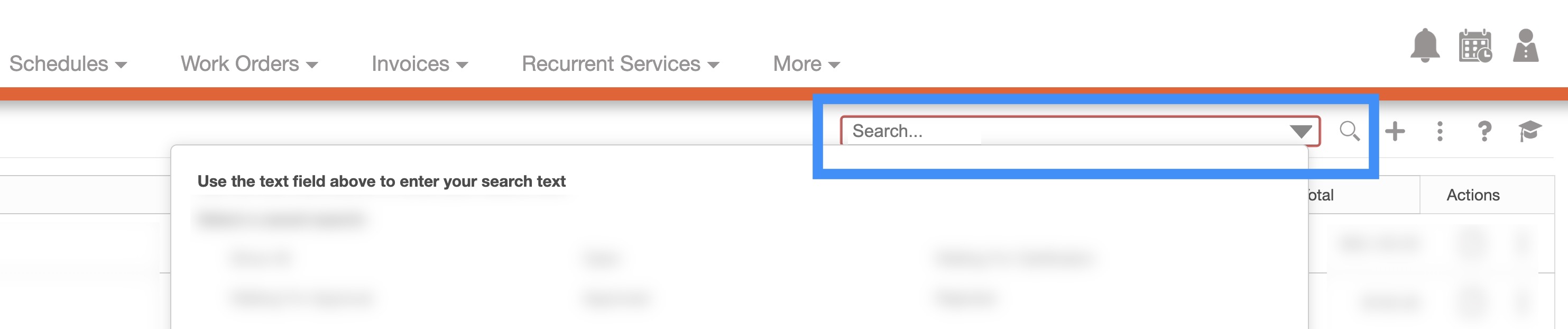
You can type in the search bar (free-text search) to locate a specific quote; once you click in the search bar, the search drop-down menu will automatically appear. You can use the search drop-down menu or continue typing your own search parameters:
- Customer's Name (any word under the customer's name will be appropriate)
- Quote ID (must be the exact number)
If the number of quotes surpasses the number range, the subsequent number of quotes will be found on the next page:
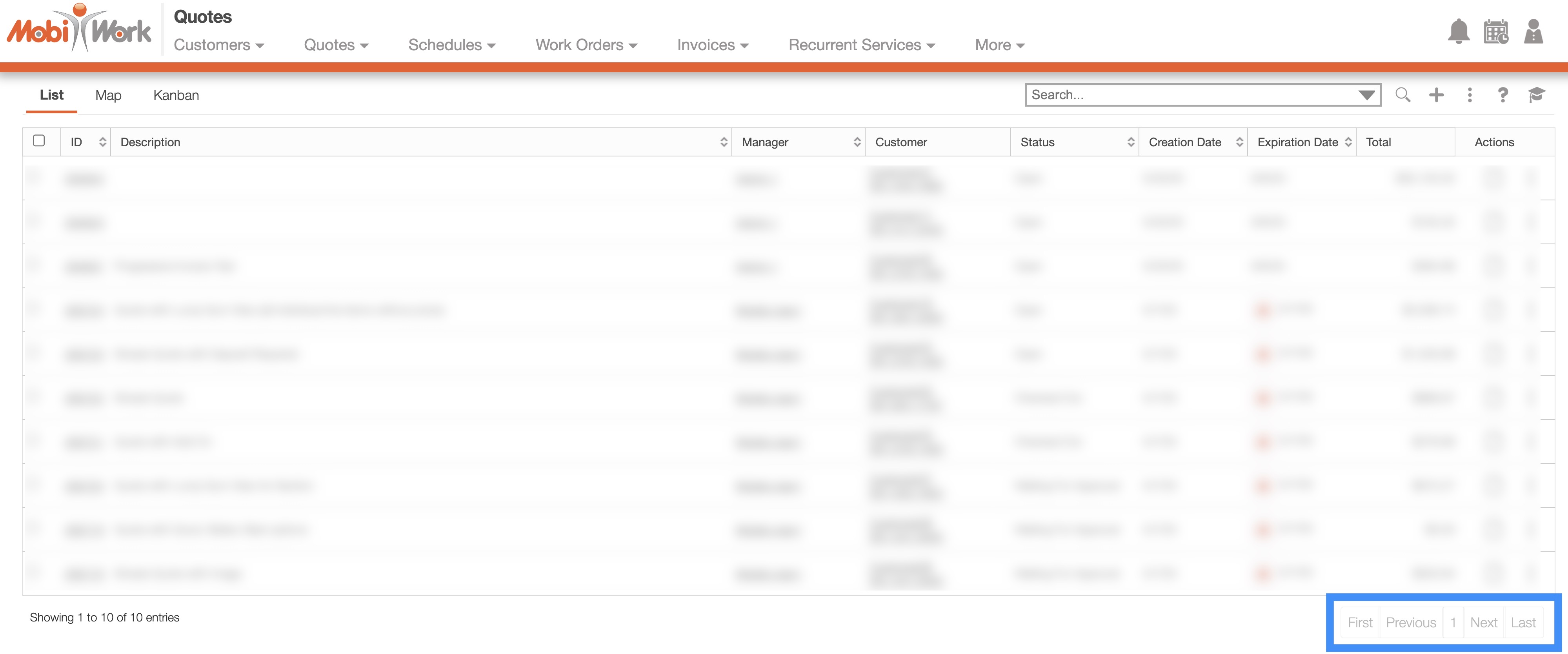
To navigate through these pages, use the First, Previous, Next, and Last buttons located towards the bottom of the Quotes section.
Saved searches are a powerful search tool where the search-criteria has been saved for future use; to access the saved searches drop-down, click in the search bar.
The default saved search for Quotes is the "Show All" search. These saved searches will appear in the drop-down menu and can also be used for dashboards and reports.
By default, MobiWork provides several saved searches for you to use, which are organized by status and date (e.g., Rejected, Approved, Open, etc.):
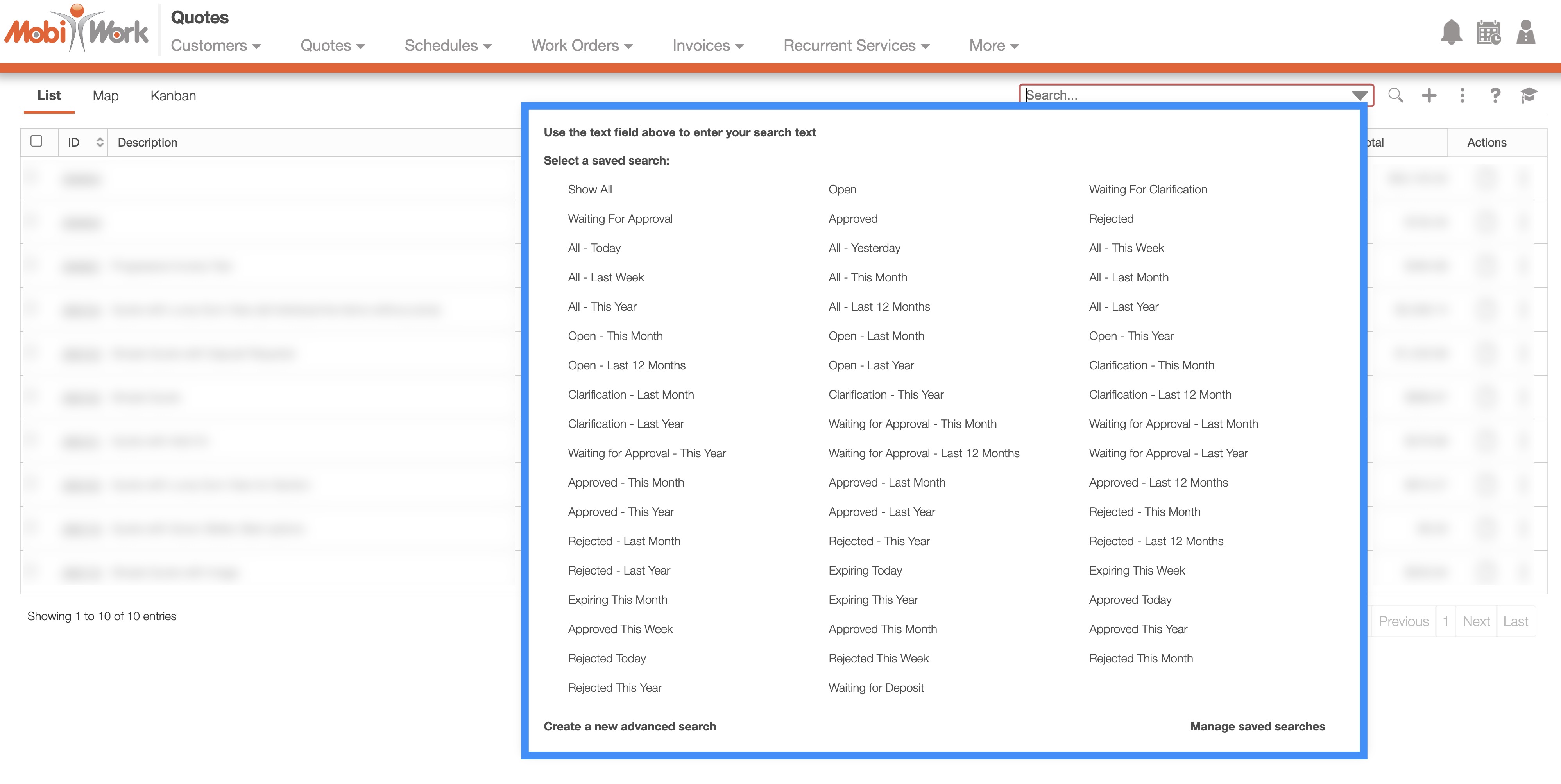
The list of statuses that can be used in predefined searches are below:
"Open" will display all quotes that have not yet been sent to the customer.
"Waiting For Clarification" will display all quotes that have are waiting further clarification from either the customer, user, or manager.
"Waiting For Approval" will display all quotes that are still waiting for customer approval.
"Approved" will display all the quotes that have been approved by the customer.
"Rejected" will display all the quotes that have been rejected by the customer.
"All" will display all quotes, regardless of the status.
"Expiring" will display all quotes that are approaching their expiration date.
You can access any of these saved searches by clicking on the "Search Area" and selecting your desired "Predefined Saved Search" from the drop-down menu.
If you would like to view all your quotes, click on the "Show All" option from the drop-down menu: