Quote Approval by Email
Step by Step
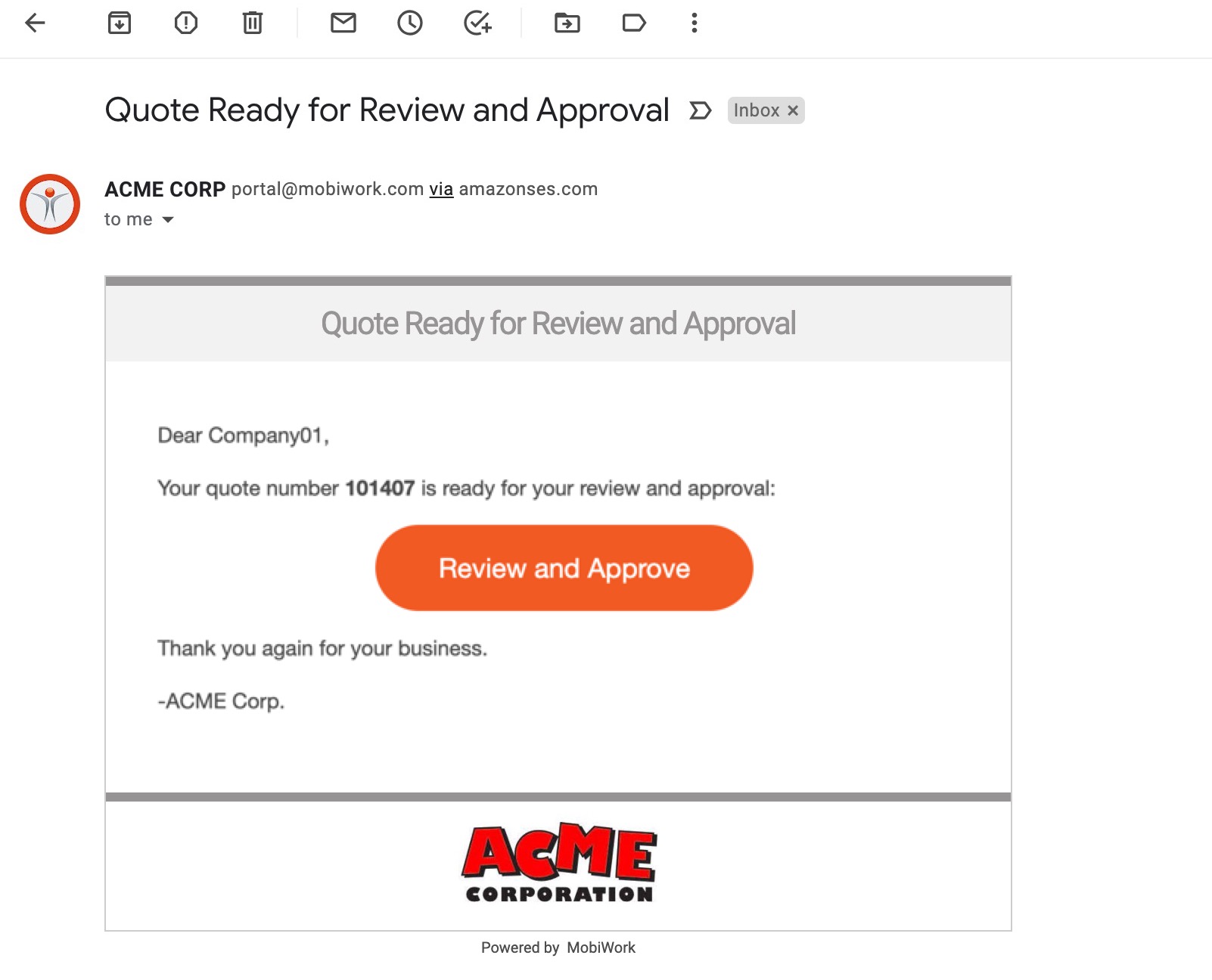
- From the email received, customers will click the orange Review and Approve button:
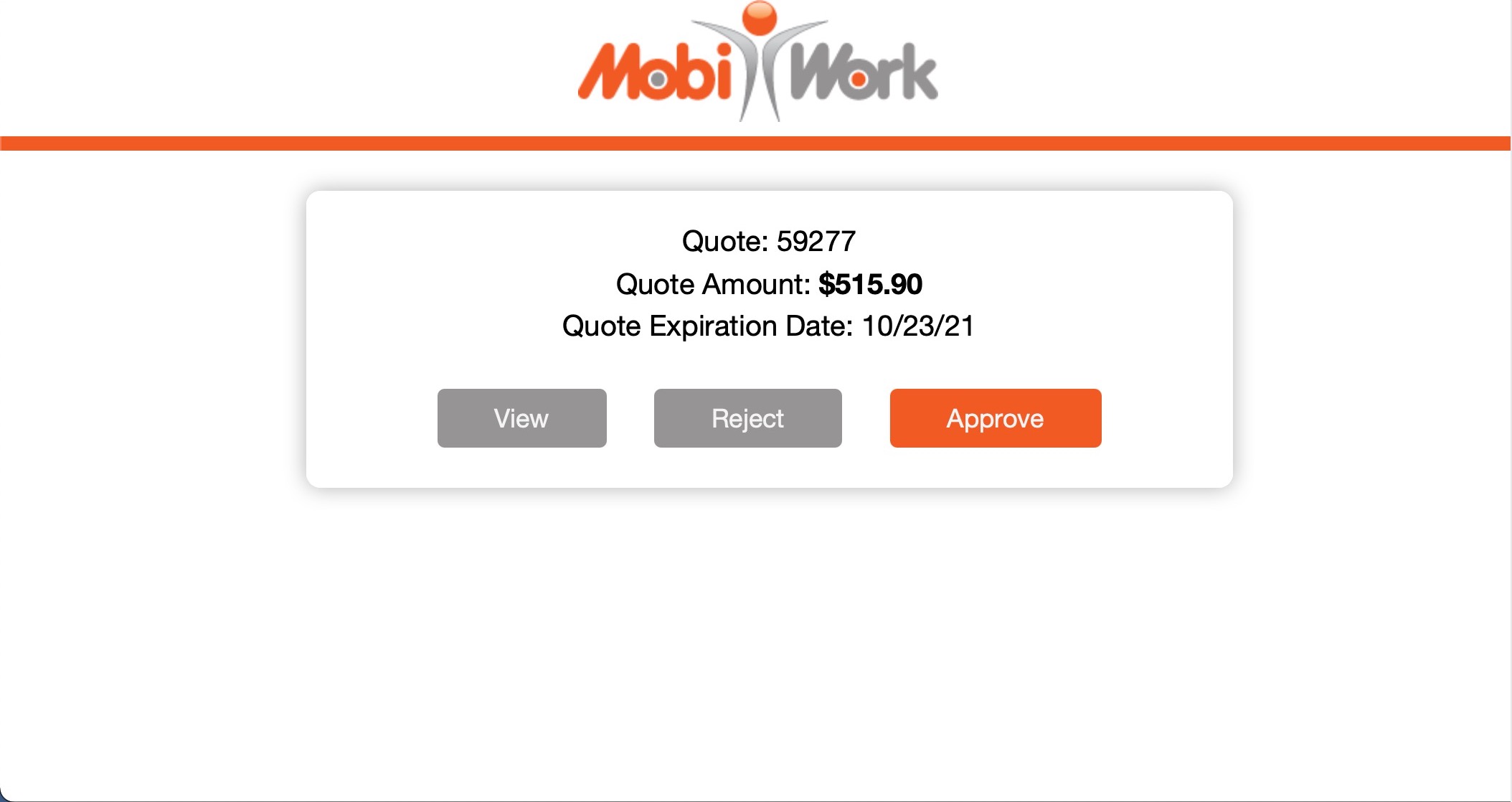
- The customer will be redirected to a unique MobiWork site with options to View, Reject and Approve their quote:
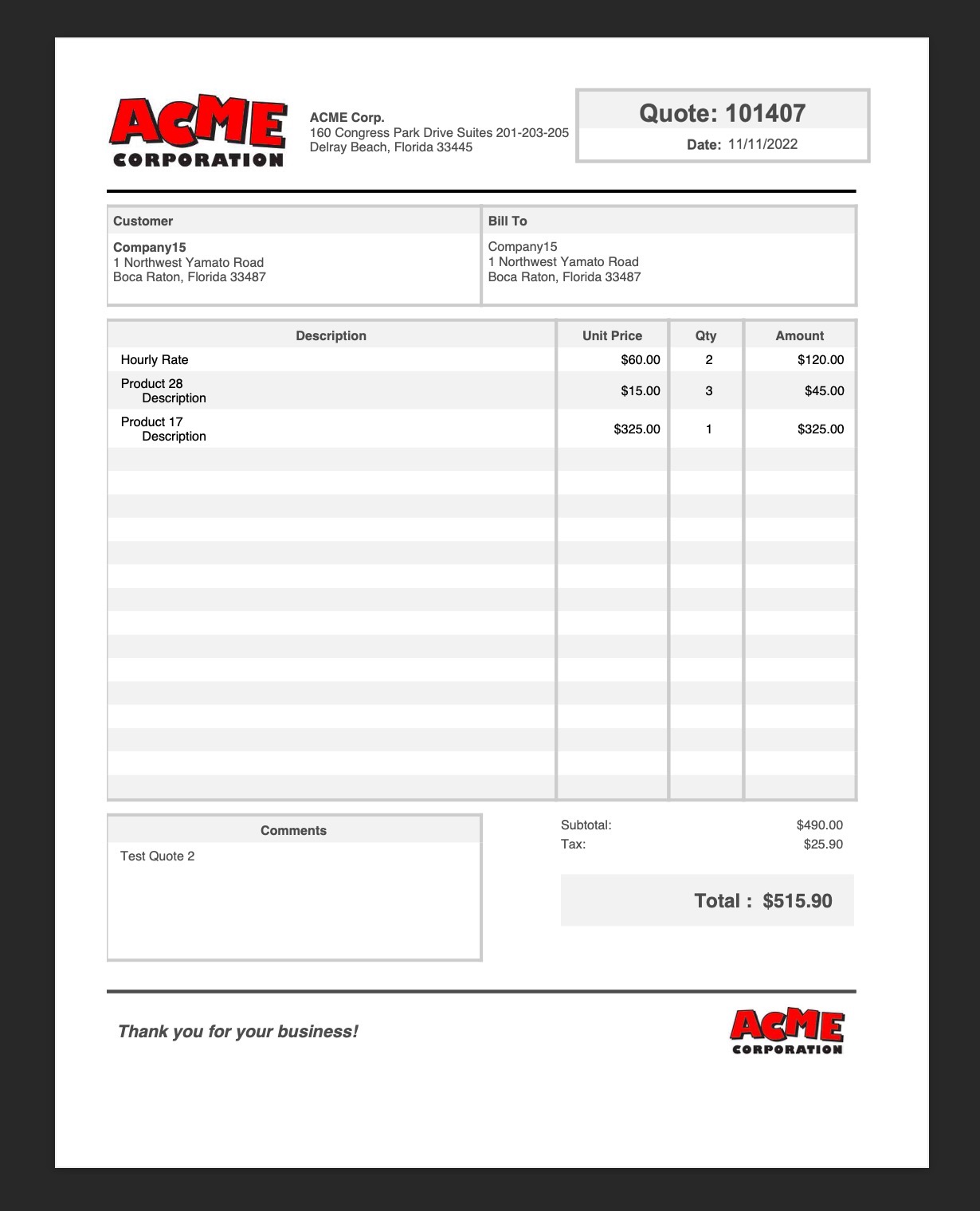
- View - Downloads a copy of the quote PDF for viewing purposes:
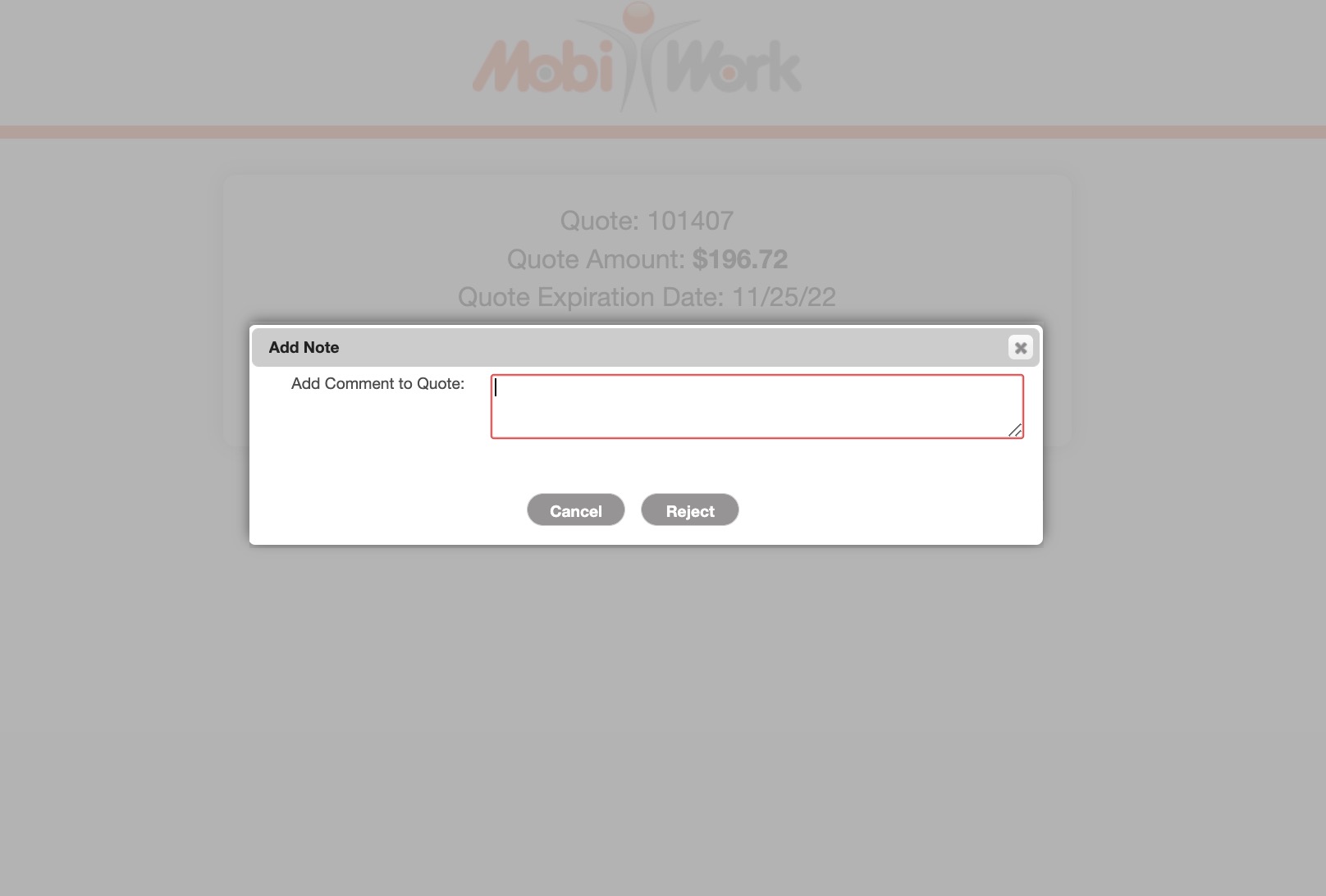
- Reject - Provides an Add Comment to Quote text area for notes on why the customer will be rejecting this quote (optional):
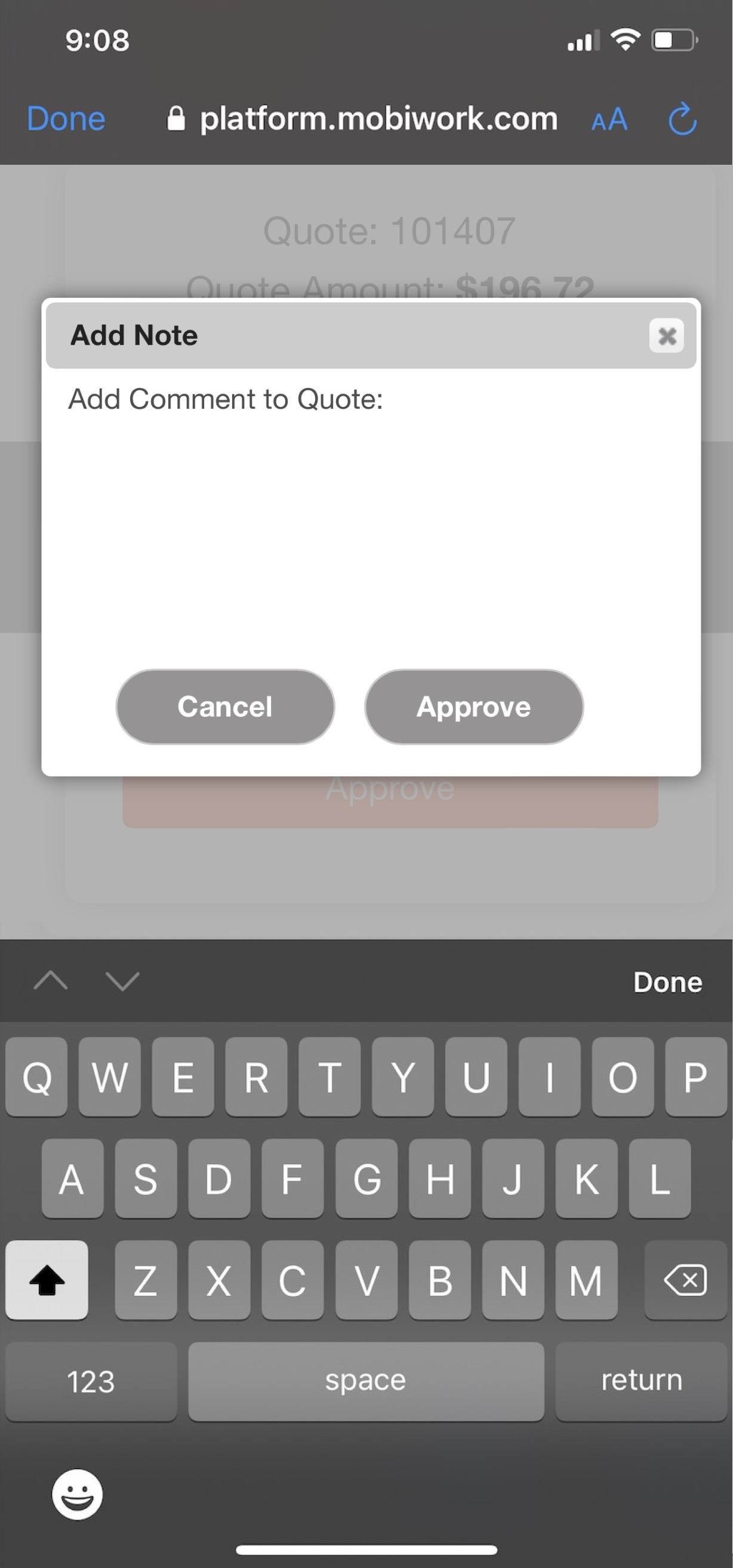
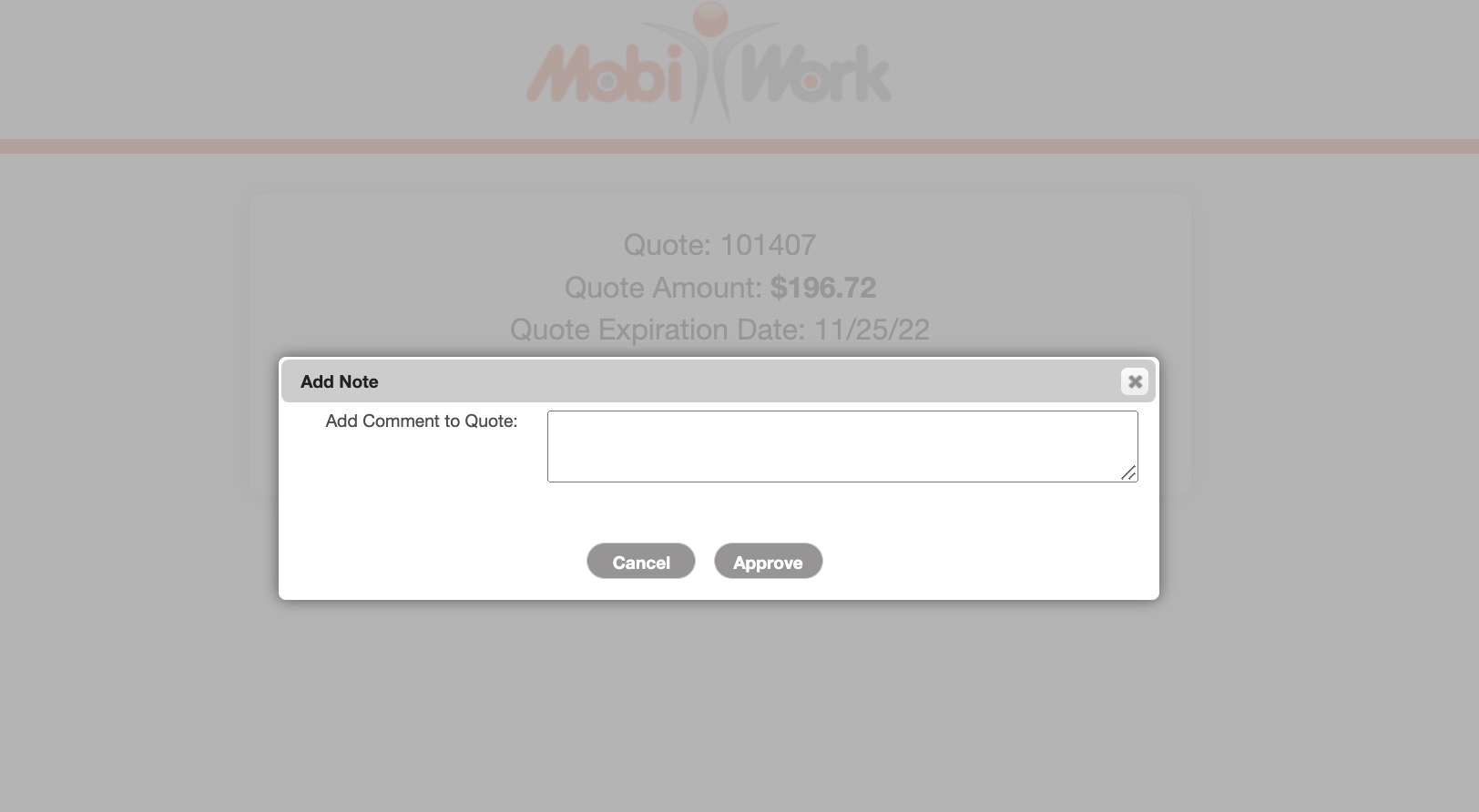
- Approve - Provides an Add Comment to Quote text area for notes on why the customer will be approving this quote (optional):
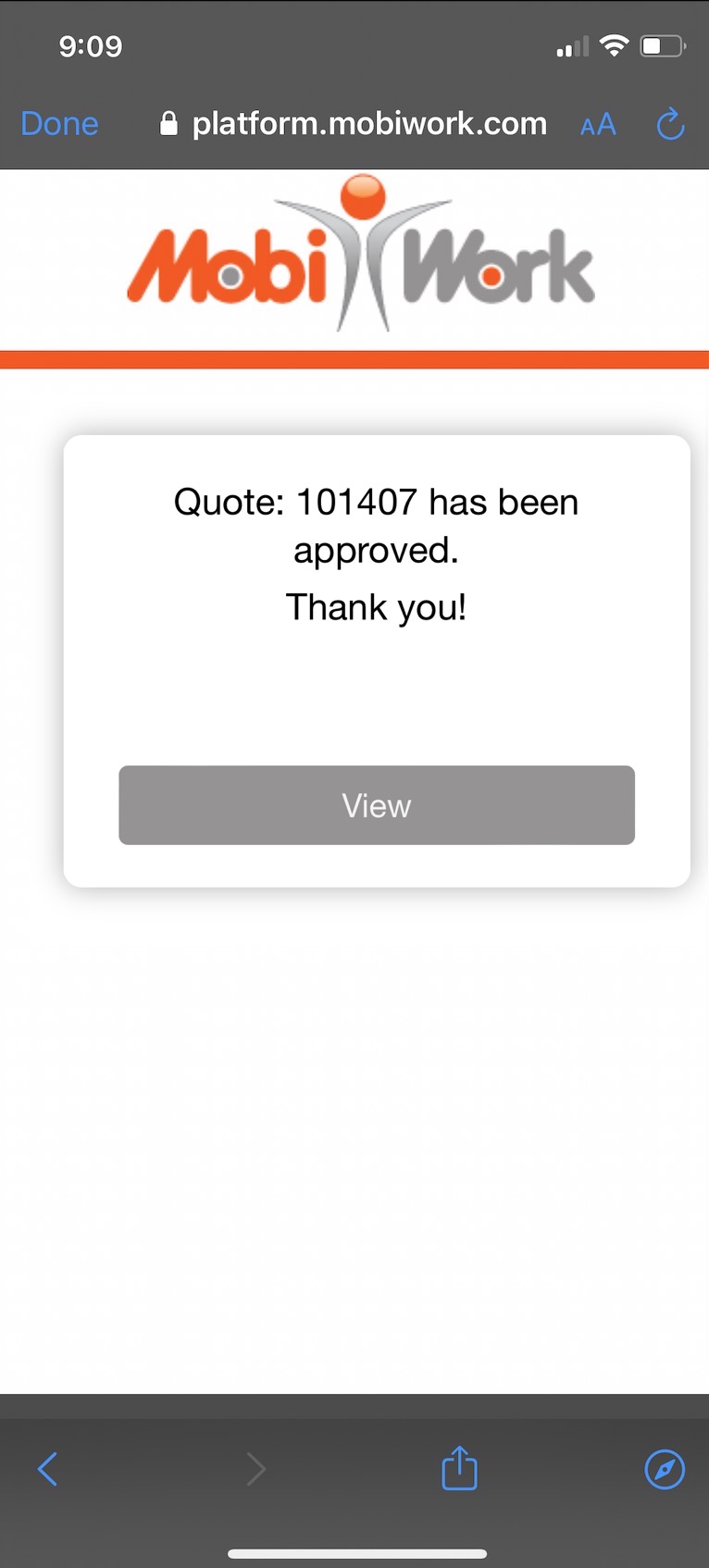
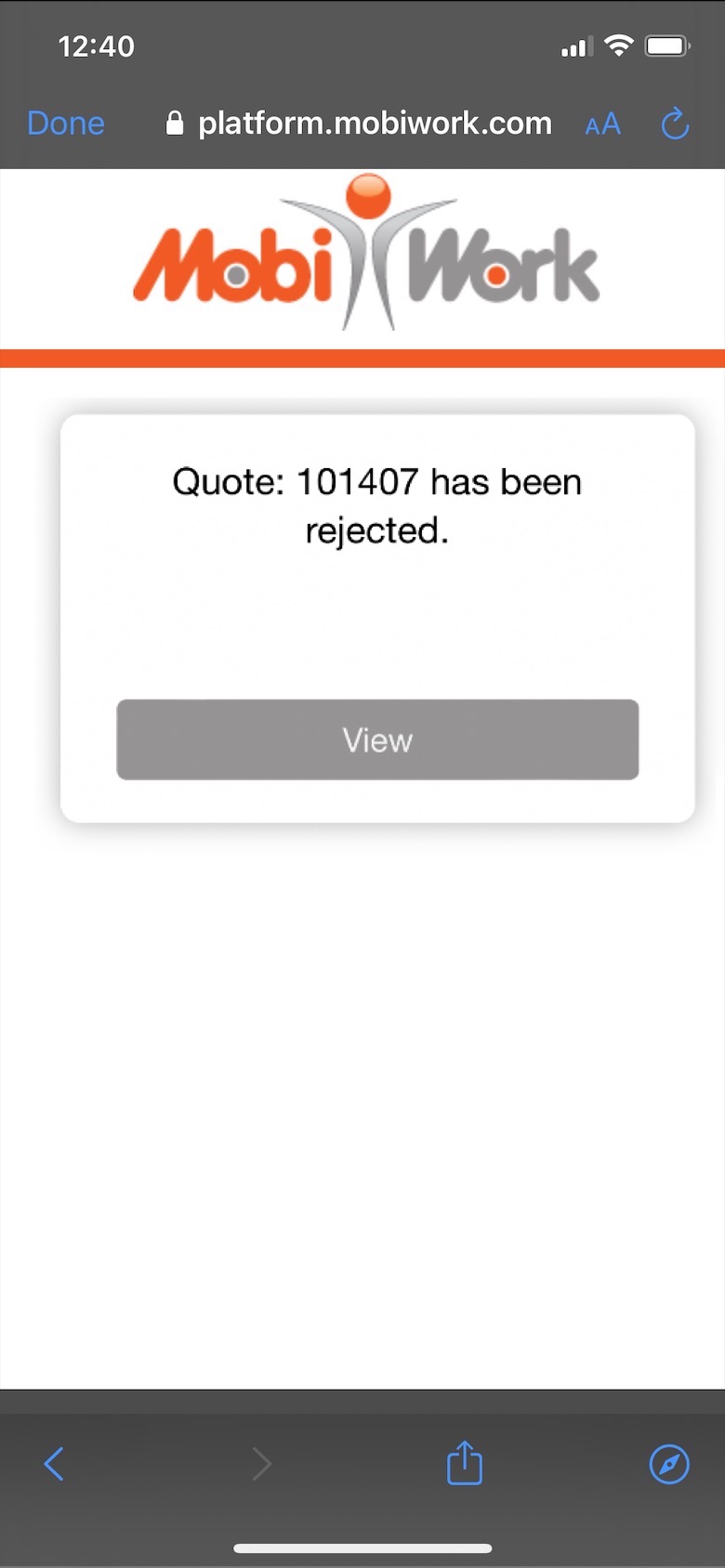
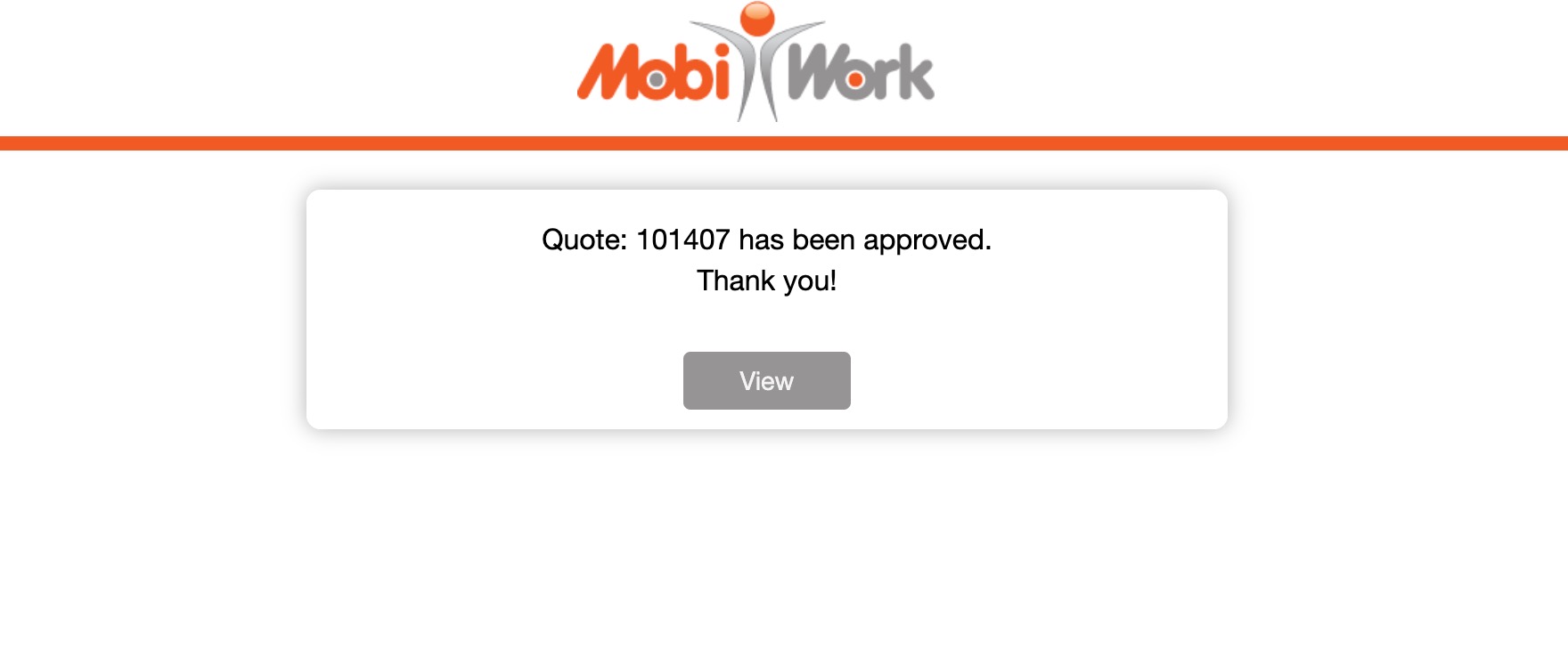
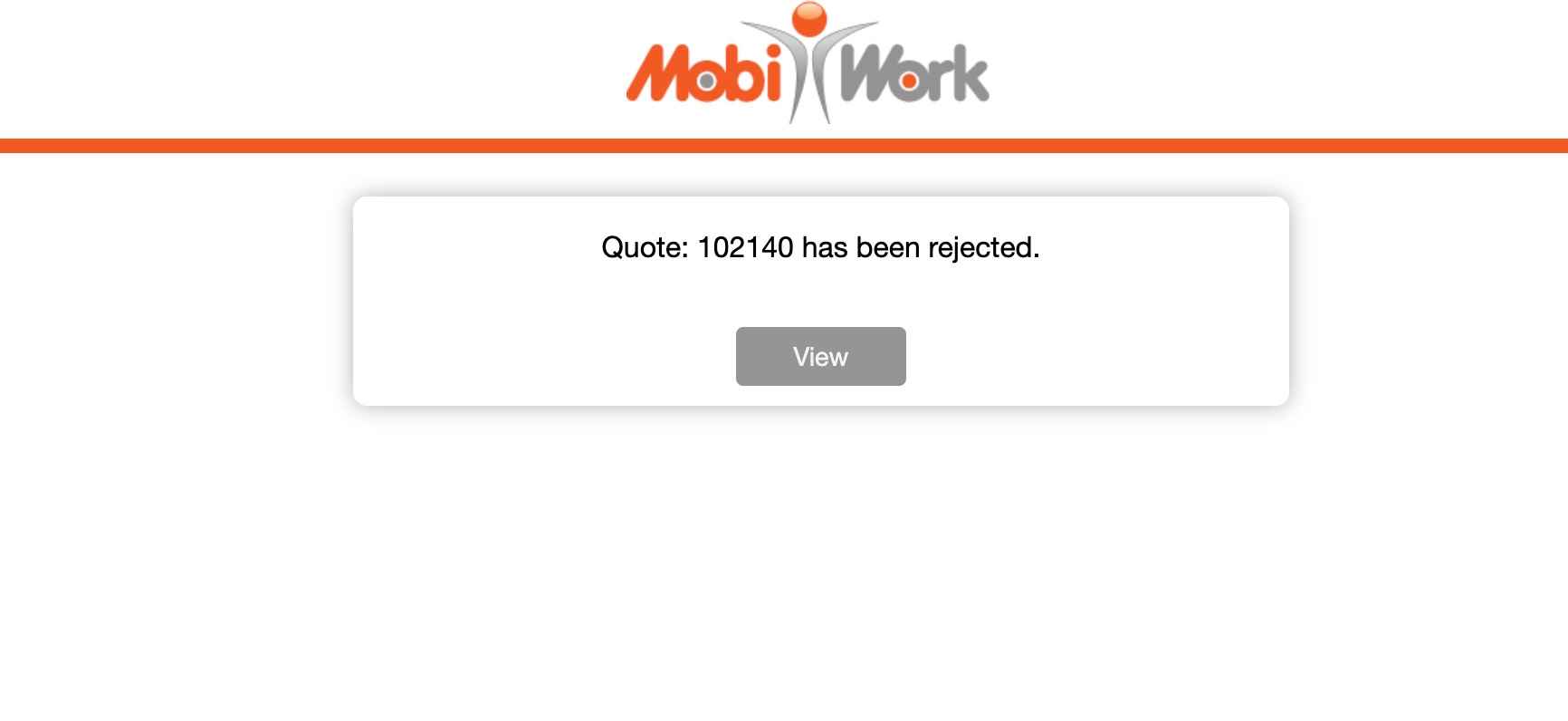
- Whether rejected or approved, the customer will be shown a success message once submitting the Add Comment to Quote text box.
- Quote Approved:
- Quote Rejected:
Quote Approval by Text
Step by Step
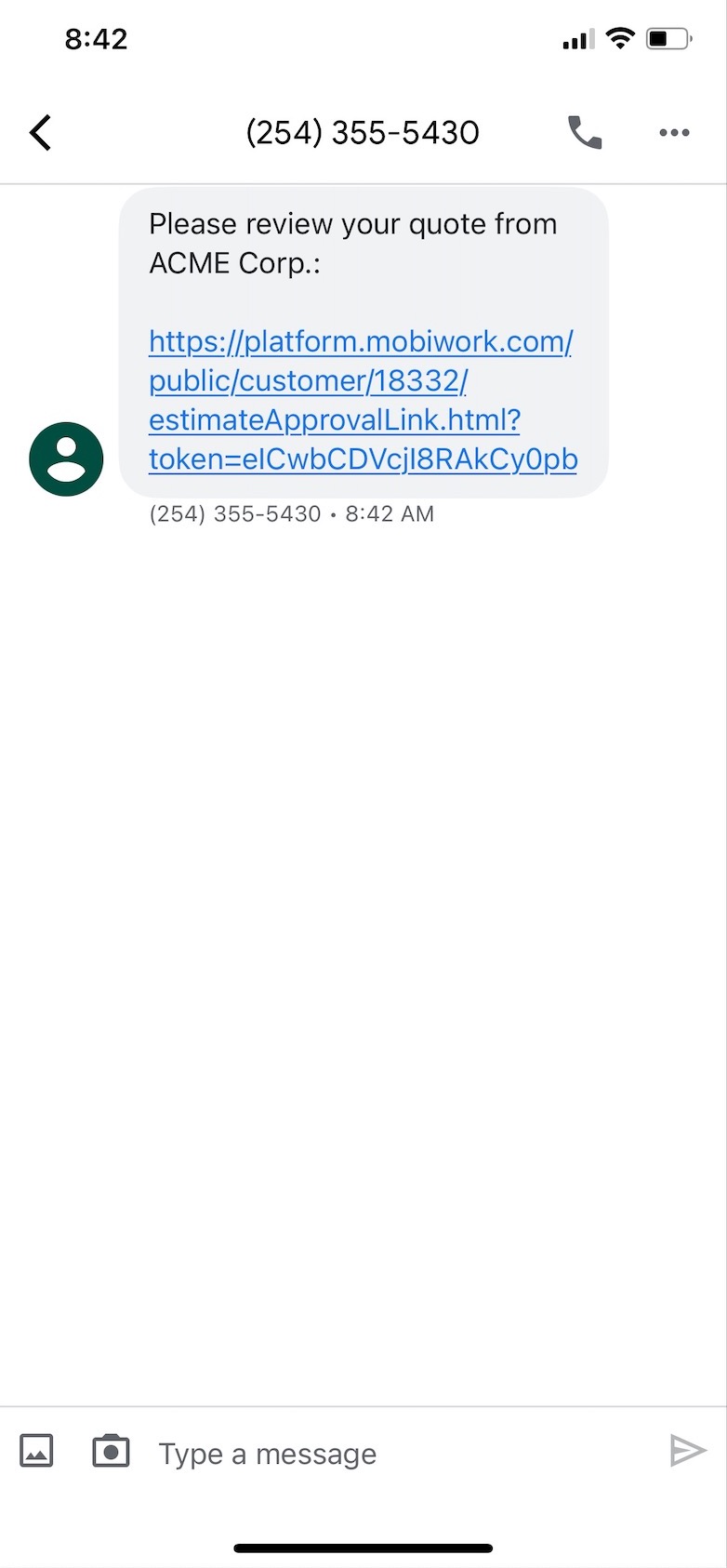
- From the text message received, customers will tap on the provided link:
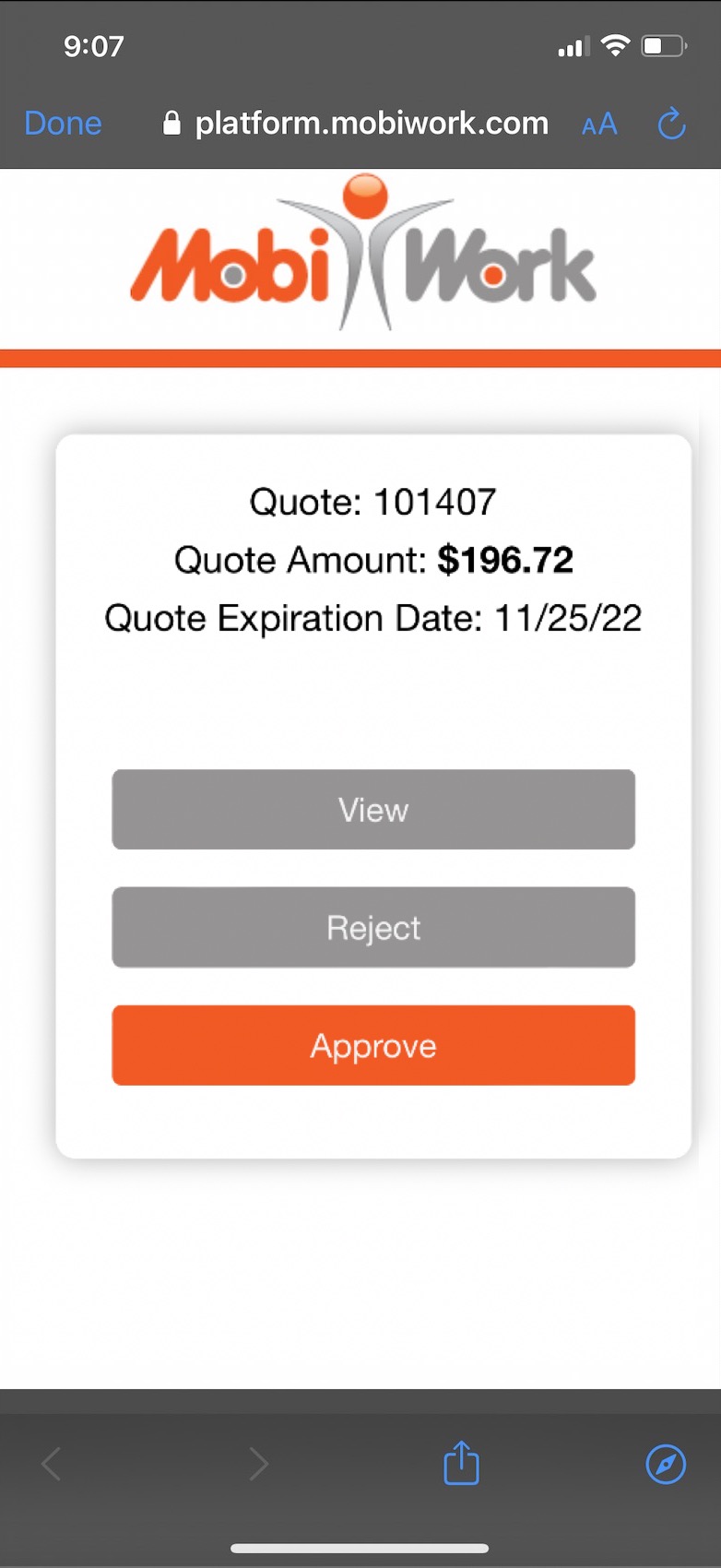
- The customer will be redirected to a unique MobiWork site with options to View, Reject and Approve their quote:
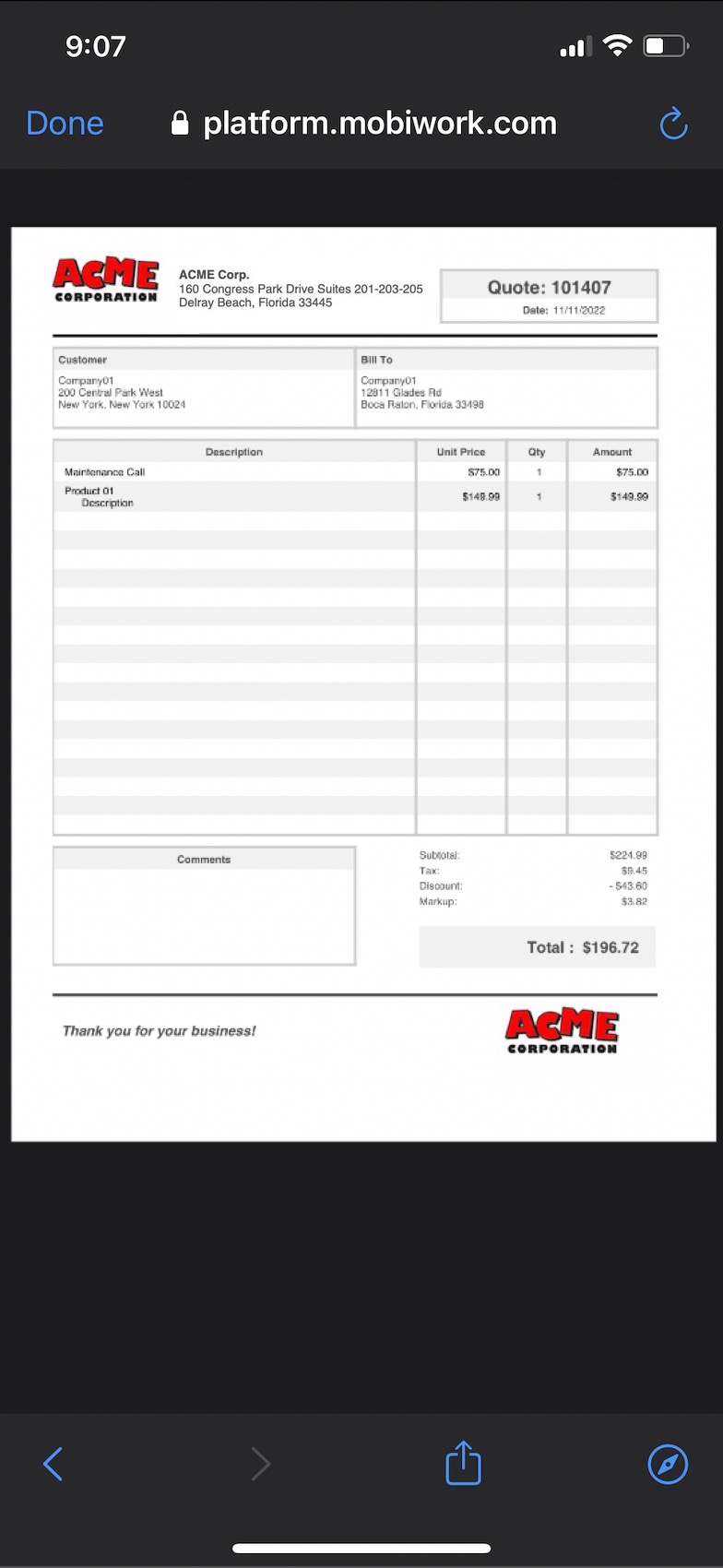
- View - Downloads a copy of the quote PDF for viewing purposes:
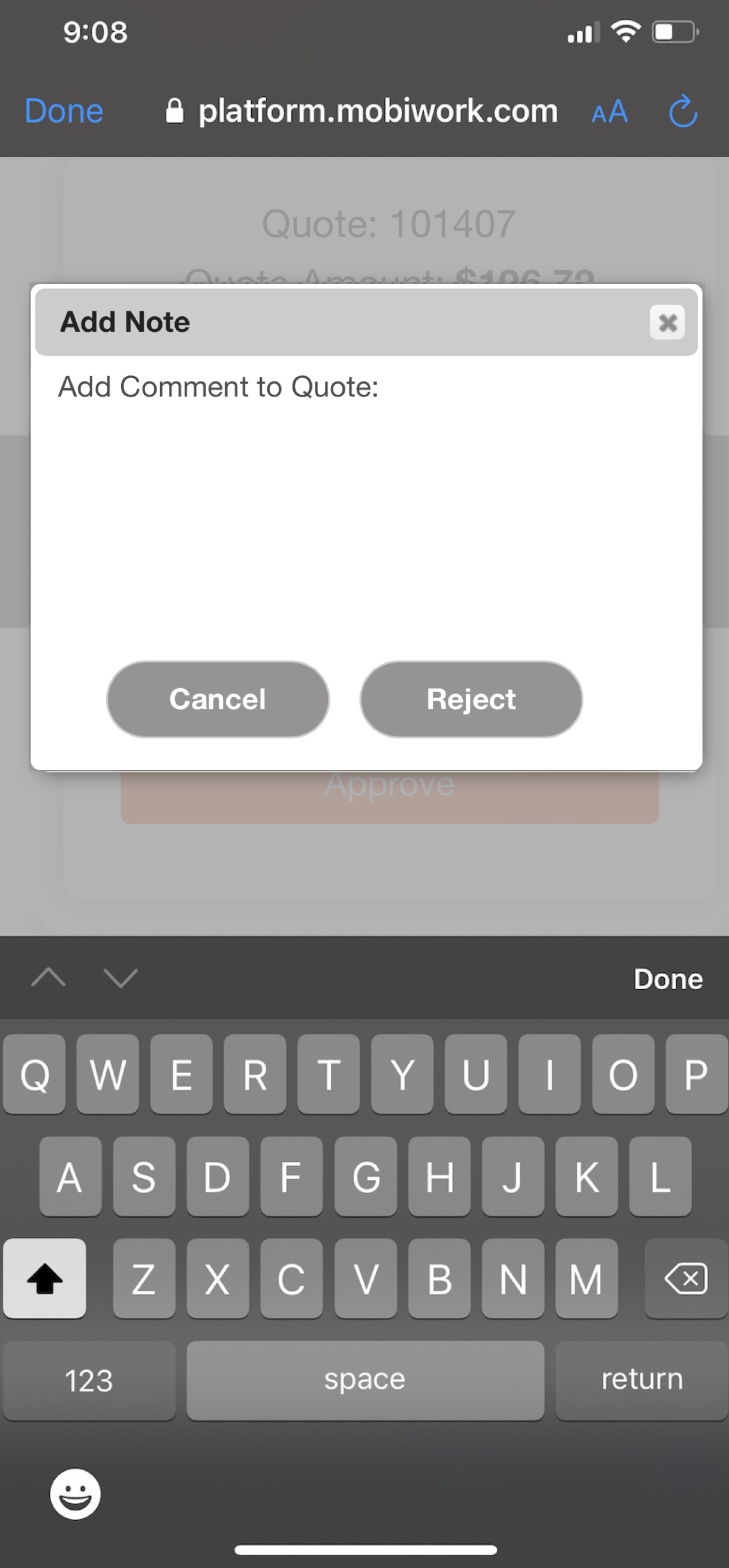
- Reject - Provides an Add Comment to Quote text area for notes on why the customer will be rejecting this quote (optional):
- Approve - Provides an Add Comment to Quote text area for notes on why the customer will be approving this quote (optional):
- Whether rejected or approved, the customer will be shown a success message once submitting the Add Comment to Quote text box.
- Quote Approved:
- Quote Rejected: