
Within MobiWork there are two different ways that you can edit a payment; you can either edit the payment status or the payment amount.
The subsections below will highlight how to access the different edit payment functions.
Edit Status
To edit your payment status, you will first need to be on the Payments feature page. For more information on how to access this page, please see the Payments List page.
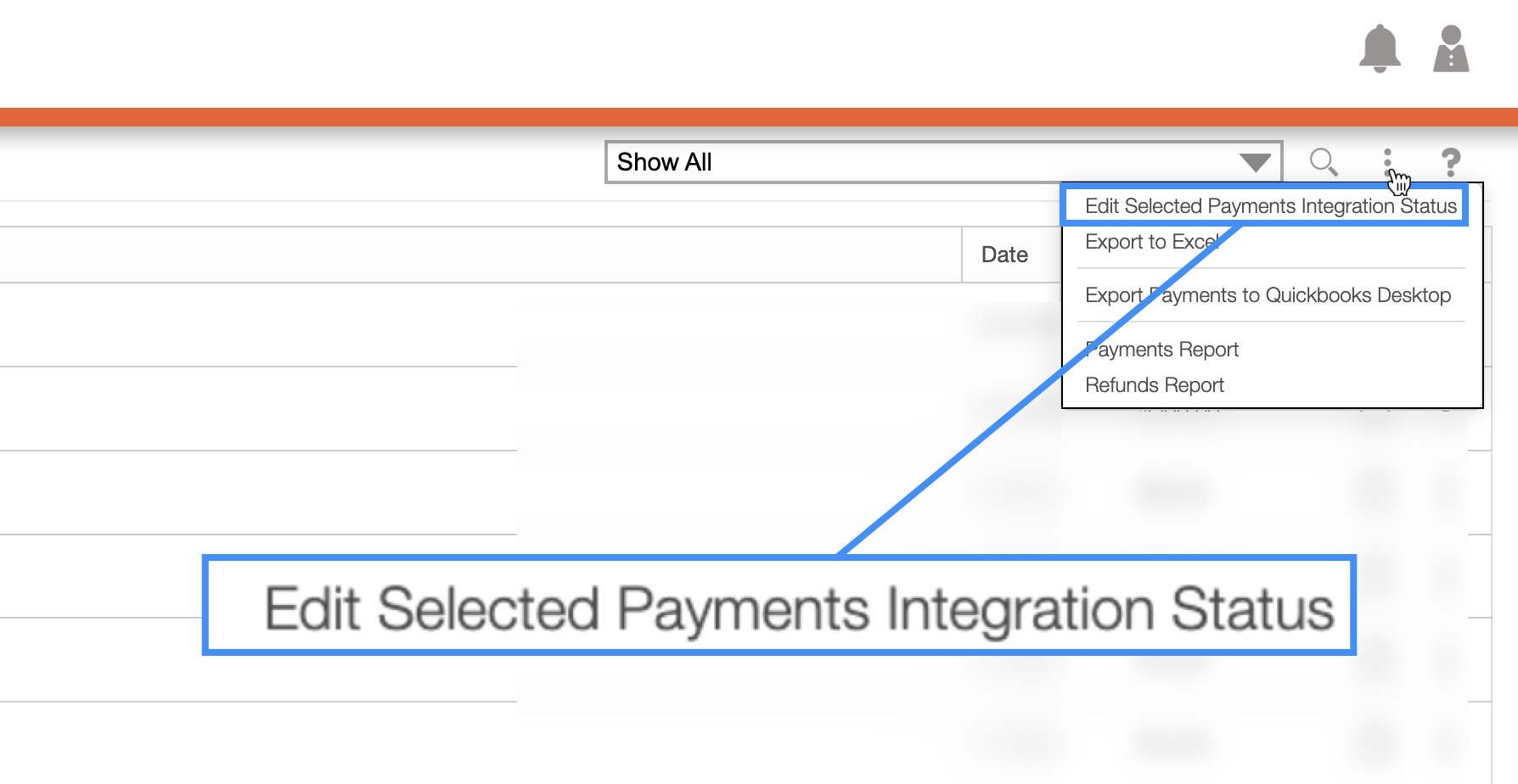
Once you are on the Payments feature page, click on the More Actions button to access the "Edited Selected Payments Integration Status" option from the drop-down:
Edit Amount
You can also edit the payment amount within MobiWork. To edit the payment amount, you will first need to access the View Invoice pop-up window. For more information on how to access this pop-up window please see the View an Invoice page.
Once you are on the View Invoice pop-up window, click on the "Payments" tab:
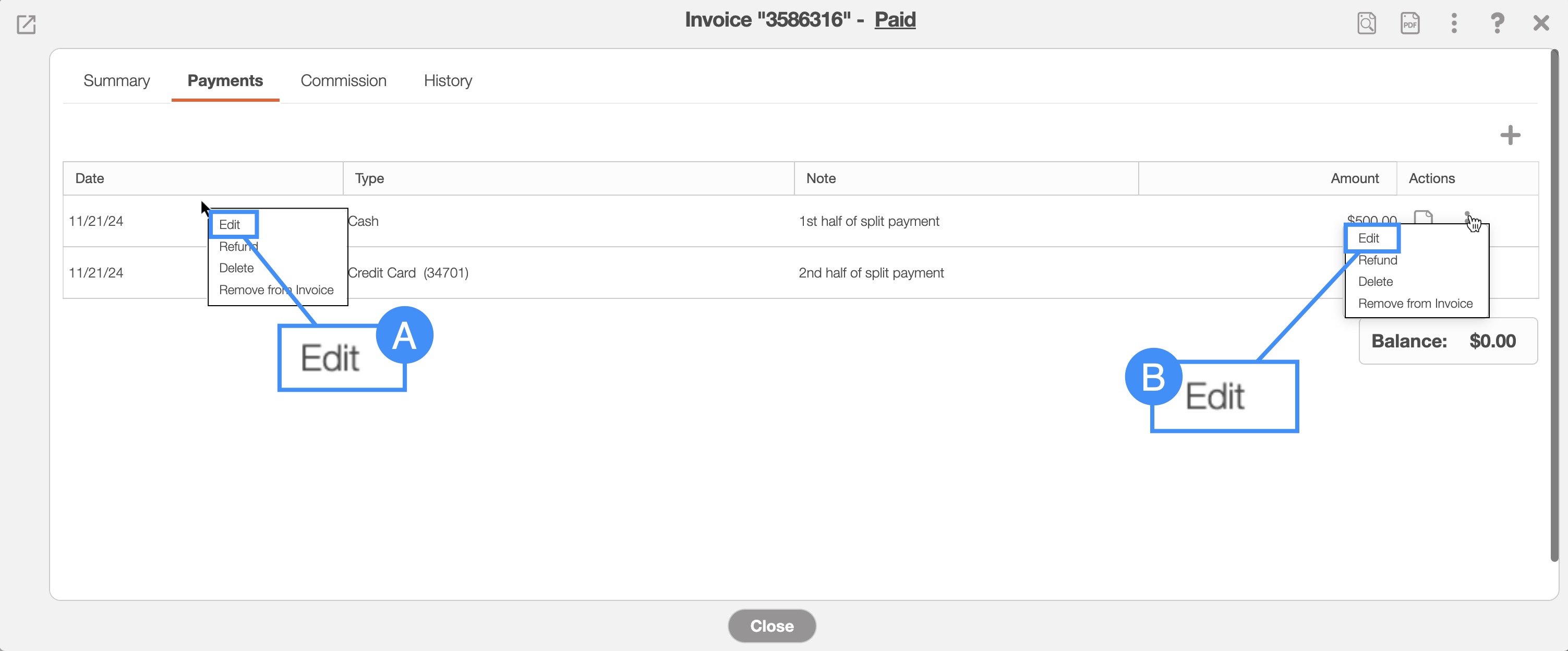
To edit the amount, you can either:
Right-click on the selected payment, and from the drop-down select the "Edit" option
Click on the Individual Actions button, and from the drop-down select the "Edit" option
Once you are on the Payments feature page, click on the More Actions button to access the "Edited Selected Payments Integration Status" option from the drop-down:
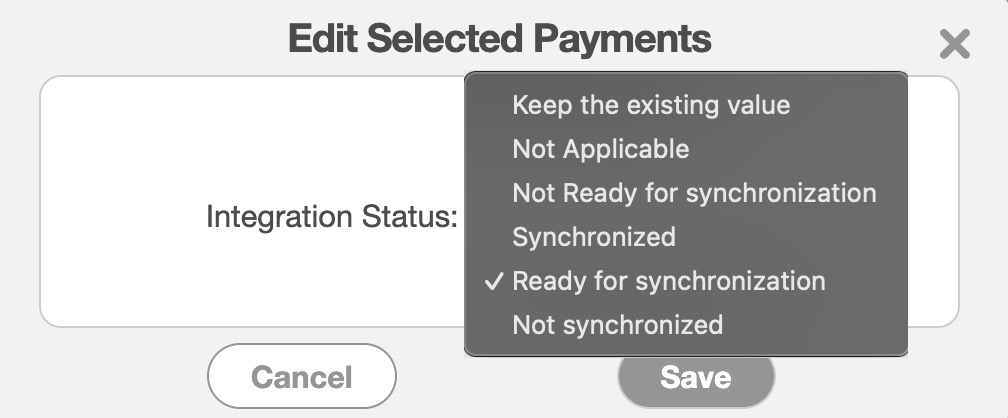
The Edit Selected Payments pop-up window will then appear. In this pop-up window, select the new status and then click the Save button to confirm the updated status:
After selecting the "Edit" option in the View Invoice pop-up window, the Edit Payment pop-up window will appear.
From this pop-up window you can enter the revised amount, the payment date, or update the note associated with the payment:
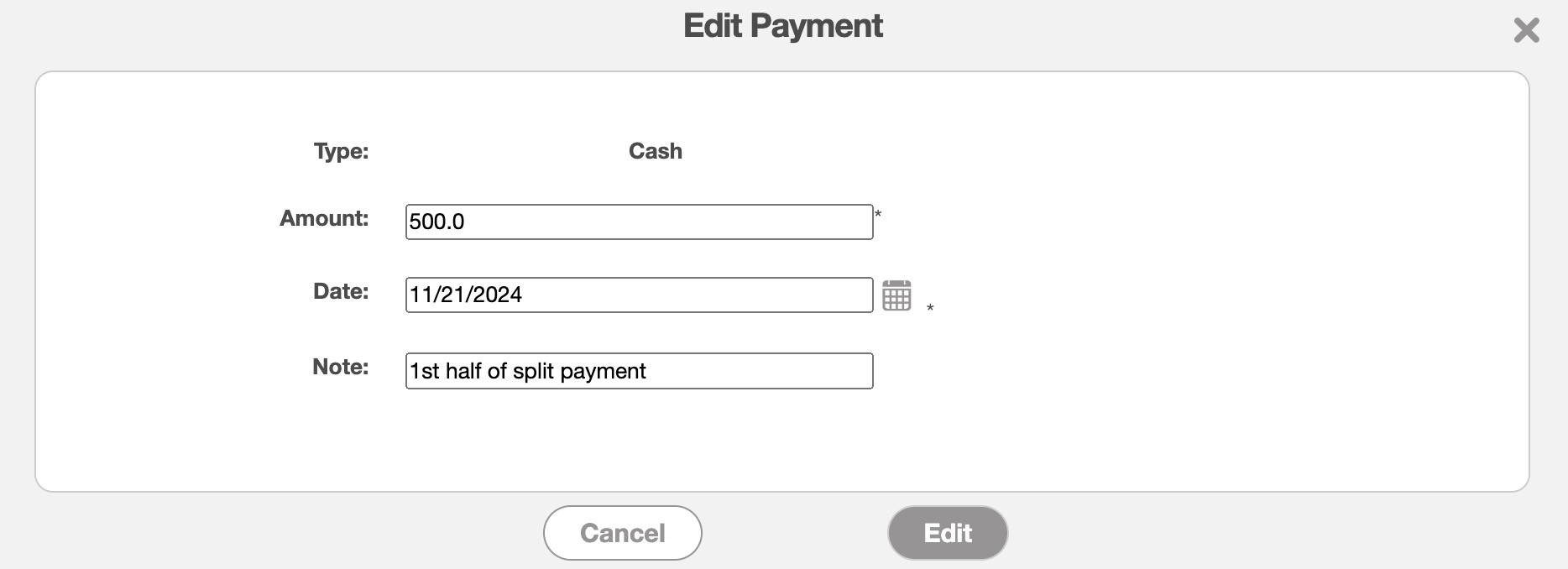
Once you are satisfied with the revised payment amount, click the Edit button to finalize the changes.