
You can delete a recurrent invoice from the Recurrent Invoice feature page or through the View Recurrent Invoice pop-up window.
To delete your recurrent invoice(s) you will first need to be on the Recurrent Invoice feature page. Please see the Recurrent Invoice List page for more information on how to access this site.
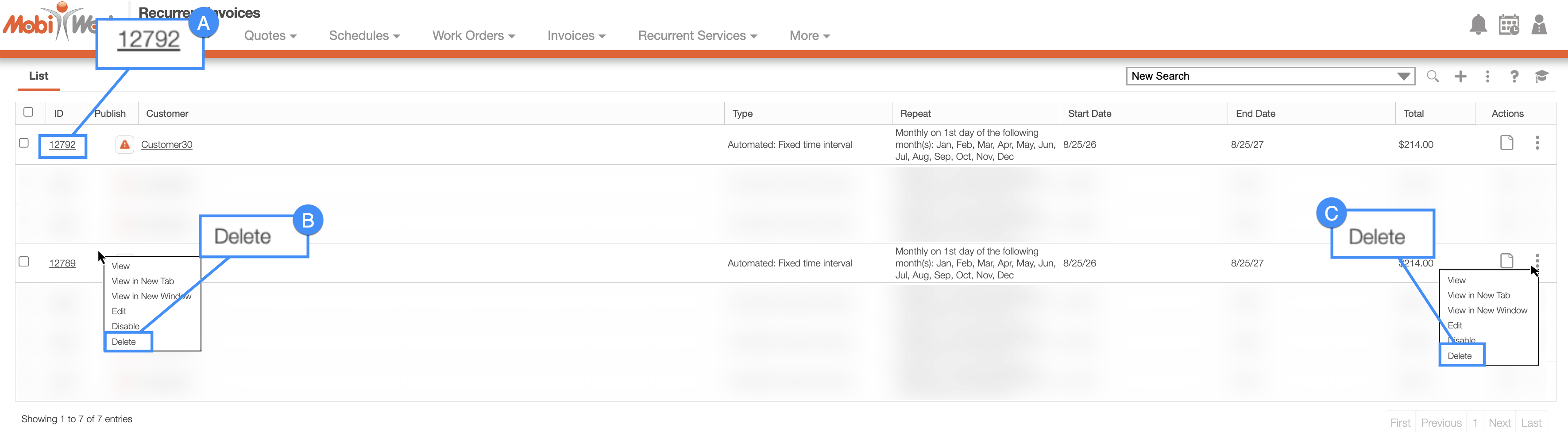
Once you are on the Recurrent Invoice feature page, you can delete your recurrent invoice(s) with the following methods:
- Clicking on the Recurrent Invoice ID to open the View Recurrent Invoice pop-up window:
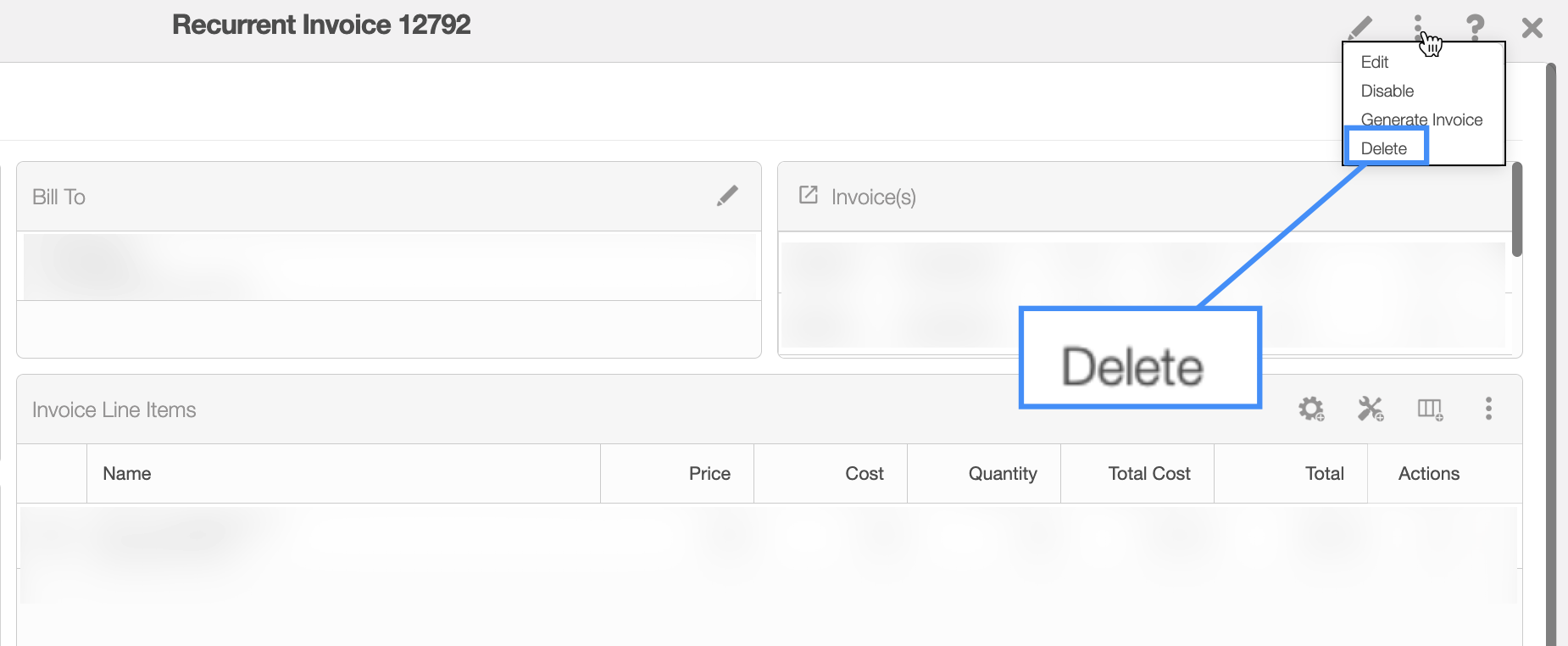
- In the upper right-corner of the View Recurrent Invoice pop-up window, you will see the Individual Actions button:
Right-clicking on a recurrent invoice to open the right-click options and selecting the "Delete" option. (The options that are displayed when you right-click on a recurrent invoice are also available when you select the Individual Actions button).
Clicking on the Individual Actions button (the three vertical dots) from the "Actions" column select the "Delete" option. (The options that are displayed from the Individual Actions button are the same as when you right-click on a recurrent invoice).
Regardless of how you choose to delete a recurrent invoice, a warning pop-up will appear asking to confirm if you would like to delete this recurrent invoice, and informing you that the deletion of the recurrent invoice is permanent:
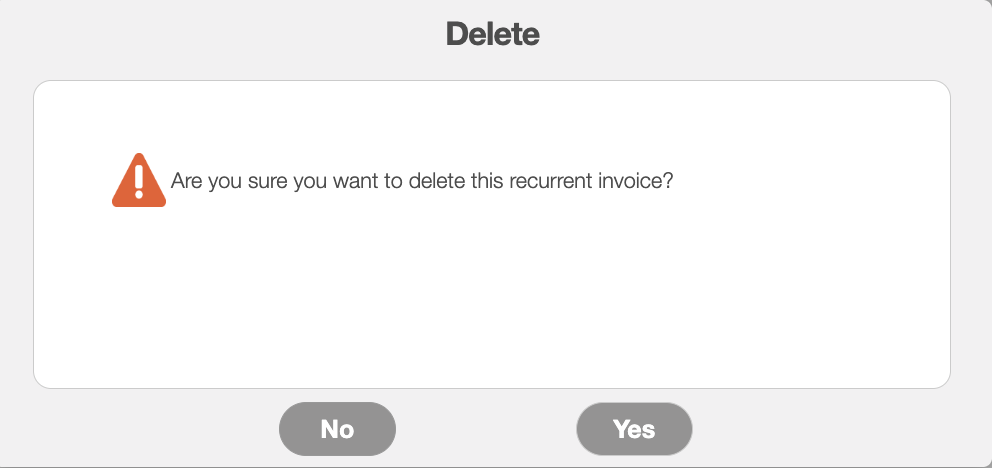
Click the Yes button to confirm deletion. Once confirmed, the recurrent invoice will automatically be deleted from MobiWork.
You will be able to delete the parts, services, sections, markups, and discounts listed in the recurrent invoice's line items. The following subsections will illustrate how to delete these different line item entries.
Delete Part
In the "Line Items" panel click on the selected part's Individual Actions. From the Individual Actions' drop-down menu that appears, select the "Delete" option. You can also delete the selected part by right-clicking on it and selecting the "Delete" option from the drop-down:
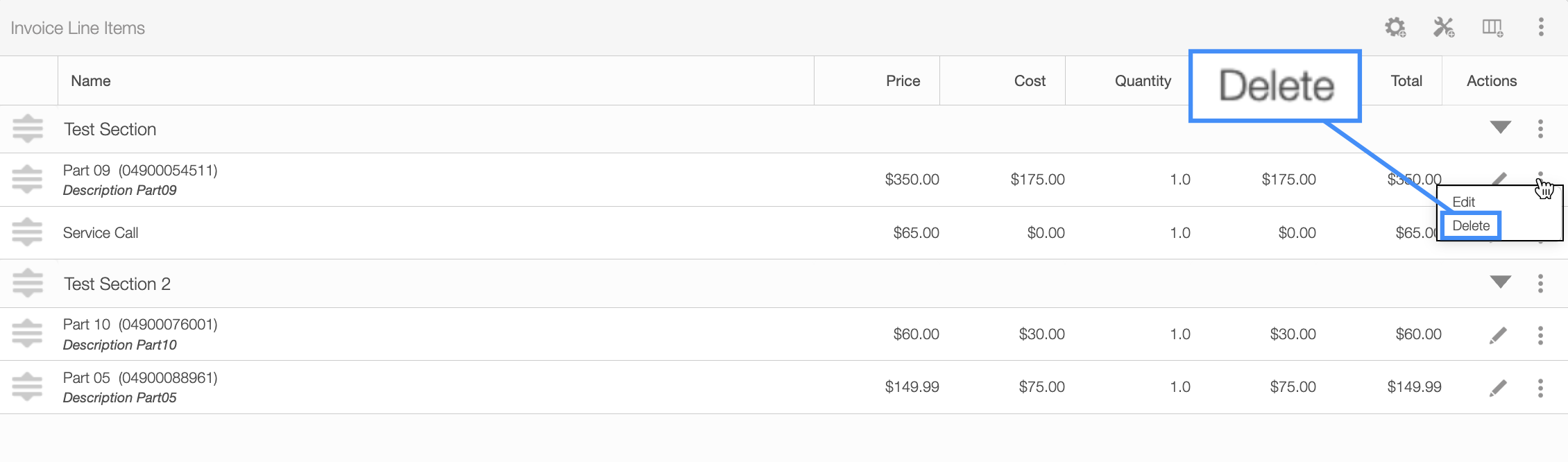
Once you click on the "Delete" option, the Confirm Delete pop-up window will appear:
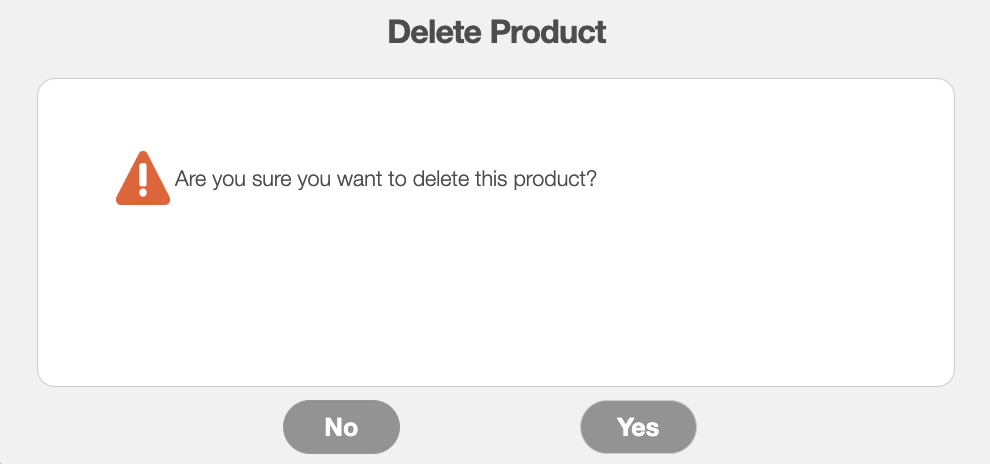
Click the Yes button to confirm you would like to delete the selected part.
Delete Service
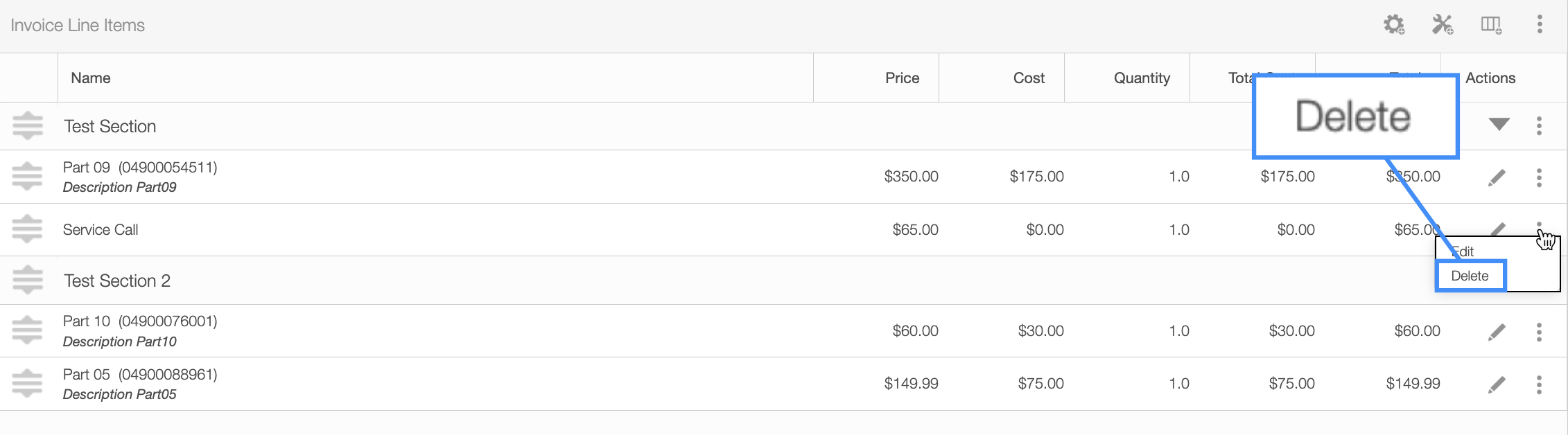
In the "Line Items" panel click on the selected service's Individual Actions. From the Individual Actions' drop-down menu that appears, select the "Delete" option. You can also delete the selected service by right-clicking on it and selecting the "Delete" option from the drop-down:
Once you click on the "Delete" option, the Confirm Delete pop-up window will appear:
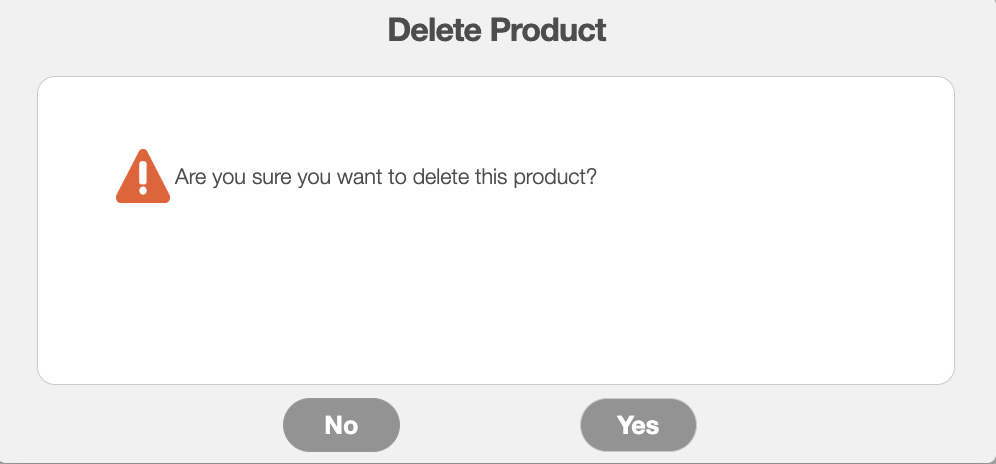
Click the Yes button to confirm you would like to delete the selected service.
Delete Section
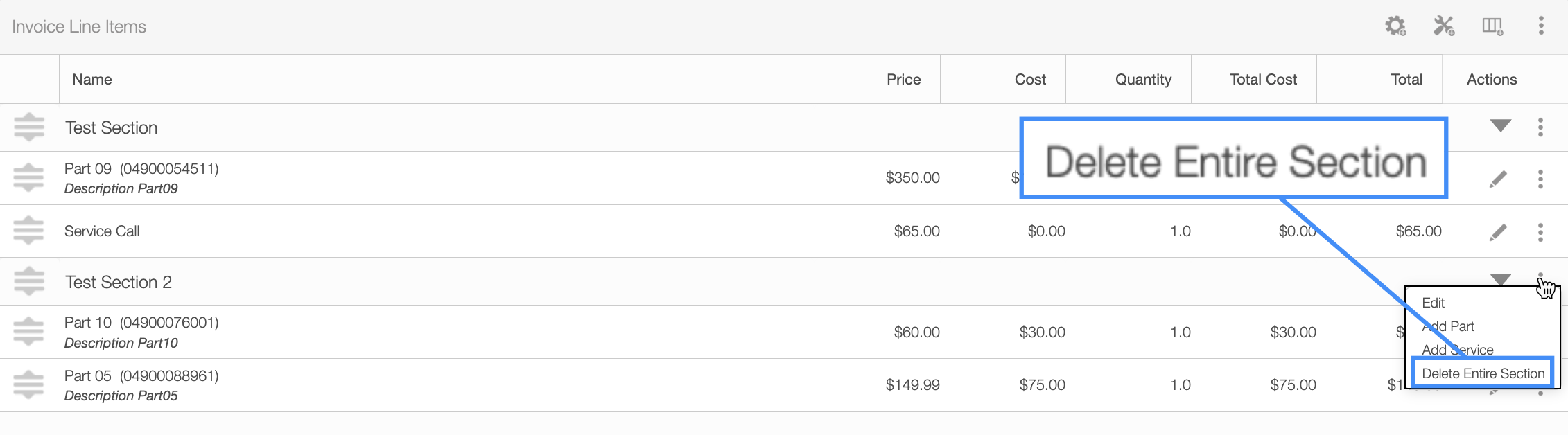
In the "Line Items" panel click on the selected section's Individual Actions. From the Individual Actions' drop-down menu that appears, select the "Delete Entire Section" option. You can also delete the selected section by right-clicking on it and selecting the "Delete Entire Section" option from the drop-down:
Once you click on the "Delete" option, the Confirm Delete pop-up window will appear:
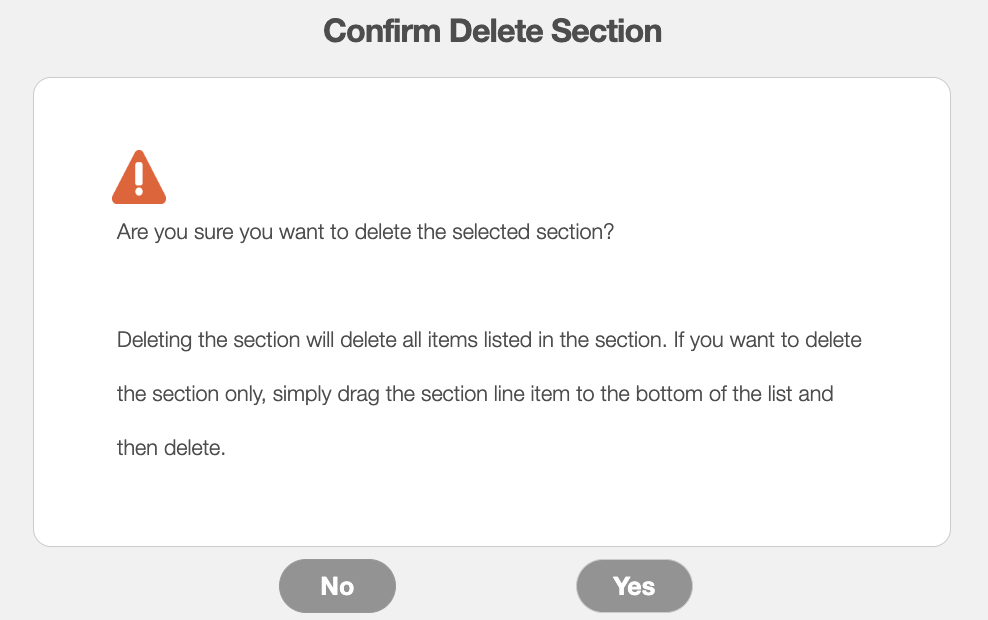
Click the Yes button to confirm you would like to delete the selected section. Please note that any parts or services that are listed under the section will also be removed.
Delete Markup
In the "Total & Balance" panel, locate the markup you would like to delete. Click on the corresponding Trash Can button next to the selected markup:
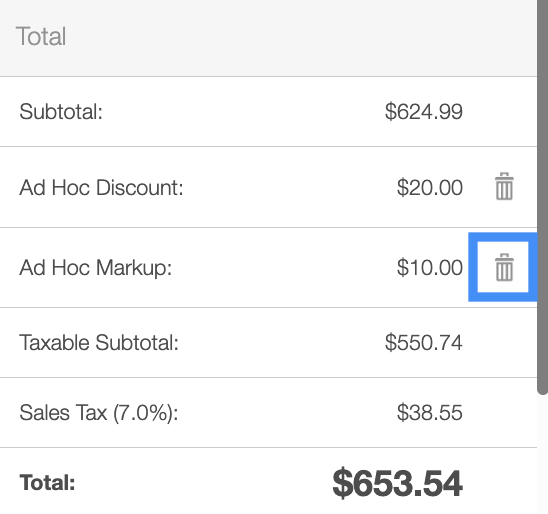
Once you click on the Trash Can button, the Delete Markup pop-up window will appear:
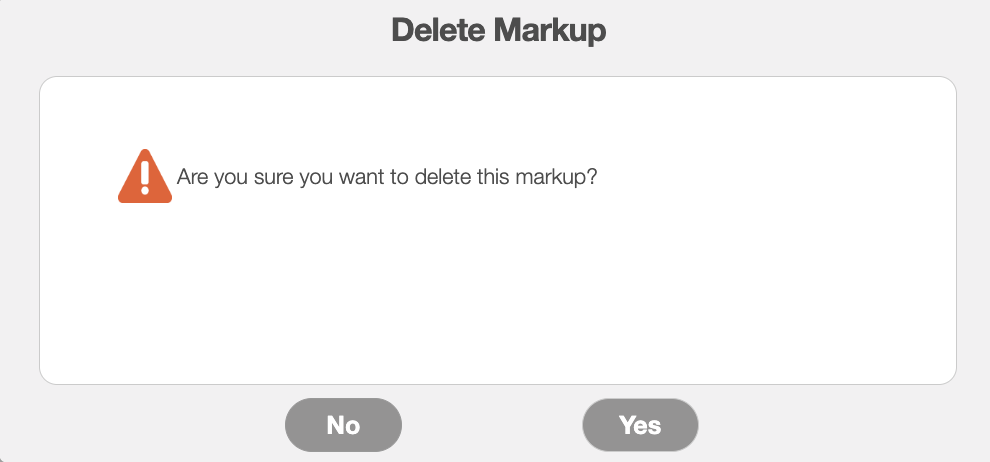
Click the Yes button to confirm you would like to delete the selected markup.
Delete Discount
In the "Total & Balance" panel, locate the discount you would like to delete. Click on the corresponding Trash Can button next to the selected discount:
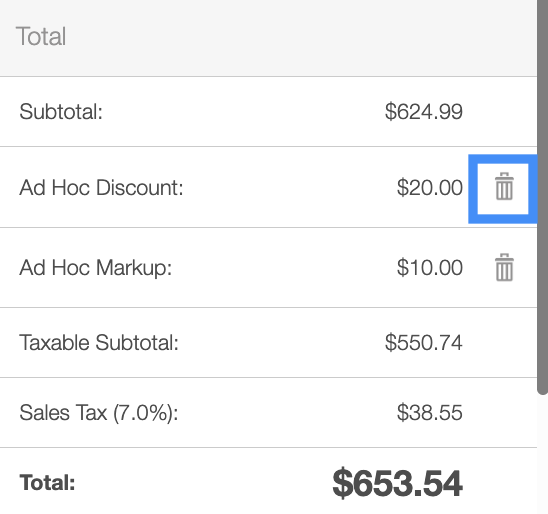
Once you click on the Trash Can button, the Delete Discount pop-up window will appear:
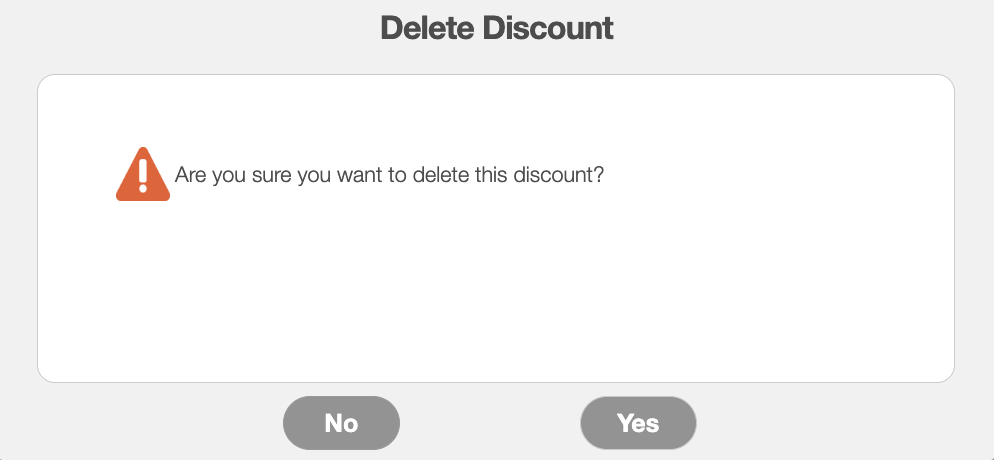
Click the Yes button to confirm you would like to delete the selected discount.
A recurrent invoice can be disabled when recurring billing should temporarily stop. This is useful when a customer cancels a service, pauses their account, or reaches the end of a service agreement. Disabling is recommended instead of deleting the recurrent invoice because it preserves the billing setup and historical record while also preventing additional invoices from being generated. If the customer resumes the service in the future, you can simply re-enable the recurrent invoice rather than recreating the invoice schedule, billing details, and other configuration from scratch.
You will be able to disable a recurrent invoice through the "List" tab. For more information how to access this page, please see the Recurrent Invoice List page.
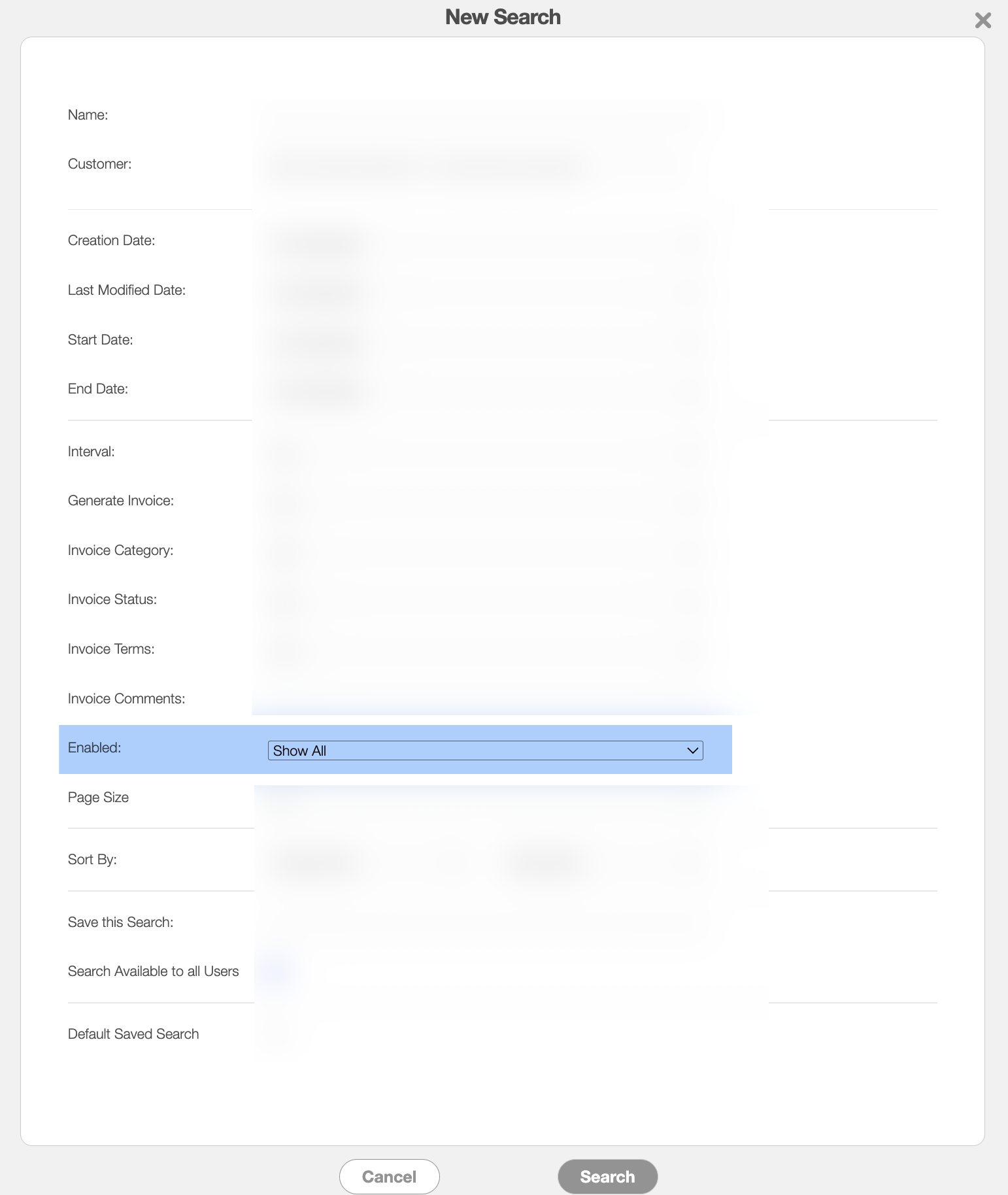
To search for enabled or disabled recurrent invoices, open the New Search pop-up window and ensure that the "Enabled" field is set to the "Show All" option:
Once this is done, there are three different ways you can disable a recurrent invoice:
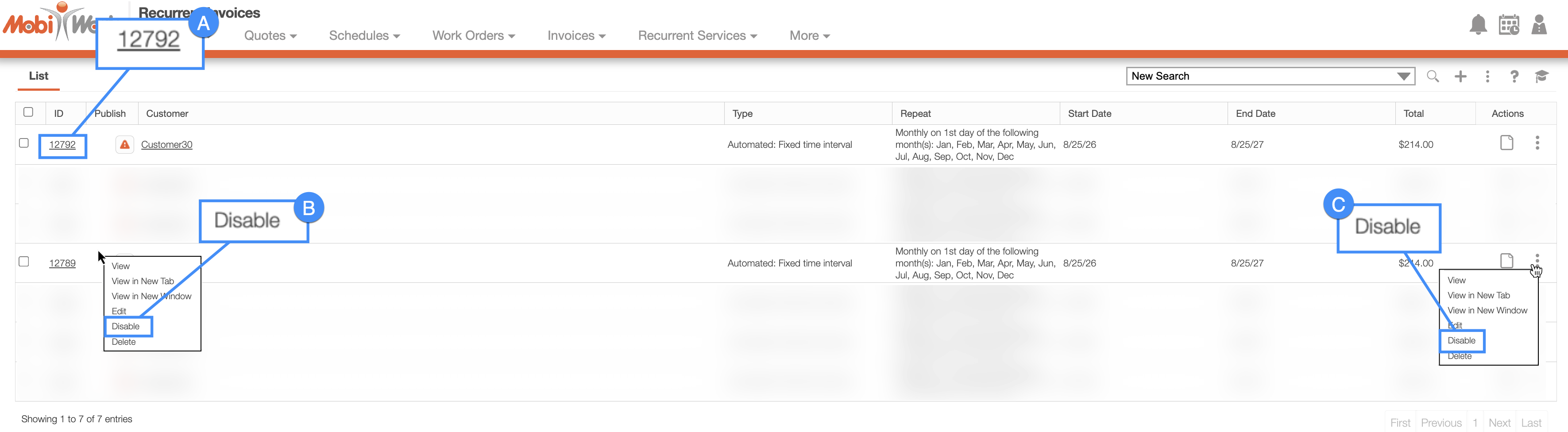
Clicking on the recurrent invoice's ID to open the View Recurrent Invoice pop-up window:
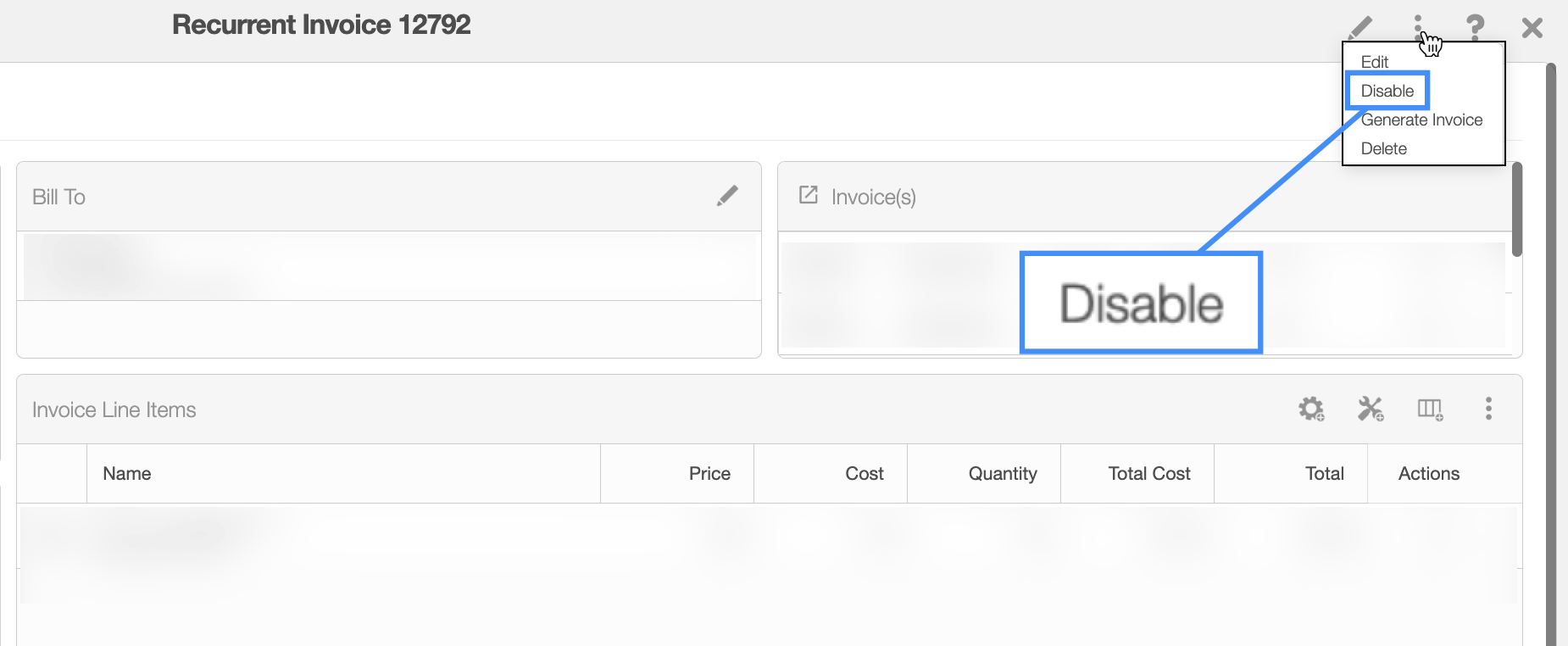
In the upper right-corner of the View Recurrent Invoice pop-up window, select the "Disable" option from the Individual Actions drop-down:
Please note that there are many ways that you can access the View Recurrent Invoice pop-up window. Please see the View Recurrent Invoice page for the different ways that you can open the View Recurrent Invoice pop-up window.
Click on the Individual Actions (the three vertical dots) and from the drop-down select the "Disable" option. (The options that are displayed from the Individual Actions button are the same as when you right-click on a recurrent invoice).
Right-click on a recurrent invoice to open the right-click options and from the drop-down, select the "Disable" option. (The options that are displayed when you right-click on a recurrent invoice are also available when you select the Individual Actions button).
Regardless of the method you choose to disable a recurrent invoice, the Disable Recurrent Invoice pop-up window will appear:

Click the Disable button to confirm that the recurrent invoice should be disabled, and the recurrent invoice will automatically be set as inactive.