Aside from reviewing our app directly from your mobile device, you can also recommend MobiWork on G2, Capterra, and other online directories.
This step-by-step tutorial will help get your Capterra review published so that it's seen by other buyers like you.
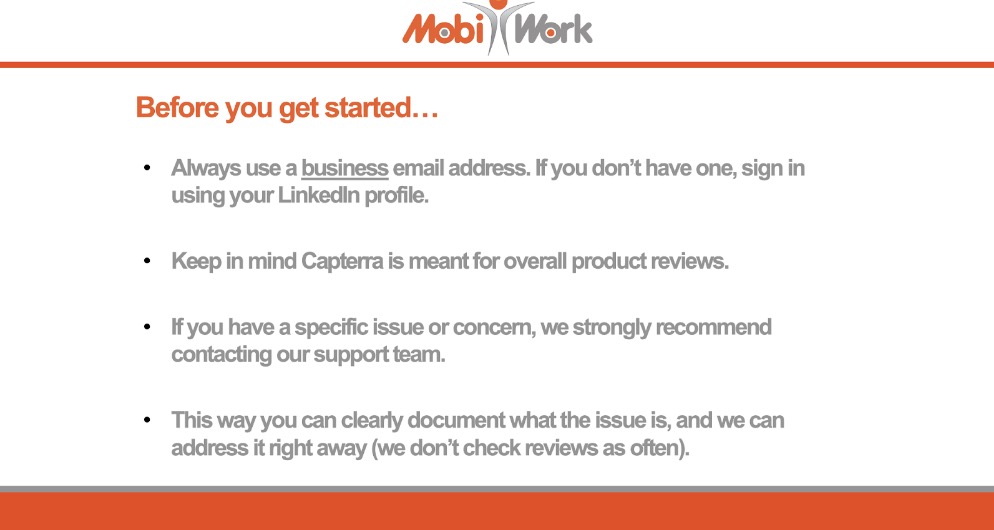
Before we get started, please review the message below:
Overview Video
Step by Step
STEP 2: Verify Your Identity
You can click on the following link: Capterra: MobiWork
- Or you can scan the QR code below:
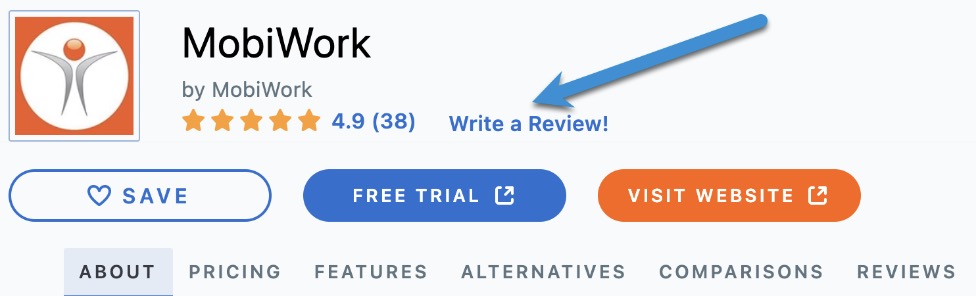
- Once you have navigated to the Capterra webpage, click on the Write a Review! button:

STEP 2: Verify Your Identity
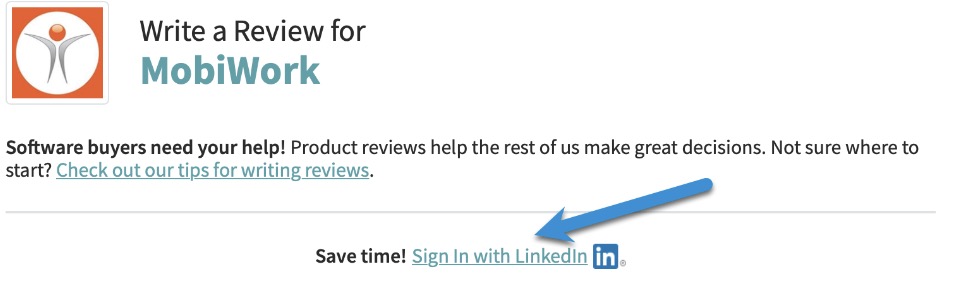
You have two options to get your identity verified and ensure your review is published, either:
Sign into your LinkedIn account to get your identity verified and some of your information populated.
Or enter your information manually but only use a business email address.
STEP 3: Write Your Review
Let’s review a few tips that will help you complete each section in no time:
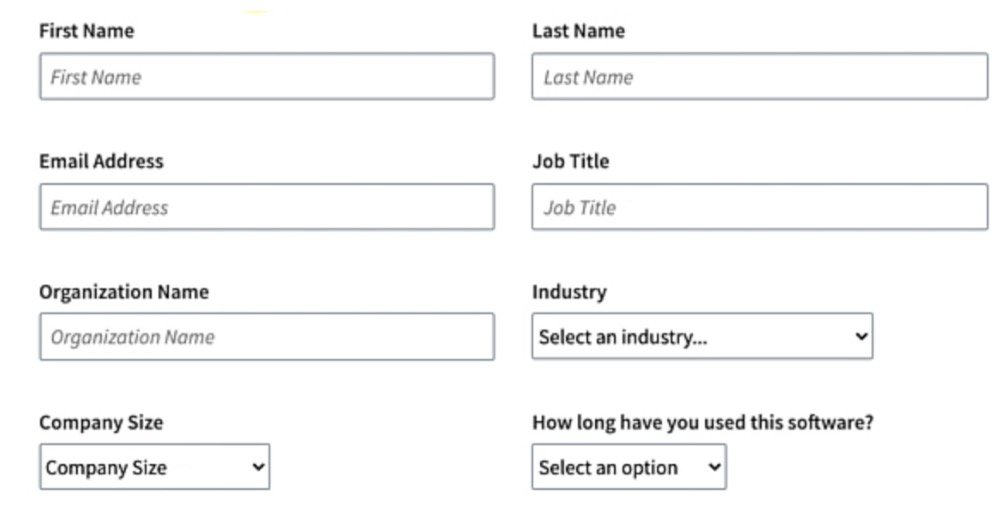
- With the formalities out of the way, it’s time to input your personal info:
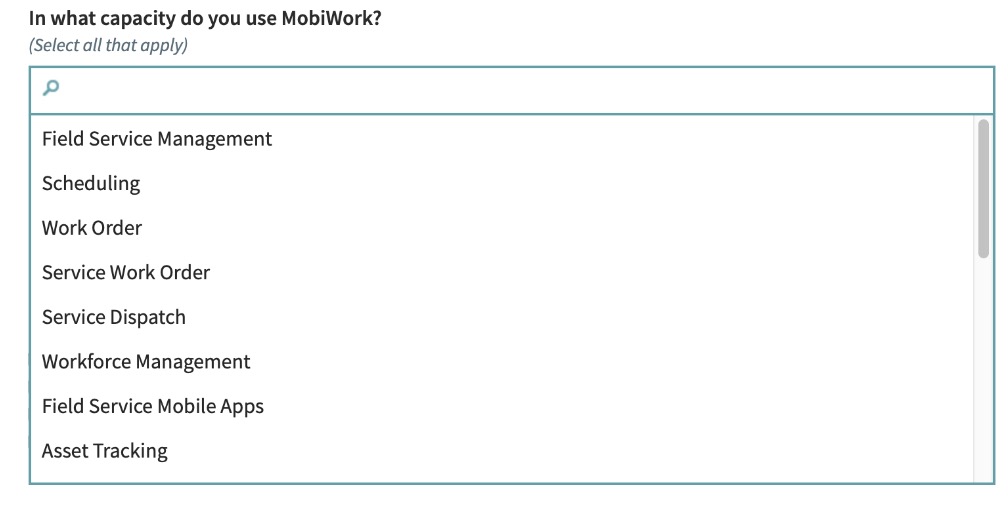
- The next section relates to what capacity you’ve used MobiWork. Make sure you include all the options that apply:
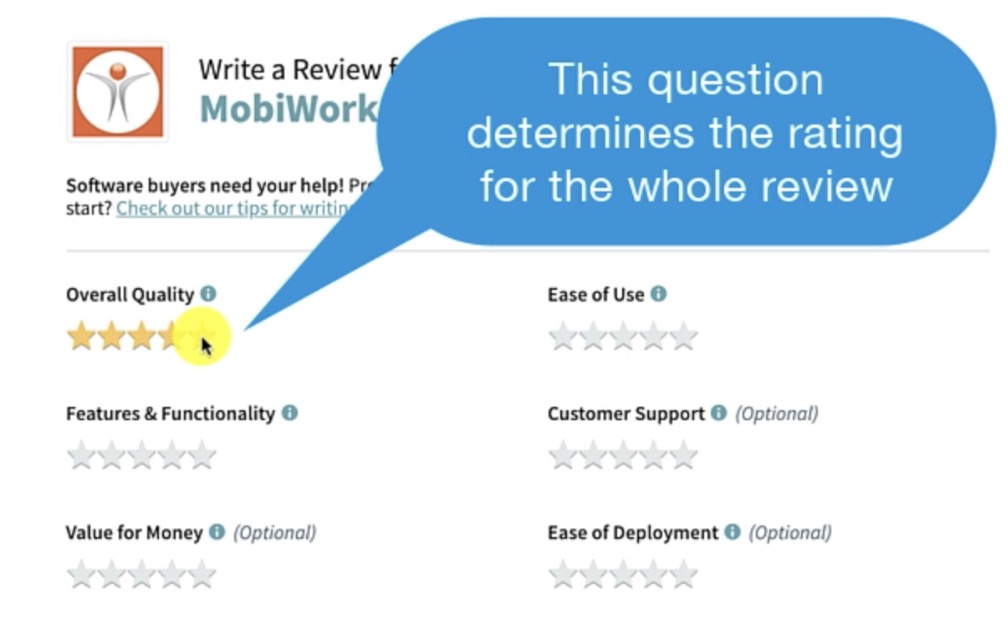
- On page 2, you’ll see the “overall quality” question. This is the most important question and will determine the review rating:
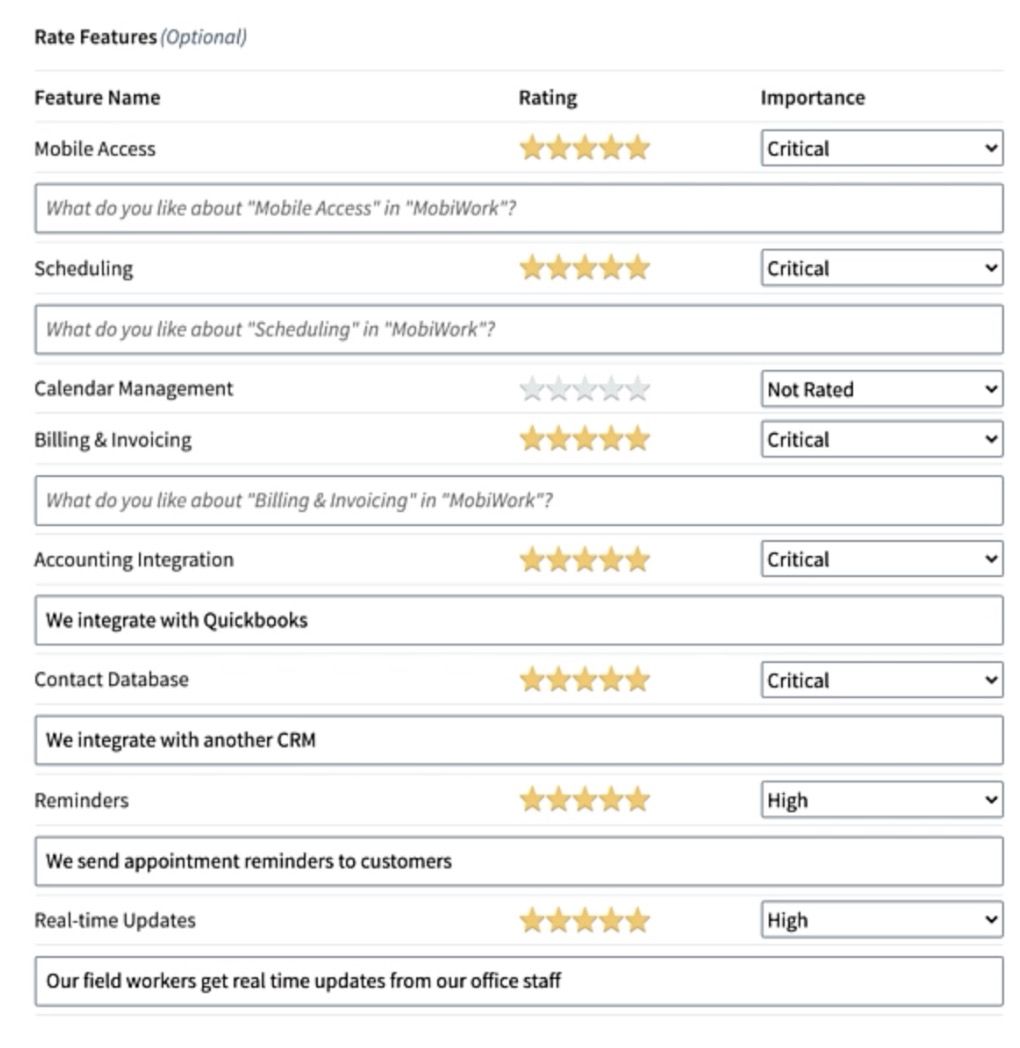
- The next section is about the features on MobiWork. Make sure you rate as many as possible:
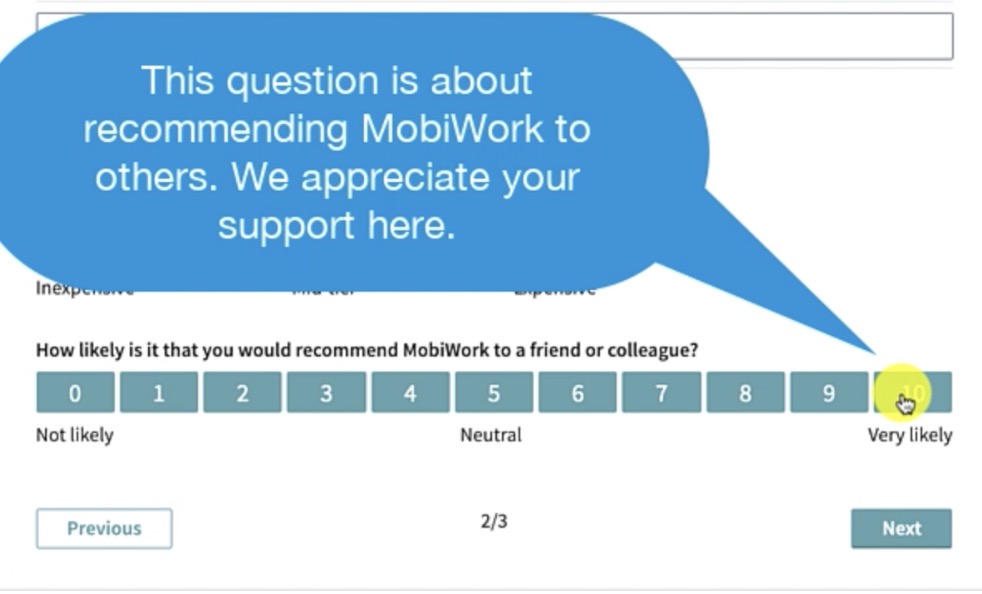
- Before you go to page 3, you’ll see a Net Promoter Score section. See below:
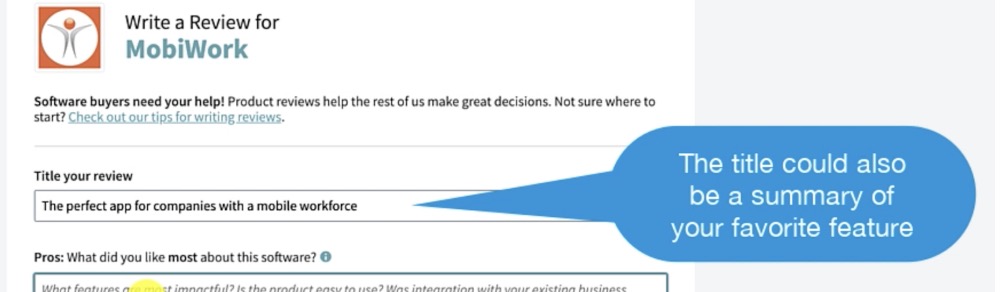
- Now we’re on page 3. The title could be a summary of your favorite features or just how much you enjoy the app:
- The next question asks you to list what you like best about the app. Here you can list all the features and integrations you’re currently enjoying in MobiWork:
- In the next question you could mention how MobiWork has helped you overcome a challenge. If nothing comes to mind, you can just write, "there's nothing I can think of at the moment:"
- Finally, make sure you add and rate the applications that MobiWork integrates with:
Ensure all sections have thorough responses and each question has been answered (unless they are marked as optional).
You agree to Capterra’s terms of use:




STEP 4: Submit Your Review
Once you’ve completed all sections, take a moment to: