Aside from reviewing our app directly from your mobile device, you can also recommend MobiWork on G2, Capterra, and other online directories.
This step-by-step tutorial will help get your G2 review published so that it's seen by other buyers like you.
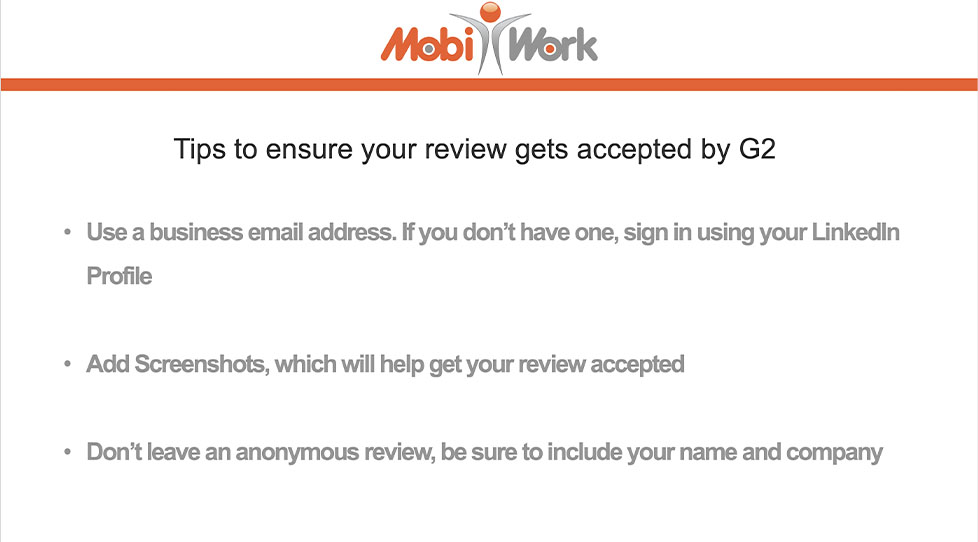
Before we get started, please review the message below:
Overview Video
Step by Step
STEP 1: Go to G2’s MobiWork Profile
You can click on the following link: G2: MobiWork
- Once you are on the G2 page, scroll down until you locate the Write a Review button. Click on this button:
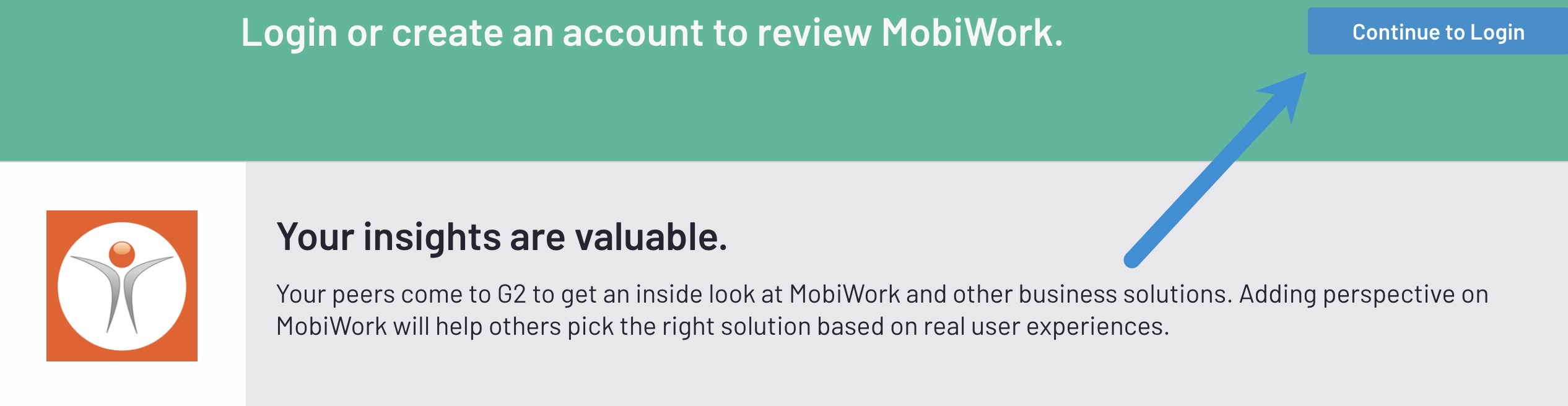
- You will be automatically redirected to the login page. Click on the Continue to Login button in the top-right corner:

STEP 2: Sign Up or Sign In
After clicking on Continue to Login, you'll see the following screen:
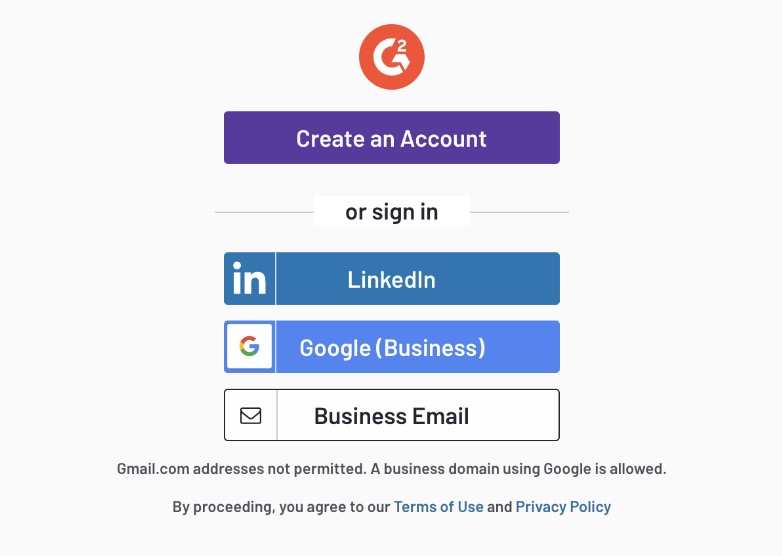
You have two options:
Option 1: Create an account on G2 and follow the prompts.
Option 2: Sign in with:
Your LinkedIn account (this is the easiest way, especially if you don’t have a business email)
Your business email address via Gmail
Your business email through your own provider
NOTE: Personal email addresses ending in “gmail.com” are not allowed while using option 2.
STEP 3: Write Your Review
It might seem like a lot, but it shouldn’t take you more than a few minutes to complete the review process. Here are a few tips to make sure you complete each section in no time:
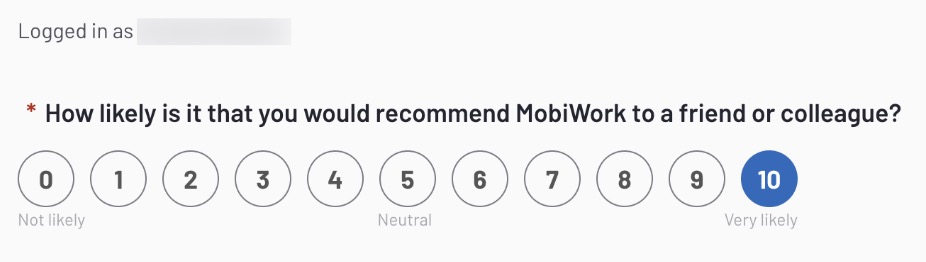
- The first question is a recommendation question. We’d appreciate it if you could give us the highest rating since this is the question that decides the rating for the whole review:
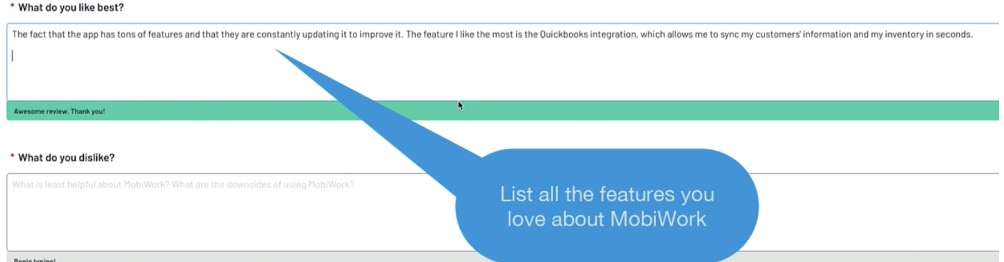
- The title could be a summary of your favorite features or just how much you enjoy the app:

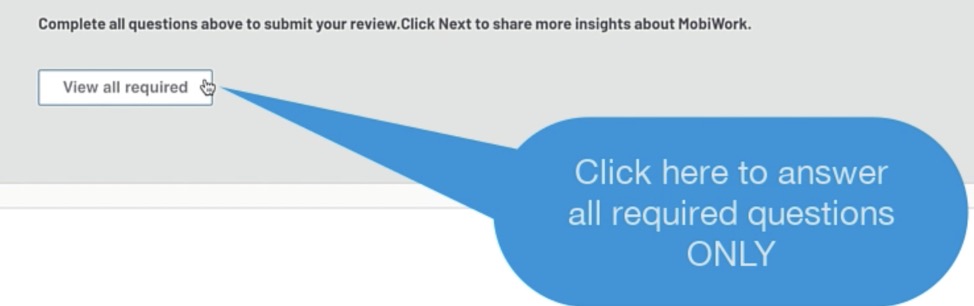
- If you’re in a time crunch, just click on “View all required” option to avoid having to fill out all the optional questions:
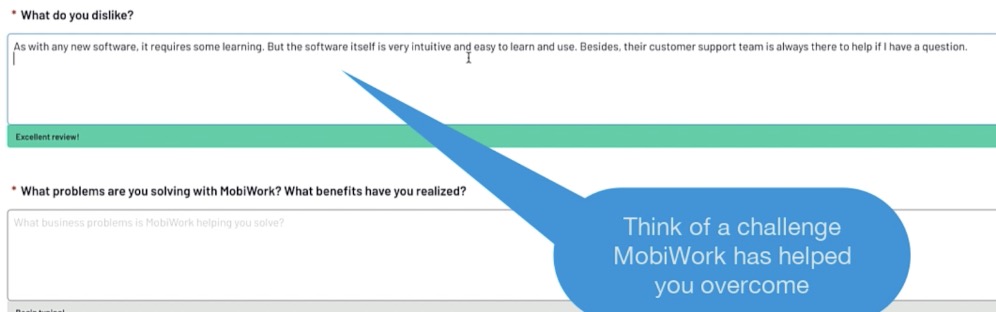
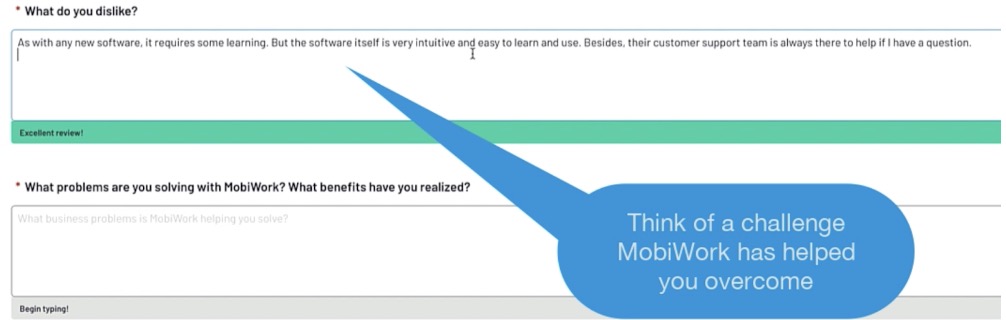
- In the next question you could mention how MobiWork has helped you overcome a challenge. If nothing comes to mind, you can just write, "there's nothing I can think of at the moment:"
- The rest of the questions are straightforward:
Ensure all sections have thorough responses (e.g., the green lines are at a maximum), and each question has been answered.
Confirm that you are NOT affiliated with MobiWork (e.g., you’re not a reseller or partner):
Agree to G2’s terms of use and privacy policy.
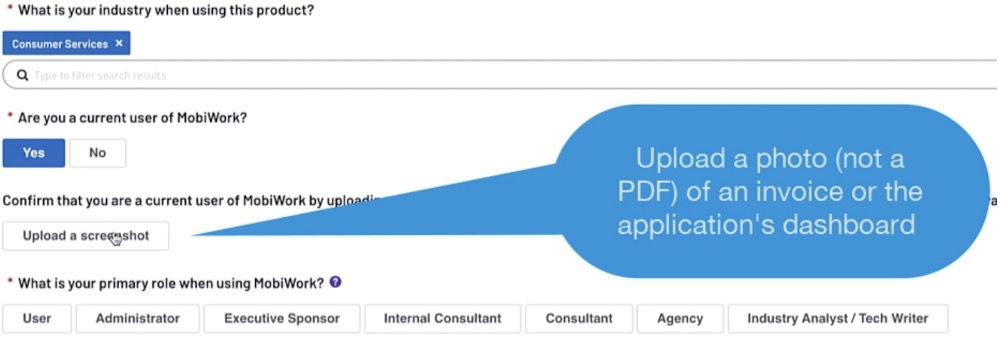
STEP 4: Upload a Screenshot (optional, but recommended)
Uploading a screenshot of the app or an invoice can help get your recommendation published without further review from G2’s moderation team:
NOTE: Please make sure you upload a photo in jpeg or png format. PDFs are not accepted.
STEP 5: Submit Your Review
Once you’ve completed all sections, take a moment to: