
The most direct way to update a task is through the Task "List" tab. For more information on how to access this page, please see the Task List section for more information.
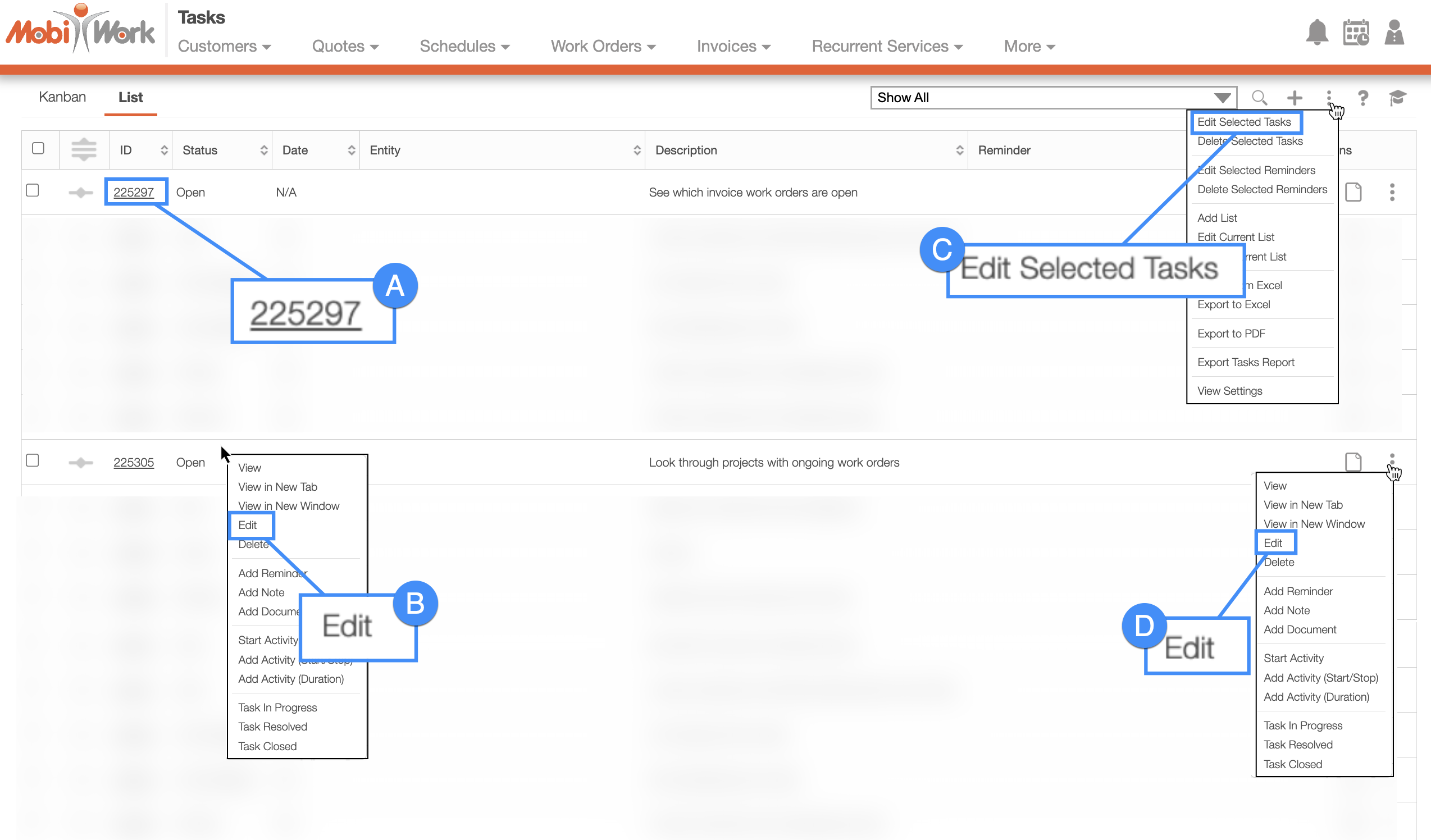
Once, you are on the "List" tab, there are several different ways you can edit a task:
Click on the task ID to open the View Task pop-up window. Then click on the Individual Actions button and from the drop-down select the "Edit" option:
Please note that there are several ways that you can access the View Task pop-up window. Please see the View Task page for the different ways that you can open the View Task pop-up window.
Right-click on a task to open the right-click options. (The options that are displayed when you right-click on a task are also available when you select the Individual Actions button).
Select the More Actions button from the "Global Actions" section. Please note that this option will give you the ability to edit multiple tasks at once.
Click on the Individual Actions button (the three vertical dots) from the "Actions" column. (The options that are displayed from the Individual Actions button are the same as when you right-click on a task).
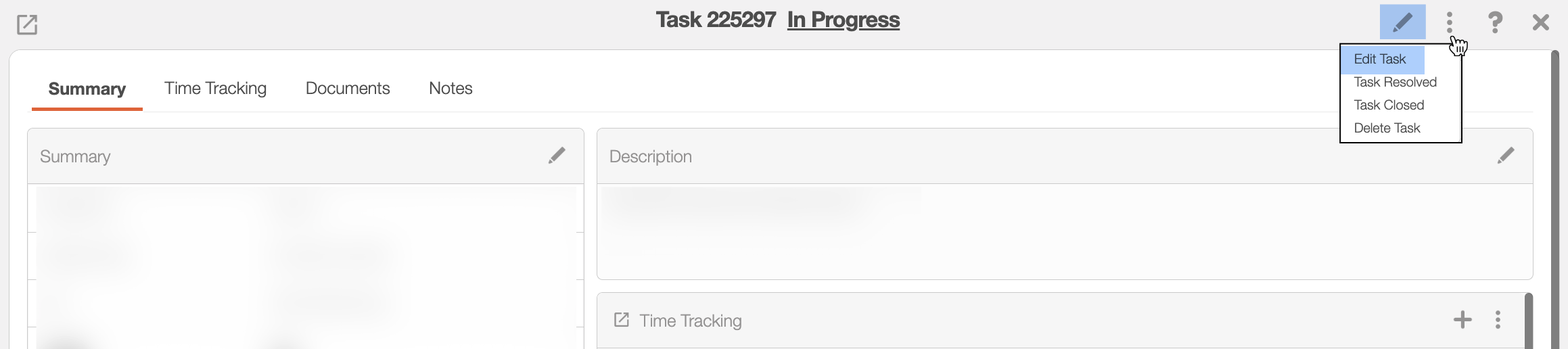
There are several different ways to edit an individual task. The section, How to Access the Page, will illustrate how to access the Edit Task pop-up window:
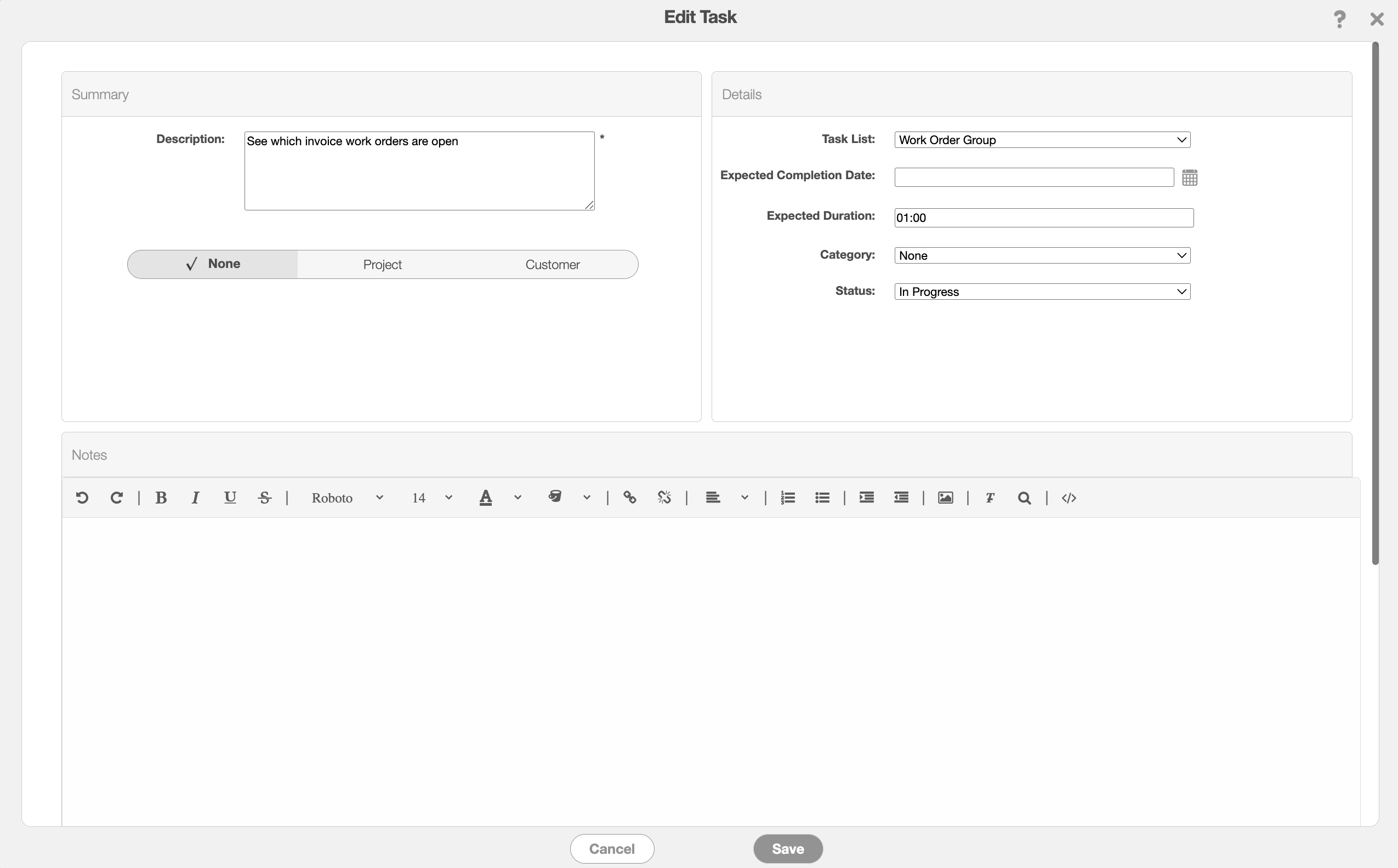
Regardless of how you choose to edit an individual task, the Edit Task pop-up window will then appear. In this window, you will be able to update the following task details:
The description of the task.
The user that the task is assigned to.
You can select whether the task is associated with a specific Project or Customer or select None if the task is not related to either.
Refine the instructions regarding the task.
The corresponding task list that the task is grouped under.
The status of the task.
When you expect the user to complete the designated task.
And the category or classification associated with the task.
| Name: | Description: |
|---|---|
| "Description" | The description and name of the task. |
| "Assign To" | The user that the task is assigned to. |
| "Toggle Button" | Use the toggle to indicate if the task is correlated with a project, customer, or select none if it's not related to a project or customer. |
| "Notes" | Additional instructions concerning the completion of the task. |
| "Task List" | You can group tasks so that relevant tasks remain together. For example, all tasks related to payroll operations can be grouped together, while tasks associated with specific work orders or customers can be grouped together. The "Task List" drop-down allows you to specify which task list you would like to search through. You can assign the task to an already-existing task list or create a new task list. |
| "Status" | The status of the task (e.g., if the user has acknowledged the assigned task, if the task is in progress, or if the task is completed). |
| "Expected Completion Date" | Indicates the planned date that the task is expected to be completed. |
| "Category" | The category that the task is classified under. |
You can access the More Actions button through either of the Tasks tabs. For more information on how to access these tabs, please see the Tabs List page.
Check off the desired tasks you would like to edit; if you would like to edit all your tasks you can click on the topmost checkbox (Multiple Selection Area) located in the Task "List" column.
Click on the More Actions button and from the drop-down select the "Edit Selected Tasks" option:
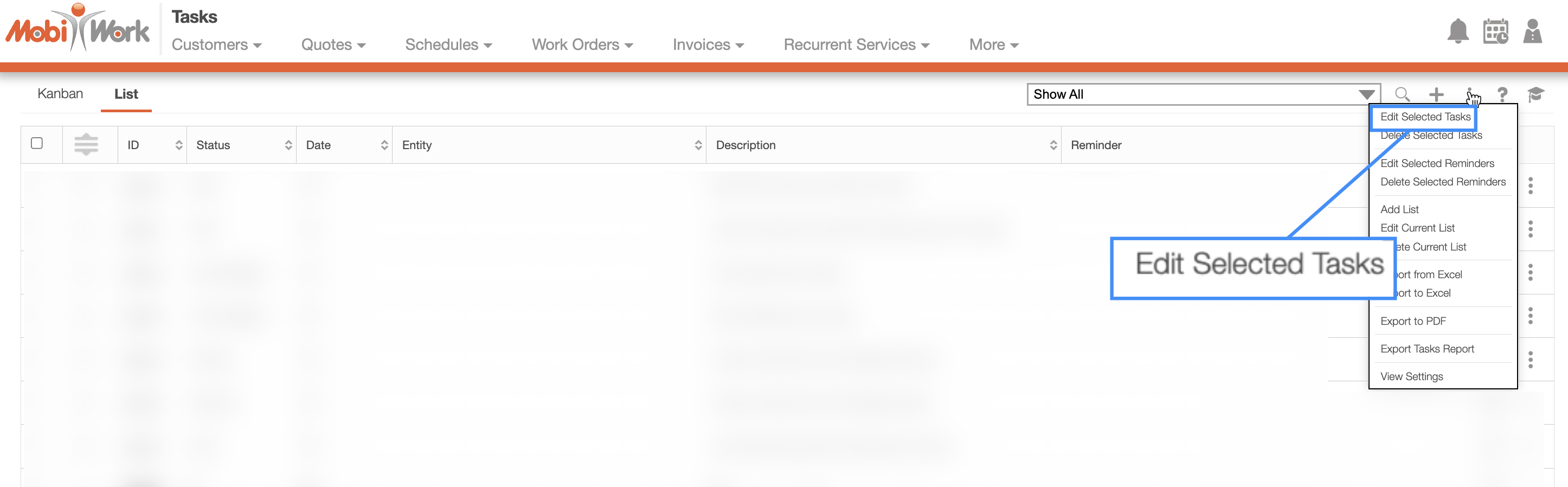
Next, the Edit Multiple Tasks pop-up window will open:
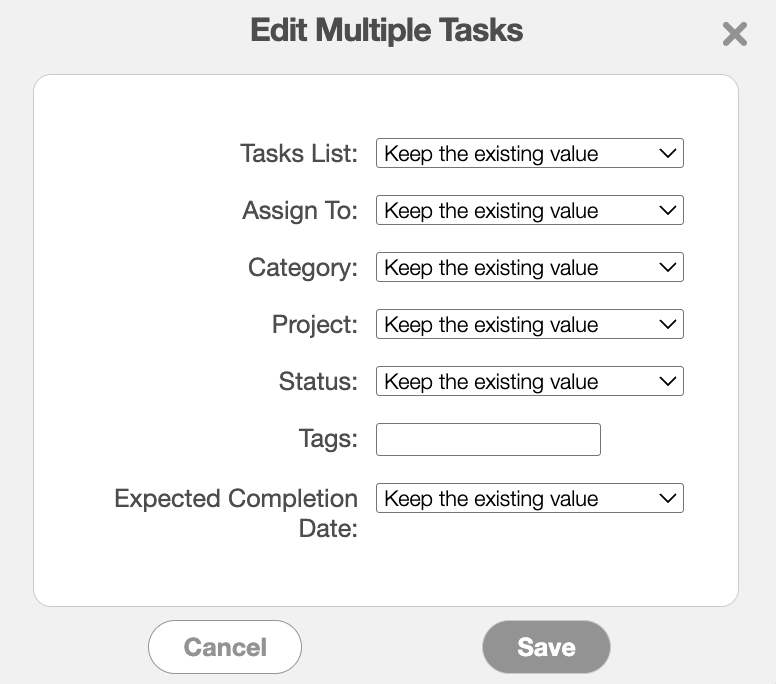
Here, you can select the new values for the tasks' fields. The values you can update are:
The task list that the respective task is grouped under.
The assigned user.
The tasks' category.
The status of the selected tasks.
The tags associated with the tasks.
And the planned completion date of the tasks.
Once the desired fields have been updated, click the Save button to confirm the changes.