
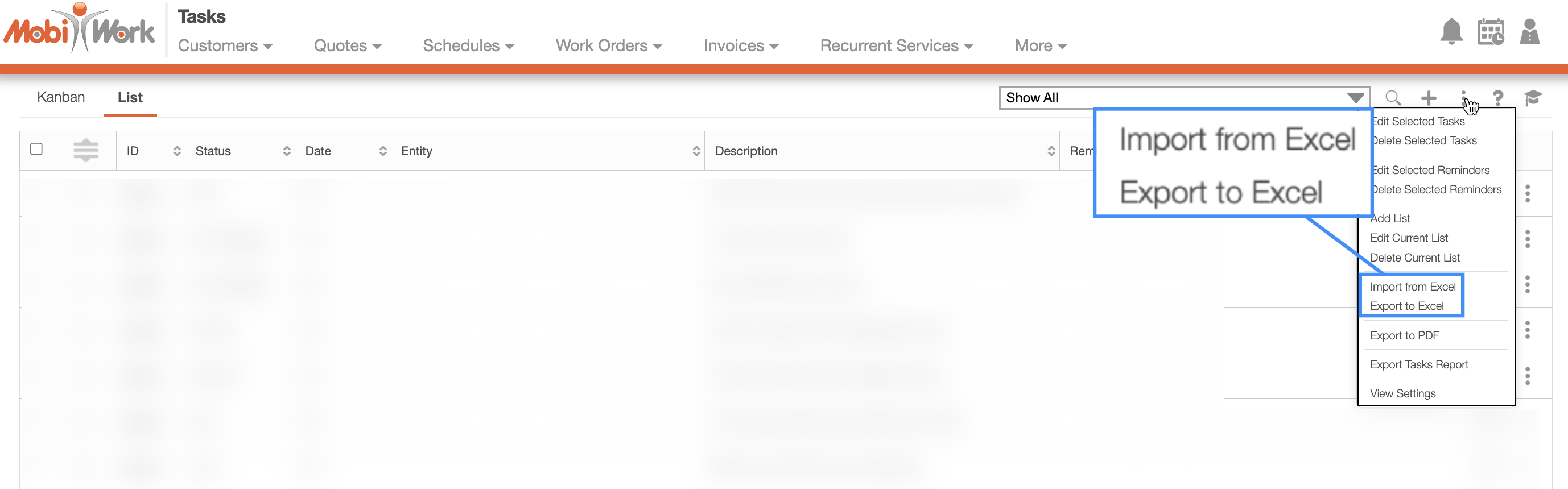
To import or export your tasks, click on the More Actions button on the Tasks feature page. Then select the desired import or export option from the drop-down:
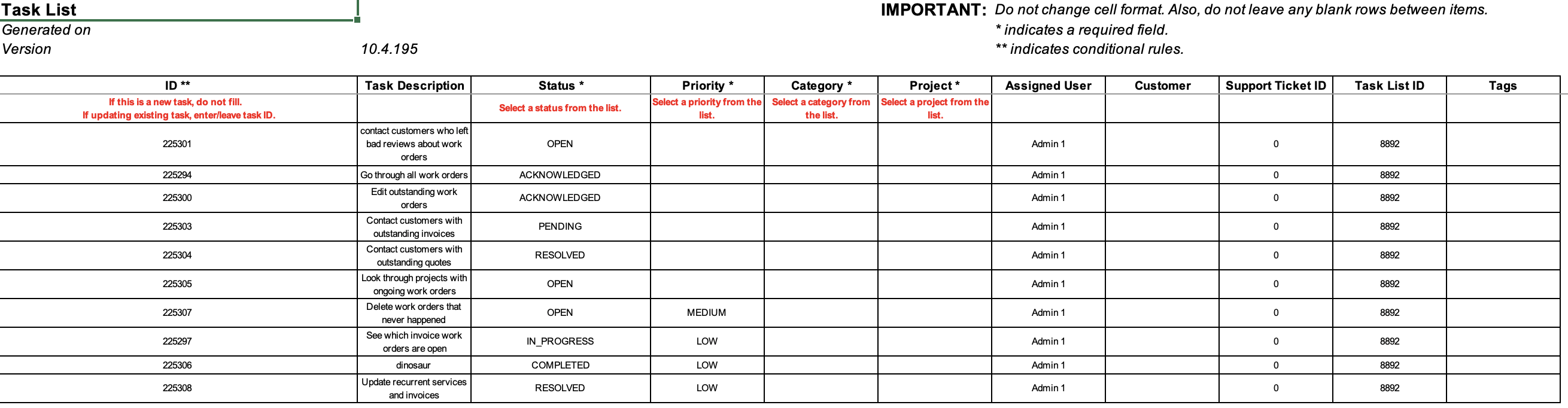
Once you have entered the tasks in the Excel document correctly, you can upload that document to MobiWork:
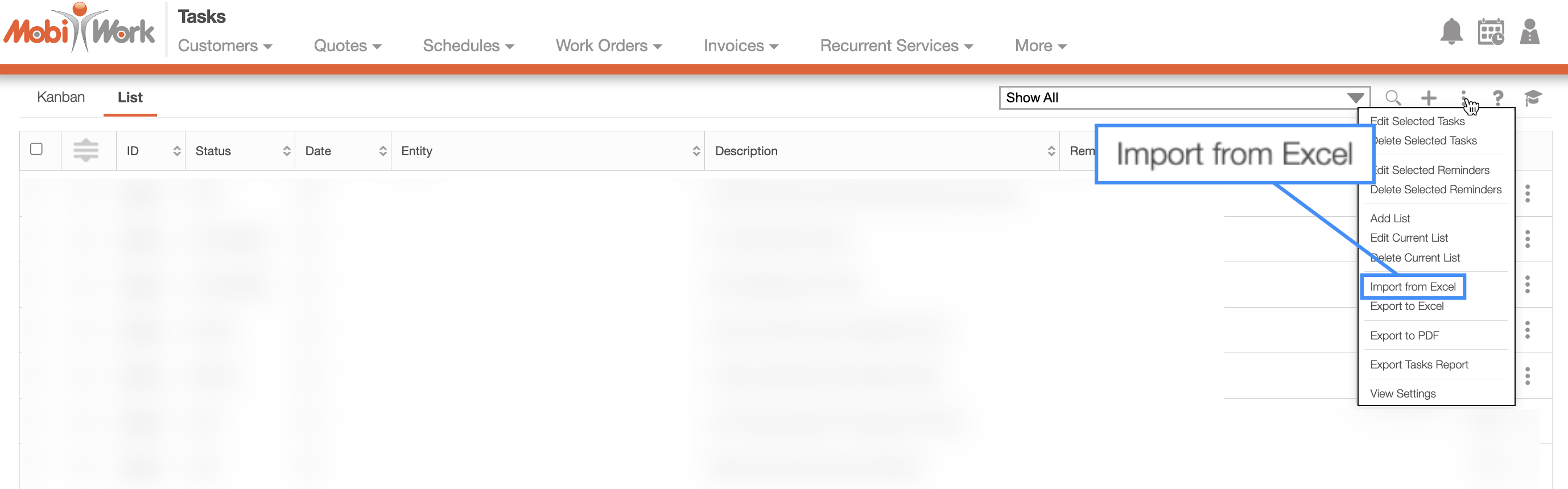
When you are on any of the Tasks tabs, select the More Actions button and from the drop-down click on the "Import From Excel" option:
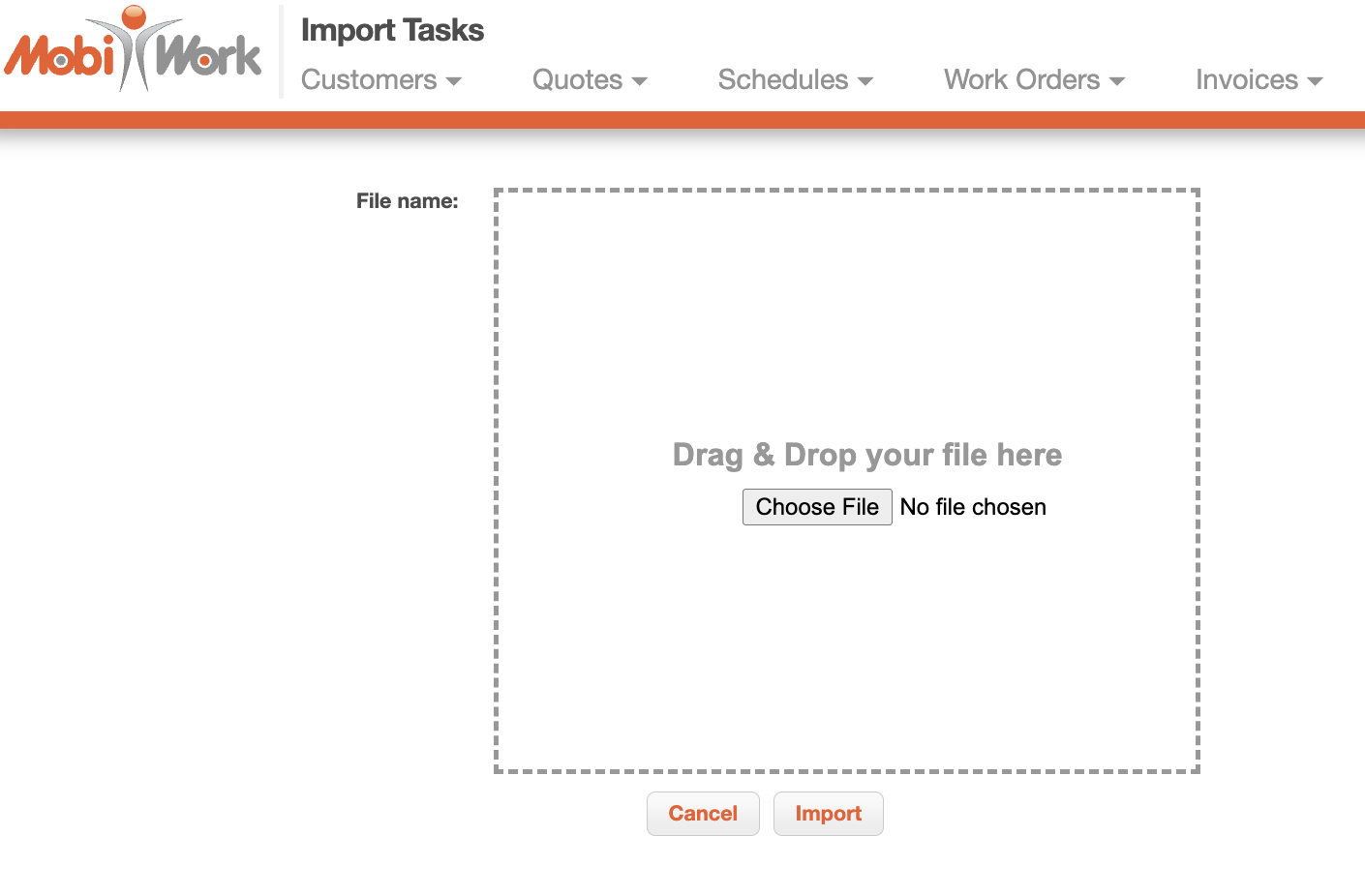
On the Import Tasks page upload your Excel file and then click the Import button:
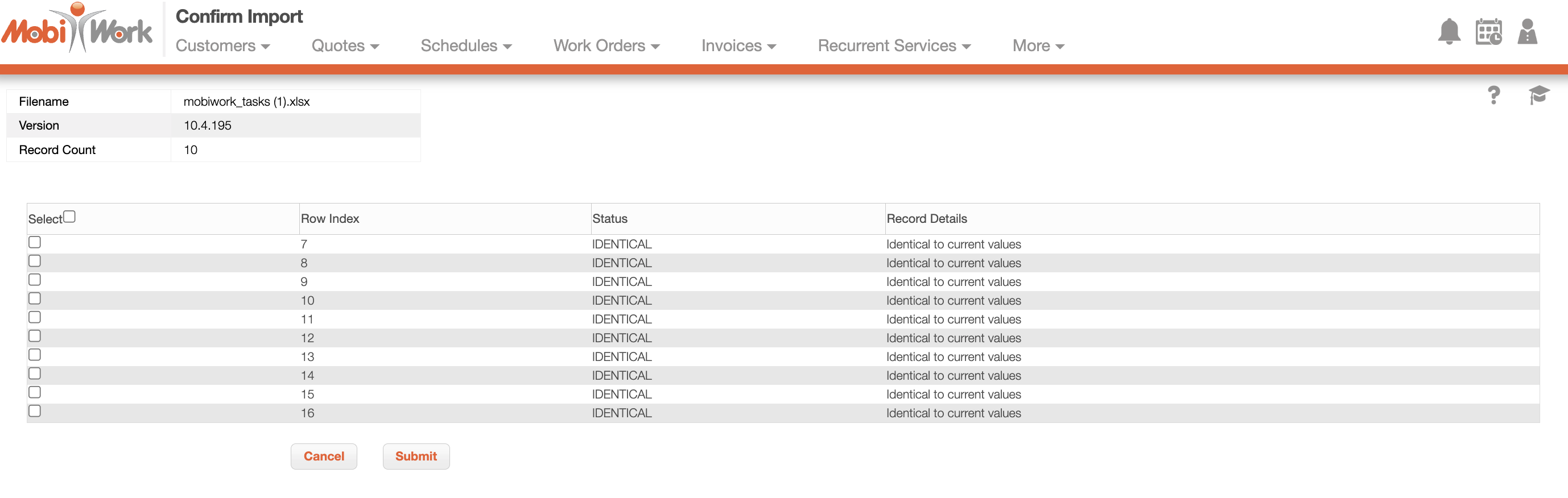
You will then be redirected to the Confirm Import page. Confirm your imported Excel file by hitting the Submit button:
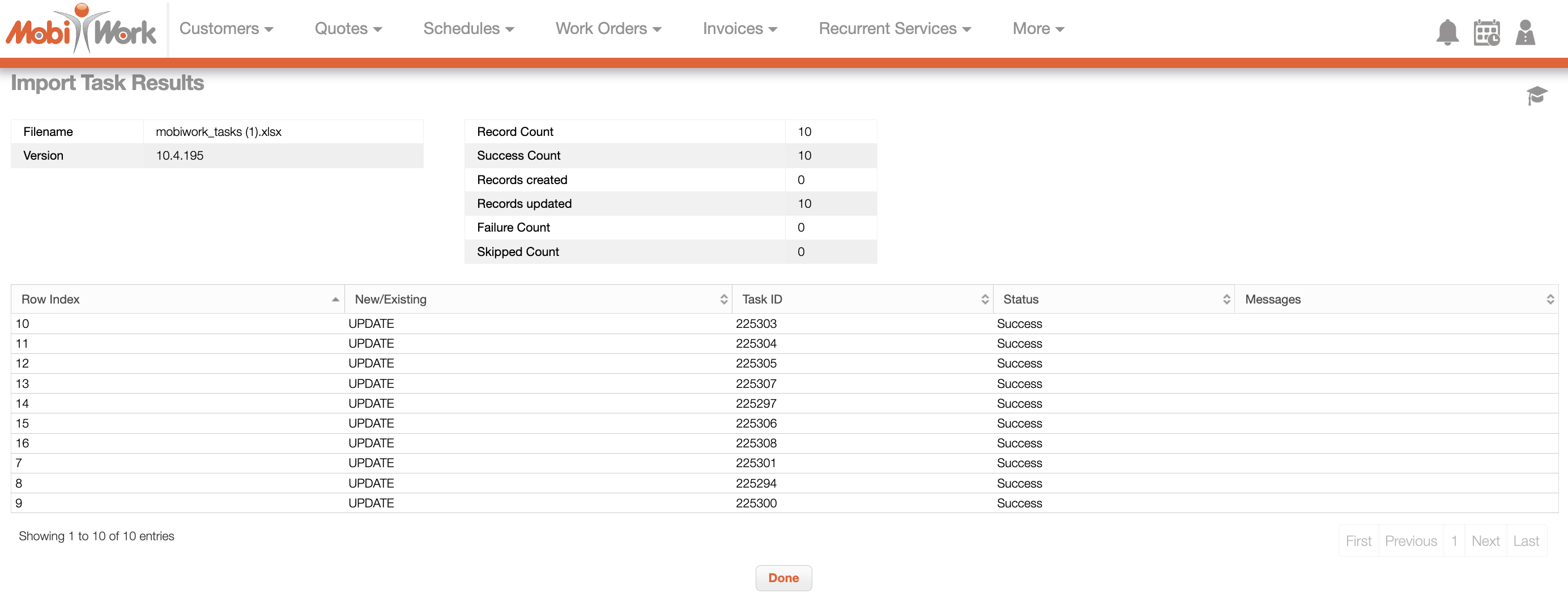
The Import Tasks Results page will highlight which rows were successfully updated, which ones had an error, and more. Once you are redirected to the Import Tasks Results page and have reviewed the results, click the Done button:
The newly uploaded tasks from Excel will then be displayed in MobiWork with your other tasks.
Note: Please note that in the Excel document, a double asterisk (**) indicates a conditional field, while a single asterisk (*) denotes a required field.
You can also edit tasks in bulk through Excel.
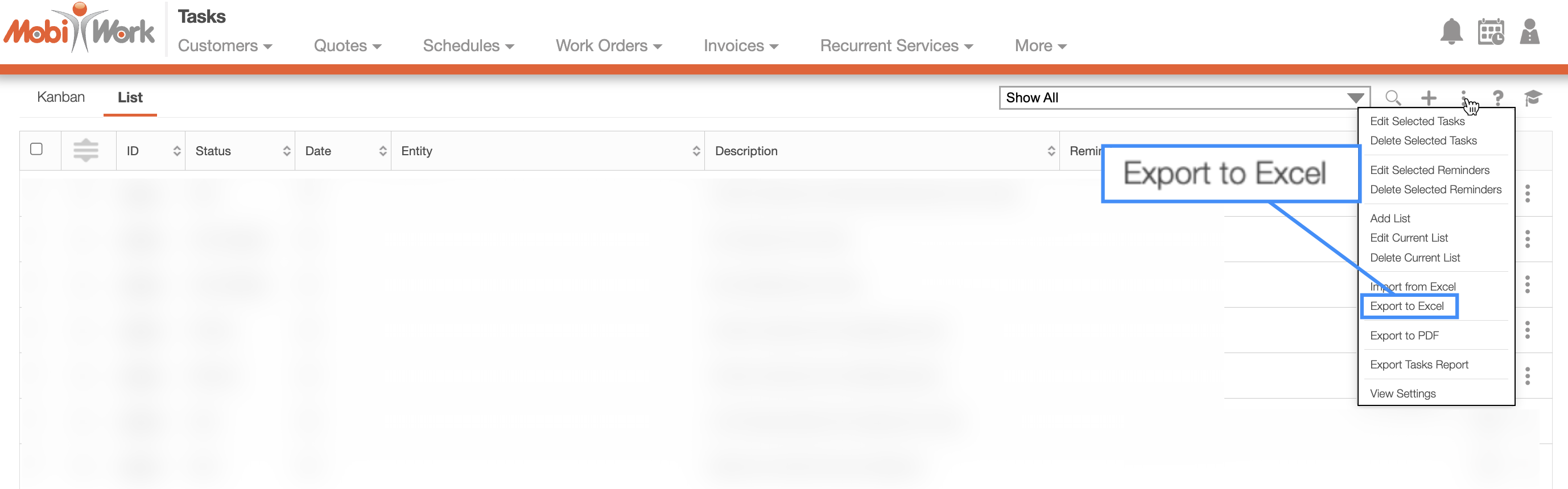
First, you would need to select the desired tasks and use the "Export to Excel" option:
Once you have the exported file, you can make the changes directly to the Excel document:
When you are done updating your tasks, you can import the Excel file back into MobiWork.
Note: Please note that if you would like to export all your entries into Excel you can click on the topmost checkbox (Multiple Selection Area). Likewise, if you do not select any entries ALL records will be exported.