
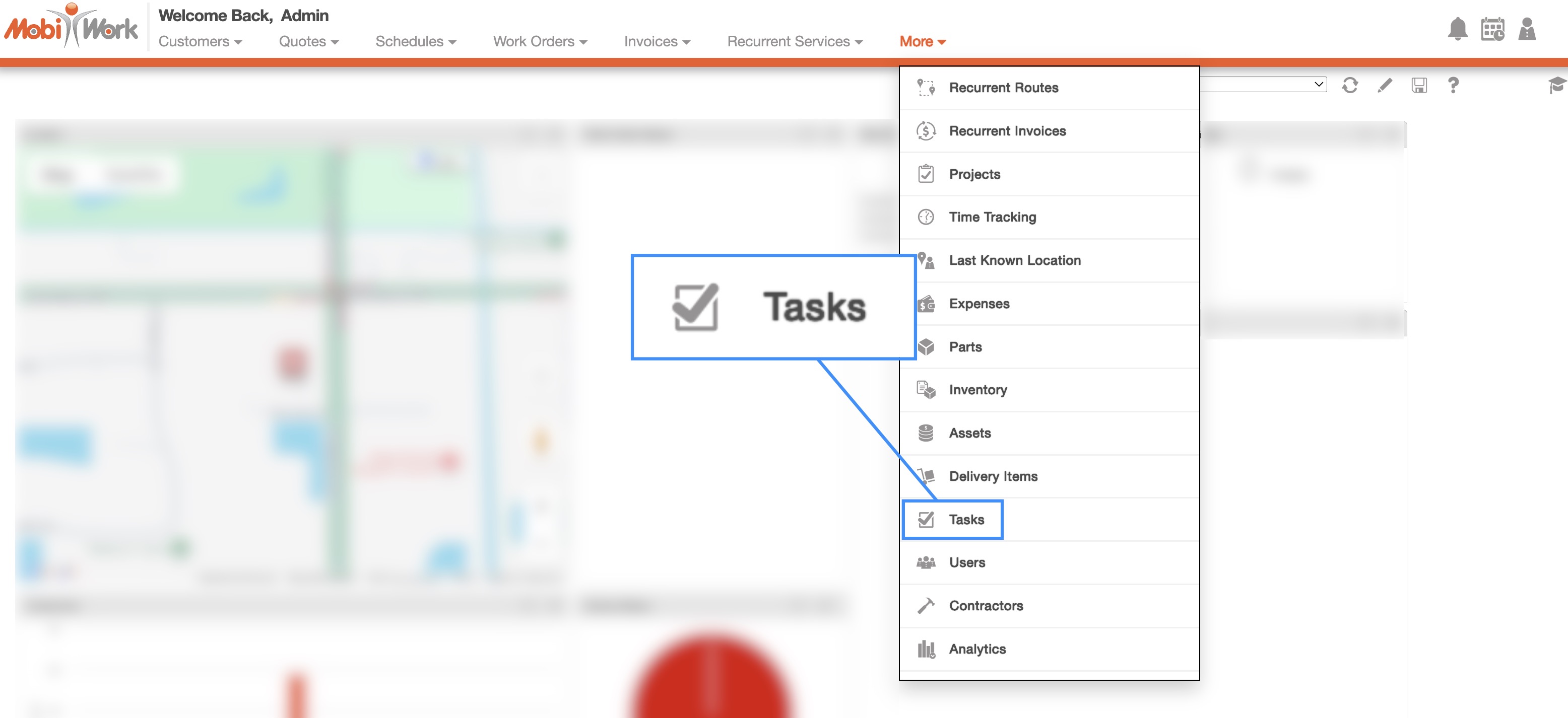
You can access the Tasks feature page by hovering over the Tasks feature from your MobiWork menu and clicking on the "View Tasks" option:
Once you access the "View Tasks" option, you will be brought to the "List" tab; from this tab you can navigate to other tabs and see all your tasks data summarized on one page.
Some features (e.g., the Search Area, Global Actions, etc.) can be found in all the tabs. Below is a list of the main features that are located on the "List" tab:
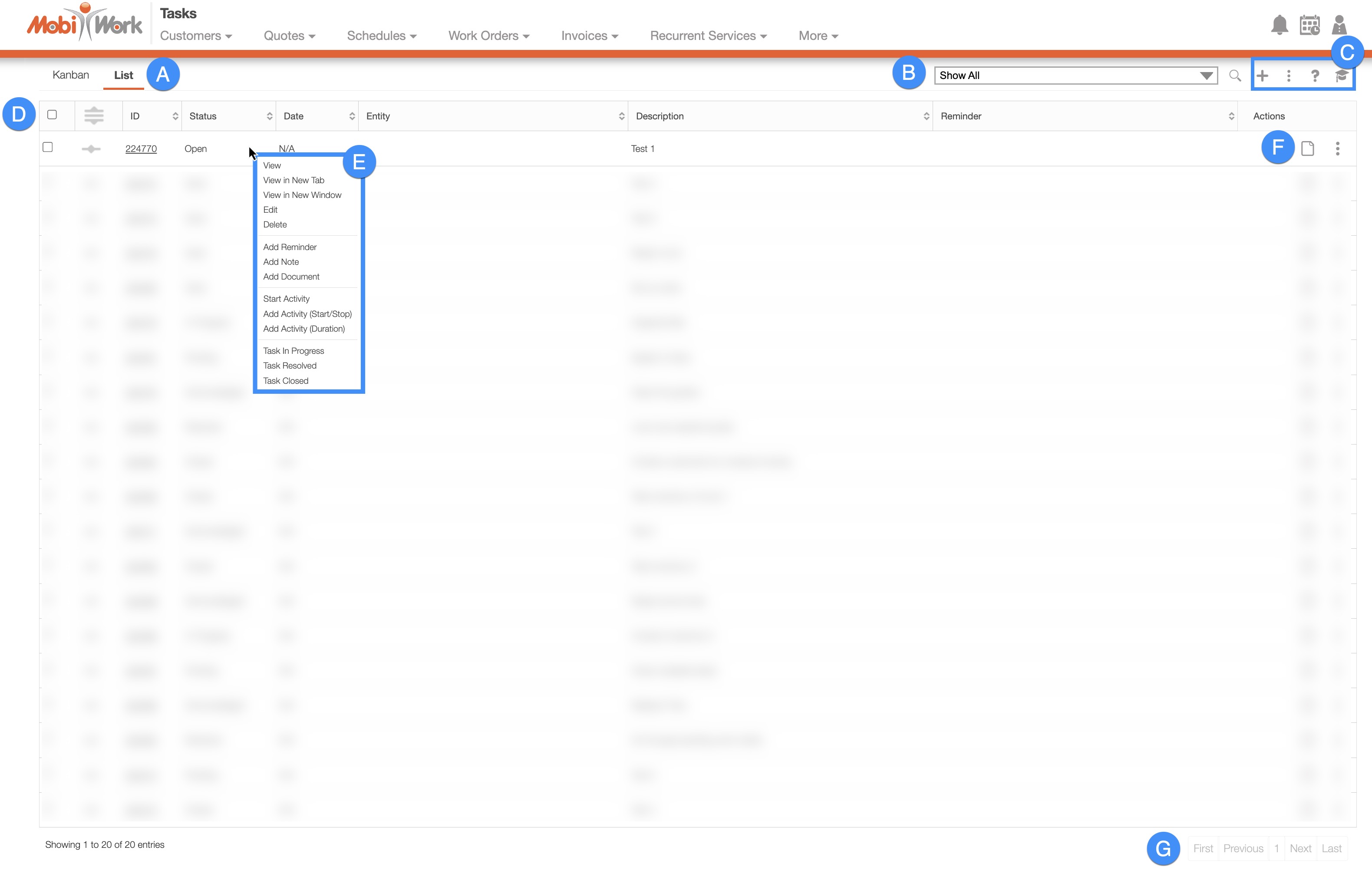
This page will expound upon the other tabs in further detail; to navigate directly to these subsections, please see the table of contents at the beginning of this page.
Free-Text Search
You can type in the search bar (free-text search) to locate a specific task; once you click in the search bar, the search drop-down menu will automatically appear. You can use the search drop-down menu or continue typing your own search parameters:

- The task name
- The task description
If the number of tasks surpasses the number range, the subsequent number of tasks will be found on the next page:

To navigate through these pages, use the First, Previous, Next, and Last buttons located towards the bottom of the Tasks section.
Predefined Saved Searches
Saved searches are a powerful search tool where the search-criteria has been saved for future use; to access the saved searches drop-down, click in the search bar.
The default saved search for Tasks is the "Show All" search. These saved searches will appear in the drop-down menu and can also be used for dashboards and reports.
By default, MobiWork provides several saved searches for you to use, which are organized by status (e.g., Open, Resolved, My Tasks, etc.):

The list of statuses that can be used in predefined searches are below:
Show All
Open
Resolved
My Tasks
Acknowledged
Closed
Not Assigned
In Progress
You can access any of these saved searches by clicking on the "Search Area" and selecting your desired "Predefined Saved Search" from the drop-down menu.
If you would like to view all your tasks, click on the "Show All" option from the drop-down menu:

New Search
To create a new saved search, select the "Create a New Advanced Search" option from the drop-down menu:

After clicking on "Create a New Advanced Search," a pop-up window will appear where you can enter your data in the appropriate fields. If you would like to exit from this pop-up window you can click on the esc button from your keyboard.
Please note that once you name a new saved search, you will be unable to rename it (instead you would need to delete your saved search and create a new one).
Once you have finished inputting the required information, you can save the search, make it available to all users, or make it your default search:ob

Further definitions for all the terms in the New Search pop-up window can be found below:
| Name: | Description: |
|---|---|
| "Task List" | When creating a new task, you can group tasks so that relevant tasks remain together. For example, all tasks related to payroll operations can be grouped together, while tasks associated with specific work orders or customers can be grouped together. The "Task List" drop-down allows you to specify which task list you would like to search through. |
| "Task ID" | The ID number for the task. |
| "Description" | The detailed explanation regarding what the task is and the instructions on how to complete the task. |
| "Creation Date" | The date that the task was initially created in MobiWork. You can input the date range of when the task was created to search for all tasks within that specified range. |
| "Assigned To" | The user assigned to the task. |
| "Category" | The category that the task is classified under. |
| "Project" | The project correlated with the task. |
| "Tag" | Tags act as a visual indicator of a custom status or category, thus improving organizational clarity with the ability to identify specified tagged tasks at a glance. With the saved search feature, you can locate a specific tag. |
| "Status" | The status of the task (i.e., "All," "Open," "Acknowledged," "In Progress," "Pending," "Resolved," and "Closed") which demonstrates various stages of the task completion process. For more information about the Task Status please see the View Task page. |
| "Page Size" | The max number of results on the page. |
| "Sort By" | Sorts your search in ascending or descending order by: None, Priority, Status, Category, Assigned to, Task ID, Expected Completion Date, Reminder Date, and Description. |
| "Save This Search" | Allows the search parameters to be saved under a name to be reused in the future. |
| "Search Available to All Users" | Allows the search to be available to all users. |
| "Default Saved Search" | Sets the saved search as the default view when accessing the search feature in the future. |
Manage Saved Searches
Any new searches that are added can be managed or edited in the Manage Saved Searches pop-up window:

To manage, edit, or remove any saved searches you can access the "Manage Saved Searches" option in the drop-down menu; the Manage Saved Searches pop-up window will then appear:

You can add a new saved search by clicking the New Search button in the top right of the pop-up window.
You can rearrange the order of the saved searches by clicking, then dragging & dropping the selected Search.
You can edit or delete a selected saved search by using the drop-down menu under the "Actions" column.
If you would like to easily close this pop-up window, you can click on the esc button from your keyboard.
The "Global Actions" section is located at the top-right of your Tasks feature page; regardless of the tab that you are on, the "Global Actions" will remain in the top-right corner:
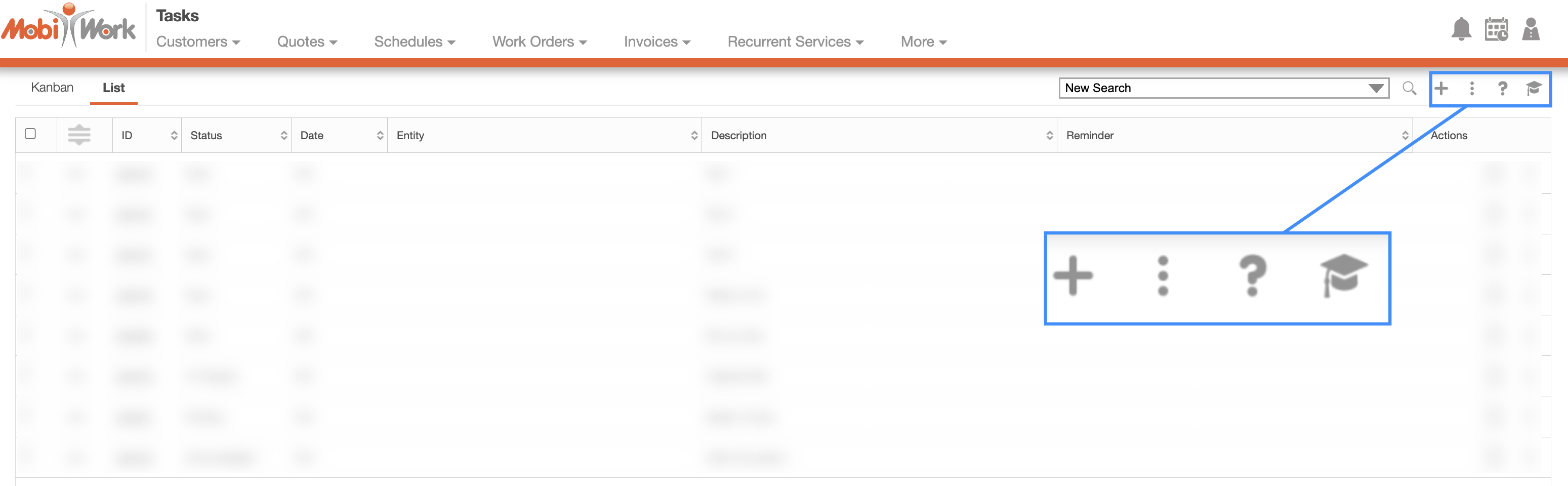
The "Global Actions" section includes:
The Plus Sign button which will allow you to quickly add a new task.
The More Actions button (represented by the three vertical dots) which will allow you to edit selected tasks, delete selected tasks, import/export from excel, and more.
The Question Mark button which will direct you to the respective MobiWork Features page.
The Graduation Cap which will activate the Onboarding Assistant.

After clicking on the vertical three dots in the top-right corner, the More Actions drop-down menu will appear.
From the More Actions drop-down menu, you can select various actions that will help to manage your tasks, such as editing multiple tasks, deleting multiple tasks, exporting/importing tasks, and more.
These actions can be performed on a single task or on multiple tasks. The complete list of actions found in the More Actions drop-down menu are defined below:
| Name | Description |
|---|---|
| "Edit Selected Tasks" | Edits the selected tasks. |
| "Delete Selected Tasks" | Deletes the selected tasks. |
| "Edit Selected Reminders" | Edits the reminders of the selected tasks. |
| "Delete Selected Reminders" | Deletes the reminders of the selected tasks. |
| "Add List" | Allows you to add a new task group. A task group bands relevant tasks together. For example, all tasks related to payroll operations can be grouped together, while tasks associated with specific work orders or customers can be grouped together. |
| "Edit Current List" | Allows you to edit an existing task group. You can select the type of task group to edit from the drop-down in the Edit Task List pop-up window. |
| "Delete Current List" | Allows you to delete an existing task group. Any tasks that are associated with the task group will also be deleted. |
| "Import From Excel" | Imports the task to Excel. |
| "Export to Excel" | Exports the task to Excel. |
| "Export to PDF" | Exports the tasks to PDF. |
| "Export Tasks Report" | Exports the work order to Excel. |
| "View Settings" | Directs you to the Tasks Settings page. |
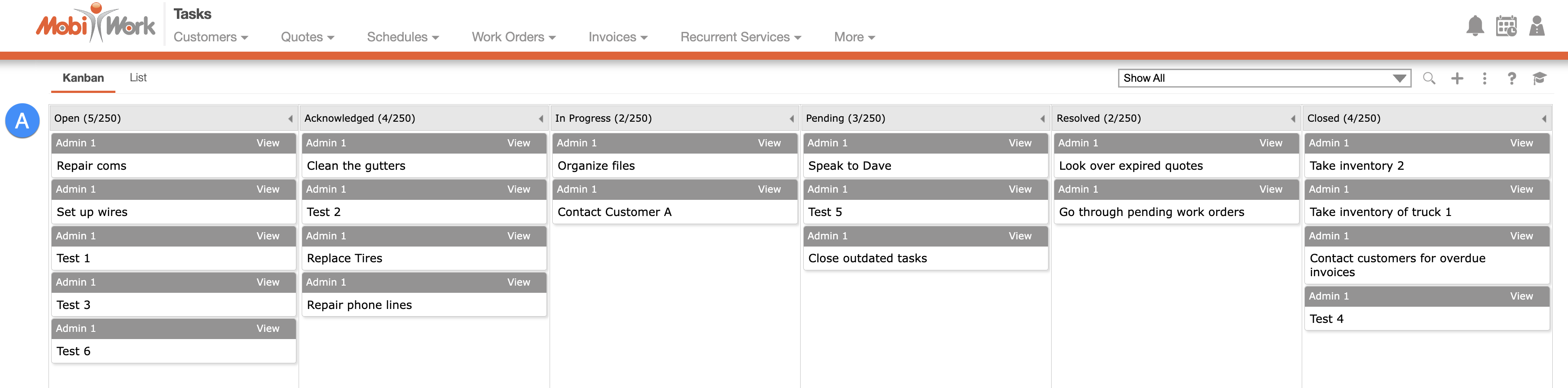
With the "Kanban" tab you can easily view your tasks and their statuses on a visual and interactive board:
Kanban Tab Layout
The columns in the "Kanban" tab will be organized by the task status. For more information about the task status, please see the New Search section:
Kanban Tab Columns
Kanban Tab Columns
The task's description will be displayed. To open the View Task pop-up window, simply click on the desired task:
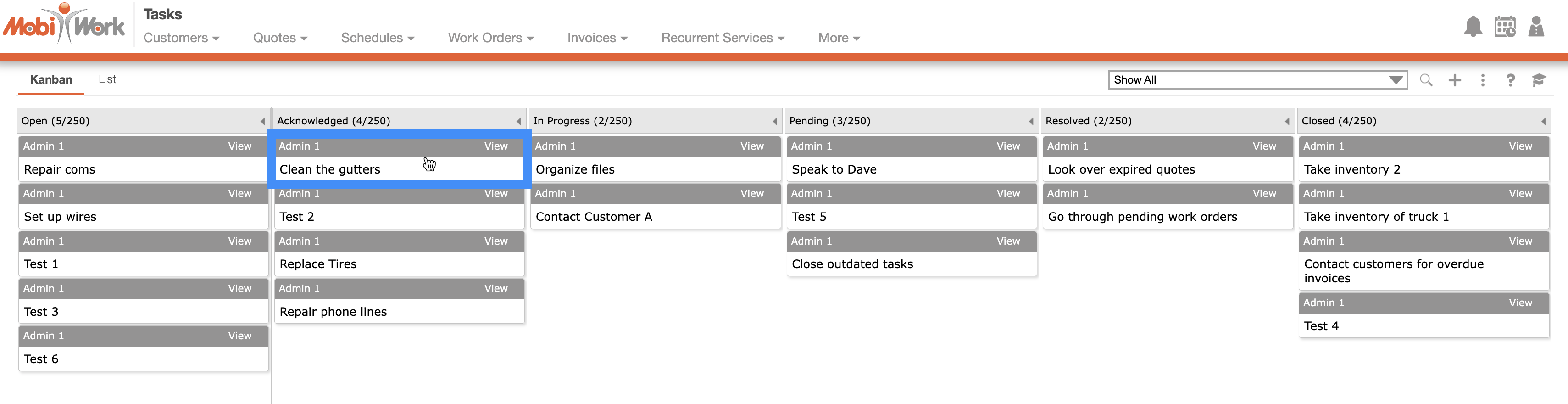
You can update the status of a selected task by dragging & dropping the task to the desired status column:

There are five different columns:
Open- The task is open and has not been viewed by the user
Acknowledged- The task has been viewed by the user
In Progress- The user is working on the assigned task
Pending- The task is pending approval by the manager
Resolved- The task is completed by the user
Closed- The task has been closed
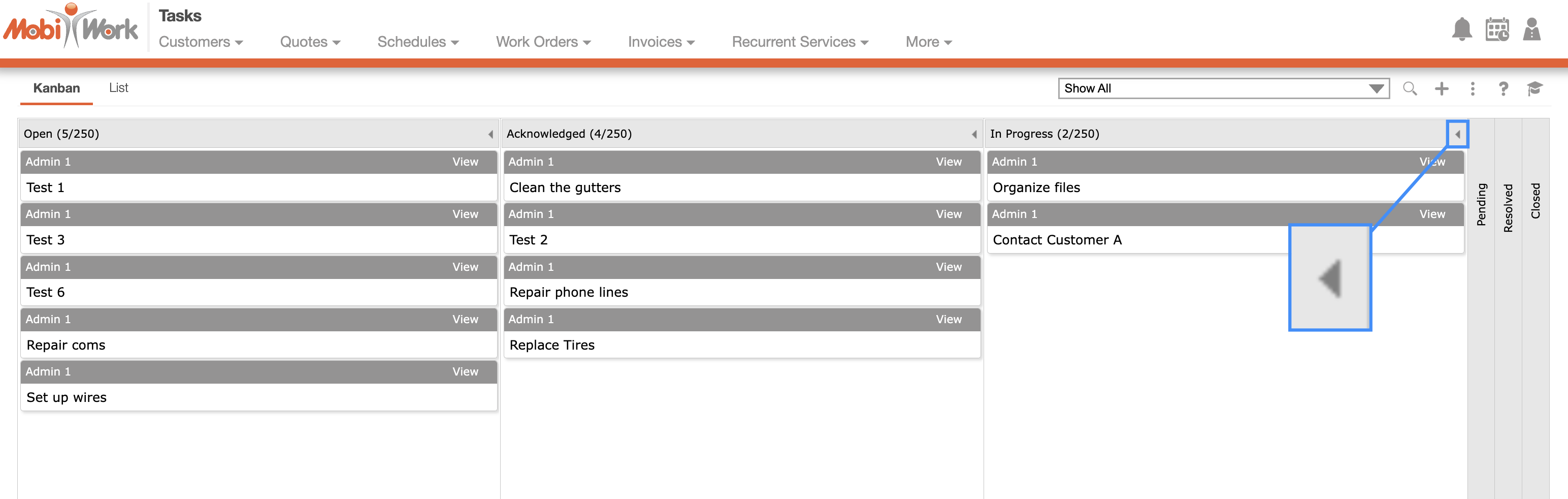
If you would like to collapse a column so that only your chosen columns are visible, you can click on the arrow to the right of the column header:
The "List" tab will display your tasks' ID, status, due date, entity, the description of the task, and reminders for the user:
List Tab Columns
In the "List" tab, the columns are structured to display specific data related to each individual task.
These columns are organized as: "ID," "Status," "Date," "Entity," "Description," "Reminder," and "Actions:"

The corresponding rows under the column headings will display the relevant task data.
The checkboxes (multiple selection area) found to the left of the "ID" column, will allow you to select either one or multiple tasks to manage, edit, remove, etc.:
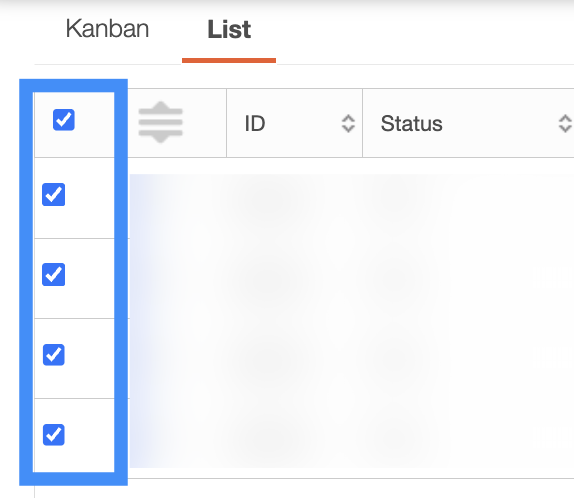
By clicking the topmost checkbox in the column heading you will select all the tasks.
The "List" tab column headings are defined as:
| Name: | Description: |
|---|---|
| "Multiple Selection Area" | Checkboxes that are used to select multiple tasks. By clicking the topmost checkbox you can select all tasks. |
| "ID" | The ID of the task. |
| "Status" | The status of the task (e.g., Open, Acknowledged, In Progress, Pending, Resolved, and Closed). |
| "Date" | The date that the task is expected to be completed. |
| "Entity" | The customer associated with the task. |
| "Description" | A description of the task. |
| "Reminder" | Shows any reminders for the user that are associated with the task. |
| "Actions" | The View icon and the Individual Actions button can be found here; these buttons will allow you to perform actions on a task. |
List Tab Individual Actions
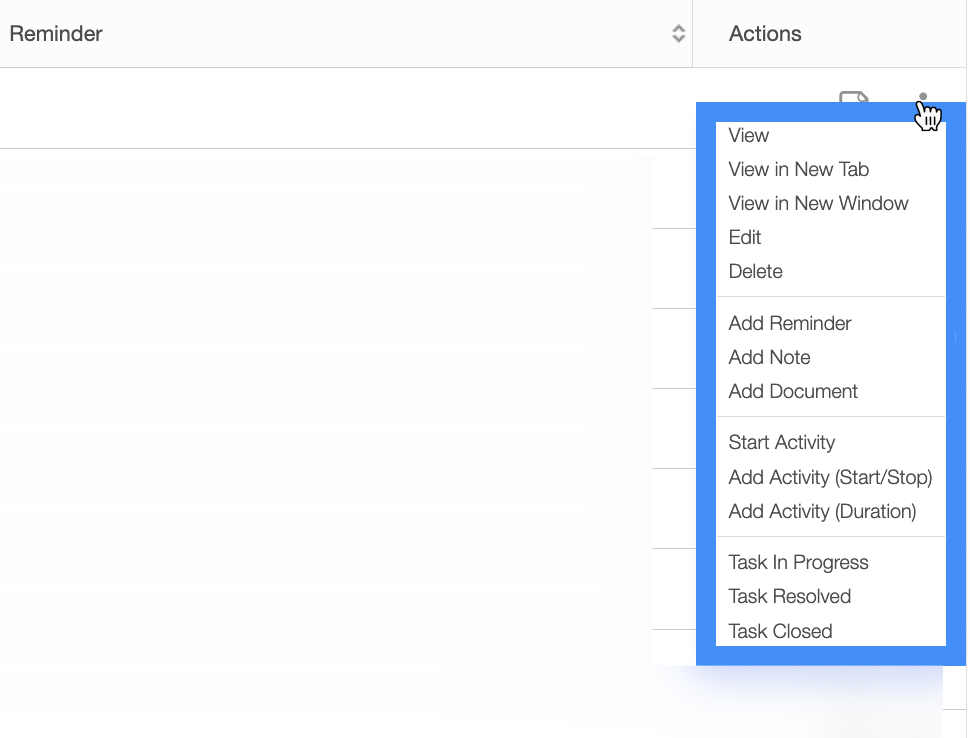
When selecting a task and clicking on the Individual Actions button (the three vertical dots under the "Actions" column) you will be able to view, edit, add reminder, add document, and more to the selected task.
Any actions that are done with the Individual Actions button will only apply to the selected task:
The View icon found under the "Actions" column will allow you to quickly access the View Task pop-up window of the selected task:

The options that are displayed when you select the Individual Actions button are also available under the right-click actions.
List Tab Right-Click Actions
When right-clicking with your mouse on a quote in the "List" tab, you will be able to view, edit, add a reminder, and more to the selected task.
The options that are displayed when you right-click on a task are also available when you select the Individual Actions button.
Any actions that are done with the right-click actions will only apply to the selected task:
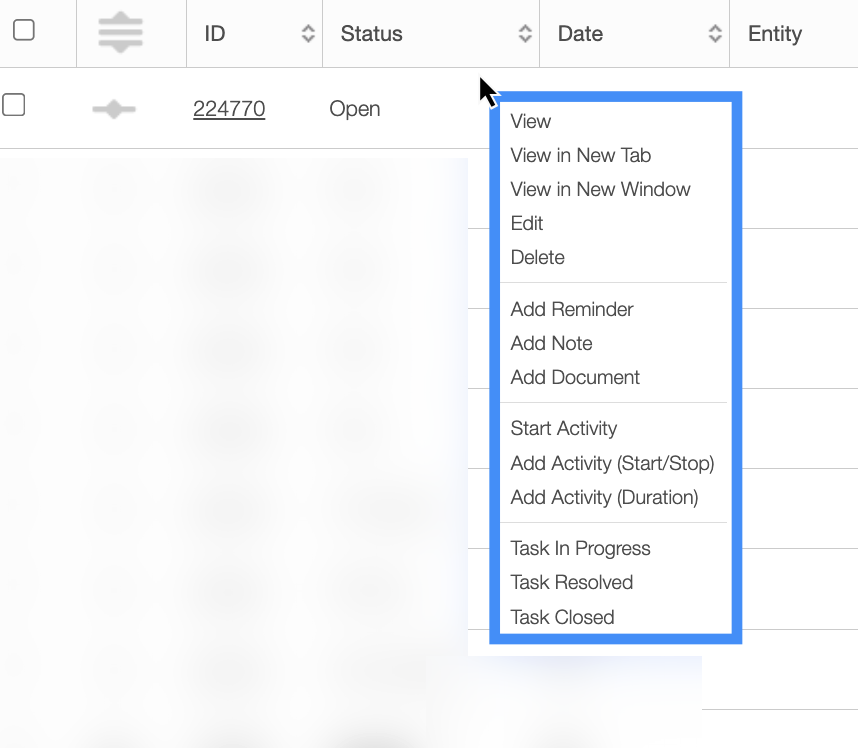
The definitions for the actions found in the Individual Actions and when you right-click in the "List" tab are below:
| Name: | Description: |
|---|---|
| "View" | Opens the View Task pop-up window. |
| "View in New Tab" | Opens the View Task pop-up window in a new tab on your browser. |
| "View in New Window" | Opens the View Task pop-up window in a new internet window. |
| "Edit" | Allows you to edit the task. |
| "Add Reminder" | Adds a reminder to the selected task. |
| "Add Note" | Adds a note to the selected task. |
| "Add Document" | Adds a document to the selected task. |
| "Start Activity" | The start time and date of the activity or task. |
| "Add Activity (Start/Stop)" | Allows you to input the start and end time/date for the activity or task. |
| "Add Activity (Duration)" | How long (from Start to Stop) the activity or task lasts. |
| "Task in Progress" | Immediately sets the task's status to In Progress. |
| "Task Resolved" | Immediately sets the task's status to Resolved. |
| "Task Completed" | Immediately sets the task's status to Completed. |
| "Delete" | Deletes the selected task. |